 MyRecover



How to Recover Files from SD Card Without Formatting | Ultimate Guide
Need to recover data from an SD card without formatting? This guide provides proven methods to retrieve files from a corrupted or unreadable SD/micro SD card and restore it to normal use.

By Aria / Updated on July 31, 2026


The Errror: You need to format the disk in drive x: before you can use it
“I inserted my SD card into my computer, but I can't see any of my files. Most of my photos are missing, and I'm getting an error message saying, 'You need to format the disk in drive X: before you can use it.' I don’t want to lose my data. Does my SD card really need to be formatted?"
“My SD card is asking to be formatted, but it contains important pictures and videos. I'm afraid formatting will erase everything. Is there any way to recover my files without formatting?”
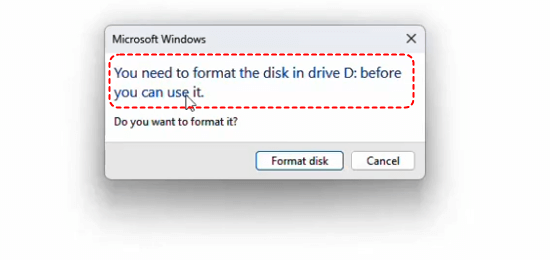
Seeing the error message "You need to format the disk in drive X: before you can use it" can be frustrating, especially when your SD card contains important files. This error usually indicates that the file system on the SD card has become corrupted or unreadable. Before formatting the card, which would erase all data, it’s important to find out other solutions to recover files from SD card without formatting.
Why the SD Card Needs to Be Formatted?
If your SD card is asking to be formatted before you can use it, it usually indicates an issue with its file system or data structure. Formatting is often suggested by the operating system when it detects that the card is unreadable or corrupted. Here are some common reasons why an SD card may require formatting:
- File System Corruption: Unexpected ejection, power failure, or improper usage can corrupt the file system, making it unreadable.
- Bad Sectors: Physical damage or excessive use can cause bad sectors, preventing data from being accessed.
- Virus or Malware Infection: Harmful software can corrupt the SD card's structure, leading to errors.
- Unsupported File System: Using an SD card formatted for a different device (e.g., Windows vs. macOS) may cause compatibility issues.
- Improper Ejection: Removing the SD card while in use can disrupt its file structure.
-
SD Card Lifespan Exhausted: SD cards have limited write cycles. After years of frequent use, flash memory wear can cause read/write errors, file system issues, or format prompts.
Important Things to Do Before Recovering Data from an SD Card
Before trying any recovery method, avoid making changes to the SD card that could overwrite your lost files. The following precautions can improve the chances of successful data recovery.
-
Do not format the SD card: Formatting may erase file system information and make recovery more difficult.
-
Stop using the SD card immediately: Avoid taking new photos, copying files, or saving data to prevent overwriting recoverable files.
-
Do not run repair tools first: Tools like CHKDSK may modify the file system and affect data recovery results.
-
Prepare another storage device: Save recovered files to a different drive instead of the original SD card.
How to Recover Files from SD Card Without Formatting?
If your SanDisk SD card is prompting you to format it, you might worry about losing important data. Instead of formatting, you can try recovering your files first using MyRecover, a powerful and user-friendly data recovery tool. It offers:
✅ High Recovery Success Rate – Uses advanced scanning algorithms to locate and restore lost files effectively.
✅ Supports Multiple File Formats – Recovers images, videos, documents, and other important files.
✅ Deep Scan & Quick Scan Modes – Choose between a fast recovery or an in-depth search for lost data.
✅ User-Friendly Interface – Simple and intuitive, making it easy for both beginners and advanced users.
✅ Compatible with All Storage Devices – Works with SD cards, USB drives, external hard drives, and more.
Steps to Recover Data Using MyRecover:
Now, let's guide you through the process of retrieving data from a corrupted or inaccessible micro SD card without formatting it.
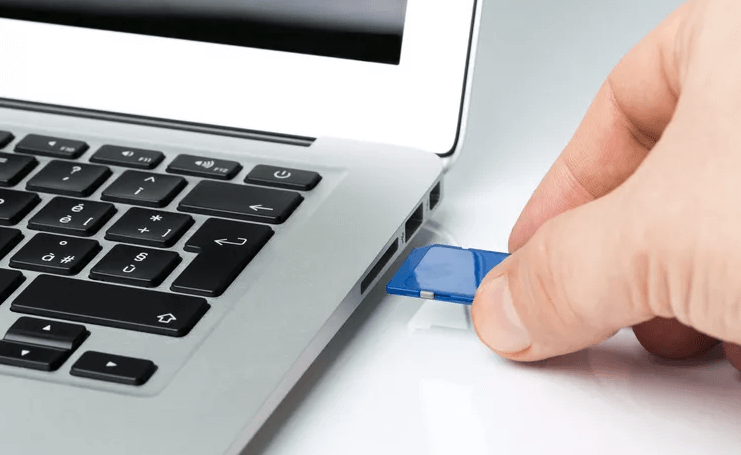
Step 1. Connect Your SD Card: Use a card reader or insert it directly into your computer SD card slot.
Step 2. Download and Install MyRecover: Get the latest version from the official website and install it on your PC.
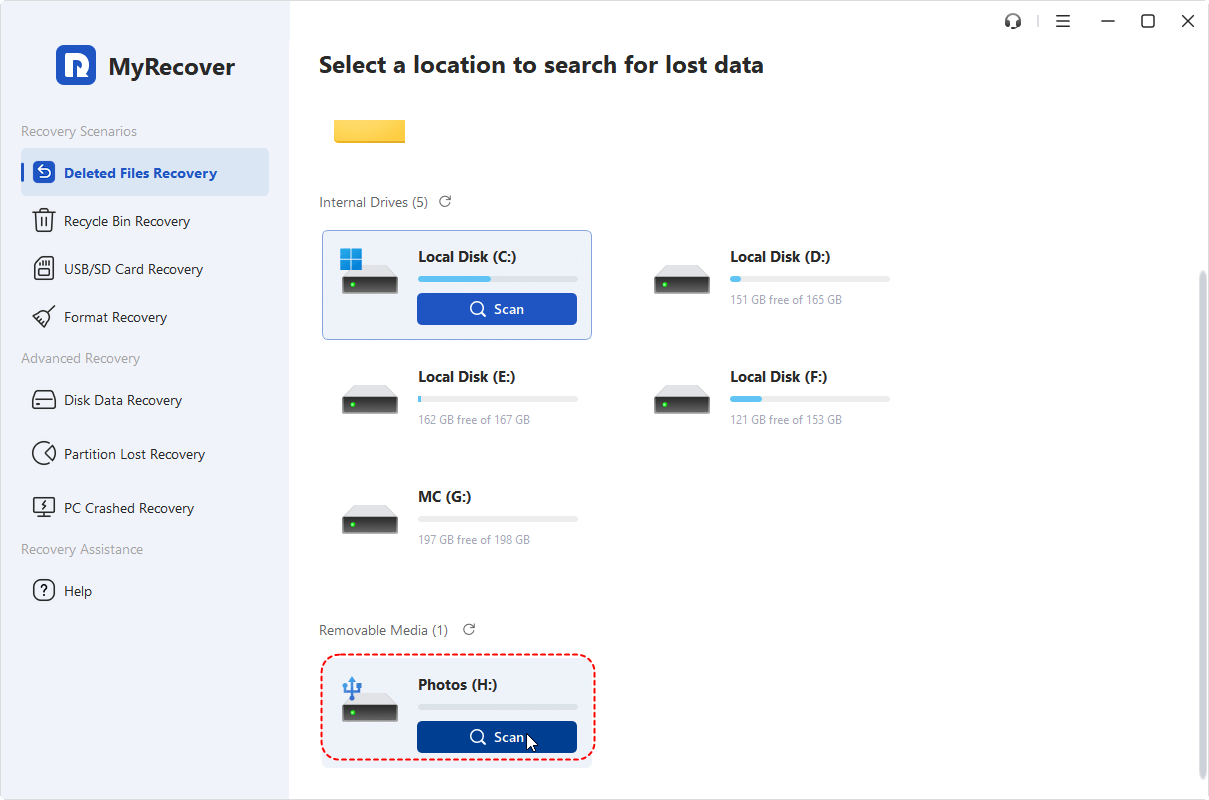
Step 3. Scan the SD Card: Open MyRecover, select your SD card, and start a quick scan to detect lost or inaccessible files. If your target files fail to appear in the scan results, click Deep Scan to carry out a more thorough disk inspection.
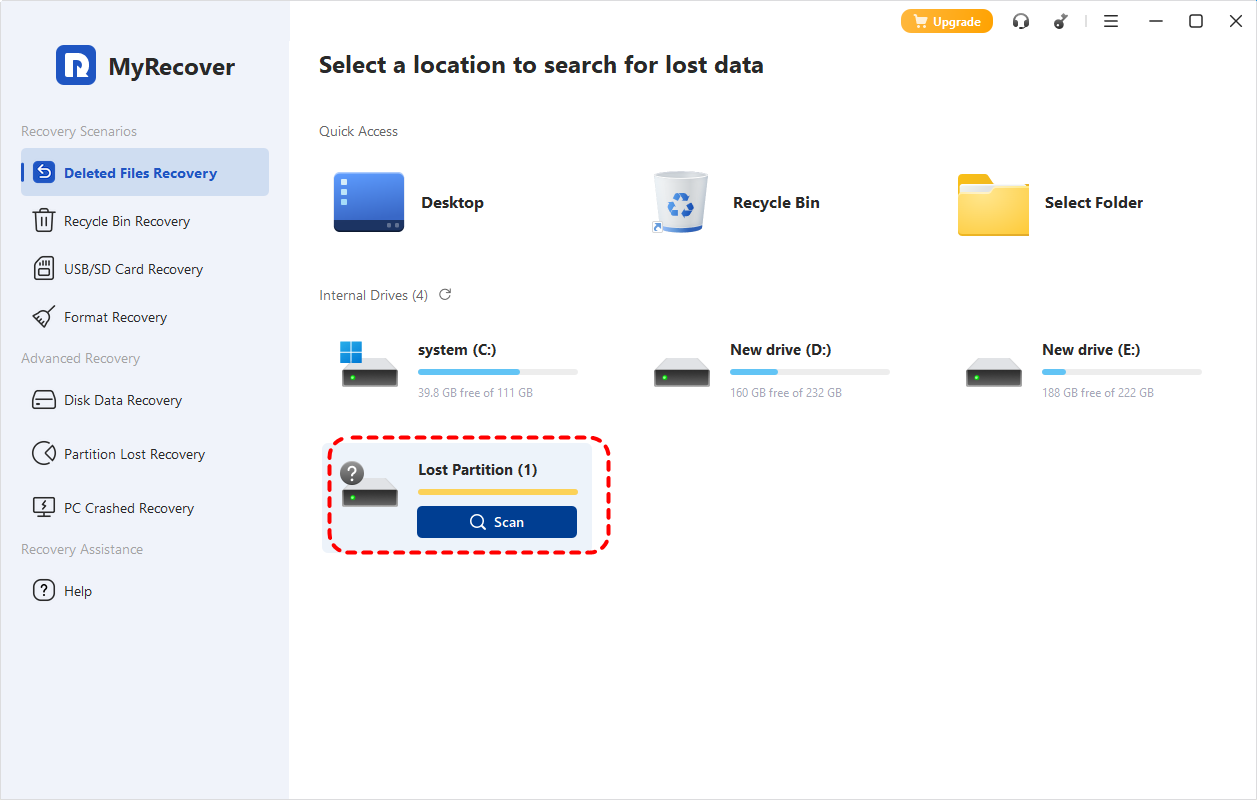
If your SD card is not shown in the drive list, it may appear as a Lost Partition. You can locate it by comparing the partition size with the capacity of your SD card. If it is still not appearing, make sure it is properly connected to your computer and recognized by the system.
Step 4. Preview and Recover Files: After scanning, preview the recoverable files, select what you need, and click on "Recover".
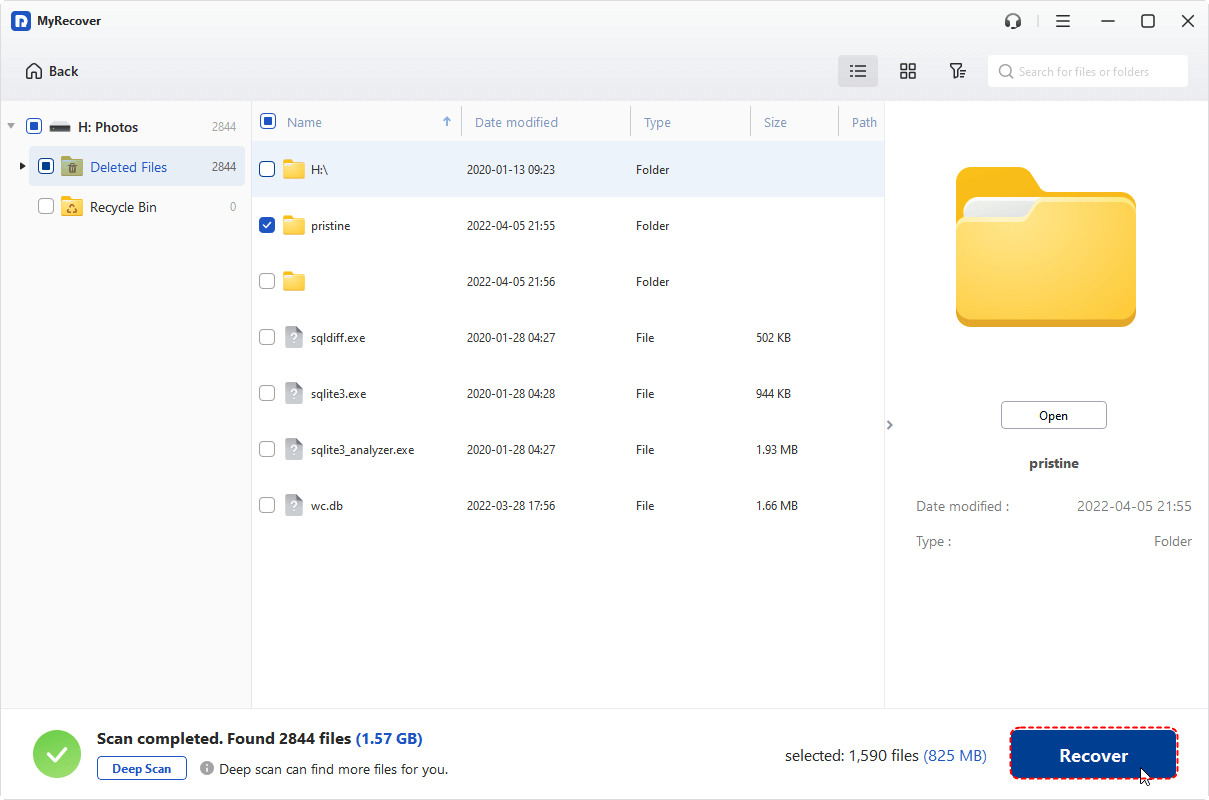
Step 5. Choose a destination drive: Save them to a safe location, preferably an external hard drive.
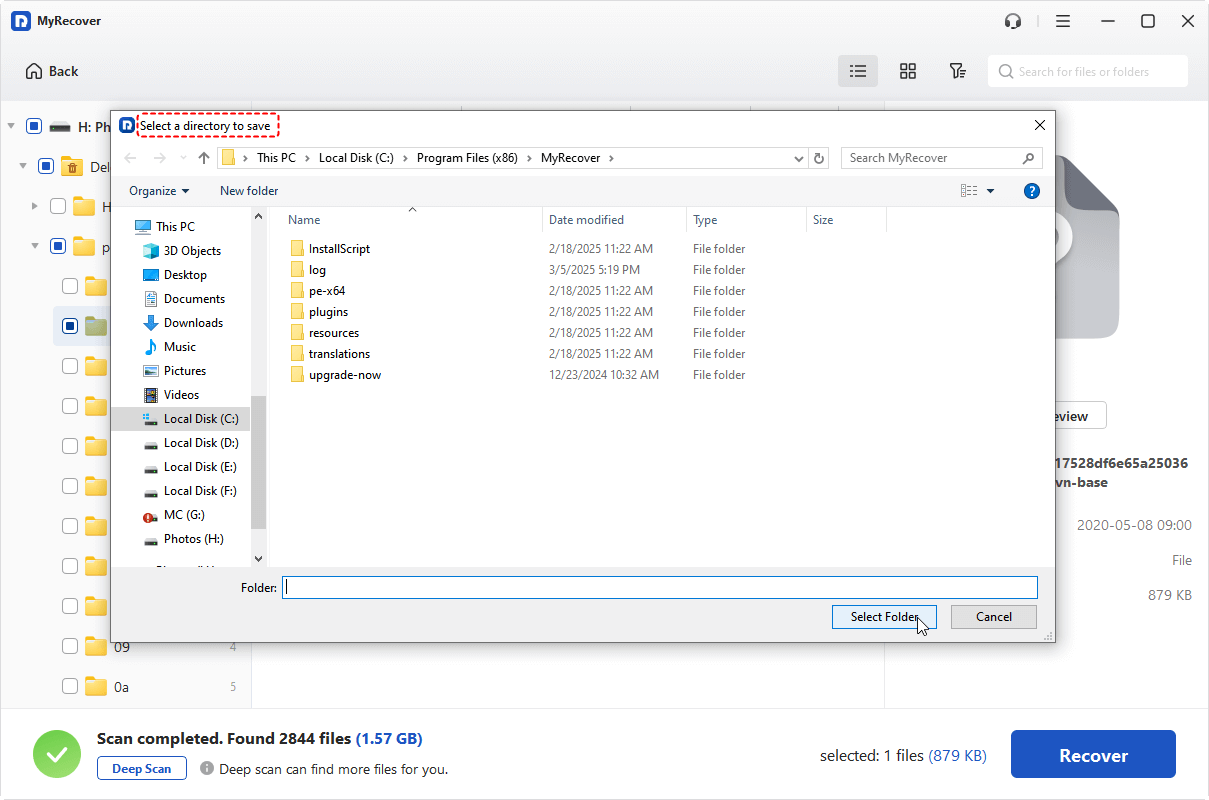
If you need to recover more than 500MB of data from your SD card, please upgrade to the Professional or Technician Edition. In addition to supporting unlimited data recovery, these editions also allow you to recover files from unbootable computers with a bootable rescue media.
Two Additional Command-Line Recovery Tools You Can Try
If you prefer free command-line utilities or want to try alternative recovery methods, Windows File Recovery and PhotoRec are worth considering. Both tools can recover files from formatted, corrupted, or inaccessible SD cards, but they require command-line operations and are generally less beginner-friendly than graphical recovery software.
Option 1: Recover SD Card Data with Windows File Recovery
Windows File Recovery is Microsoft's free command-line recovery utility for Windows 10 and Windows 11. It supports recovering deleted or lost files from SD cards, USB drives, HDDs, and SSDs. Although effective, it requires using Command Prompt and specific recovery commands.
Step 1. Download and install Windows File Recovery from the Microsoft Store.
Step 2. Insert the SD card into your computer and connect another drive where recovered files will be saved. Never recover files back to the same SD card.
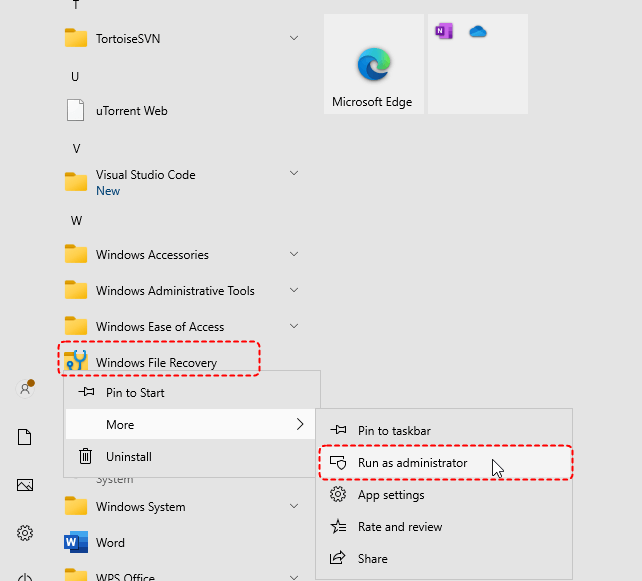
Step 3. Locate Windows File Recovery in the Start menu and right click on it, then choose "Run as administrator".
Step 4. Type the following command: winfr H: D: /regular
- Notes:✎...
- H: with your SD card drive letter.
- D: with the destination drive.
- Regular: the quick scan mode. If the Regular mode doesn't find your files, try the Extensive mode.
Step 6. Wait for the scan to finish and open the recovery folder on the destination drive to check the recovered files.
Option 2: Recover SD Card Data with PhotoRec
PhotoRec is a free, open-source data recovery tool that supports Windows, macOS, and Linux. Despite its name, it can recover not only photos but also documents, videos, archives, and hundreds of other file types from damaged or formatted SD cards. Compared with Windows File Recovery, this method requires more steps and is slightly more complex to perform.
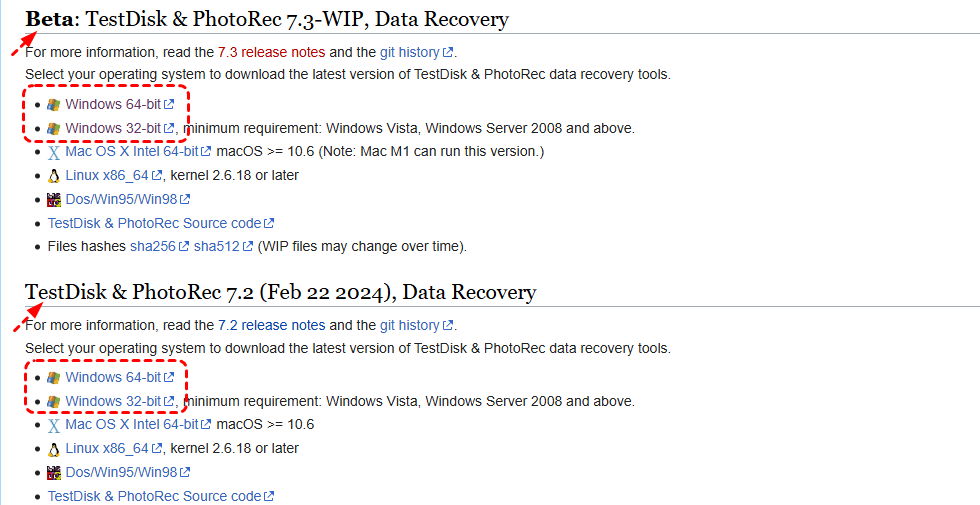
Step 1. Download PhotoRec and extract the ZIP archive. Then, connect the SD card to your computer.
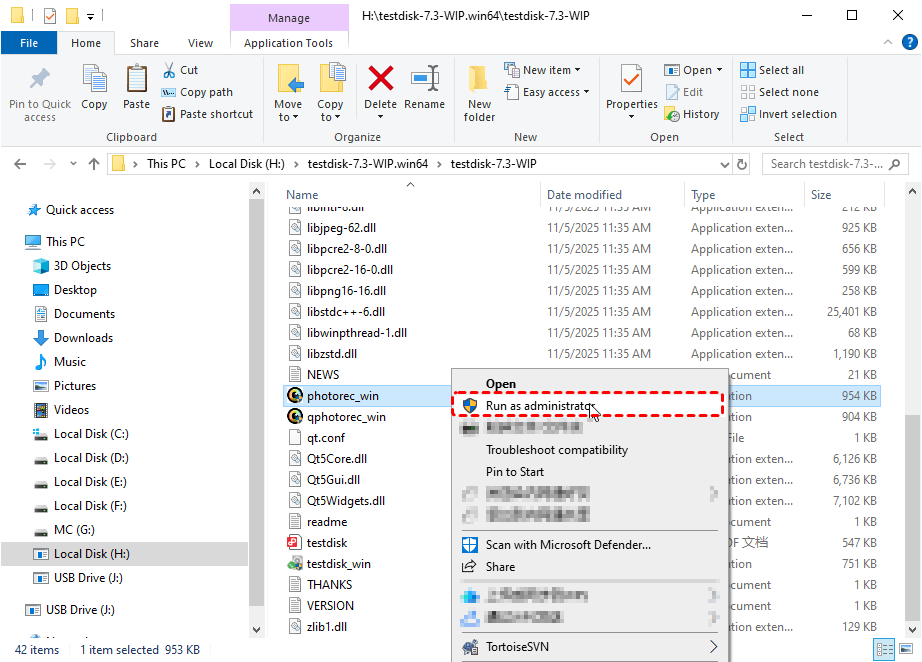
Step 3. Right click on photorec_win.exe and choose "Run as administrator" to launch it.
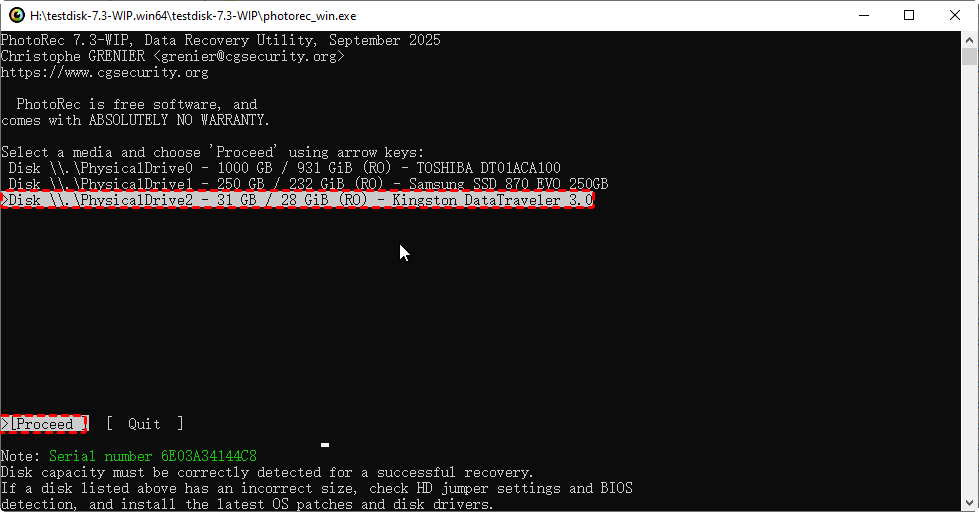
Step 4. Select the SD card from the device list and press "Proceed".
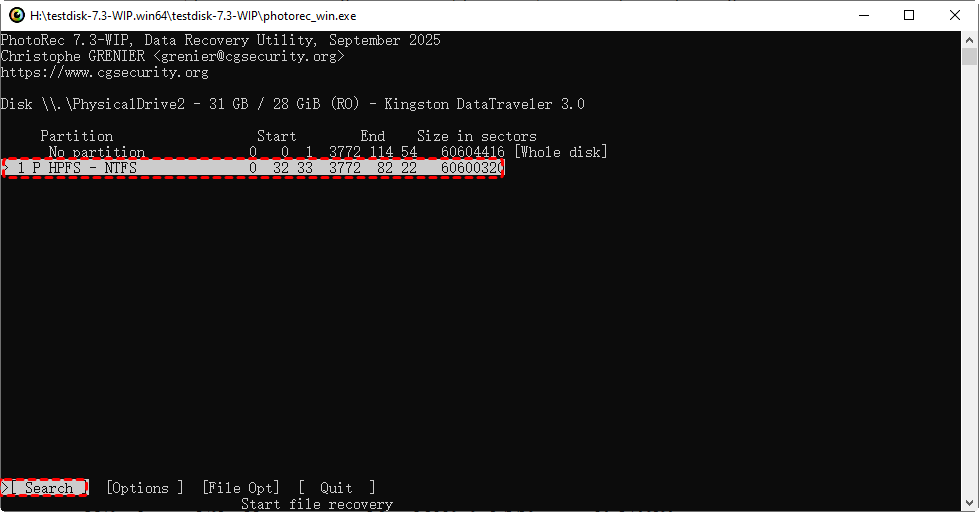
Step 5. Choose the partition containing your lost files. If unsure, select the Whole disk.
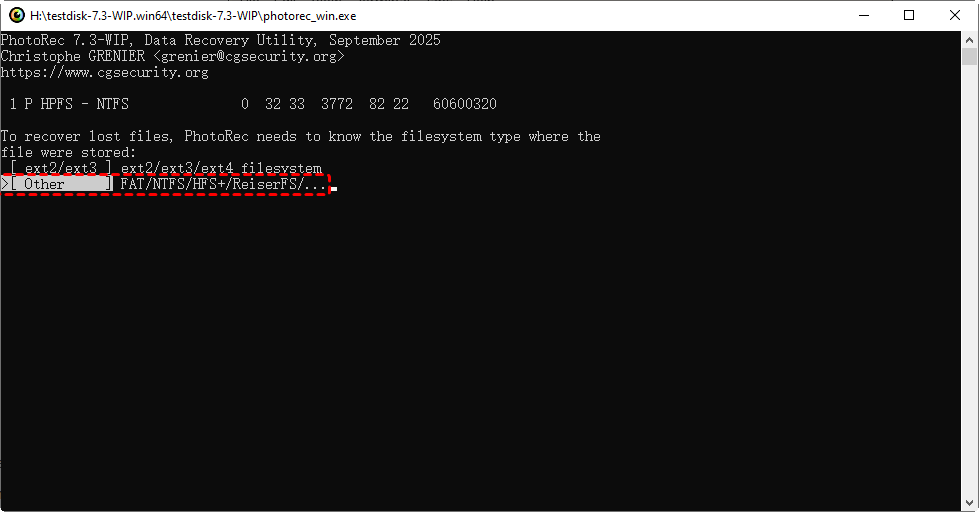
Step 6. Select the correct file system type: Other (FAT/exFAT/NTFS) or ext2/ext3/ext4 (Linux).
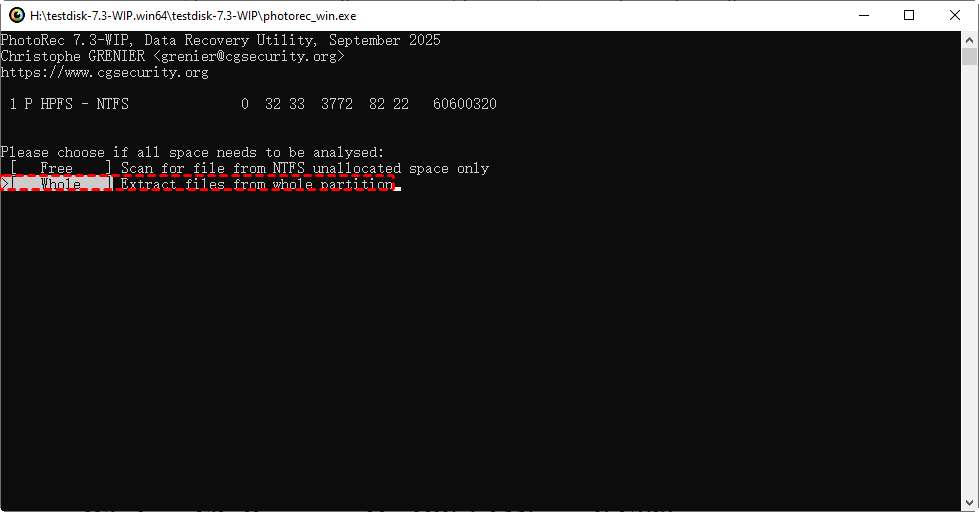
Step 7. Choose to analyze the free (unallocated) or whole (entire partition) space.
Step 8. Choose a destination folder on another drive to save recovered files. Press "C" to confirm the selection.

Step 9. Start the scan and wait for PhotoRec to recover your files.
Solutions to "You need to format the disk in drive x: before you can use it" Error
Once you’ve successfully recovered your files from SD card with MyRecover, you can try the following methods to fix your SD card without formatting:
1. Run CHKDSK to Repair the SD Card
Windows has a built-in tool: CHKDSK, which scans the disk for errors and attempts to fix them. It checks the file system and metadata to identify and repair logical errors, ensuring that files are accessible. It can also mark bad sectors to avoid future data corruption.
- Press Win + R, type cmd, and hit Enter.
- Type the command:
chkdsk g: /f /r (Replace “g” with your SD card’s drive letter.)
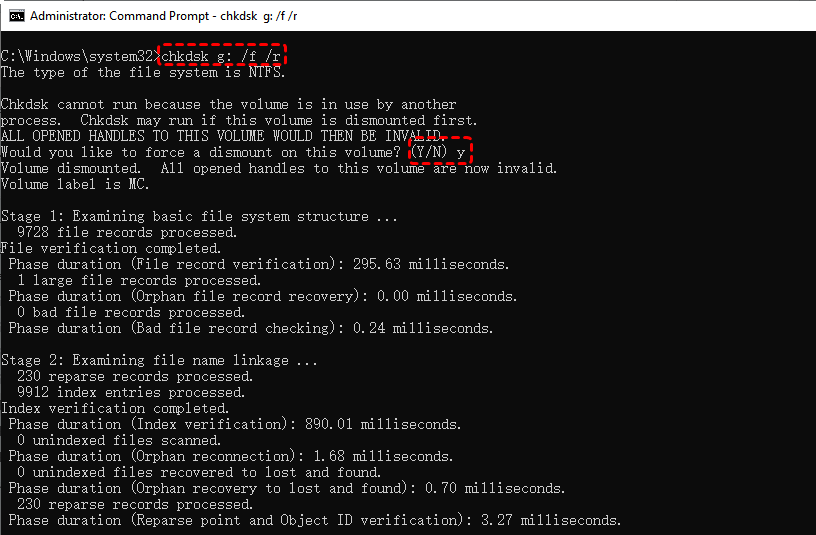
- Press Enter and wait for Windows to repair the file system.
2. Assign a New Drive Letter
Sometimes, Windows fails to recognize an SD card because it’s unable to assign a drive letter to it, which is necessary for the system to identify and access the device. This can happen if the letter is already assigned to another device or if the system encounters a conflict. Assigning a new drive letter manually can help resolve this issue and allow your SD card to be recognized correctly.
- Open Disk Management by pressing “Win + X” >” “Disk Management”.
- Find your SD card, right-click, and select “Change Drive Letter and Paths”.
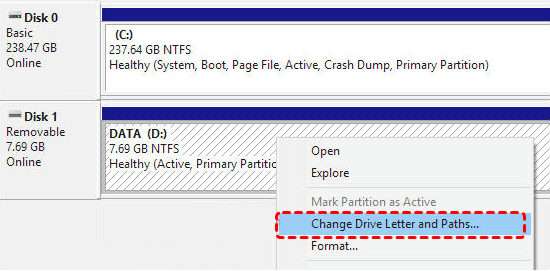
- Assign a new letter and check if the card becomes accessible.
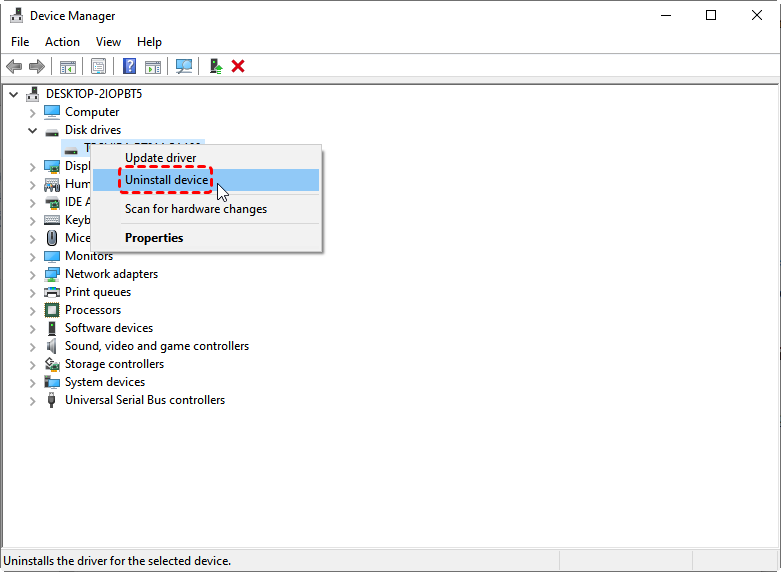
3. Update or Reinstall the SD Card Driver
If your SD card is not being recognized by your computer, the issue may be related to outdated or corrupted device drivers. Drivers are essential software components that allow your computer to communicate with the SD card and other hardware. When these drivers become outdated, corrupted, or incompatible, it can prevent the SD card from being detected properly. Updating or reinstalling the driver can often resolve these issues.
- Press “Win + X”, then select “Device Manager”.
- Expand Disk Drives, right-click your SD card, and select “Update driver”.
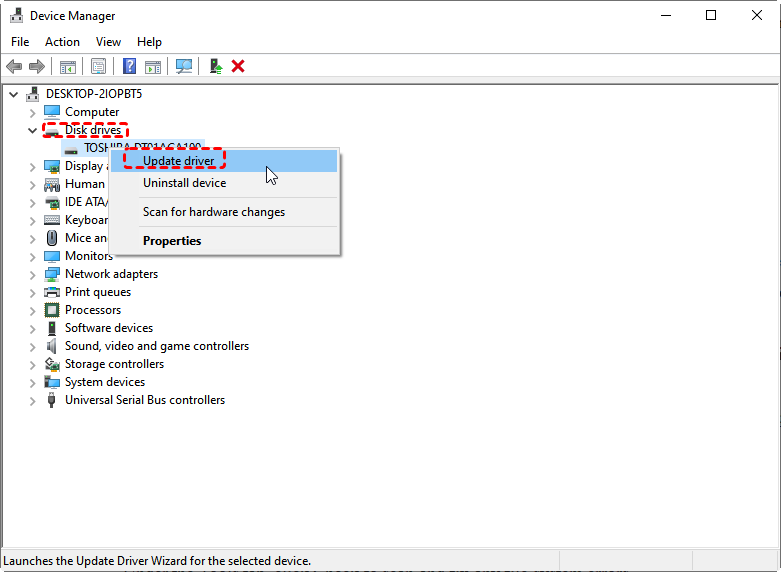
Restart your computer and check if the issue is resolved.If it still persists, try “Uninstall device” then.
Bottom Line
Encountering the error "You need to format the disk in drive X: before you can use it" when attempting to access your SD card with important files? Don’t panic! "MyRecover" can help you recover files from the SD card without formatting. After successfully recovering your data, you can then apply effective methods like fixing file system errors, assigning a new drive letter, and more to make your corrupted SD card readable and accessible again.
FAQs
Q1: Can you get files back after formatting SD card?
Yes, files may still be recoverable after a quick format because the data often remains until it is overwritten. Stop using the SD card immediately and scan it with data recovery software like MyRecover. Recovery is less likely after a full format, repeated use, or saving new files to the card.
Q2: How to Recover data from a RAW SD card?
Connect the RAW SD card to a computer and use data recovery software like MyRecover that supports RAW drives. Scan the card, preview the recoverable files, and save them to another storage device. Do not format the card or run repair commands before recovery, as these actions may modify the file system.
Q3: Should I run CHKDSK before recovering files?
No. Recover your files before running CHKDSK. The command repairs file-system errors by modifying the SD card’s structure, which may remove damaged entries or make some recoverable files harder to find. After saving the recovered data elsewhere, you can run CHKDSK to attempt to repair the card.
Q4: Can I recover files from a damaged microSD card?
It depends on the type of damage. Recovery software like MyRecover may retrieve files if the microSD card is corrupted but still detected by the computer. If it is cracked, burned, water-damaged, or not recognized by any device, stop using it and contact a professional data recovery service.
Q5: How to recover files from an unreadable SD card?
Try another card reader, USB port, or computer first. If the card appears in Disk Management but cannot be opened, scan it with data recovery software like MyRecover and save recovered files to another drive. Avoid formatting, writing new data, or using repair tools until the recovery process is complete.
Q6: Can I recover files from an SD card used in a camera?
Yes. Remove the SD card from the camera, connect it to a computer with a card reader, and scan it using MyRecover. Do not take more photos or format the card in the camera. Save recovered photos and videos to the computer or another drive, not back to the SD card.

Stay Updated With Our
Latest Tips
Add us as a preferred source on Google to never miss helpful guides.
 Add as preferred source >>