 MyRecover



Is Partition SSD Useful to Recover Files? Windows Guide
Wondering if partitioning an SSD is useful for file recovery? This guide explores its impact on data restoration in Windows 10. We’ll also cover practical ways to recover files from a partitioned SSD and tips to safeguard your data.

By Delores / Updated on August 21, 2026


Short Answer: Is Partition SSD Useful to Recover Files
No, partitioning an SSD does not improve file recovery. In fact, recovering deleted files from any SSD is inherently difficult due to the TRIM and wear-leveling features, regardless of how the drive is partitioned.
To actually get files back: stop writing to the drive, then use a backup or dedicated SSD recovery software to recover files from the SSD.
This guide explains why partitioning an SSD doesn't help with file recovery, examines the pros and cons of partitioning for SSDs, and provides the most effective methods for recovering lost files when data loss occurs.
Introduction
Is partitioning an SSD useful for file recovery on Windows 11/10? If you've split your SSD into separate drives — say, C: for Windows and D: for your files — you may assume that a failure on one partition leaves the other untouched and easy to recover. It's a sensible theory, but SSDs don't behave like the old hard drives from which that idea came.
In this guide, we'll give you the straight answer, explain the two SSD technologies (TRIM and wear leveling) that change the recovery rules, and walk you through proven ways to recover lost files from a partitioned SSD — plus how to avoid needing recovery in the first place.
Is Partitioning an SSD a Good Idea?
Partitioning splits one physical SSD into multiple logical "drives". It can help with organization, but on an SSD it doesn't deliver the performance or lifespan benefits people expect from HDDs.
Pros of partitioning an SSD
- Better organization— keep the OS, apps, and personal files in separate spaces.
- Easier, narrower backups— you can image or back up just your data partition.
- Multi-boot setups— run more than one operating system from the same disk.
Cons you should know
- No speed boost. SSDs have no moving parts; data is accessed instantly across the whole chip, so partitions don't reduce seek time the way they do on HDDs.
- No extra durability. Wear-leveling spreads writes evenly across all cells regardless of partitions, so splitting the drive doesn't isolate wear or extend life.
- Wasted-space risk. Too many partitions can leave unusable slivers of capacity.
Partition for organization if you like, but don't do it expecting faster recovery or a longer-lasting drive.
Is Partitioning an SSD Useful to Recover Files on Windows 11/10? (The Honest Answer)
Partitioning an SSD does not improve your odds of recovering deleted files. Here's why.
TRIM Erases Deleted Data on Purpose
SSDs use TRIM technology, a feature designed to optimize the performance and longevity of the drive. When a file is deleted from an SSD, instead of simply marking the space as available like on an HDD, the TRIM command actively informs the SSD which blocks are no longer needed and can be wiped clean. This process helps improve write speeds by allowing the SSD to perform more efficient garbage collection.
Once TRIM runs, the deleted data is gone from the flash cells and is essentially unrecoverable — whether the file lived on partition C:, D:, or anywhere else.
Wear-leveling Scatters Your Data
To spread wear, the controller writes data to wherever is healthiest on the chip, not to a fixed partition location. So a "partition" is a logical label, not a physical wall. A deleted file's remnants aren't neatly contained in one slice.
The One Real Benefit: Logical Isolation
If Windows itself becomes corrupted or the OS partition is formatted, your files on a separate data partition can remain intact and accessible from another PC or a live environment. Partitioning also limits the blast radius of a mistake — formatting D: won't touch C:. But this is about containing damage, not about making deleted files magically recoverable.
So: if your goal is easier data recovery, partitioning alone won't deliver it.
HDD vs. SSD Data Recovery
Understanding the fundamental difference between how HDDs and SSDs handle deleted data is crucial for managing your realistic recovery expectations.
|
Factor |
HDD |
SSD |
|---|---|---|
|
How deletion works |
Space marked free; data stays until overwritten |
TRIM tells the drive to erase blocks; data is wiped fast |
|
Recovery after delete |
Often possible (until overwrite) |
Very hard once TRIM/garbage collection runs |
|
Effect of partitioning |
Can isolate a failed region |
Minimal — wear-leveling ignores partitions |
|
Best first step |
Stop writing, scan with software |
Stop writing, disable TRIM, scan ASAP |
|
Physical damage |
Cleanroom recovery sometimes possible |
Same, but controller/flash failure is tougher |
How to Recover Deleted Files from an SSD Drive?
Act fast — every second the drive is in use risks overwriting recoverable data.
Stop and (optionally) Disable TRIM First
Important:
1. Immediately stop saving, installing, or downloading anything to the SSD.
2. To give deleted-but-not-yet-erased files a better chance, disable TRIM's delete notification at the OS level before scanning:
- Open Command Prompt as Administrator.
- Run: fsutil behavior set disabledeletenotify 1
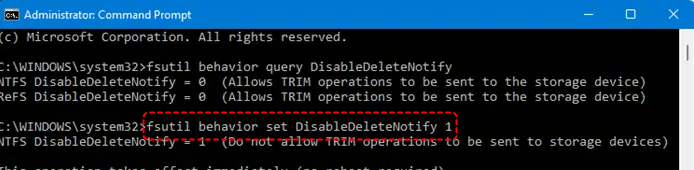
- You'll see a confirmation that TRIM is disabled.
Re-enable it after recovery with: fsutil behavior set disabledeletenotify 0
⚠️ Why this is a damage-control step, not a cure
Disabling TRIM at the OS level only helps prevent future deletions from being trimmed — it cannot recover data that TRIM has already erased, and some SSDs perform their own background garbage collection. Treat this as a "freeze the damage" step, not a fix. Besides, you should only disable TRIM temporarily for data recovery. Leaving TRIM disabled permanently hurts drive speed and shortens its life.
Way 1. Recover Deleted Files from SSD from Recycle Bin
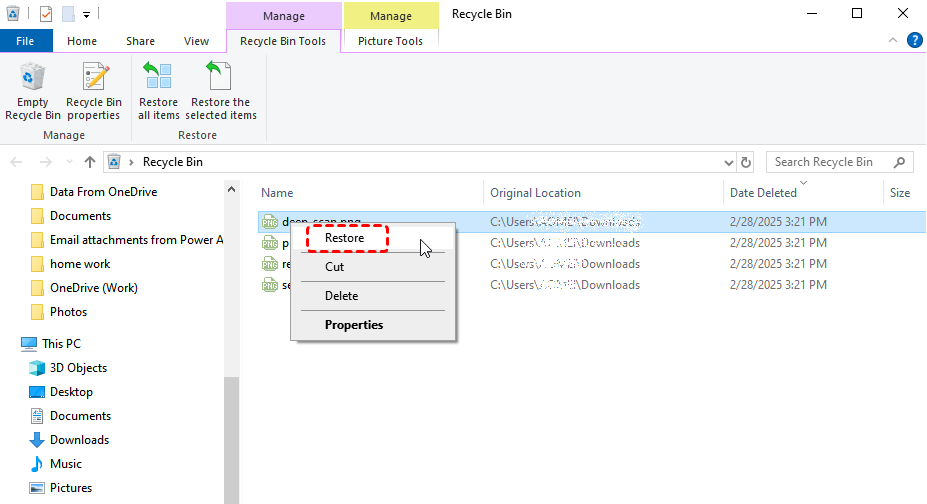
First of all, please check your Recycle Bin on Windows 11/10 first to recover deleted files from an SSD. If the file was recently deleted, it may still be in the Recycle Bin.
1. Please double-click the Recycle Bin on your Windows 11/10 computer desktop to open it.
2. Locate and right-click the files you need to recover, then hit Restore.
Way 2. Recover Deleted Files from SSD using Previous Version
Windows' "Previous Versions" feature (also known as Volume Shadow Copy) can restore files and folders to an earlier state. This is an excellent first-line recovery method because it does not rely on the TRIM command. This method only works if File History or System Protection (Restore Points) was turned on for the drive. And a restore point or shadow copy was created before the file was deleted. Here is how to do:
1. Navigate to the folder that contained the deleted file.
2. Right-click on the folder and select "Properties".
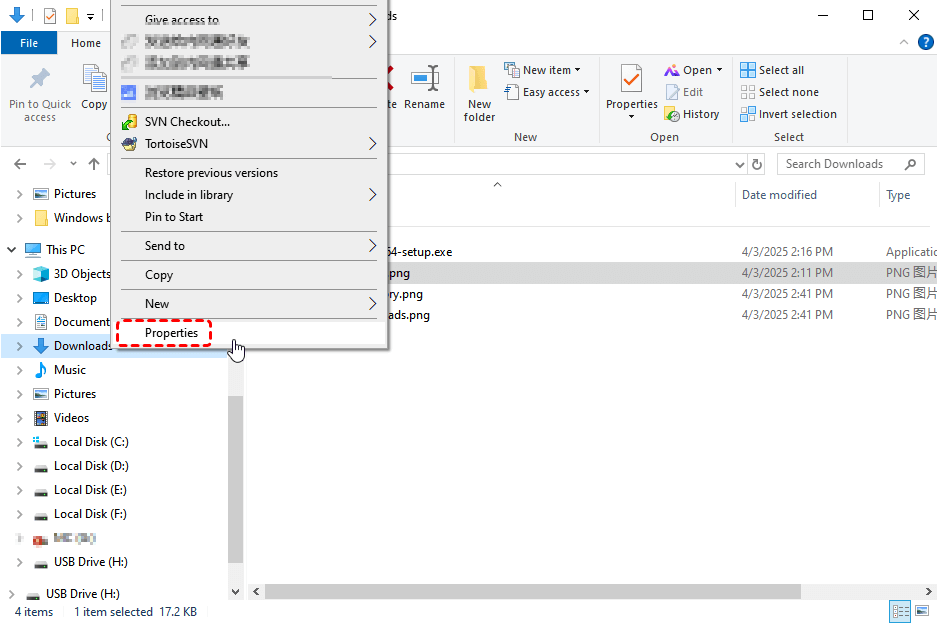
3. Click on the "Previous Versions" tab.
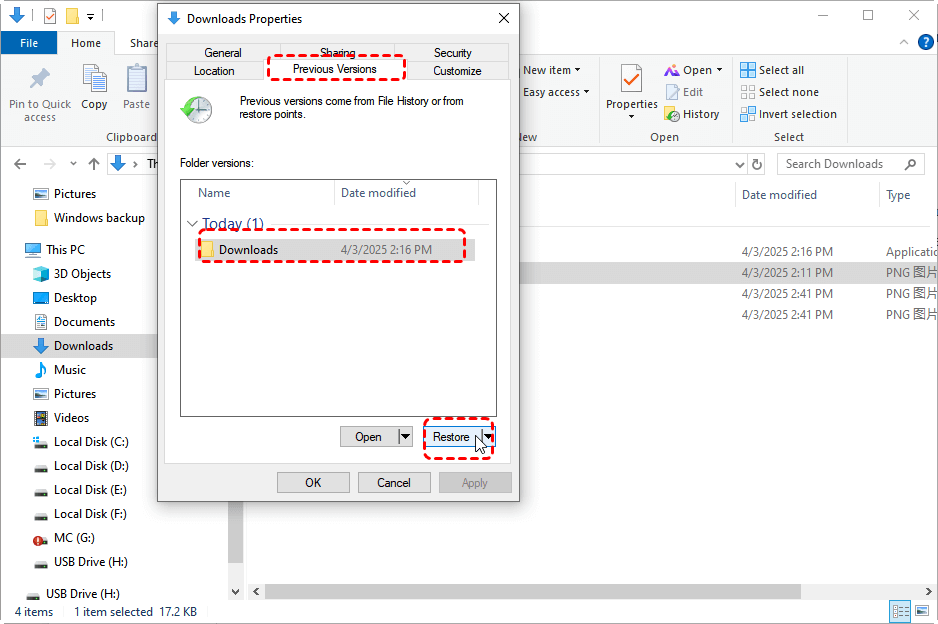
4. You will see a list of available older versions of the folder, organized by date. Select the version from a date when you know the file still existed. Click"Restore". This will replace the current folder contents with the previous version. Or click "Open" to view the folder's contents, then manually copy the specific files you need to a safe location.
- Important Notes:✎...
- This method restores entire folders, not individual files. If you only need one file, use the "Open" option to copy it out.
- The availability of previous versions depends entirely on your backup settings. If System Protection or File History is off, this list will be empty.
- This feature is not a substitute for a full backup, but it provides a crucial safety net for accidental deletions or file corruption.
Way 3. Recover Deleted Files from SSD with MyRecover
If you have emptied the Recycle Bin or did not enable Windows File History or Backup beforehand, then you might need the help of a professional SSD file recovery tool. One such tool is “MyRecover”, a powerful data recovery software designed to retrieve lost files from SSDs and other storage devices like HDD, USB flash drive, SD card, camera, PS4/5, drone, CCTV, music/video players as you need.
MyRecover can help recover deleted, formatted, or corrupted files without requiring backup files. With its user-friendly interface and advanced scanning algorithms, it can efficiently search for lost data on your SSD and recover it in just a few steps. Whether you need to restore documents, photos, or videos, MyRecover is an excellent choice for SSD data recovery.
With MyRecover, enjoy:
- 1000+ file formats.
- 500+ devices.
- recover files from any data loss senorias.
- Deep and quick scan modes.
Here are the steps to recover lost files from an SSD using MyRecover:
1. Download and Install MyRecover
First, download and install MyRecover from the official website. Ensure it is installed on a different drive than the one you're recovering data from to avoid overwriting any data on your SSD.
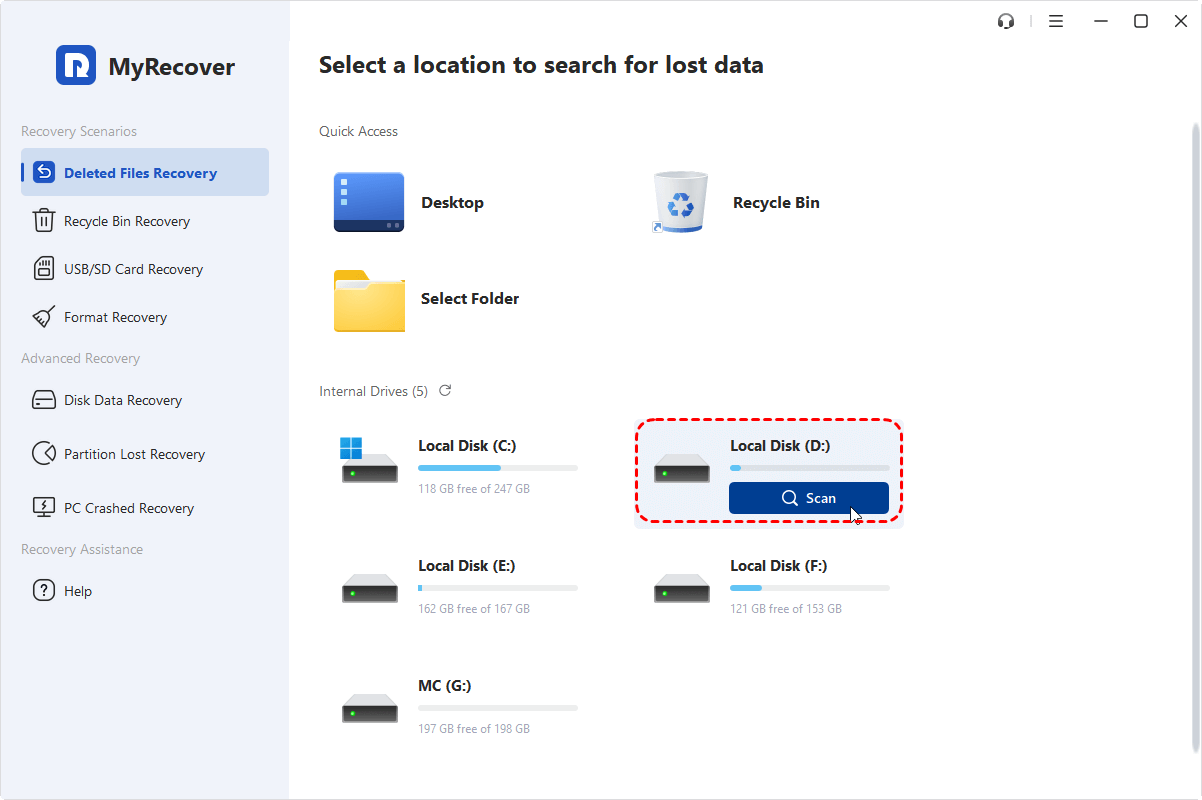
2. Launch the Program
Open MyRecover, click Deleted Files Recovery, choose the SSD or partition from which you need to recover files, and hit Scan. The program will scan the selected SSD for any lost or deleted data.
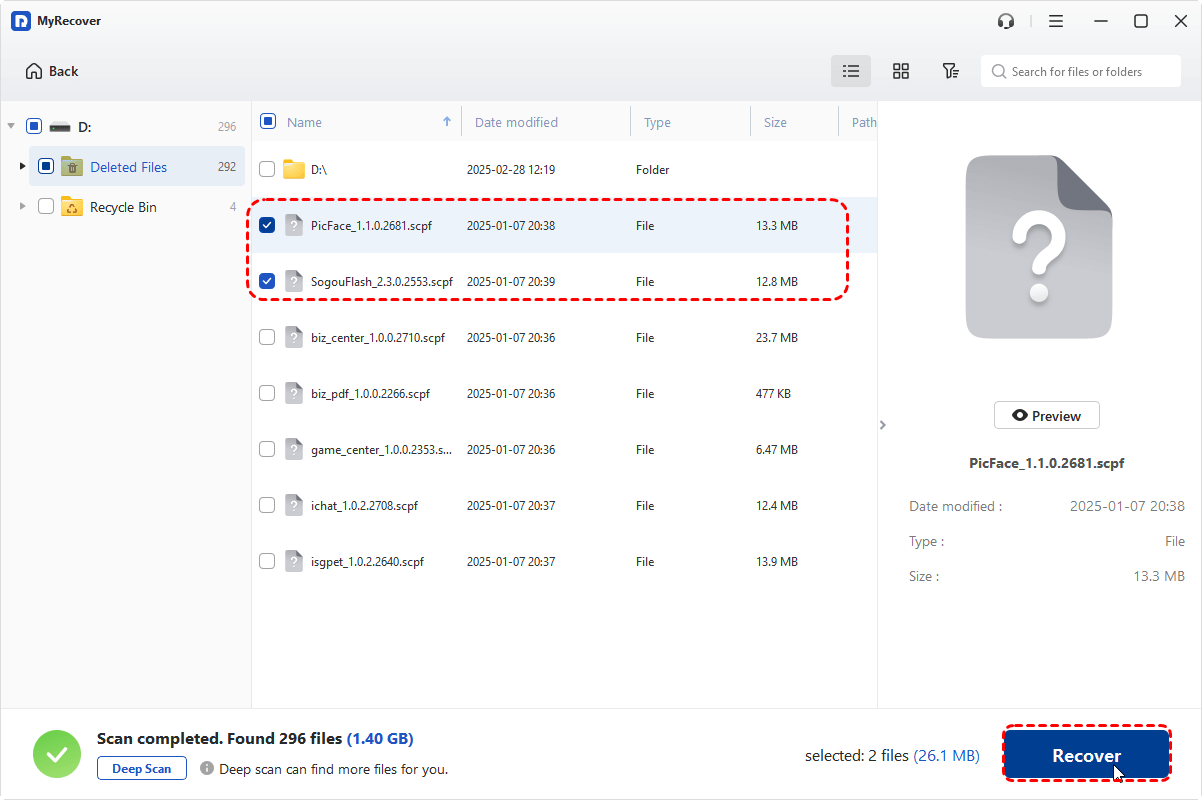
3. Select the Files to Recover
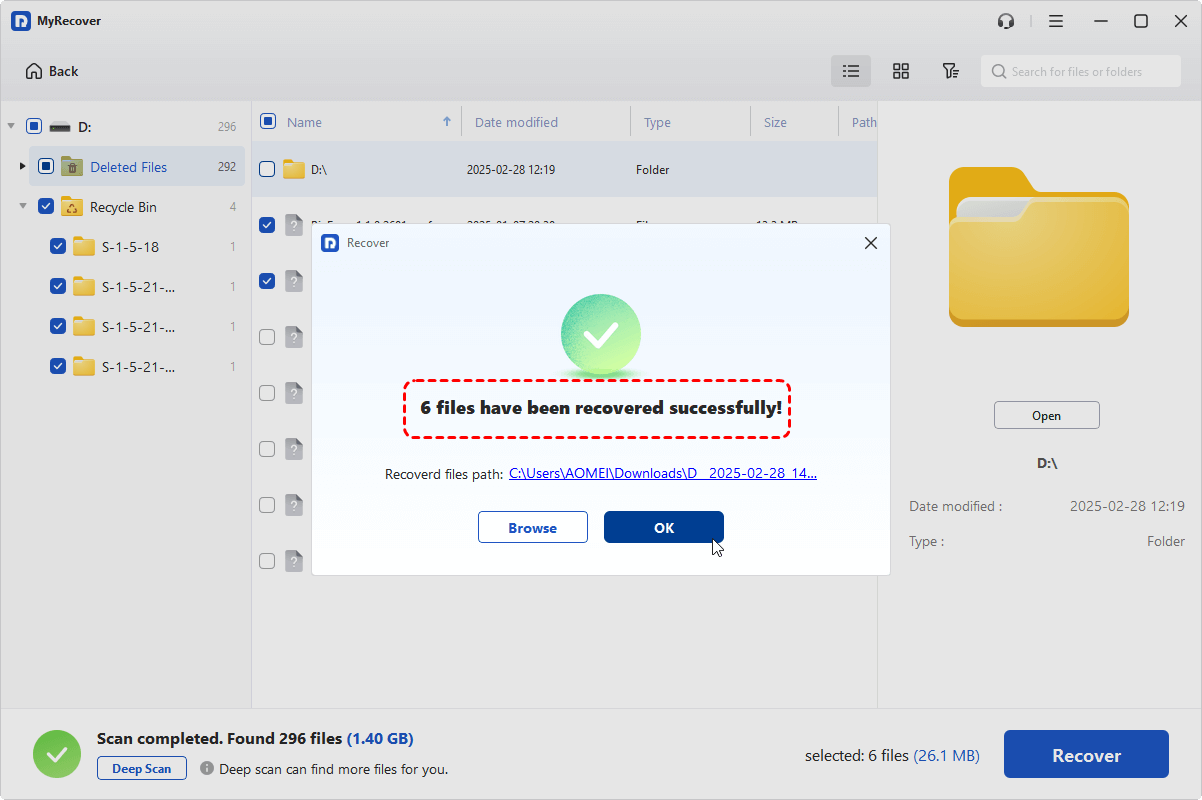
Once the scan is complete, MyRecover will display a list of recoverable files. Select the files you want to recover, and hit Recover.
4. Choose a Safe Recovery Location
Choose a location on a different drive or partition to save the recovered files. Do not save the files back to the SSD you're recovering from to avoid overwriting any lost data.
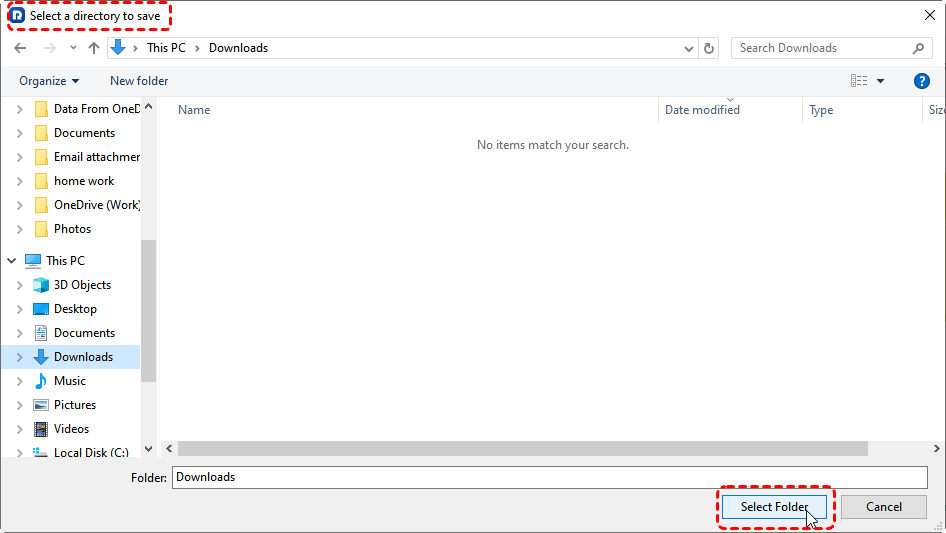
Wait for a while, your SSD deleted files recovery process will be completed, then go to the destination to check files' integrity.
- Notes:✎...
- Once scanned, you can search files by file name, path, size, modified date, etc, to find your deleted files quickly.
- MyRecover offers 500MB of file recovery for free; please upgrade to enjoy more or unlimited file recovery.
- To enjoy more advanced features like previewing all recoverable files, recovering data from crash PC, etc, MyRecover Professional or Technician edition is your best choice.

 MyRecover
 - Recover Deleted Files Easily with Simple Clicks
- 1000+ File Formats Supported
- Support HDD, SSD, External Hard Drive, USB Drive, SD Card, etc.
- Quickly Find Files Using File Types, Name, Size, etc.
 100% Secure
FAQs about Is Partition SSD Useful to Recover Files
Does partitioning an SSD improve data recovery?
No. TRIM and wear-leveling mean deleted files are wiped regardless of partitions. Partitioning only helps contain logical damage (e.g., a corrupted OS partition).
Can I recover files after TRIM has already run?
It's very difficult. Once the drive has trimmed and garbage-collected the blocks, the data is typically unrecoverable with software. Your best odds are stopping all writes immediately and scanning before TRIM completes.
How do I disable TRIM on Windows?
Open Command Prompt as Administrator and run fsutil behavior set disabledeletenotify 1. Re-enable with 0. This only prevents future trims — it won't undo a past deletion.
One partition or multiple on an SSD — which is better?
For most users, a single partition is simpler and avoids wasted space. Multiple partitions help with organization and isolating the OS from data, but neither improves recovery.
What is the best SSD data recovery software?
Tools like MyRecover can scan SSDs and partitions for deleted or formatted files with preview. For physically damaged drives, use a professional recovery service.
To Conclude
So, now you might have gotten the answer to the question, "is partition SSD useful to recover files?" All in all, partitioning an SSD can help with organization and system management, but it does not directly improve file recovery. Due to SSDs’TRIM feature, recovering deleted files is much harder compared to HDDs. If you need to recover lost files, using the MyRecover Windows recovery software may help.
Even if your SSD drive is the OS drive and your computer cannot start up as usual due to data loss, the advanced MyRecover allows you to create a bootable rescue media, boot your computer from it and then perform data recovery.

Stay Updated With Our
Latest Tips
Add us as a preferred source on Google to never miss helpful guides.
 Add as preferred source >>