 MyRecover



How to Recover Overwritten Excel File with No Previous Version (Full Guide)
Accidentally overwriting an important Excel file can lead to frustrating data loss, especially when no backup or previous version is available. This guide explains how to recover overwritten Excel files with no previous version using practical and reliable methods. Whether the file was replaced, saved incorrectly, or modified unintentionally, there are still ways to attempt recovery.

By Aria / Updated on April 16, 2026


Introduction
Accidentally saving changes over an important Excel file can instantly replace the original content, leaving you with no way to undo the action, especially when there is no previous version available. This situation is common when File History is disabled or the file was not included in your File History backup schedule, making recovery seem almost impossible.
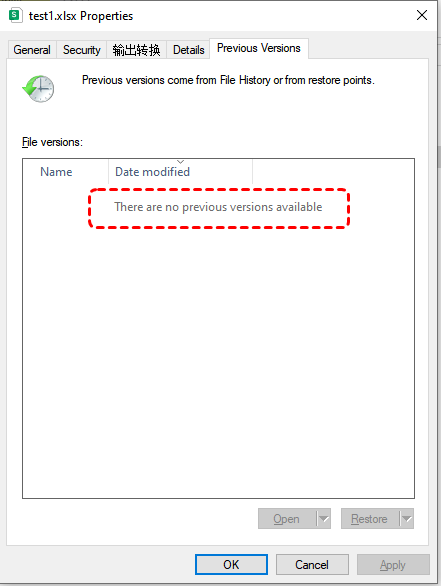
At this point, many users may feel hopeless, thinking they can no longer restore Excel to its previous version. The answer is not always straightforward, but recovery is still possible in certain cases. This guide focuses on practical methods to help you retrieve overwritten Excel data, even without backups.
Can You Recover an Overwritten Excel File?
Yes, it is possible to recover an overwritten Excel file, but only under certain conditions. Once a file is overwritten, the original data is replaced at the file system level, which makes recovery more complex than standard deletion scenarios. Whether recovery succeeds largely depends on how the system handled the overwritten data and what actions were taken afterward.
✔️ When Recovery is Possible:
You still have a chance to recover overwritten Excel data in the following situations:
- Temporary files still exist: Excel may create temporary or autosave files that contain earlier content.
- File system hasn’t overwritten sectors yet: If no new data has been written to the same disk location, recovery tools may still retrieve the original version.
- System restore points or shadow copies are available: Even without "previous versions" enabled, some system-level snapshots may exist.
❌ When Recovery is Unlikely or Impossible:
In some cases, recovering an overwritten Excel file is no longer feasible:
- New data has overwritten the original sectors: Once the storage space is reused, the previous data is permanently lost.
- The file was overwritten multiple times: Repeated saves reduce the chance of recovering earlier content.
- TRIM is enabled on SSDs: On modern SSDs, overwritten data is often cleared quickly, making recovery extremely difficult.
How to Recover Overwritten Excel File with no Previous Version on Windows 10/11
If your Excel file has been overwritten and no previous version is available, recovery depends on whether any residual data still exists in temporary storage, cloud history, or disk sectors. The following methods are arranged from built-in features to more advanced recovery approaches, helping you maximize your recovery chances step by step.
Method 1. Check AutoSave (for Cloud-Based Files)
Auto Save is a built-in feature in Excel that continuously saves file changes when working with files stored on OneDrive or SharePoint. Even if the file has been overwritten, the previous version saved in Auto Save can still restore it to its original state. This method is most effective when the file was actively synced to a cloud service, allowing you to revert to previous versions without relying on local backups.
Step 1. Open the overwritten Excel file and check if AutoSave is enabled on the top-left corner.
Step 2. Click "File" > "Info" > "Version History".
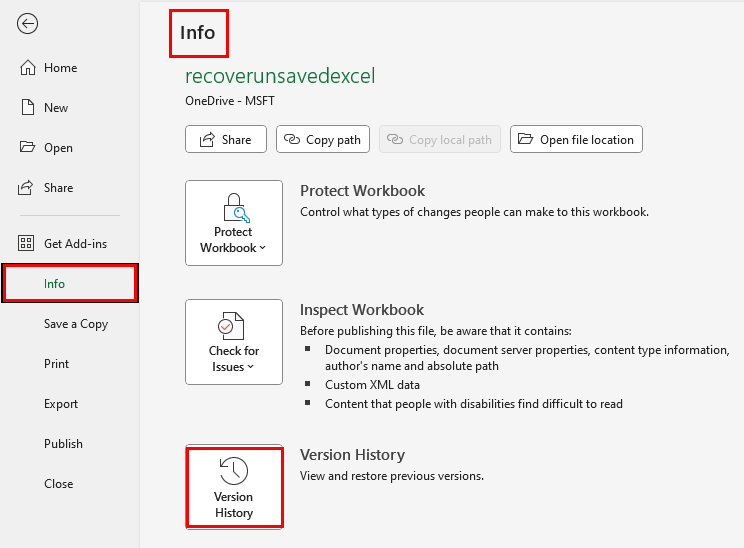
Step 3. Browse the earlier versions if available and select the desired version.
Step 4. Click "Restore" or "Save a Copy" to save it.

Method 2. Use OneDrive or SharePoint Version History
When Excel files are stored in OneDrive or SharePoint, version history is automatically maintained, if AutoSave is actively enabled. This allows you to roll back to earlier saved versions of the file. It is one of the most reliable ways to recover overwritten Excel data when cloud storage is involved.
Step 1. Sign in OneDrive or SharePoint with your account in a browser.
Step 2. Locate the overwritten Excel file.
Step 3. Right-click the file and select "Version history" from the context menu.

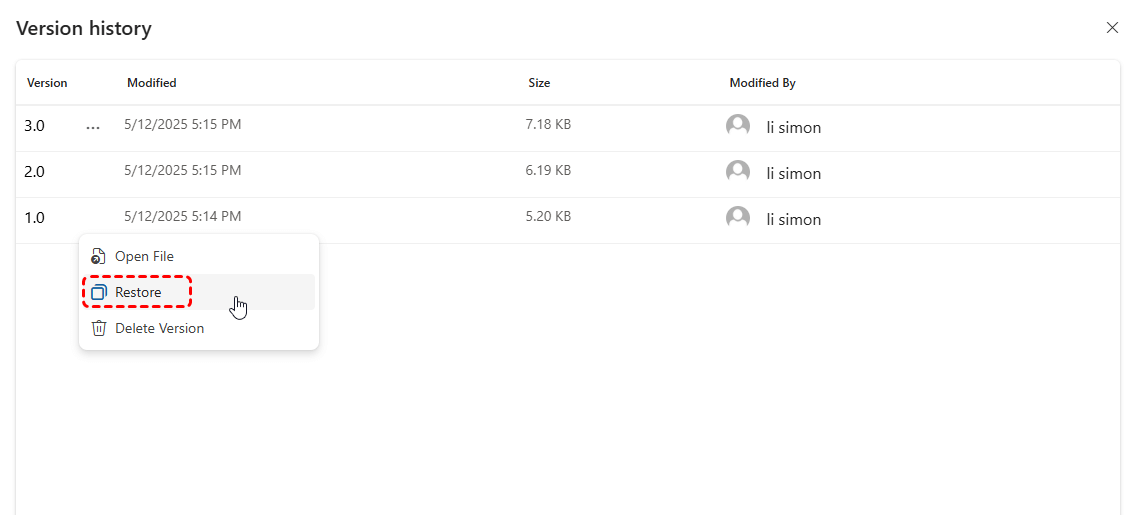
Step 4. Choose a previous version from the list and click "Restore" to replace the current one.
Method 3. Recover Unsaved Workbooks
Excel automatically saves temporary versions of files during editing sessions (if you have enabled Auto Recover), even if they were not manually saved. These autosaved copies can sometimes contain earlier data before the overwrite occurred. This method is useful when the overwrite happened during an active session or after an unexpected closure.
Step 1. Open Excel and go to "File" > "Open" > "Recover Unsaved Workbooks".
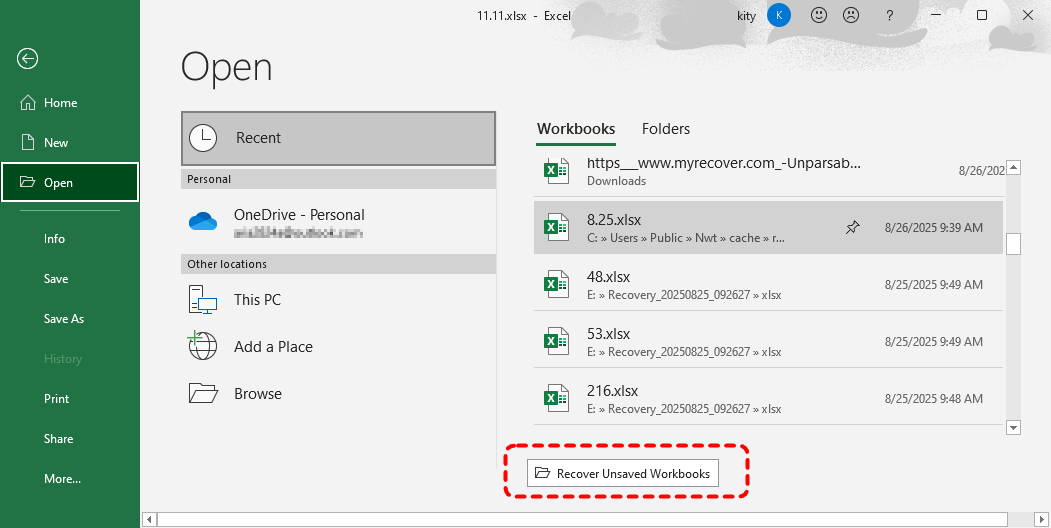
Step 2. Browse the list of available temporary files.
Step 3. Open the desired file and save it to a safe location.
Method 4. Recover from AutoRecovery Files
AutoRecover automatically saves temporary copies of your file at regular intervals while you are editing. If your Excel file was overwritten during editing, you can try using this feature to restore the previous version. However, these temporary files will be deleted once you close the document.
Step 1. Go to "File" > "Info" > "Manage Workbook". You will see a list of automatically saved files at timed intervals.
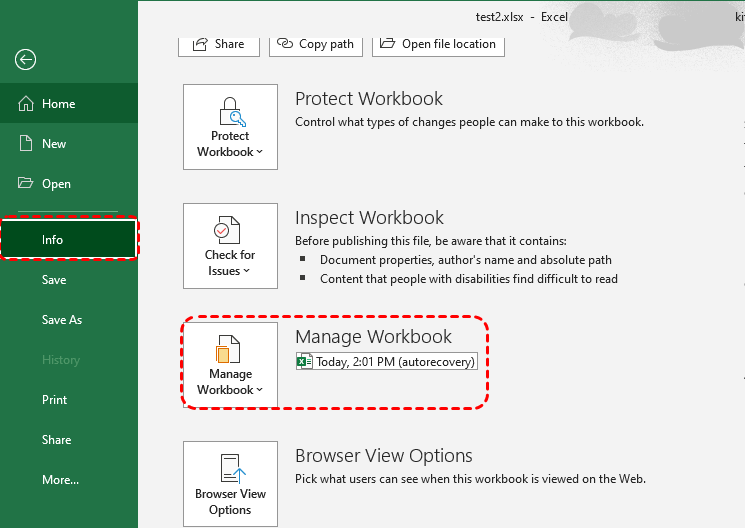
Step 2. Select the appropriate version based on when the file was overwritten, then check its content to confirm it is the one you need.
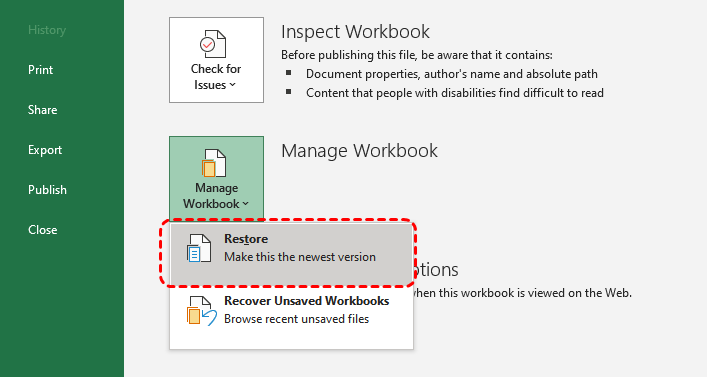
Step 3. Click "Restore" to make it as the newest version.
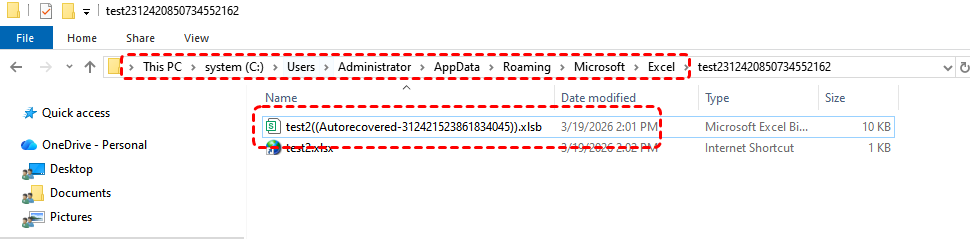
If these copies have been deleted when you close the workboot, navigate to the AutoRecover file location and look for any remaining unsaved files, which usually have the .xlsb extension. You must act as quickly as soon possible.
Method 5. Check the Temp Folder
Windows and Excel often store temporary working files in the system’s Temp directory. These files may contain snapshots of your Excel data before it was overwritten. While not guaranteed, this method can sometimes recover partial or full content, especially if the overwrite occurred recently.
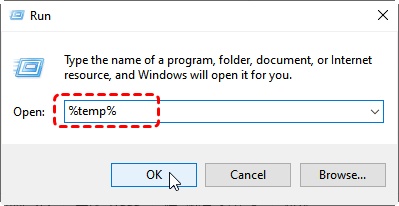
Step 1. Press "Win" + "R", type "%temp%", and press "Enter".
Step 2. Look for files with extensions like .tmp or .xlsb.
Step 3. Open potential matches using Excel, then save any recovered content immediately to a different location.
Method 6. Try Professional Data Recovery Tool: MyRecover
When an Excel file has been overwritten, recovery becomes much more uncertain without any backup because the original data may have already been replaced at the disk level. In other words, no method can guarantee a full recovery in this situation. However, if the overwritten data hasn’t been completely erased or the disk hasn’t been heavily used afterward, there’s still a chance to retrieve part or even most of the original content.
Using a professional recovery tool like MyRecover gives you a practical way to scan the drive and check for any recoverable data. It can be the most effective options to try when the built-in methods fail. MyRecover works by scanning the disk at a deeper level to locate residual data that has not yet been fully overwritten. This method is particularly useful when no backups, temporary files, or version history are unavailable.

 MyRecover
- Recover deleted & lost files from HDD, SSD, USB, SD card, camera as you need.
- Support 1000+ formats of photos, videos, docs, archives, emails, compressed files, etc.
- Reliable rescue for deletion, formatted disk, emptied Recycle Bin, system crashes and more.
 100% Secure
Step 1. Download and install MyRecover on your Windows computer, avoid installing it on the affected drive.
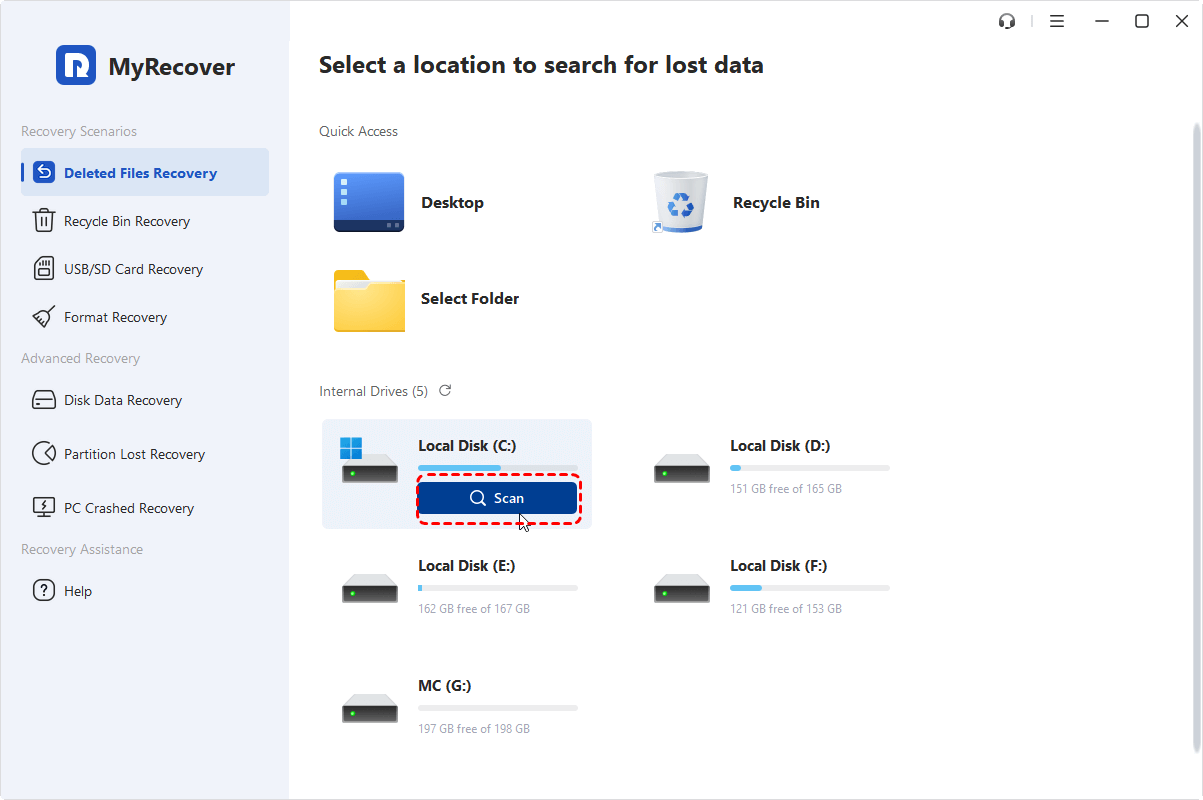
Step 2. Launch the program and select the drive where the Excel file was stored, then click "Scan" to search for recoverable files. For overwritten Excel files, you can click "Deep Scan" to perform a comprehensive scan and find more file fragments.
Step 3. After the scanning process is completed, filter results by file type (e.g., .xls/.xlsx) and select the target files, then click "Recover" to get it back.
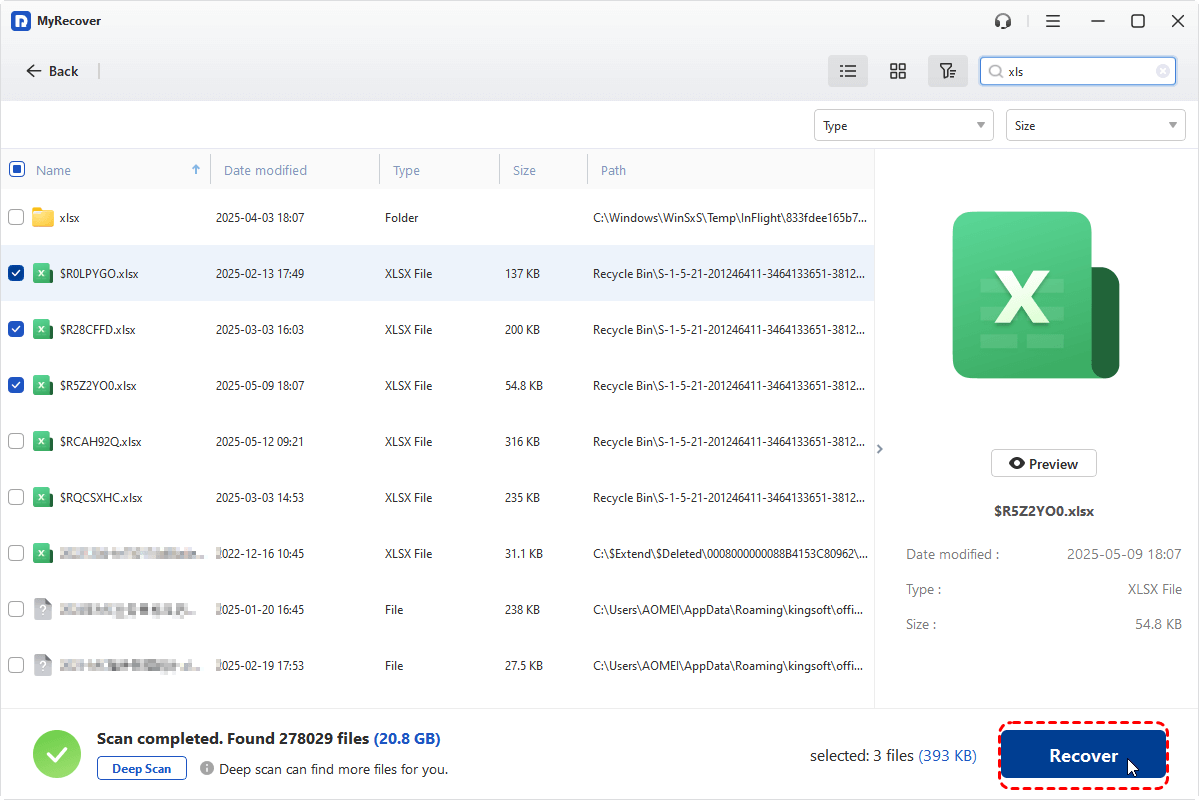
Upgrading to the Professional edition of MyRecover allows unlimited data restoration and file content preview before restoration, making you can quickly confirm whether this is the file you need.
Step 4. Choose a safe location to save the recovered files.
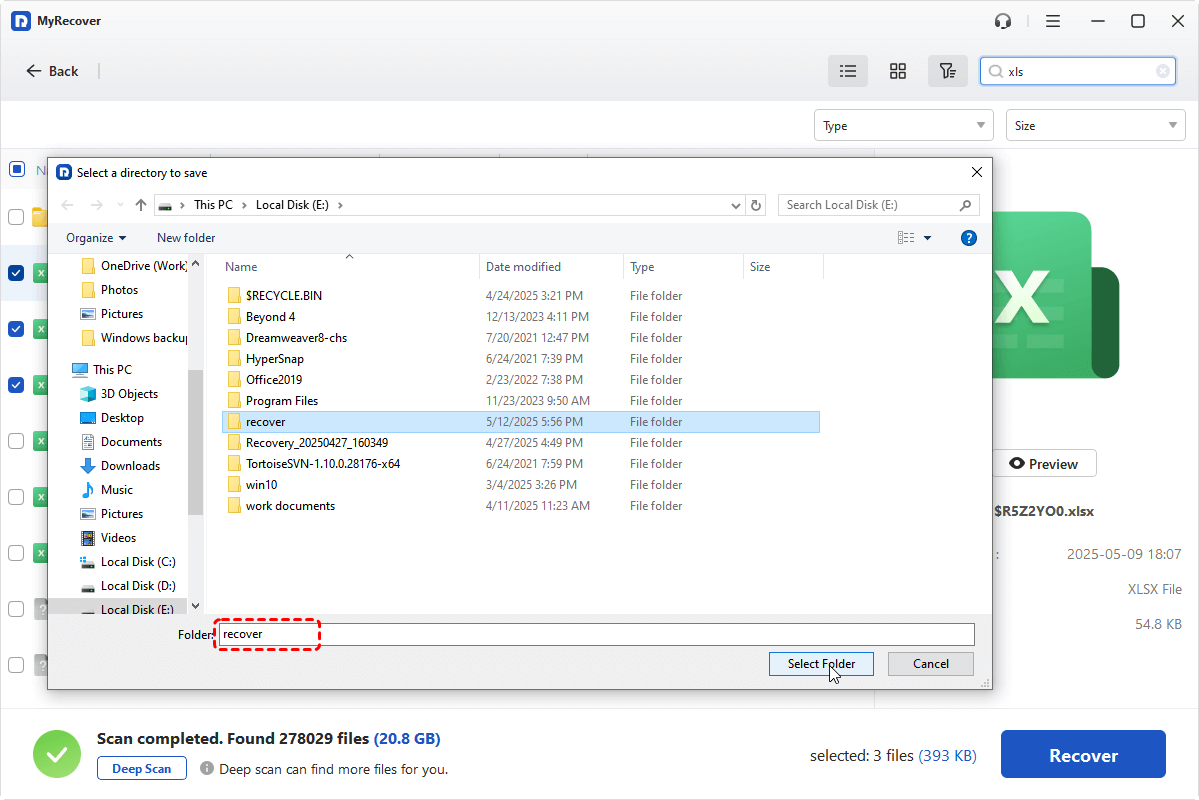
Once the process is done, the message "Files have been recovered successfully" will pop up. Then, you can check and verify the recovered files by clicking on the "Browse" button.

The Bottom Line
Recovering an overwritten Excel file with no previous version is challenging, but not impossible. The key is to act quickly and apply the right methods based on how and where the file was stored. Built-in features like AutoSave offer the most straightforward solutions when available. If these options are not applicable, using a professional recovery tool like MyRecover can still provide a chance to retrieve lost data. The sooner you attempt recovery and the less you use the affected drive, the higher your chances of success.

Stay Updated With Our
Latest Tips
Add us as a preferred source on Google to never miss helpful guides.
 Add as preferred source >>