 MyRecover



How to Tell If a Hard Drive Is Failing (Symptoms & Fixes)
Knowing how to tell if a hard drive is failing is essential for preventing unexpected data loss and system instability. This guide explains the most common indicators of drive failure. By identifying early symptoms and applying the right fixes, you can protect important files and prevent permanent drive failure.

By Aria / Updated on March 9, 2026


Introduction
A hard drive rarely fails without warning. Before it completely stops working, it usually shows clear signs such as unusual noises, frequent system crashes, slow file access, or corrupted data. Recognizing these early symptoms is essential because once a hard drive fails completely, recovering data can become much more difficult or even impossible.
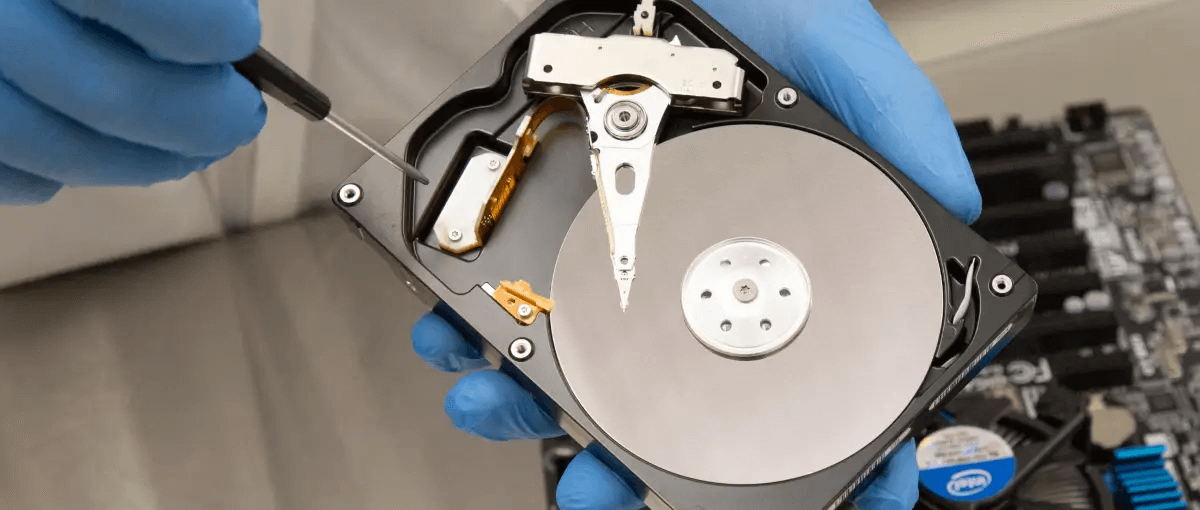
Understanding how to tell if a hard drive is failing allows you to take action before serious damage occurs. Whether the issue is caused by physical wear, bad sectors, or file system corruption, identifying the warning signals early helps you protect important files and avoid unexpected downtime.
Common Signs of a Failing Hard Drive
Physical damage to a hard drive can be easily spotted, but internal failures are often hard to detect. The following symptoms usually indicate that your hard drive is starting to fail. These signs may appear gradually and can affect system stability, file accessibility, or overall computer performance. Paying attention to these indicators can help you confirm whether your drive is developing problems.
🔔Unusual clicking or grinding noises
Mechanical hard drives normally operate quietly. Repeated clicking, grinding, or beeping sounds may indicate physical damage to internal components such as the read/write head or spinning platters.
🔉Frequent system freezes or crashes
If your computer suddenly freezes during file operations or experiences repeated system crashes, the drive may be struggling to read or write data correctly.
🔉Files becoming corrupted or inaccessible
Documents, photos, or videos that suddenly cannot be opened, display errors, or appear damaged may signal underlying disk issues.
📂Extremely slow file access or transfer speeds
A failing drive may take much longer than usual to open folders, copy files, or launch applications due to difficulty reading stored data.
⚠️Bad sector warnings or disk read errors
Windows may display disk-related errors or report bad sectors during disk checks, indicating that certain areas of the drive can no longer store data reliably.
🛠️Boot problems or operating system errors
If the system struggles to start, displays boot errors, or repeatedly attempts automatic repairs, the system drive could be experiencing hardware or file system failures.
How to Tell if a Hard Drive is Failing on Windows
Windows provides several built-in tools that allow users to check disk health, detect file system errors, and identify potential hardware problems. Starting with simple checks and progressing to more advanced diagnostics can help determine the severity of the issue.
Method 1. Check Hard Drive Using CHKDSK Command
The CHKDSK utility is one of the most reliable built-in tools for detecting file system errors, bad sectors, and disk inconsistencies. It scans the drive structure and attempts to repair logical errors that may cause system instability or file access problems. Running CHKDSK is often the first step when diagnosing potential hard drive failure on Windows systems.
Step 1. Type "Command Prompt" in the Windows search bar, then right-click it and select "Run as administrator".

Step 2. In the command window, type the following command "chkdsk G: /f /r" and press "Enter".

Step 3. Windows will detect and attempt to repair disk errors during the process.
Method 2. Use Windows Error Checking Tool
If you're uncomfortable with command line tool, the Error Checking feature in Windows provides a graphical interface for scanning a drive for file system errors. It is a simple and user-friendly way to check disk integrity without using command-line tools. This method is suitable for users who prefer a visual approach while still performing an effective disk health check.
Step 1. Open File Explorer and locate the drive you want to check.
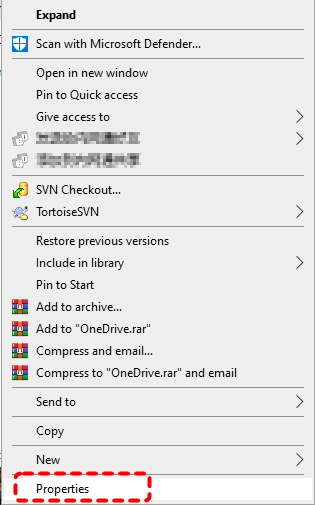
Step 2. Right-click the drive and select "Properties" from the menu.
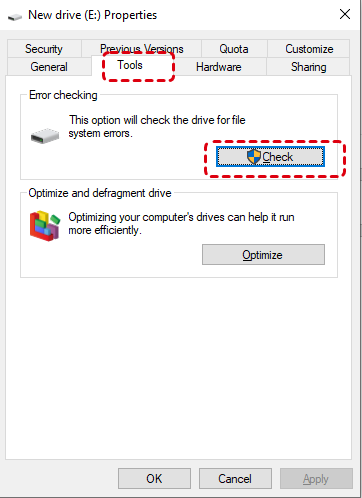
Step 3. Navigate to the "Tools" tab and click the "Check" button under the Error checking section.
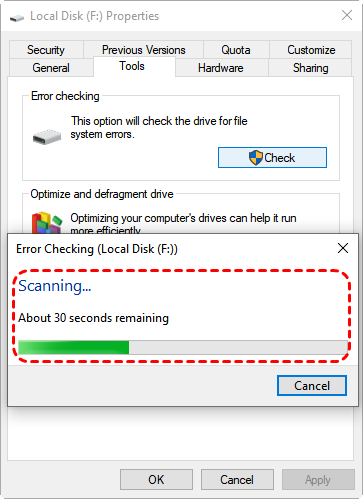
Step 4. Choose "Scan drive" and allow Windows to analyze the disk for file system errors.
Method 3. Check Hard Drive S.M.A.R.T. Status
Modern hard drives include a built-in monitoring system called S.M.A.R.T. (Self-Monitoring, Analysis, and Reporting Technology). This technology tracks various hardware parameters such as read errors, spin-up time, and temperature to determine drive health. Checking the S.M.A.R.T. status can quickly indicate whether Windows has detected potential hardware failure.
Step 1. Run Command Prompt as administrator.
Step 2. Type the following command "wmic diskdrive get status" and press "Enter".
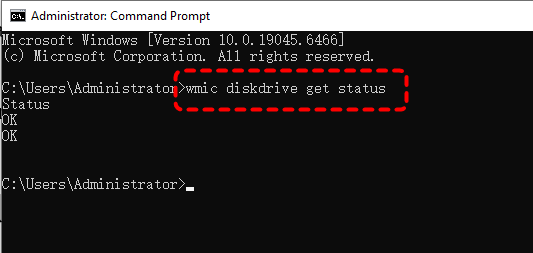
Step 3. Review the result displayed.
- Notes:✎...
- OK: The hard drive is healthy and functioning properly.
- Pred Fail: The hard drive may be on the verge of failure.
Method 4. Use Professional Disk Diagnostic Tools
While built-in Windows utilities can detect common problems, professional disk diagnostic tools like Western Digital’s Kitfox provide deeper analysis of drive health, including detailed S.M.A.R.T. attributes, performance metrics, and temperature monitoring. These tools can help identify early hardware degradation that may not yet appear in standard system checks.
Step 1. Download and install a reliable disk diagnostic tool or the manufacturer’s diagnostic software based on your hard drive model.
Step 2. Launch the program and allow it to automatically scan all connected drives.
Step 3. Review the health status, temperature, and S.M.A.R.T. attribute results displayed by the software.
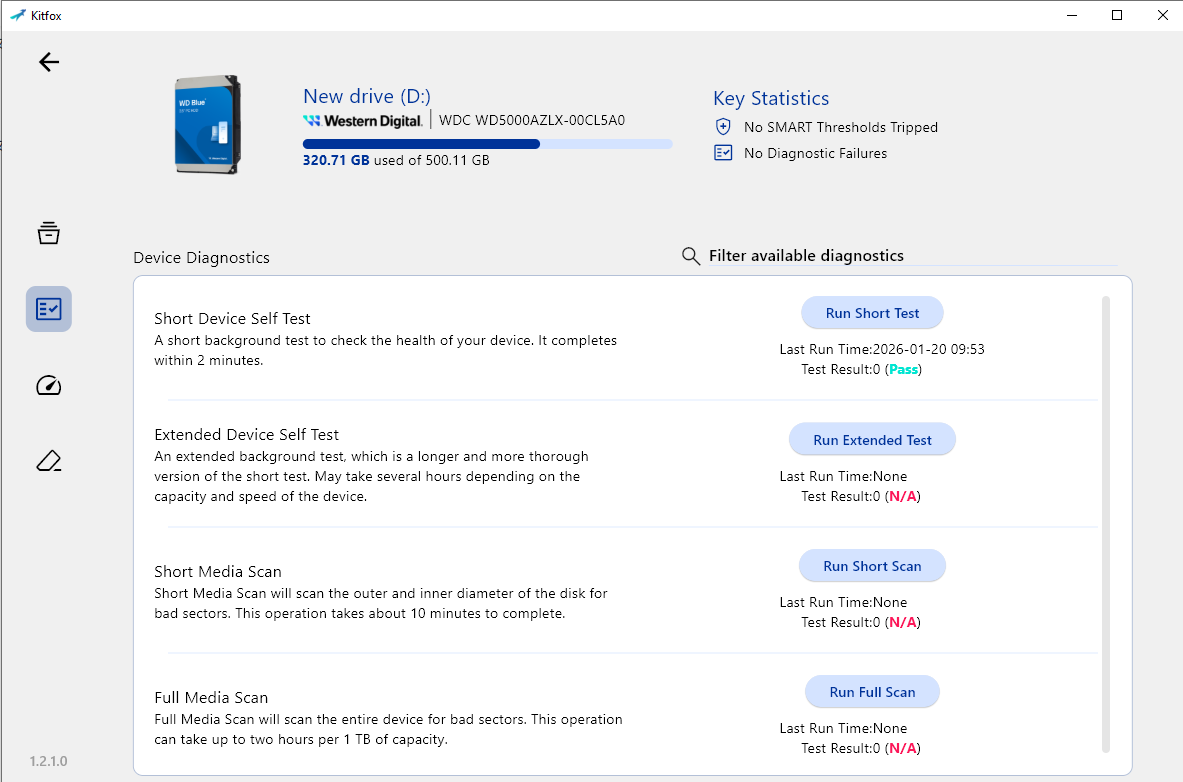
Step 4. If the tool reports warnings, back up your important data immediately and consider replacing the failing drive.
How to Fix a Failing Hard Drive
Once you confirm that a hard drive is developing problems, taking immediate action is critical. In many cases, early intervention can stabilize the drive long enough to secure your data or temporarily improve system reliability.
Back Up Important Data Immediately
Before attempting any repair, the most important step is to secure your data. A failing drive can deteriorate rapidly, and continuing to use it without a backup may result in permanent data loss. Windows provides a variety of free backup tools, such as File History, Backup and Restore (Windows 7), and OneDrive. Once you have created a backup, even if the hard drive fails completely, you will not suffer the serious consequence of losing your files. Taking File History as an example, you can follow these steps to create a backup:
Step 1. Go to "Settings" > "Update & Security" > "Files backup".
Step 2. Switch the "Back up using File History" to "On".
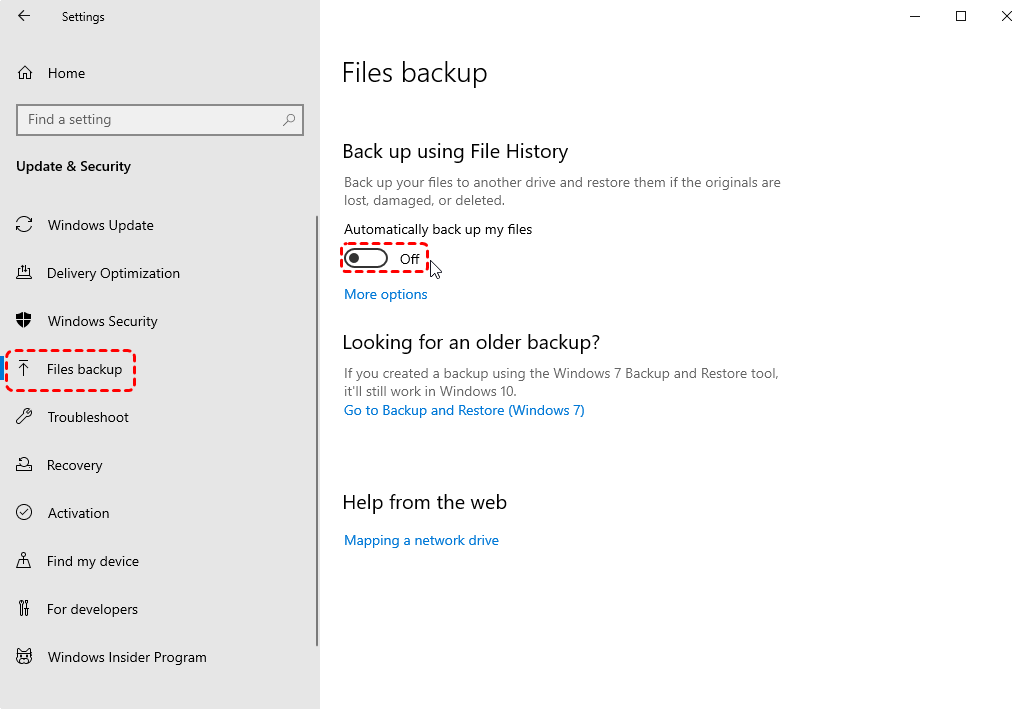
Step 3. If no drive is selected by default, you can choose an external hard drive or network location to use for backups by clicking on "Add a drive".
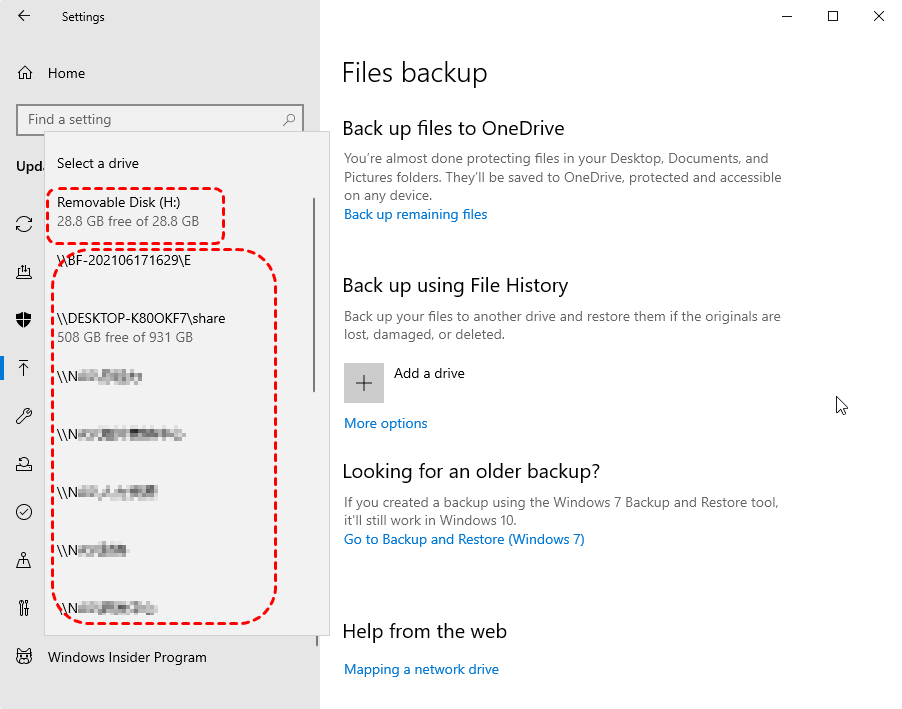
In addition, besides the folders added to the backup list by default, you can also add other folders you want to File History to back up.
Repair File System Errors
If the issue is related to file system corruption rather than physical damage, repairing disk errors may restore normal operation. Running repair tools such as CHKDSK can fix logical problems that prevent files from being read correctly. After the repair finishes, restart the system and monitor whether the drive performance improves.
Isolate and Avoid Bad Sectors
Bad sectors are damaged areas on the disk surface that can no longer store data reliably. When detected early, Windows may mark these sectors as unusable so that the system avoids writing data to them in the future. Running disk scanning tools can help identify these sectors and isolate them from further use. While this does not restore the damaged area, it can slow the progression of data corruption and extend the drive’s usability for a short period.
Reduce Disk Stress
A failing drive becomes more vulnerable when subjected to heavy workloads. Reducing disk activity can help minimize further damage while you prepare to replace the hardware. Consider limiting large file transfers, disabling unnecessary startup programs, and avoiding intensive applications that require constant disk access.
Replace the Hard Drive
If diagnostics repeatedly show warnings such as S.M.A.R.T. failure alerts or increasing bad sectors, the most reliable solution is to replace the hard drive. Hardware deterioration cannot be permanently repaired through software tools. Installing a new SSD or HDD and migrating your system and files to the new drive ensures long-term stability and performance.
How to Recover Data from a Failing Hard Drive
If the drive has already become unstable and files are difficult to access, using professional data recovery software like MyRecover can help retrieve lost or inaccessible data before the drive completely fails. MyRecover can scan your hard drive and safely extract the data you want to restore without causing any data overwriting. Its user-friendly interface allows even novice users to complete data recovery without spending time learning professional knowledge.

 MyRecover
- Recover deleted & lost files from HDD, SSD, USB, SD card, camera as you need.
- Support 1000+ formats of photos, videos, docs, archives, emails, compressed files, etc.
- Reliable rescue for deletion, formatted disk, emptied Recycle Bin, system crashes and more.
 100% Secure
Step 1. Download and install MyRecover on your Windows supported computer, avoid installing it on the failed hard drive.
Step 2. Run the program and select the failing drive to scan, then click "Scan" to search for recoverable files.

Step 3. After the scan completes, choose the files you would like to recover from the recoverable lists and click "Recover". You can extract the existing files on the drive by checking the "Existing Files" folder.

If the files you want to recover exceed 500 MB, upgrading to the Professional edition of MyRecover will enable unlimited data recovery capacity and file content preview before restoration. It even allows you to retrieve data from an unbootable system.
Step 4. Select a safe location to save the recovered files (not the failing hard drive).

Once the recovery process is finished, the message "Files have been recovered successfully" will pop out. Then, you can check the recovered files by clicking on the "Browse" button.
Conclusion
Hard drives usually show warning signs before complete failure. Recognizing these symptoms early is the key to preventing serious data loss. By using built-in Windows tools described earlier, you can quickly tell whether your drive is developing problems and assess its overall health.
If issues are detected, the most important thing is to protect your data by create a backup immediately. If files have already become inaccessible due to disk instability, using a professional recovery tool like MyRecover can help retrieve important data before the drive fails completely.

Stay Updated With Our
Latest Tips
Add us as a preferred source on Google to never miss helpful guides.
 Add as preferred source >>