 MyRecover



How to Fix HP Error Code 2000-0141 (No Drive Detected)
HP error code 2000-0141 typically indicates that the system cannot detect a hard drive, often leading to boot failure and potential data inaccessibility. This article explains the common causes of this error and provides a clear, step-by-step guide on how to fix HP error code 2000-0141.

By Aria / Updated on May 9, 2026


What is HP Error Code 2000-0141?
HP Error Code 2000-0141 indicates a failed Drive Self-Test (DST) during startup. HP error code 2000-0141 indicates that the system is unable to detect a connected storage drive during startup diagnostics. This error typically appears during pre-boot system checks or hardware diagnostics, signaling that the hard drive (HDD or SSD) is either not properly connected, not recognized by the BIOS, or has potentially failed.
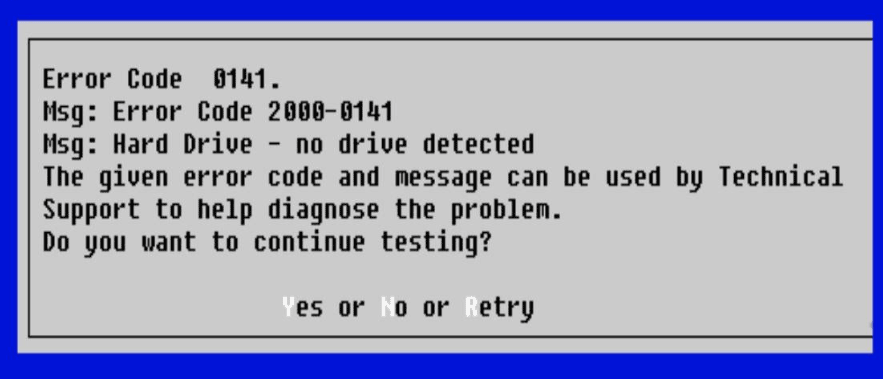
This issue commonly occurs in scenarios such as system startup failure, after running built-in diagnostics tools, or when the device attempts to boot but cannot locate a valid storage device. Although frequently associated with HP systems, similar errors can also occur on Dell computers, and they all indicate that the system cannot communicate with the storage device.
When HP error code 2000-0141 appears, the system typically cannot boot into the operating system because no drive is detected. As a result, users may encounter a black screen, BIOS-only access, or repeated diagnostic prompts. More importantly, all data stored on the undetected drive becomes temporarily inaccessible, and in some cases, may be at risk if the issue is caused by hardware failure. To help you resolve this issue efficiently, this guide provides a practical guide to fix the error and restore your system's ability.
Common Causes of Error Code 2000-0141
Understanding the root cause of HP error code 2000-0141 is essential before applying any fix. Since this error indicates that the system cannot detect the storage drive, the issue is usually related to hardware connectivity, drive health, or system configuration. Below are the most common causes that can trigger this error:
🔌 Loose or faulty hard drive connection: The drive may not be properly seated, especially after a drop, repair, or prolonged use, leading to detection failure.
💽 Hard drive or SSD failure: Physical damage, wear over time, or internal component failure can prevent the drive from responding during diagnostics.
⚙️ Incorrect BIOS settings: Misconfigured BIOS options (such as disabled storage controllers or wrong boot mode) may stop the system from recognizing the drive.
📂 Corrupted or damaged file system: Severe logical errors can make the drive inaccessible, even if it is physically functional.
🛠️ Damaged SATA/PCIe interface or motherboard issue: Faults in the connection interface or motherboard can interrupt communication between the system and the drive.
How to Recover Data Before Fixing the 2000-0141 Error
When HP error code 2000-0141 occurs, the system fails to detect the hard drive, which often means you cannot access your files through normal methods. In more severe cases, this can even be a sign that the hard drive is about to fail. For this reason, it is strongly recommended to recover important data first before applying any fixes.
A professional data recovery tool like MyRecover provides a practical solution to retrieve your files from hard drive. It can scan your drives and attempt to locate recoverable files at the sector level, even when the system reports that no drive is detected. Besides, MyRecover supports data recovery of 1000+ file formats such as documents, photos, design files, videos, and system data without requiring immediate hardware-level intervention.

 MyRecover
- Recover deleted & lost files from HDD, SSD, USB, SD card, camera as you need.
- Designed for quick recovery from system crashes and disk errors.
- Quick scan to find deleted and lost data from any storage device.
 100% Secure
Step 1. Download and install MyRecover on your computer from Microsoft Store, avoid installing it on the drive with 2000-0141 error.
Step 2. Launch the app and select the drive to scan, then click "Scan" to start the search process.

Step 3. After the scanning process is completed, browse the files and choose the one you would like to recover from the recoverable list, then click "Recover".

Step 4. Select a safe location to save the recovered files to avoid overwriting original data.

Once the recovery process is done, you'll see the message "Files have been recovered successfully". Then, you can access and check the recovered files by clicking on the "Browse" button.
If your PC fails to boot completely when the error code 2000-0141 appears, it becomes especially important to recover your valuable data first. MyRecover can help you retrieve your desired data from an unbootable computer. Follow these steps:
Step 1. Download and install MyRecover on a working computer and prepare a blank USB drive. Insert it into the working PC.
Step 2. Run the application and select "PC Crashed Recovery", then click "USB Boot Device" and "Create".

Step 3. Click "Yes" to confirm to create a USB bootable media. Wait for the media to be created successfully.
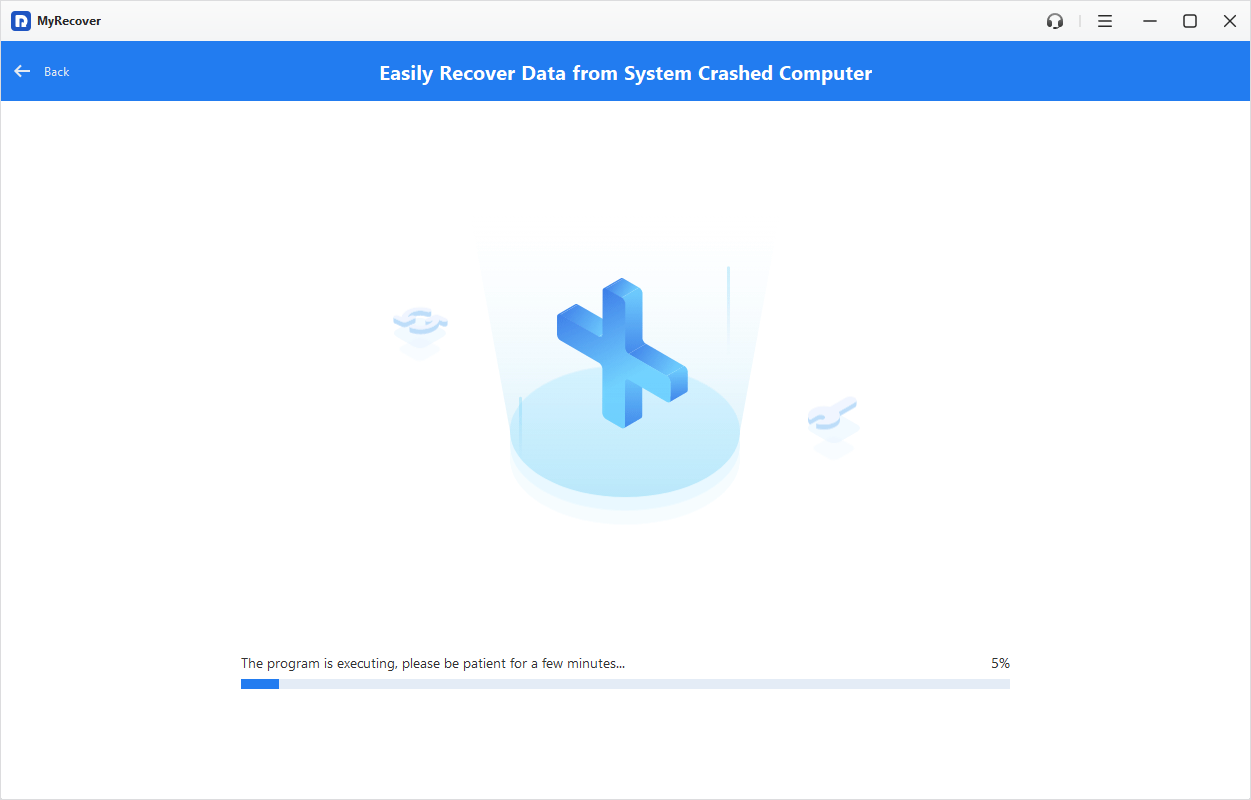
Step 4. Remove the USB and plug it into the computer with 2000-0141 error to boot the computer.
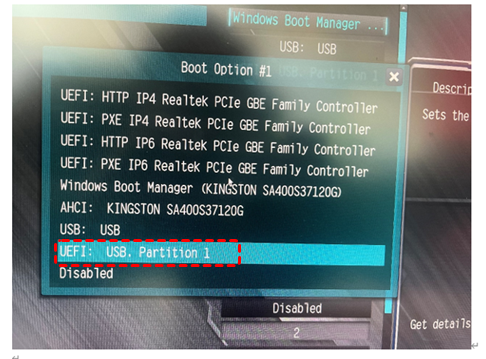
Step 5. Enter BIOS/UEFI and set the boot priority to the USB bootable device. Restart your computer and you'll enter the interface of MyRecover automatically. Then, you can use the steps mentioned earlier to access and retrieve your data on the unbootable computer.
How to Fix HP Error Code 2000-0141 on Windows
After recovering your important data, you can proceed with targeted fixes to restore drive detection. The following methods are arranged from basic checks to advanced hardware-level solutions, helping you isolate the exact cause and resolve it efficiently.
Method 1. Restart and Check BIOS Detection
Before performing any complex operations, start by verifying whether the system can detect the hard drive at the firmware level. BIOS/UEFI acts as the bridge between hardware and the operating system. If the drive is not listed there, the issue is likely related to connection, hardware failure, or configuration rather than Windows itself. This step helps quickly determine whether further troubleshooting should focus on hardware or system settings.
Step 1. Restart your computer and enter the BIOS by pressing F2, F10, F12, or Esc during startup.
Step 2. Navigate to the "Storage" or "Boot" section.
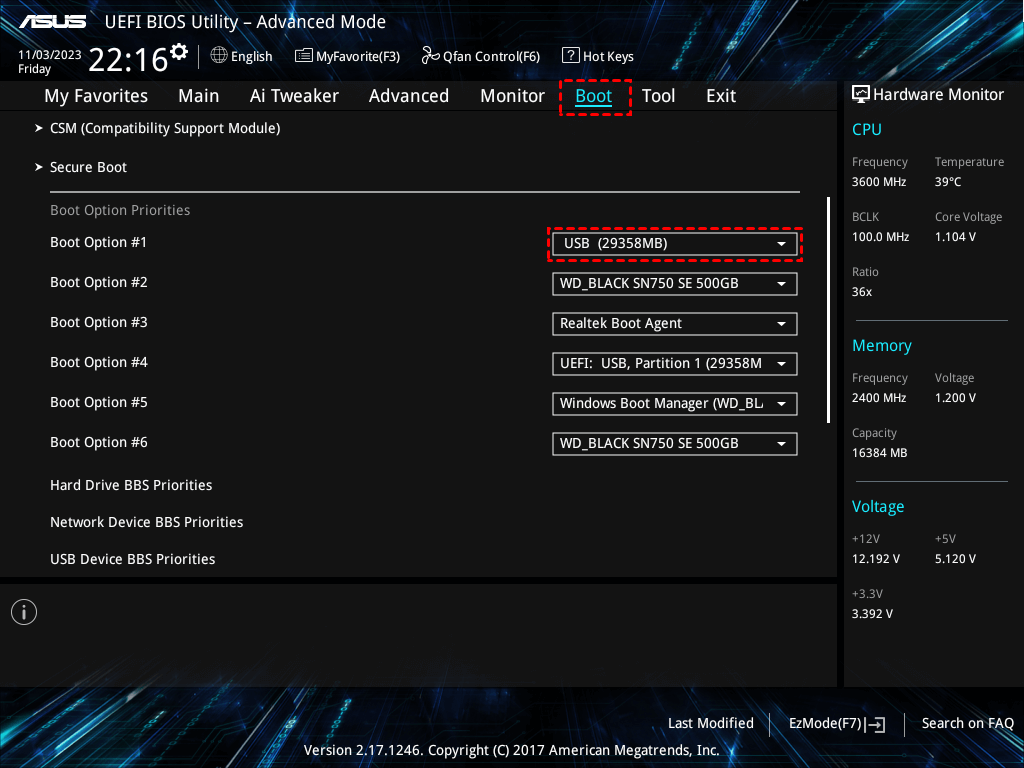
Step 3. Check whether your hard drive is listed.
Step 4. If detected, save changes and exit BIOS to test system boot.
Method 2. Check Hard Drive Connection
If the drive is not detected in BIOS, the next step is to inspect the physical connection. A loose or improperly seated drive is one of the most common causes of the 2000-0141 error code, especially after drops, repairs, or prolonged use. Ensuring a stable connection between the drive and motherboard can often restore detection without replacing hardware.
Step 1. Power off the computer and disconnect it from the power source.
Step 2. Open the back panel (for laptops/desktops as applicable).
Step 3. Locate the hard drive and carefully reseat it or reconnect the cable.
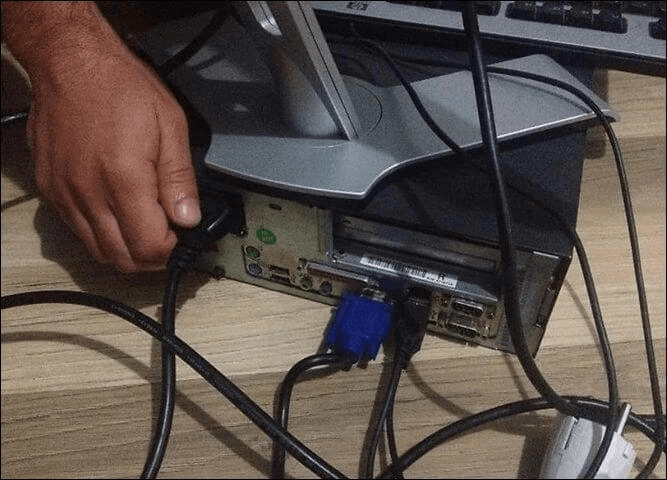
Step 4. Reassemble the device, power it on, and check if the drive is detected.
Method 3. Power Cycle to Re-Detect the Hard Drive
In some cases, the hard drive may become unresponsive due to temporary firmware or power-related issues. Performing a power cycle (hard reset) can clear residual electrical states and allow the drive to reinitialize properly, restoring detection without further intervention.
Step 1. Power off the computer and remove the battery (if removable).
Step 2. Disconnect the power adapter and hold the power button for 15–20 seconds.
Step 3. Reconnect the battery and power supply.
Step 4. Turn on the computer and check if the error code 2000-0141 persists.
Method 4. Run HP Hardware Diagnostics
HP provides a built-in diagnostic tool-HP PC Hardware Disgnostics to test hardware components, including the hard drive. Running these diagnostics can help confirm whether the drive is failing or still functional. This method is useful for distinguishing between temporary detection issues and actual hardware damage.
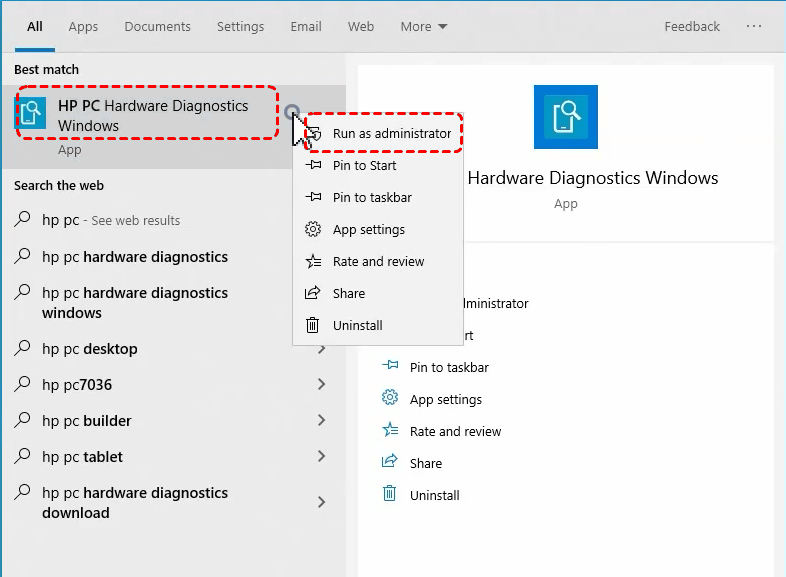
Step 1. Locate "HP PC Hardware Diagnostics Windows" in the Start menu and run it as administrator. (If your computer fails to boot due to the error code 2000-0141, restart your PC and press "Esc" repeatedly to open the Startup Menu, then press F2 to enter HP Hardware Diagnostics.)
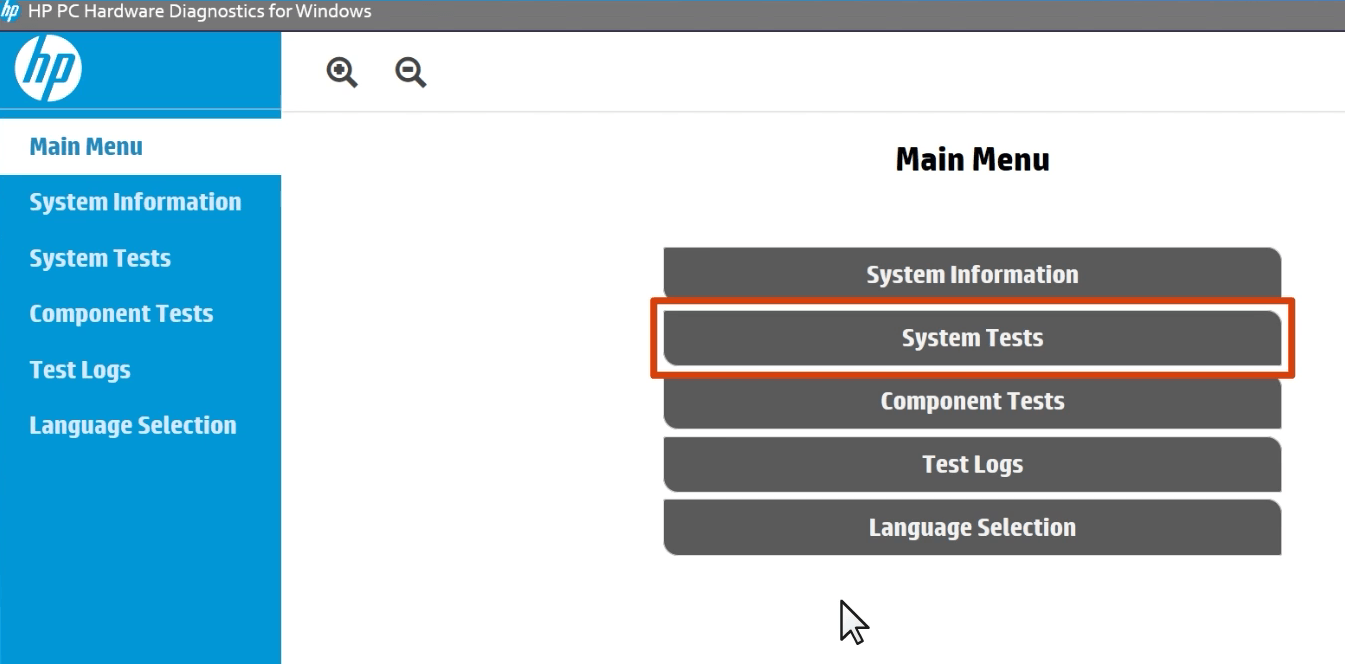
Step 2. Select "System Tests" to quickly check the computer or "Component Tests" to verify a specific component and click "Run once" to start the process.
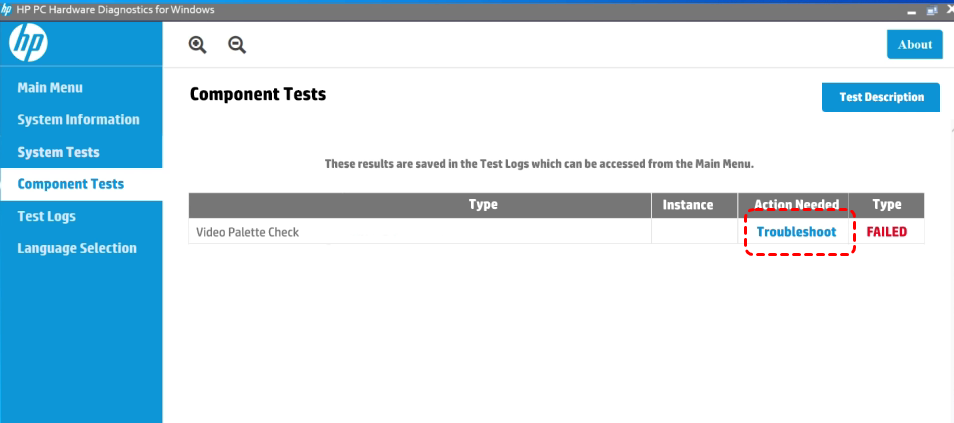
Step 4. If a test fails, you can follow the steps to resolve the issue. For more severe hardware issues, you can also contact HP Customer Support for assistance.
Method 5. Reset BIOS Settings
Incorrect BIOS settings can prevent the system from recognizing the hard drive, especially if configurations were recently changed. Resetting BIOS to default values restores standard hardware detection parameters and may resolve Dell error code 2000-0141 no drive detected without affecting your data.
Step 1. Enter BIOS/UEFI during startup as mentioned earlier.
Step 2. Locate the "Load Setup Defaults" or "Reset to Default" option.
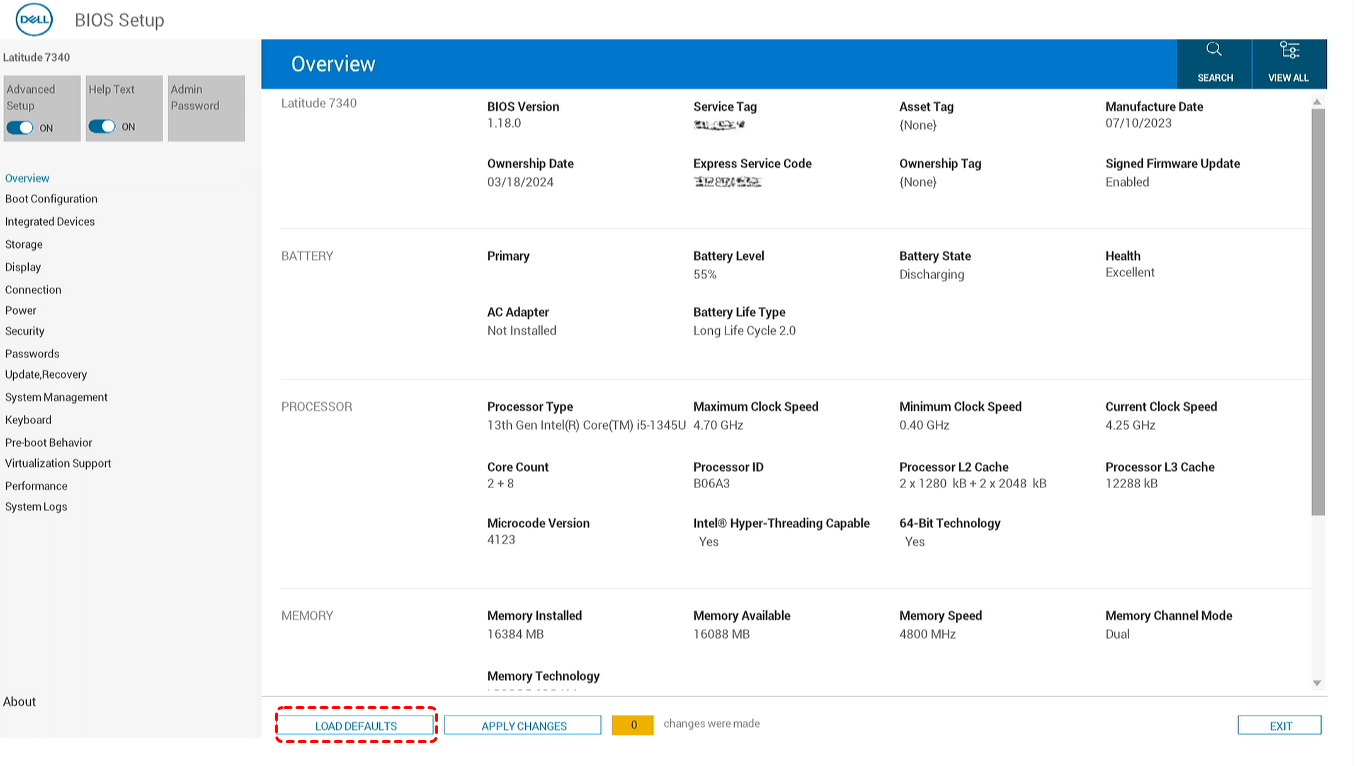
Step 3. Confirm the reset and save changes.
Step 4. Restart the computer and check if the drive is detected.
Method 6. Reset CMOS
The CMOS stores low-level hardware configuration settings, including those related to drive detection. If these settings become corrupted, the system may fail to recognize the hard drive. Resetting CMOS restores factory-level configurations and can resolve the hard drive detection issues caused by firmware inconsistencies.
Step 1. Power off the computer and disconnect all power sources.
Step 2. Open the case and locate the CMOS battery on the motherboard.
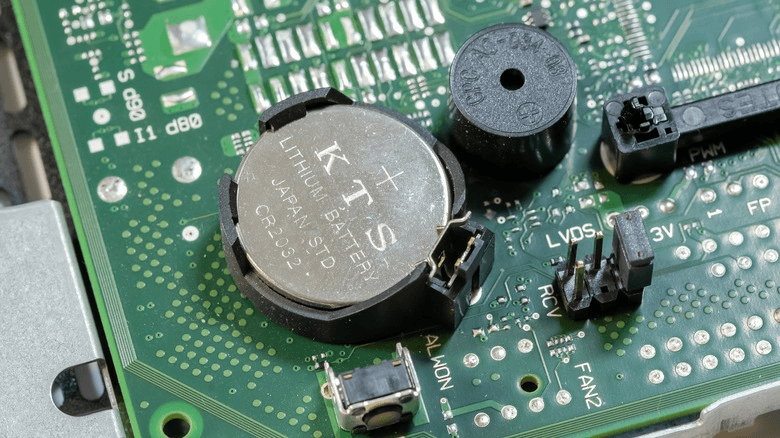
Step 3. Remove the battery for 5–10 minutes, then reinsert it.
Step 4. Reassemble the device, power it on, and check BIOS for drive detection.
Method 7. Test or Replace the Hard Drive
If all previous methods fail, the hard drive itself may be damaged or at the end of its lifespan. At this stage, testing the drive externally or replacing it becomes necessary. This method addresses hardware-level failure, which cannot be fixed through software or configuration changes.
Step 1. Remove the hard drive and connect it to another computer using a USB adapter or enclosure.
Step 2. Check if the drive is recognized or accessible on the second system.
Step 3. If not detected, consider replacing the drive with a new HDD or SSD.
Conclusion
HP error code 2000-0141 is a clear indication that your system cannot communicate with the hard drive, often due to connection issues, misconfigured BIOS settings, or hardware failure. When this error appears, it not only prevents the system from booting but also puts your data at potential risk.
The most effective approach is to handle the issue in two stages. First, prioritize data recovery using a reliable tool like MyRecover to ensure your important files are safe and not overwritten during troubleshooting. Then, follow a structured repair process to restore your computer stability.

Stay Updated With Our
Latest Tips
Add us as a preferred source on Google to never miss helpful guides.
 Add as preferred source >>