 MyRecover



No Hard Drive Detected on Dell Computers | Expert Solutions
If you encounter the 'no hard drive detected' error on Dell, it can prevent your system from booting and accessing important data. This guide explains the main reasons behind the problem and provides practical solutions to fix it. No matter why your Dell laptop fails to detect the hard drive due to any cause, these step-by-step methods will help restore access and prevent potential data loss.

By Aria / Updated on June 8, 2026


Overview
When you start your Dell computer and the errors such as "Hard Drive not Found" or "Now Hard Drive Installed" on the screen, it means the system has failed to detect the hard drive, preventing Windows from loading. This issue often appears in BIOS or boot screens and leaves the device unable to start normally, making it a critical problem for users who need immediate access to their data.
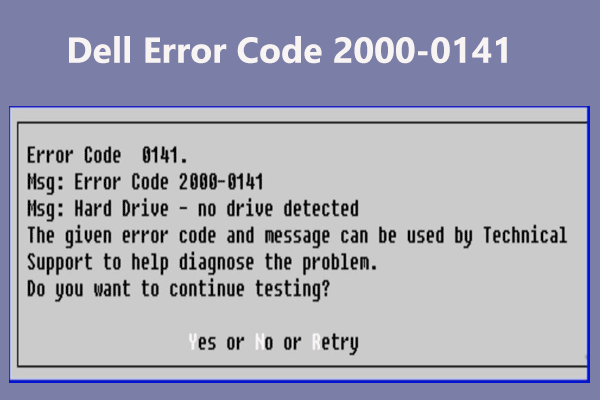
Several factors can trigger this error, including incorrect BIOS settings, loose or faulty drive connections, corrupted system files, or even hardware failure. In some cases, recent updates or physical shocks to the device may also contribute to the problem. But in this guide, we’ll walk you through several solutions to fix the no hard drive detected Dell issue, helping you identify the root cause and restore your system step by step.
Why is My Dell PC Saying "No Hard Drive Detected"?
Before attempting fixes, it’s important to narrow down what’s preventing the system from recognizing the hard drive, which can help you apply the right solution more efficiently. In most cases, the issue stems from either hardware detection failures or configuration problems that interrupt the boot process.
⚙️ Incorrect BIOS/UEFI configuration: Settings such as SATA mode, boot order, or disabled storage controllers can prevent the system from detecting the drive.
🔌 Loose or damaged connections: A poorly seated HDD/SSD or faulty cable (in desktops) may break communication between the motherboard and the drive.
💽 Drive not initialized or recognized: Newly installed or previously formatted drives may not appear if they haven’t been properly configured.
🖥️ Corrupted boot sector or system files: Damage to boot-related data can make the drive appear undetectable during startup.
🛠️ Outdated BIOS firmware: Older firmware versions may fail to recognize certain drives, especially newer SSDs.
🔎 Physical hard drive failure: Mechanical damage, wear, or bad sectors can cause the drive to stop responding entirely.
How to Fix No Hard Drive Detected on Dell Computer
Although the causes of this problem may seem complicated, this section will provide several practical methods to help you solve it with simple steps. The following methods are arranged from quick boot checks to more advanced hardware-level troubleshooting. By following them in order, you can efficiently determine whether the issue is temporary, configuration-related, or caused by hardware failure.
Method 1. Press F1 to Retry Boot
Sometimes the error is triggered by a temporary detection failure. Retrying the boot process allows the system to reinitialize hardware components and attempt to detect the drive again. This is a quick check to rule out transient issues before deeper troubleshooting.
Step 1. When the error screen appears, follow the on-screen instructions and press F1 to retry booting.
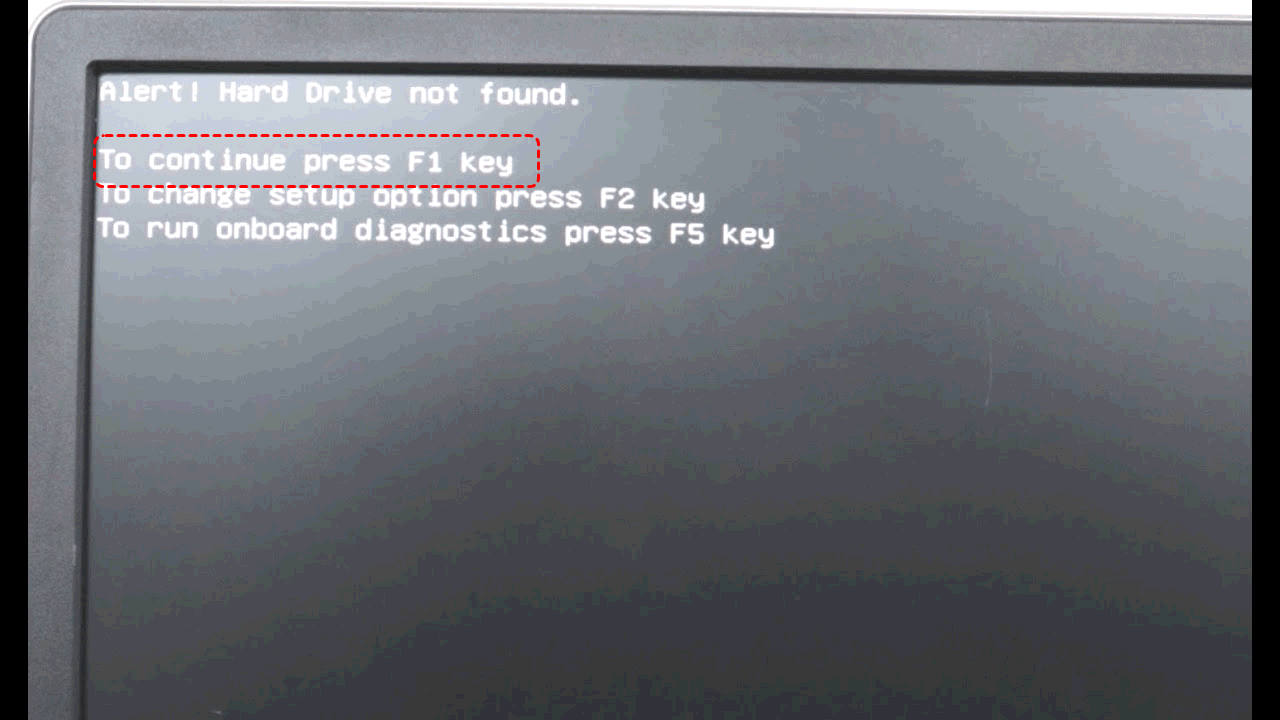
Step 2. Wait for the system to attempt detection again.
Step 3. Observe if the system proceeds to load Windows. If the error persists, move to the next method.
Method 2. Check Hard Drive Connection
Loose or improper connections are a common cause, especially in desktops or after physical movement. Ensuring the drive is securely connected restores proper communication between the motherboard and storage device.
Step 1. Power off the computer and unplug it.
Step 2. Open the case (or access panel for laptops) and check that the hard drive cables or connectors are firmly attached.
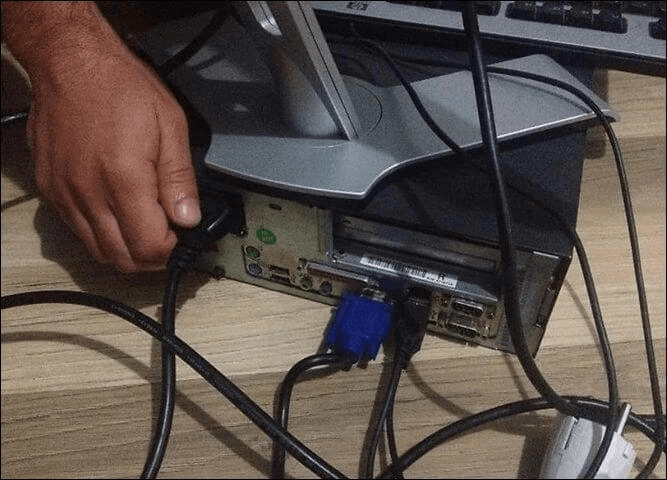
Step 3. Reassemble and restart the system to check if the "no hard drive detected" error persists.
Method 3. Initialize Hard Drive
If the drive is new or not properly configured, it may not be recognized by the system because there is no partition table on the hard drive. You need to initialize the hard drive and create a new volume on it before you can use it normally in Windows.
- Notes:✎...
- The clean command will erase all partitions and data on the hard drive. Before running this command, you’d better back up your data on the disk first. Alternatively, use a data recovery tool like MyRecover to recover your data from the uninitialized disk in advance.
Step 1. Restart your computer. When the Windows logo appears on the screen, hold down the power button to shut it down. Repeat this process three times until the computer enters the Automatic Repair interface.
Step 2. Select "Advanced Options" > "Troubleshoot" > "Advanced options" > "Command Prompt".

Step 3. Enter the following command to initialize the disk and press "Enter" after each one:
- diskpart
- list disk
- select disk 1 (Replace the number 1 with your actual disk number)
- clean
- covert mbr
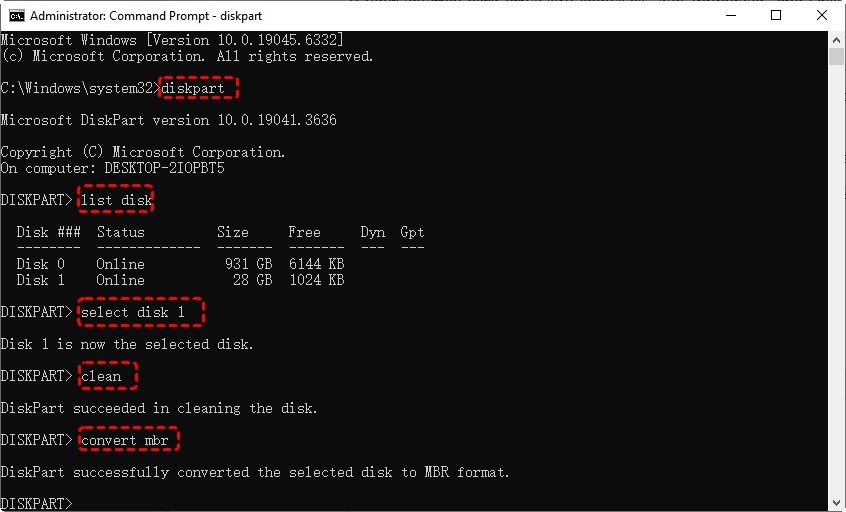
Step 4. You can then choose whether to create new partitions or format the hard drive according to your needs.
Method 4. Update Dell Drivers
Outdated or incompatible drivers can prevent the system from detecting storage devices properly. Updating drivers ensures compatibility between the hardware and operating system.
Step 1. Identify your Dell product and go to the Dell Drivers & Downloads website to scan for available updates on a working computer.
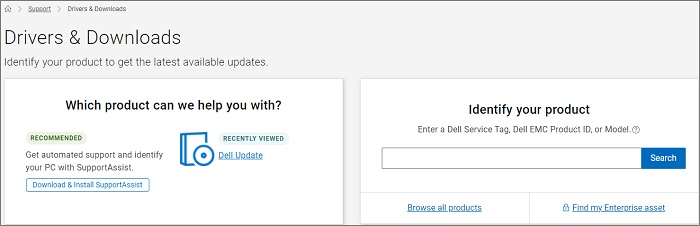
Step 2. Install the needed driver updates on external USB drive and connect it to the Dell computer with "no hard drive detected" error.
Step 3. Open Command Prompt in WinRE with the earlier described steps.
Step 4. Enter the following command:
- cd D:\[Driver Folder]
- drvload D:\IRST\f6vpx64.inf (Replace the file path with your actual driver path)
Step 5. Then, try booting your computer again to see if the error still occurs.
Method 5. Run Dell Diagnostics
Dell systems include built-in diagnostics to detect hardware issues. Running these tests helps determine whether the hard drive is functioning or failing. You can follow these steps to check hard drive health on Dell:
Step 1. Restart your Dell computer and press F12 during startup to open the boot menu.
Step 2. Select Diagnostics and run the Diagnostics Quick test.
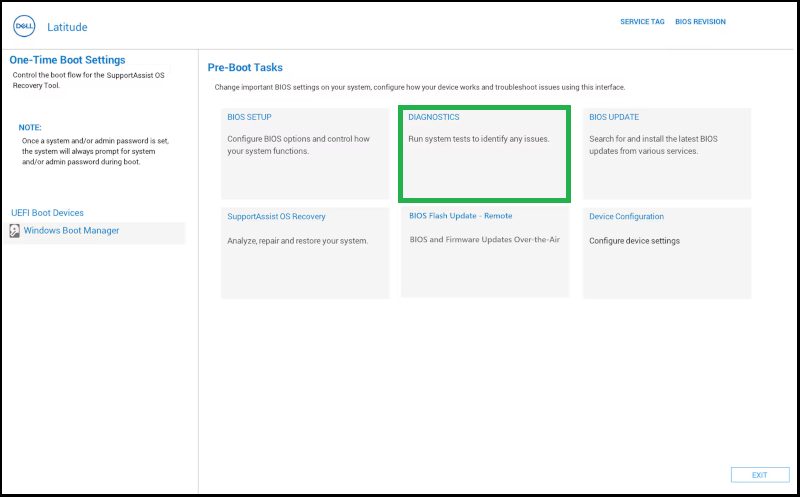
Step 3. Based on the displayed scan results, select either to restart your computer or run more advanced diagnostic tests.
Method 6. Check BIOS Settings
Incorrect BIOS configuration can prevent the system from recognizing the hard drive. Verifying these settings ensures the storage controller and boot options are correctly configured, and may resolve the "no hard drive detected" error on Dell computer.
Step 1. Restart the computer and press F2 to enter BIOS.
Step 2. Navigate to the "Storage" or "Boot" section and ensure the hard drive is listed and enabled.
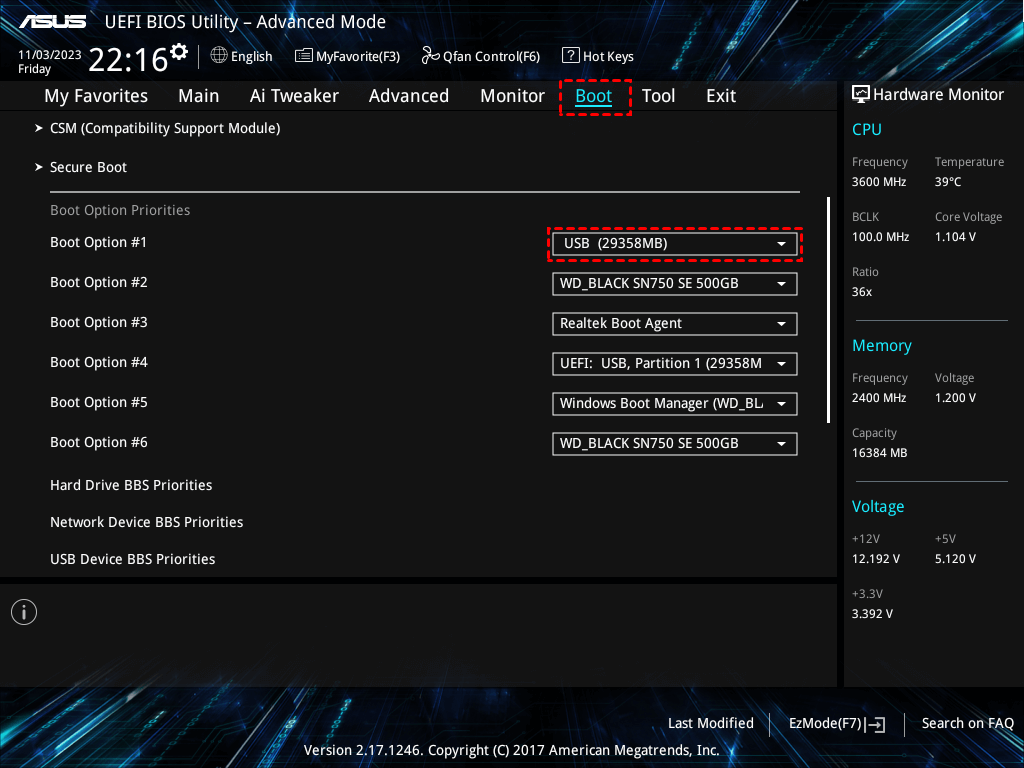
Step 3. Save changes and exit BIOS to check if the error is still here.
Method 7. Update BIOS
An outdated BIOS may not support certain drives or configurations, thus causing the hard drive to go undetected and even preventing your Dell computer from booting properly. Updating it can resolve compatibility issues and improve hardware detection.
Step 1. Visit the Dell support website and download the latest BIOS version.
Step 2. Follow the official instructions to install the update.
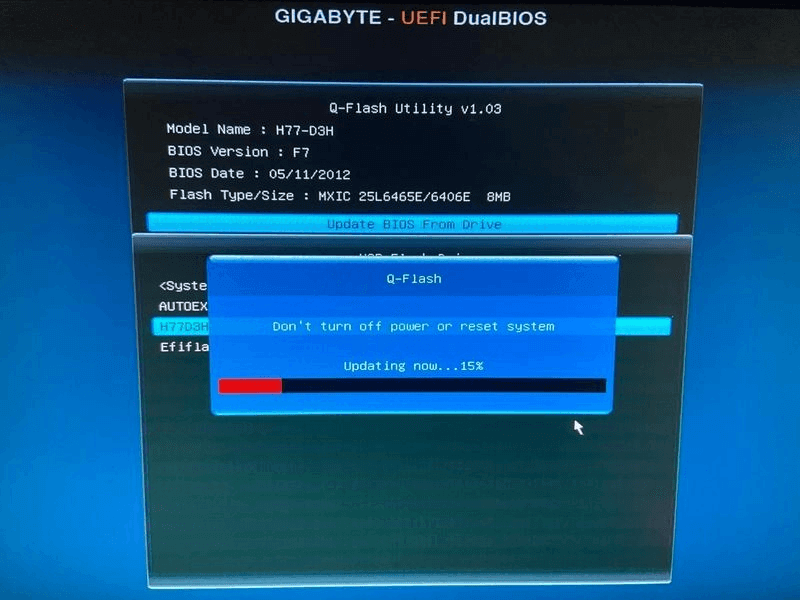
Step 3. Restart the computer after updating.
Step 4. Check if the hard drive is now detected.
Method 8. Perform a Hard Reset
A hard reset can effectively clear temporary data stored in your computer’s memory, and refresh the software connection between your hardware and the BIOS. This may restore normal operation and resolve the "Hard Drive not Found" error on your Dell laptop.
Step 1. Turn off the computer and unplug it.
Step 2. Remove the battery (if applicable) and hold the power button for 15–20 seconds.
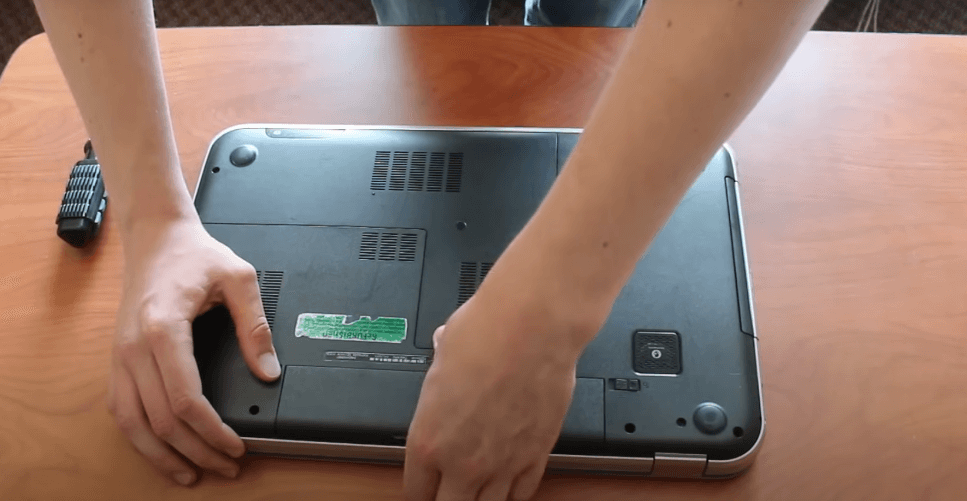
Step 3. Reconnect power and restart the system to check if the error is resolved.
Method 9. Test and Replace the Hard Drive
If all previous methods fail, and you encounter error code 2000-0141 along with the "Hard Drive Not Installed" message, it likely indicates that the drive has suffered physical damage. Testing and replacing it with a new one ensures system functionality is restored.
Step 1. Connect the hard drive to another computer or use an external enclosure.
Step 2. Check if it is detected and accessible. If not recognized, consider replacing the drive.
Step 3. Install a new drive and reinstall Windows if necessary.
Further Reading: How to Recover Data from Undetected or Failed Hard Drive
After resolving the "no hard drive detected" issue, another concern often follows: whether the data on the drive is still recoverable. In some cases, even if the system cannot detect the drive during boot, the data may still exist and can be accessed using the right approach.
However, if your hard drive becomes detectable again but files are missing, using a professional recovery tool like MyRecover becomes a practical solution to retrieve your lost data. MyRecover is designed to scan storage devices at a deeper level, helping locate lost data and recover files that are no longer visible through standard system access.

 MyRecover
- Recover deleted & lost files from HDD, SSD, USB, SD card, camera as you need.
- Support 1000+ formats of photos, videos, docs, archives, emails, compressed files, etc.
- Reliable rescue for deletion, formatted disk, emptied Recycle Bin, system crashes and more.
 100% Secure
Step 1. Download and install MyRecover on your computer from Microsoft Store, avoid installing it on the drive with lost files.
Step 2. Run the application and select the drive to scan, then click "Scan" to search for recoverable files.

Step 3. Browse the scan results and choose the files you wish to recover from the recoverable lists and click "Recover" to get them back.

Step 4. Select a safe location to save the recovered files to prevent overwriting original data.

Once the process is completed, you'll see the message "Files have been recovered successfully". Then, you can access and check the recovered files in the destination folder.
For more serious cases where the "no hard drive detected" error on Dell still persists and the hard drive remains undetected, MyRecover can also help you recover data from your unbootable computer. Here's how:
Step 1. Prepare a blank USB drive and connect it to a working computer.
Step 2. Launch MyRecover on the working PC and select "PC Crashed Recovery" tab, then click "USB Boot Device" and "Create".

Step 3. Wait for the bootable media create successfully and insert it into the unbootable PC.
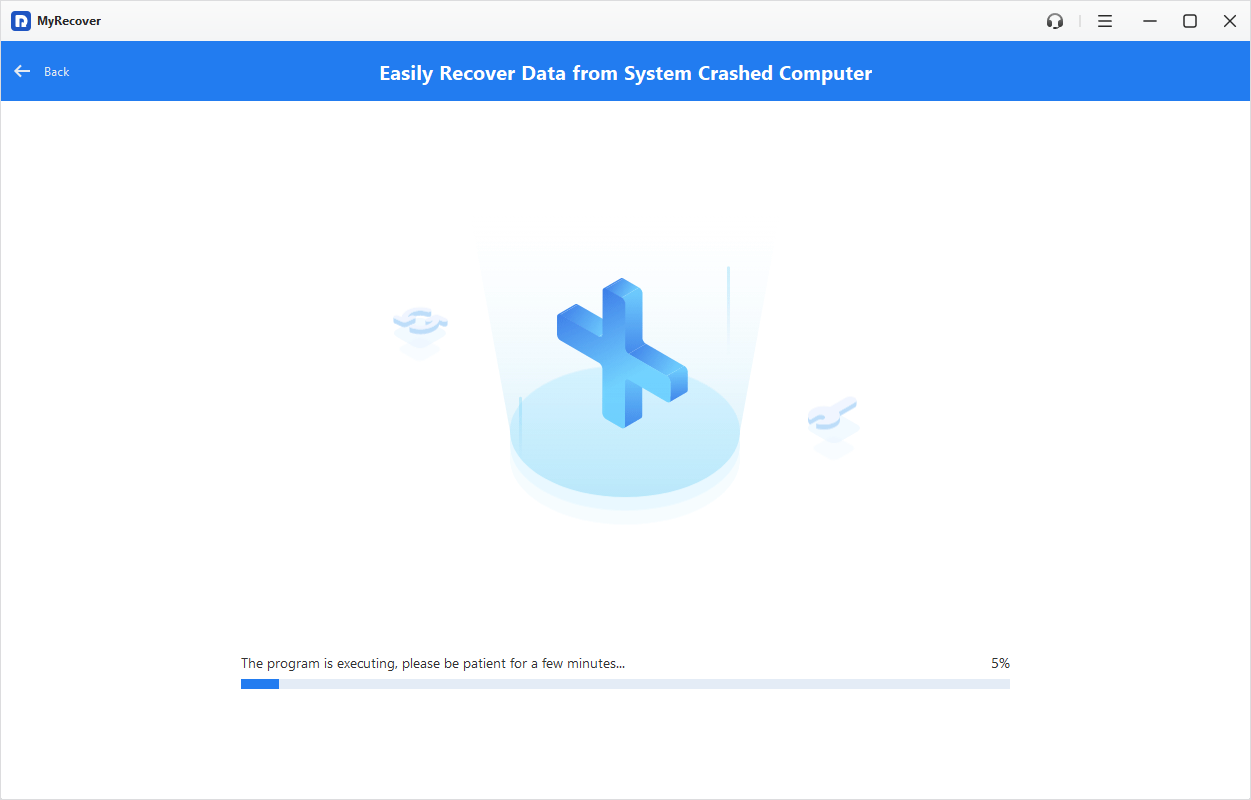
Step 4. Enter BIOS/UEFI with the steps mentioned above and change the boot menu to boot the computer from the USB drive.
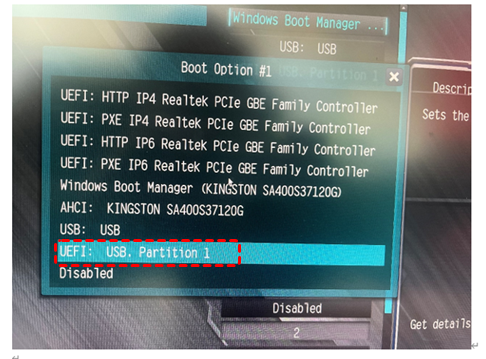
Step 5. Save the changes and restart your computer. Then, you will get into the interface of MyRecover and you can recover your inaccessible files with earlier steps.
Summary
The "no hard drive detected Dell" error can prevent your system from booting and accessing important data, but it is not always a sign of permanent hardware failure. By following the methods in this guide, you can systematically identify the root cause and restore normal functionality.
If the problem turns out to be more serious, such as drive failure or data inaccessibility, professional data recovery tool like MyRecover will help minimize potential loss. If you often handle data recovery across multiple devices, upgrading to the MyRecover Technican Edition can significantly improve efficiency and flexibility. It allows you to use one license across multiple computers, making it especially suitable for IT technicians, small businesses, or users managing several devices.
FAQs
Q1: How to fix Dell hard drive not detected?
Start with basic checks: press F1 to retry boot and enter BIOS (F2) to confirm if the drive is listed. Then verify connections or reseat the drive. Update drivers and BIOS if needed. If still not detected, run Dell diagnostics to identify hardware issues before considering replacement.
Q2: How to fix Dell laptop saying no hard drive detected?
Enter BIOS using F2 and check if the drive appears under storage. If not, perform a hard reset and reseat the drive if accessible. Update BIOS and storage drivers. If diagnostics show errors, the drive may be failing and require replacement.
Q3: How to recover data if Dell says no hard drive?
Remove the drive and connect it to another computer using a USB adapter or enclosure. If detected, copy files immediately or use data recovery software like MyRecover to scan and recover lost data. If the drive is not recognized at all, consider professional recovery services.
Q4: How to check BIOS when Dell cannot detect hard drive?
Restart your Dell computer and press F2 to enter BIOS. Navigate to the "Storage" or "Boot" section to see if the hard drive is listed. Also check SATA mode and boot order. If the drive is missing, it may indicate connection or hardware issues.
Q5: How to get my PC to recognize a hard drive?
Ensure the drive is properly connected and powered. Then open Disk Management to check if it appears as unallocated or uninitialized. Initialize and create a partition if needed. Updating drivers or BIOS may also help the system recognize the drive correctly.
Q6: Is my hard drive dead or just not detected?
If the drive appears in BIOS or another computer, it’s likely not dead and may have software or configuration issues. If it’s not detected anywhere or makes unusual noises, it may be physically damaged. Running diagnostics can help confirm its condition.

Stay Updated With Our
Latest Tips
Add us as a preferred source on Google to never miss helpful guides.
 Add as preferred source >>