 MyRecover



Microsoft Surface Deleted Partition Recovery: Recover Partitions and Files
Microsoft Surface deleted partition recovery depends on which partition was removed, whether its data remains, and how the device is encrypted. This guide explains how to choose a recovery method, access a Surface that cannot start, and use an official recovery image only after protecting important files.

By Aria / Updated on November 3, 2026


Why Is a Partition Missing or Deleted on Microsoft Surface?
You finish changing storage space or installing Windows on your Surface, then discover that a drive and its files have disappeared. In some cases, Windows will not start at all. Microsoft Surface deleted partition recovery starts with finding out what changed before you try to restore anything.

A missing drive does not always mean someone deleted its partition. Common causes include:
- Deleting the wrong partition during Windows installation. Several partitions can appear on the installation screen, including ones that do not normally appear in File Explorer.
- Making a mistake in a partition tool. Deleting a volume in Disk Management or selecting the wrong disk in DiskPart can remove access to an entire partition.
- Reinstalling, resetting, or cloning Windows. These operations can replace the previous partitions, depending on the options used.
- Damaged partition information. Windows may no longer recognize where a partition begins and ends after an interrupted disk operation.
- A partition that still exists but cannot be opened. A missing drive letter or a locked BitLocker volume can make files seem to have disappeared.
Deleting a partition does not necessarily erase all the files immediately. Recovery may be possible when enough of the original partition information and file contents remain readable.
Which Surface Partition Is Missing?
The right next step depends on which partition is gone. Recovering a folder of documents and restoring the files that start Windows are different tasks.
If Windows still starts, right-click Start > Disk Management and find the internal SSD by its capacity. Compare the partitions shown there with the drive that disappeared; do not create a volume if the old partition's space is now Unallocated.
|
Partition |
What you may notice after deletion |
What to do next |
|---|---|---|
|
Windows or personal data partition |
Files disappear; deleting the Windows partition can also stop Windows from starting |
Recover the partition and its files before reinstalling |
|
Windows may no longer start even though its main partition remains |
Protect your files, then address Windows startup |
|
|
Windows Recovery partition |
Some recovery or reset options may be unavailable |
Prepare recovery media if needed; reinstall only when that is your goal |
|
Often no obvious change in everyday use; later disk management tasks may be affected |
Confirm its identity rather than treating it as a personal file partition |
If a verified personal data partition is healthy and only its drive letter is missing, right-click it and choose Change Drive Letter and Paths > Add. Leave EFI, Recovery, and MSR partitions without drive letters.
If Windows cannot start, use what you know about the partition you deleted and any existing screenshots or installation records. Size alone cannot identify a partition reliably, and reinstalling Windows just to investigate can overwrite files you want back.
Before Recovery: Check BitLocker and Your Surface Model
Before opening a recovery tool, check these items so you can choose a method that can actually access your Surface SSD:
- BitLocker credentials. Have the correct recovery key available if the drive is encrypted. Finding a deleted partition does not remove its encryption, and tool support must be checked separately.
- Exact Surface model and processor. Open Settings > System > About if Windows works, or check the device details in your Microsoft account. Confirm whether the processor is Intel, AMD, or ARM before choosing software or a bootable USB.
- A separate physical destination disk. Connect an external drive with enough free space for the files you need to save. A second partition on the Surface SSD is not a separate disk.
- A stable power supply. Keep the Surface plugged in throughout scanning and recovery.
Before recovery: Stop creating partitions, formatting, and reinstalling Windows on the affected SSD. These operations can write over the old partition information and file contents; if Windows still runs from that SSD, reduce further use as much as possible.
For an ARM-based Surface, confirm bootable-media compatibility with the software provider before proceeding. Running a Windows application through emulation does not establish that its recovery USB can boot the device. Do not remove a Surface SSD unless the model supports removal and someone qualified can handle it safely.
How to Recover a Deleted Data Partition on Microsoft Surface
Use this section when you deleted a partition containing documents, photos, or other personal files, including a Windows partition that held your user folders. If you deleted only EFI or Recovery, you may need a Windows recovery or installation media.
MyRecover offers a graphical interface; TestDisk uses a keyboard-controlled text interface. They are alternative recovery methods. For either one, the software must be able to detect and read the Surface SSD in a compatible Windows or recovery environment.
Recover the Deleted Partition with MyRecover
MyRecover's Partition Recovery feature searches for a lost partition and helps restore it together with its recoverable files and folders. This suits users who prefer selecting disks and recovering partitions in a graphical window. You do not need to create a replacement partition before scanning. The steps below apply when your Surface SSD is readable in a supported environment; check bootable-media support first if Windows cannot start.
 MyRecover
- Restore recoverable partitions and the data they contain.
- Recover available partition details, including partition table information and drive letter.
- Keep recoverable filenames and folder hierarchy organized.
- Search for lost partitions and recoverable files using available dual scan modes.
 100% Secure
Step 1: Open MyRecover in a compatible environment. On a supported Windows computer, download MyRecover and install it on a healthy physical disk rather than the affected Surface SSD. If Windows is running from the affected SSD, minimize further activity on it.
Step 2 (Optional): Use compatible recovery media if Windows cannot start. On another working Windows PC, use MyRecover's bootable-media tool only after confirming support for your Surface model, processor, and storage driver. Connect the completed USB to the Surface and follow Microsoft's Surface USB boot instructions to load MyRecover.
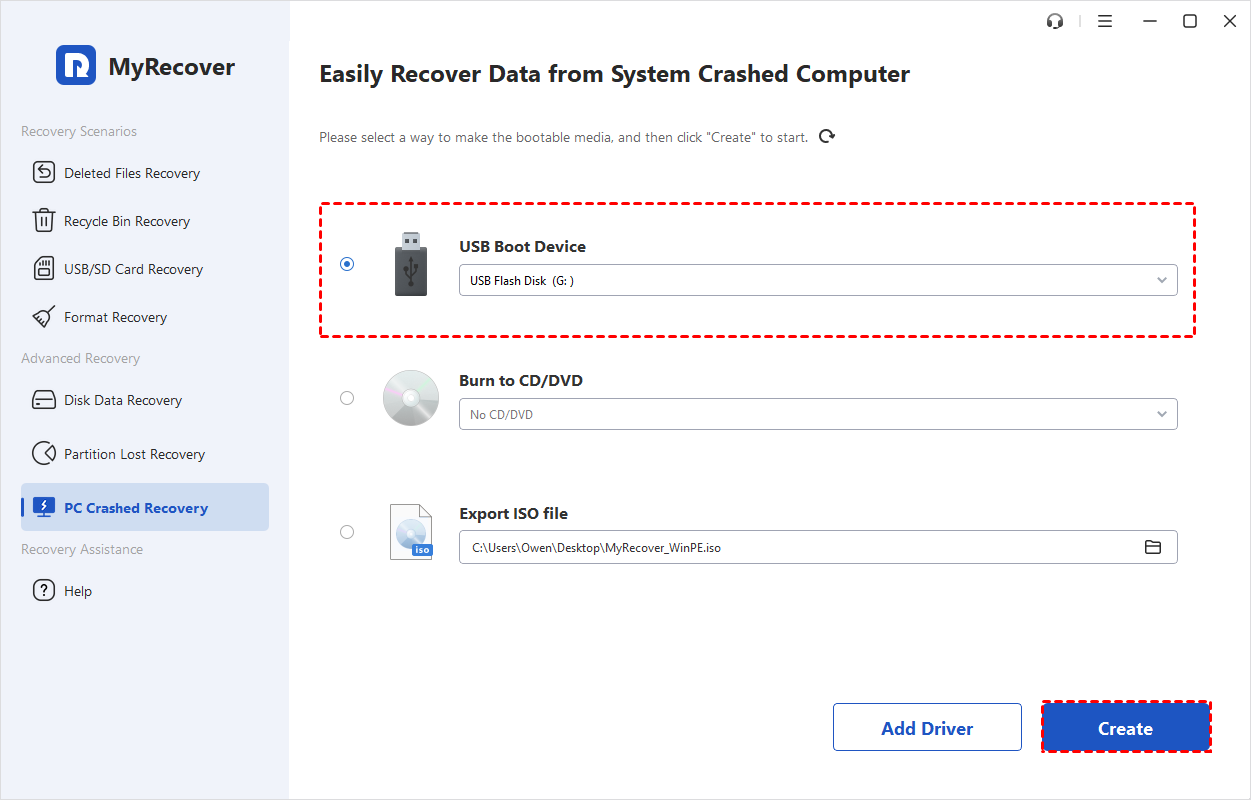
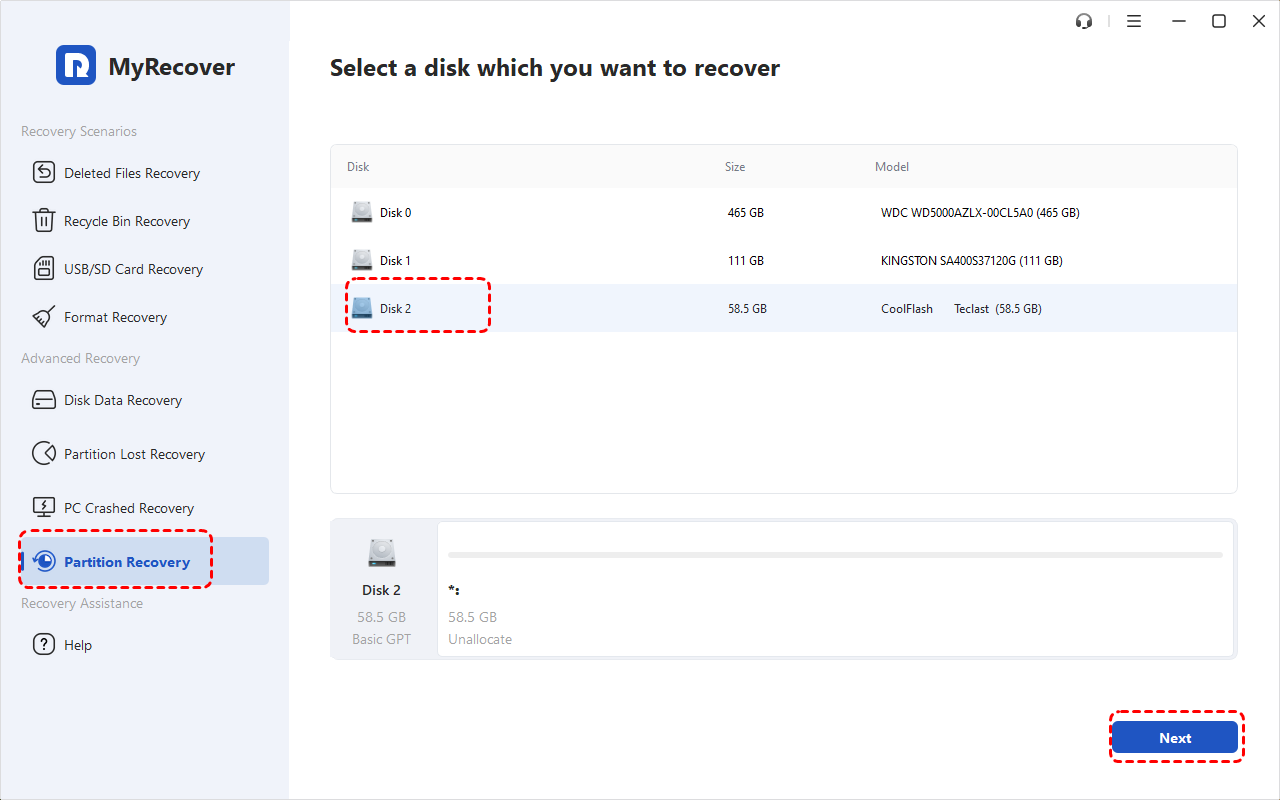
Step 3: Select the internal SSD. Open Partition Recovery, identify the Surface SSD by its model and capacity, and click Next. Select the whole SSD that contained the lost partition, not the recovery USB or external backup drive.
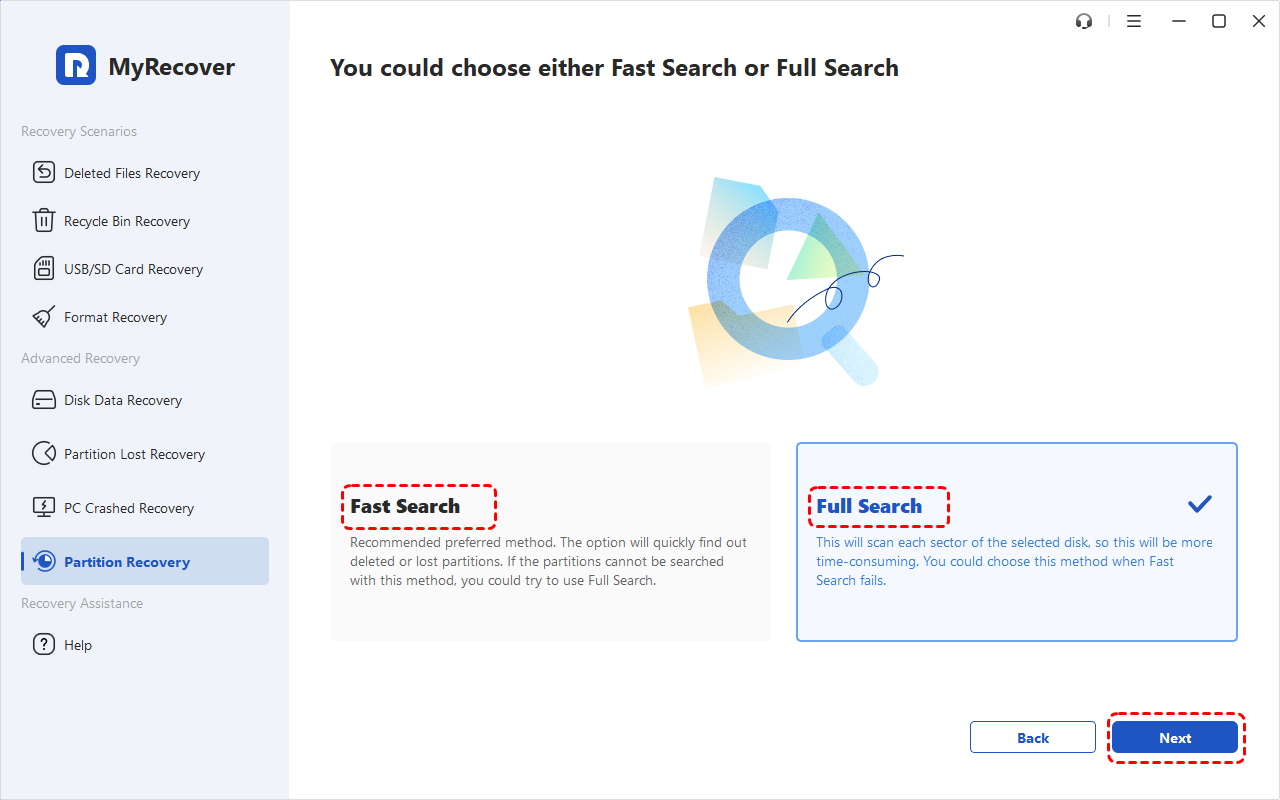
Step 4: Search for the deleted partition. Choose Fast Search and click Next. If it does not find the required partition, return and try Full Search.
Step 5: Check the result before restoring it. Compare the listed capacity, file system, and starting and ending sectors with the partition you lost. Select only the result you can identify, then click Proceed.
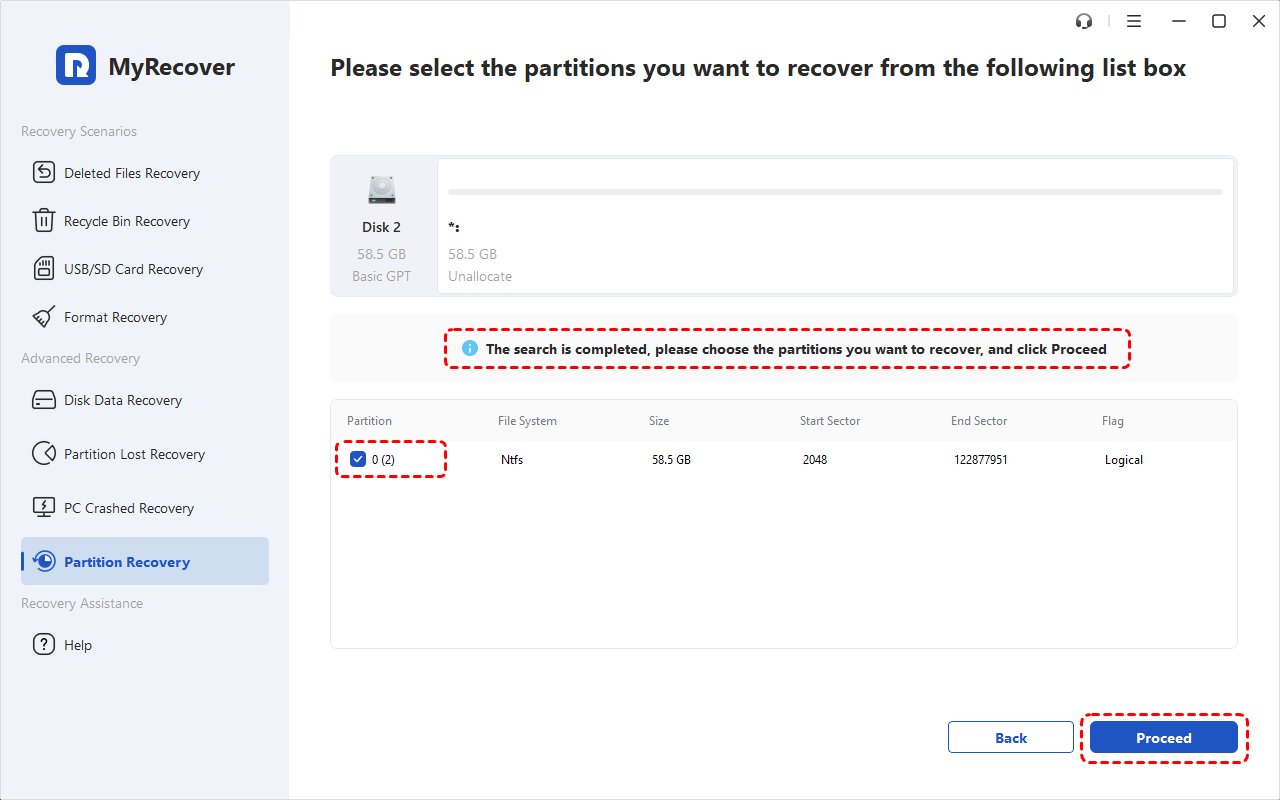
Step 6: Check your files after recovery. Once recovery finishes, open the partition if it is accessible and check several important files. Copy them to the external disk before making further changes to Windows or its partitions.
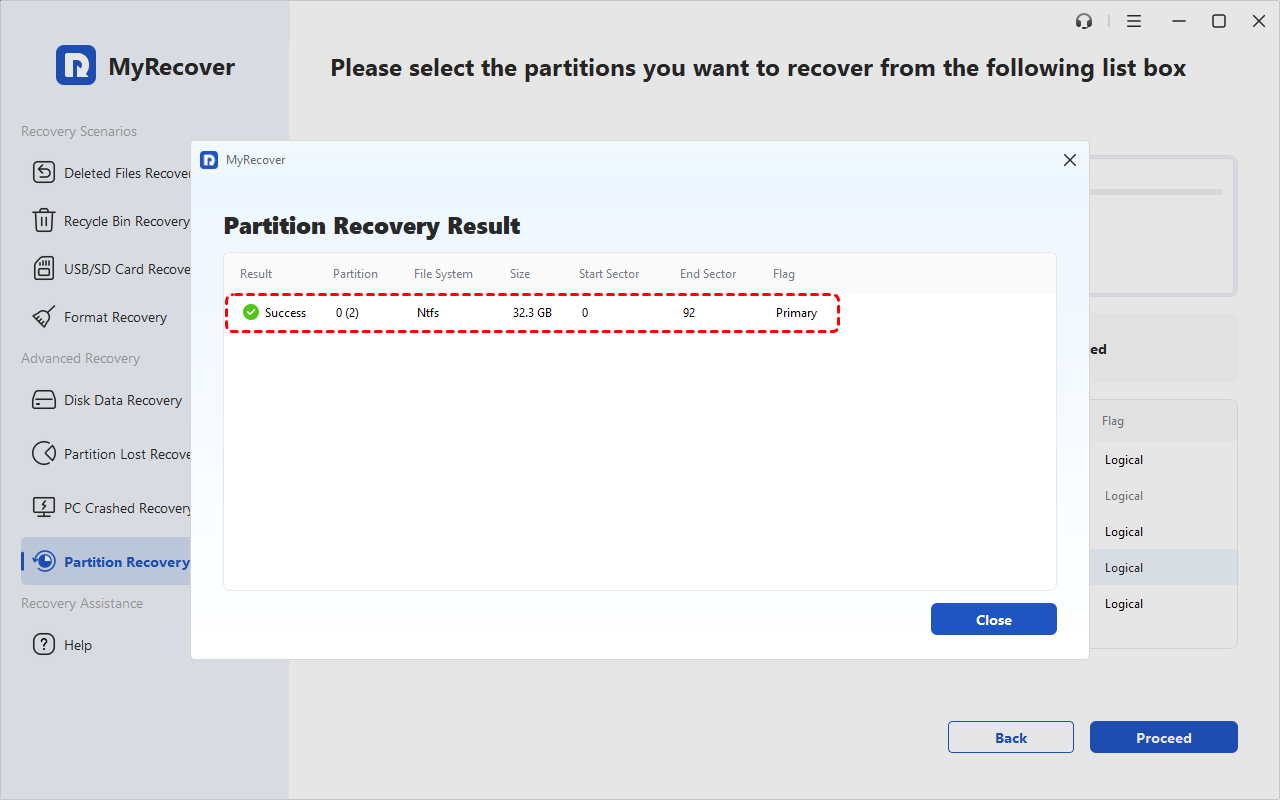
If you only need specific files or cannot confidently identify the original partition, use file scanning instead, preview supported files, and save the selected results to your external disk.
- ★Tips:
- Do not assume these steps can scan a locked BitLocker partition. Confirm that the recovery environment can detect the BitLocker volume and supports unlocking it with the matching recovery key. A valid key alone cannot recover damaged encryption metadata or compensate for unsupported recovery media.
Restore the Deleted Partition with TestDisk
TestDisk is a free alternative for users comfortable navigating menus with the keyboard and checking partition details themselves. It searches for missing partitions and can save a corrected partition table when the results are valid. The main difficulty is deciding which entries belong on the disk: writing the wrong selection can make other partitions inaccessible.
Step 1: Start a compatible TestDisk build. Download it from the official TestDisk download page, extract it to a separate drive, and run it with administrator permissions.
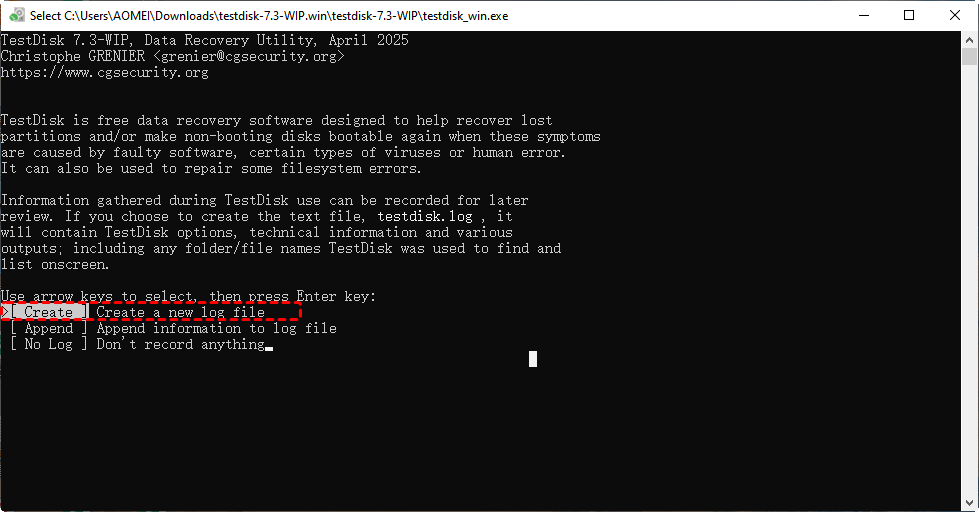
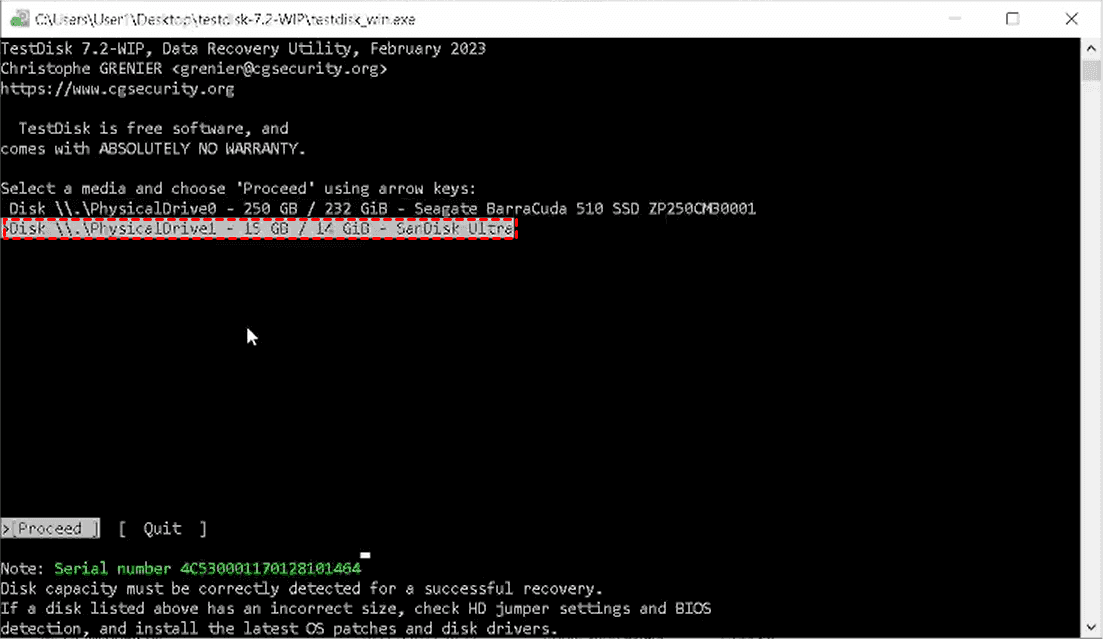
Step 2: Choose the SSD and partition table type. Select the internal SSD by model and capacity, then choose Proceed. Confirm the detected table type against the disk's actual configuration; modern Windows Surface installations normally use GPT.
Step 3: Search for the missing partition. Choose Analyse > Quick Search. If the expected partition is absent, continue with Deeper Search.
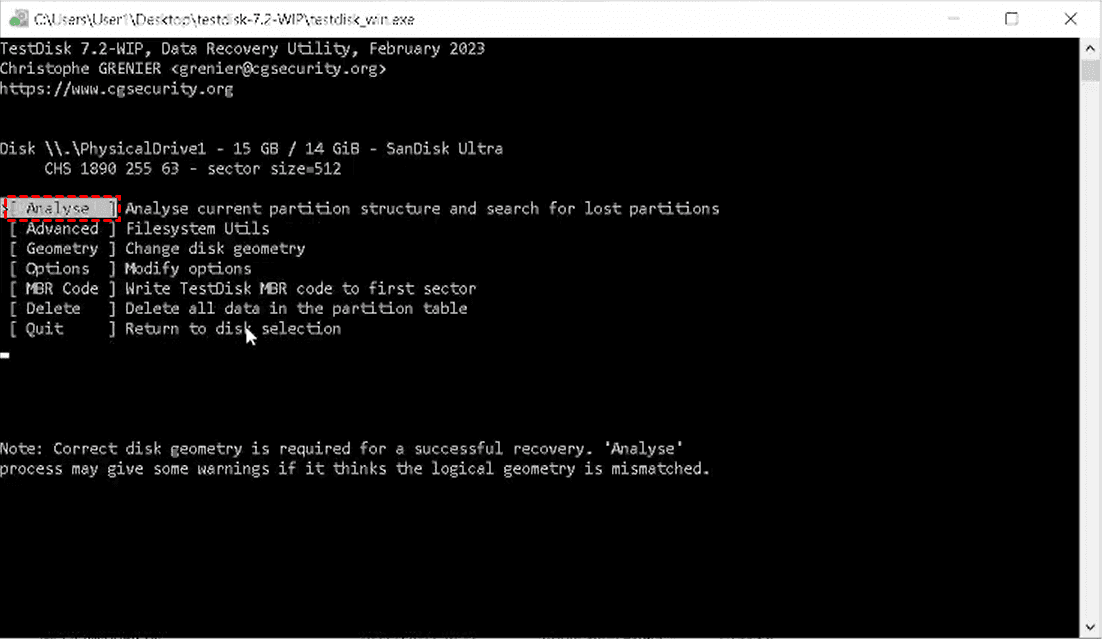
Step 4: Verify the proposed partitions. Check sizes and positions, and press P to list files where supported. Do not save overlapping entries or assume that every older partition found belongs in the current configuration.
Step 5: Save only a verified result. When the complete proposed partition list is correct, choose Write and confirm. If you cannot determine which entries are valid, quit without writing changes and seek recovery help.
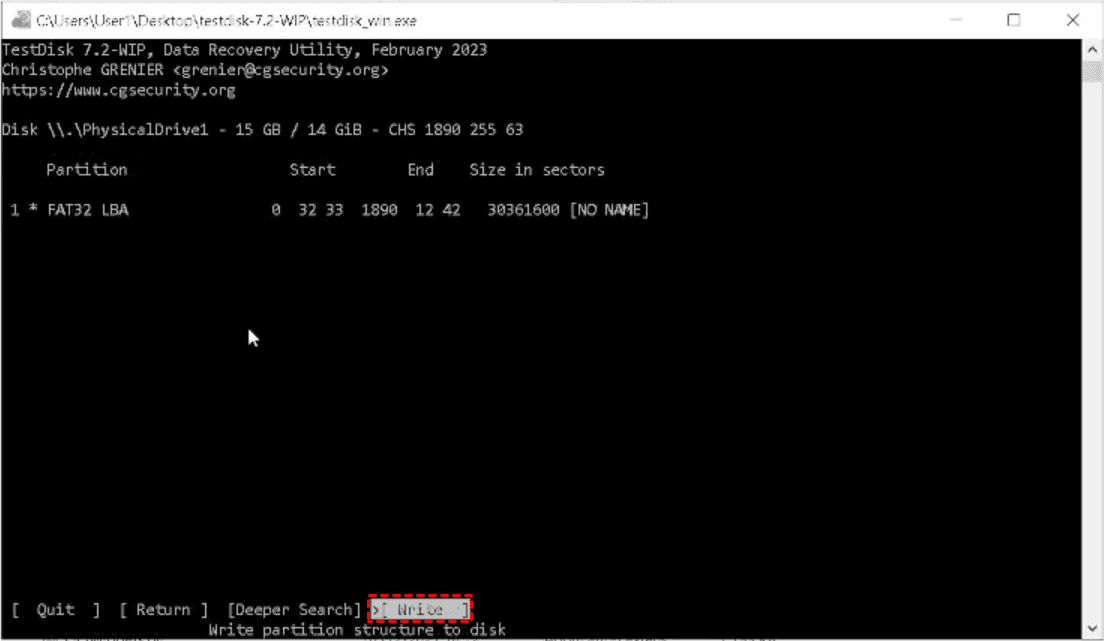
Step 6: Restart and check access. Restart as prompted, then check the recovered partition and copy important files to the external disk. A formatting prompt is a reason to stop and reassess, not permission to format.
What to Do If You Deleted the EFI System Partition
The EFI System Partition holds files that help the Surface start Windows. Deleting it can leave the computer unable to boot even while the main Windows partition and your personal files remain on the SSD.
MyRecover can help recover partitions and data, but it does not repair Windows startup. If EFI is the missing partition, protect your personal files first with MyRecover, then use the appropriate steps for an accidentally deleted Windows boot partition to address the startup issue.
What to Do If You Deleted the Surface Recovery Partition
Deleting only the Surface Recovery partition usually does not prevent everyday Windows use or normal startup. It can remove local recovery tools or files needed for some reset options, so you may need external recovery media later.
If Windows works, there is no need to reinstall it just because that partition is missing. You can prepare a recovery USB now and keep it for future problems; use it to reset the Surface only when you actually want to reinstall Windows.
Create a Surface USB Recovery Drive for Future Use
A Surface recovery USB gives you a way to reinstall Windows when the SSD's local recovery files are unavailable. It uses Microsoft's recovery image for your specific device, rather than trying to copy a partition that has already been deleted. You can prepare it on another working Windows PC if necessary. Keep it separate from the external disk holding your recovered personal files, because creating the USB erases its contents. Preparing this drive alone does not recreate the missing internal Recovery partition.
Step 1: Download the matching image. Use your Surface serial number on Microsoft's Surface recovery image page to download the correct ZIP file.
Step 2: Open Recovery Drive. Insert an empty USB drive of at least 32 GB, search Windows for Create a recovery drive, and open it.
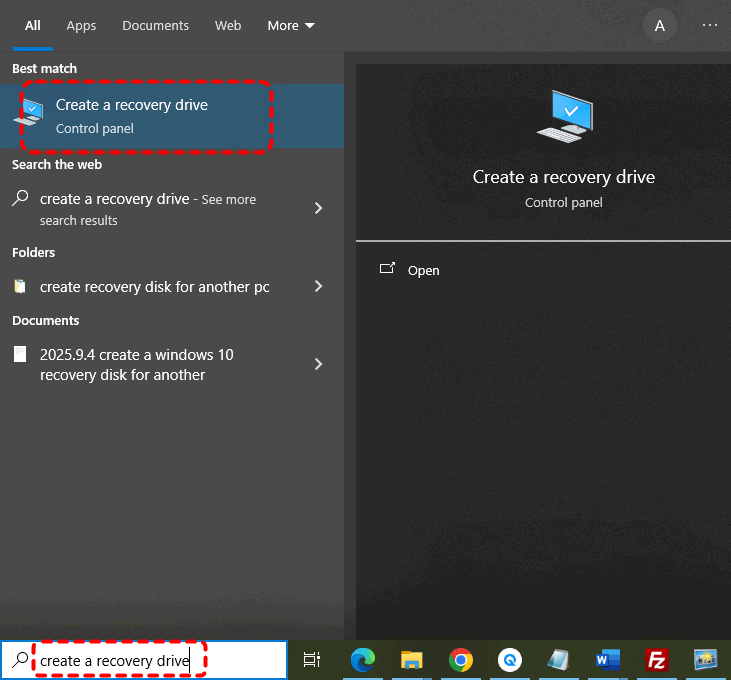
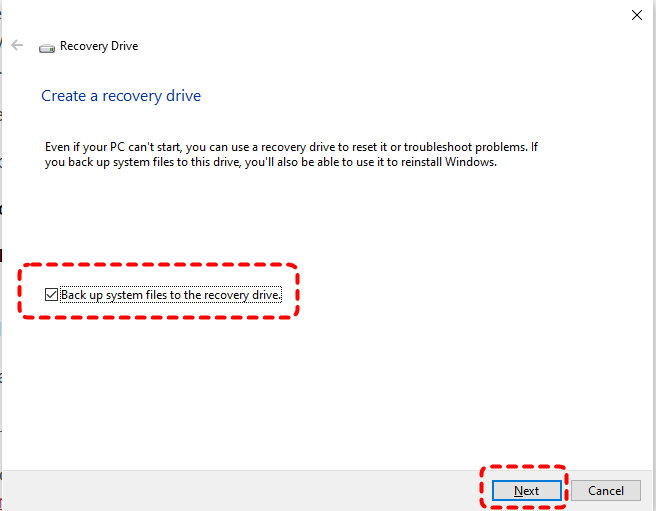
Step 3: Create the USB. Clear Back up system files to the recovery drive, click Next, and select the correct USB. Choose Create, then Finish.
Step 4: Copy the recovery image files. Extract the ZIP and copy all its contents to the USB's root, accepting Replace the files in the destination when prompted.
Step 5: Store the completed drive. Safely eject the USB and label it with the Surface model.
Use the Recovery USB to Restore Your Surface to Factory Settings
Use the prepared USB if your goal is to return the Surface to its factory setup, not merely to keep recovery tools available. The process reinstalls Windows and applies the partitions supplied by the recovery image. It does not bring back your deleted documents, installed applications, or previous settings. Before starting, finish any needed data recovery and verify the backup on another device. The installed Windows version and available recovery features depend on the image selected for your particular Surface model.
Step 1: Verify your backup. Open important files from the external backup disk, then disconnect that disk before resetting.
Step 2: Boot the recovery USB. Shut down, connect power, and insert the recovery USB on supported Surface models, hold Volume down, press and release Power, then release Volume down at the logo. Check your model's instructions if its controls differ.
Step 3: Start recovery. Select your language and keyboard, then Recover from a drive, sometimes under Troubleshoot.

Step 4: Confirm the reset. For a Surface you are keeping, select Just remove my files, then Recover after reading the deletion warning. Keep power connected until it finishes.

Step 5: Finish Windows setup. Check Windows and its recovery options, then reconnect your backup disk to copy your files back.
Microsoft's Surface recovery USB instructions cover the preparation and reset process for supported models.
Conclusion
A deleted Surface data partition calls for recovering the partition and files with MyRecover; a deleted EFI partition requires attention to Windows startup. If only the Recovery partition is gone and Windows works, prepare a Surface recovery USB and keep it until you need to reset the device.
For businesses recovering data across multiple compatible computers, MyRecover Technician provides a company-use option for unlimited PCs and servers. Surface processor, storage-driver, and encryption requirements still apply to each device.
Frequently Asked Questions
Can I recover a deleted partition after reinstalling Windows on my Surface?
Possibly, if the new installation has not overwritten the partition information and file contents needed for recovery. Reinstalling Windows writes substantial data to the SSD, so a detected old partition may contain incomplete files. Stop further installations and check existing backups before attempting a scan.
Why can't the recovery USB detect my Surface SSD?
The recovery environment may lack the required storage driver or may not support your Surface's processor. Confirm that the media matches your model and ask the provider about driver support. If the SSD is also absent from supported diagnostics, have Microsoft or a qualified technician investigate.
Can I save recovered files to the same Surface SSD?
No, you should save recovered files to a different physical disk while recovery is underway. Writing to the affected SSD can overwrite data that has not yet been recovered. Another partition on that SSD is still part of the same device; use an external disk instead.
Can deleted files still be recovered from a Surface SSD after TRIM?
Possibly, but files whose contents are no longer returned by the SSD after TRIM cannot be restored through ordinary recovery software. TRIM tells the SSD which storage areas are no longer needed. Recovery depends on what remains readable, and stopping further writes cannot reverse completed cleanup.
What should I do if a recovered Surface partition asks for a BitLocker recovery key?
Find the valid recovery key that matches the drive's displayed key ID and use it to unlock the partition. Restoring a partition does not remove BitLocker encryption. Check your Microsoft account or contact your organization's administrator; these steps explain how to find a BitLocker recovery key.

Stay Updated With Our
Latest Tips
Add us as a preferred source on Google to never miss helpful guides.
 Add as preferred source >>