 MyRecover



Invalid Partition Table on Dell? Here's How to Repair It
Facing an invalid partition table on boot? This guide explains what causes the invalid partition table error, with specific fixes for Dell, Dell Latitude, and Windows 10. You'll also learn how to fix invalid partition table in Windows 10 using different ways.

By Delores / Updated on September 7, 2026


Please Help! Invalid Partition Table!
Laptop won't boot up, saying "Invalid partition table".
This is my dad's laptop. Uses Windows 10, and it's really old (he might have had it before I was born). When he switches it on, the brand logo flashes, then this pops up on screen. Is it a hardware thing? It's saying check cables. I'm not really good at fixing the hardware of laptops, so I'm not really sure what to do.
I think it's just really old personally, so he might just need a new laptop, but the one he got has some sort of virus in it that unfortunately came to my laptop (currently using Windows' antivirus to remove it)
Any help will be appreciated.
- Question from reddit.com
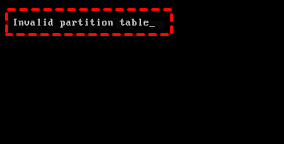
If you encounter the error message: Invalid partition table. Don't worry, the invalid partition table error doesn’t necessarily mean your hard drive is dead or your files are gone for good. It simply means your computer’s BIOS can’t find the right map to load your operating system.
This guide will walk you through exactly why this happens, how to fix it on Dell and other brands, and—most importantly—how to get your data back safely.
What is A Partition Table?
A partition table is a data structure at the beginning of a hard drive or solid-state drive that acts as a map, defining how the storage space is divided into separate, manageable sections (partitions). It lists partition locations, sizes, and types, allowing the operating system to identify where volumes begin and end.
There are two common partition table types: MBR (Master Boot Record) and GPT (GUID Partition Table).
- MBR: An older standard that supports a maximum of four primary partitions and drives up to 2TB.
- GPT: The modern standard part of UEFI, which allows for a virtually unlimited number of partitions (up to 128) and supports drives far larger than 2TB.
About Invalid Partition Table
When the partition table becomes corrupted, deleted, or overwritten, your BIOS cannot proceed and displays the invalid partition table message.
Without a valid partition table, your PC has no way to read the drive. It detects that a hard drive is connected, but it cannot interpret the data structure. That is why you remain stuck at that black screen. Then you can't access the hard drive files.
Generally speaking, a boot invalid partition table error usually indicates a logical problem, not a physical one. The drive spins up normally. The data remains intact. You simply need to repair the addressing map. Don't rush to reformat or replace the drive before attempting software-based repairs.
Why Does Your Computer Show an Invalid Partition Table?
Now, if you own a Dell laptop or desktop, you might notice this error pops up more frequently than on other brands. Why? Dell’s BIOS and UEFI implementations are particularly picky about partition table formats.
- Specifically, the Dell invalid partition table in Windows 7/8/10/11 issue often appears after a BIOS update or a failed Windows update. The BIOS suddenly switches from UEFI mode to Legacy mode (or vice versa), and your partition table doesn’t match the new setting. It’s a BIOS/UEFI mismatch.
- If you’re dealing with a Dell Latitude invalid partition table error on a Latitude 5000 or 7000 series, the culprit is usually the Intel Rapid Storage Technology driver conflicting with Windows Fast Startup.
- On Inspiron models, it’s often a loose SATA cable or a BIOS setting that flipped after a power surge.
- Besides, Dell’s own SupportAssist OS Recovery sometimes triggers this error when it tries to create a hidden recovery partition and botches the job.
So, if you recently ran Dell’s built-in diagnostics or tried to reset your PC, that might be the moment the partition table became corrupted.
Recover Important Files Before Fixing the Invalid Partition Table
First of all, recovering files from the computer that won't boot up is the most important thing. Although your computer shows an invalid partition table, your photos, documents, and projects are still sitting on the drive, waiting to be found.
Fortunately, here comes the powerful Windows data recovery software MyRecover to help. It can easily detect and read your hard drive even when your PC shows an "Invalid Partition Table" boot error.
- It allows you to recover files from any complex situation, such as recovering files from an emptied Recycle Bin, a formatted hard drive, a corrupted SD card, a damaged partition, or an unbootable computer, etc.
- It bypasses the operating system entirely and reads the drive at the hardware level.
- It supports 1,000+ file types (Documents, Excel, archives, photos, videos, etc.) and 500+ devices (SSDs, HDDs, SD cards, Cameras, PS4/5, music players, etc.).
- You are allowed to preview the files before recovery, ensuring the files are right and saving your time and effort.
Here’s how to recover files from an unbootable computer with MyRecover:
1. Please download and install MyRecover on a working computer and connect your USB drive (a blank at least 32GB) to the computer.
 100% Secure
2. Tap PC Crashed Recovery, tick the USB drive, choose the connected USB drive, and hit Create.

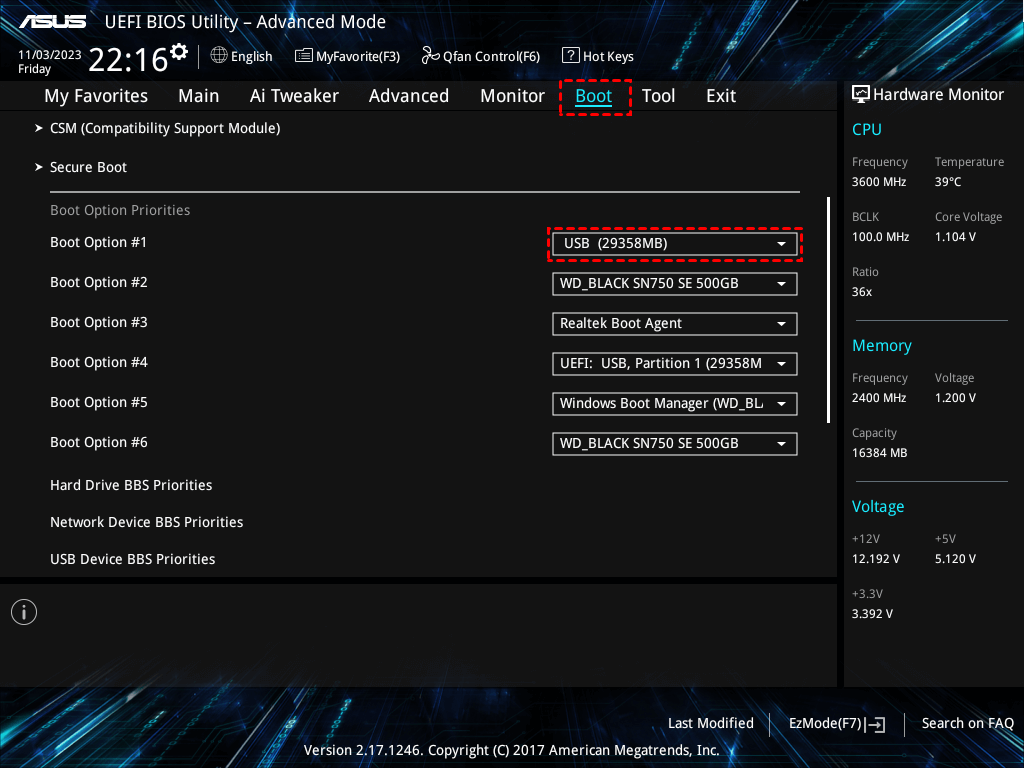
3. Then boot up your unbootable Dell laptop using the bootable USB media. Change the boot order to boot from the USB drive, then MyRecover runs automatically.
4. On the MyRecover interface, tap Disk Data Recovery, and tap Scan while hovering over the drive you need to recover files from. Hit OK when it's done.

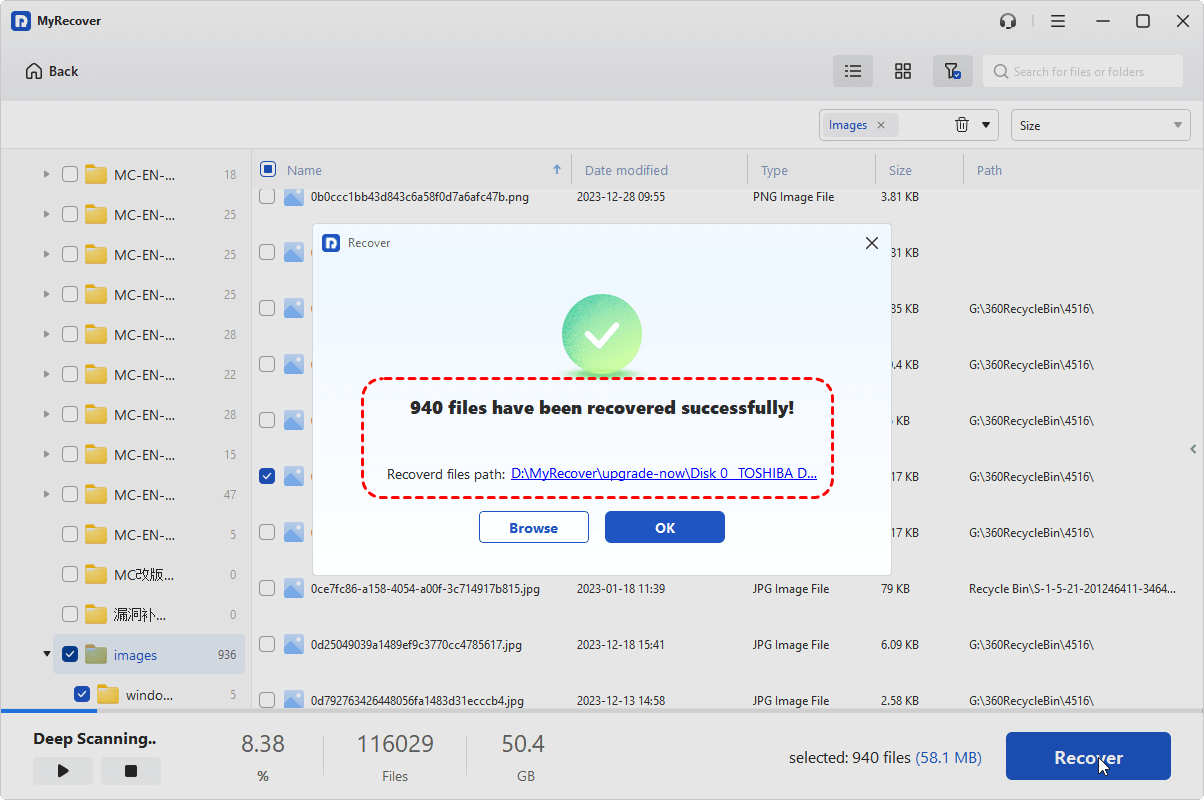
5. Preview and choose the files you need, and hit Recover.

6. Opt for a target folder and hit Select Folder to keep them safe.

- Notes:✎...
- MyRecover will first run a Quick Scan, which looks for recently deleted files. Since the partition table is broken, the Quick Scan might not find much. You can try a deep scan to find more files, which ignores the broken partition table entirely.
- Once the scan completes, all recoverable files are sorted by file type or file path. You can also use the filter bar: Type .docx to find Word documents, .jpg for photos, .psd for Photoshop files, or .xlsx for Excel sheets. Besides, you can search files by file name, size, modified date, etc.
- MyRecover lets you preview files before you recover them. Double-click any file to check the content, which confirms that the data is intact and not corrupted.
- You can upgrade to MyRecover Technician to enjoy more powerful features, like recovering files from unlimited computers easily, etc.
After recovery, navigate to that folder. Open a few files to make sure they open properly. Once you’ve confirmed everything works, you can fix or reformat the original broken drive and reinstall Windows—or replace it entirely if the diagnostics showed hardware failure.

 MyRecover
- Recover Deleted Files Easily with Simple Clicks
- 1000+ File Formats Supported
- Support HDD, SSD, External Hard Drive, USB Drive, SD Card, etc.
- Quickly Find Files Using File Types, Name, Size, etc.
- Preview Files Before Recovering
- Recover Unlimited Data
 100% Secure
How to Fix Invalid Partition Table in Windows 11/10/8/7?
Way 1. Check BIOS/UEFI Settings (Most Common):
1. Restart your computer and tap F2, F12, F10, or Delete to enter BIOS.
2. Navigate to Boot Sequence or Boot Options.
3. Ensure the boot mode is set to UEFI (not Legacy) for Windows 10/11.
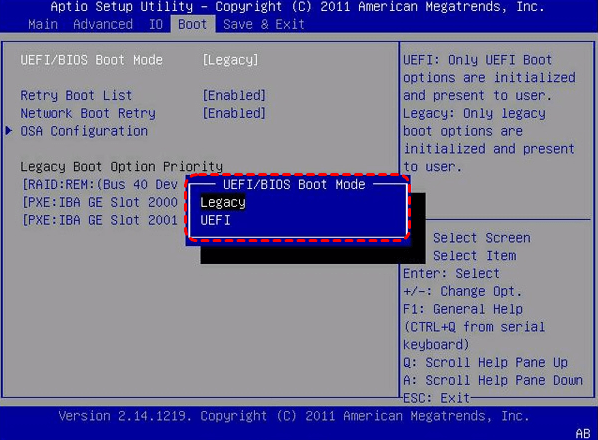
4. Ensure the hard drive with Windows is listed first.
5. Save and exit.
Way 2. Disable Fast Startup Permanently
Fast Startup is a Windows feature that hybrid-shuts down your PC to make booting faster. However, when Fast Startup is enabled, Windows locks the partition table in a semi-hibernated state. If you then boot into a BIOS update utility or a Dell diagnostic tool, that tool tries to read the partition table while it's locked. Then the partition table will be corrupted.
How to fix an invalid partition table in a Dell computer? Disable Fast Startup permanently after you recover your system. Here is how:
1. To permanently disable Fast Startup on a Dell computer, open the Control Panel.
2. Go to Power Options, click "Choose what the power buttons do".
3. Select "Change settings that are currently unavailable", and uncheck "Turn on fast startup".
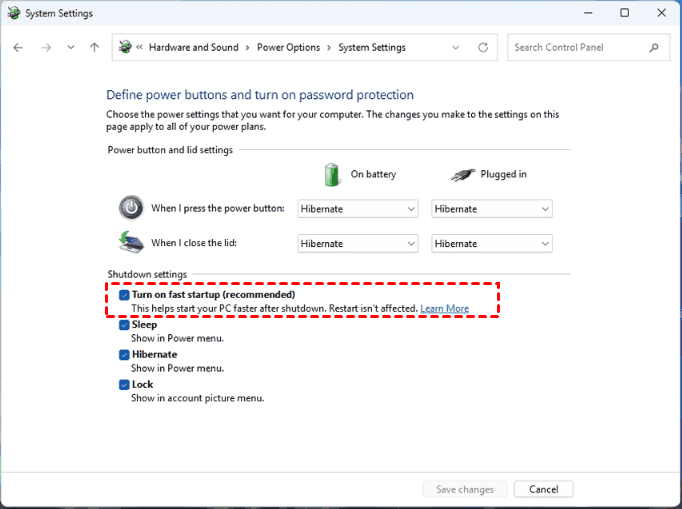
4. Finally, click "Save changes" to permanently disable it.
Also, whenever Dell pushes a BIOS update via Windows Update, pause it until you manually back up your data.
Way 3. Run Bootrec Commands to Rebuild MBR
Windows 10 has built-in recovery tools that can repair a corrupted partition table without touching your personal files. You just need a bootable USB drive with Windows 10 installation media.
Don’t have one? Borrow a friend’s computer and create one using Microsoft’s free Media Creation Tool.
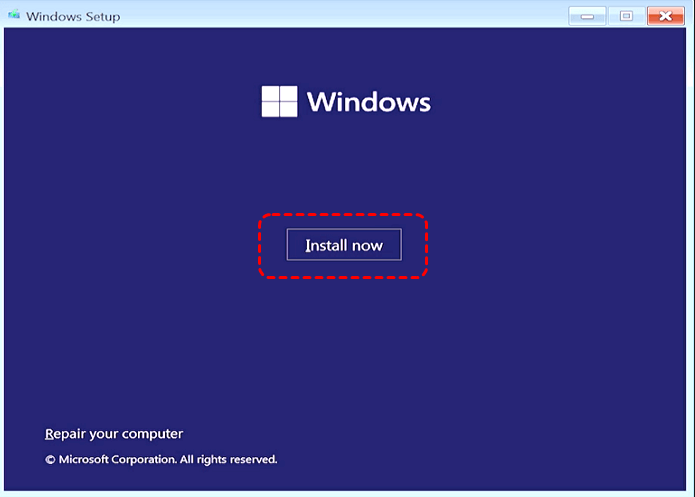
1. Boot your computer that shows an invalid partition table error from the bootable USB, and select “Repair your computer” instead of “Install now”.
2. Once you’re in the Windows Recovery Environment (WinRE), open Command Prompt.
3. Type the following commands one by one, pressing Enter after each.
bootrec /fixmbr: This writes a fresh master boot record to the system partition without overwriting the existing partition table.
bootrec /fixboot: This writes a new boot sector.
bootrec /scanos: This scans your hard drive for any Windows installations it can find.
bootrec /rebuildbcd: This rebuilds the Boot Configuration Data store.
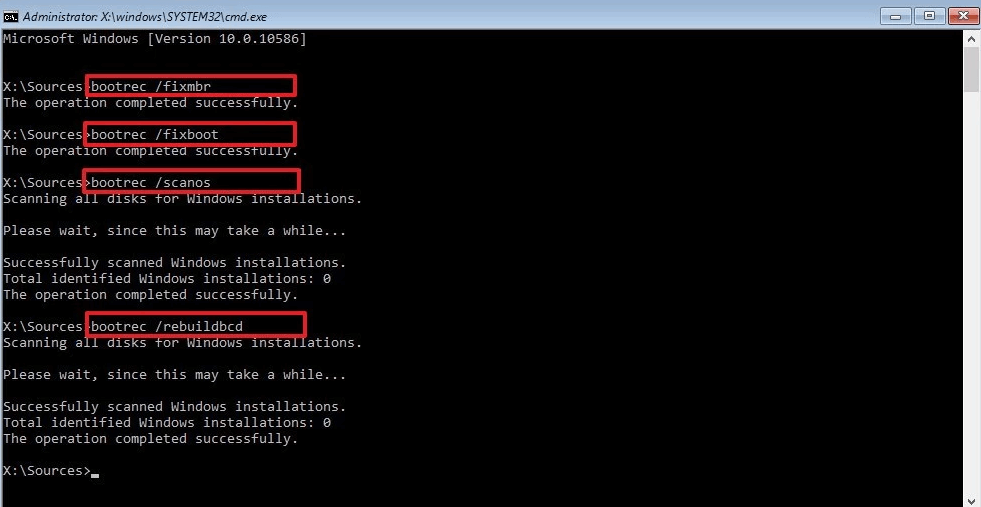
4. Type exit and restart your computer.
Now, your data stays intact, and Windows boots normally again.
Way 4. Run CHKDSK and Diskpart to Repair Partition Structures
If Bootrec doesn’t work, it’s time to try the heavy hitters: CHKDSK and Diskpart.
1. Back in Command Prompt in WinRE.
2. Type chkdsk c: /f /r /x.
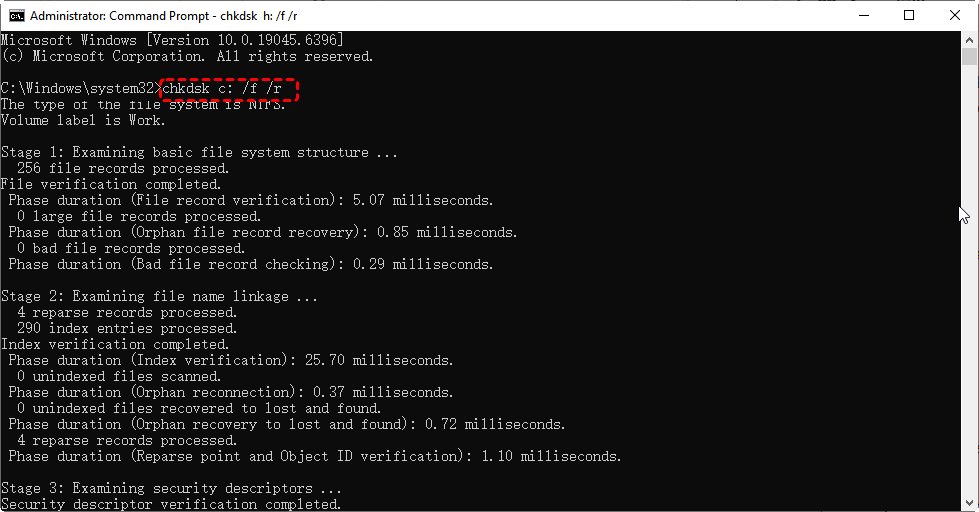
This checks your C: drive for file system errors, fixes them, and forces the volume to dismount first so it can scan every sector. Be patient.
3. After CHKDSK finishes, type diskpart.
4. Then list disk to see all connected drives.
5. Input select disk 0 (assuming your Windows drive is disk 0).
6. Then list partition. If you see a partition marked as “System” or “Boot”, that means your partition table has been fixed. If you don’t, type detail disk to inspect further.
7. Finally, type exit to leave DiskPart.
These commands don’t delete data; they just repair the partition table’s structure. Honestly, this process fixes roughly 80% of invalid partition tables on boot Dell cases I’ve encountered.
Way 5. Check if Your Hard Drive is Failing on Dell Computer
Dell includes its own diagnostic tools right in the BIOS. These won’t fix the partition table directly, but they’ll tell you if the underlying hard drive is failing. If the drive is physically dying, all the software repairs won’t save you. You’ll need to recover your data first (see the MyRecover section below) and then replace the drive.
1. Restart your Dell. As soon as the Dell logo appears, spam the F12 key repeatedly. That gets you to the boot menu.
2. Select “Diagnostics” (or ePSA). Let the full test run. It will check the hard drive’s SMART status, read/write capabilities, and internal self-tests.
If the diagnostic passes with a green checkmark, your drive is physically fine.
If it throws an error code (like 2000-0142), your drive is failing. In that case, don’t waste time trying to repair the partition table on a dying drive. Shut down immediately and proceed to data recovery first. A failing drive can die completely at any moment.
Way 6. Reinstall Windows
If the partition table is severely corrupted, you may need to use a Windows installation USB to perform a clean install for your Windows7/8/10/11.
To reinstall Windows on a non-booting computer:
1. Create a bootable USB drive (at least 8GB) using the Windows Media Creation Tool on a working PC.
2. Then boot the broken computer from that bootable USB: Access the BIOS/UEFI (usually F2, F12, Del, or Esc) to prioritize the USB drive in the boot order.
3. Once booted from USB, choose "Install Now" and follow the guide to perform a clean install.
FAQs About Invalid Partition Table
Q: Will a Windows update fix this error automatically?
A: No. Ironically, interrupted Windows updates often cause the error. There’s no self-healing mechanism. You must manually fix it via WinRE or a bootable USB.
Q: Software or hardware issue on a Dell Latitude?
A: Run Dell ePSA diagnostics. If it passes → 99% software. If it fails with a hard drive error → hardware. A failing drive can corrupt the partition table before dying completely.
Q: Can I fix an invalid partition table without a Windows USB or another PC?
A: Possibly, but it’s tricky. So your best option is to borrow a PC to create a bootable USB (10 minutes). Then, plug the corrupted drive into the working PC as a secondary drive and run Bootrec from there.
Q: MBR vs. GPT – why does it matter?
A: MBR (old, ≤2TB, 4 primary partitions). GPT (modern, >2TB, 128 partitions). The error often occurs when BIOS is set to UEFI (expects GPT), but the drive is MBR, or vice versa. If it is set up incorrectly in BIOS settings, an invalid partition table occurs.

Stay Updated With Our
Latest Tips
Add us as a preferred source on Google to never miss helpful guides.
 Add as preferred source >>