 MyRecover



Olympus Tough TG-3 SD Card Write Protect Error? Fixed Fast
This guide resolves the Olympus Tough TG-3 SD Card Write Protect Error on Windows and cameras. Learn how to fix write protect on Olympus camera, check the physical lock, adjust diskpart settings, and recover full card access.

By Delores / Updated on June 2, 2026


About Olympus Tough TG-3 SD Card Write Protect Error
If you are facing the Olympus Tough TG-3 SD card write-protect error, it basically means your camera has lost its ability to save new photos or videos to the memory card.
The Olympus Tough TG-3 SD card write protect error usually pops up when the camera detects that the SD card is locked or corrupted.
But don’t panic just yet. Most of the time, it’s a simple fix. We’ll walk you through everything, from the physical switch on your card to software tweaks on your computer.
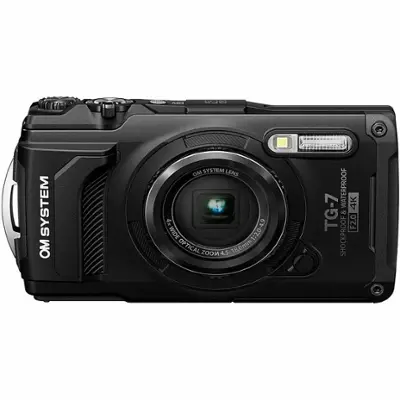
What Does Write Protection Mean on Olympus Cameras?
Write protection is a feature that prevents any changes to the data on your SD card. When your Olympus Tough TG-3 activates this, you can still view old photos, but you can’t delete, edit, or save anything new. The Olympus Tough TG-3 SD card write-protect error simply says, “Sorry, this card is read-only right now”.
This is different from a full card corruption error. With write protection, the card is usually healthy—it’s just locked.
Common Triggers of the Write Protect Lock on TG-3 Models
Why does this happen? Here are the usual suspects:
⭕ Dirty or damaged card contacts – Dust or corrosion can confuse the camera.
⭕ File system errors– If the card wasn’t ejected properly from a computer, the file system can become read-only.
⭕ Firmware glitches – Rare, but sometimes the camera itself needs a reset.
⭕ Windows write protection – If you’ve used the card on a Windows PC, the OS might have applied software-based write protection. That’s where the Olympus Tough TG-3 SD card write-protect error in Windows becomes a key search term.
Recover Photos and Videos Before Troubleshooting
When you see the Olympus Tough TG-3 SD card write-protect error, your files are still safe. The card is read-only, which actually protects your data from being overwritten. But if you plan to format the card or run repair tools, you should recover your photos first.
Enter MyRecover. This is a reliable Windows data recovery tool that works even when the card is write-protected. It reads the card sector by sector and helps you to recover files.
Here are the simple steps to recover photos and videos from the Olympus Tough TG-3 SD card that shows a write-protect error:
1. Insert the SD card from your Olympus Tough TG-3 into your PC. Make sure Windows detects it, even if it shows as write-protected.
2. Download MyRecover after installing, then launch it.
 100% Secure
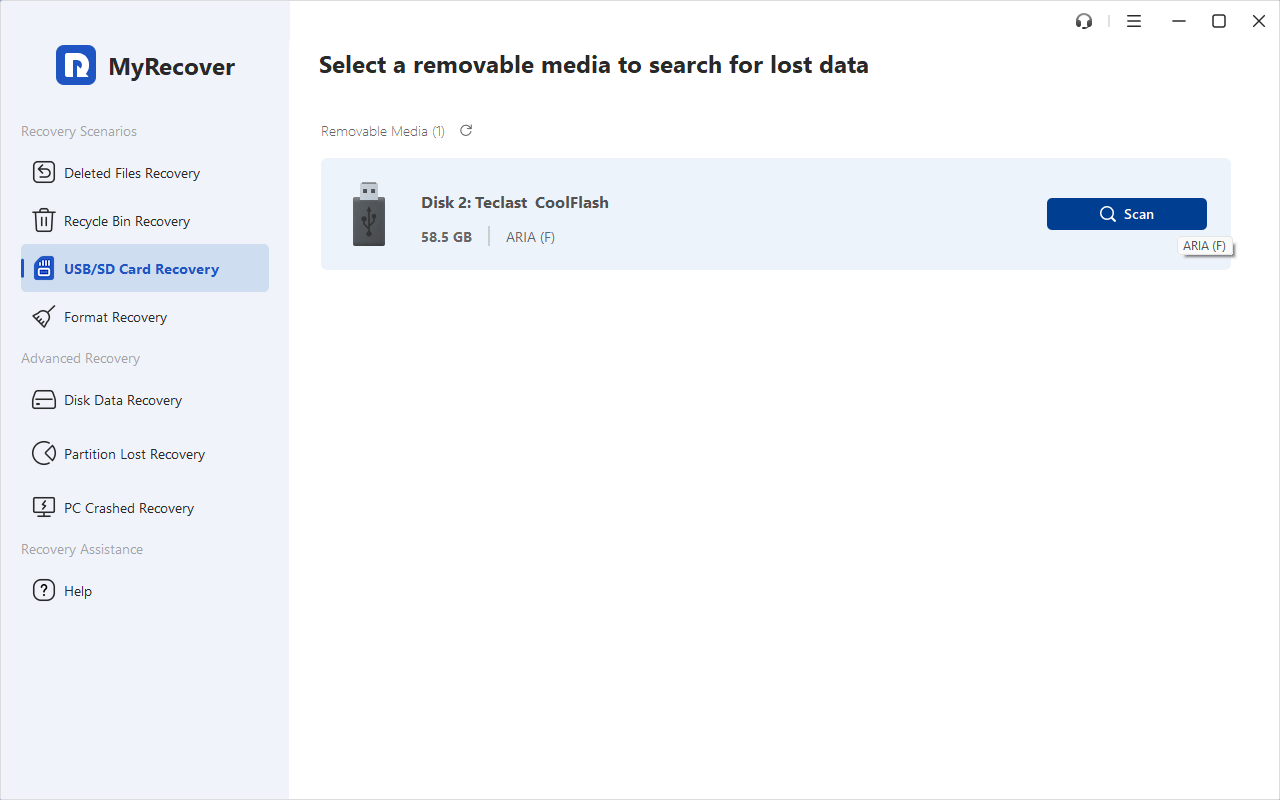
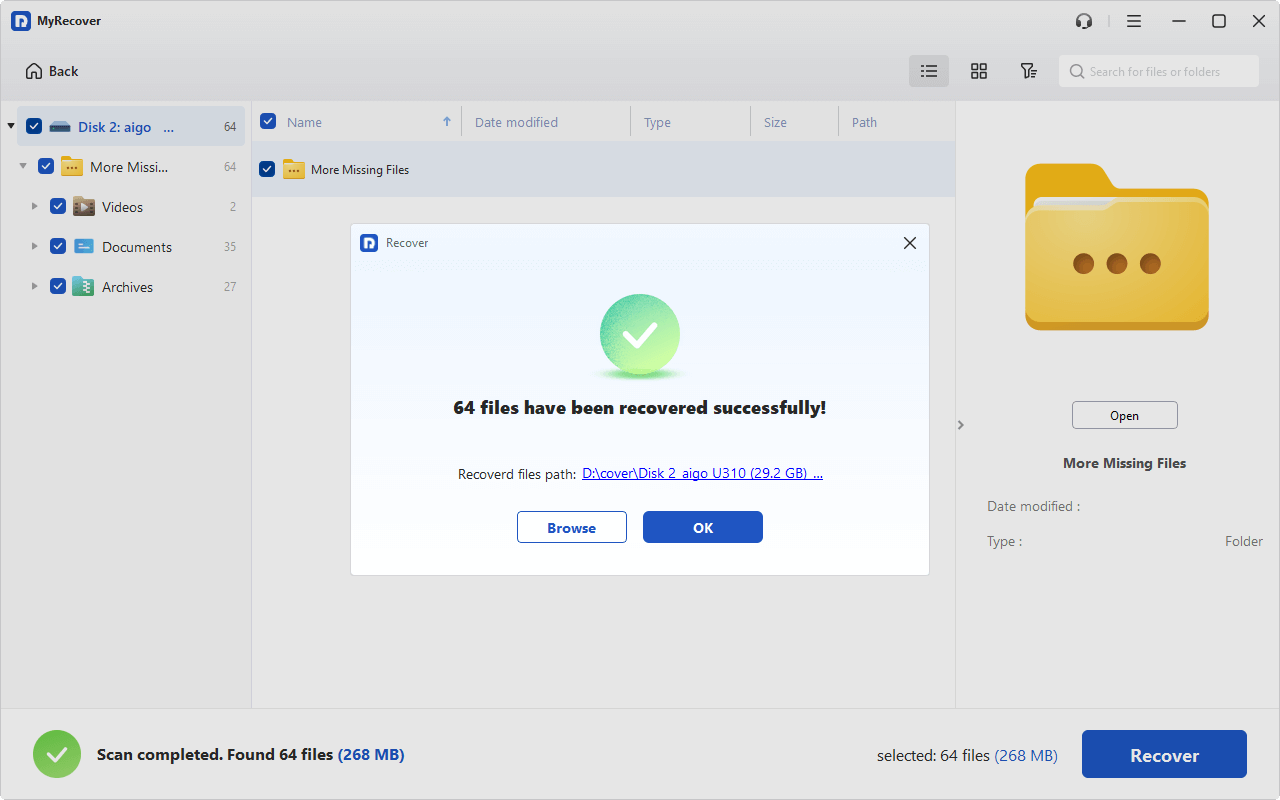
3. Tap USB/SD Card Recovery, hover over your write-protected SD card, and hit Scan.
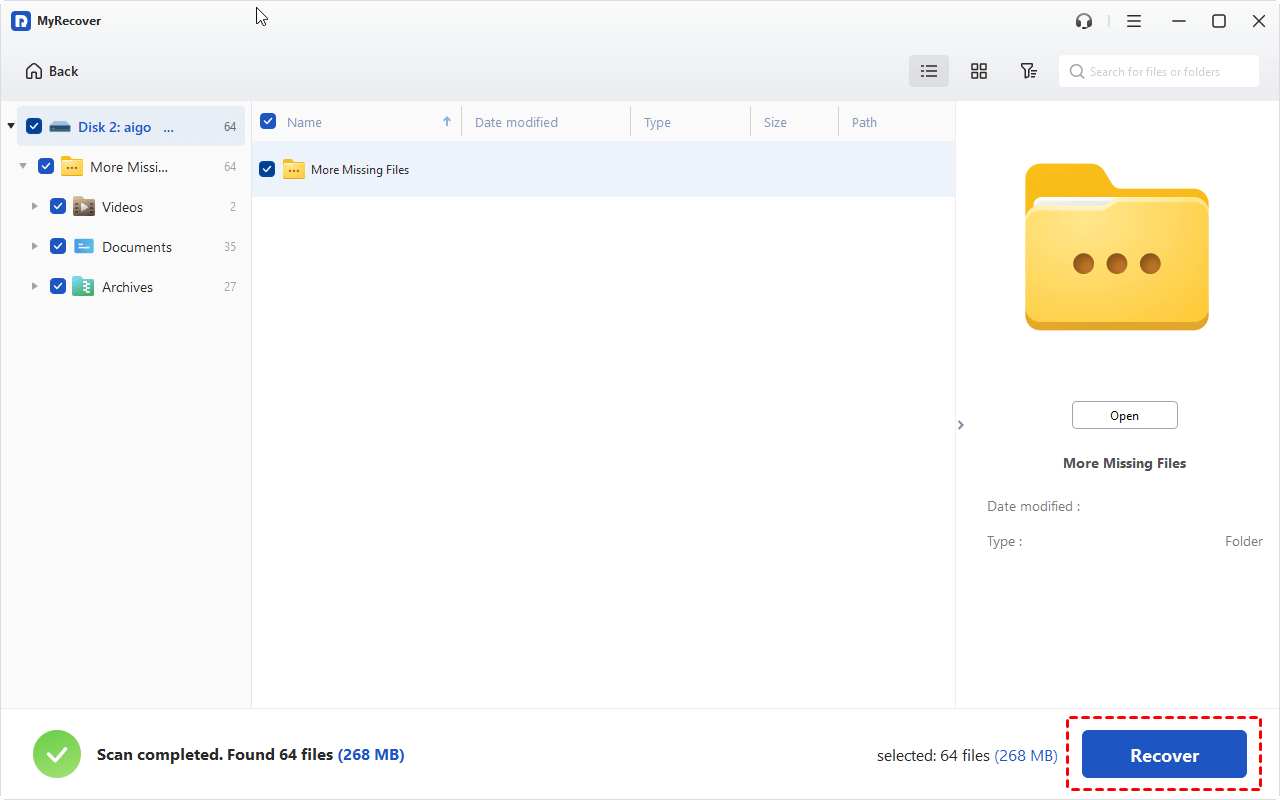
4. Preview the photos and videos after scanning. Then tick all the photos and videos you need, and hit Recover.
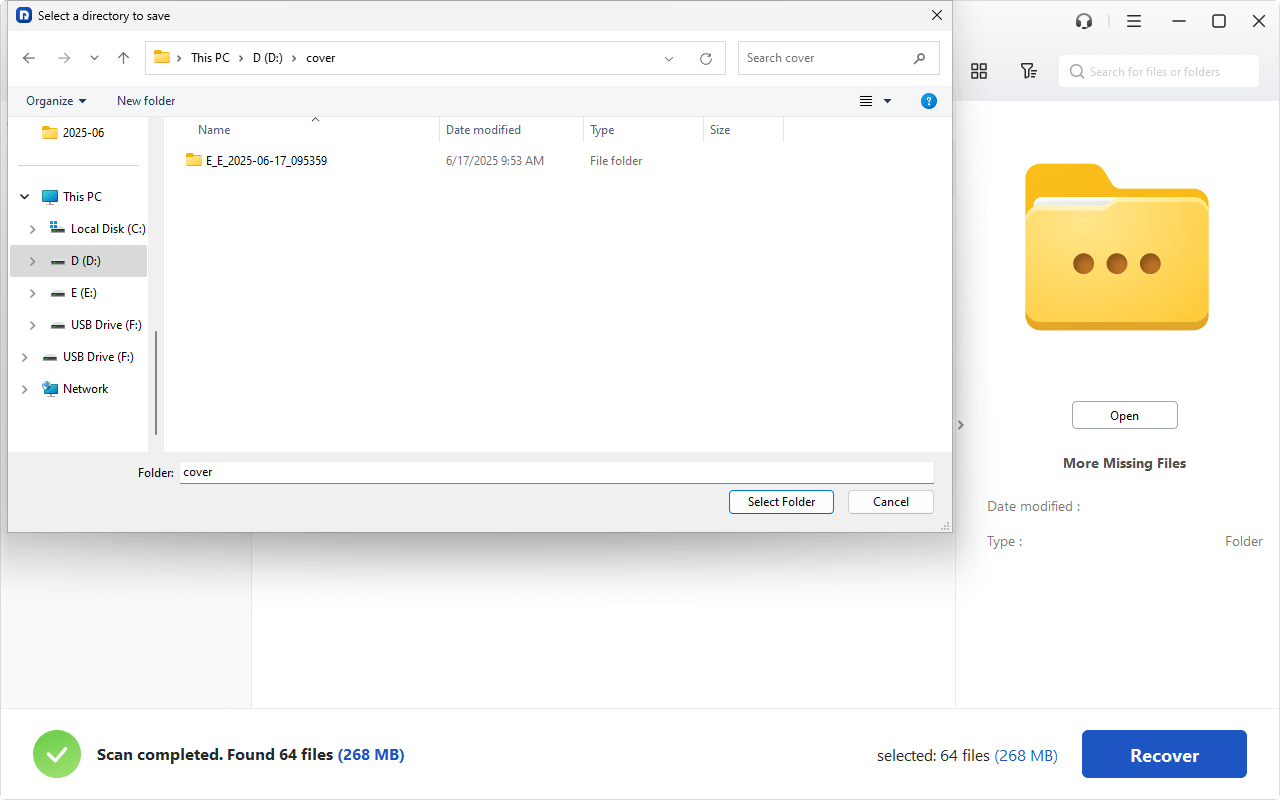
5. Opt for a safe location to keep them safe.
- Notes:✎...
- After the scan, you’ll see all recoverable files, like photos and videos, and they are sorted by file type by default. You can also find them by file path, file name, size, and modified date.
- You can upgrade to MyRecover Technician to enjoy more powerful features, like recovering unlimited files, etc.
After that, you can troubleshoot the Olympus Tough TG-3 SD card write-protect error flawlessly.

 MyRecover
- Recover Deleted Files Easily with Simple Clicks
- 1000+ File Formats Supported
- Support HDD, SSD, External Hard Drive, USB Drive, SD Card, etc.
- Quickly Find Files Using File Types, Name, Size, etc.
- Preview Files Before Recovering
- Recover Unlimited Data
 100% Secure
How to Fix Write Protect on Olympus Camera Quickly
Before you do anything else, let’s try the fastest fixes.
Way 1. Test the SD Card on Another Device
1. Plug the card into another camera, a friend’s phone, or a different PC.
2. Does the error follow the card? If yes, the problem is on the card itself.
3. If not, your Olympus TG-3 might have a hardware issue.
Way 2. Check the Physical SD Card Lock Switch
1. Take the SD card out of your Olympus Tough TG-3.
2. Look at the left side of the card. You’ll see a tiny plastic tab. That’s the lock switch.
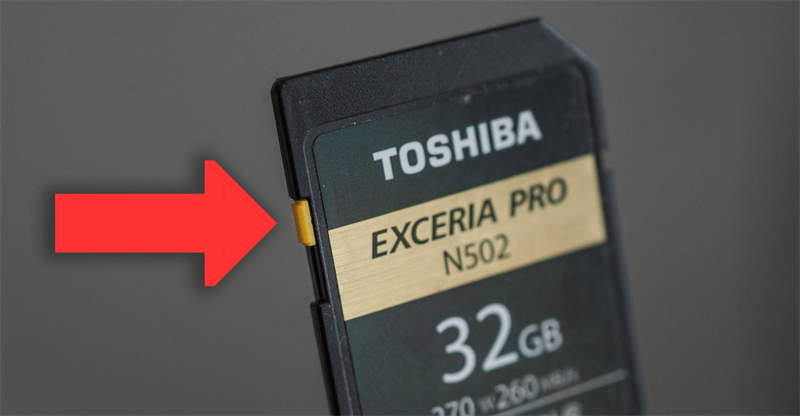
3. If it’s slid toward the bottom of the card (or toward the label "Lock"), it’s locked.
4. Slide it up toward the contacts. That’s the unlocked position.
5. Reinsert the card and see if the Olympus Tough TG-3 SD card write-protect error disappears.
Way 3. Clean the SD Card
If you are still getting the error, try this:
Use a pencil eraser to gently clean the metal contacts on the card.
Blow out the camera’s card slot with compressed air.
Sometimes, a speck of dust tricks the camera into thinking the switch is locked.
Way 4. Disable Write Protection via Olympus Camera Menu Settings
Some Olympus cameras have an internal write protection toggle buried in the menus.
1. On the TG-3, go to Setup Menu (the wrench icon) > Card Setup > Write Protect.
2. Make sure it’s set to Off.
If you can’t find it, don’t worry—most models rely on the physical card switch. But it’s worth a look.
Way 5. Update Olympus Camera Firmware
- Visit Olympus’s official website (now OM System).
- Check for TG-3 firmware updates.
- Install via a blank, unlocked SD card.
A new firmware version can fix bugs that cause false write-protect readings.
Way 6. Format the SD Card on Olympus Tough TG-3
If the error persists, we need to consider card formatting or hardware failure. Formatting erases all data, so back up your photos first if possible.
Use your Olympus camera to format the card:
1. Menu > Setup > Format.
2. This ensures the file system is exactly what the TG-3 expects (usually FAT32 for cards under 32GB, exFAT for 64GB and above).
Never format on a PC unless you have to—cameras are picky.
If the camera won’t format because of the write protection, use a PC.
Way 7. Replace the SD Card
If the Olympus Tough TG-3 SD card write-protect error comes back weekly, even after cleaning and formatting, the card is dying. SD cards have a finite lifespan - usually 5-10 years. Replace it.
Resolve Olympus Tough TG 3 SD Card Write Protect Error on Windows 11/10/8.1/8/7
When the physical tricks fail, Windows can step in. Learn how to fix the Olympus Tough TG-3 SD card write-protect error in Windows.
Way 1. Try DiskPart to Clear Read-Only Attributes
DiskPart is a command-line tool built into Windows. Here’s how to use it:
1. Insert your SD card into your PC (use an adapter if needed).
2. Press Windows + R, type diskpart, and hit Enter.
3. Click Yes on the User Account Control prompt.
4. Type list disk and press Enter. Find your SD card by its size (e.g., 32GB).
5. Type select disk X (replace X with the number of your SD card). Double-check you’ve selected the right one!
6. Type attributes disk clear readonly and press Enter.
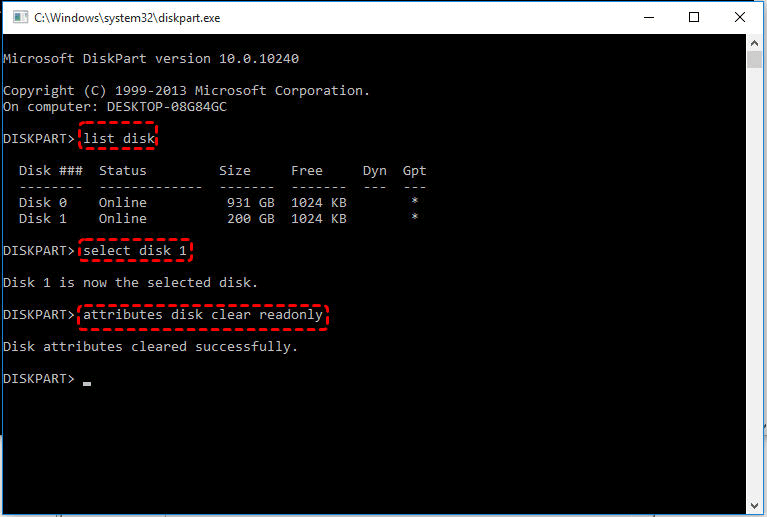
7. Type exit and close the window.
This command strips away any software-based write protection. Eject the card, put it back in your Olympus Tough TG-3, and the error should be gone.
Way 2. Edit Windows Registry for SD Card Write Protection
Windows sometimes applies write protection through the Registry. This is rarer, but it happens. Here is how to remove write protection for the SD card:
1. Press Windows + R, type regedit, and hit Enter.
2. Navigate to:
HKEY_LOCAL_MACHINE\SYSTEM\CurrentControlSet\Control\StorageDevicePolicies
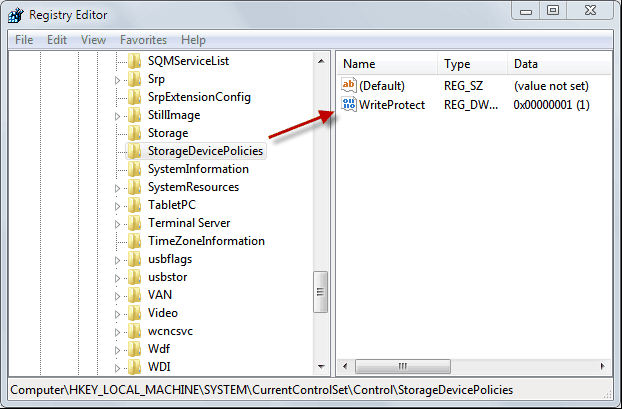
3. If you don’t see StorageDevicePolicies, right-click on Control, create a new Key, and name it exactly that.
4. On the right pane, double-click WriteProtect. If it’s not there, create a new DWORD (32-bit) named WriteProtect.
5. Set its value to 0.
6. Restart your PC.
FAQs About Olympus Write Protect Errors
Why does my Olympus Tough TG-3 keep saying SD card write-protected even when the switch is off?
A: Dirty or stuck lock switch sensor. Clean the card slot with compressed air and slide the card’s switch back and forth ten times. If that fails, use Diskpart to clear software protection.
Can I recover photos from a write-protected SD card without formatting?
A: Yes. Use a recovery tool like MyRecover. It reads the card directly without removing write protection. Never format before recovering - write protection actually helps preserve your data.
Does reformatting an SD card remove write protection on the Olympus TG-3?
A: Sometimes. In-camera formatting removes logical write protection but won’t fix a broken physical lock switch. Always check the tiny plastic tab first.
How do I fix the Olympus write-protect error on Windows 11?
A: Same as older Windows: use Diskpart (attributes disk clear readonly) or Registry Editor. Run as Administrator and make sure no other program is using the card.
Is the Olympus Tough TG-3 known for SD card write-protect problems?
A: No. It’s a reliable camera. Most issues come from cheap or aging SD cards, not the camera itself.
What is the best SD card for the Olympus Tough TG-3 to avoid write-protect errors?
A: SanDisk Extreme PRO or Kingston Canvas Go! Plus (32GB or 64GB). Avoid no-name cards and never use microSD adapters—they often trigger false write-protect errors.

Stay Updated With Our
Latest Tips
Add us as a preferred source on Google to never miss helpful guides.
 Add as preferred source >>