 MyRecover



DiskPart Has Encountered an Error? 7 Ways to Fix It Now
Complete guide to fixing diskpart has encountered an error on Windows. Resolve "request could not be performed because of an I/O device error" and CRC failures. Step-by-step solutions for bad sectors, driver issues, and dying drives.

By Delores / Updated on May 18, 2026


DiskPart Has Encountered An Error!
It's frustrating to encounter the error: DiskPart has encountered an error: The request could not be performed because of an I/O device error while wiping a drive or creating a new partition.
Don't worry, whatever the case may be, this guide walks you through every ugly variation of this headache. We'll fix the following errors:
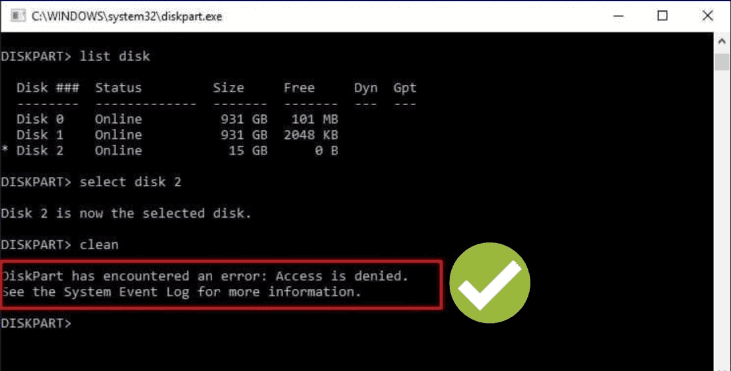
DiskPart has encountered an error: Access is denied. Check the System Event Log for more information.
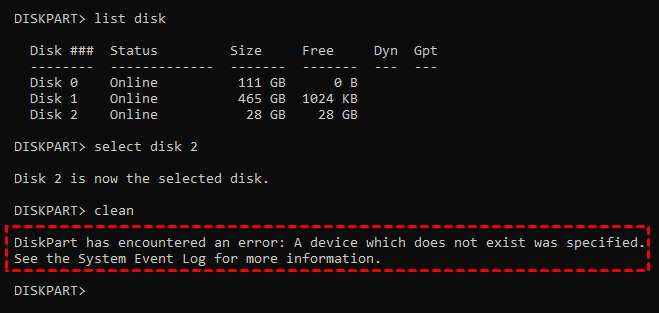
DiskPart has encountered an error: A device which does not exist was specified. Check the System Event Log for more information.
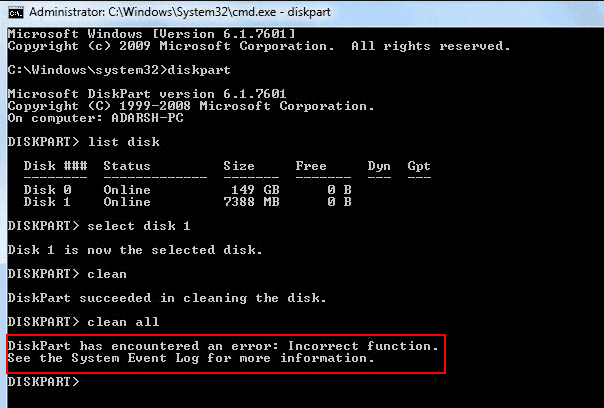
DiskPart has encountered an error: Incorrect Function. Check the System Event Log for more information.
DiskPart has encountered an error: Data error cyclic redundancy check.
DiskPart has encountered an error: The device is not ready.
By the time you're done reading, you'll know exactly which screw to turn.
Why Does Diskpart Show It Has Encountered an Error?
When you meet the error: "DiskPart has encountered an error; the tool cannot complete the communication with the drive." The tool cannot complete communication with the drive. Diskpart detects a failure in the command or response exchange, but cannot determine the exact cause.
You must identify the cause from the error message.
The usual triggers include:
- Loose cables or failing ports on external USB drives.
- Driver issues where Windows uses an incompatible generic driver.
- Bad sectors representing physical damage on the drive surface
- File system corruption occurs when the data structure becomes disorganized.
Do not panic. These errors indicate logical problems, not permanent data loss.
The Request Could Not Be Performed Because of an I/O Device Error
If you see this I/O error when Windows attempts to read or write data, but the drive does not respond correctly. I/O stands for Input/Output. This specific error points to a dying hard drive with mechanical issues, a loose USB or SATA cable, or a malfunctioning driver.
Data Error Cyclic Redundancy Check
DiskPart "Data Error (Cyclic Redundancy Check)" typically indicates serious file system corruption, damaged disk sectors, or faulty hardware connections, preventing Windows from reading or writing data. Common causes include damaged drive cables, registry corruption, or a failing hard drive/SSD needing immediate repair.
A Device Which Does Not Exist Was Specified
DiskPart error "A device which does not exist was specified" (often Error 0x800701b1) means Windows lost connection to a drive, typically due to faulty physical connections, failing hardware (HDD/SSD/USB), corrupted drivers, or bad sectors. It indicates a low-level, failed handshake between the OS and the storage device.
Access is denied
DiskPart "Access is denied" errors typically occur because the command prompt lacks administrator privileges, the drive is write-protected, or the disk is in use/locked by another process. Other common reasons include physical corruption, BitLocker encryption, or security software blocking the operation.
Incorrect Function
DiskPart "Incorrect Function" errors usually indicate that Windows cannot communicate properly with the drive, often due to physical failure, corrupt partition tables, or driver issues. Common causes include uninitialized disks, damaged MBR/GPT, faulty USB enclosures/cables, write-protection, or improper command syntax.
Recover Files Before Any Fix If Required
Before fixing "DiskPart has encountered an error", it's wise to recover files from the hard drive. Seriously. Stop what you're doing and recover your data first.
That's where MyRecover comes in. MyRecover is designed to pull data from drives that even Windows refuses to touch. It ignores the broken partition table, the CRC errors, and the I/O failures. It reads the drive at the raw sector level.
Here is how to recover files from the hard drive that shows DiskPart error with MyRecover on Windows 7/8/10/11:
1. Please download and install MyRecover on your computer instead of the problematic drive.
 100% Secure
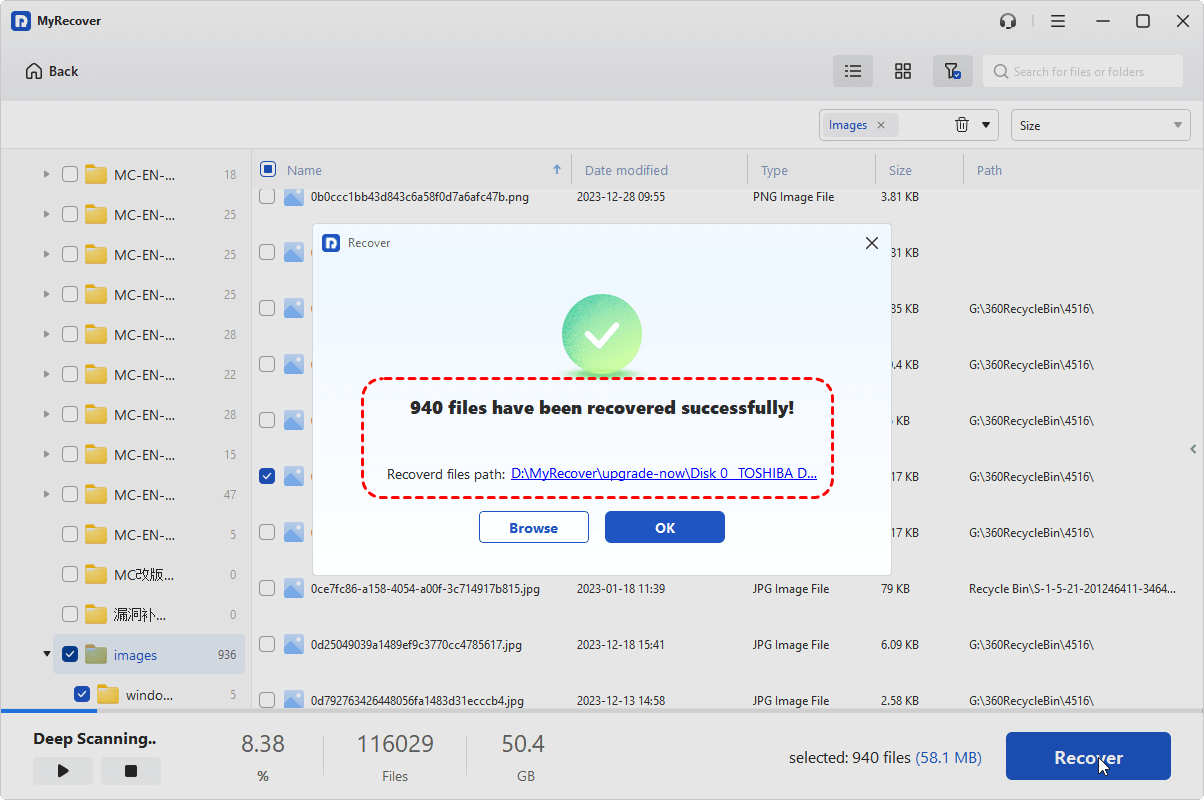
2. Launch MyRecover, tap Disk Data Recovery, hover over the problematic drive, and hit Scan. Once it's finished, hit OK.

3. Preview and select the files you need, and hit Recover.

4. Choose a location and hit Select Folder to save them safely.

- Notes:✎...
- MyRecover will automatically run a Deep Scan or a quick scan according to your situation. A deep scan scans sector by sector to find all missing files. A quick scan can find recently deleted files.
- Once the scan finishes, MyRecover sorts your missing files by file type and file path. Besides, you can search them by file name, size, modified date, etc.
- Before recovery, double-click any file to preview it. You can preview photos, Word documents, videos, and more. This confirms the file isn't corrupted before you recover it.
- Go to the destination folder. Open a few random files. Make sure they open correctly.
Once you've confirmed your data is safe, you can go back to trying repairs or simply replace the failing drive with a new one.

 MyRecover
- Recover Deleted Files Easily with Simple Clicks
- 1000+ File Formats Supported
- Support HDD, SSD, External Hard Drive, USB Drive, SD Card, etc.
- Quickly Find Files Using File Types, Name, Size, etc.
- Preview Files Before Recovering
- Recover Unlimited Data
 100% Secure
How to Fix DiskPart Has Encountered An Error? 7 Ways
There are 7 proven solutions to help you fix the DiskPart errors.
Way 1. Check SATA and USB Connections
If you're using an external drive, swap the USB cable and try a different port. For internal drives, reseat the SATA cable on both ends—the drive and the motherboard.
Way 2. Initialize Disk First
If your disk is uninitialized, DiskPart can show the error. First of all, verify drive presence before running commands.
1. Right-click the Start button and choose Disk Management.
2. Look for your drive. If it shows as "Unknown" or "Not Initialized", right-click the disk label (not the partition) and select "Initialize Disk".
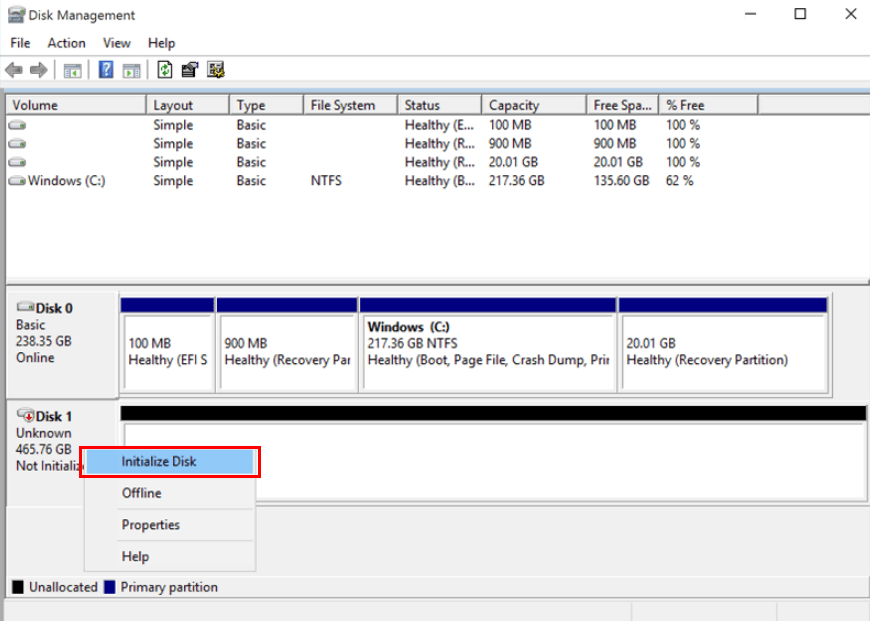
3. Choose MBR or GPT (GPT is better for modern systems).
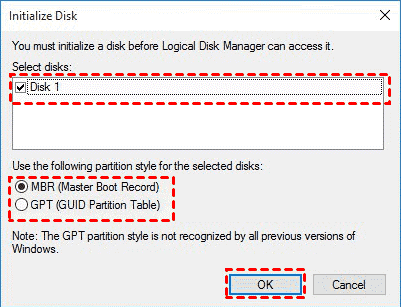
4. Then create a simple volume.
After initialization, go back to Diskpart. The error should be gone. The system finally recognizes the device properly.
Way 3. Update Drivers
If you meet: DiskPart has encountered an error: A device which does not exist was specified, even if you can see the drive in Disk Management and has a drive letter. You can try to update the outdated or corrupted drivers to fix it.
1. Right-click the Start menu and choose Device Manager to open it.
2. Expand "Disk drives" and "Storage controllers".
3. Right-click each one and select "Update driver".

4. Choose "Search automatically for updated driver software".
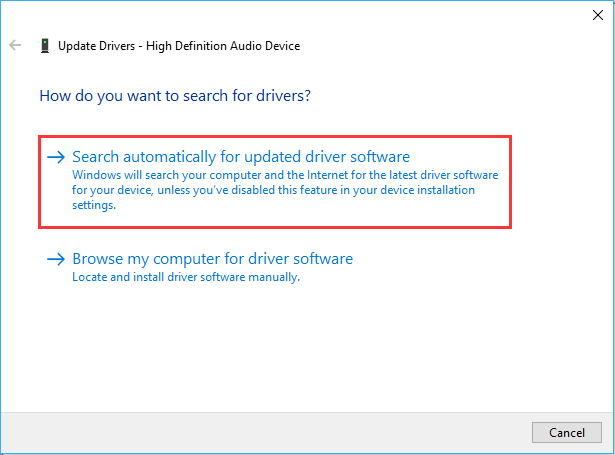
5. After updating, restart your computer.
Way 4. Run CHKDSK Commands
It's wise to try repairing the file system errors.
1. Open Command Prompt as administrator.
2. Type chkdsk X: /f /r (replace X with your drive letter). The /f flag fixes errors, and the /r flag finds bad sectors and recovers readable information.

Fair warning:
- This can take hours on a large drive. But patience pays off.
- CHKDSK marks bad sectors as unusable, so Windows stops trying to read them. Or you might get the Windows FOUND.000 folder once CHKDSK finds and recovers files.
- If CHKDSK gets stuck at a certain percentage for more than an hour, your drive likely has severe physical damage.
Way 5. Run DiskPart to Clean
You try to clean a disk, and Windows throws up Diskpart has encountered an error: incorrect function. This error often appears on USB flash drives or SD cards that have been written to a million times. The partition table gets corrupted on the drive. So, you have to wipe the partition table entirely using the clean command.
1. Open Command Prompt as administrator.
2. Type Diskpart.
3. Then input: list disk.
4. Type select disk n to select your troubled disk.
5. Type clean.
If you still get: DiskPart has encountered an error: Incorrect function, the drive's firmware might be locked. Some cheap USB drives have a "read-only" mode that activates when the drive is dying. In that case, the only real fix is to replace the drive.
Way 6. Remove Write-Protection on the Device
Some SD cards and USB drives have a physical write-protection switch. Check the side of the drive. If it's in the "Lock" position, slide it to "Unlock".
For drives without a physical switch, you can clear write protection using Registry Editor.
1. Press Win+R, type regedit.
2. Go to HKEY_LOCAL_MACHINE\SYSTEM\CurrentControlSet\Control\StorageDevicePolicies. If you see a DWORD called "WriteProtect", double-click it and change the value to 0.
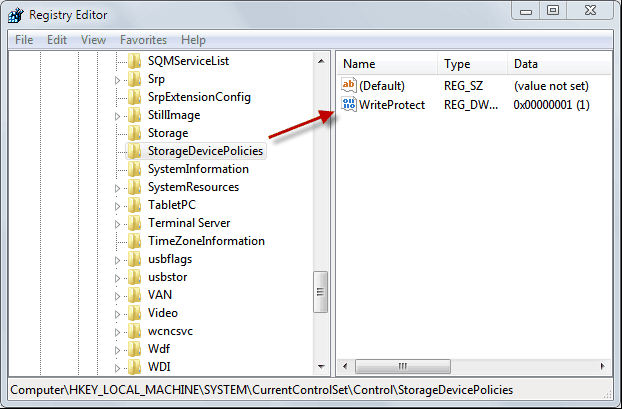
3. Restart your PC.
4. Then try Diskpart again.
Way 7. Replace the Hard Drive
If you hear clicking, grinding, or beeping sounds from the drive, shut down immediately. Those are mechanical failure sounds. No amount of software tricks will fix a broken read/write head. All you need to do is replace the hard drive immediately after recovering files successfully.
FAQs about DiskPart Has Encountered An Error
Why does DiskPart say "I/O device error" when the drive works fine in File Explorer?
A: File Explorer reads only the file system, while Diskpart accesses the hardware directly. An I/O error signals failing firmware or physical sectors—File Explorer may still show the drive due to caching. Run CHKDSK to confirm.
Can bad sectors cause DiskPart to throw a CRC error?
A: Yes. A cyclic redundancy check error means the read data doesn't match the stored checksum, usually due to bad sectors. Run chkdsk /r to mark them.
How do I fix "diskpart has encountered an error, a device which does not exist was specified" on an external USB drive?
A: Try a different USB port and cable. If that fails, uninstall the drive in Device Manager, then reconnect. If shown as "Unknown" in Disk Management, initialize it. As a last resort, remove the drive from its enclosure and connect via SATA.
Is there a way to bypass "diskpart has encountered an error: Incorrect function" on a write-protected SD card?
A: Check the lock switch. Disable write protection via the Registry. For firmware lock, use SD Memory Card Formatter. If failing, recover data with MyRecover and replace the card.
What does "data error cyclic redundancy check" mean on an SSD?
A: On an SSD, a CRC error means the controller failed to read a NAND page due to worn cells or a firmware bug. Run the manufacturer's diagnostic tool (e.g., Samsung Magician). The drive may be failing.
Should I run chkdsk or diskpart first when I get an I/O device error?
A: Run CHKDSK first with /f /r. It repairs file system corruption and marks bad sectors. If CHKDSK fails or hangs, the drive has severe physical damage. Stop repairs and use MyRecover to save data immediately.

Stay Updated With Our
Latest Tips
Add us as a preferred source on Google to never miss helpful guides.
 Add as preferred source >>