 MyRecover



You Must Always Restore the Drive That Contains Windows | Step-by-Step Fix
This article details the causes of the "you must always restore the drive that contains Windows" boot error and provides a clear guide on how to fix you must always restore the drive that contains Windows using recovery media and repair tools.

By Delores / Updated on December 25, 2025


You Must Always Restore The Drive That Contains Windows!
System restore message
I'm trying to repair my laptop since a failed system restore. I've tried to perform a system restore, but I received a message stating that I must always restore the drive that contains Windows.
There's another message saying you must enable system protection on this drive. There is a box by it, but it won't allow me to check it. Does anyone know more about this? Thanks
- Question from forums.tomshardware.com
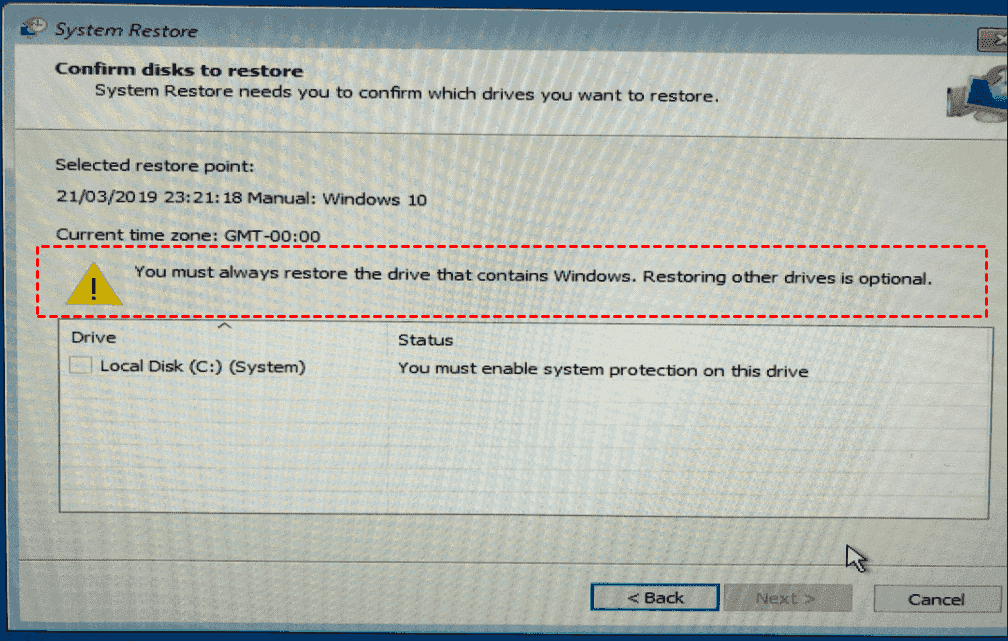
When you face the error message: “You must always restore the drive that contains Windows”, what should you do to fix it and repair your computer? Are your files gone? Is your computer toast? Don’t worry, you can fix it as long as you know the right ways.
This guide will explain what’s really going on when you encounter the error message, and walk you through, step-by-step, how to get your system back. More importantly, we’ll show you how to rescue your precious files before you attempt any major fixes.
What Does "You Must Always Restore the Drive That Contains Windows" Mean?
When Windows displays the error 'You must always restore the drive that contains Windows,' it essentially means that it can’t find or properly load the essential operating system files from your primary drive (usually the C: drive). The “restore” it’s demanding doesn’t (initially) mean wiping everything clean; it’s urging you to use built-in recovery tools to repair the core system files without necessarily touching your personal data.
Primary Causes of This Windows Boot Error
So, what triggers this critical boot failure? Several common issues can prompt this serious alert.
- Corrupted or Damaged System Files. This is the most frequent cause. Critical system files can become corrupted due to unexpected power loss, failed or interrupted Windows updates, or malware infections. When essential files required for startup are compromised, the boot sequence fails, directly resulting in the restore command.
- Incorrect Boot Configuration Data (BCD). The BCD stores the essential instructions for starting your PC—it tells the system where to locate Windows. If this data becomes corrupted or is directed to the wrong disk location, perhaps after modifying partitions or installing another operating system, your computer cannot proceed.
- Faulty Disk Partitions or Drive Errors. Occasionally, the issue lies with the storage hardware itself. Physical damage, like bad sectors on a hard drive or a corrupted partition table, can prevent Windows from accessing necessary boot data. This scenario is more severe, often indicating potential hardware failure, particularly with aging mechanical hard drives.
Now, we need to fix this serious problem. Check the following part.
How to Fix "You Must Always Restore the Drive That Contains Windows"
You can solve this with several solutions. Let's get started to restore your system.
Preparations:
- Please ensure all cables, especially the power and data cables to your primary drive, are snugly connected. A loose cable can mimic a catastrophic failure. Next, you’ll need to boot into the Windows Recovery Environment (WinRE) to use different tools to fix the problem.
- How to enter the Windows Recovery Environment? This usually happens automatically after a few failed boot attempts, but you can also force it by interrupting the startup process three times in a row (by holding the power button as the computer starts).On the third restart, the system should present the "Choose an option" recovery screen.
Way 1. Try Startup Repair for Your System
1. Once in WinRE (you’ll see a blue “Choose an option” screen), navigate to Troubleshoot > Advanced options. This is your toolkit for how to restore the drive that contains Windows.
2. From Advanced Options, select “Startup Repair”.
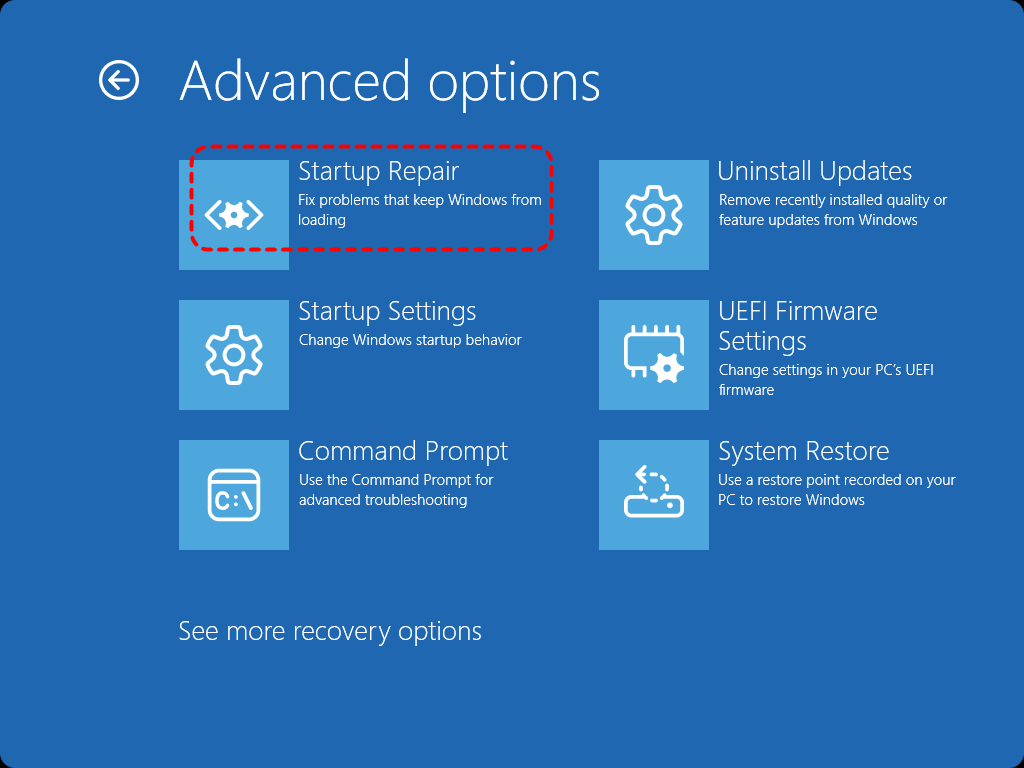
3. Windows will scan your system and prompt you to follow the on-screen guide, then try to fix common boot problems automatically. It won’t solve every issue, but it fixes a surprising number of them. If it succeeds, you’ll be booting normally again. If it fails, don’t despair; we have more tools.
Way 2. Restore the Drive That Contains Windows via System Restore
If Startup Repair is not working, a system restore might be the perfect solution. This fantastic feature rolls your system files, registry, and installed programs back to a previous point in time called a restore point, without affecting your personal files like documents or photos.
1. After entering the WinRE, choose Troubleshoot > Advanced options.
2. Then click “System Restore”.
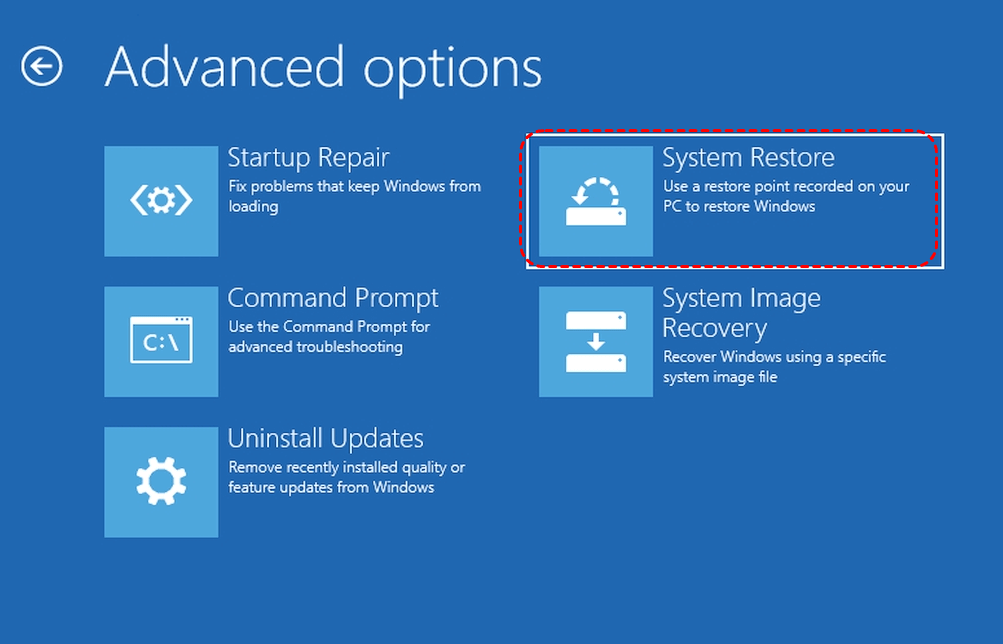
3. Windows will present a list of available restore points from before the problem started. Choose the most recent one that you think is stable.
4. This process can neatly reverse the damage caused by a bad update or software install.
Way 3. Rebuild BCD File
If the automated wizards haven’t done the trick, it’s time to break out the command line tools. A corrupted Boot Configuration Data is a prime suspect. Learn the steps to fix BCD files using the command prompt.
1. In the Windows Recovery Environment, choose Troubleshoot > Advanced options.
2. Select “Command Prompt”. You’ll see a black command line window.

3. Type the following commands, pressing Enter after each:
bootrec /fixmbr
bootrec /fixboot
bootrec /scanos
bootrec /rebuildbcd
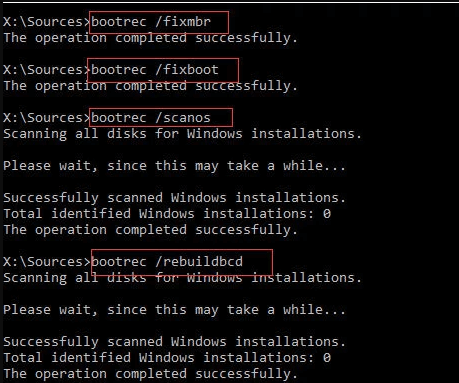
These commands repair the master boot record, write a new boot sector, scan for installed Windows versions, and rebuild the BCD store.
Way 4. Check the System Drive Errors
If rebuilding the BCD doesn’t work, there are further disk checks. Here is how:
1. In the same Command Prompt window in WinRE.
2. Run chkdsk C: /f /r (if C: is your system drive) to find and repair disk errors;
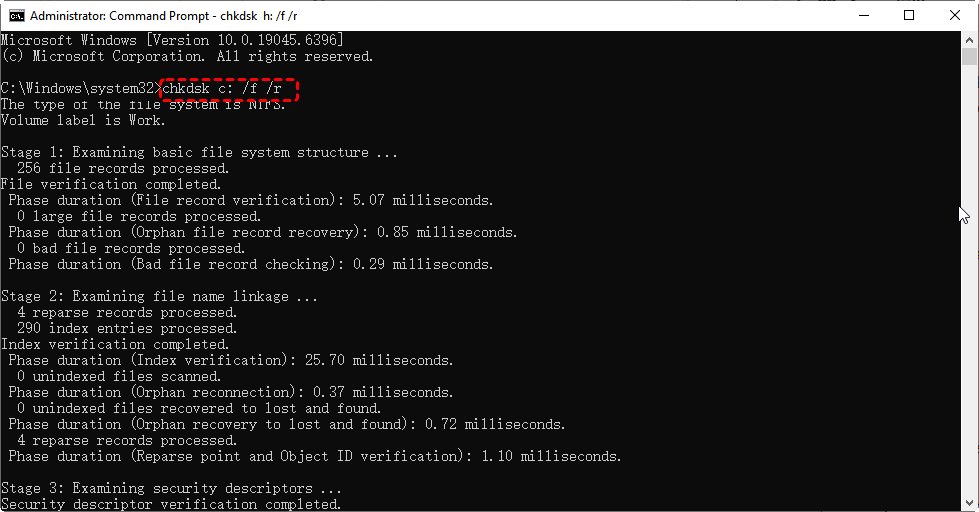
Or run sfc /scannow /offbootdir=C:\ /offwindir=C:\Windows to scan and restore protected system files from the recovery environment.
Successfully navigating these repairs is a great achievement, but the real priority for most users is safeguarding their irreplaceable personal data before any of this troubleshooting begins.
Recover Your Precious Files with MyRecover
If you can’t fix the problem: You must always restore the drive that contains Windows on your computer, and you have important files on the system drive, what should you do? Or how to recover files before system restore or system repair? You need a professional Windows data recovery software like MyRecover. It’s designed to recover files from any complex situation, even if your computer won’t boot up.
You can create a bootable media with MyRecover, then boot up your computer with this media, and then recover files directly.
With MyRecover, enjoy the following features:
- High recovery rate. MyRecover provides the highest recovery rate in the market, up to 99%, which allows you to recover files quickly.
- Deep and quick scan modes. You can run a quick or deep scan according to your situation. Deep scan costs much more time because it scans sector by sector to find all recovered files.
- 1,000+ file formats supported. You can recover many file types of files, including MP4, JPEG, PNG, MP3, ASF, documents, emails, and many more.
- Various devices are compatible. You can recover files from internal hard drives, external hard drives, HDDs, SSDs, SD Cards, USB flash drives, camera devices, PS4/5, etc.
Now, we will show you how to recover files from an unbootable computer with MyRecover. Here it is:
1. Create Bootable Media on a Working PC: Download and install MyRecover on another functioning computer. Launch it and use the “PC Crashed Recovery” feature. Insert a blank USB flash drive (32GB or larger), select it, and hit Create to create a bootable USB drive.
 100% Secure
2. Boot the Problematic PC from the USB Drive: Insert the MyRecover USB drive into the computer displaying the error. Restart the PC and press the key to enter the boot menu (common keys are F12, F10, ESC, or DEL; it’s usually shown on the startup screen). Select your USB drive from the list to boot from it.
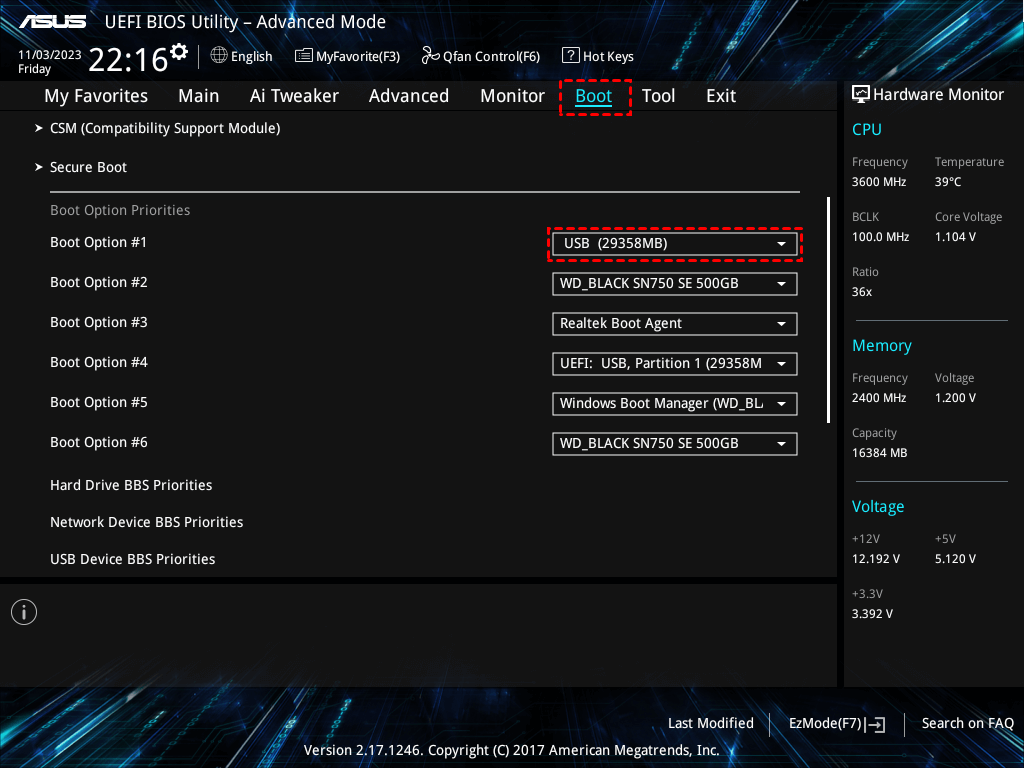
3. Scan the Target Drive. MyRecover will be listed automatically, so just tap Disk Data Recovery, choose the system drive and hit Scan. Wait for the process to complete, and hit OK.

4. Select and Recover Your Files. Preview and select files you need, and hit Recover.

5. Save Your Recovered Files. Choose a safe location to save these recovered files.

- Tips:✎...
- After the scan, you can browse the recovered files by type, path, or date. Moreover, you can search files by name, size, etc.
- Use the preview function to check important files before recovery, which ensures they are the right files and intact.
- MyRecover can also recover files from an unformatted drive, a corrupted SD card, an emptied Recycle Bin, etc.
- Try MyRecover Technician if you need to recover files for unlimited computers.
With your files safely backed up externally, you can now proceed with the system repair steps outlined earlier with zero stress about data loss. This careful approach separates a minor inconvenience from a catastrophic loss.

 MyRecover
- Recover Deleted Files Easily with Simple Clicks
- 1000+ File Formats Supported
- Support HDD, SSD, External Hard Drive, USB Drive, SD Card, etc.
- Quickly Find Files Using File Types, Name, Size, etc.
- Preview Files Before Recovering
- Recover Unlimited Data
 100% Secure
Prevent Future Boot Errors and Protect Your Drive
How to prevent the error message from happening again? Take the following measures:
- Use Windows’ built-in “Backup and Restore” or “File History” to automatically back up your personal files to an external drive or network location.
- For full system protection, create periodic “System Image” backups via the Control Panel. This creates a complete snapshot of your entire drive, allowing you to restore everything in one go if disaster strikes again.
- Keep your system clean and healthy. Run the built-in “Disk Cleanup” utility regularly to remove junk files. Use “Defragment and Optimize Drives” (for HDDs) or “Optimize” (for SSDs) to keep your storage in top shape.
- Keep Windows Update enabled to ensure you have the latest stability and security patches.
- Avoiding shady software downloads and using a good antivirus program will also protect those critical system files from corruption.
FAQs About System Restore
Q: Does this error mean my files are deleted?
A: No. Your personal files are likely still on the drive. The error means Windows' system files are corrupted, preventing startup. The main risk is data loss during repairs, so recover files with a tool like MyRecover from a USB first.
Q: Can I fix this without a disc or recovery drive?
A: Often, yes. Windows 8/10/11 has a built-in recovery partition. After 2-3 failed boots, you'll usually see the "Automatic Repair" screen with repair tools. If that partition is damaged, you'll need external media.
Q: What’s the difference between System Restore and Resetting?
A: System Restore rolls system files/programs to a past point, keeping personal files safe—it's the best first fix. Resetting This PC reinstalls Windows; even "Keep my files" can fail and is riskier. Always try System Restore first.
Q: Will fixing the BCD with Command Prompt delete my data?
A: No. Commands like bootrec /fixboot or /rebuildbcd only repair boot files. They don't touch your documents, photos, or other personal data stored on the main drive.
Q: How do I create a restore point to prevent this?
A: Search for "Create a restore point" in Windows. In System Properties, ensure protection is On for your C: drive, click Configure to allocate space, then click Create to make a manual snapshot before major changes.
Q: Is this error a sign that my hard drive is failing?
A: Not always. It's often software corruption. But if fixes fail repeatedly or you hear grinding noises (on HDDs), the drive may be failing. Run chkdsk /r from the Command Prompt or use a diagnostic tool to check. If it's failing, recover data immediately and replace the drive.

Stay Updated With Our
Latest Tips
Add us as a preferred source on Google to never miss helpful guides.
 Add as preferred source >>