 MyRecover



Fatal Device Hardware Error? Here's 8 Ways to Fix
Learn how to resolve fatal device hardware error in Windows 11, 10. Includes CMD repairs, hardware tests, and fixes for fatal device hardware error during file transfers.

By Delores / Updated on May 9, 2026


The Request Failed Due to A Fatal Device Hardware Error!
How do I fix the "Fatal Device Hardware Error" on Windows?
Has anyone encountered the "Fatal Device Hardware Error" on Windows? My external drive stopped working and shows this error. I've tried basic troubleshooting like reconnecting, but no luck. Any suggestions for fixing this or recovering data would be greatly appreciated. Thanks in advance!
- Question from sandisk.com
The request failed due to a fatal device hardware error, indicating Windows cannot read from or write to a drive due to physical damage, connection issues, or failing sectors while initializing the disk, or opening your hard drive in Windows File Explorer, etc. You might encounter this error when you are using SanDisk, Seagate, WD Passport, and more.
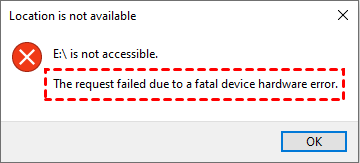
This error means your computer can't talk to your hard drive anymore, whether that drive lives inside your PC, plugs in externally, or sits in a backup enclosure. Don't panic, you can find reasons and effective solutions. Then recover files if required.
Causes of a Fatal Device Hardware Error
Why do you get the error "The Request Failed Due to a Fatal Device Hardware Error"? Usually, there are multiple culprits.
- First, bad sectors. Hard drives have millions of tiny magnetic platters, and over time, some sectors go bad. When Windows tries to write to a bad sector, the drive gives up and reports a fatal error.
- Second, loose or damaged cables. This is surprisingly common. A slightly unplugged SATA cable inside your desktop or a frayed USB cord on an external drive can trigger the error instantly.
- Third, failing controller boards. Every drive has a tiny computer on it—the controller. When that starts failing, the drive becomes brain-dead even if the platters are fine.
- Fourth, overheating. External drives especially bake themselves inside plastic enclosures, and heat kills electronics slowly but surely.
Recover Files Before It's Too Late
Once a drive starts showing a fatal device hardware error, your first move shouldn't be repair—it should be data recovery. Get the data off first, then fix or replace the drive.
Data recovery software works when the drive is still detected by the system, even if it's slow or throws errors. If you can see the drive in File Explorer or Disk Management, you have a fighting chance with software.
Now, you need a Windows data recovery tool that's enough to pull data from a failing drive. Fortunately, here comes the powerful Windows data recovery software, MyRecover, to help.
- Deep Scan. Scans sector by sector, even when Windows has given up and thrown the fatal hardware error.
- Preview before recovery. See if files are intact before you bother recovering them.
- Supports 1000+ file types, like Documents, photos, videos, audio, archives, etc.
- Works on 500+ devices, including internal & external drives, USB, SSD, HDD, memory cards, PS4/5, video players, music players, etc.
Thus, check the detailed steps to recover files from a hard drive that shows the requested failed due to a fatal device hardware error with MyRecover.
Important Note: Before data recovery, stop using the failing drive. Do not run CHKDSK, format or initialize the drive, copy files to the drive, or run Windows built-in repair tools in case of overwriting.
1. Download and install MyRecover on your computer instead of the failing hard drive. Connect the Failing Drive if it's not already connected.
 100% Secure
2. Open MyRecover, tap Disk Data Recovery, hover over the failing drive (it might show up with no drive letter or unknown, etc.), and hit Scan. It will start scanning, hit OK when it's done.

3. Preview and choose the files you need, and hit Recover.

4. Select a safe location and hit Select Folder to keep them.

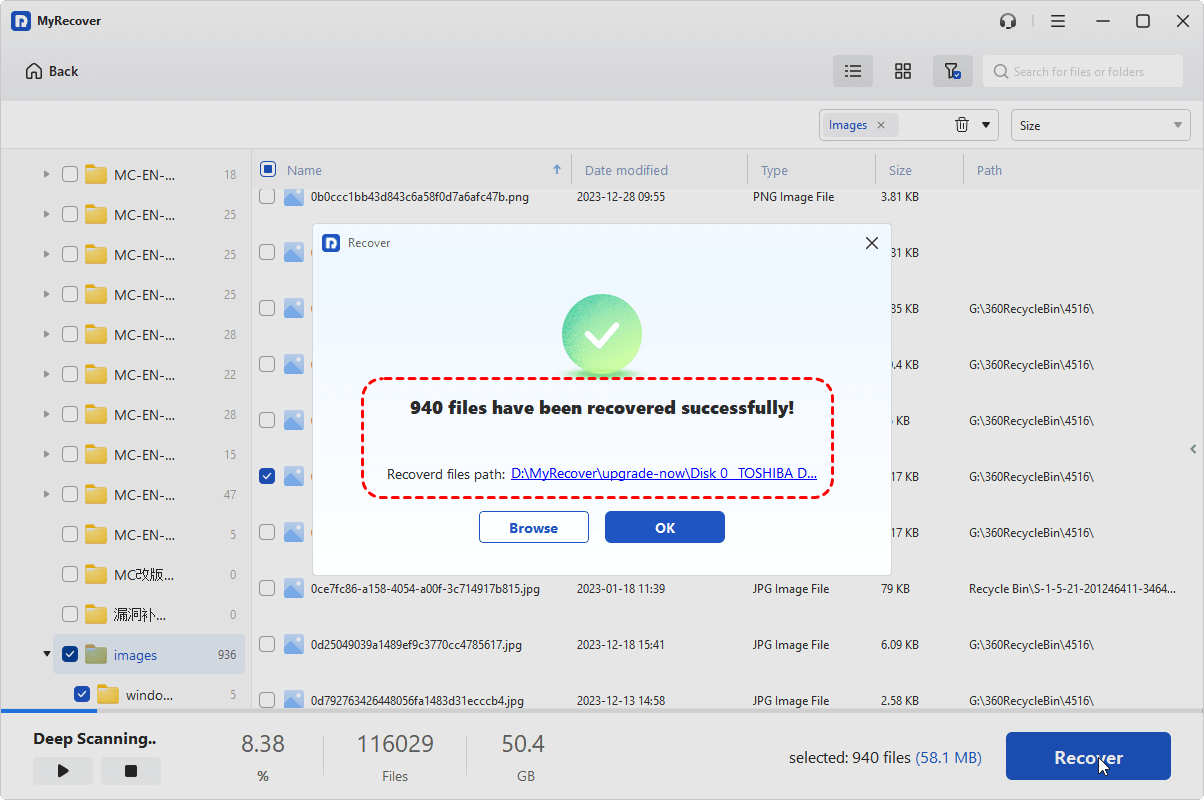
- Tips:✎...
- MyRecover provides a quick scan and a deep scan to scan files. You can perform a deep scan after a quick scan if there are no files you need, which costs more time.
- Once the scan completes, MyRecover displays all recoverable files by file type and file path. You can also search files for file name, size, modified date, etc.
- Hit Preview or double-click image, video, or document files to preview them. This confirms the file isn't corrupted before recovery.

 MyRecover
- Recover Deleted Files Easily with Simple Clicks
- 1000+ File Formats Supported
- Support HDD, SSD, External Hard Drive, USB Drive, SD Card, etc.
- Quickly Find Files Using File Types, Name, Size, etc.
- Preview Files Before Recovering
- Recover Unlimited Data
 100% Secure
How to Fix Fatal Device Hardware Error in Windows 11/10?
After data recovery, there are multiple solutions that can fix your failing hard drive. Let's find out.
Way 1. Try A Different USB Port
First, unplug the drive and plug it into a different USB port. Seriously. Sometimes the port itself is dying. Try a USB 2.0 port instead of 3.0—older ports provide more stable power.
Way 2. Try A Different Cable
Next, use a different cable or power cable. Those micro-USB or USB-C cables break internally without showing any visible damage.
Way 3. Try Another Computer
Now, you can test the drive on another computer. If the error still shows up, it's the drive. If it stays on the original PC, you've got a motherboard or driver problem.
Way 4. Change Drive Letter and Paths
If the drive still throws a fatal device hardware error:
1. Right-click the Start menu, then choose Disk Management to open it.
2. Check if the drive shows up. Or does it say “Not Initialized” or “Unknown”? Don't initialize yet—that can erase data.
3. Instead, try using the “Change Drive Letter and Paths” option. Assign a new letter.
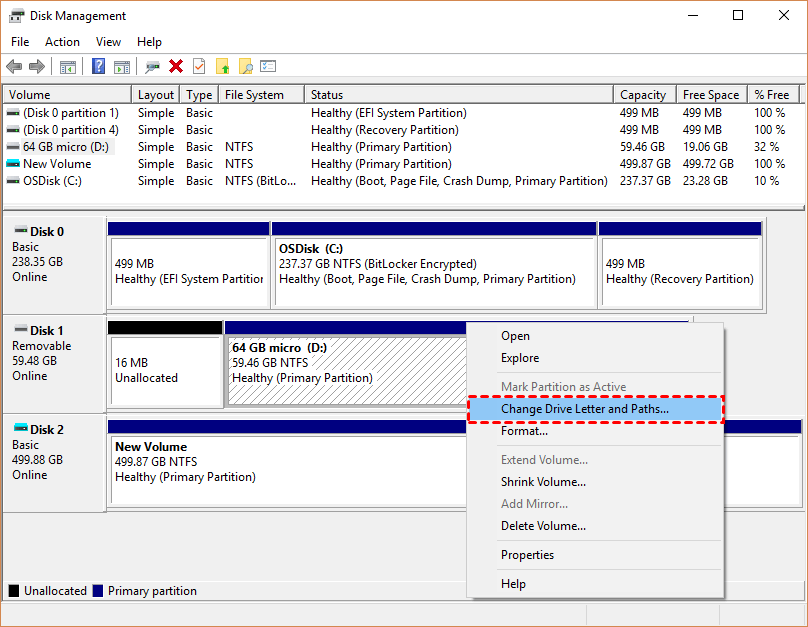
Sometimes that alone wakes the drive up.
Way 5. Run CHKDSK to Repair the File System
The CHKDSK command scans the specified drive (X:) for file system errors and attempts to fix them. Here is how to do:
1. Type cmd in the Windows search box, and it will show Command Prompt, choose Run as administrator.
2. Run the command: chkdsk X: /f (replace X with your drive letter) to fix file system errors.

If CHKDSK is stuck, find solutions to fix. Or you can cancel the process with Ctrl+C. And try to recover files from the drive in case of data loss.
Way 6. Clean the Disk
You can clean the disk to erase everything on the drive to make it back to normal sometimes. Here is how:
1. Run Command Prompt as administrator.
2. Type the commands and hit Enter after each:
diskpart
list disk
select disk X
clean
create partition primary
Select partition 1
active
format fs=ntfs
assign letter=g
exit
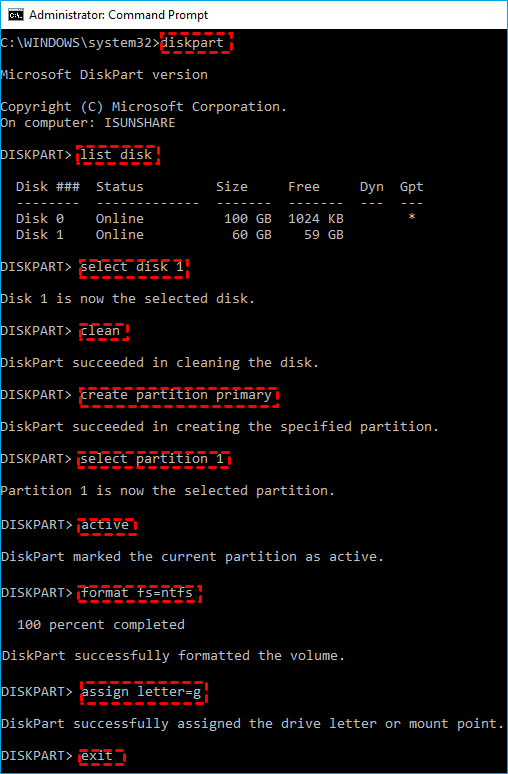
Way 7. Run Windows Built-in Hardware Troubleshooters
1. Click Start, type “troubleshoot,” and open Troubleshoot settings.
2. Run the “Hardware and Devices” troubleshooter.
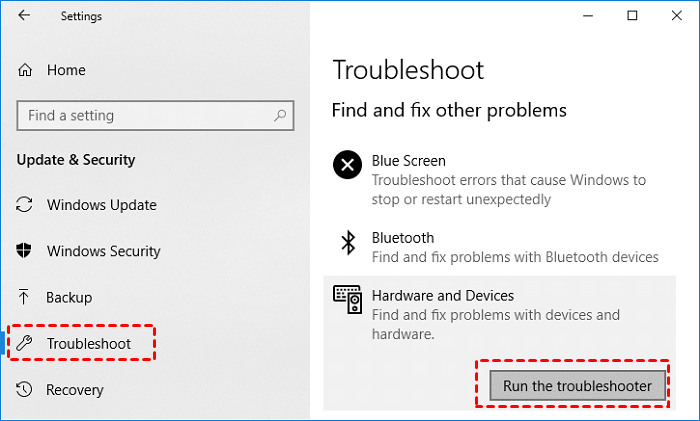
It's basic, but it sometimes resets the driver stack automatically.
3. Also, go to Device Manager, find your disk drive under “Disk drives”.
4. Right-click and select “Uninstall device”.

5. Restart the PC. Windows will reinstall the driver fresh.
Way 8. Check Disk In BIOS/UEFI
Check BIOS/UEFI during boot (press Del or F2). Does the drive appear there? If BIOS sees the drive but Windows doesn't, you're looking at a driver or partition issue.
If BIOS doesn't see the drive either, that's a pure hardware failure. At that point, your only real path forward is professional recovery or a drive replacement.
FAQs About Fatal Device Hardware Error
Why do I keep getting a fatal device hardware error on my external drive?
A: Failing USB cable, bad port, overheating, or a dying controller. Try a different cable, port, and computer. If the error follows the drive, the hardware is failing. Recover data first, then replace it.
Can a fatal device hardware error be fixed without losing data?
A: Sometimes, it's just a loose cable or driver issue. But if the drive has physical damage, CHKDSK or formatting will erase your data. Recover data first with MyRecover, then replace the drive—it's on borrowed time.
What's the difference between a fatal device hardware error and a cyclic redundancy check error?
A: CRC error means "I got bad data". A fatal device hardware error means "I got no response at all." Fatal is usually worse.
Does Windows 11 handle fatal device hardware errors differently from Windows 10?
A: Yes. Windows 11 has aggressive USB power management and stricter drivers. Disable "USB selective suspend" and update chipset drivers. Windows 11 gives up on failing drives faster than Windows 10.
Can an SSD show a fatal device hardware error?
A: Yes. SSDs have controllers and NAND chips that fail just like HDDs. The difference? SSD failure is sudden and complete. HDDs usually click or grind first.
My drive clicks, then shows a fatal device hardware error. What do I do?
A: Power down immediately. Clicking means physical head damage. Do not run any software. Your only safe option is professional recovery. If the data isn't worth hundreds of dollars, accept the loss and back up next time.

Stay Updated With Our
Latest Tips
Add us as a preferred source on Google to never miss helpful guides.
 Add as preferred source >>