 MyRecover



How to Fix Windows 11 Crashing After Update
When a Windows 11 crash after update strikes, users need fast answers. This abstract covers symptoms, root causes, safe recovery steps, update rollbacks, and optimization tips to stabilize Windows 11, reduce errors, and keep your system running smoothly.

By Vera / Updated on May 7, 2026


Introduction
If your PC started acting up right after an update, you’re not imagining things. Finding your pc crashing after Windows 11 update is a documented issue that often stems from the complex interplay between new OS code and diverse hardware configurations. It can feel like your computer suddenly "forgot" how to behave—transforming a smooth workflow into a cycle of freezing, random restarting, or the dreaded Blue Screen of Death (BSOD).
Common Signs Windows 11 Is Crashing After an Update
- Random Freezing or Rebooting: Your PC locks up without warning or restarts while you’re working, gaming, or browsing.
- Blue Screen of Death (BSOD): Error codes like CRITICAL_PROCESS_DIED or IRQL_NOT_LESS_OR_EQUAL appear after startup or during use.
- Black Screen After Login: Windows loads, but once you sign in, the screen stays black with no taskbar or desktop.
- Apps Crashing or Not Opening: Programs that worked fine before the update suddenly crash or refuse to launch.
The good news is that most cases where Windows 11 keeps crashing after an update are software-based and reversible. You don’t need to be a systems engineer to regain stability. In this guide, we will explore the root causes of these crashes, provide a logical progression of fixes from simplest to most advanced, and show you how to protect your data if the system becomes unstable.
Why Windows 11 Crashing After Update Happens
Windows updates are designed to patch security holes and improve performance, but they involve deep modifications to the system registry, kernel files, and driver architectures. When the "new" code meets "old" environment settings, conflicts arise.
- ❗Incompatible Driver Handshakes: Drivers act as the bridge between software and hardware. A Windows update may change how the kernel communicates, causing existing graphics or chipset drivers to "panic" and trigger a system halt.
- ❗Update Interruption & File Corruption: If a background update is interrupted by a power surge, a forced shutdown, or a disk write error, critical system files can be left in a "half-written" state, leading to immediate instability. >> Want to fix file system errors?
- ❗The "Day Zero" Bug: Even official Microsoft patches can contain bugs that only manifest on specific hardware configurations (e.g., a specific SSD controller or TPM chip).
- ❗Resource Exhaustion: New builds might have higher background telemetry or indexing requirements that push aging hardware beyond its thermal or processing limits.
What to Do Immediately When Windows 11 Crashes
Before attempting advanced repairs, you must stabilize the environment to prevent further file system damage.
Step 1: Perform a "Hard" Power Cycle
Sometimes, residual electrical charge in the capacitors or stuck kernel power states cause persistent crashes.
1. Shut down the PC completely.
2. Unplug the power cable (and remove the battery if it's a laptop with a removable one).
3. Hold the power button for 30 seconds to drain the motherboard.
4. Plug everything back in and restart.
A simple restart can resolve temporary glitches. Pay attention to when crashes occur—during boot, login, or specific actions.
Step 2: Boot Into Safe Mode
Safe Mode loads only the bare minimum drivers. If your Windows 11 keeps crashing after update but works fine in Safe Mode, you’ve proven that the issue is a third-party driver or software, not the core Windows kernel.
1. On the sign-in screen, hold the Shift key while selecting Power > Restart.
2. After the restart, go to Troubleshoot → Advanced options → Startup Settings → Restart.
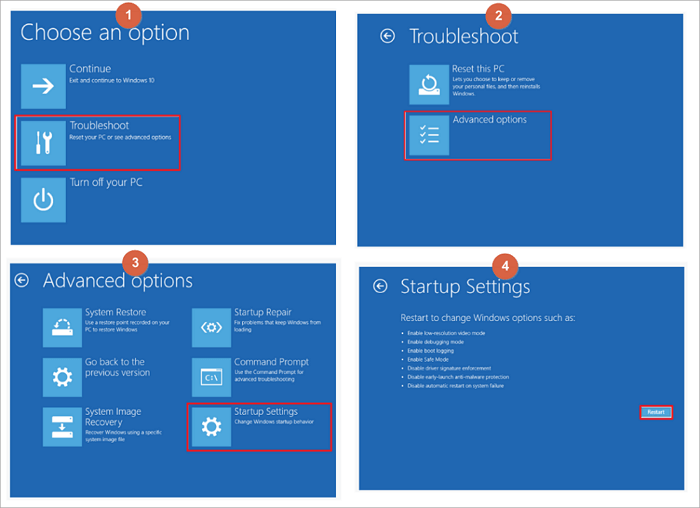
4. Press 4 or F4 to start in Safe Mode.
Advanced Fixes for Windows 11 Crashing After Update
If Windows works fine here, the issue is almost always driver- or software-related. Please follow the advanced fixes below.
Fix 1: Uninstall the Problematic Windows Update
If your pc crashing after Windows 11 update started immediately after a restart, rolling back is the most logical first step. Since Windows allows you to "roll back" the most recent patches, you can effectively remove the buggy code and wait for Microsoft to release a "hotfix."
1. Press Win + I to open Settings.
2. Navigate to Windows Update > Update history.
3. Scroll down to Uninstall updates.
4. Locate the most recent Update for Microsoft Windows (KBXXXXXXX) and click Uninstall.
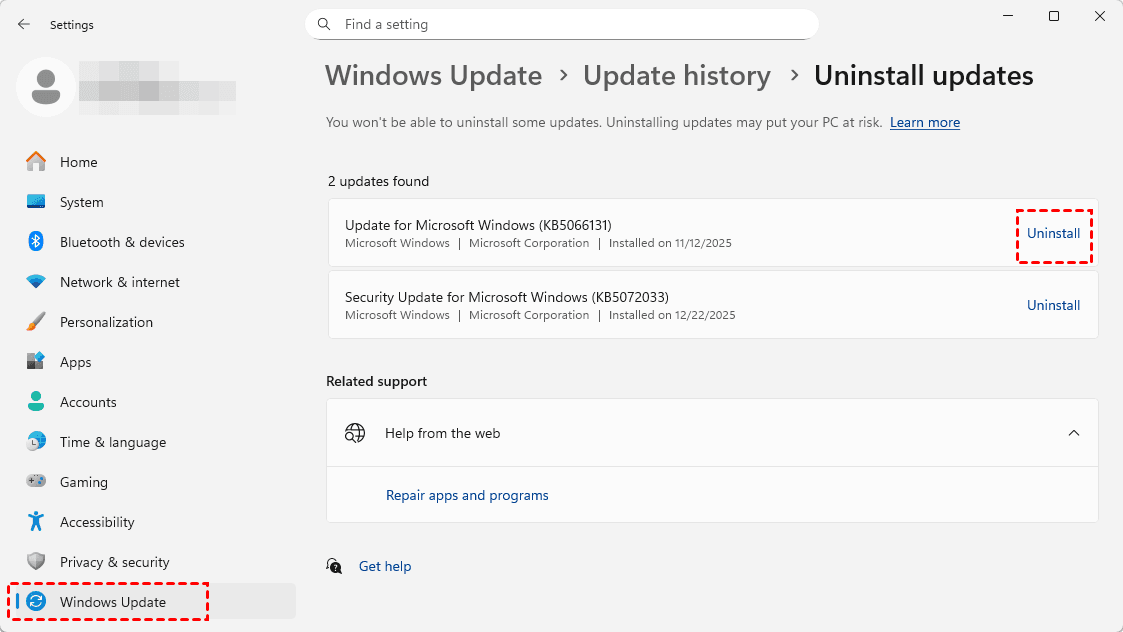
5. Restart your PC and check if the stability returns.
If removing the update doesn't stop the crashes, the update might have triggered a conflict with your hardware drivers that uninstallation couldn't fix.
Fix 2: Update or Roll Back Device Drivers
Drivers, especially for GPUs, are often updated alongside Windows. However, generic drivers pushed by Windows Update can sometimes clash with your specific hardware architecture, leading to system-wide instability.
1. Right-click the Start button and select Device Manager.

2. Identify components likely to cause crashes: Display adapters, Network adapters, or Sound, video and game controllers.
3. Right-click your GPU (e.g., NVIDIA GeForce) and select Properties.
4. Under the Driver tab, click Roll Back Driver if available.
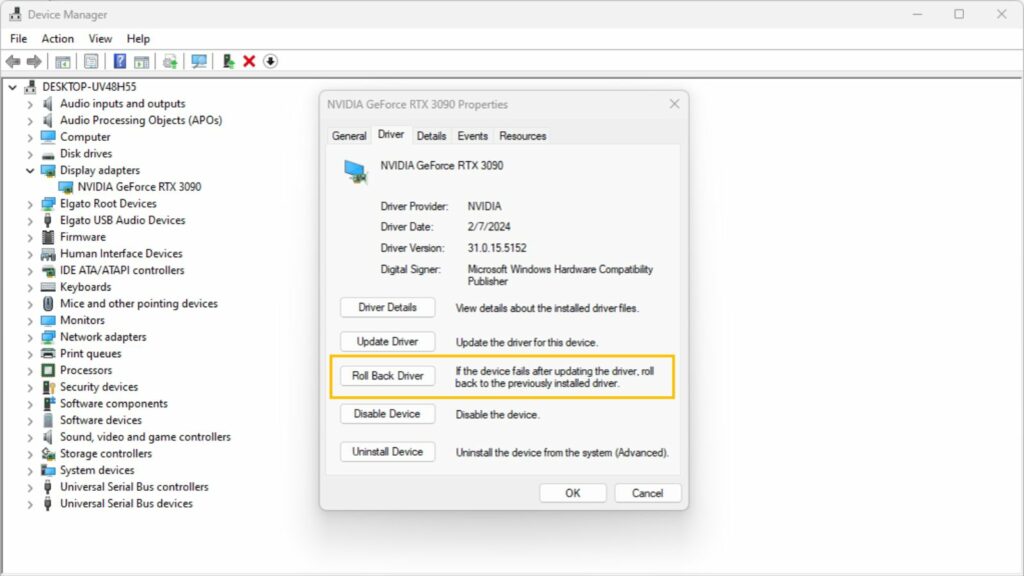
5. If not available, select Uninstall device, and then download the latest driver directly from the manufacturer’s official website (NVIDIA/AMD/Intel).
If the hardware communication is fine, the problem might be internal. The update process may have corrupted the integrity of the system's "blueprints."
Fix 3: Repair Corrupted System Files (SFC & DISM)
This fix addresses the "Why" behind many crashes: corrupted system files. This uses a "Gold Master" copy of Windows files to verify and replace any local files that were damaged during the update's installation phase.
1. Type cmd in the taskbar search, right-click Command Prompt, and Run as Administrator.
2. Type sfc /scannow and press Enter. This scans for integrity violations.

3. Regardless of the SFC result, run the Deployment Image Servicing and Management tool:
DISM /Online /Cleanup-Image /RestoreHealth.
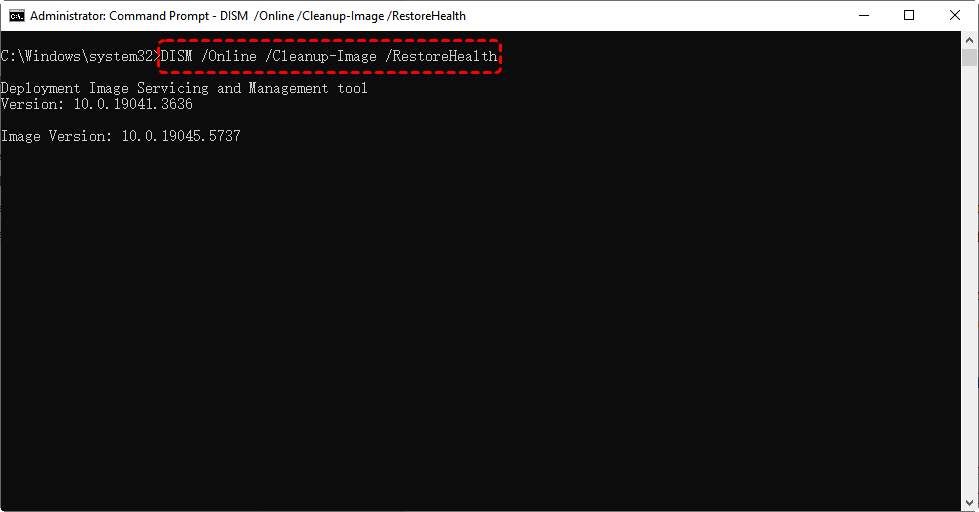
4. This tool connects to Windows Update servers to download fresh copies of corrupted files. Restart once finished.
If the system files are healthy but the crashes persist, a third-party application might be clashing with the new Windows build during the startup sequence.
Fix 4: Perform a Clean Boot to Isolate Software Conflicts
Many apps (antivirus, RGB controllers, overlay tools) start automatically. By disabling all non-Microsoft services, you create a "controlled environment" to see if a background app is why your Windows 11 keeps crashing after update.
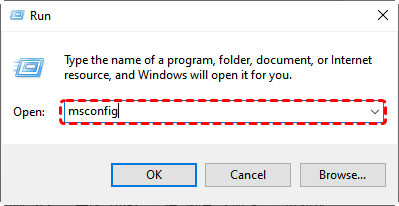
1. Press Win + R, type msconfig, and hit Enter.
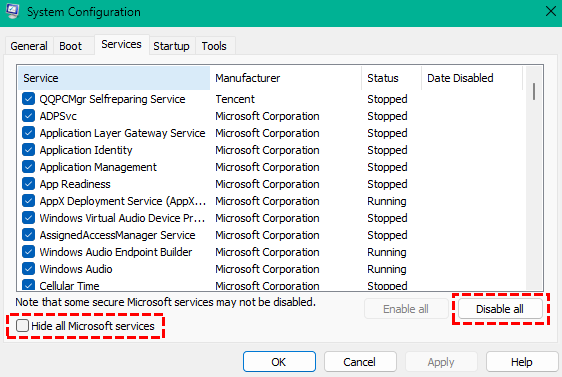
2. In the Services tab, check Hide all Microsoft services, then click Disable all.
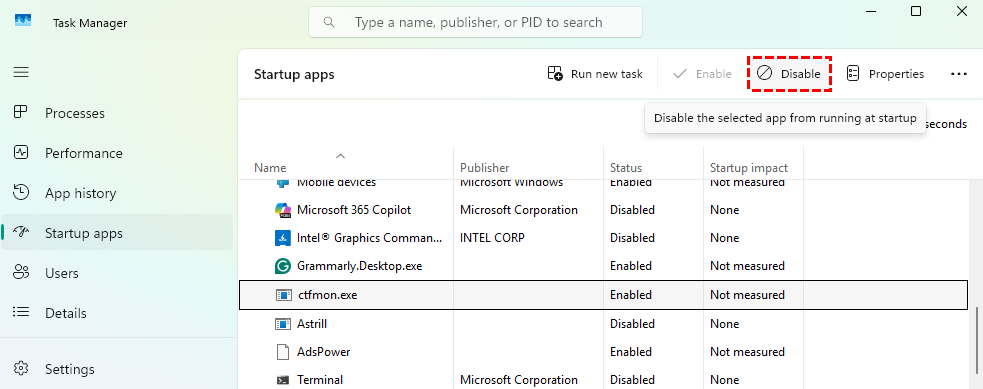
3. Go to the Startup tab and click Open Task Manager.
4. Disable every item in the Startup list.
5. Restart your PC. If the crashes stop, re-enable services one by one to find the culprit.
If a "clean" environment still crashes, the issue may be physical. Updates put a heavy load on hardware, which can push a failing drive over the edge.
Fix 5: Check Disk Health and File System Errors
The update process involves heavy read/write operations. The chkdsk command scans the physical sectors of your drive to ensure the update isn't trying to write data to a "dead zone" on your SSD or HDD.
1. Open Command Prompt (Admin).
2. Type chkdsk X: /f /r and press Enter (replace X with any drive name on your computer).

3. You will be asked to schedule the scan for the next restart. Type Y and restart your computer.
4. Windows will repair file system metadata and mark "bad sectors" as unusable.
If disk repairs and driver updates fail to provide stability, you may need to perform a structural refresh of the entire Operating System.
Fix 6: Reset or Repair Windows 11
This reinstalls the core Windows 11 files while giving you the option to keep your personal data, effectively giving you a "fresh start" free of update bugs. Try the "last resort" when the OS environment is too damaged to repair manually.
1. Open Settings > System > Recovery.
2. Select Reset this PC > Reset PC.
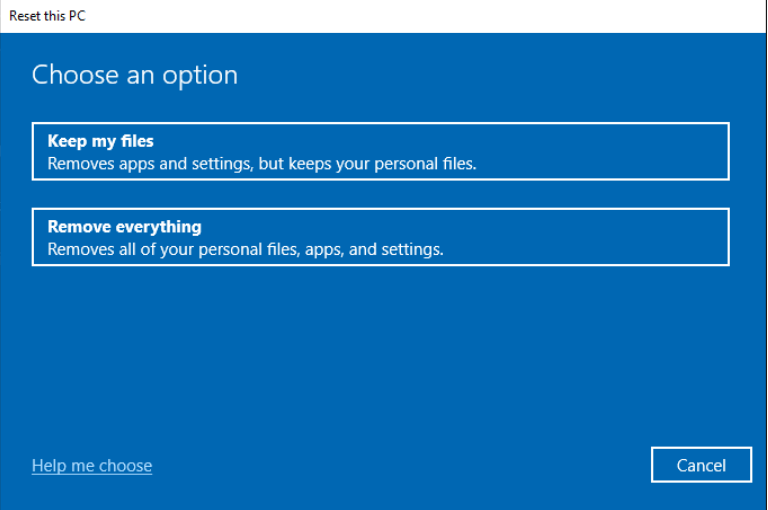
3. Choose Keep my files (to save documents) or Remove everything (for a total wipe).
4. Select Local reinstall and follow the prompts.
Data Loss Risks When Windows 11 Crashes After Update
Repeated system crashes are the leading cause of "Logical Data Loss." When Windows crashes while writing to the disk, it leaves behind "orphan files" or can even corrupt the Master File Table (MFT). This results in folders appearing empty or partitions suddenly showing as "RAW."
How MyRecover Helps After a Windows 11 Crash
If you find that files have disappeared following a pc crashing after Windows 11 update or a forced "Reset this PC" operation, MyRecover is the specialized solution you need. Unlike generic backup tools, MyRecover is built to handle the aftermath of system instability.
Why MyRecover is the right choice for Windows 11 crash recovery:

 MyRecover
- 💙Update-Failure Recovery: Specifically optimized to recover data lost during failed Windows updates or interrupted OS installations.
- 💙Deep Scan Technology: If a crash corrupted your file directory, MyRecover’s Deep Scan goes past the surface to find "unlinked" data based on file signatures.
- 💙Pre-Recovery Preview: You can browse through your lost photos, documents, and videos before committing to the recovery, ensuring you only restore what you need.
- 💙High Success Rate: It supports NTFS, FAT32, exFAT, and ReFS, making it compatible with all Windows 11 disk formats, even if the partition is struggling after a BSOD.
 100% Secure
Steps to Recover Data Lost Due to Windows 11 Crashes
If you've suffered data loss, follow these steps to retrieve your files safely:
1. Download and Install: Install MyRecover on a partition different from the one where the data was lost (e.g., install on D: if you lost files on C:) to prevent overwriting.
2. Select the Source: Launch the software, select the drive or partition that was affected by the crash (usually the C: drive), and click Scan.
3. Automatic Scanning: MyRecover will execute a quick scan for deleted files. Or, you can select Deep Scan to find files lost due to system corruption.
4. Filter and Preview: You don't have to wait for the full scan. Use the filter feature to search for specific file types (e.g., .docx, .jpg) and preview them to ensure they are intact.
5. Recover: Tick the files you need and click the Recover button. Choose a secure location on an external drive or a different partition to save the recovered data.
Conclusion
Experiencing Windows 11 crashing after update is frustrating, but it is rarely a terminal diagnosis for your PC. By methodically uninstalling buggy updates, repairing system files with SFC/DISM, and ensuring your drivers are in sync with the new OS, you can restore 100% stability.
Always remember: stability is temporary, but data loss can be permanent. Protect your work by keeping regular backups and using professional tools like MyRecover when the unexpected happens.
Frequently Asked Questions (FAQ)
1. Why is my pc crashing after windows 11 update only during certain tasks?
This is usually a "Resource Conflict." An update might change how Windows allocates RAM or GPU power. When you perform a heavy task, the driver fails to handle the new instructions, causing a crash. Updating your drivers to the latest manufacturer version usually resolves this.
2. Is it possible to recover files if Windows 11 won't boot at all?
Yes. You can connect your hard drive to another working computer as an external drive. From there, you can use MyRecover to scan the drive and export your data before you attempt to format or reinstall Windows.
3. Will "Reset this PC" delete my personal files?
If you select the "Keep my files" option, your documents, photos, and user data are preserved. However, all installed applications and system settings will be removed. It is always recommended to back up your most important data before initiating a reset.
4. How can I tell if the crash is caused by hardware or the update?
If your computer works perfectly in Safe Mode, the issue is almost certainly the Windows update or a driver. If the Windows 11 keeps crashing after update even in Safe Mode, you are likely looking at a hardware failure (RAM or SSD).
5. My files disappeared after Fix 6 (Reset PC). Can I get them back?
If the files were deleted during a reset, they may still be physically present on the disk but marked as "deleted." MyRecover can perform a Deep Scan to find these files and restore them to their original state.
6. How do I prevent these crashes in the future?
There are a few feasible options for you:
- Delay Updates Strategically: Wait a few days before installing major updates to avoid early bugs.
- Keep Drivers Updated Manually: Use manufacturer drivers instead of relying solely on Windows Update.
- Create Restore Points Regularly: Restore points give you a safety net if an update causes instability.
- Back Up Important Files: Regular backups are your best defense against crashes and data loss.

Stay Updated With Our
Latest Tips
Add us as a preferred source on Google to never miss helpful guides.
 Add as preferred source >>