 MyRecover



Fixed: Windows File Explorer Keeps Crashing | 14 Proven Solutions
End the frustration when Windows file explorer keeps crashing. Our comprehensive tutorial covers essential repairs, including SFC scans and clean boots, specifically targeting the dreaded "explorer.exe keeps crashing Windows 10" error to restore seamless operation.

By Delores / Updated on March 12, 2026


Windows File Explorer Keeps Crashing!
My file explorer is crashing again and again, even if I am right-clicking on the desktop. After the 24H2 update, I have tried everything to fix it, but it didn't work.
I have tried every single YouTube trick and tip to solve this, but it didn't work. If anyone knows how to fix it, it would be very helpful, and please don't suggest reinstalling the window.
Whenever I right-click on the desktop or on the explorer icon, the cursor shows a loading icon and the taskbar disappears, and the screen goes black for a second or two. The whole system stops working for a second, and after the update file explorer has been crashing every single time without falling. I have tried third-party file managers, which are working.
- Question from reddit.com
It's a full-stop interruption to your workflow, your creativity, and your sanity if your Windows File Explorer keeps crashing. Don't worry, we will show you the reasons why it happens and proven solutions to fix it for good.
Why Does File Explorer Keep Crashing?
When you use File Explorer, the explorer.exe is running in the background. The core process, Explorer.exe, manages your desktop interface, taskbar, and open file windows. File Explorer crashes occur when its standard operations are disrupted. Several specific issues can lead to these crashes.
⭕ A problematic Windows update that conflicts with your hardware is another common trigger.
⭕ Additionally, corruption within Windows system files can destabilize the operating environment.
⭕ Some faulty extensions, like Shell extensions, are a primary suspect. These are plugins from third-party software that add functions to File Explorer's right-click menu. If one of these extensions contains flawed code or conflicts with another, it can force Explorer.exe to crash. This typically occurs at the moment the extension is activated, such as when you right-click on a file or folder, directly interrupting the Explorer process.
⭕ High RAM usage can definitely cause File Explorer to crash, freeze, or become slow, as it struggles to manage memory for open folders, thumbnails, and background processes.
14 Fixes for a Crashing File Explorer
After getting the reasons, you might know how to troubleshoot the problem. Here we will show you the proven solutions to fix it quickly. Check them now.
Way 1. Restart Windows Explorer via Task Manager
When you notice that Windows Explorer keeps crashing, you can manually restart it.
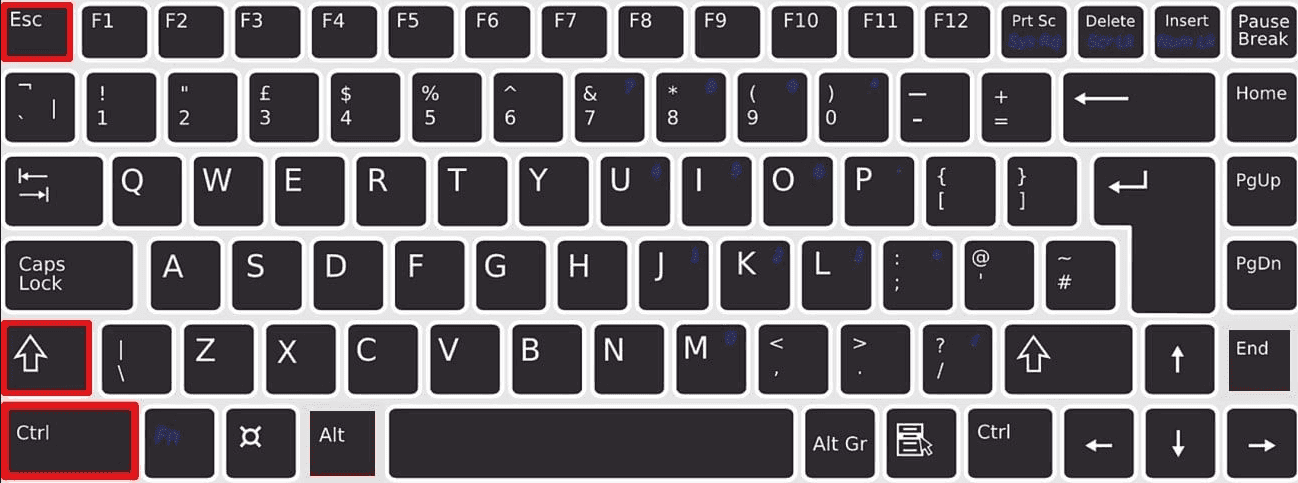
1. Press Ctrl + Shift + Esc to open the Task Manager.
2. Find "Windows Explorer" in the Processes list.
3. Right-click it and select "Restart".
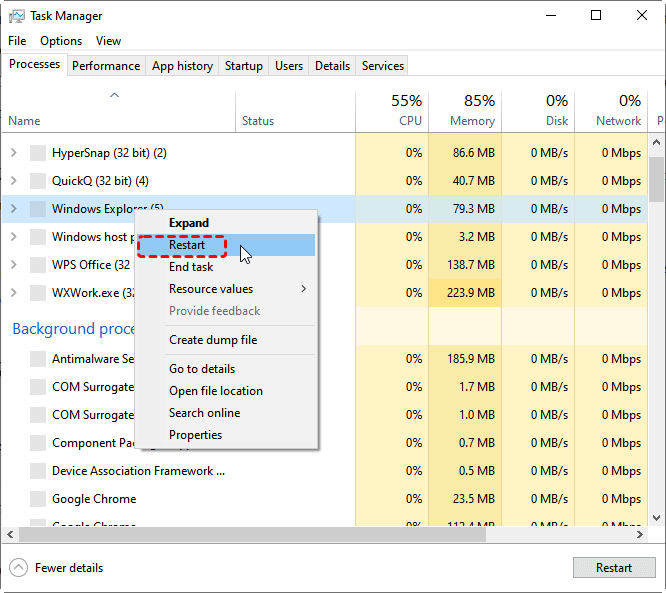
You’ll see your taskbar and desktop icons flicker off and back on. This simple step can clear out a temporary glitch in the process’s memory, acting as a quick reboot for your interface without restarting your whole PC. It’s astonishing how often this little trick does the job.
Way 2. Run the Windows File Explorer Troubleshooter
Microsoft has built-in troubleshooters designed to automatically find and fix common problems.
1. To run the File Explorer troubleshooter, go to Start > Settings > Update & Security > Troubleshoot > Additional troubleshooters.
2. Find "Windows Store Apps"(You can also search Windows Store, then choose Find and fix problems with Microsoft Store Apps) and run it—this troubleshooter also handles core Windows components like Explorer.
3. It will scan for known issues and attempt to apply automatic repairs.
If these quick fixes don't do the trick, the problem might be a bit more rooted in your system's core. This is where we need to move beyond first aid and into some diagnostic surgery.
Way 3. Rebuild Windows Search Index
Some users reported that Windows File Explorer keeps crashing, which is related to the Windows Search Indexing service. So you can rebuild the Windows search index to fix the problem.
1. Go to Control Panel.
2. Search for "Indexing Options".
3. Click on the "Advanced" Button. A new dialog opens.
4. Locate the "Troubleshooting" section and click on "Rebuild".
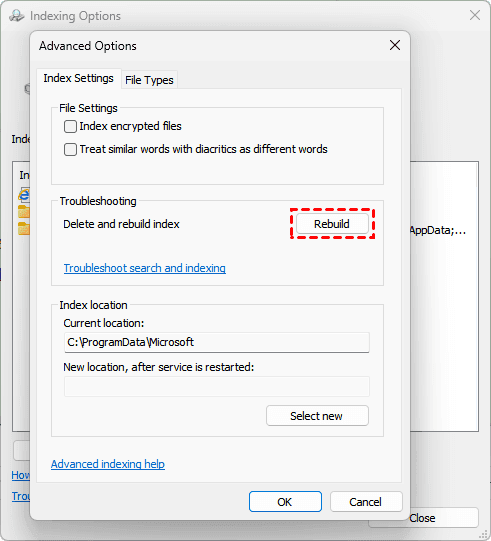
The Indexes begin to rebuild again, and once they're done, your Windows File Explorer will begin working again.
Way 4. Check for Context Menu Extensions
Third-party software sometimes adds buggy extensions to the right-click menu. Download a tool like ShellExView (a free utility by NirSoft) to fix.
1. Download ShellExView.
2. Run it and disable all non-Microsoft extensions.
3. Restart your system and check if the problem persists.
4. Re-enable extensions one by one to find the culprits.
Way 5. Update or Rollback Graphics Drivers
Windows File Explorer black screens and crashes might be related to your display driver. You can update or rollback the drivers that cause the problem.
1. Open Device Manager, expand Display Adapters.
2. Right-click your graphics card and choose Update driver.
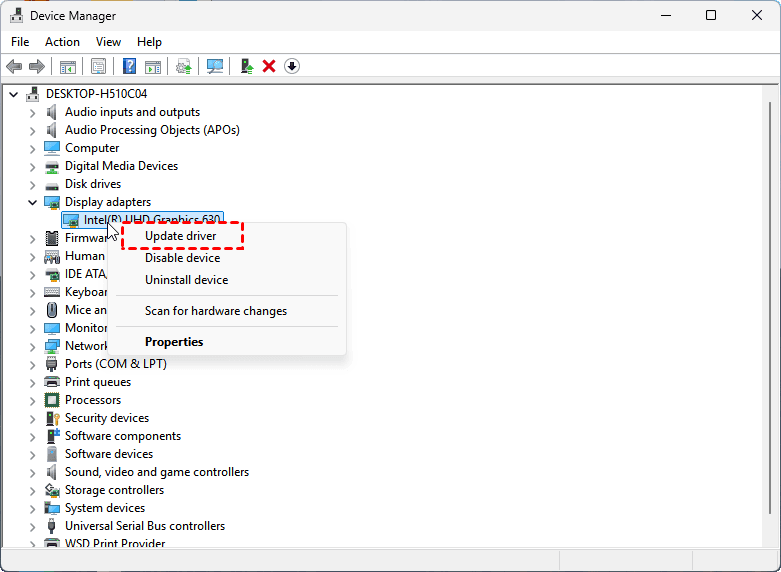
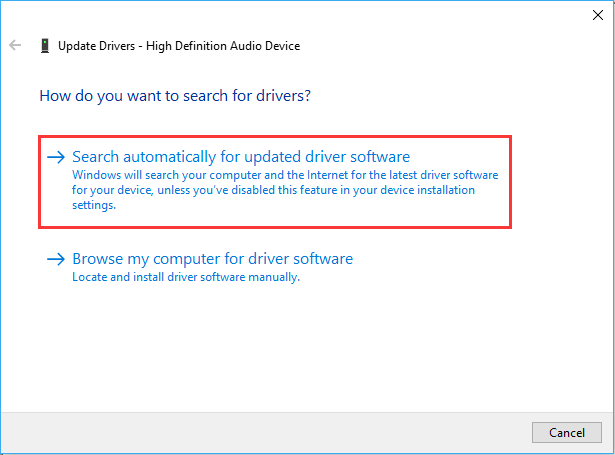
3. Select Search automatically for updated driver software.
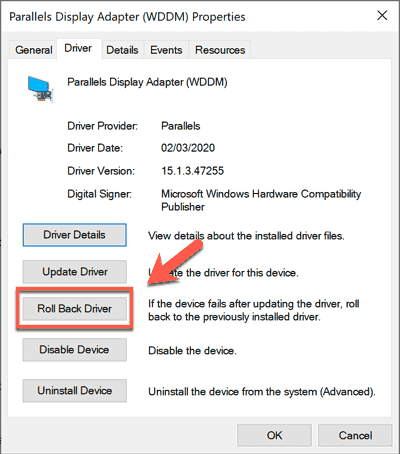
4. If updating doesn’t help, use Roll Back Driver or download a stable version of your driver from the GPU manufacturer’s website.
Way 6. Disable Quick Access in File Explorer
Quick Access can sometimes cause file explorer crashes. To fix it:
1. Open File Explorer, go to the three-dot icon > Options.
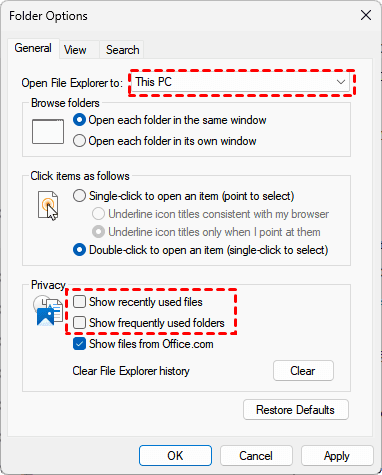
2. In the General tab, change "Open File Explorer to:" to This PC.
3. Uncheck Show recently used files and Show frequently used folders in Privacy.
4. Apply and restart Explorer.
Way 7. Clear Windows File Explorer History
If nothing worked, then try to clear the history for Windows File Explorer; some users reported that it’s working.
1. Open Control Panel and go to File Explorer Options.
2. Under the General tab, click Clear next to Clear File Explorer history.
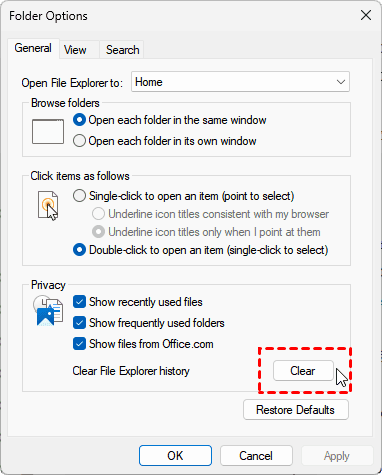
Then open Explorer, and the problem will get fixed.
Way 8. Remove Shortcuts in Quick Access
1. Press Windows + R key combination to open Run, then type the following command, and press Enter:
shell:recent\AutomaticDestinations
2. Delete the contents of the resulting folder.
3. Kindly do the same on the path below:
shell:recent\CustomDestinations
4. After that, restart your computer
This will remove the shortcuts in Quick Access but not the actual files.
Way 9. Check for Updates
1. Select Start > Update and Security > Windows Update.
2. Select Check for updates.
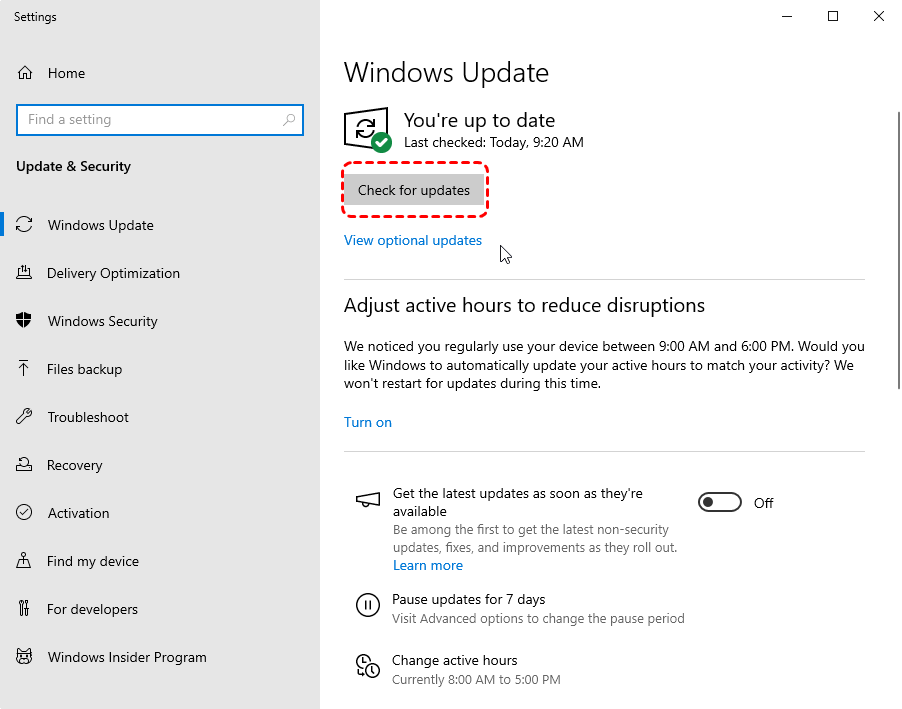
3. Install any available and pending updates and restart your device.
Way 10. Perform a Clean Boot
Determine whether a background program or a software conflict is causing the issue. You can perform a clean boot.
1. Press Windows key +R to open Run, then type: msconfig, and press Enter
2. It opens up a System Configuration window, and go to the Services tab.
3. Select and make sure to put a check mark on "Hide all Microsoft services", and click Disable all.
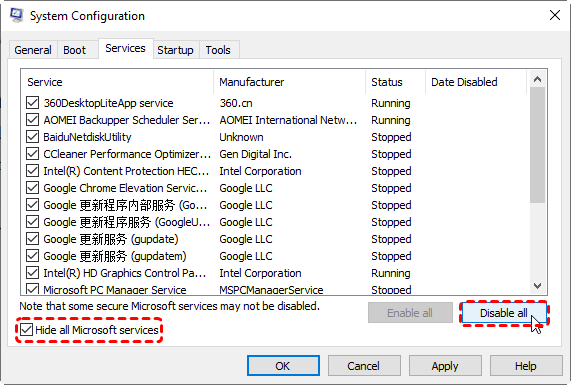
4. Go to the Startup tab > Open Task Manager > Disable all the unnecessary services running there. Restart your computer.
Way 11. Close Other Programs
If your RAM usage is high, you can close all other programs to release some RAM, and then your Windows File Explorer can run smoothly.
Way 12. Run System File Checker (SFC) and DISM Tools
These tools, SFC and DISM, can fix corrupted system files.
1. Open Command Prompt as Administrator.
2. Run the following commands one at a time:
DISM.exe /Online /Cleanup-Image /RestoreHealth
3. After that, run:
sfc /scannow

Restart your computer after completing these steps.
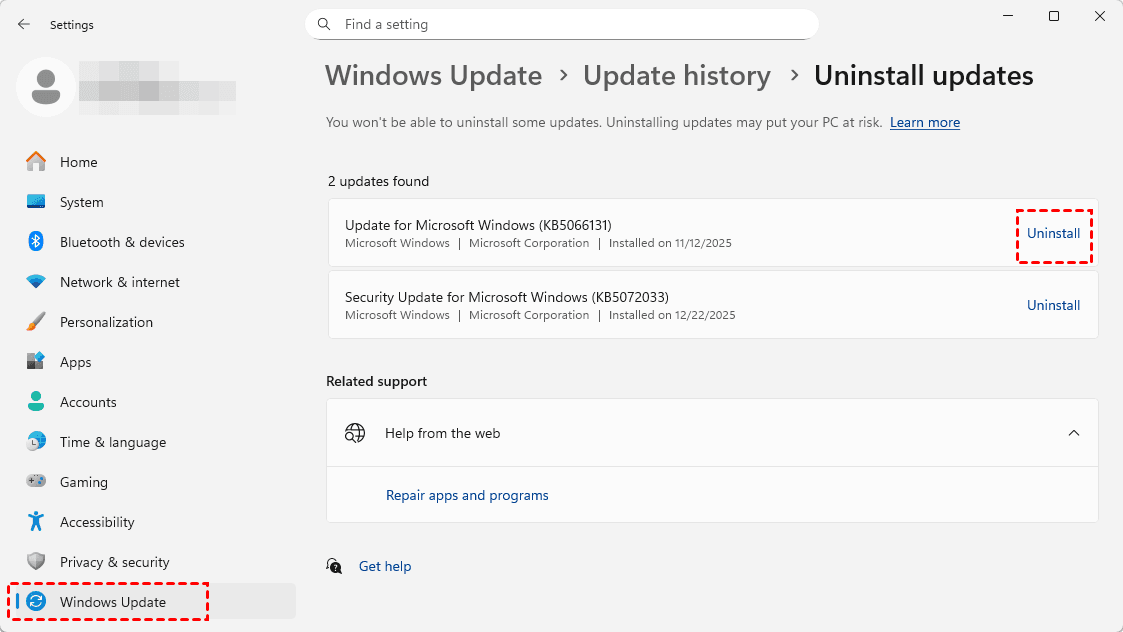
Way 13. Uninstall Recent Windows Updates
If the Windows File Explorer keeps crashing issue began after an update, uninstalling the recent Windows update is another option.
1. Open Settings > Update & Security > Windows Update.
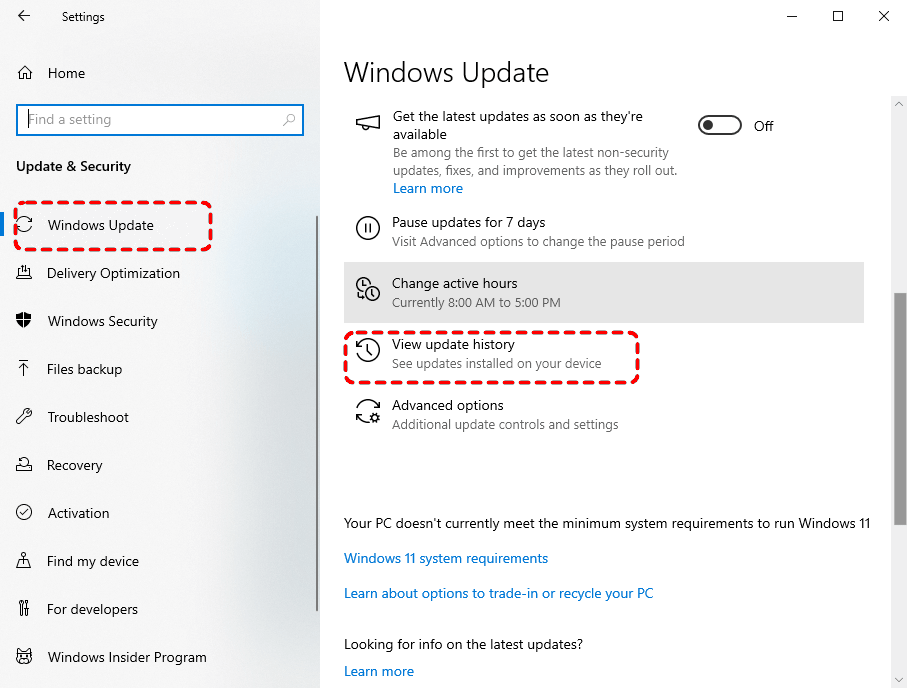
2. Click View update history > Uninstall updates.
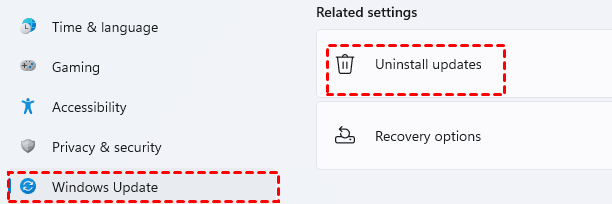
3. Uninstall the most recent update that might be causing the issues.
Way 14. Boot into Safe Mode to Isolate Software Conflicts
Safe Mode starts Windows with only the bare minimum of drivers and programs. If File Explorer runs perfectly fine in Safe Mode, you’ve just proven that the cause is a third-party application, driver, or startup item.
To boot into Safe Mode, go to Settings > Update & Security > Recovery > Advanced startup > Restart now.
After the restart, choose Troubleshoot > Advanced options > Startup Settings > Restart, then press 4 or 5 for Safe Mode with or without Networking.
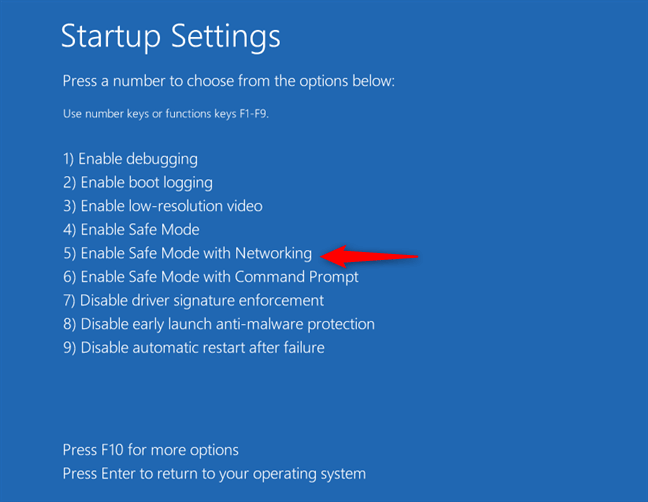
If the crashes stop here, you know the hunt is on for a conflicting program.
You can then use a process of elimination from normal mode, perhaps by performing a "clean boot" through the System Configuration tool (msconfig), to find the exact offender.
Recover Files After A File Explorer Crash with MyRecover
When explorer.exe keeps crashing in Windows 10, 11 repeatedly, it can sometimes occur during a file transfer or save operation, leading to lost or inaccessible files.
Fortunately, a powerful Windows data recovery software like MyRecover is your best choice. It is designed to get your precious data back even after system instability causes loss.
- MyRecover works by performing deep scans on your storage drives, looking for file signatures and recoverable data that the standard File Explorer can no longer see.
- Its strength lies in its user-friendly interface and high recovery rates for documents, photos, videos, and emails, even from formatted or corrupted partitions.
Here is a step-by-step guide to using MyRecover to recover lost files in Windows 10, 11:
1. Download and install MyRecover on your computer.
 100% Secure
2. Launch it, choose Deleted Files Recovery, choose the drive where the lost files were located, and hit "Scan".

3. Wait for the process to complete and hit OK.
4. Preview and select the files you need to recover, and hit Recover.

5. Select a safe location to save these recovered files.

- Tips:✎...
- Once the scan completes, you can navigate through the results. Files are often organized by original folder or file type. You can also search the files by file name, modified date, file size, and more.
- MyRecover allows you to preview many common file types (like JPGs, DOCX, and PDFs) before recovery.
- Besides, you can also upgrade to MyRecover Technician to recover files for unlimited computers easily.

 MyRecover
- Recover Deleted Files Easily with Simple Clicks
- 1000+ File Formats Supported
- Support HDD, SSD, External Hard Drive, USB Drive, SD Card, etc.
- Quickly Find Files Using File Types, Name, Size, etc.
- Preview Files Before Recovering
- Recover Unlimited Data
 100% Secure
FAQs About Windows File Explorer Keeps Crashing
Q: Why does my Windows File Explorer crash when I right-click on a file or folder?
A: This is almost always a faulty shell extension from third-party software (like cloud apps or media players), corrupting the context menu. Fix it by booting into Safe Mode to disable the bad extension or uninstall recent software.
Q: Can a virus or malware cause File Explorer to keep crashing?
A: Yes. Malware that hooks into Explorer to hide itself can destabilize it. Run a full scan with an updated antivirus and a tool like Malwarebytes, especially if you see other strange system behavior.
Q: Is there a difference between "Windows Explorer" and "File Explorer" crashes, or are they the same thing?
A: Yes. “File Explorer” is the newer name for “Windows Explorer.” Both refer to the same explorer.exe process, so the crashes and fixes are identical.
Q: How can I tell if a recent Windows Update is causing my Explorer to crash?
A: If crashes began right after an update, it’s likely the cause. Go to Settings > Update & Security > Windows Update > View update history to uninstall the latest update and see if stability returns.
Q: What should I do if none of the standard fixes work for my Explorer crashes?
A: Try a “Repair Install” to refresh Windows while keeping your files. If crashes persist, test your RAM with Windows Memory Diagnostic and your drive’s health with chkdsk, as failing hardware can be the root cause.
Q: Could a full hard drive cause Explorer.exe to crash?
A: Yes. Under 10% free space can strain Windows and cause crashes. Keep 15-20% free and check drive health with chkdsk /f or S.M.A.R.T. tools to rule out a failing drive.

Stay Updated With Our
Latest Tips
Add us as a preferred source on Google to never miss helpful guides.
 Add as preferred source >>