 MyRecover



How to Fix Reboot and Select Proper Boot Device on Windows 11 [Step-by-Step]
The 'Reboot and Select Proper Boot Device' error on Windows 11 can prevent the system from starting and leave users stuck at a black screen. This article examines the most common reasons behind this boot failure and outlines structured, step-by-step solutions to resolve it. By following the guidance provided, you can restore normal system boot functionality safely.

By Aria / Updated on January 29, 2026


Introduction
Reboot and Select proper Boot Device - Windows 11 Updated
Just had an auto update today, after the pc restarted it went to this. Have tried literally everything, including everything Bios related, nothing works, takes me back to this. Probably have restarted it 20+ times following all of the troubleshooting. Someone please helps me get back i to windows. Can I somehow enter safe mode? This is just lunacy. all for following the recommended update from windows auto update.
- Question from Gary
The error message "Reboot and Select Proper Boot Device" appears during system startup, before Windows loads. It is generated by the system firmware (BIOS or UEFI), not by Windows itself. In simple terms, it means the computer cannot find a valid bootable device that contains the files required to start the operating system.
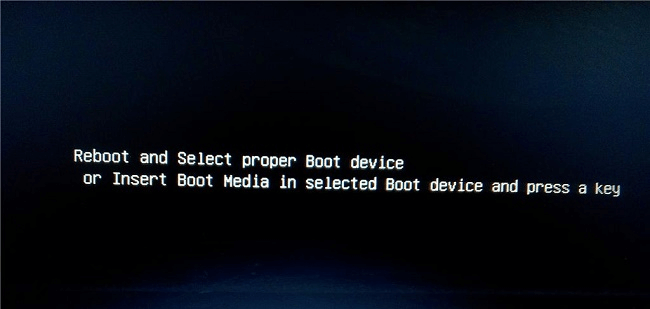
When you power on a PC, the BIOS/UEFI performs a hardware check and then looks for a storage device such as an SSD or HDD with a recognizable boot loader. If no suitable boot device is found, or if the boot information on the detected drive is unreadable, the system stops and displays the message "Reboot and select proper boot device or insert boot media in selected boot device and press a key".
Common Causes Behind the "Reboot and Select Proper Boot Device" Error
The "Reboot and Select Proper Boot Device" message usually indicates that your system firmware (BIOS/UEFI) cannot locate a bootable drive or a valid boot loader. While the error may seem alarming, it often stems from configuration or connection issues rather than permanent hardware failure. Understanding the root cause is key to applying the right fix.
⭕Incorrect Boot Order in BIOS/UEFI: One of the most common reasons is that the system is attempting to boot from a device that doesn’t contain Windows.
⭕Drive Not Detected: Sometimes the boot drive isn’t recognized by the BIOS/UEFI.
⭕Corrupted Boot Sector or BCD: If the Boot sector or BCD are corrupted, the system may fail to boot even though the drive and files are intact.
⭕Switching Between UEFI and Legacy Boot Modes: Changing the setting can make an otherwise bootable drive unrecognizable to the firmware.
⭕Disk Cloning, Migration, or Reinstallation: When moving Windows to a new drive (via cloning or migration), the boot configuration may not update correctly.
⭕External or Removable Media Conflicts: Sometimes the system tries to boot from an external device that is not bootable. Simply disconnecting the media or changing the boot priority can resolve this issue.
⭕Unexpected Power Loss or System Crashes: Sudden shutdowns or power outages can corrupt the boot files or cause firmware misconfiguration.
How to Fix the "Reboot and Select Proper Boot Device" Error on Windows
With the root causes clarified, you can now move on to structured solutions. This section offers several effective methods to fix the "Reboot and select proper boot device" error on Windows 10 and 11. You can try them one by one until your problem is resolved.
Check SATA Cable and Physical Connections
Hardware connections are often overlooked but are a common cause of boot errors. A loose SATA connection or boot device can easily prevent Windows from detecting the boot device, which in turn triggers the "Reboot and select proper boot device" error, especially when you use a portable boot device.
Step 1. Press the power button to turn off the computer completely.
Step 2. Open the case and reseat the SATA or power cables.
Step 3. Try a different SATA port or cable if available. Once connections are secure, restart the system and check whether the boot error persists.
Check Your Hard Drive's Health
Because Windows cannot boot without a functional system drive, verifying disk health is an essential step. A failing drive may still appear in BIOS but be unreadable during startup.
Step 1. If you’re using a removable boot device such as a USB boot drive, you can connect it to a working computer.
Step 2. Locate Command Prompt in the Start menu and run it as administrator.

Step 3. Enter the following command "wmic diskdrive get status" and press "Enter".
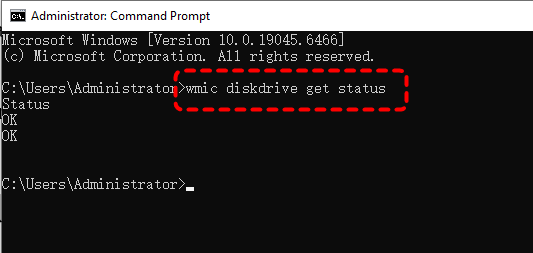
If the result shows "OK", your hard drive is healthy; if it shows "Bad", it means there may be a fault with your system drive.
Reset BIOS to Default Settings
Incorrect BIOS settings, whether from manual changes or firmware updates, can disrupt the boot process. Resetting BIOS restores a known-good configuration and might fix the "Reboot and select proper boot device" error.
Step 1. Restart your computer and repeatedly press F2, Del, or Esc (depends on your computer brand) to enter BIOS/UEFI.
Step 2. Locate an option like "Load Optimized Defaults" or "Reset to Default".
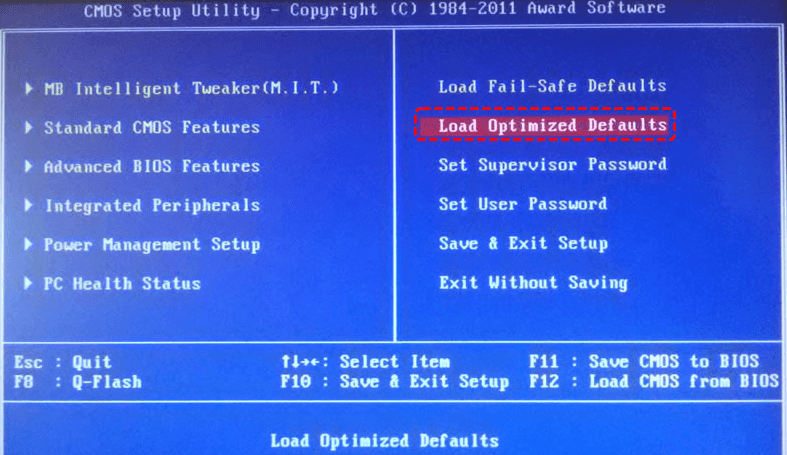
Step 3. Confirm the changes and press F10 to save & exit the setup. Restart your computer to check if the error is still here.
Change the Boot Order in BIOS/UEFI
Correct boot order is critical for both legacy BIOS and UEFI-based systems. If Windows is installed on the correct drive but BIOS tries to boot from another device, the system will fail to start and show the error. Changing the boot order in BIOS/UEFI can solve the issue.
Step 1. Enter BIOS/UEFI and go to "Advanced" > "Boot" (or Boot Order).
Step 2. Select your system disk or Windows Boot Manager as the first boot device.
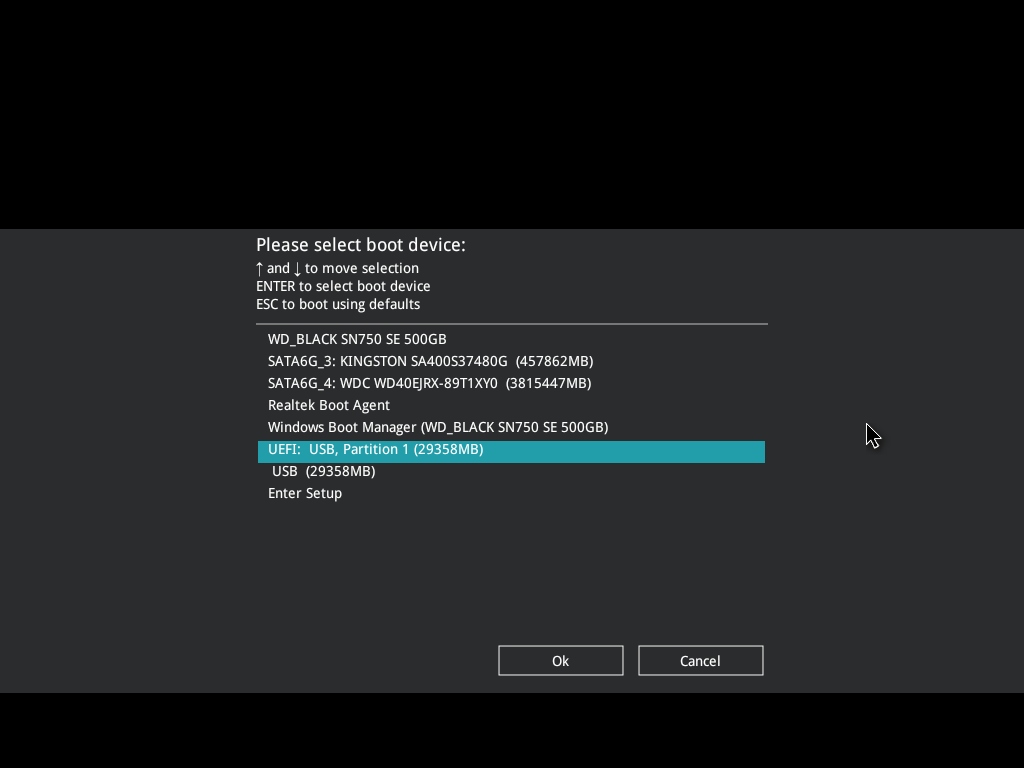
Step 3. Press F10 to save the changes.
Run Startup Repair
If the issue persists, you can also try using Windows' built-in Startup Repair tool to fix the minor bootloader or configuration problems.
Step 1. Restart your computer and press the power button to interrupt the boot process as soon as the Windows logo appears on the screen. Repeat this process 2-3 times, and Windows will automatically enter WinRE.
Step 2. Select "Troubleshoot" > "Advanced options" > "Startup Repair".
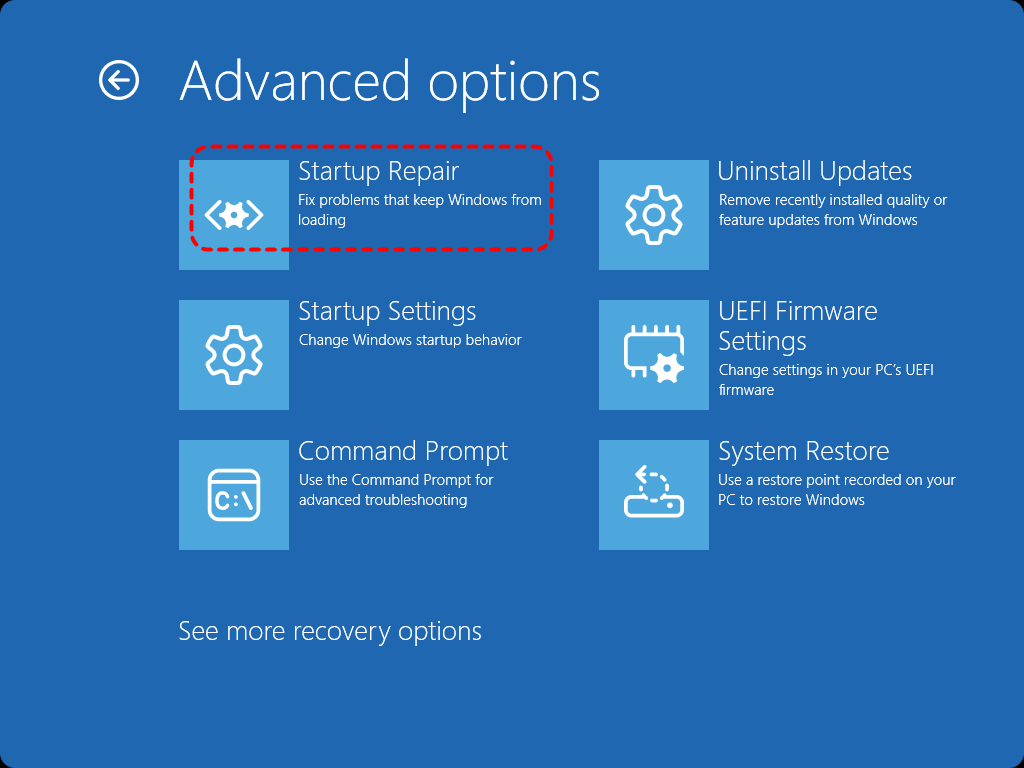
Step 3. Wait for Windows to automatically diagnose and fix boot issues.
Rebuilding the BCD (Boot Configuration Data)
The "Reboot and Select Proper Boot Device" error can sometimes occur if Windows boot files are corrupted or missing. Repairing these critical files will fix the issue and restore normal computer boot functionality. Follow these steps:
Step 1. Select "Troubleshoot" > "Advanced options" > "Command Prompt" in WinRE.

Step 2. Enter the following command and press "Enter" after each command:
bootrec /fixmbr
bootrec /fixboot
bootrec /scanos
bootrec /rebuildbcd
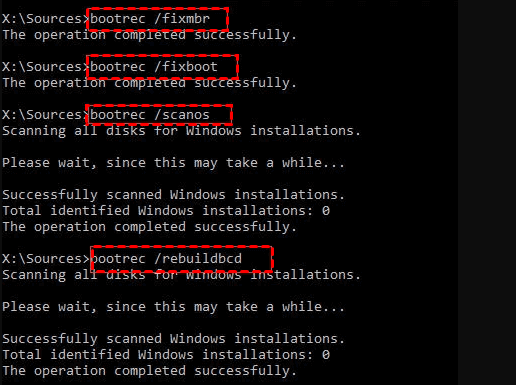
Reboot your computer to see if the error is still there.
Active System Partition
On legacy BIOS systems, Windows will not boot if the system partition is inactive. Once your computer’s Power-On Self-Test (POST) is complete, the BIOS firmware will locate the partition marked as Active, then execute the boot loader stored on this partition to start the computer. In the modern UEFI + GPT boot mode, this has been replaced by the EFI partition.
Step 1. Open Command Prompt in WinRE.
Step 2. Enter the following command one by one:
- diskpart
- list disk
- select disk 0 (Replace "0" with your actual disk number)
- list partition
- select partition 3 (Replace "3" with your actual partition number)
- active
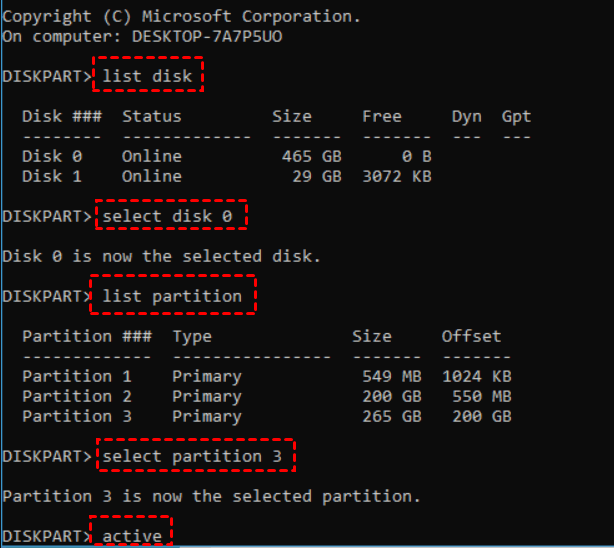
Restart your computer and check if it can boot normally.
Reinstall Windows
If all the above methods fail, reinstalling the system will become unavoidable. While this method can get your computer up and running again, improper operation will erase all data on the device. "Reset This PC" will allow you to reinstall Windows without losing any data.
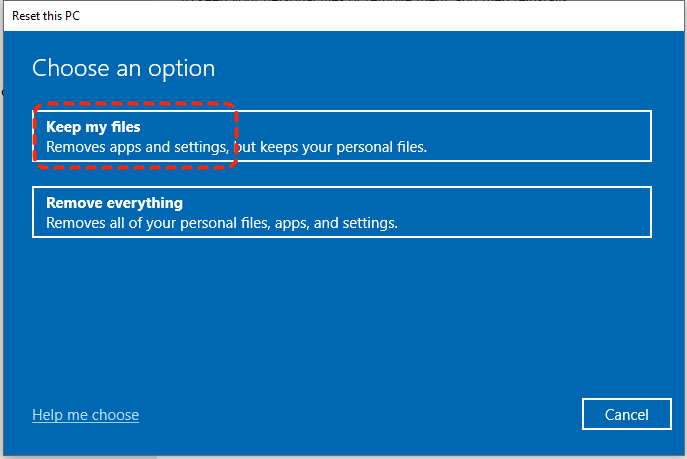
Step 1. Select "Troubleshoot" > "Reset this PC" in WinRE.
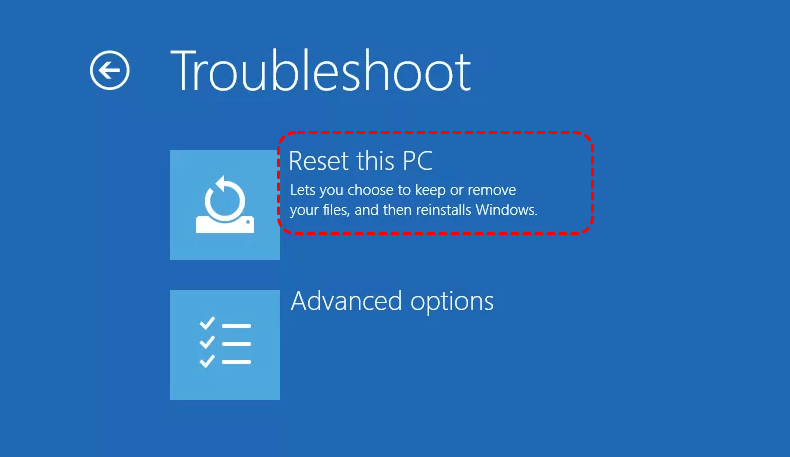
Step 2. Choose "Keep my files" and all your personal files in the C: \Uers will be reserved.
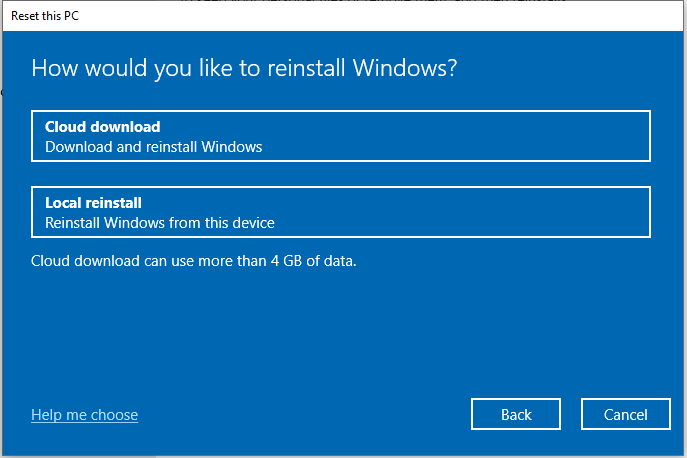
Step 3. Select "Cloud download" or "Local reinstall". In such a case, if you’re unsure whether there are corrupted system files causing a crash, you’d better select Cloud download to install the latest version of the system (ensure your device is connected to the internet).
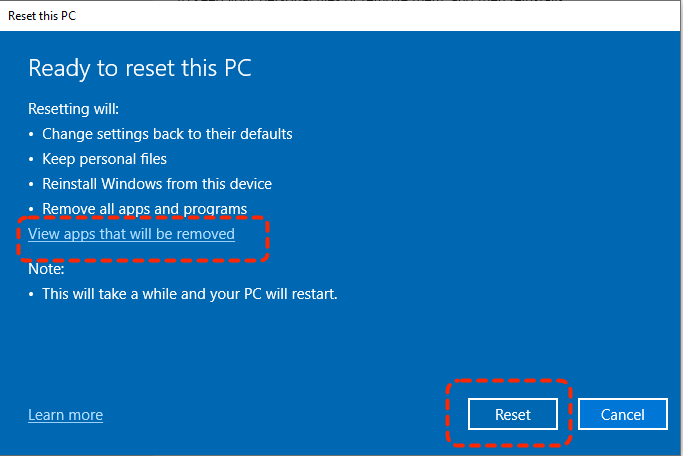
Step 4. Confirm the reset setting and click "Next" to continue the process. You can check the apps that will be deleted by clicking on "View apps that will be removed". Then click "Reset" to start the process.
How to Recover Data When Windows 11 Won’t Boot
While a system reinstall is the most direct way to restore your computer to normal, some reinstall methods unlike "Reset this PC", do not offer an option to keep your personal files. Before doing so, recovering data from this unbootable computer should be your top priority. This is where a professional data recovery tool like MyRecover becomes essential, especially if the system is still unbootable.
Even if your computer fails to boot, MyRecover can still scan your affected hard drive and recover data from it without modifying any existing data. It supports more than 500 complex data loss scenarios, such as emptied Recycle Bins, deleted partitions, inaccessible hard drives, virus-infected USB drives and more.

 MyRecover
- 1000+ Devices Supported: HDD, SSD, USB flash drive, SD card, etc.
- 1000+ File Formats: Videos, PNG, VMDK, Archives, Emails and more.
- 500+ Data Loss Cases: Deletion, Format, Virus Attack, System Crash, etc.
 100% Secure
Step 1. Download and install MyRecover on a working Windows PC from Microsoft Store or its official site. Prepare a blank USB drive and connect to the computer.
Step 2. Launch the program and locate "PC Crashed Recovery" section, click "USB Boot Device" and "Create" to make a bootable media. You can also choose CD, DVD or ISO file to boot your computer.

Step 3. A pop-up will prompt you that the USB drive will be formatted. If there is any data on it, you’d better back it up first. Click "Yes" to start the process. Wait for the bootable USB device create successfully.
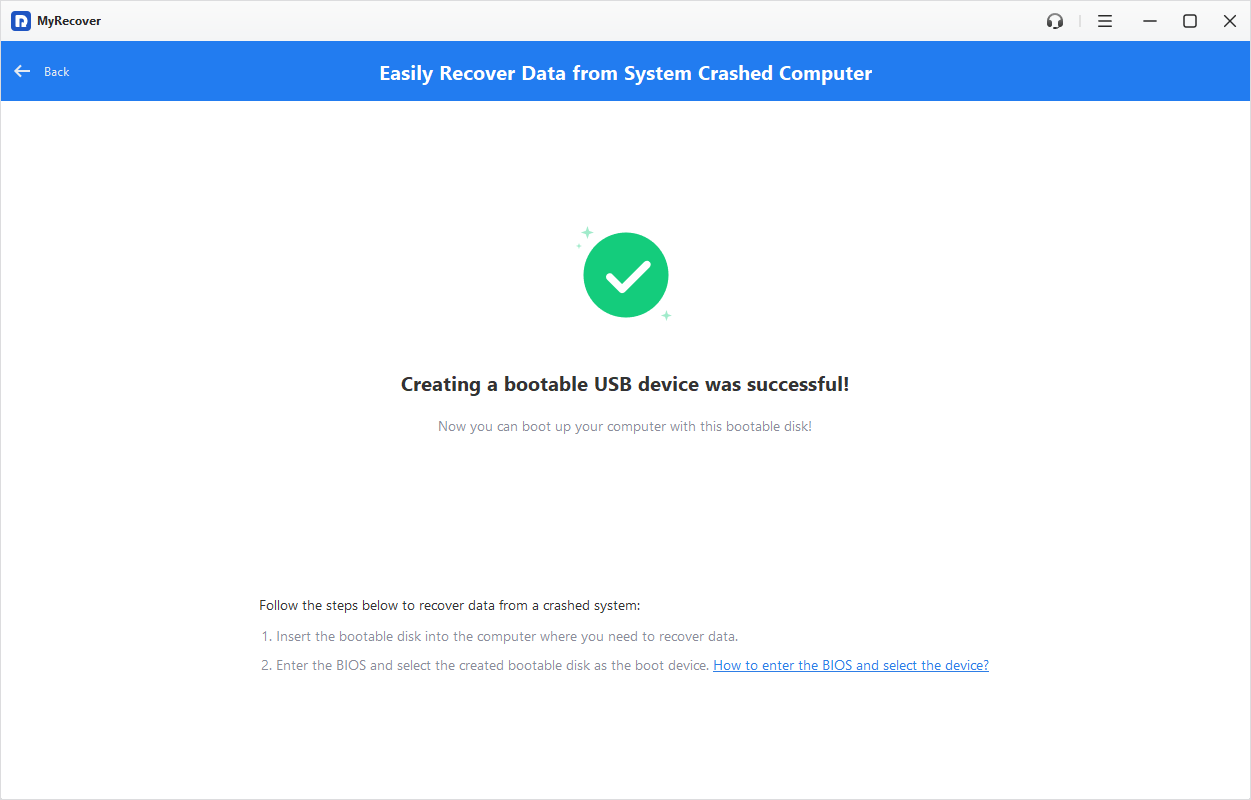
Step 4. Remove the USB from the working computer and insert in into the computer with "Reboot and select proper boot device" error. Enter BIOS and change the boot menu to boot the computer with the USB device.
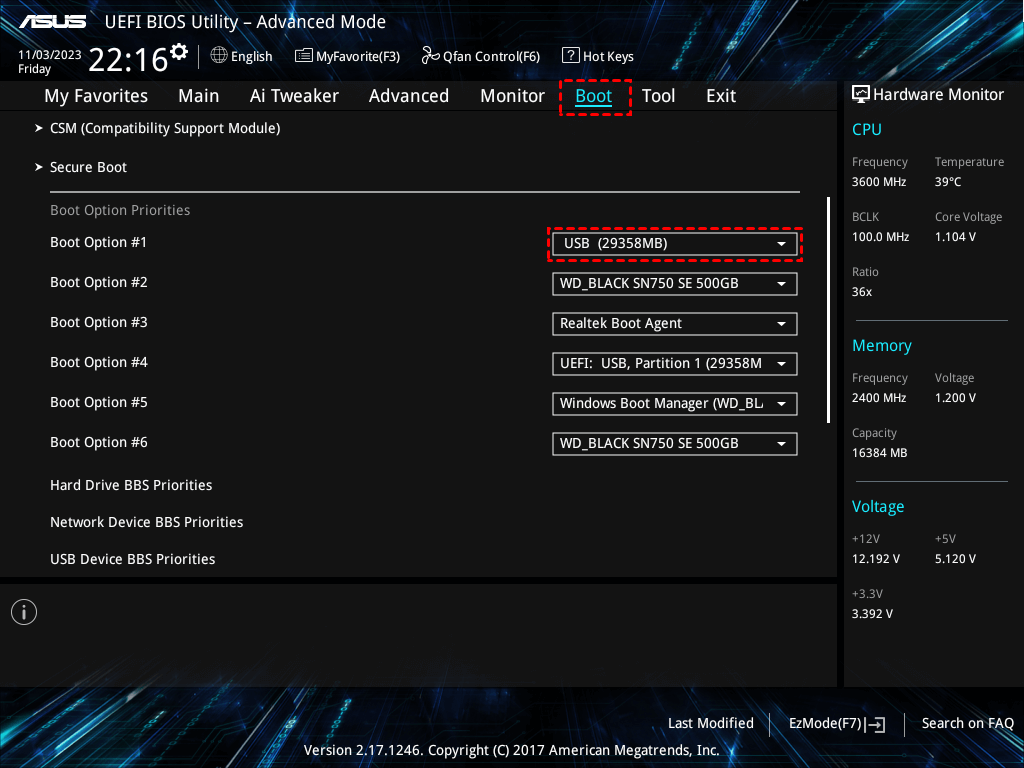
Step 5. Your computer will automatically enter the interface of MyRecover. Select the drive where the files you wish to recover and click "Scan".
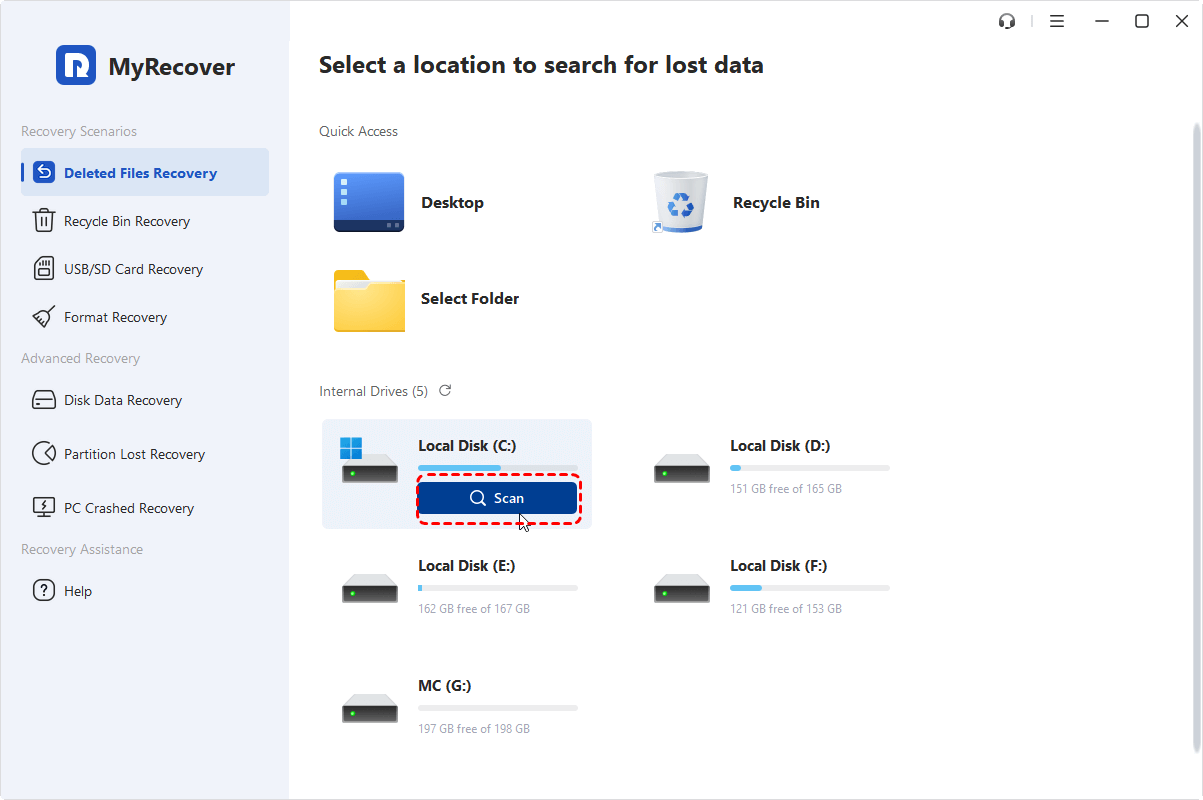
Step 6. After the scan is completed, choose the files you wish to recover from the recoverable lists and click "Recover".
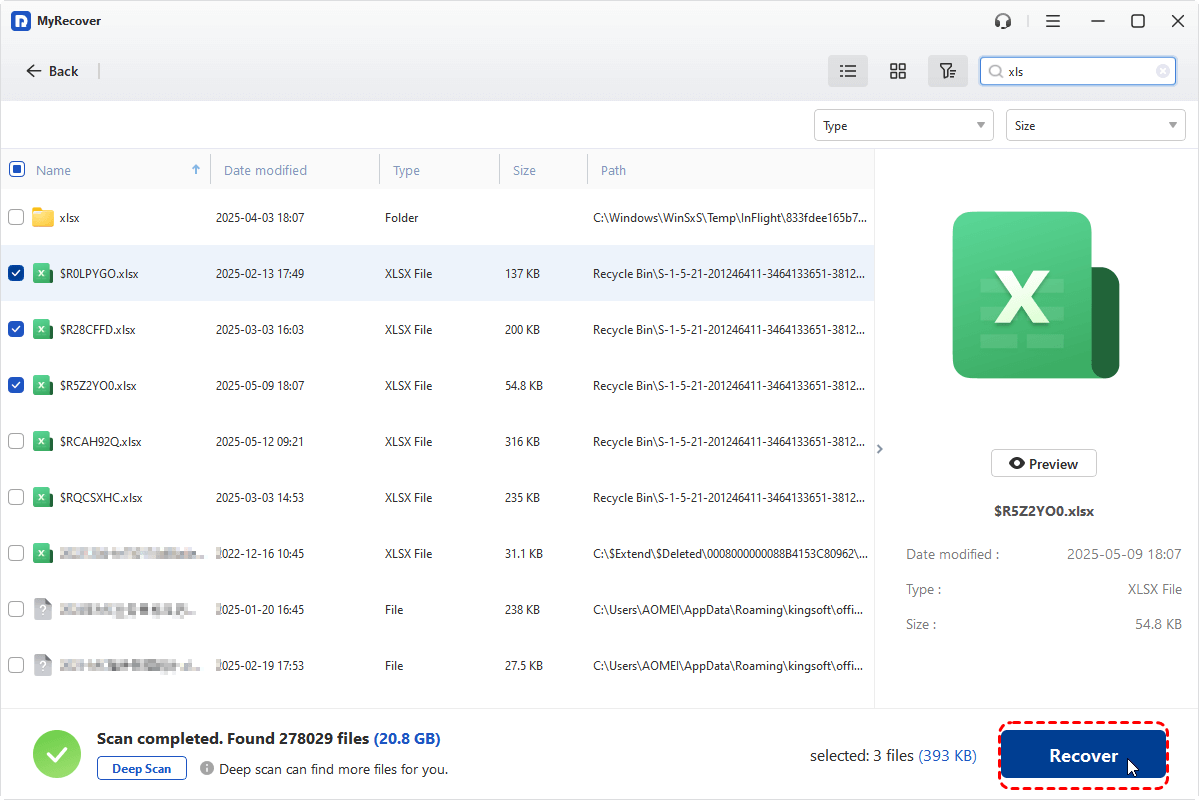
Step 7. Select a safe location to save the recovered files (an external hard drive preferably).
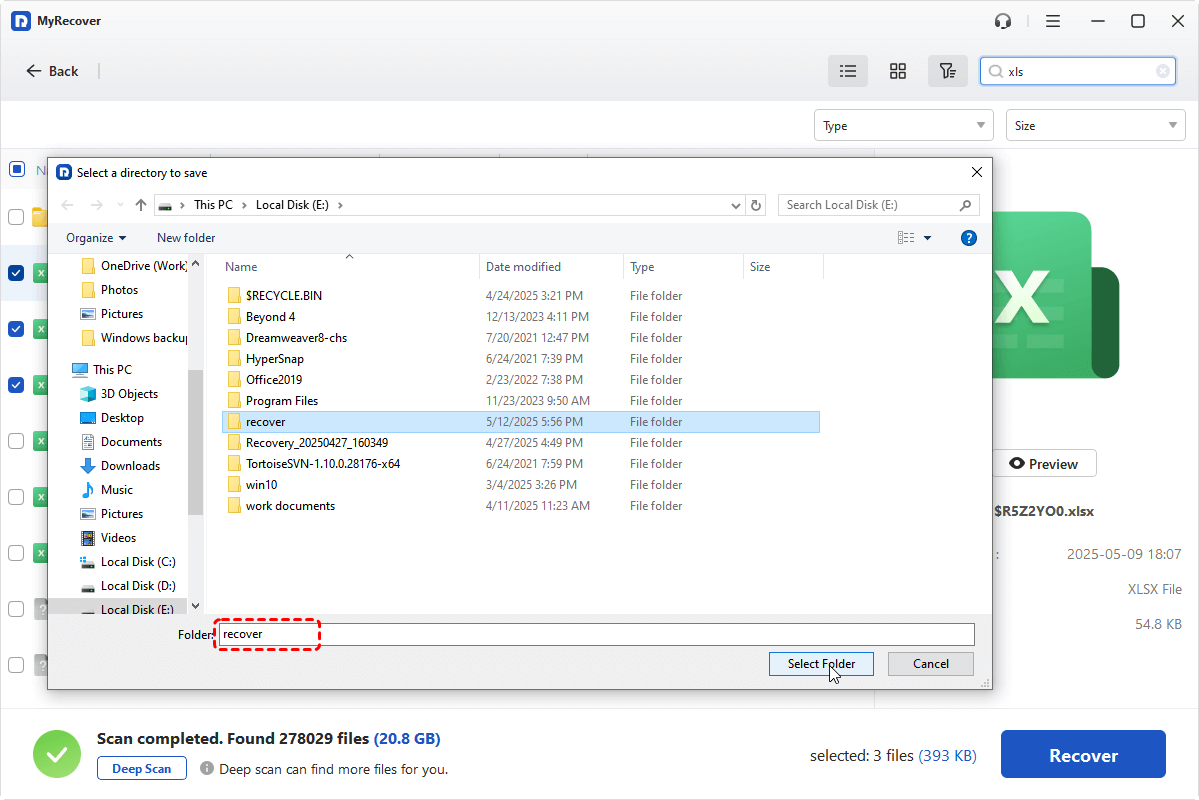
Then, you can check the recovered files in the external hard drive.

The End
The "Reboot and select proper boot device" error doesn’t always mean the end of your system and data. By following the methods mentioned above, you might fix the issue easily. If Windows still has this issue and fails to boot, extracting important data from the device with MyRecover should be your top priority. MyRecover also offers a Technician edition, which allows unlimited device activations with a single license, making it a reliable data recovery tool ideal for enterprises and IT professionals.

Stay Updated With Our
Latest Tips
Add us as a preferred source on Google to never miss helpful guides.
 Add as preferred source >>