 MyRecover



Solved: Windows Has Stopped This Device Code 43 in USB
This guide explains the "Windows has stopped this device code 43 USB" error and provides step-by-step fixes. We cover driver updates, power management, registry edits, and hardware checks to resolve "Windows has disabled this device code 43" permanently.

By Delores / Updated on December 17, 2025


Windows Has Stopped This Device Code 43 on USB
Windows has stopped this device because it has reported problems. (Code 43) A request for the USB device descriptor failed
Please help me retrieve my data!
- Question from forums.sandisk.com
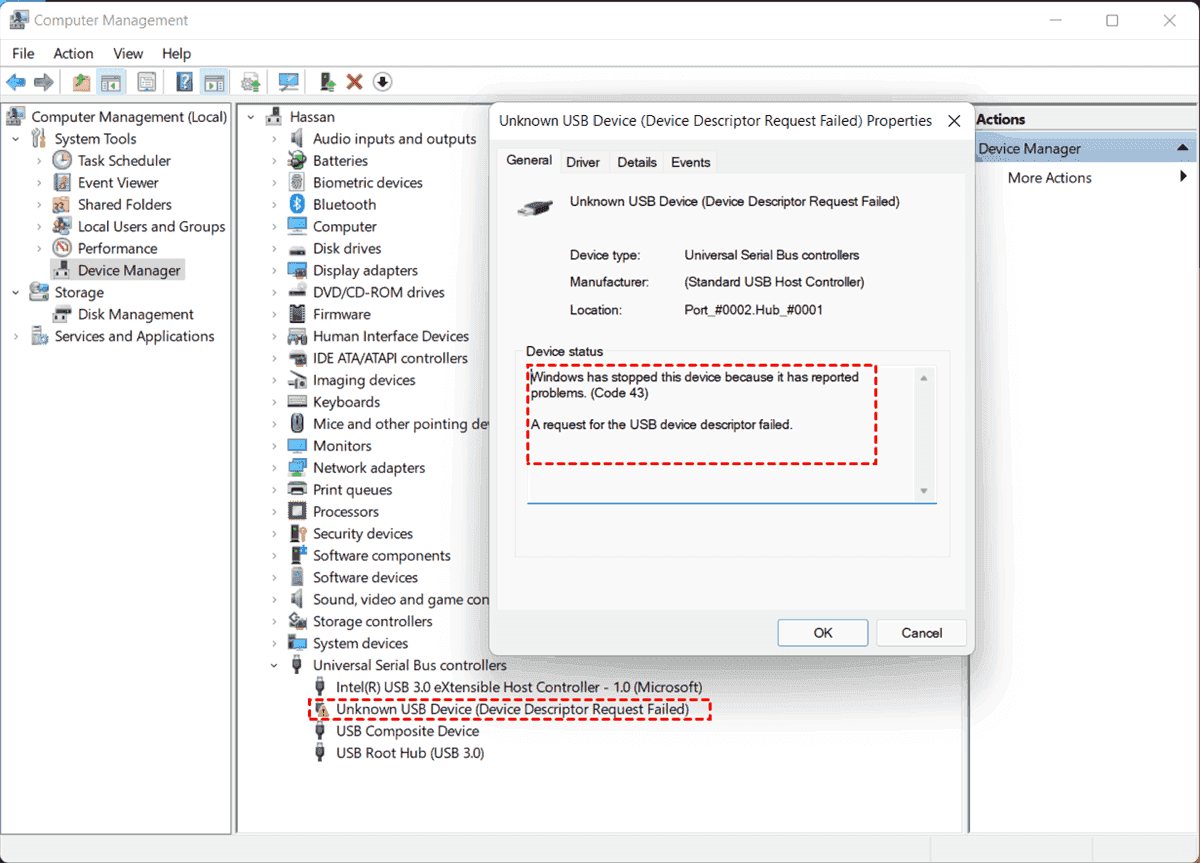
It's common to see the error message "Windows has stopped this device because it has reported problems. (Code 43). A request for the USB device descriptor failed.", and the USB drive will show Unknown USB Device (Device Descriptor Request Failed) in Device Manager. It cuts you off from essential gadgets—external drives brimming with memories, peripherals you need for work, or even internal components.
Why does it show the error, and how can I fix it? What to do to recover my precious files? You will learn the details from the post. Let's find out.
About Code 43 USB Device Error
So, what's really going on under the hood when this alert pops up? At its core, the "Windows has stopped this device code 43" message in USB is Windows' blanket response to a communication breakdown. The operating system tried to chat with a piece of hardware, got back gibberish, silence, or an unexpected error, and immediately went into lockdown mode to protect your system from potential instability.
Why Does A USB Device Show Code 43?
The error "It has reported problems code 43" could be triggered by a faulty driver, a dying piece of hardware, insufficient power, or even a corrupted Windows system file. Check them now:
Why does it pop up the error "Windows has stopped the device code 43"? The following reasons should be responsible for the problem:
⭕ Faulty USB Ports and Hardware Malfunctions. Sometimes, a worn-out USB port with a loose connection can cause intermittent failures that Windows interprets as a fatal error. More seriously, the device (like an external SSD or a GPU) could have an internal electrical fault.
⭕ Power Management. Windows' power management settings can sometimes be too aggressive, cutting power to a USB port or PCIe slot to save energy and then failing to power it back up properly.
⭕ System Configuration Issues. A corrupted system registry or conflicting system files can scramble the instructions Windows uses to manage hardware, leading to a cascade of communication failures.
Common Symptoms of the Code 43 Error
You'll usually spot this gremlin in a few familiar ways.
- The most common is in Device Manager, where your device will have a glaring yellow triangle with an exclamation point. Right-clicking and selecting 'Properties' will reveal the infamous code in the status box.
- The device simply won't function.
- An external hard drive won't appear in File Explorer, and a graphics card might default to a low-res basic display.
- A USB headset goes silent.
- Sometimes, you might briefly see the device connect and disconnect repeatedly.
How to Fix Windows Has Disabled This Device Code 43?
Before diving deep, let’s rule out the easy stuff. These steps can miraculously resolve what seems like a major issue.
Way 1. Restart Your Computer and Reconnect the Device
A full restart clears temporary glitches, resets driver states, and re-initializes hardware connections. Turn off your Windows computer. Allow it to set for at least 5 to 10 minutes. Restart the computer. After restarting, try a different USB port if available.
If it's an internal device like a GPU, ensure it's seated properly in its slot. This simple act can sometimes clear the USB, showing the "Windows has stopped this device code 43" message instantly.
Way 2. Check for Windows Updates
Microsoft regularly releases drivers and system fixes through Windows Update.
1. Head to Settings > Update & Security > Windows Update and click "Check for updates".
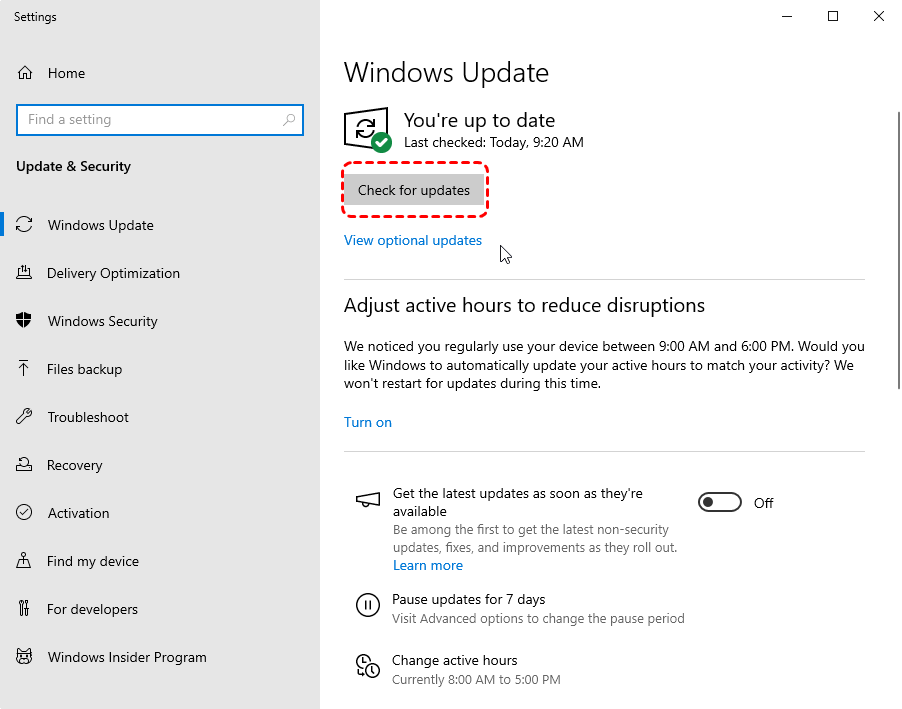
2. Installing all pending updates can provide a new, stable driver that resolves the conflict causing the "Device has stopped working code 43" error.
Way 3. Update, Roll Back, or Reinstall Device Drivers
Another solution to fix the error is to check and update the driver. The reason is, the available driver may not be up-to-date. Thus, installing the latest driver can most probably resolve the issue.
1. Go to Device Manager, find the problematic device (with the yellow mark).
2. Right-click it and choose Update driver.
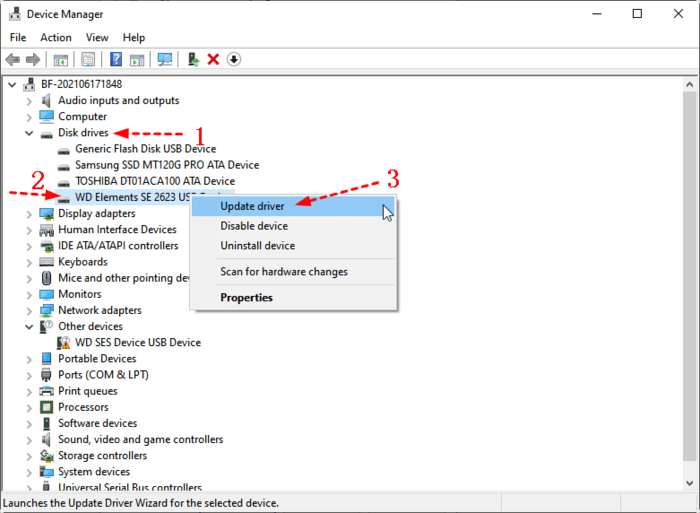
3. You can search automatically or browse to a driver you've downloaded from the manufacturer's website.
If the error started after a recent update, Roll Back Driver can revert to a previously working version.
If all else fails, select 'Uninstall device', restart your PC, and let Windows reinstall the driver from scratch. This clean slate often wipes out corruption, causing the "Windows has stopped this device code 43 USB" problem.
Way 4. Run the Hardware and Devices Troubleshooter
Windows has built-in tools for this. Search for "Troubleshoot settings" and run the "Hardware and Devices" troubleshooter.
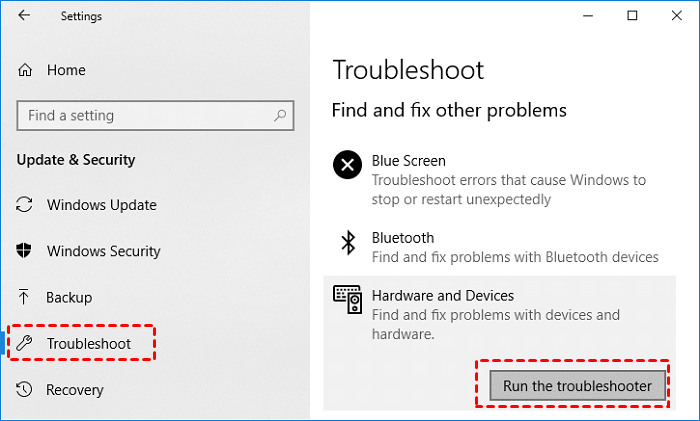
It can automatically detect and apply common fixes for hardware conflicts and power management issues.
Way 5. Check Your Power Connection
It’s working for a lot of users. Error 43 can be triggered if the device is expecting power and the USB in question doesn’t supply power. So, ensure your power connection is tight, and check if the problem is solved.
If your power supply has problems, replacing your power source (charger) with a newer one can fix it.
Way 5. Use The Original USB Cable
If your USB device shows the 43 error code, you can try to use the original USB cable to connect your USB device. And it should be working. Some users reported that it's helpful.
Way 6. Disable and Enable The USB Device
If anyone is still looking at this and none of the other solutions worked, try just right-clicking on it in Device Manager and selecting "Disable Device", and then right-click it again and enable it.
Way 7. Uninstall USB Device And Install
1. Click on the Windows Icon and type Device Manager.
2. Expand Universal Serial Bus Controllers.
3. Explore the list of installed devices. Identify the malfunctioning device.
4. Right-click and choose the Uninstall device option.

5. Click OK to uninstall the device.
6. Now, in Device Manager, right-click on the Computer option.
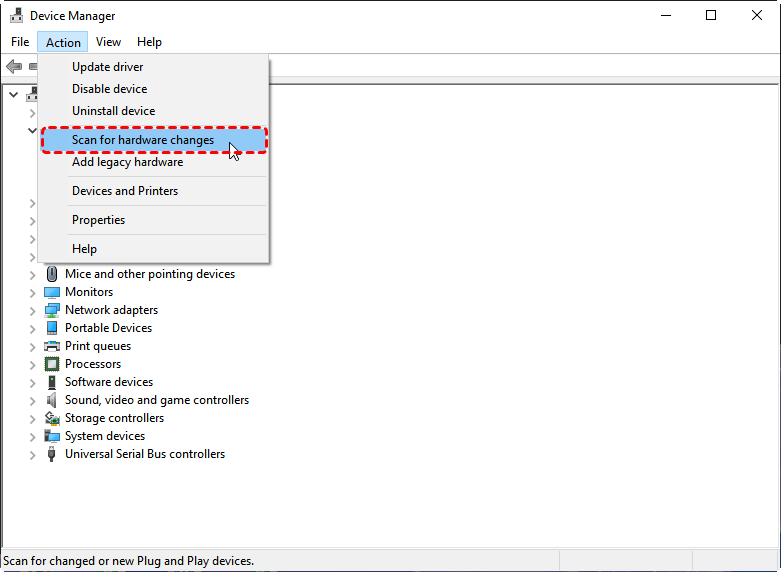
7. Click Scan for hardware changes (Device Manager is going to scan the system and reinstall the device automatically).
Recover Your Data From the USB Device
What to do to recover your critical files if your USB device is a USB drive? When it shows “Device has stopped working code 43”, it means that your USB drive can be detected. But Windows cannot read files from that USB drive. Fortunately, you can try a professional Windows data recovery software, MyRecover, to recover your files. Because it’s designed to recover files from any complex situation.
- It Bypasses the Broken File System Entirely
MyRecover operates at the raw storage sectors. It reads the drive's physical data directly, looking for file signatures and structures that it can recognize and reconstruct, regardless of what Windows thinks is wrong.
- Deep, Sector-by-Sector Scanning
The Deep Scan searches for the raw beginnings and ends of files (like photos, documents, and videos), piecing them back together even when the "table of contents" is missing or unreadable.
- Safe, Read-Only Operation
MyRecover works in a strictly read-only mode during scanning. It does not write to, "repair", or alter your malfunctioning USB drive.
- Intelligent Preview & Original Structure
After its scan, MyRecover presents recovered files with their original names, folder structures, and formats whenever possible. You can use the Preview function (crucial for images, documents, and PDFs) to verify a file's contents before recovery.
Here is the simple guide to recover files from the USB Drive with MyRecover:
1. Connect your USB drive to the Windows computer. Then download and install MyRecover.
 100% Secure
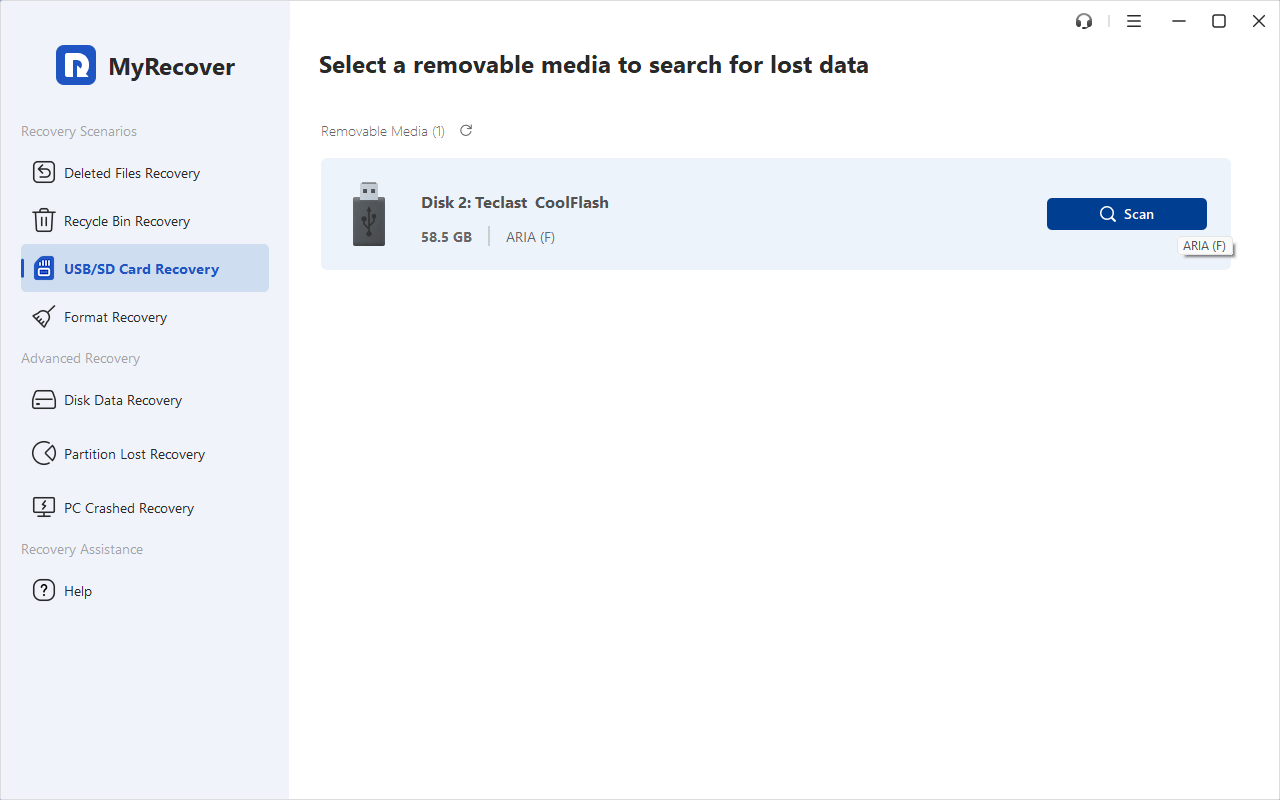
2. Select USB/SD Card Recovery, choose the problematic USB drive, and hit Scan while pointing at it.
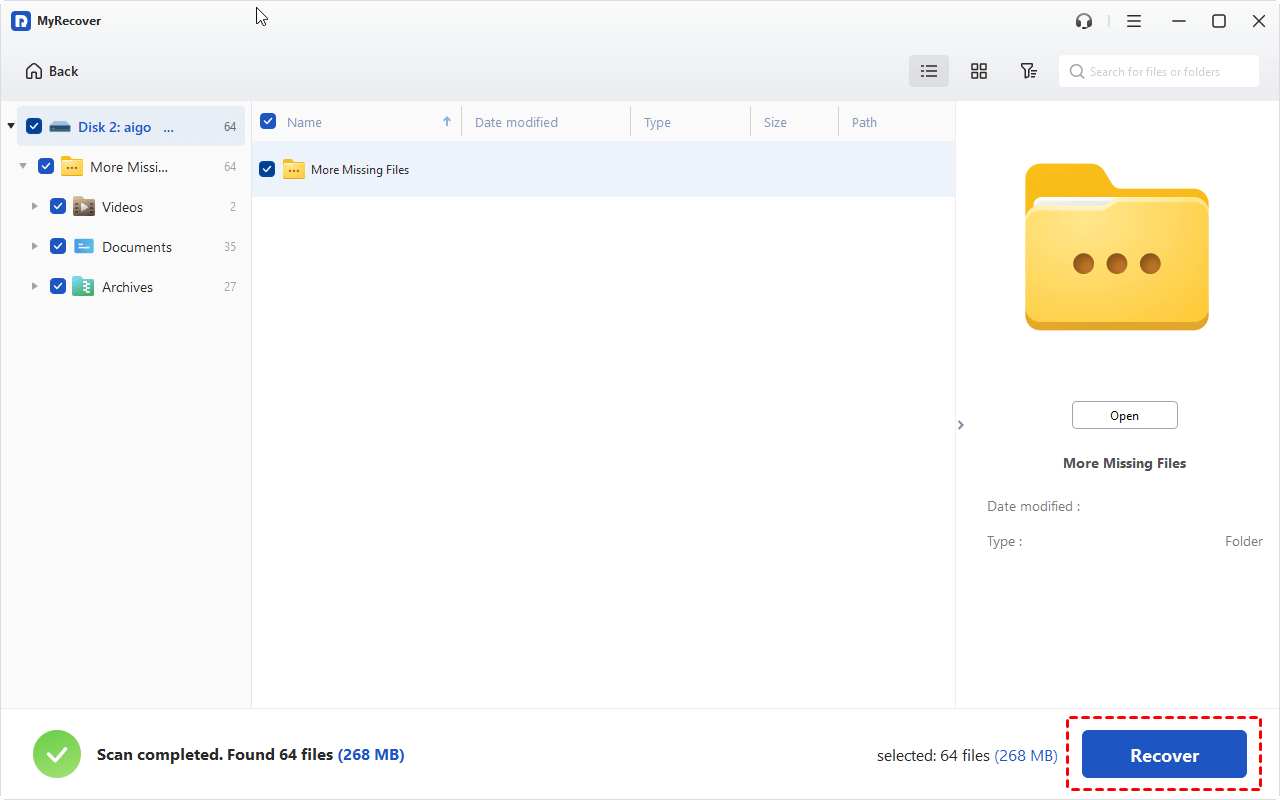
3. Wait for the scanning to complete, then hit OK to confirm.
4. Preview and select the files you need, and hit Recover.
5. Choose another folder to keep them safe.
- Tips:✎...
- You can search files by file name and file size. By default, your files will be sorted by file type, which is helpful for finding your files quickly.
- MyRecover also allows you to recover files from a crashed computer, recover files from an unformatted partition, recover ASF files, etc.
- To enjoy more features and recover files from unlimited computers, MyRecover Technician is your best shot.

 MyRecover
- Recover Deleted Files Easily with Simple Clicks
- 1000+ File Formats Supported
- Support HDD, SSD, External Hard Drive, USB Drive, SD Card, etc.
- Quickly Find Files Using File Types, Name, Size, etc.
- Preview Files Before Recovering
- Recover Unlimited Data
 100% Secure
FAQs About USB Error Code 43
Q: What is the "Windows has stopped this device code 43 USB" error?
A: It's a generic Windows error that appears when communication between your system and a hardware device fails. Windows disables the device to prevent system instability. You'll see it as a yellow exclamation mark in Device Manager. The issue is often in the software or connection, not necessarily dead hardware.
Q: Is the "device has stopped working code 43" error a sign of hardware failure?
A: It can be, but software issues are more common. Test the device on another computer. If the error appears there, it's likely a hardware failure. If it works, the problem is with your PC's drivers or settings.
Q: How do I know if my drivers are causing the "USB Windows has stopped this device code 43" message?
A: Timing is a key clue. If the error started right after a Windows update, driver install, or new software, drivers are the likely culprit. Also, if the device works in Safe Mode but not normally, a driver conflict is probable.
Q: Can a Windows update cause the "Windows has disabled this device code 43" error?
A: Yes. A problematic update can introduce driver or system file incompatibilities. You can uninstall recent updates via Settings > Update & Security > View update history to see if that resolves it.
Q: How can I recover files from a device showing Code 43 before trying fixes?
A: Stop using the device immediately. Use data recovery software like MyRecover on a different, healthy computer. Connect the faulty device to that PC and run a scan. This safely reads data without writing to the damaged drive. Always save recovered files to a separate, healthy drive.
Q: What should I do if none of the standard fixes for Code 43 work?
A: Try these last-resort steps:
- Perform a Clean Boot to isolate software conflicts.
- Check for a BIOS/UEFI update from your motherboard manufacturer.
- Perform a Windows Reset (keep my files) to reinstall Windows.
If the error persists after a reset on your PC but the device works on another machine, the issue may be with your computer's motherboard.

Stay Updated With Our
Latest Tips
Add us as a preferred source on Google to never miss helpful guides.
 Add as preferred source >>