 MyRecover



How to Recover Deleted .NRW Photos on Windows [No Data Loss]
Deleted '.NRW' photos are not always permanently lost, even after removal from a camera or storage device. This article explores common scenarios that lead to NRW photo loss and outlines reliable recovery strategies on Windows. By applying the correct recovery tools, you can maximize your chances of retrieving deleted NRW files without overwriting existing data.

By Aria / Updated on January 29, 2026


Introduction
An NRW file is a RAW image format used by many Nikon digital cameras. Unlike standard image formats such as JPG or PNG, an NRW file preserves unprocessed image data directly from the camera sensor. This means it contains significantly more detail, color depth, and dynamic range, making it essential for professional photographers and photography enthusiasts who rely on post-processing.
Because NRW files are often irreplaceable originals, losing them can be far more damaging than losing compressed images. Accidental deletion, formatting a memory card, system crashes, or improper transfers can all result in missing NRW photos. Recovering these files can mean saving hours or even years of creative work. Before diving into recovery solutions, it’s crucial to understand when the deleted NRW files are recoverable.
Can Deleted ".NRW" Photos Really Be Recovered?
In most cases, yes. Deleted NRW photos can be recovered, as long as the storage space they occupied has not been overwritten. When an NRW file is deleted, Windows typically removes the file reference rather than erasing the actual data immediately. The file remains on the storage device until new data replaces it.
This makes deleted NRW photo recovery possible using the right methods and tools. However, for storage devices with physical damage, such as bending, burning, controller failure, or cracking, data recovery is not possible with software recovery tools; professional physical repair or dedicated data recovery services are usually required.
How to Recover Deleted NRW Photos on Windows
There are multiple ways to perform NRW file recovery on Windows, regardless of whether backup exist or how these photos were lost, the following methods will help you recover the NRW files you need. Let's explore the detailed steps.
What to do Before NRW Recovery
Before attempting to recover deleted NRW photos, taking a few precautionary steps can significantly improve your chances of success.
👉Stop Using the Storage Device
Avoid copying files, formatting the SD card, or write new photos on the card/drive that contained the deleted NRW photos.
👉Remove the SD Card and Connect
If the NRW files were deleted from a Nikon camera SD card, remove the card safely and connect it to your computer using a card reader or slot.
👉Check if a Backup Exist
Check for any existing backups you’ve created before using a recovery tool, such as the Windows backup utilities like File History, Backup and Restore (Windows 7), or cloud backup services like OneDrive.
Method 1: Check the Recycle Bin
If the NRW photos were deleted from a local drive or folder using standard deletion methods (not "Shift" + "Delete"), they may be sent to Recycle Bin. You can directly restore deleted NRW files from the Recycle Bin.
Step 1. Double click the Recycle Bin icon on your desktop to open it.
Step 2. Browse through the deleted items and select the NRW files, then right click on them.
Step 3. Click "Restore" from the menu to recover them to their original location.
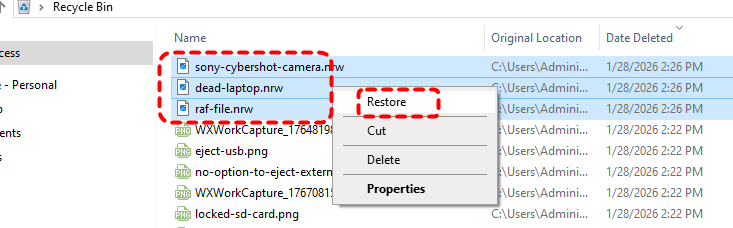
If the files are not found here, it usually means they were permanently deleted or removed from removable storage, in which case deeper recovery methods are needed.
Method 2: Recover NRW Files Using Windows File Recovery
Windows File Recovery is a command-line tool provided by Microsoft that can help recover permanently deleted files, including RAW image formats like NRW. While effective, this tool requires technical knowledge and does not guarantee recovery in all scenarios.
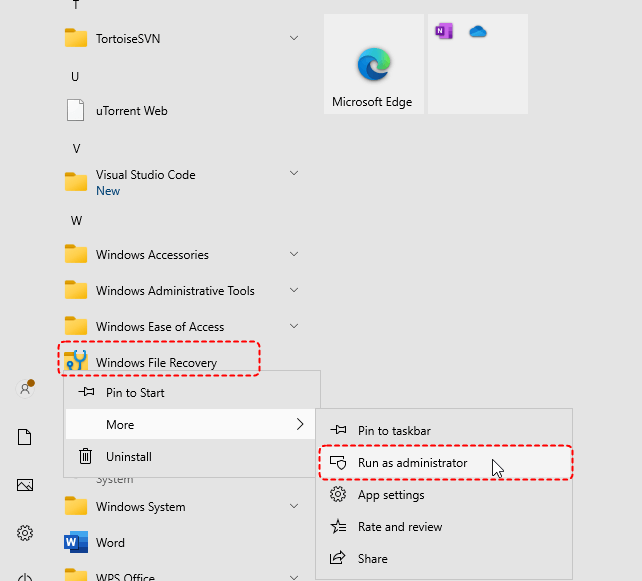
Step 1. Download and install Windows File Recovery on your computer from Microsoft Store.

Step 2. Locate Windows File Recovery in Start menu and right click on it, then choose "Run as administrator".
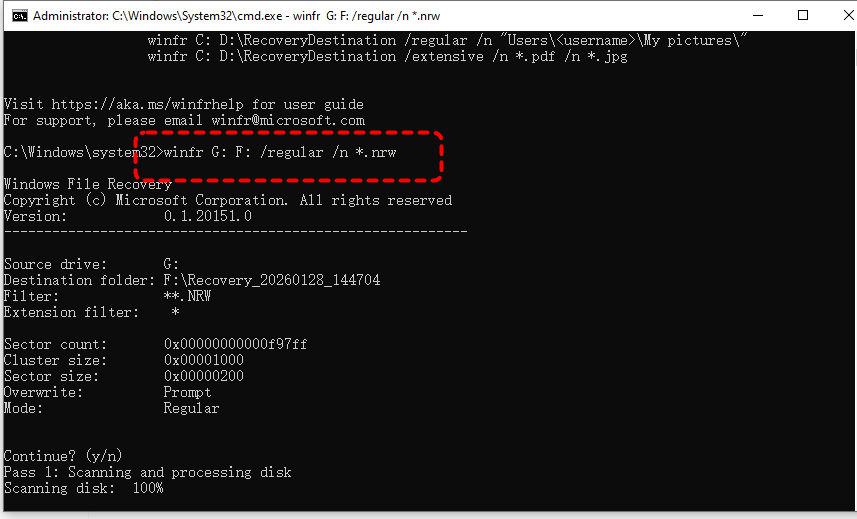
Step 3. Enter the following command to recover deleted NRW files: winfr G: F: /regular /n *.nrw and hit the "Enter" key.
- Notes:✎...
- G: The source drive. The drive letter from which you want to recover lost files (the Nikon camera SD card).
- F: The destination drive. The drive letter where the recovered files will be saved.
- Regular: Scan mode. The mode is suitable for most scenarios where the file system is NTFS and the drive has not been heavily overwritten.
- /n *.nrw: Filter pattern. This tells Winfr to recover only files with the *.nrw extension.
Step 4. Press "y" to check the recovered files in the destination folder.
Recover Deleted NRW Photos with MyRecover
If you're uncomfortable with command-line tool, the professional data recovery tool like MyRecover offers a more user-friendly and reliable solution. It is designed specifically to handle 500+ complex data loss scenarios, including accidental deletion, formatted hard drive, deleted partition, corrupted drive and more. MyRecover supports advanced scanning algorithms that can deeply analyze storage devices to locate lost or deleted files, even after system crashed.

 MyRecover
- Intuitive interface requiring no technical expertise.
- Support 1,000+ file types, including documents, images, videos, emails, and more.
- Handle with more complex data loss cases like OS crash, formatted, RAW, corrupted or deleted drive.
- Compatible with all storage devices: USB drives, HDDs, SSDs, SD cards, etc.
- Combined scanning method: Quick Scan for speed, Deep Scan for thorough recovery.
 100% Secure
Step 1. Download and install MyRecover on your computer from Microsoft Store or its official site, avoid installing it on the drive with lost files.
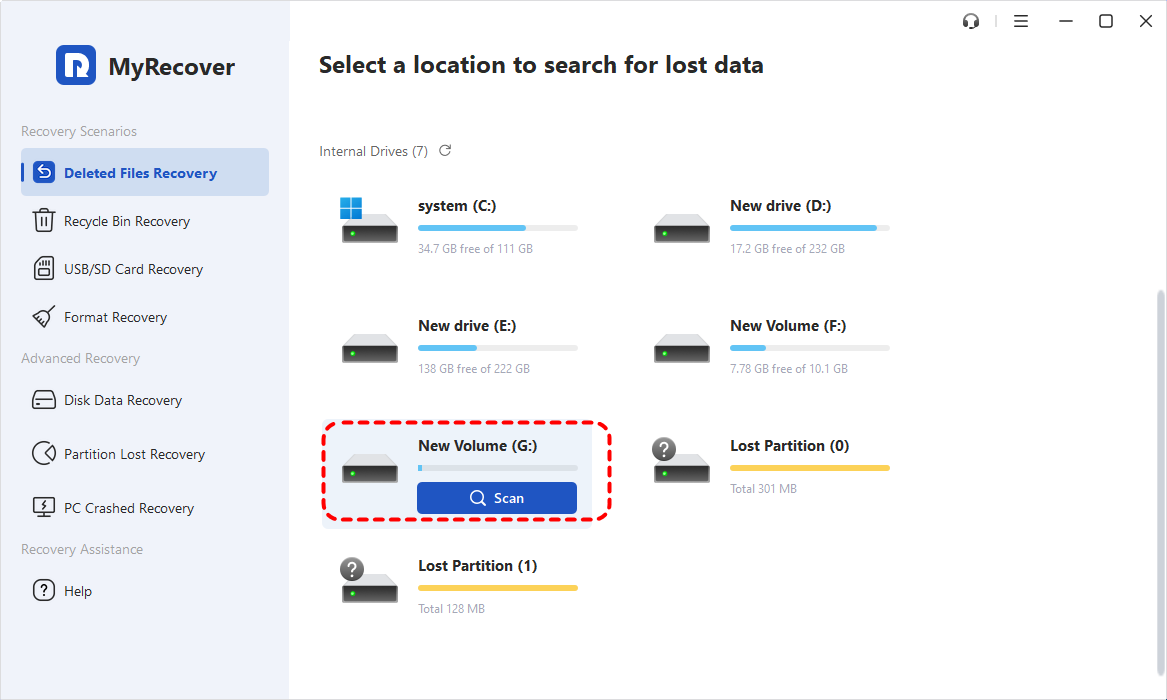
Step 2. Run the program and select the drive to scan for lost NRW files, then click "Scan" to search for recoverable images.
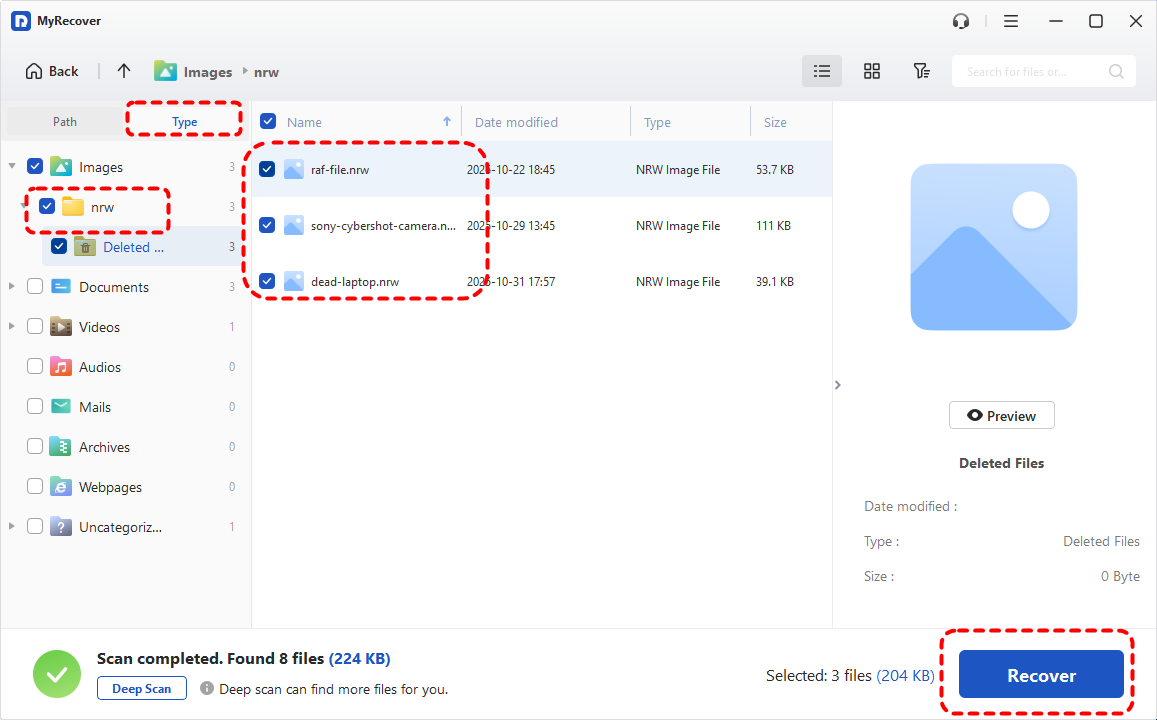
Step 3. After the scanning completes, under the "Type" tab, locate "Images" and choose the NRW files you attempt to recover from the recoverable lists, click "Recover" to get them back.
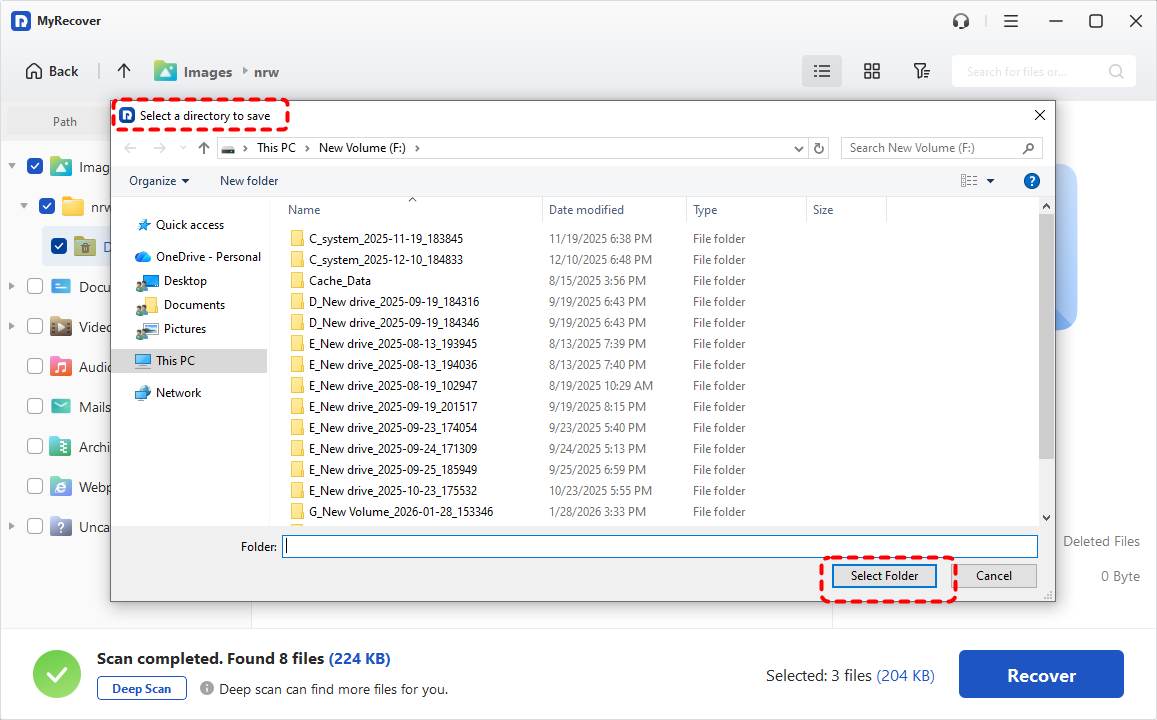
Step 4. Select a safe location to save the recovered files.
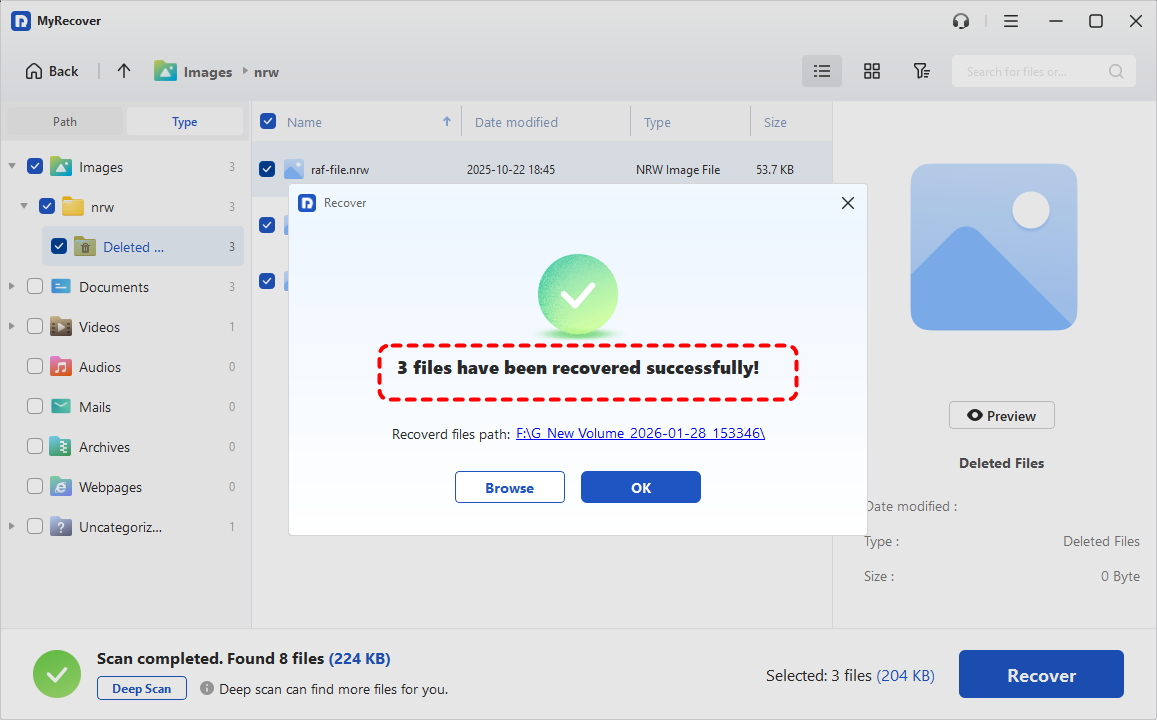
Once the process is done, you can check the recovered files in the destination folder by clicking on the "Browse" button.
Conclusion
Losing NRW files doesn’t have to mean losing your work forever. With prompt action after deletion and the right recovery approach, successful deleted NRW photo recovery is often achievable. Whether you rely on Windows tools or choose a professional solution like MyRecover, the key is acting quickly and carefully.
For photographers who regularly handle large amounts of work with RAW formats, investing in MyRecover Professional edition can make all the difference, which allows unlimited data recovery quota and file content preview before restoration, keeping you free from the hassle of data loss.
FAQs
Q1: Can NRW files be recovered after formatting an SD card?
Yes, in many cases. As long as the card hasn’t been overwritten, NRW file recovery is possible using Windows File Recovery or MyRecover.
Q2: Are NRW files harder to recover than JPG files?
NRW files are larger and more complex, but modern recovery tools like MyRecover are fully capable of detecting and restoring them.
Q3: Does Windows File Recovery support NRW files?
Yes, Windows File Recovery can restore RAW formats, including NRW, CR2, though it requires command-line usage.
Q4: Should I install recovery software on the same drive where I lost NRW photos?
No. Installing software on the same drive may overwrite recoverable data. Always install it on a different drive.

Stay Updated With Our
Latest Tips
Add us as a preferred source on Google to never miss helpful guides.
 Add as preferred source >>