 MyRecover



PNG File Recovery: 7 Easy Methods to Recover Deleted PNGs in 2026
Losing PNG image files can be frustrating, especially when they are important design assets or personal photos. This article explores the most common scenarios that lead to PNG file deletion and presents seven reliable recovery methods to address different data loss situations.

By Aria / Updated on January 26, 2026


Introduction
PNG (Portable Network Graphics) files are widely used for screenshots, web graphics, UI elements, and design assets because they support lossless compression and transparent backgrounds. These features make PNG files ideal for professional and personal use, but they also mean that losing a PNG file can be especially frustrating, recreating it is often time-consuming.

After accidentally deleting images due to formatting a drive, or experiencing system errors, you may want to find methods for PNG file recovery. Before jumping into recovery methods, it is important to understand why PNG files are commonly lost. This foundation helps you choose the most effective recovery approach.
Common Causes of PNG File Deletion or Loss
Before exploring recovery solutions, it helps to identify how PNG files are typically lost. Common causes include:
- Accidental deletion or use of "Shift" + "Delete",
- Emptying the Recycle Bin,
- System crashes or unexpected shutdowns,
- Disk formatting or partition errors,
- Virus or malware attacks,
- File synchronization or overwrite issues.
7 Easy-to-Follow PNG File Recovery Methods for Beginners
Once you understand the cause, you can move on to the most appropriate recovery method. This section introduces 7 beginner-friendly solutions first, so even if you have no technical background, you can still recover deleted PNG images by following these methods.
Use "Ctrl" + "Z" to Undo the Deletion
If the deletion just happened, Windows may still allow you to undo the deletion. This is a quick and often overlooked recovery PNG file method, especially useful when files are deleted accidentally. However, it may fail if you perform other operations after the deletion.
Step 1. Open the folder or drive where the PNG files were deleted.
Step 2. Press "Ctrl" + "Z" or right click on the blank space and choose "Undo Delete".

Step 3. Then, check if the PNG files reappears in the folder or drive.
Recover PNG Files from Recycle Bin
If PNG files were deleted using normal methods, they are usually moved to the Recycle Bin, which will remain the files until you permanently delete it. This should always be your first check once lost any important files. You can restore the deleted PNG files from Recycle Bin manually.
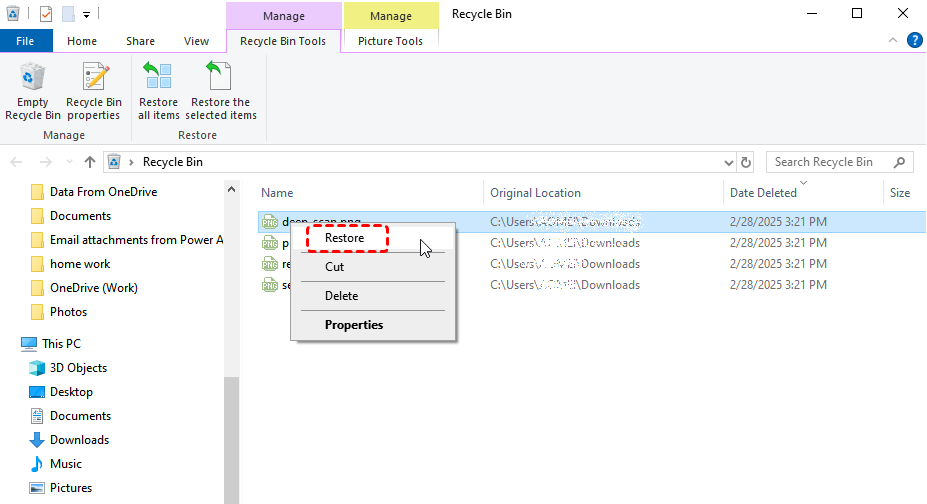
Step 1. Double click the Recycle Bin icon on your desktop to open it.
Step 2. Browse through the deleted files and locate the PNG files you want to recover, then right click on them.
Step 3. Choose "Restore" to return them to their original location.
Restore PNG Files Using Previous Versions
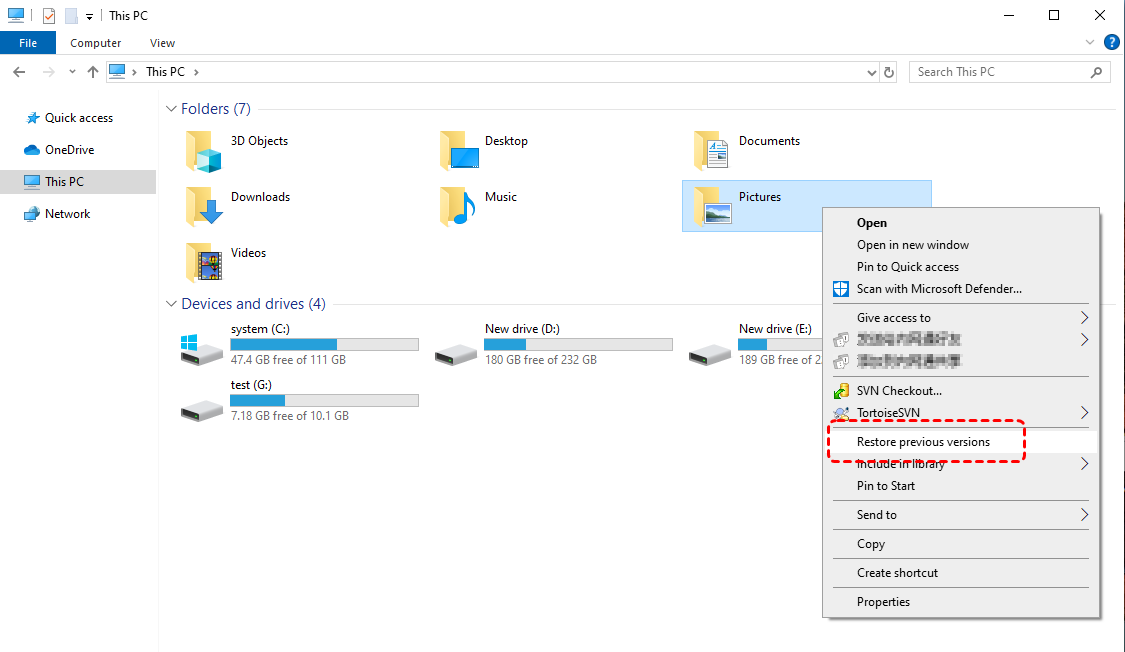
Windows offers a "Restore previous versions" feature if you have enabled File History or Volume Shadow Copy. This can help recover earlier versions of PNG files that were deleted. If you have enabled this feature, you can restore the lost PNG files by following these steps:
Step 1. Right click on the folder or drive where the PNG files were deleted in File Explorer and choose "Restore previous versions" from the context menu.
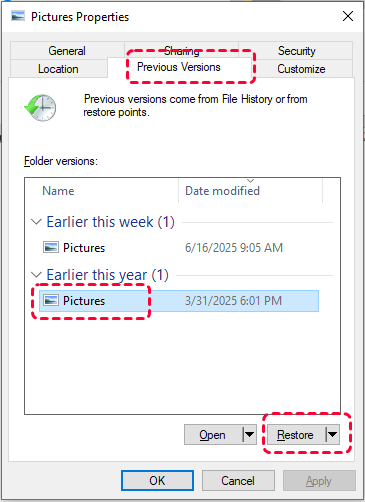
Step 2. Select a desired version based on the date and click "Restore" to recover it to its original location.
Recover PNG Files from Backup and Restore (Windows 7)
If you previously enabled Backup and Restore (Windows 7), you may be able to recover deleted PNG files without using third-party software. This built-in Windows feature creates scheduled backups of personal files and folders, allowing you to restore earlier versions when files are lost, deleted, or overwritten.
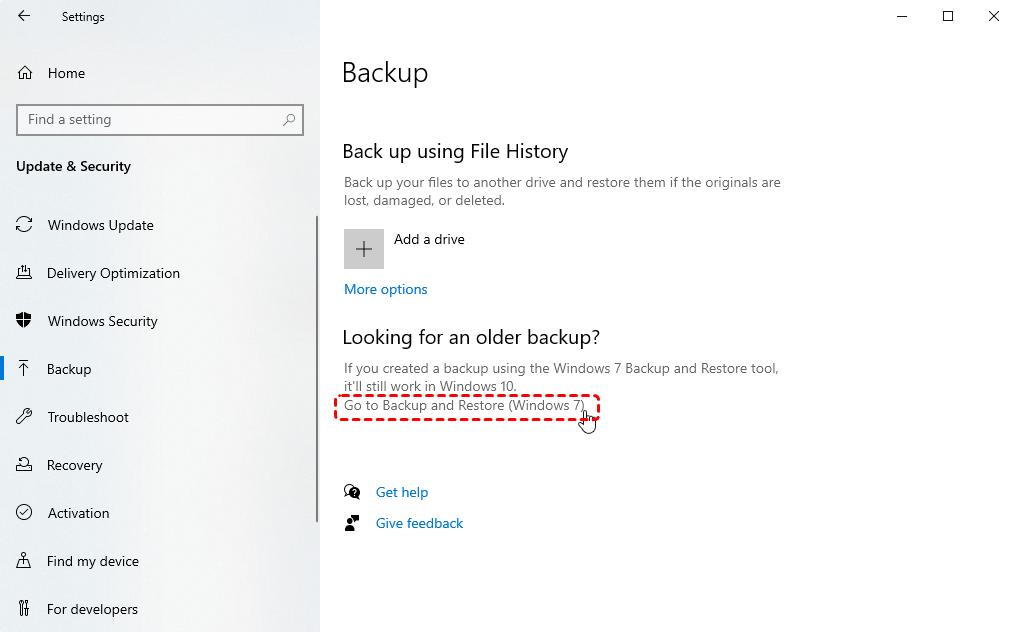
Step 1. Open "Backup Settings" in the Start menu and click "Go to Backup and Restore (Windows 7)".
Step 2. Click "Select another backup to restore files from" and choose a created backup including the deleted PNG files, then click "Next".
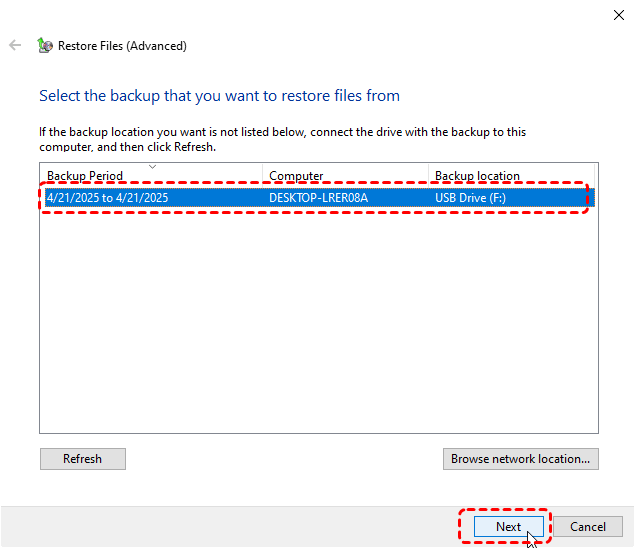
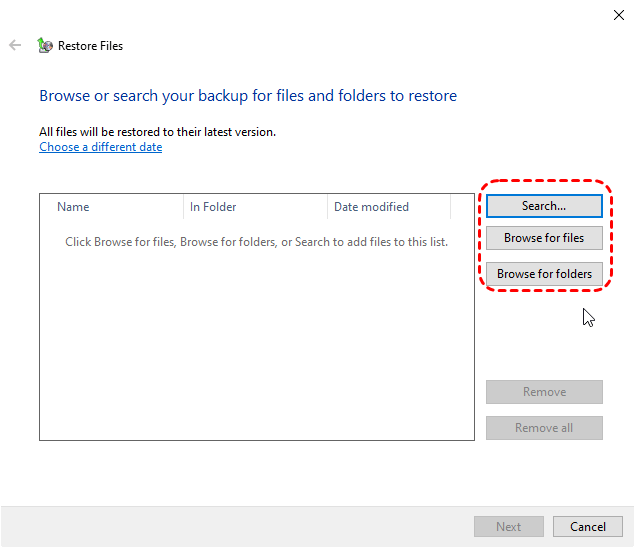
Step 3. Select the files you wish to recover by clicking on "Browse for files/folders". You can also check the "Select all files from this backup" option to restore all files.
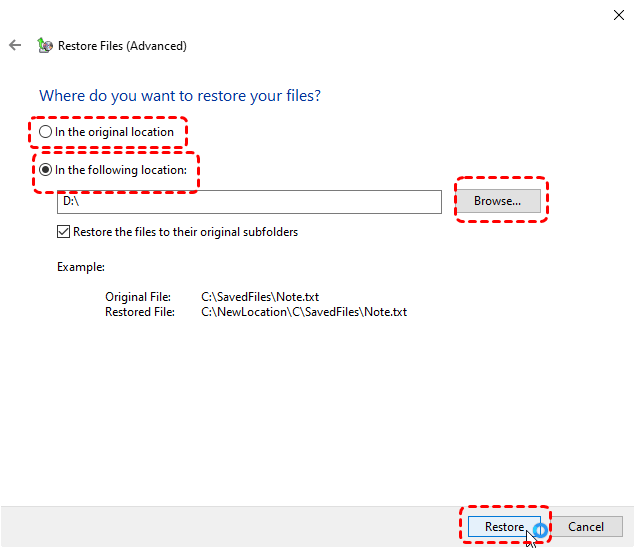
Step 4. Choose a safe location to save the recovered files.
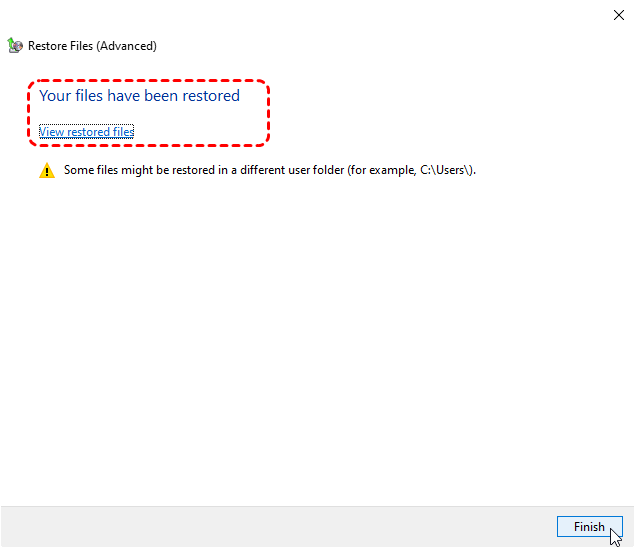
When the process is finished, you can view the recovered files by clicking on "View restored files".
Restore PNG Files from Cloud Backup
Nowadays, more and more users are opting for a more convenient way to back up their files—cloud backup tools, such as OneDrive, Google Photos, and Dropbox. These tools can directly sync your files to the cloud, and you can restore them from the cloud whenever issues arise. They usually keep deleted files for a limited time (about 30 days).
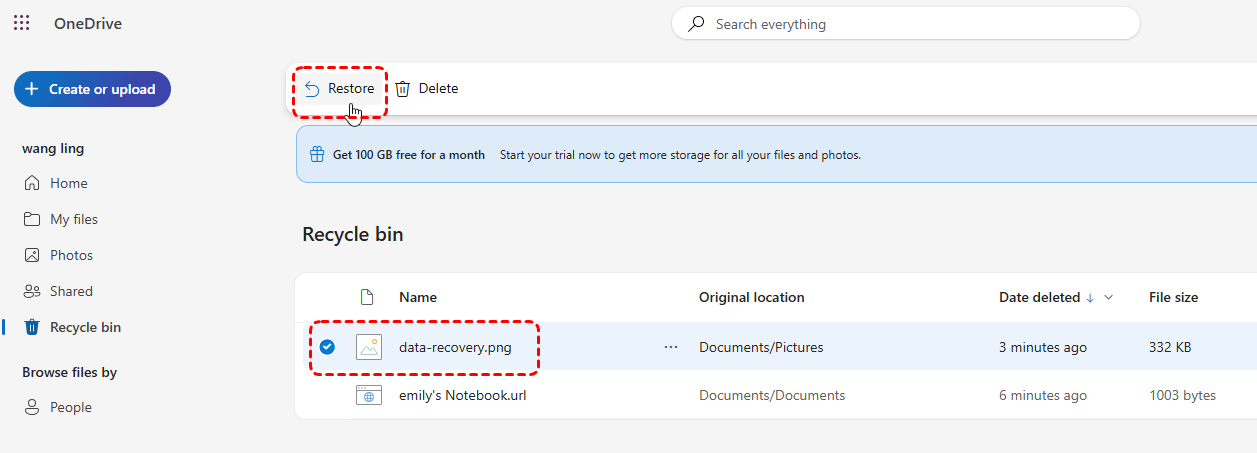
Step 1. Sign in to OneDrive with your account (Take OneDrive as an example here).
Step 2. Locate the Recycle bin section and look for the PNG files you would like to recover.
Step 3. Click "Restore" to recover them to their original location.
Run Windows File Recovery Command
Windows File Recovery is a command-line tool provided by Microsoft. It can recover permanently deleted files from various storage devices like SD cards, USB drives, internal hard drive and external hard drive. It is suitable for users with basic technical knowledge and only works on Windows 10 and 11.
Step 1. Download and install Windows File Recovery on your computer from Microsoft Store.

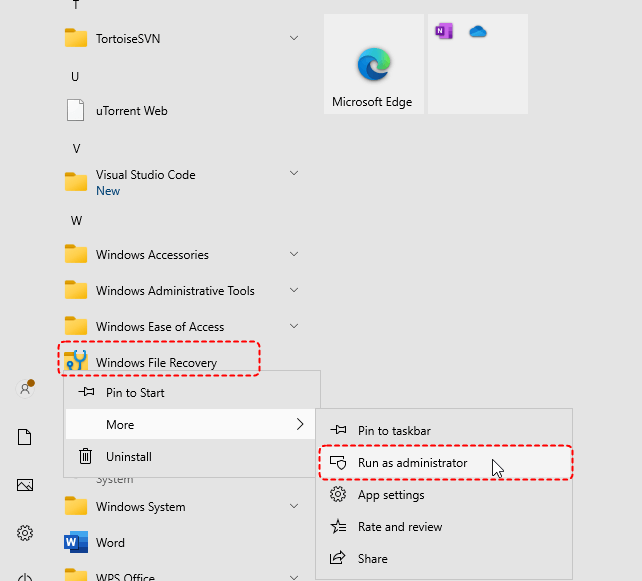
Step 2. Locate Windows File Recovery in Start menu and right click on it, then choose "Run as administrator".
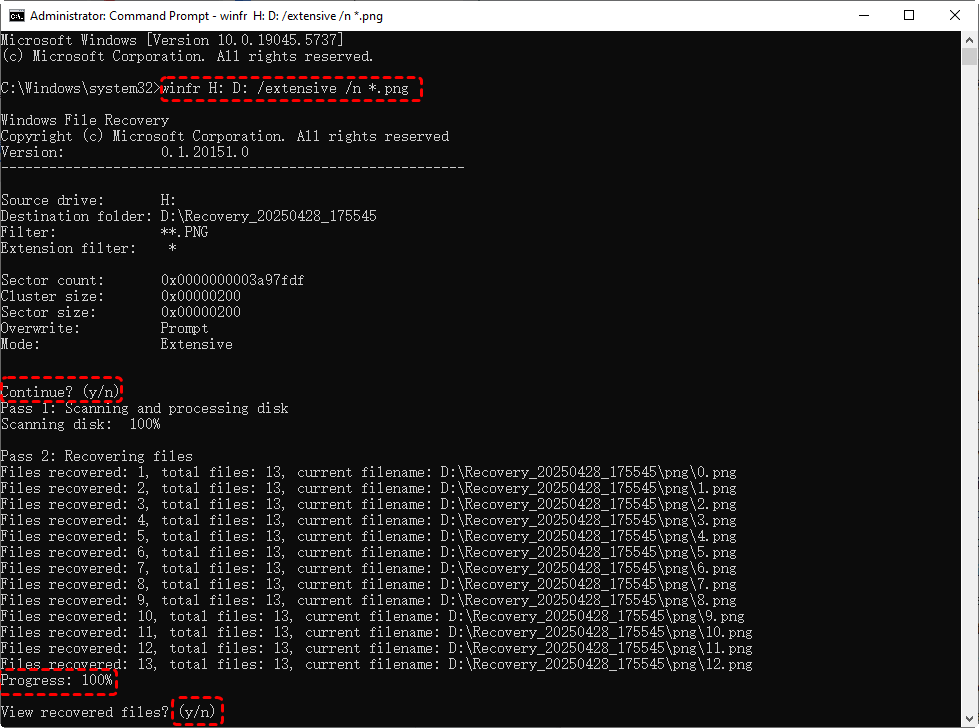
Step 3. Enter the following command "winfr H: D: /extensive /n *.png" and press "Enter" key. Replace the drive letter "H" and "D" with your actual drive letter.
- Notes:✎...
- H: the source drive containing the lost or deleted PNG files.
- D: the destination drive where recovered PNG files will be saved.
- /extensive: Deep scan mode.
- /n *.png: File filter. Recover all files with ".png" extension.
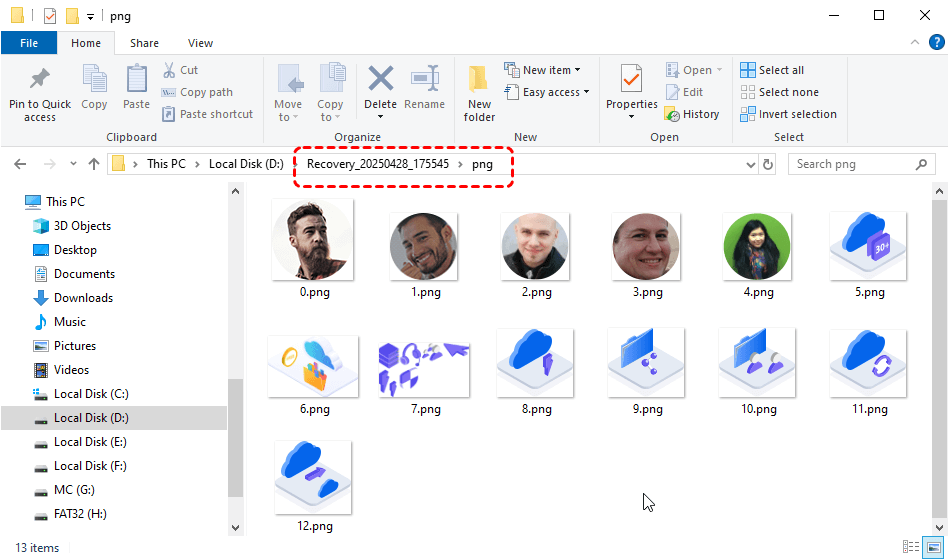
Wait for the command to complete, press "y" to check the recovered files in the destination folder.
Recover PNG Files from MyRecover
If you don’t have a backup and aren’t interested in using command-line tools, a professional data recovery tool like MyRecover offering higher success rate can help you retrieve your lost PNG files. It is designed to recover lost files from formatted, corrupted, or inaccessible drives. Besides PNG images, it also supports over 1,000 file formats including videos, audio files, design documents, and compressed files.

 MyRecover
- 1000+ Devices Supported: HDD, SSD, USB flash drive, SD card, etc.
- 1000+ File Formats: Videos, PNG, VMDK, Archives, Emails and more.
- 500+ Data Loss Cases: Deletion, Format, Virus Attack, System Crash, etc.
 100% Secure
Step 1. Download and install MyRecover on your computer from Microsoft Store or its official site, avoid installing it on the drive with lost files.
Step 2. Launch the app and select the drive to scan, then click "Scan" to search for the recoverable files.

Step 3. After the scan is completed, choose the files you attempt to recover from the recoverable lists and click "Recover".

Step 4. Select a safe location to save the recovered files.

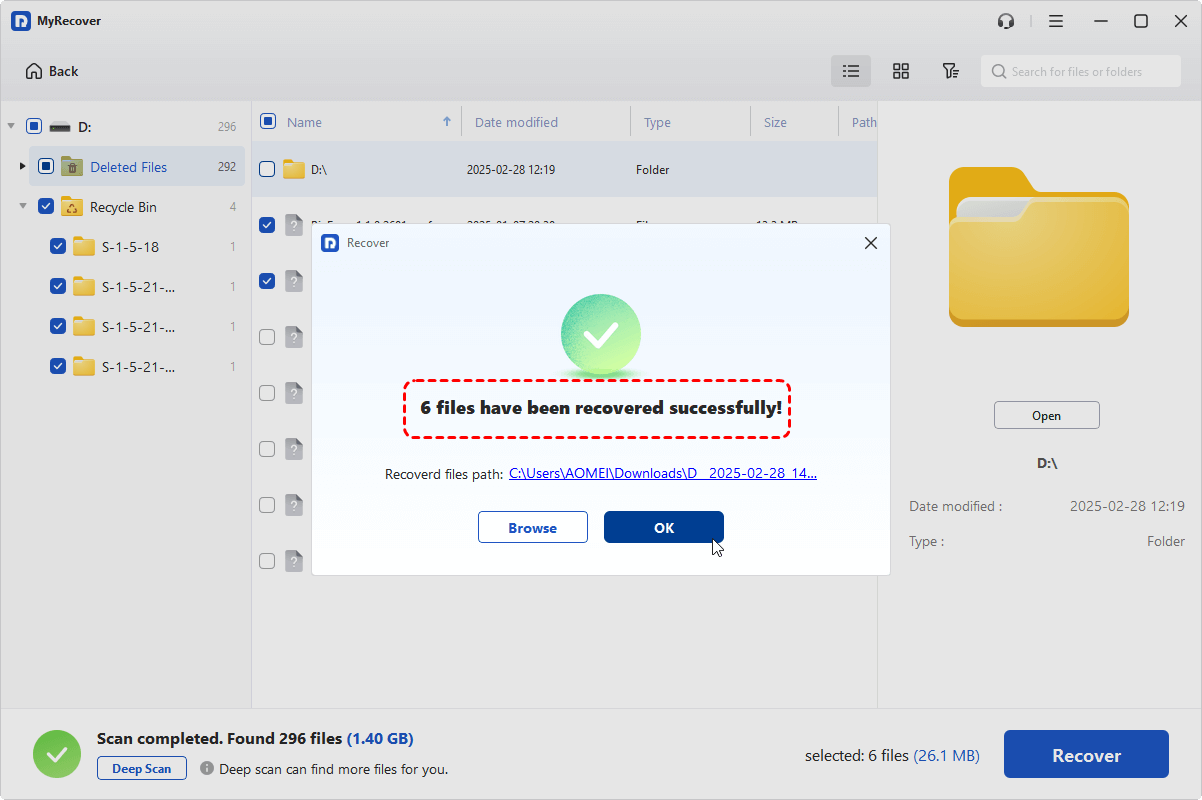
Once the process is done, the message "Files have been recovered successfully" will pop up. Then, you can verify the recovered files in the destination folder by clicking on the "Browse" button.
Summary
PNG files play an essential role in both creative and everyday workflows. When they are lost, acting quickly and choosing the right recovery method can make all the difference. From checking the Recycle Bin to using advanced PNG file recovery tools, each solution offers a different level of effectiveness depending on the situation.
For users who need more advanced features, like unlimited recovery, the ability to preview files before restoring, and powerful recovery from unbootable systems, MyRecover Professional edition is the ideal choice, offering a complete recovery solution.

Stay Updated With Our
Latest Tips
Add us as a preferred source on Google to never miss helpful guides.
 Add as preferred source >>