 MyRecover


How to Recover Data After Factory Reset Without Backup on Windows & Mobile
A factory reset can be a lifesaver for troubleshooting, but it often leads to unexpected data loss, especially if you haven't created a backup. In this article, we'll cover effective methods to recover data after a factory reset on both Windows computers and mobile devices (Android/iOS).

By Aria / Updated on November 12, 2026


Factory Reset on Windows and Mobile
A factory reset is often performed when you want to restore your device to its original state, removing all personal data, apps, and settings. Whether you're dealing with a Windows PC or a mobile device, the process can seem like an irreversible step. But factory resets work a little differently on Windows and mobile devices. That’s why getting your data back after a factory reset is harder or easier depending on which device you’re using.

👉On Windows
When you hit "Reset this PC" on Windows, you’ll get two choices: "Keep my files" or "Remove everything." The former saves all your personal files in C:\Users\username\, while the later deletes absolutely everything on your computer, like installed apps, settings, your personal files, and so on.
👉On Mobile
Unlike Windows, mobile devices offer no option to keep files when performing a factory reset. This will directly erase all data on your device.
Can I Recover Data After Factory Reset Without Backup?
The short answer is yes, it's possible to recover data after factory reset without backup. But it depends on several factors, including how much data has been written to the device since the reset and the methods used to recover it. So, as soon as you lose data, you need to stop using your device right away. Otherwise, the lost data could get overwritten and become unrecoverable.
How to Recover Data After Factory Reset Without Backup on Windows
Even if no backups are available, there are several methods to help you recover lost data after a factory reset. You can choose the appropriate method based on your actual situation.
Restore from User or Windows.old Folder
If you pick "Keep my files" when perfroming a factory reset on your computer, the personal files that stay on your PC will be saved in the User folder on the C: drive. They’ll stay right where they were before, and you can get to them just by logging into your original user account.
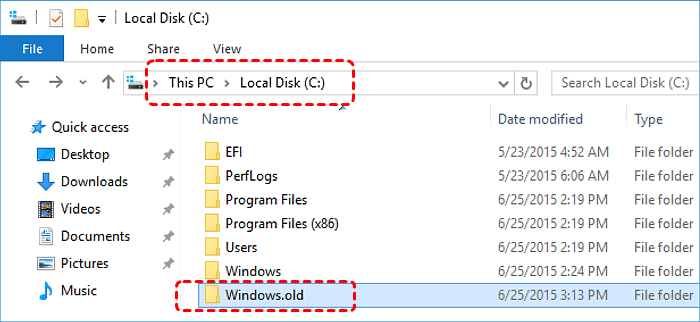
Nevertheless, these files may occasionally be located in the Windows.old folder, which is a temporary storage location in C: drive and is typically subject to automatic cleanup by the system after a 30-day period. Open this folder, you might find your files under your old user account name.
Recover with Windows File Recovery Command
If you select "Remove everything", there are also methods you can try to recover lost files. Windows File Recovery is a built-in data recovery tool provided by Microsoft, which allows you to recover permanently lost files from a Windows storage device. It works by scanning your hard drive for deleted files and restoring them to a separate location. But note that Windows File Recovery only works on Windows 10 and 11.
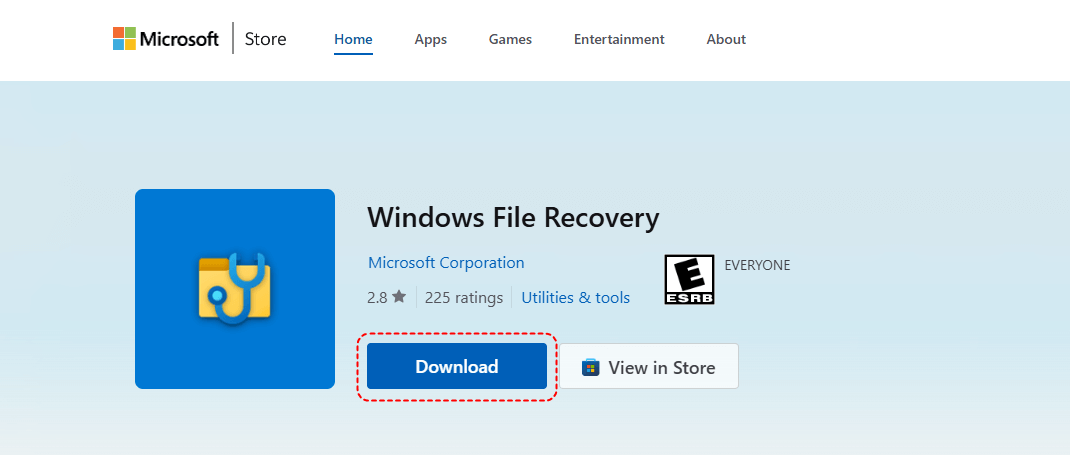
Step 1. Download and install Windows File Recovery on your computer from Microsoft official website.
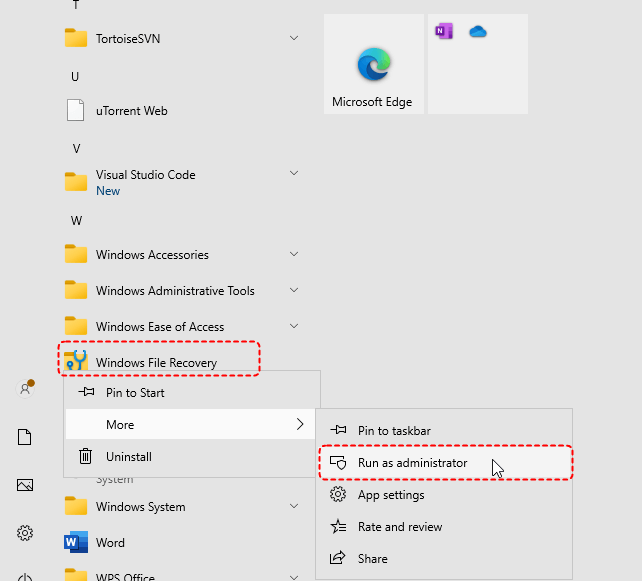
Step 2. Locate Windows File Recovery in the Start menu and run it as administrator.
Step 3. Enter the following command "winfr C: D: /extensive" and hit the "Enter" key. Replace the drive letters "C" and "D" with your actual drive letters. This command can help you recover all lost files from C drive to D drive.
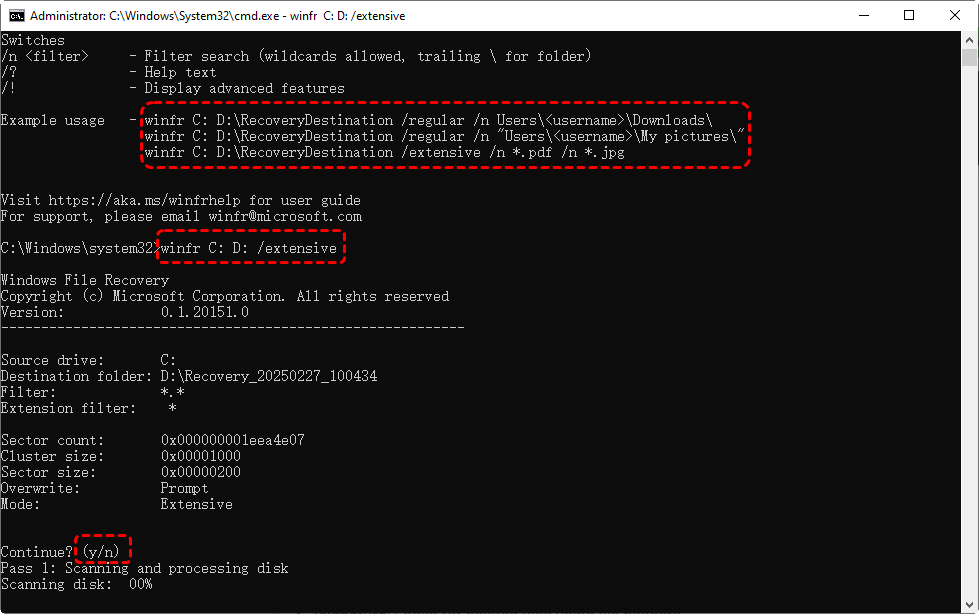
Step 4. Wait for the scan to complete, you can press "y" to view the recovered files in the destination folder.
Recover Data After Factory Reset Using MyRecover
If you're uncomfortable with command-line tool or you need more comprehensive recovery options, MyRecover is an excellent alternative. It adopts a visual interface that enables real-time viewing of the full file recovery process, supporting selective recovery of desired files as needed. It also covers over 1,000 complex data loss scenarios, such as recovering data after system reinstallation, Windows updates, OS downgrades, system restores, and more.
 MyRecover
- ✨Easy-to-use interface: No command-line navigation or keyboard-based selection required.
- ✨AI-Powered Recovery: Uses AI recognition and deep scanning technology.
- ✨Wide file support (1000+): Photos, videos, documents, audio files, archives, and more.
- ✨Supports all common devices (500+): HDDs, SSDs, USB flash drives, SD cards, external drives, etc.
 100% Secure
Step 1. Download and install MyRecover on your computer from Microsoft Store, avoid installing it on the original system drive.
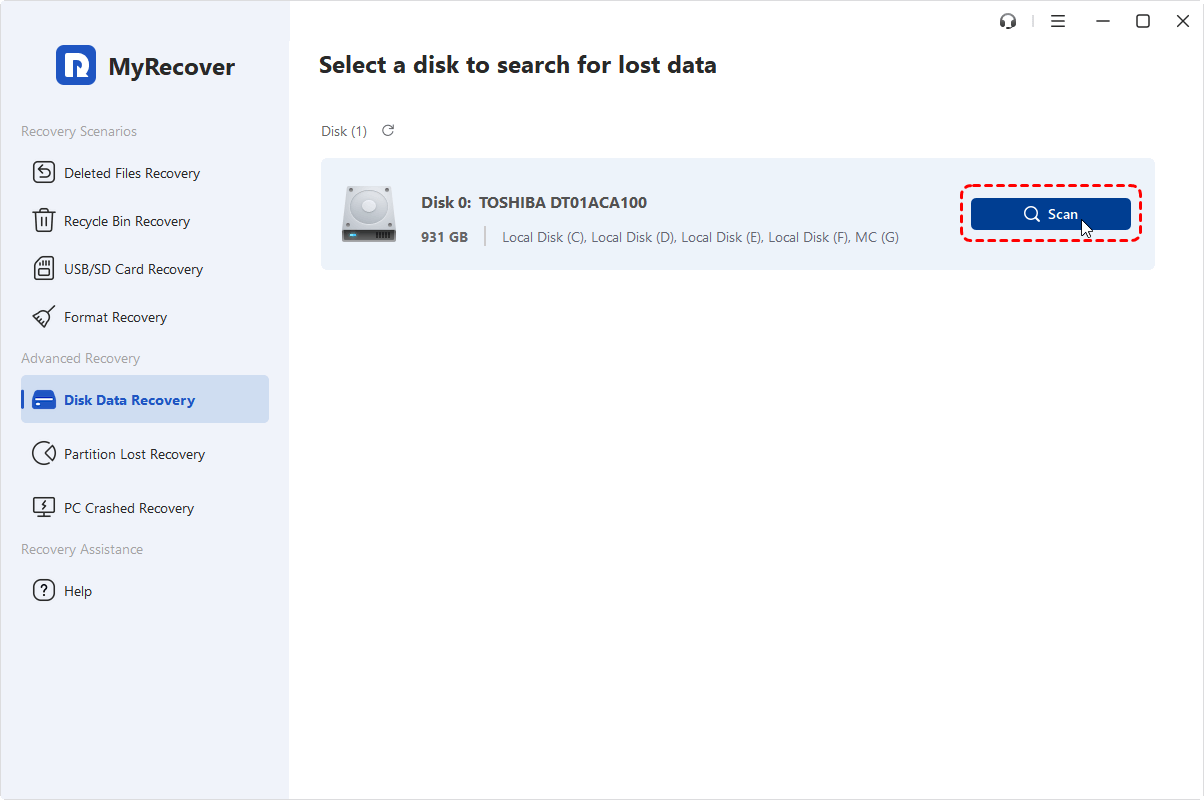
Step 2. Run the program and select "Disk Data Recovery" section, then choose the target disk and click "Scan".
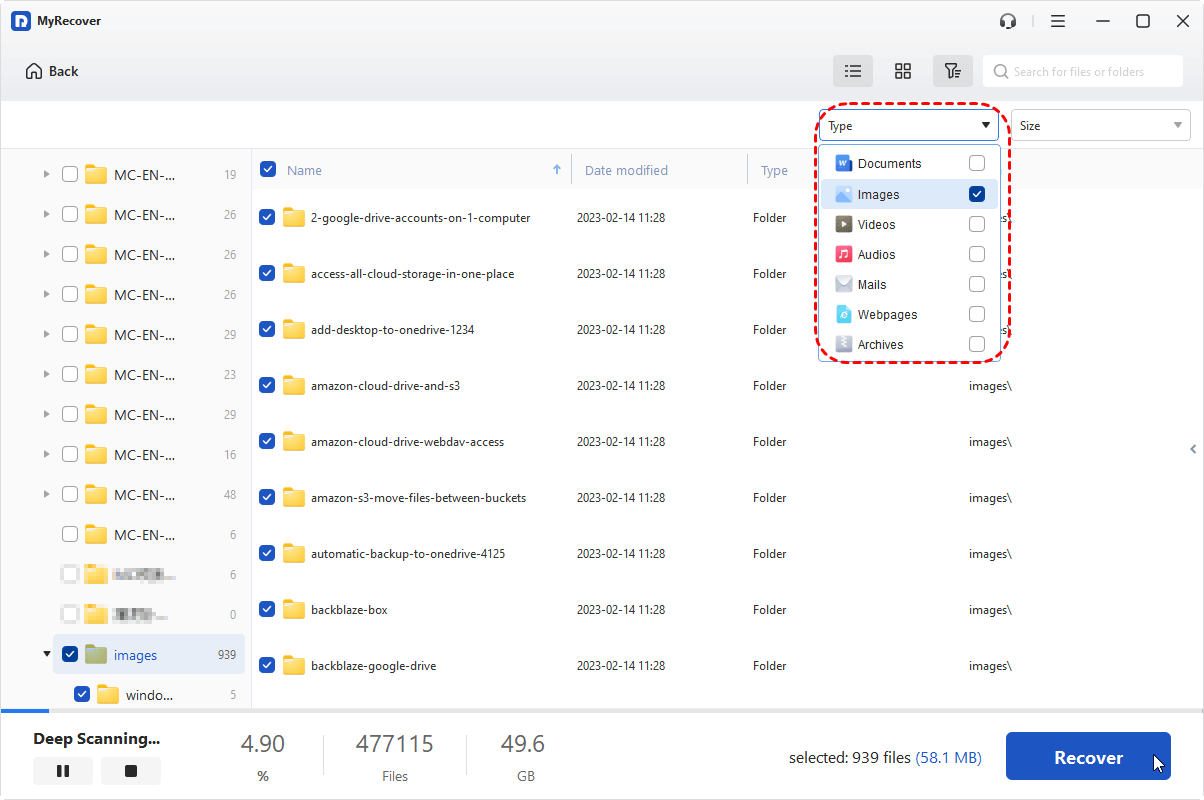
Step 3. MyRecover will search for deleted files that can be recovered. After the scan is completed, choose the files you attempt to recover from the recoverable lists and click "Recover".
MyRecover Free offers up to 500MB of data recovery at no charge, perfect for small recoveries. If you're looking for unlimited recovery and real-time file previews, even the capability to recover data from a system that won’t boot, MyRecover Professional edition gives you everything you need to ensure your data is safe.
Step 4. Select a safe location to save the recovered files and click "Select Folder".
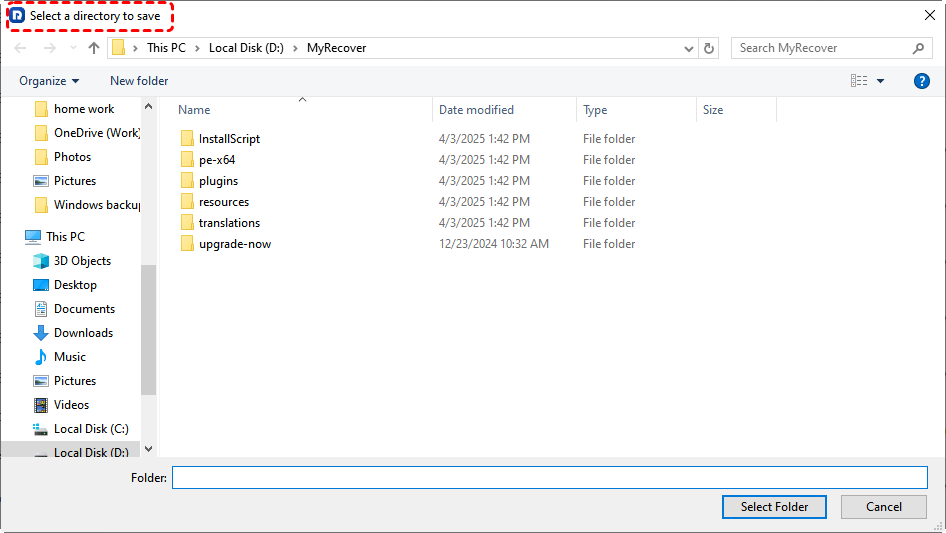
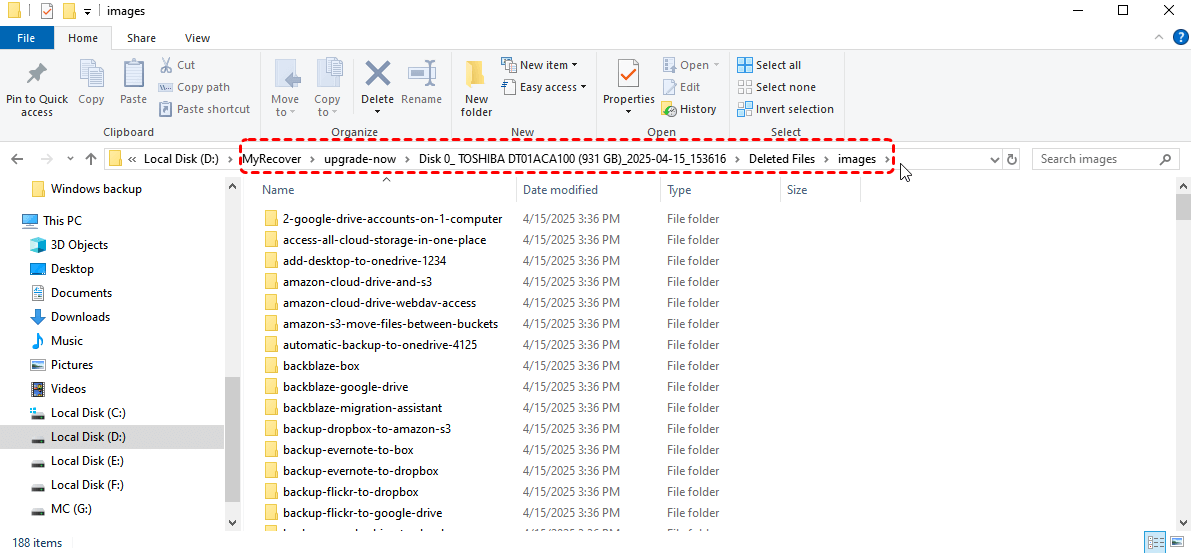
Once the process is done, the message "Files have been recovered successfully" will pop up. Then, you can check the recovered files by clicking on the destination folder path or "Browse" button.
Restore Lost Partition After Factory Reset with MyecoverR
Unlike the standard Windows Reset this PC process discussed above, some PC manufacturers provide their own factory recovery tools, which may reinstall Windows through a clean-install-like process and remove or recreate existing partitions. If this happens, an original data partition may disappear along with its stored files. In such cases, MyRecover Professional edition affters a Partition Recovery feature which can scan the affected disk for lost partitions and restore a recoverable partition together with its stored data.
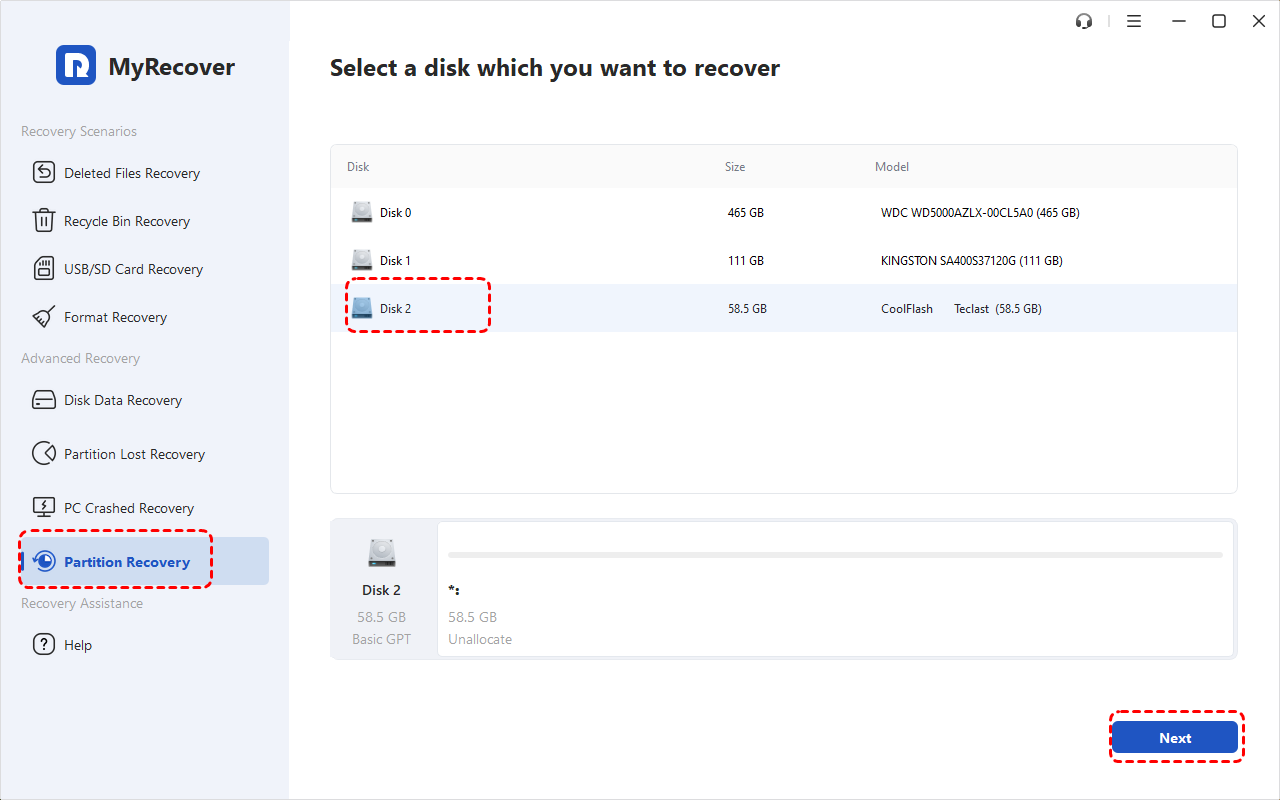
Step 1. Launch MyRecover and select "Partition Recovery", choose the disk with lost or deleted partition, then click "Next".
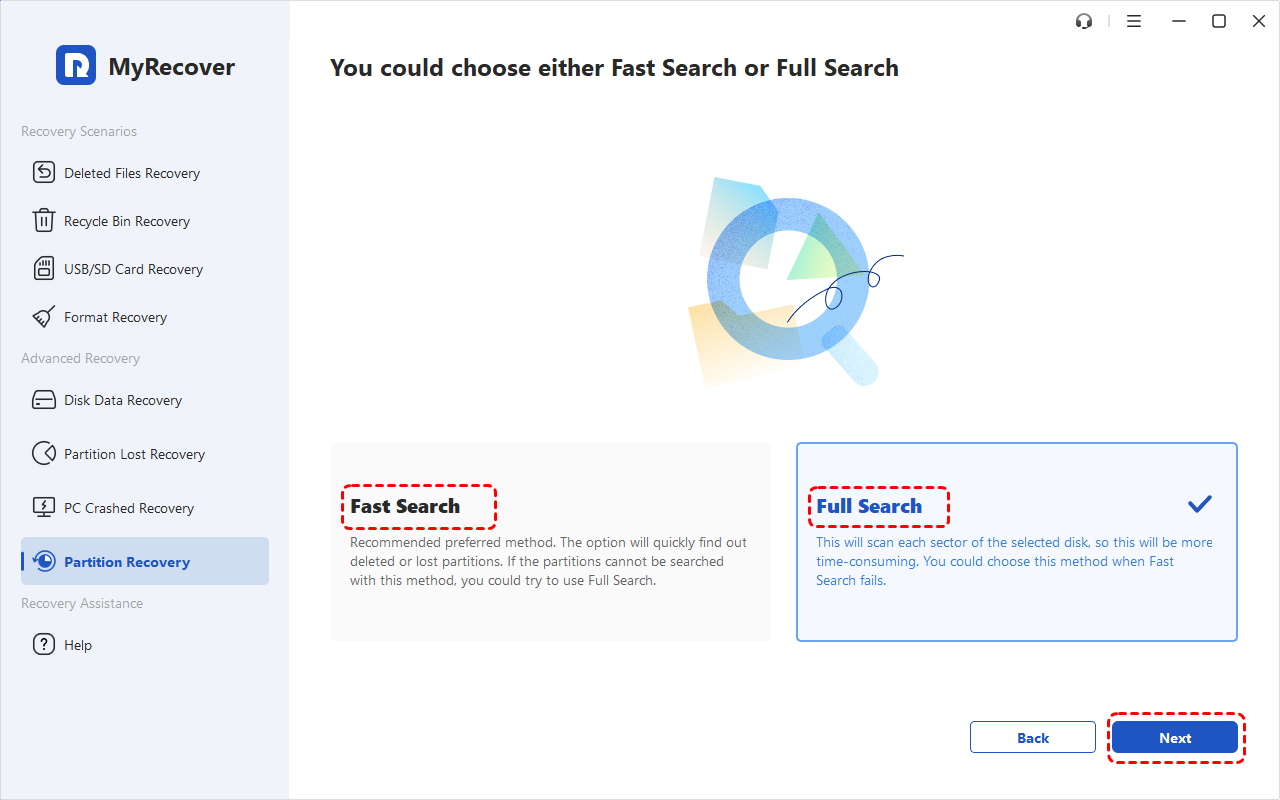
Step 2. Choose "Fast Search" to quickly find lost partitions. If your target partition isn't found, try "Full Search" to scan the disk more thoroughly.
Step 3. Once the scan is complete, review the found partitions. Identify the missing one by comparing its capacity, file system, and other partition details. Select the target partition and click "Proceed".
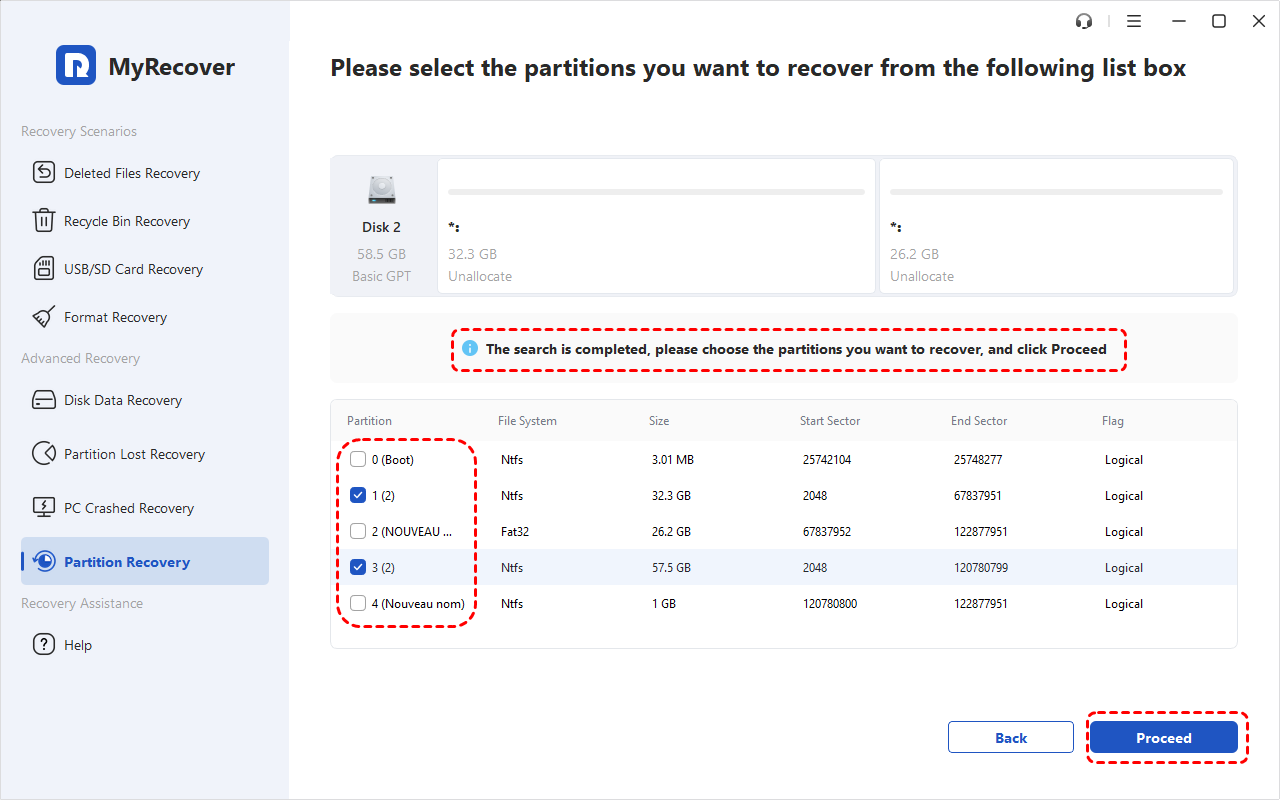
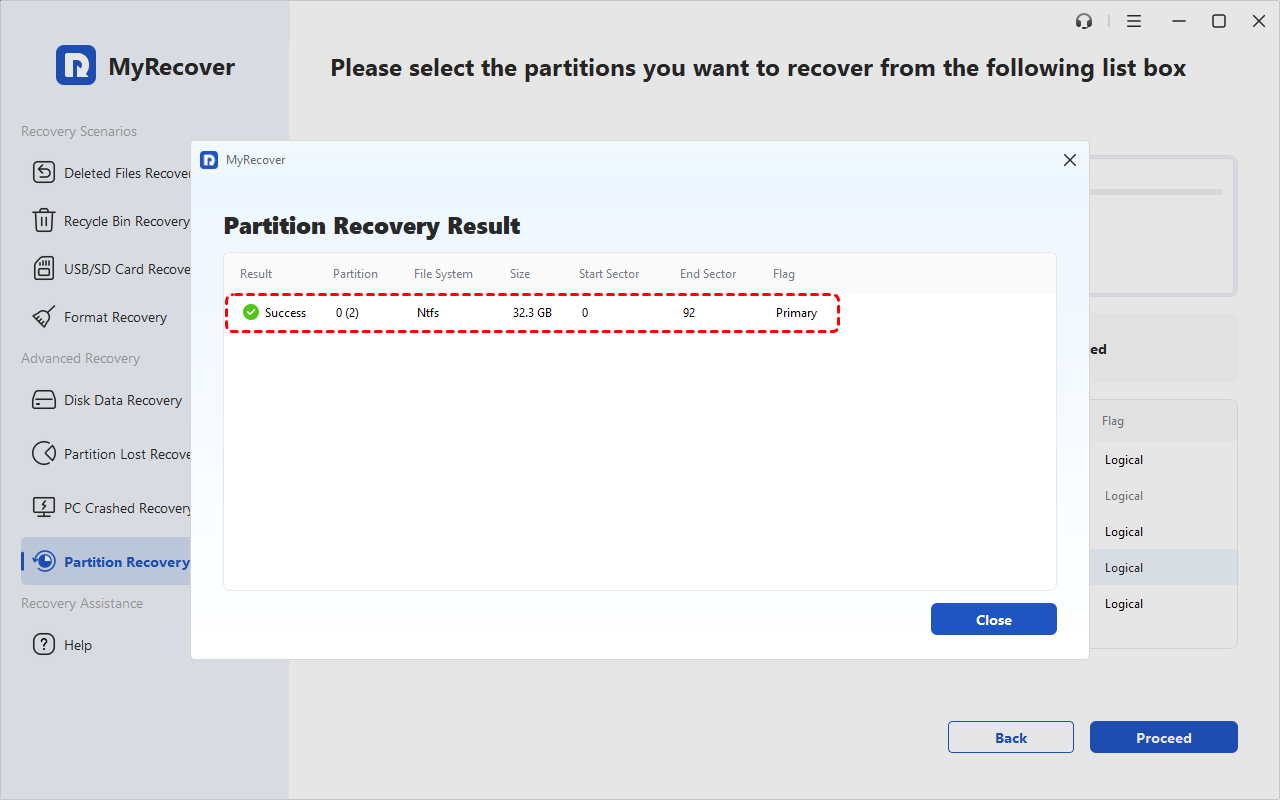
Wait for MyRecover to complete the partition recovery. Once restored, the partition should become accessible again, allowing you to check its original files and folders.
How to Recover Data After Factory Reset on iPhone and Android
If you've factory reset your iPhone or Android phone, your data may still be available through previous backups, cloud synchronization, or external storage. The following methods can help you recover accessible files and determine what options remain without a backup.
Recover Data After Factory Reset on iPhone
If you previously enabled iCloud Backup or synced your files with iCloud, you may be able to retrieve photos, contacts, documents, and other supported data.
Step 1. Turn on your reset iPhone and follow the setup instructions. On the "Transfer Your Apps & Data" screen, select "From iCloud Backup" if an earlier backup is available.

Step 2. Sign in with your Apple Account, select the appropriate backup, and follow the onscreen instructions to restore your data.
Step 3. To recover separately synced files, visit iCloud.com and check iCloud Photos, iCloud Drive, and other available categories. Download the files you need or enable the corresponding iCloud sync features on your iPhone.
Recover Data After Factory Reset on Android
Android users can first check their cloud backups like Google, OneDrive, etc. and synced data. If missing files were stored on a removable SD card, MyRecover offers another possible recovery method.
If you have created Google backup, it may restore supported device settings, messages, contacts, and app data. Photos and files previously saved to Google Photos or Google Drive can also be accessed separately. Sign in with your original Google Account during setup and check for previously saved photos, videos, and documents.
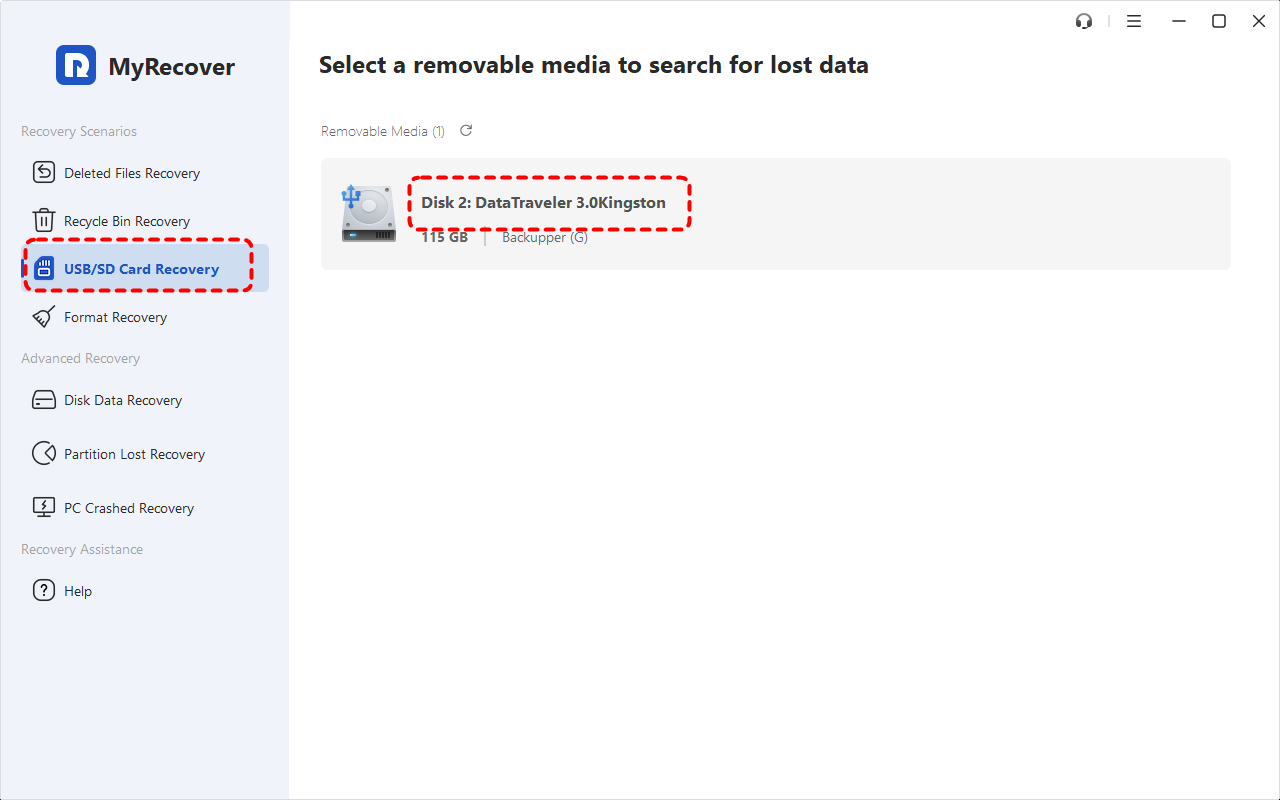
If your Android phone stored files on a removable SD card, you may be able to recover lost data using MyRecover. Connect the SD card to a Windows PC, select "USB/SD Card Recovery" in MyRecover, scan for lost files, and save any recoverable data to another location.
Can You Recover Phone Data After Factory Reset Without Backup?
Recovering data without a backup is significantly more difficult on modern smartphones because both iPhones and Android devices use encryption to protect internal storage.
On iPhones, a factory reset removes the encryption keys needed to access previously stored files. Modern Android phones use similar encryption protections, making erased internal data generally unrecoverable after a factory reset. You may consider specialized mobile data recovery tools to check for any remaining recoverable data. However, these tools cannot reliably recover encrypted internal data erased by a factory reset, and recovery is not guaranteed.
The Bottom Line
In summary, recovering data after a factory reset without backup is possible, but the chances of success depend on how much time has passed since the reset and whether new data has been written over the deleted data. If you're unable to recover the data using conventional methods, consider seeking professional data recovery tool. MyRecover offers an easy-to-use and reliable solution for recovering data lost after a Windows factory reset, even without a backup.

Stay Updated With Our
Latest Tips
Add us as a preferred source on Google to never miss helpful guides.
 Add as preferred source >>