 MyRecover



Recover Files from HDD: The Ultimate Step-by-Step Recovery Guide
Need a clear guide on how to recover files from HDD after accidental deletion or system failure? This practical overview explains safe recovery steps, common mistakes to avoid, and when to use professional tools to maximize success without risking further data loss.

By Vera / Updated on December 30, 2025


What is an HDD and How Does It Store Your Data?

An HDD (Hard Disk Drive) is like a digital library. Inside, spinning magnetic platters store your files while a mechanical arm reads and writes data at lightning speed. Unlike SSDs, HDDs rely on moving parts, which makes them more affordable—but also more fragile.
How Files Are Actually Stored on an HDD
Your files aren’t saved in one neat piece. They’re split into fragments and spread across different areas of the disk. Think of it like shredding a document and storing the pieces in different drawers—your system knows where everything is, until something goes wrong.
Why Deleted Files Are Not Immediately Gone
Here’s the good news: when you delete a file, your system doesn’t erase it instantly. It simply removes the "address" pointing to that file. Until new data overwrites it, the file still exists—and that’s your recovery window.
Common Reasons Why Files Are Lost from HDD
Understanding what caused the data loss helps you choose the best recovery method.
Accidental Deletion
This is the most common cause. A wrong click, an empty Recycle Bin, or a keyboard shortcut—and boom, files vanish.
Hard Drive Formatting
Formatting wipes the file system structure, not the actual data. That’s why formatted HDDs are often recoverable.
HDD Physical Damage
- Mechanical Failures: Clicking, grinding, or buzzing sounds usually mean internal damage. These cases need extra caution.
- Electrical Problems: Power surges or faulty adapters can damage the HDD controller board, making the drive unreadable.
Virus or Malware Attacks
Some malware deletes files, hides them, or encrypts them, making recovery more complicated—but not impossible.
Can You Really Recover Files from HDD?
Yes—in most cases.
When HDD File Recovery Is Possible
Recovery is usually successful when:
- Files were recently deleted.
- The HDD is detected by your system.
- Data hasn’t been overwritten.
- Damage is logical, not physical.
When Recovery Becomes Difficult
Recovery chances drop when:
- The HDD has severe physical damage.
- The drive was overwritten multiple times.
- DIY repair attempts made things worse.
What to Do Immediately After HDD Data Loss
This part is critical—don’t skip it.
Stop Using the Hard Drive Immediately
Every new file you save increases the risk of overwriting lost data. Using the drive after data loss is like writing over erased pencil marks with permanent ink.
Avoid Random Fixes and DIY Tricks
Freezing the HDD, opening it, or using untrusted tools can permanently destroy your data. If the drive is physically damaged, stop right there.
How to Recover Files from HDD (All Methods Explained in Detail)
Now let’s get to the solutions—starting from the simplest to the most advanced.
Method 1: Recover Files from Recycle Bin
This is the easiest and fastest method. When you delete files normally, they go to the Recycle Bin instead of being permanently erased.
1. Open the Recycle Bin.
2. Locate your missing files.
3. Right-click and select Restore.
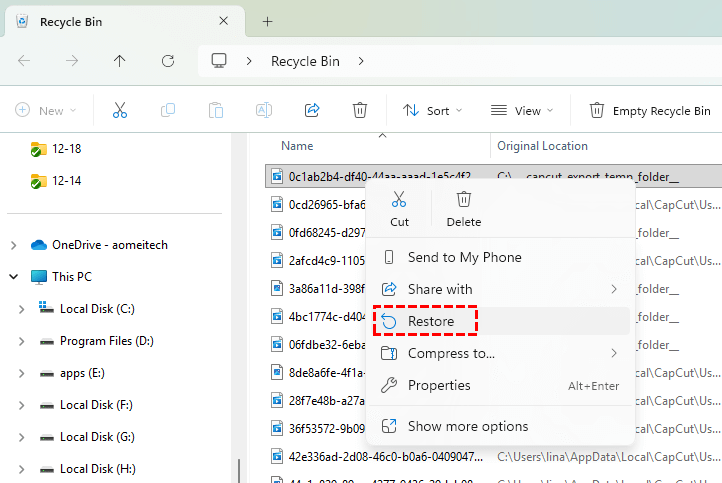
4. Files return to their original location.
- Files were recently deleted.
- Recycle Bin wasn’t emptied.
- Files weren’t deleted using Shift + Delete.
Method 2: Restore Files from Backup
Backups are your safety net—and if you have one, recovery becomes painless.
Types of Backups That Can Help
- Windows File History
- System Restore
- Cloud backups (Google Drive, OneDrive, etc.)
- External HDD backups
Backups restore files exactly as they were—no scanning, no guessing, no stress.
- You regularly back up your data.
- Files were lost due to formatting or corruption.
- You want a clean, reliable recovery.
Method 3: Recover Files from HDD Using MyRecover (Recommended)
This is the most effective method for logical HDD data loss, and where MyRecover truly shines. MyRecover scans your HDD sector by sector, locating deleted, formatted, or inaccessible files—even when partitions are lost or file systems are damaged. It works in read-only mode, ensuring your data stays safe during recovery.
Why MyRecover is Ideal for HDD Recovery
- Supports deleted, formatted, and corrupted HDDs.
- Handles large-capacity drives efficiently.
- Allows file preview before recovery.
- Simple interface—no technical skills required.
 100% Secure
Step-by-Step: Recover Files from HDD with MyRecover
1. Download and install MyRecover on a different drive (not the affected HDD).
2. Connect the HDD you want to recover data from.
3. Launch MyRecover and select the HDD.
4. Start a Scan to find recently deleted files.

5. If needed, allow the Deep Scan to complete for formatted or corrupted data.
6. Preview recoverable files (photos, videos, documents, etc.).
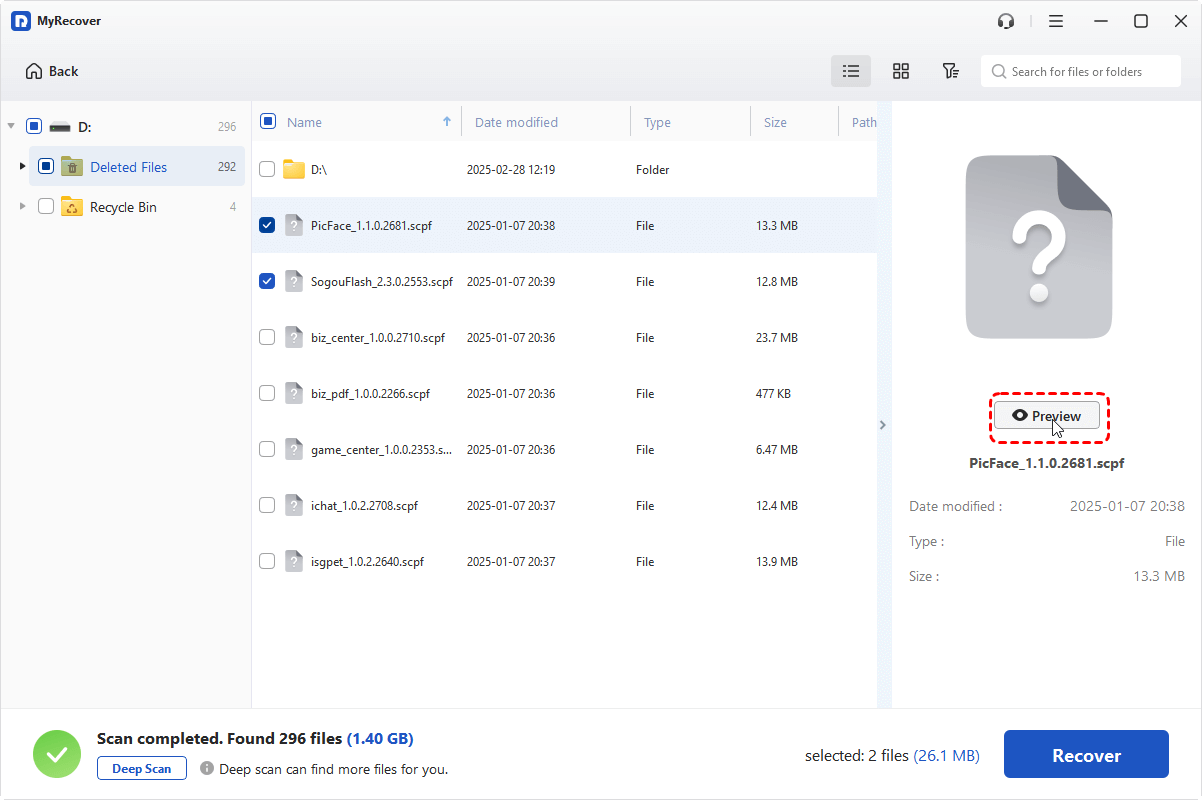
7. Select the files you want and click Recover.
8. Save recovered files to another storage device.

- Accidental deletion
- Formatted HDD
- Missing partitions
- Virus-affected data
Method 4: Recover Files from a Corrupted HDD
A corrupted HDD doesn’t mean your data is gone—it means the system can’t read it properly.
Signs of HDD Corruption
- "Drive needs to be formatted" error.
- Files won’t open.
- HDD shows RAW format.
Step-by-Step Recovery from a Corrupted HDD
1. Do NOT format the drive.
2. Connect the corrupted HDD to your computer.
3. Confirm the drive appears in Disk Management.
4. Launch MyRecover. Select the corrupted HDD or RAW partition. Run a Scan.
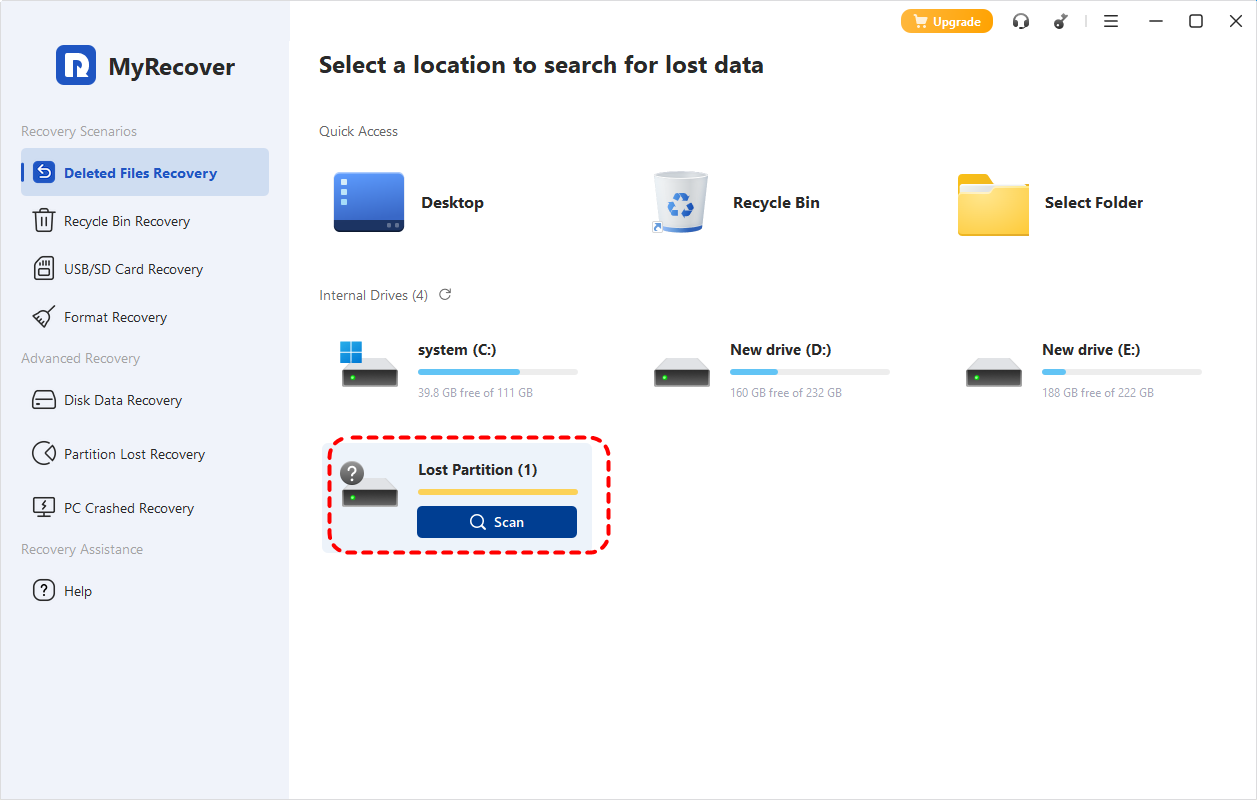
5. Preview detected files.
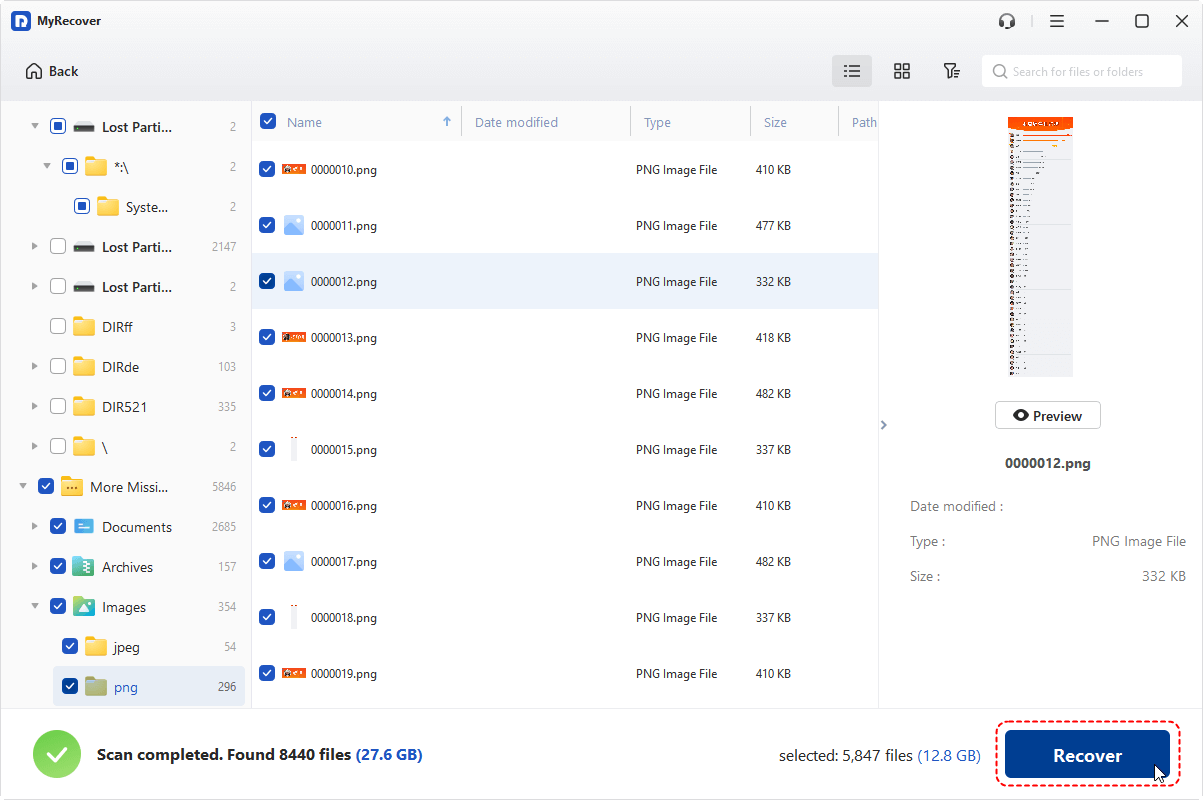
6. Recover files to a separate drive.
Method 5: Recover Files from External HDD
External HDDs are more prone to disconnection and physical mishandling—but recovery is often straightforward.
Step-by-Step External HDD Recovery
1. Disconnect the external HDD safely.
2. Try a different USB cable or port.
3. Connect the drive to another computer.
4. If detected, launch MyRecover. Select the external HDD. Run a scan.

5. Preview and recover files.
6. Save recovered files to internal storage or another drive.

- USB disconnection issues.
- Accidental deletion.
- External HDD corruption.
How to Prevent HDD Data Loss in the Future
Once you’ve recovered your files, protect them.
Use Regular Backups
Follow the 3-2-1 rule:
- 3 copies of data
- 2 different storage types
- 1 off-site backup
Maintain Your HDD Properly
- Avoid overheating
- Use surge protection
- Handle external drives carefully
Conclusion: Final Thoughts on Recovering Files from HDD
Data loss is stressful—but it’s rarely permanent. Whether your files were deleted, formatted, or lost due to corruption, recovering files from HDD is often possible if you act fast and choose the right method. From simple Recycle Bin restores to advanced professional services, there’s almost always a path forward.
Your data isn’t gone—it’s just waiting to be recovered.

Stay Updated With Our
Latest Tips
Add us as a preferred source on Google to never miss helpful guides.
 Add as preferred source >>