 MyRecover



Recover Files from Seagate Backup Plus | Step-by-Step Guide 2026
This guide provides a complete overview of Seagate Backup Plus data recovery. Learn the most effective methods and tools to successfully recover files from Seagate Backup Plus drives after deletion, formatting, or corruption.

By Delores / Updated on March 30, 2026


About Seagate File Recovery
When you plug in your trusty Seagate Backup Plus drive, ready to access years of photos, important work documents, or your personal media library, and… nothing. It’s not recognized, files are missing, or you accidentally formatted the wrong drive. Panic sets in immediately.
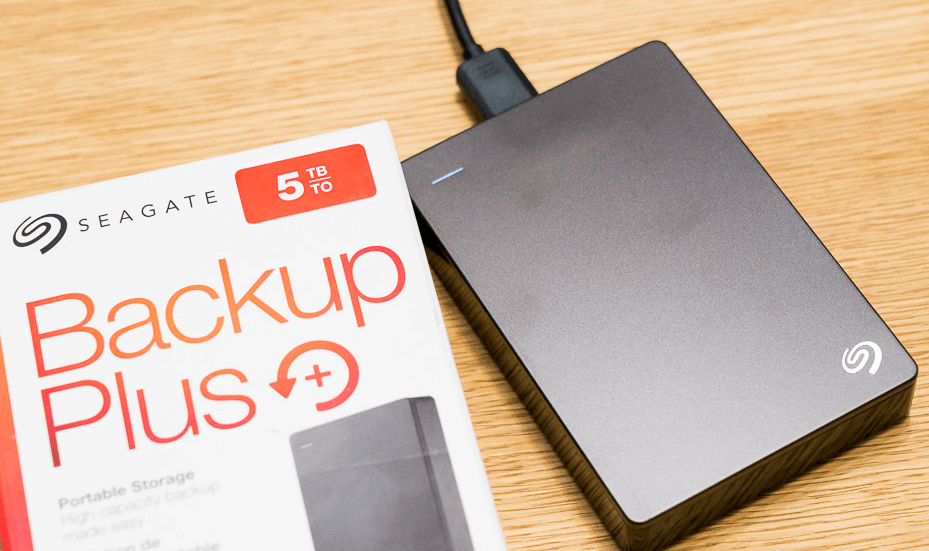
Stay calm, learning how to recover files from Seagate Backup Plus drives is a common and often solvable problem. This guide shows you every step of Seagate Backup Plus data recovery.
Does Seagate Backup Plus Have Exclusive Data Recovery Software?
No, Seagate does not provide exclusive data recovery software specifically for its Backup Plus series. But Seagate offers two types of official tools and services: Seagate Toolkit (backup software, not data recovery software) and Seagate Rescue Data Recovery Services (free or paid).
Thus, you can recover files from Seagate Backup Plus from the backups, or fix a physically damaged disk with Seagate Rescue Data Recovery services. If not, you have to use a third-party data recovery software to recover lost or deleted files from a Seagate Backup Plus drive.
Common Reasons for Seagate Backup Plus Data Failure
These drives are generally reliable, but they’re not invincible. The problems usually fall into two buckets: logical failures and physical failures.
⭕ Physical failures are more serious and involve hardware issues like a faulty USB controller board, a damaged read/write head, or spindle motor failure. These often require a professional touch.
Now let's get your drive ready for its recovery operation.
Preparing for Seagate Backup Plus Data Recovery
- If you've accidentally deleted files, stop what you're doing immediately. Do not save new files to or download anything onto the Seagate Backup Plus drive. Any new data could overwrite the space where your deleted files are still sitting, making them impossible to recover.
- If the drive is making strange noises, power it down completely to prevent further physical damage.
- For connection issues, try a different USB cable and a different USB port on your computer.
Then check the following things before recovery:
- A working Windows or Mac computer.
- Enough free space on your computer’s internal drive or another healthy external drive to save the recovered files. You must never recover files back onto the same drive from which you’re recovering.
Best Seagate Backup Plus Recovery Software- MyRecover
For logical failures such as deletion, formatting, and corruption, data recovery software is your most powerful tool. It works by deep-scanning the drive for traces of lost data and rebuilding the file structure.
To choose the right powerful Seagate data recovery software, check these characteristics:
- Reputable. It's a reliable and comprehensive data recovery software that attracts millions of users.
- High Success Rate. Up to 99% data recovery rate in the market.
- Support a Wide Array of File Types: Can recover hundreds of different file formats.
- Deep Scan: Goes beyond the surface to find files from formatted or severely corrupted drives.
- File Preview: Allows you to see photos, documents, and video thumbnails before recovery.
- User-Friendly Interface: The process shouldn’t require a degree in computer science.
Luckily, MyRecover is a standout option that ticks all these boxes, offering powerful scanning algorithms.
How to Recover Files from Seagate Backup Plus Fast?
MyRecover makes the process of "Seagate Backup Plus recover deleted files" surprisingly straightforward. Here’s how to do it:
1. Connect your Seagate Backup Plus drive, and make sure it can be detected. Download MyRecover and install it on your computer's hard drive.
 100% Secure
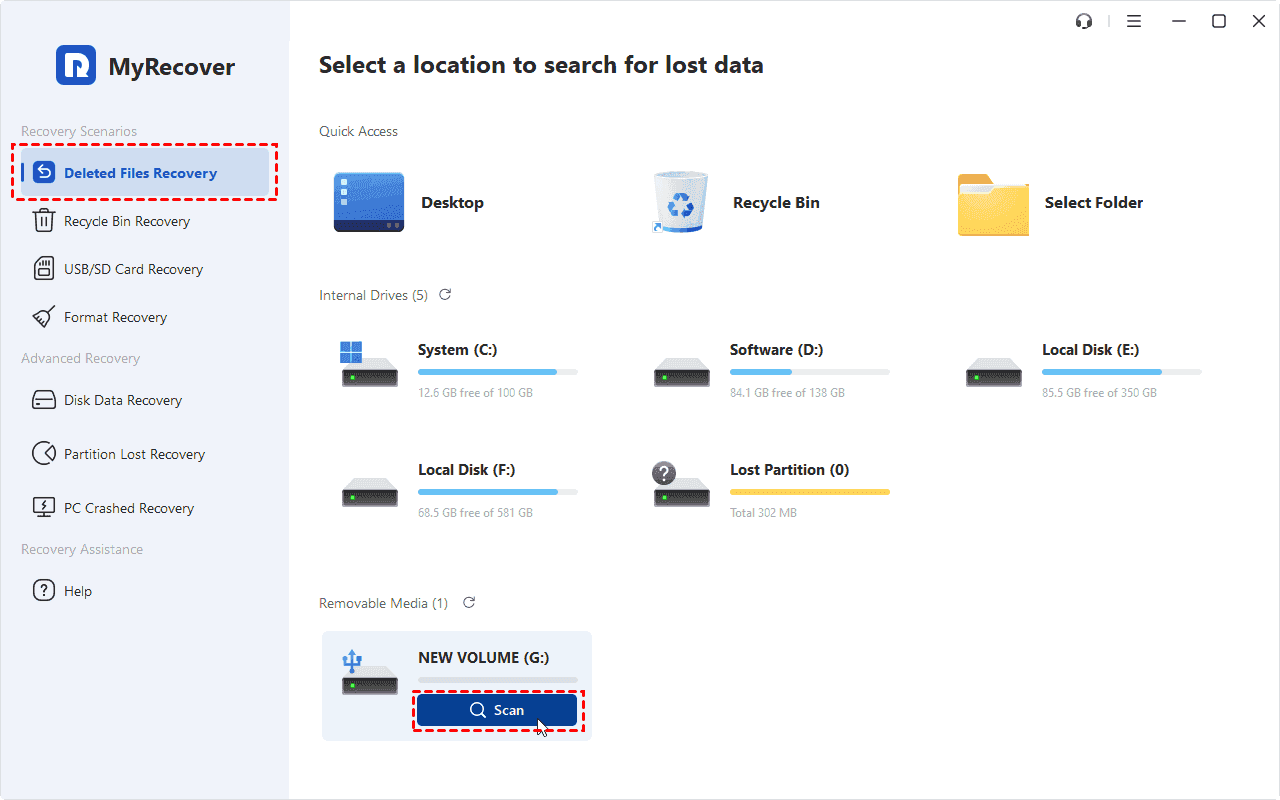
2. Run MyRecover, and tap Deleted Files Recovery, hit Scan while pointing to the Seagate Backup Plus drive.
3. Once the scan is complete, hit OK. You can browse through the found files. Use the search function or filters to locate what you need. The preview pane lets you verify your files are intact.
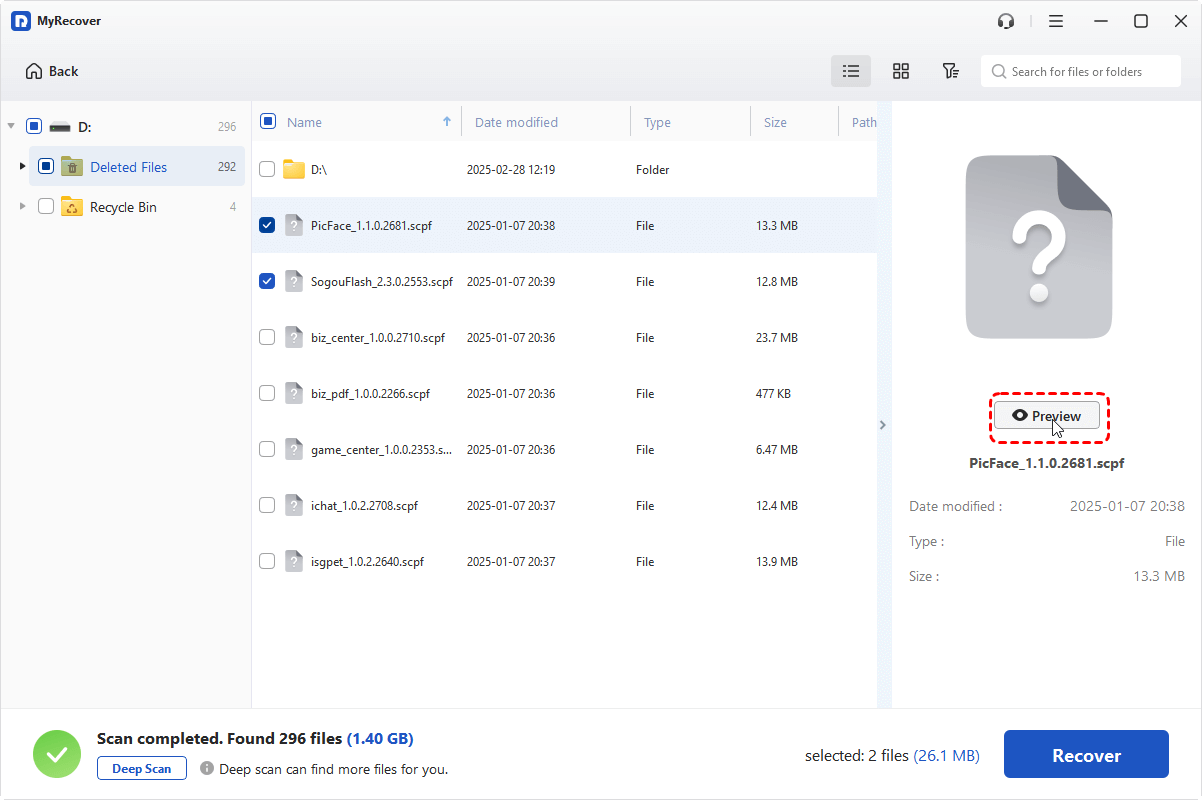
4. Select the files and folders you want and click Recover.

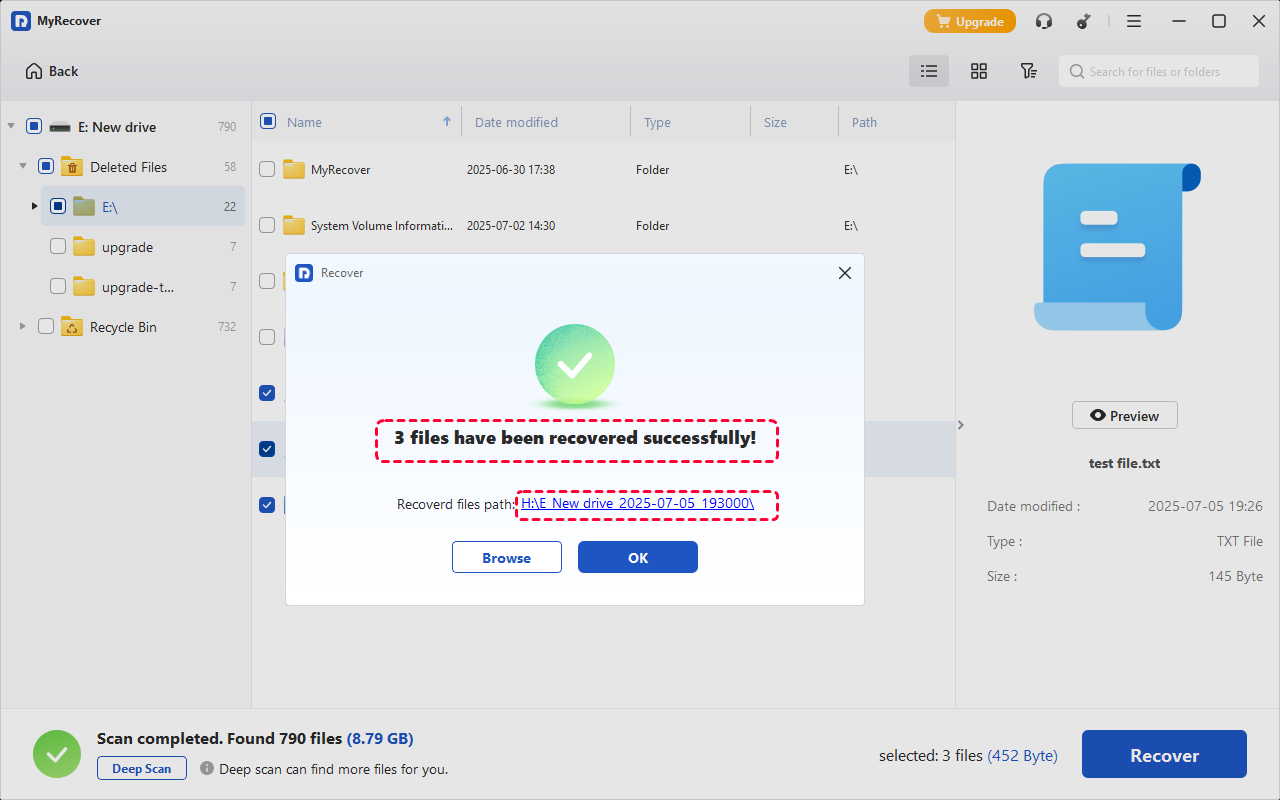
5. Choose a safe destination on your computer’s internal drive or a different healthy external drive.

- Tips:✎...
- You can also recover files from an unbootable computer if required.
- Unlimited data recovery is available to you.
- Upgrading to MyRecover Technician is your best choice if you need to recover files from unlimited computers within your organization in the future.
Now, all these selected files have been recovered to the destination. Check them now.

 MyRecover
 - Recover Deleted Files Easily with Simple Clicks
- 1000+ File Formats Supported
- Support HDD, SSD, External Hard Drive, USB Drive, SD Card, etc.
- Quickly Find Files Using File Types, Name, Size, etc.
- Preview Files Before Recovering
- Recover Unlimited Data
 100% Secure
Restore Seagate Backup Plus Deleted Files from Backups
If you have ever backed up files from Seagate Backup Plus using the Toolkit to an external hard drive, you can restore the deleted files from the backup. Here it is:
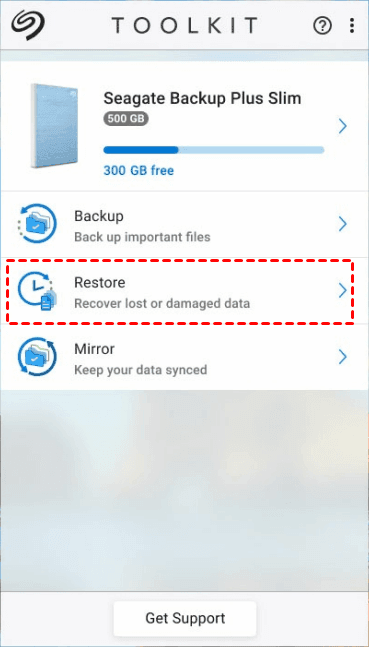
1. Launch the Seagate Toolkit application on your computer.
2. On the Main Menu, click Restore.
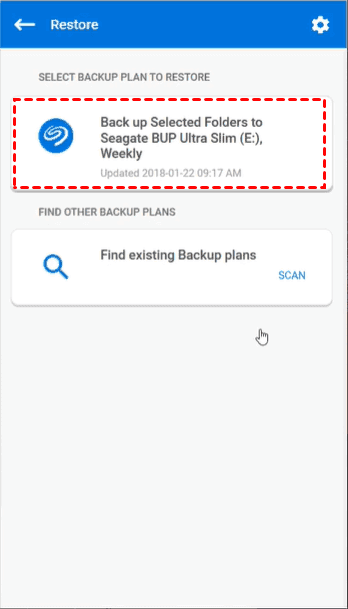
3. Select the Backup plan you want to restore.
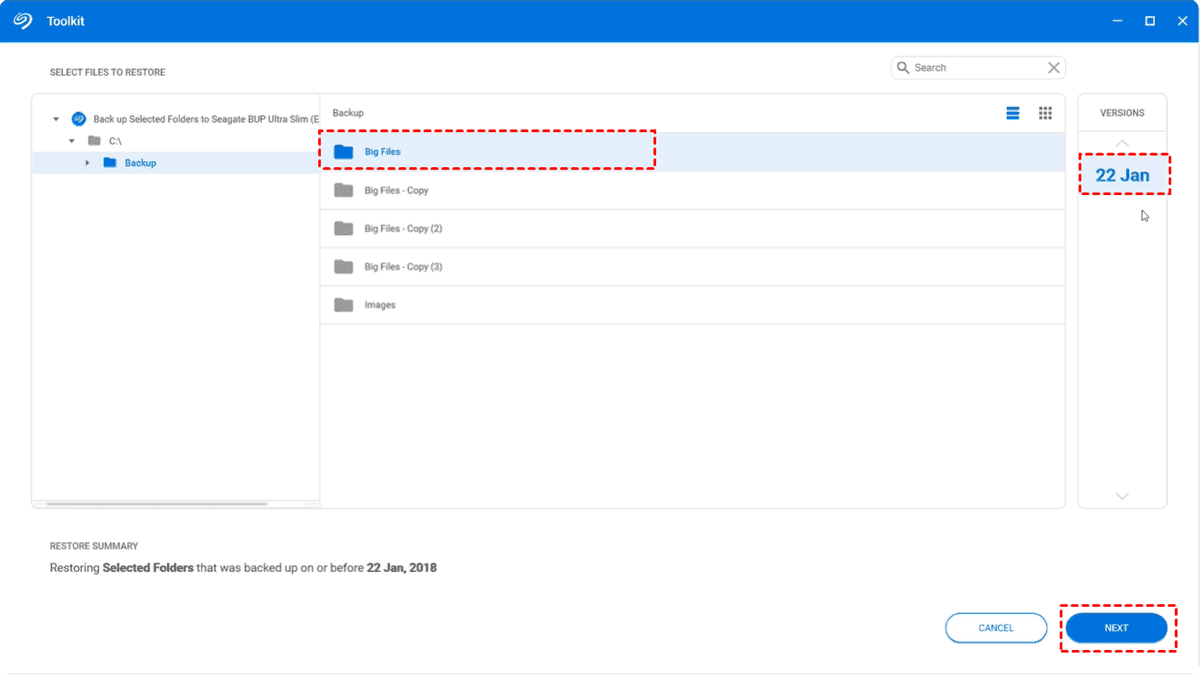
4. On the Restore screen, select the files and the version you want to restore. Click Next.
5. Select a destination to save these files.
6. Click Restore.
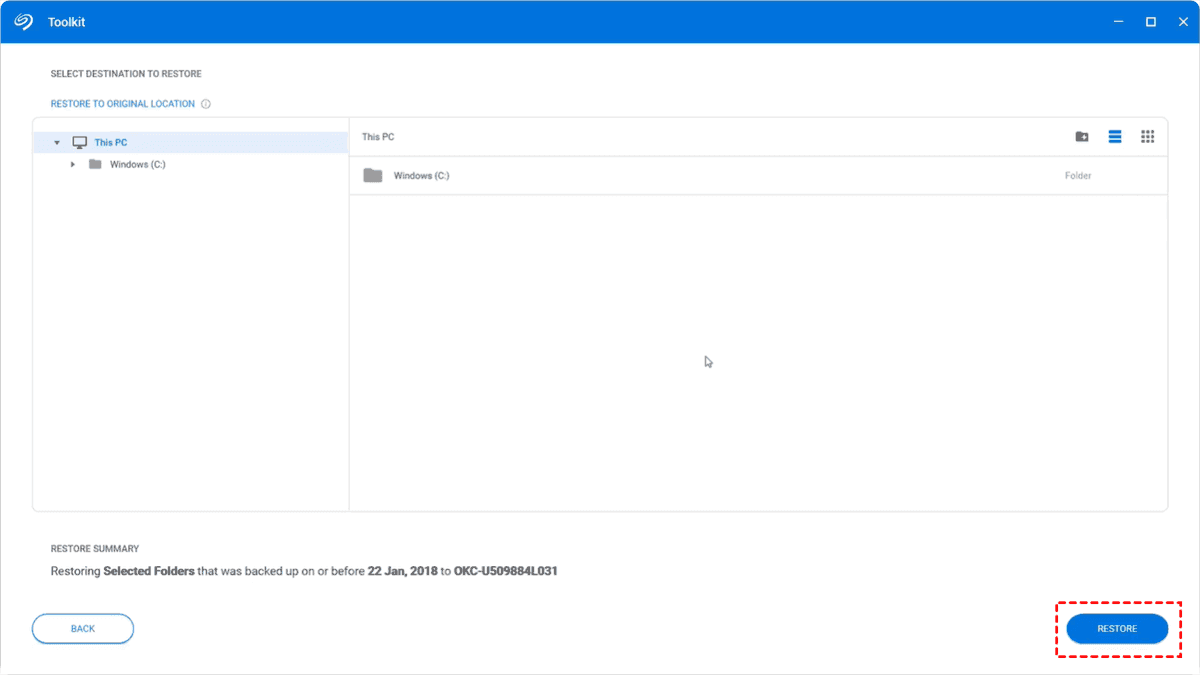
The Toolkit will restore the files from the version you selected.
Advanced Recovery Methods for Severe Data Loss
If your drive is physically damaged or the Seagate external hard drive is not detected by the computer at all, it’s time to consider more advanced options.
If your computer doesn’t see the drive at all—It doesn’t show up in Disk Management (Windows) or Disk Utility (Mac)—even after trying different cables and ports, the issue is likely physical. Your best course of action is to power it down and leave it off.
For physical damage, Seagate Rescue data recovery service or professional recovery labs are your only hope. These facilities have certified cleanrooms, specialized tools, and the expertise to repair drives and extract data directly from the platters physically.
Use your drive’s serial number to check if your drive is covered if you need Seagate rescue data recovery service. If covered, it's free; otherwise, you have to pay for that. Seagate will send a shipping label for you to send the drive to their lab, where they will attempt recovery and return your data on a new device within roughly 30 business days.
FAQs About Seagate Data Recovery
Q1: How much does it cost to recover files from a Seagate Backup Plus drive?
Q2: Can I recover files from a Seagate drive that is not being detected?
Q3: Is it possible to recover data from a formatted Seagate Backup Plus drive?
Q4: What is the success rate for Seagate Backup Plus data recovery?
Q5: How can I tell if my Seagate drive failure is logical or physical?
Q6: Will recovering data void my Seagate warranty?
The Bottom Line
Data loss on your Seagate Backup Plus drive can feel overwhelming, but recovery is often achievable. For common logical failures like accidental deletion or formatting, third-party software like MyRecover offers a powerful, user-friendly solution with high success rates. For physical damage or undetected drives, professional recovery services are the only viable option, though costly.
Besides, it’s highly recommended to back up your files in case of data loss. Or you have to use a professional data recovery software to recover files from a formatted hard drive, an emptied recycle bin, a corrupted SD card, etc.

Stay Updated With Our
Latest Tips
Add us as a preferred source on Google to never miss helpful guides.
 Add as preferred source >>