 MyRecover



Computer Stuck on System Restore Is Initializing: Causes and Fixes
A computer stuck on "System Restore is initializing" can leave Windows unusable. This overview walks you through causes, fixes, and prevention tips. Regain control of your PC and stop repeated freezes.

By Vera / Updated on January 4, 2026


What Does "System Restore is Initializing" Mean?
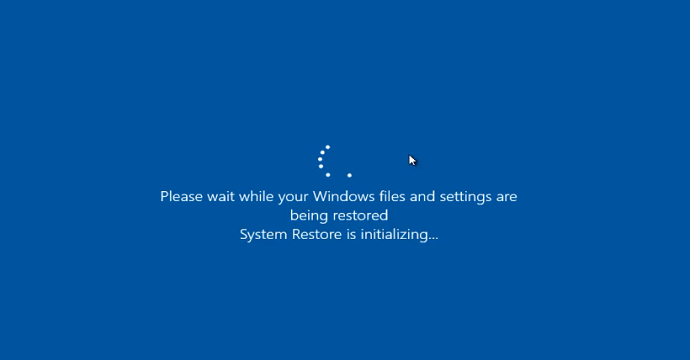
System Restore is a Windows feature that allows your computer to roll back system files, settings, and programs to an earlier point without affecting your personal files. When you see system restore is initializing, Windows is preparing to restore your system. However, sometimes it gets stuck and refuses to move forward.
How System Restore Works in Windows
Think of System Restore as a "time machine" for your PC. Windows creates snapshots of your system called restore points. If something goes wrong—like a buggy driver or a malware attack—you can roll back/revert the Windows system to a stable earlier state in time. But if the restore process freezes, it can feel like your time machine is stuck in a loop.
Why Your Computer Might Get Stuck During System Restore
Even though System Restore is helpful, it isn’t foolproof. There are several reasons your computer may freeze during System Restore. Understanding them can help prevent future problems.
Corrupted System Files
System Restore relies on intact system files. If these files are corrupted, Windows can’t complete the restoration.
Malware or Virus Interference
Malicious programs often block or disrupt system processes, including System Restore. A virus can literally stop Windows from rewinding time.
Hardware Issues
Failing hard drives, bad RAM, or other hardware problems can prevent System Restore from finishing. Even if your software is fine, hardware hiccups can bring the process to a halt.
Insufficient Disk Space
System Restore needs enough disk space to store restore points and temporary files. If your drive is full, the process can get stuck.
Methods to Fix a Computer Stuck on "System Restore Is Initializing"
Here are several ways to resolve the problem, from simple restarts to advanced system repairs.
Method 1: Hard Reboot and Retry
A hard reboot is the simplest way to break the freeze.
Step-by-step:
1. Press and hold the power button until the PC shuts down completely.
2. Wait 30 seconds to 1 minute to allow the hardware to reset.
3. Turn your computer back on.
4. Try running System Restore again.
- Disconnect unnecessary peripherals like USB drives, printers, or external disks before retrying.
- Make sure your PC is plugged into a reliable power source to avoid sudden shutdowns.
Method 2: Boot into Safe Mode
Safe Mode runs Windows with minimal drivers and processes. This reduces interference and often allows System Restore to complete successfully.
Steps to Enter Safe Mode
1. Restart your computer.
2. Before Windows loads, repeatedly press F8 (or Shift + F8 on some systems).
3. Choose Enable Safe Mode with Networking from the menu.
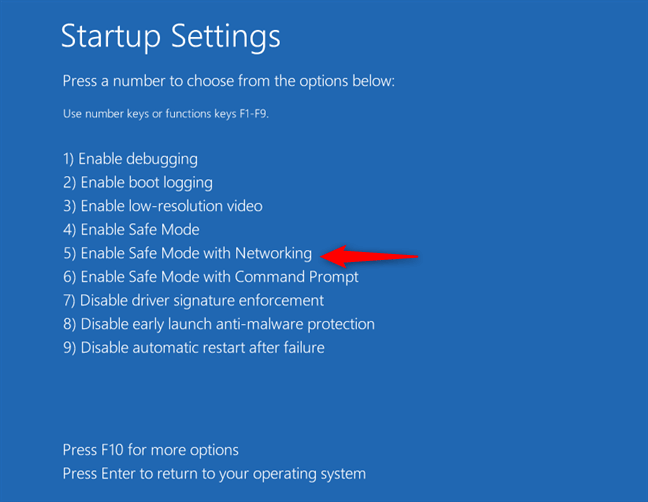
4. Once in Safe Mode, open System Restore and select your restore point.
5. Follow the prompts to complete the restoration.
- If F8 doesn’t work, you can boot from a Windows installation USB and choose Repair your computer → Troubleshoot → Advanced options → Startup Settings → Safe Mode.
- Safe Mode is also a good environment to run antivirus scans before attempting System Restore again.
Method 3: Run System File Checker (SFC)
System File Checker scans and repairs corrupted system files that may be causing the freeze.
Steps to Use SFC
1. Open Command Prompt as Administrator.
2. Type sfc /scannow and press Enter.

3. Wait for the scan to complete. This may take 10–30 minutes depending on your system.
4. If any issues are found, SFC will automatically attempt to repair them.
5. Restart your PC and retry System Restore.
- Avoid interrupting the scan. Stopping it midway can cause more problems.
- After SFC, you may want to follow up with DISM for deeper system image repair.
Method 4: Use DISM to Repair Windows Image
DISM (Deployment Imaging Service and Management Tool) fixes deeper Windows image corruption that SFC cannot handle.
Steps:
1. Open Command Prompt as Administrator.
2. Type DISM /Online /Cleanup-Image /RestoreHealth and press Enter.
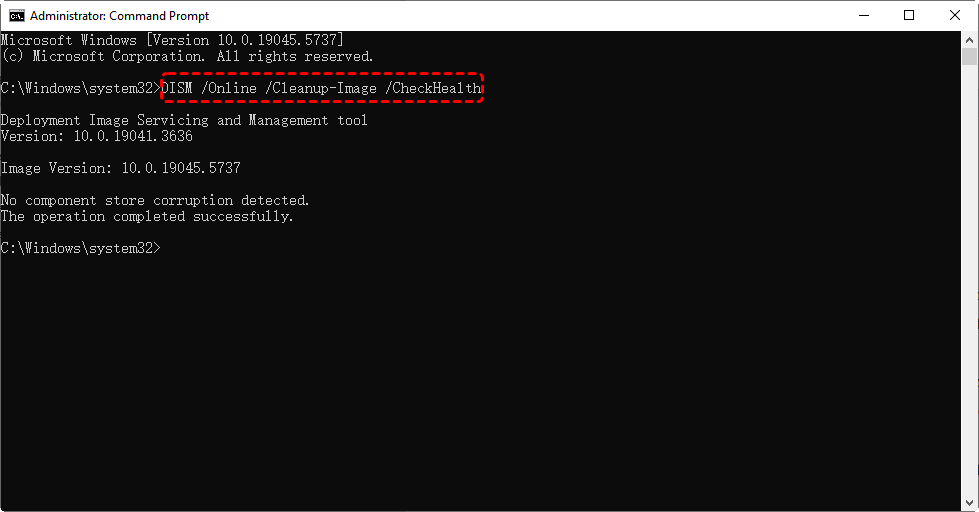
3. Wait patiently—it may take 15–20 minutes or more.
4. Once completed, restart your computer and attempt System Restore again.
- Make sure your PC is connected to the internet during this process. DISM may download files to replace corrupted components.
- Combine DISM and SFC for maximum repair effectiveness.
Method 5: Check for Hardware Problems
Hardware failures can prevent System Restore from completing.
Steps:
1. Test RAM:
- Click the Start button (Windows icon).
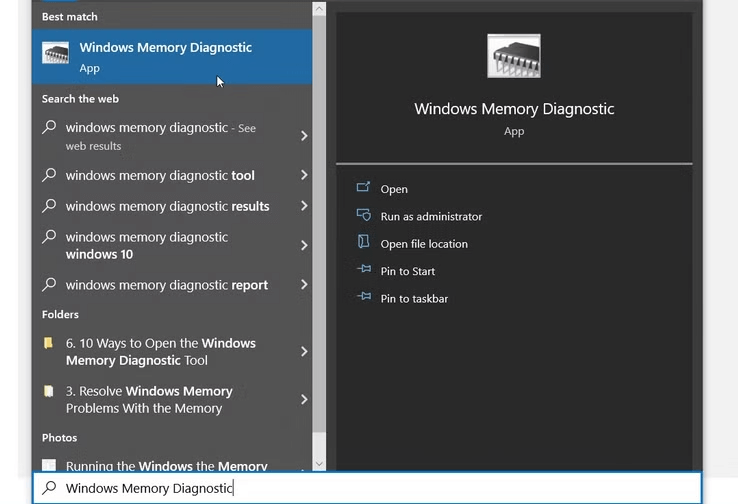
- Type "Memory Diagnostic" or "Windows Memory Diagnostic" in the search bar.
- Select Windows Memory Diagnostic from the search results to open the tool.
- Click Restart and check for problems → Check for errors.
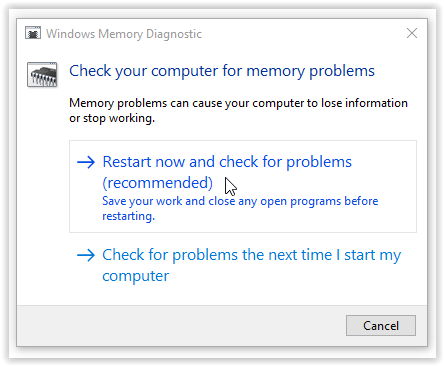
2. Check Hard Drive: Open Command Prompt → type chkdsk C: /f /r → press Enter → Restart.

Follow prompts to fix any detected errors.
- Consider temporarily removing extra RAM sticks or peripherals to see if the restore completes.
- If your hard drive is old or making unusual noises, a replacement may be necessary.
Method 6: Free Up Disk Space
Insufficient disk space can cause System Restore to freeze.
Steps:
1. Open Disk Cleanup: Type Disk Cleanup in the Start menu.
2. Select the drive (usually C:) and check the boxes for temporary files, Recycle Bin, and system cache.
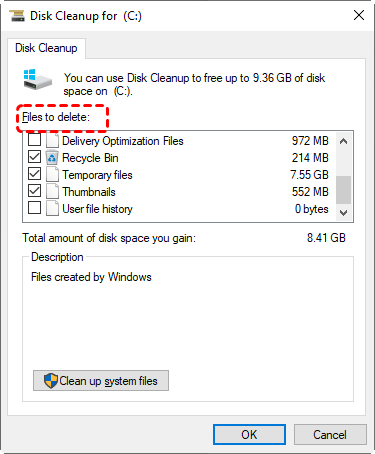
3. Click Clean Up System Files for more space.
4. Retry System Restore once there’s enough free space (at least 5–10 GB recommended).
- Move large personal files like videos and photos to an external drive to free additional space.
- Avoid storing large downloads or installers on your system drive.
Method 7: Restore from a Different Restore Point
Sometimes a specific restore point is corrupted. Trying a different one can bypass the freeze.
Steps:
1. Open System Restore from Safe Mode.
2. Click Choose a different restore point.
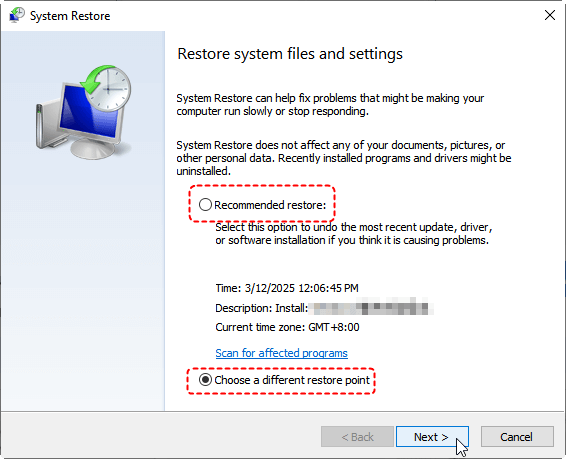
3. Select a restore point from a different date before the issue occurred.
4. Follow the prompts to complete the restoration.
- Always check the restore point’s description to make sure it’s before the problem started.
- Avoid using restore points created during software installation that may have caused the issue.
Bonus Tip: The Best Tool for Data Recovery — MyRecover
If your computer gets stuck during System Restore, there’s always a risk of data loss. Even after you successfully perform a system restore, the personal data saved on your computer will be lost. That’s where MyRecover comes in.
MyRecover can recover various types of lost data from Windows computers, including documents, photos, videos, audio files, emails, and more, from different storage devices like HDDs, SSDs, USB drives, and SD cards, even after accidental deletion, disk formatting, or system crashes, supporting common file systems like NTFS, FAT32, and exFAT.
Why MyRecover?
- Quick and Easy: Recover files in just a few clicks.
- Supports Multiple Formats: Works for documents, images, videos, audio files, and more.
- Safe and Reliable: Doesn’t overwrite existing files, ensuring full recovery.
- Preview Before Recovery: Check files before restoring them.
 100% Secure
Even if System Restore fails/freezes again, or succeeds after the fix, MyRecover ensures your personal files stay safe. Think of it as a safety net while performing risky system operations.
Preventive Tips to Avoid System Restore Freezes
- Keep Windows updated regularly.
- Create multiple restore points instead of relying on just one.
- Run antivirus scans frequently.
- Check disk health periodically.
- Avoid installing unnecessary programs before critical updates.
Conclusion
A computer stuck on system restore is initializing can feel like a nightmare, but with the right approach, it’s usually fixable. From simple restarts to advanced repairs and using MyRecover for data safety, you can regain control of your PC without panic. Prevention is always easier than recovery—so keep your system healthy and prepared.

Stay Updated With Our
Latest Tips
Add us as a preferred source on Google to never miss helpful guides.
 Add as preferred source >>