 MyRecover



We Couldn’t Create a New Partition? Fix Windows Setup
The Windows "we couldn't create a new partition" can appear even when your SSD and its partitions are visible. This guide explains the likely causes, starts with changes that preserve the existing layout, and shows when a fresh layout is appropriate. It also covers recovering partitions or files accidentally lost during troubleshooting.

By Aria / Updated on October 30, 2026


What Does "We Couldn’t Create a New Partition" Mean?
Windows Setup displays "We couldn’t create a new partition or locate an existing one" when it cannot create or use the partitions needed for the installation. You may select a visible disk, click Next, and receive the message even though several partitions already appear in the list.
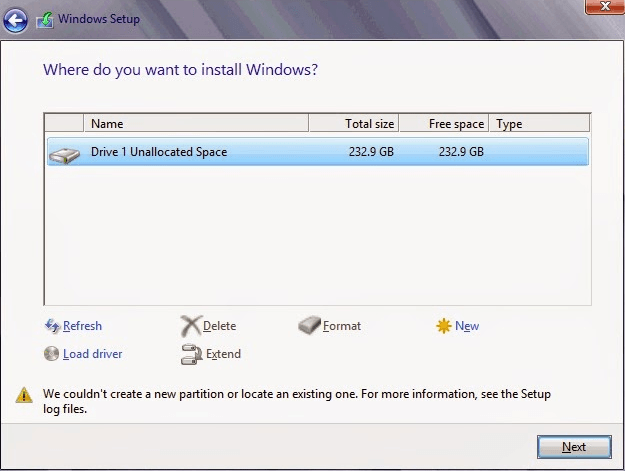
A visible data partition is not necessarily a usable Windows startup partition. Installation must work with the selected disk, its layout, and the way the installer was booted. This error does not automatically mean that the disk has failed or that you must delete everything on it.
Why Can’t Windows Installation Create a New Partition?
The error usually occurs when Windows Setup cannot properly access, identify, or prepare the target drive for installation. Several factors can lead to the same message:
- Other connected storage: Extra disks, memory cards, and USB storage can complicate which device setup uses for installation and startup files.
- An unsuitable boot mode: A UEFI installation uses GPT, while a legacy BIOS installation normally uses MBR. A mismatch can prevent setup from using the layout as intended.
- Installation-media problems: A USB that starts setup can still have a compatibility or preparation problem later in the process.
- An unsuitable existing layout: Setup may lack usable space or an appropriate arrangement for the required system partitions, even when a normal data partition has free space.
These are troubleshooting directions, not a diagnosis from the message alone. Start with connected devices and the installation environment before replacing the disk's layout.
How to Fix “We Couldn’t Create a New Partition” Error
Try the relevant methods below and stop when installation works. Before any partition changes, verify the target by capacity and layout, and back up files you can still access; if data has already disappeared, use the recovery section before continuing installation.
1. Disconnect Unnecessary Drives and Retry Setup
If several drives are connected, temporarily disconnect those you are not installing Windows on. This can help prevent Windows Setup from choosing another drive for its startup files. This is especially relevant if you have external disks, memory cards, or another internal Windows drive connected. Keep the installation USB attached, because setup still needs it. The goal is to simplify the devices available to the installer, not to erase anything or change firmware settings.
Step 1: Shut down and remove extra external storage. Exit setup, turn off the PC, and disconnect unnecessary external disks, flash drives, and memory cards. Leave the Windows installation USB and essential input, display, and power devices connected.
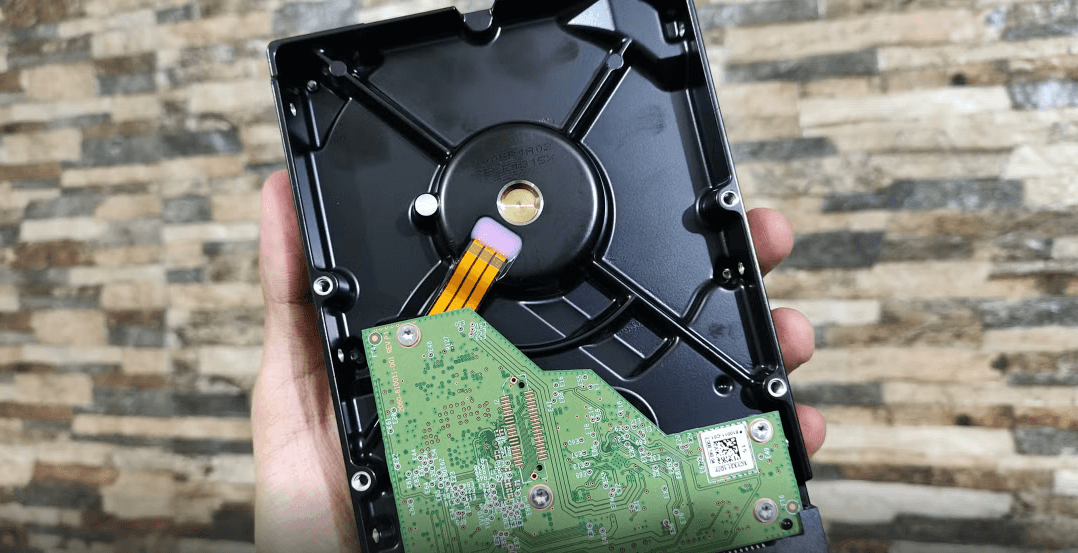
Step 2: Isolate the intended internal disk where practical. If your service manual permits it and you can work safely, temporarily disconnect non-target internal drives while powered off. Otherwise leave them connected and identify the installation target carefully. If a computer's internal storage is difficult to access, do not dismantle it merely to try this check.
Step 3: Try setup again. Boot from the installation USB, confirm the intended target by capacity and layout, and click Next. If installation succeeds, reconnect removed storage after shutting down.
2. Match the Installation Boot Mode to the Disk Layout
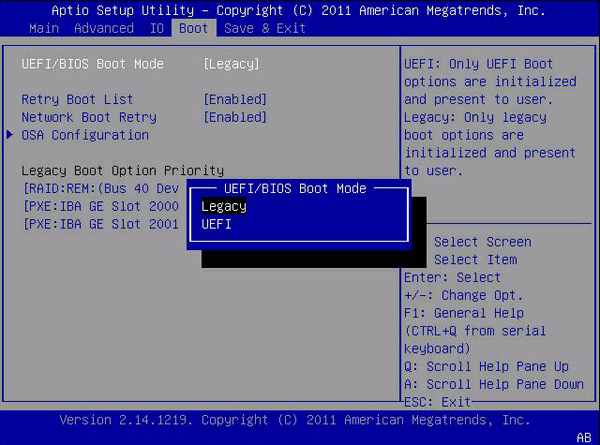
The same installation USB may offer different startup entries, and the selected entry determines how Windows Setup expects the disk to be prepared. For supported Windows 11 installations, use the UEFI route with GPT. Older Windows 10 configurations may use legacy BIOS with MBR. Checking these together can explain why a disk is visible but cannot be used as expected. Change only the relevant boot selection; randomly switching settings or converting a disk that contains needed files can introduce another problem instead of solving this one.
Step 1: Check the target's partition style. Press Shift + F10 in setup to open Command Prompt, enter diskpart, list disk to check the disk capacity and GPT column (an asterisk (*) indicates GPT).
Step 2: Return to the boot menu. Enter exit to leave DiskPart and again to close Command Prompt, then restart and open your model's one-time boot menu.
Step 3: Select the appropriate installation entry. For a UEFI/GPT installation, choose the USB's UEFI entry and retry setup. Preserve an existing legacy configuration only where it is appropriate to the intended operating system; do not use legacy mode to bypass Windows 11 requirements.
- ★Tips:
- Do not mark a GPT partition Active or disable Secure Boot as a universal fix. If the required installation needs a different disk layout, protect the data before considering the fresh-install method below.
3. Recreate the Installation USB or Try Another USB Drive
If the target and boot mode look correct, test the installer itself. Some USB devices or preparation methods can cause setup problems even after the initial screen loads. Recreating the media from Microsoft's official download removes uncertainty about the source, while using another reliable flash drive helps test the original device. This changes the installer rather than the internal disk.
Step 1: Get official installation media. On a working Windows PC, follow Microsoft's installation media instructions for your intended Windows version.
Step 2: Prepare a spare USB. Use a flash drive with at least 8 GB of capacity and save anything needed from it elsewhere. The creation process erases the selected flash drive, so verify the device before confirming.
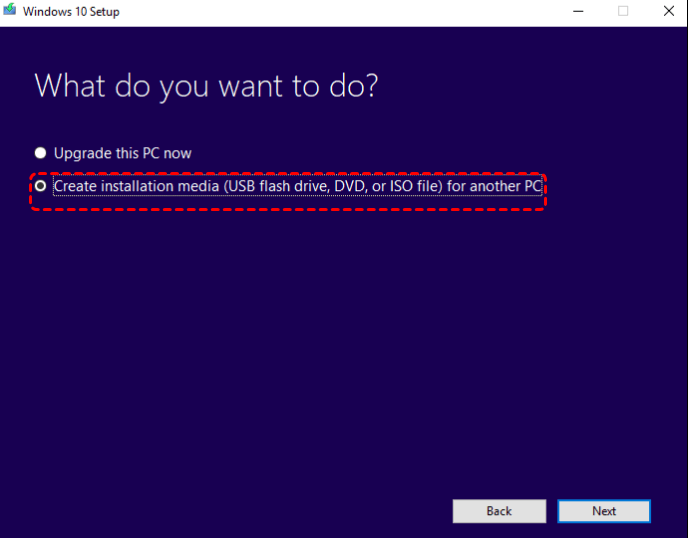
Step 3: Create the installer. Run the Media Creation Tool, choose create installation media (USB flash drive, DVD, or ISO file) for another PC > USB flash drive, and wait for completion. If the previous USB remains suspect, use a different reliable device.
Step 4: Retry from a direct connection. Connect the finished USB directly to the affected PC instead of a hub, boot it in the intended mode, and test installation again.
4. Recreate the Target Disk’s Partition Layout for a Clean Installation
If the installation environment checks have not helped, a fresh layout may let setup create the system partitions it needs. This is appropriate for a new disk or a target whose contents are no longer needed or have been verified in an external backup. Deleting its partitions in setup is the first route; DiskPart Clean is an alternative if the interface cannot complete the task. They are not consecutive requirements, and neither fixes hardware faults. Both remove the selected disk's existing partition layout and access to its files.
- ★Warning:
- This method affects every partition on the chosen target disk, including data and recovery partitions. If files are missing or not backed up, stop and recover them first; do not rely on possible recovery after installing Windows over the same space.
Delete partitions in Windows Setup
Use this option first if Windows Setup lets you select and delete the target drive’s partitions. You can remove them directly from the installation screen, then select the resulting unallocated space and let Windows create the required partitions.
Step 1: Verify the target disk. At the destination screen, compare its capacity and partition layout with the intended installation drive. Do not delete partitions on any other disk.
Step 2: Remove the target's old partitions. Select each partition on that verified disk and choose Delete, confirming only after checking that its contents are protected. Stop if you are unsure which disk an entry belongs to.
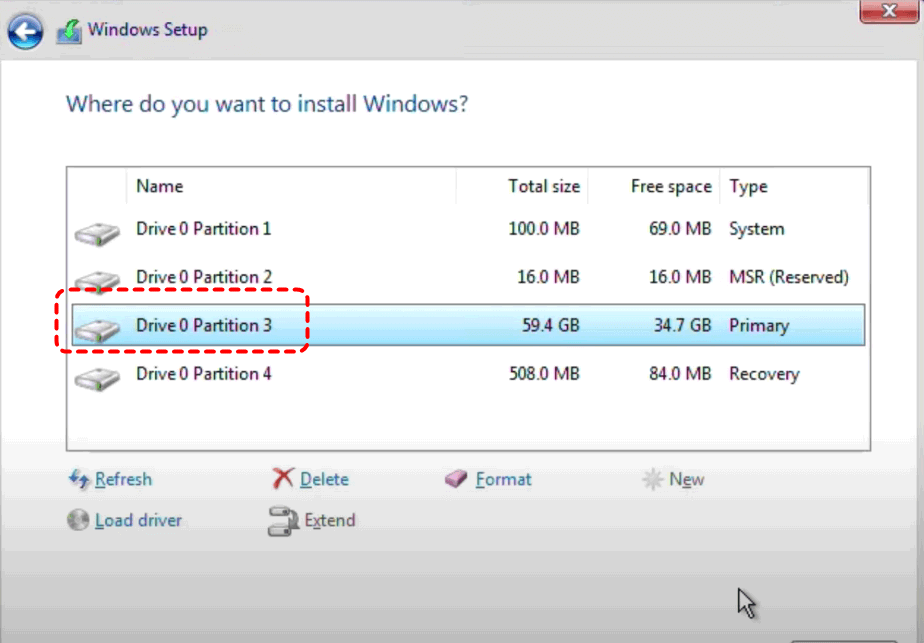
Step 3: Let setup build the layout. Select the resulting unallocated space and click Next rather than manually creating a partition that fills the disk. If installation starts successfully, do not also perform Clean.
Use DiskPart Clean only as an alternative
If Windows Setup cannot delete the partitions through its interface, you can try DiskPart Clean after confirming that everything needed from the target drive is safely backed up. Clean removes the selected drive’s partition information in one operation; it is an alternative to the deletion steps above, not an additional step after they succeed.
Step 1: Open the command interface. If the installation screen cannot complete the layout change and you have protected the target's data, press Shift + F10, using Fn too if your keyboard requires it.
Step 2: Identify and verify the disk. Enter the following commands individually, replacing N with the actual target number shown by list disk. Check its model, capacity, and volumes before proceeding, and do not select the installation USB.
- diskpart
- list disk
- select disk N
- detail disk
Step 3: Remove the verified disk's layout. Enter clean and wait for its success message. Do not substitute clean all, which zeros every sector and prevents recovery of overwritten data.
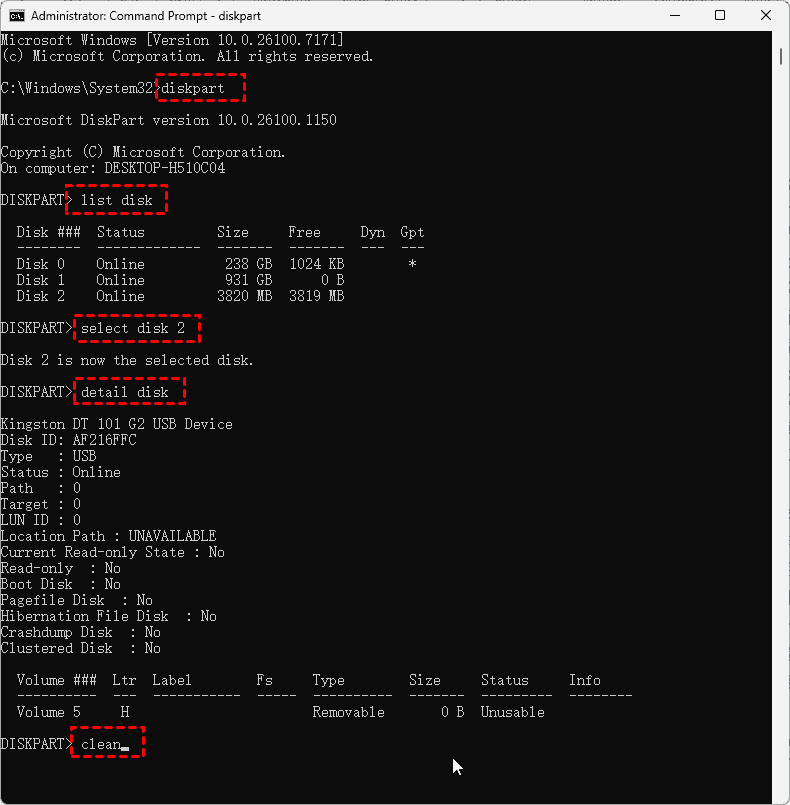
Step 4: Prepare the appropriate style. For UEFI installation, enter convert gpt; for an intentionally selected legacy BIOS installation of Windows 10, enter convert mbr instead. Do not use GPT conversion as a universal instruction for an intentionally retained legacy installation.
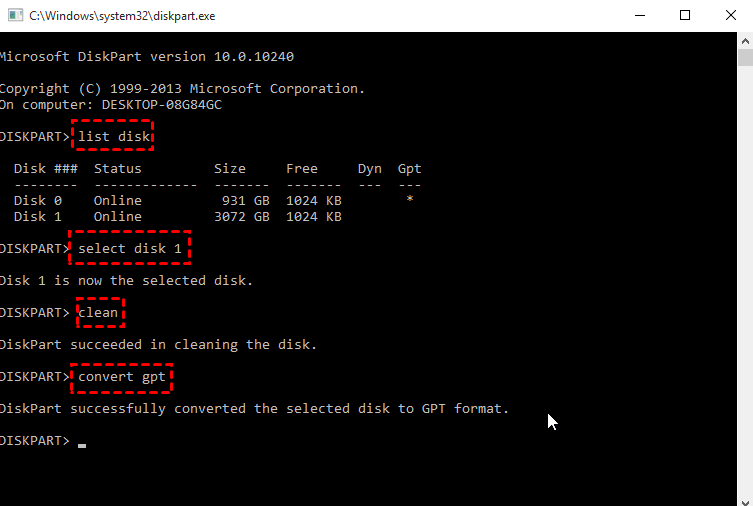
Step 5: Continue installation. Refresh the destination list, select the verified target's unallocated space, and click Next so setup can create its required partitions.
- ★Tips:
- If partition changes still fail with “Data error (cyclic redundancy check)” or an I/O device error, the drive or its connection may have a hardware problem. Stop repeatedly cleaning or repartitioning and contact the manufacturer or a qualified technician, explaining any need to preserve unbacked-up files before approving repairs or replacement.
How to Recover Lost Partitions or Files Before Retrying Installation
If you deleted the wrong partition or ran Clean while troubleshooting, pause installation. Further partition creation and Windows installation can overwrite the information and files you need. Check existing backups first;if no backup abaliable, then consider MyRecover for a readable disk whose needed contents are not already protected.
Choose Partition Recovery to restore an identifiable original partition together with its recoverable files. Choose Deleted Files Recovery when you mainly need particular documents or folders, or when the layout has already changed. These are alternative recovery goals, not two required stages.
If Windows cannot start, prepare recovery access first:
Step 1: Install on a working PC. Download and install MyRecover there, and connect a spare USB whose files you have saved elsewhere.

 MyRecover
- Recover deleted & lost files from HDD, SSD, USB, SD card, camera as you need.
- Support 1000+ formats of photos, videos, docs, archives, emails, compressed files, etc.
- Reliable rescue for deletion, formatted disk, emptied Recycle Bin, system crashes and more.
 100% Secure
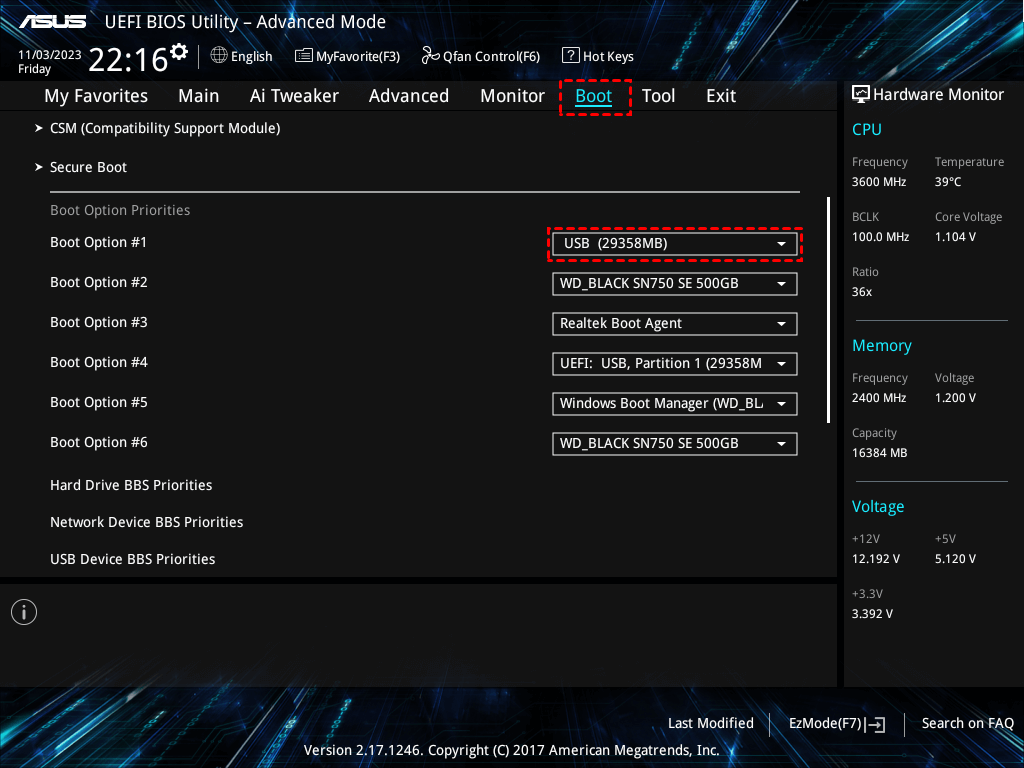
Step 2: Create recovery media. Open PC Crashed Recovery, choose USB Boot Device, verify the flash drive, and click Create. Confirm its erasure and wait for creation to finish.
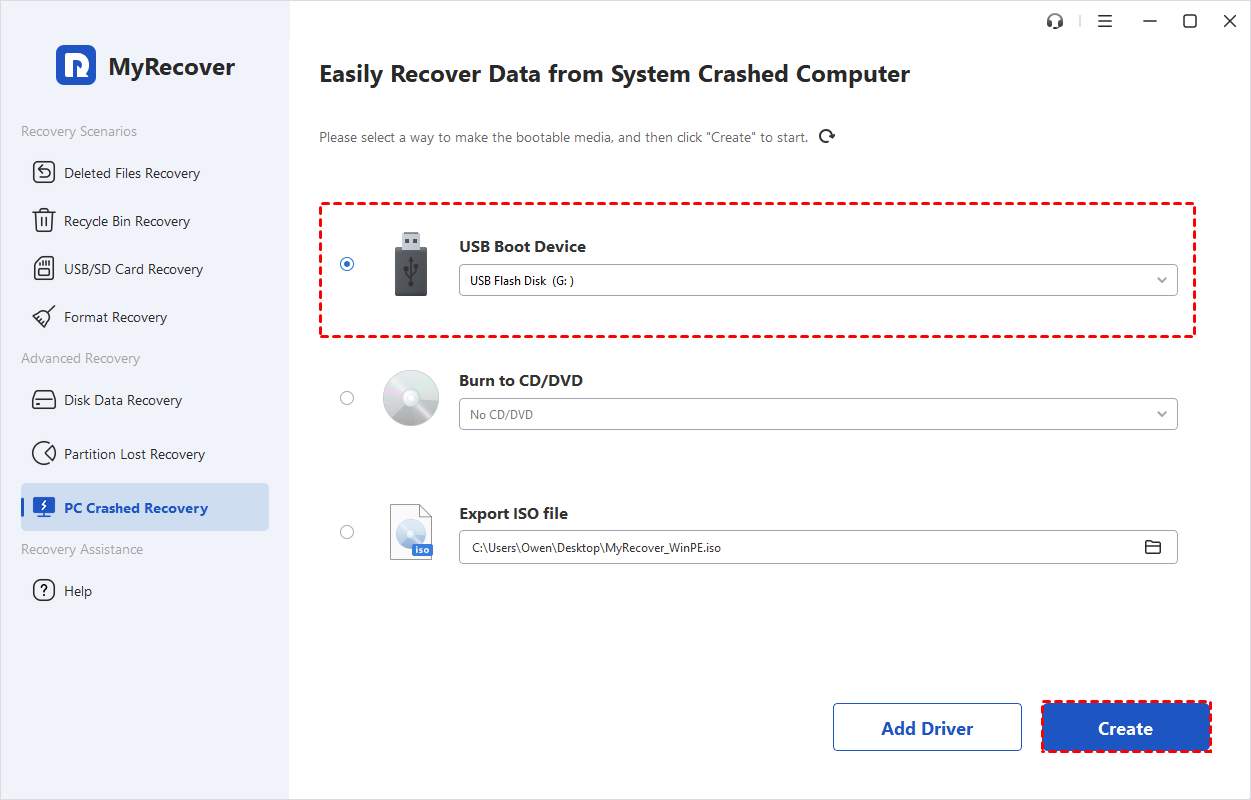
Step 3: Start the affected PC from it. Move the completed USB to that PC and select it from the one-time boot menu to load MyRecover. Connect a separate destination disk for recovered files.
- ★Tips:
- If Windows still starts, run MyRecover installed on another healthy physical disk instead, minimizing further use of the affected Windows disk. MyRecover recovers partitions or files; it does not directly repair this Windows Setup error.
Restore a Deleted Partition with MyRecover
Partition Recovery fits a disk whose original partition has been deleted but can still be identified. It searches for remaining partition information and helps recover the partition together with the files and folders that remain recoverable inside it. This can be useful after deleting an installation target by mistake or removing a disk's layout with ordinary Clean.
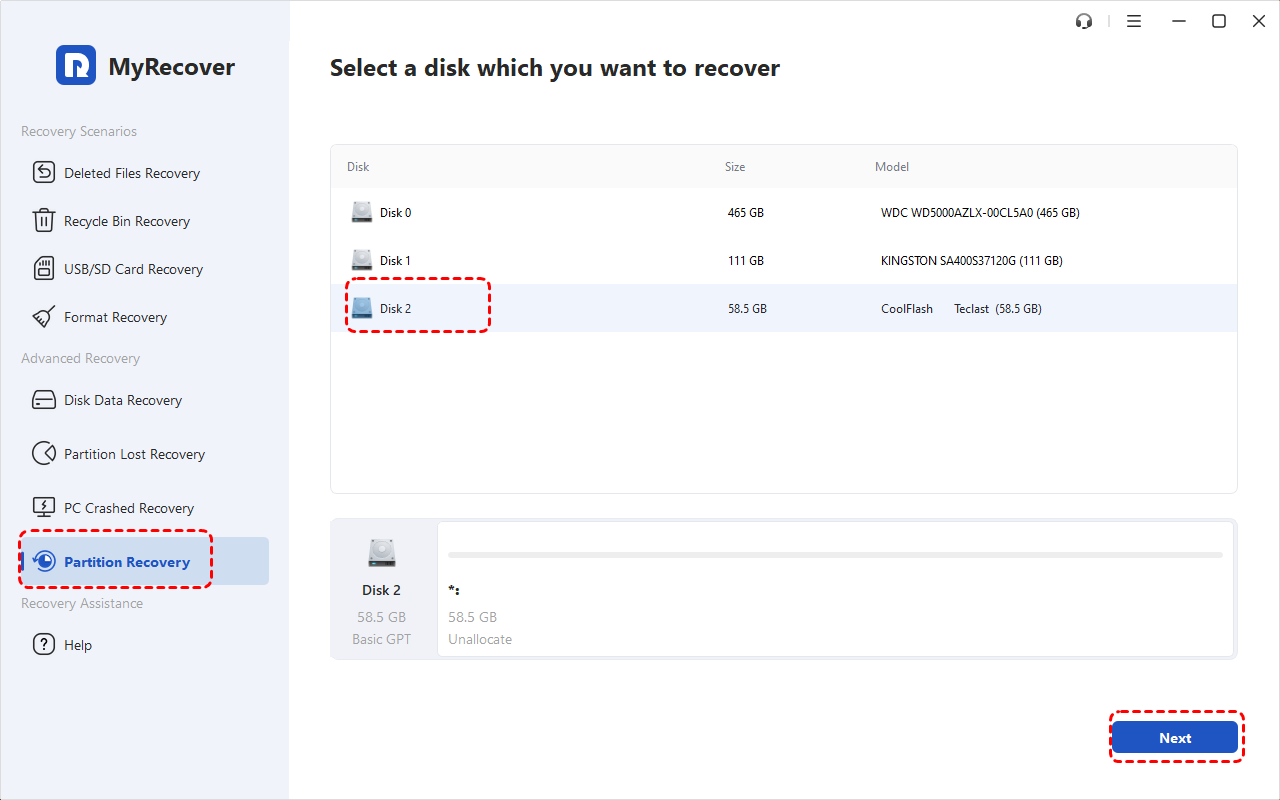
Step 1: Choose the source. Open Partition Recovery, select the original disk by model and capacity, and click Next. Drive letters can differ in the recovery environment.
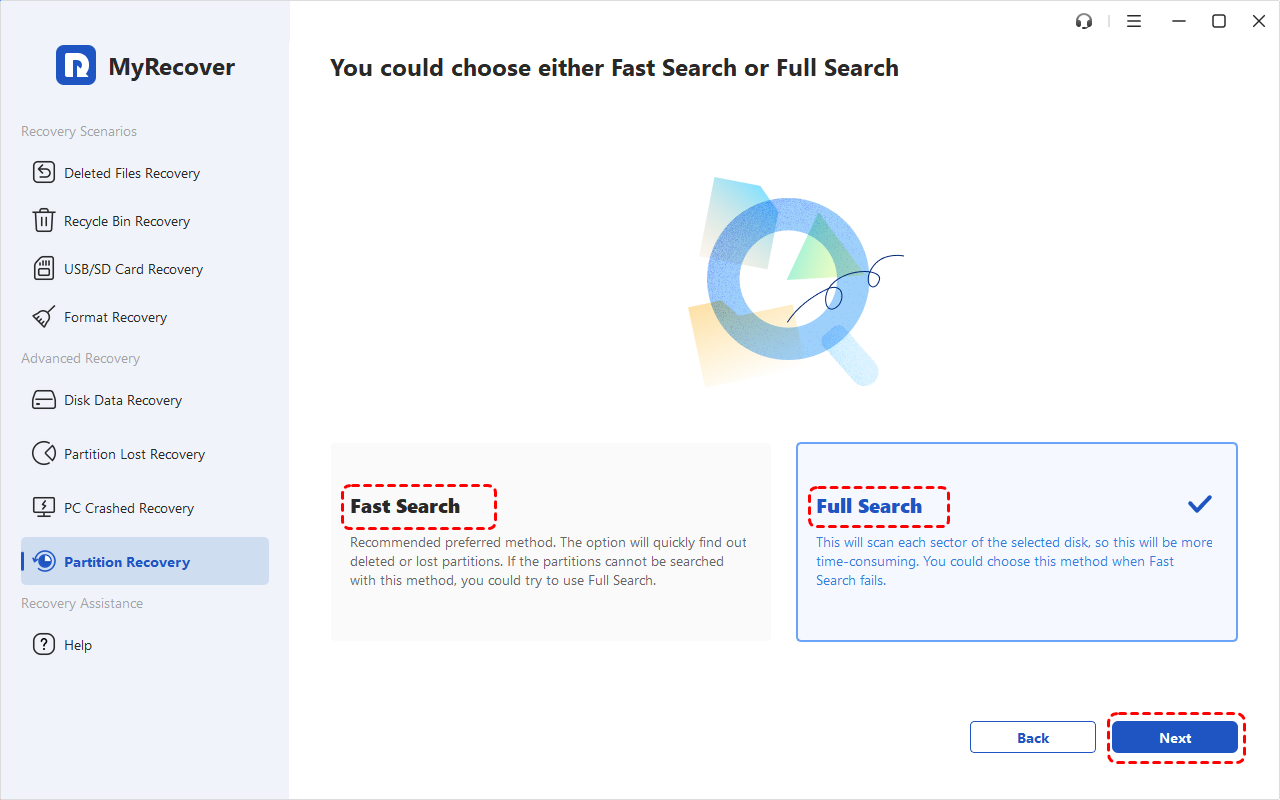
Step 2: Search for the partition. Run Fast Search first; use Full Search if it does not locate what you need.
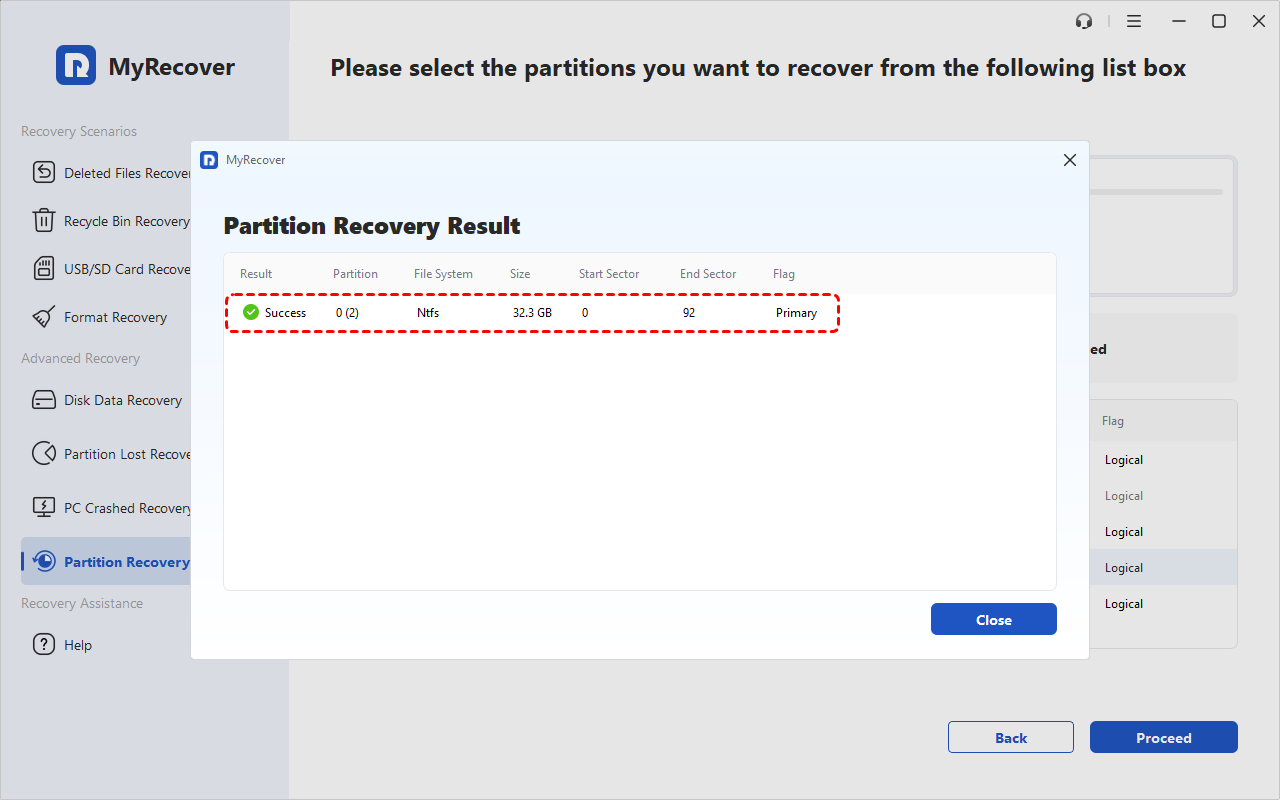
Step 3: Check the result. Compare the found partition's size, file system, and position with the original.
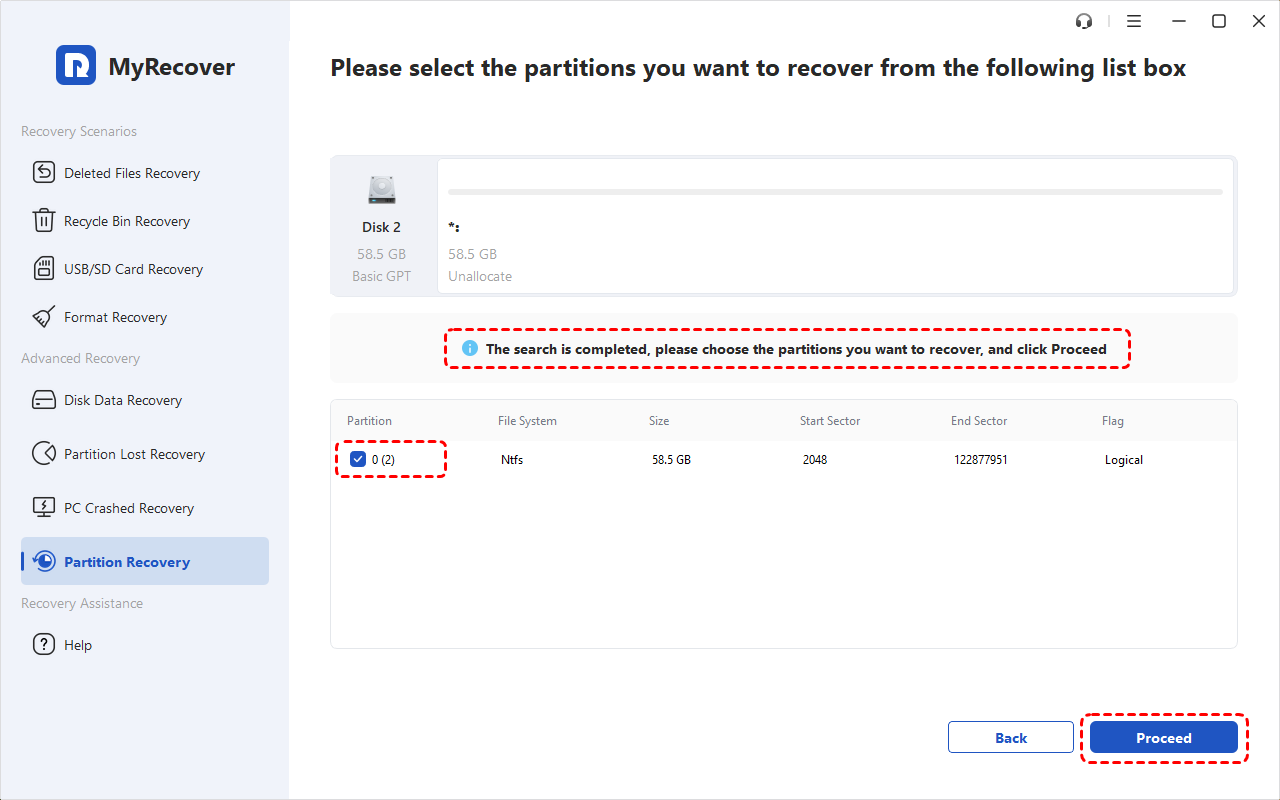
Step 4: Recover and back up. Select the verified partition, click Proceed, and choose Finish when recovery completes. Once accessible, check important files and copy them to another physical disk before retrying installation.
Recover Important Files with MyRecover
A file scan suits a different goal: retrieving selected contents rather than restoring the original volume layout. This is useful when you mainly need work documents or photos, or subsequent changes have made the old partition difficult to identify. MyRecover can scan the readable source, provide filters, and preview supported files so you can examine what remains. Save the selected results outside the affected disk, then verify them before continuing setup. Familiar filenames are helpful for searching, but the recovered contents are what you ultimately need to check.
Step 1: Scan the original disk. Open Deleted Files Recovery, identify the internal source by model and capacity, and start scanning. Do not choose the recovery USB or destination disk.
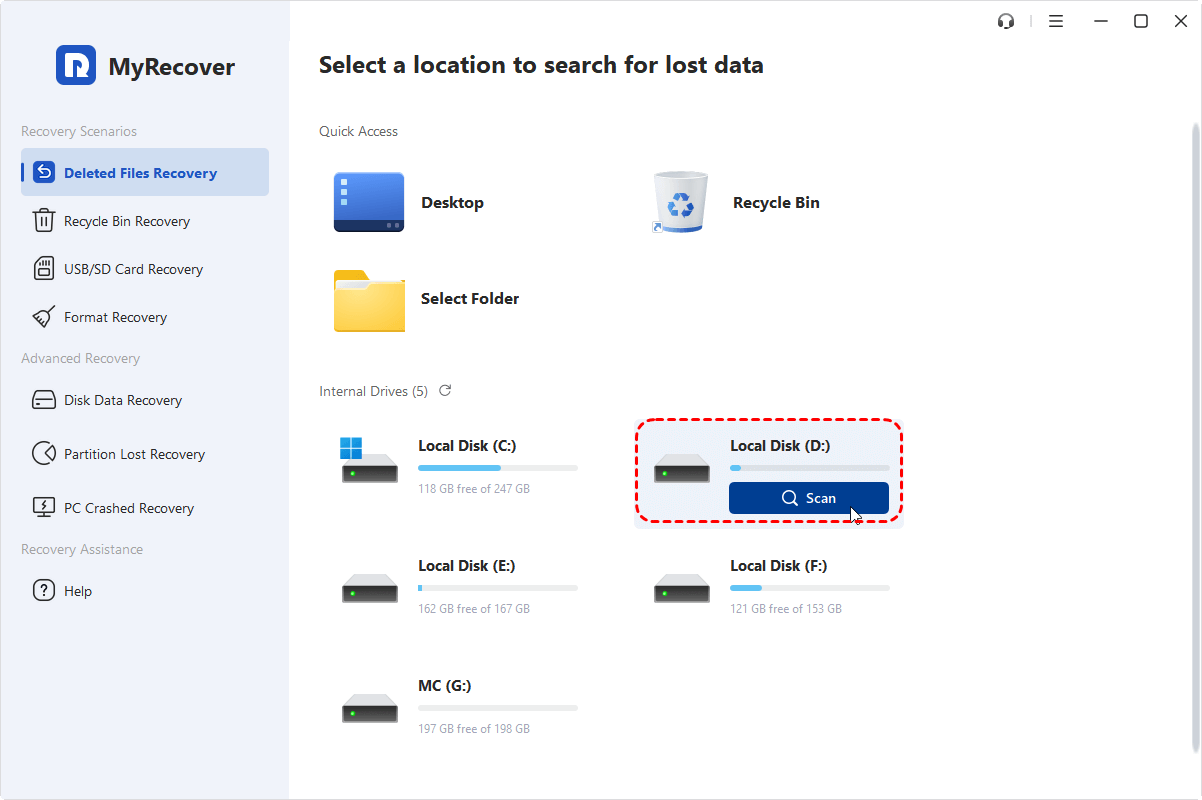
Step 2: Find needed items. Allow results to populate, then search names or use available type, date, and size filters. Preview supported files and select the relevant contents.
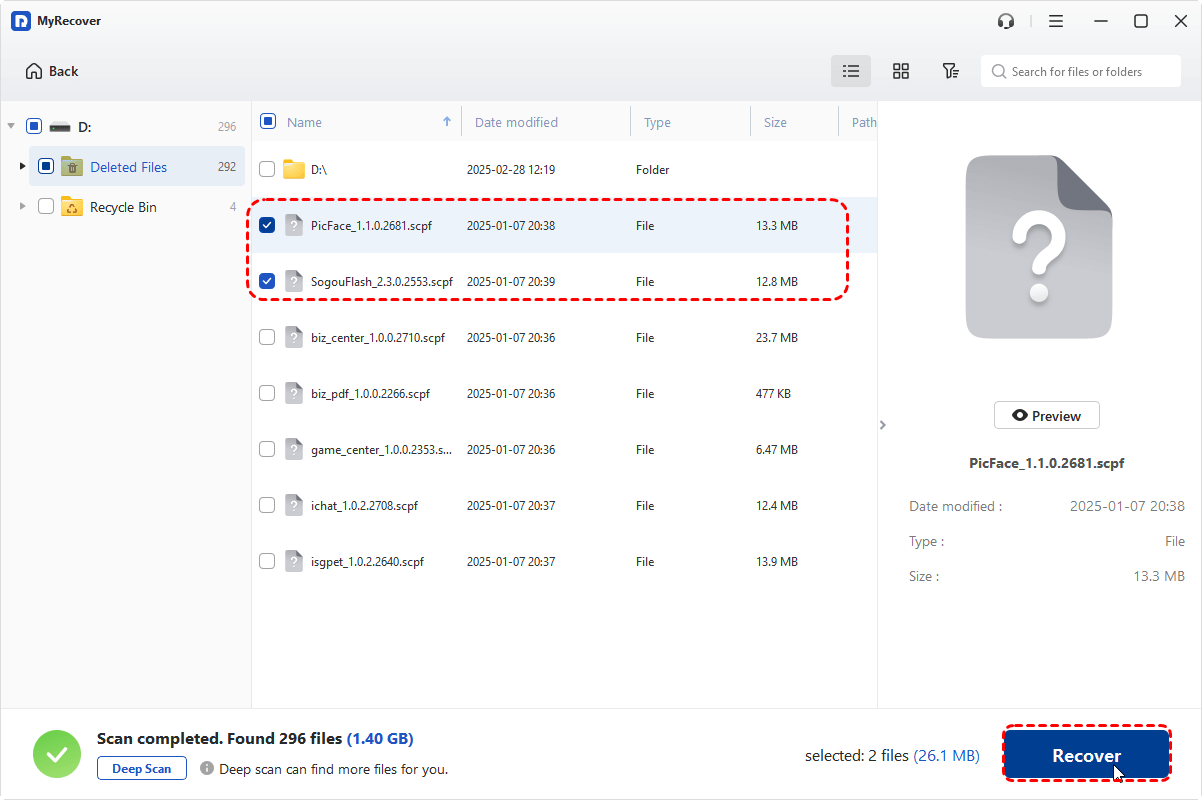
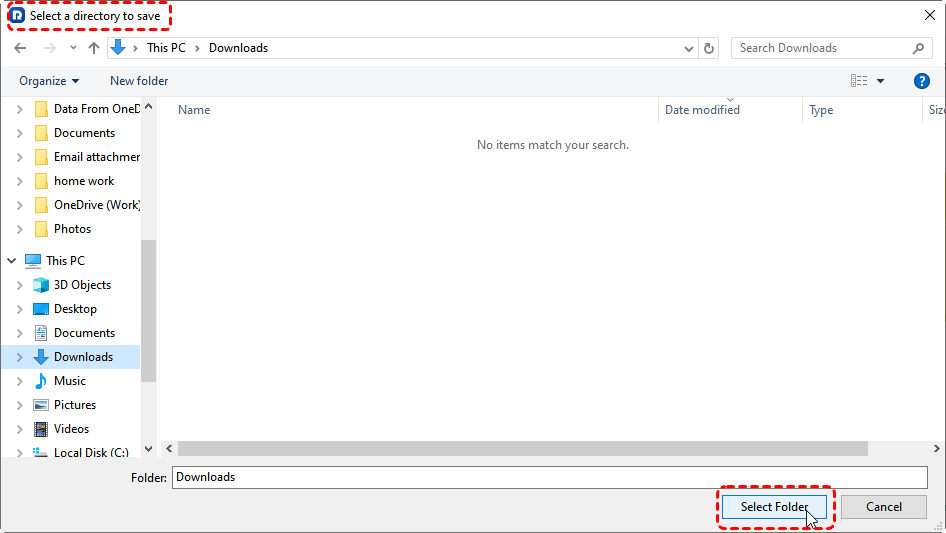
Step 3: Save outside the source. Click Recover and select a folder on the separate destination disk. Open the saved files to confirm their contents before returning to partition changes or installation.
Conclusion
For "we couldn't create a new partition", start by simplifying storage connections, matching the boot mode, and testing fresh installation media. Rebuild the target layout only when its existing contents are no longer needed or safely backed up. If troubleshooting has already removed important partitions or files, recover and verify them using MyRecover before continuing.
For IT teams providing recovery across company computers, MyRecover Technician supports unlimited deployment and use within one organization.
Frequently Asked Questions
Why does setup report this error when a partition already exists?
An existing partition does not guarantee that setup can create or use the system partitions required for startup. The selected boot mode, available layout, or another connected disk may interfere. Check those conditions before deleting a partition simply because it appears in the list.
Do I need to delete every partition to install Windows?
No, deleting every partition is not required for every Windows installation or this error. It is one route for deliberately rebuilding a fully backed-up target disk during a clean install. Do not delete other disks' partitions or personal data you still need to preserve.
Should I mark the target partition as active?
Not for a normal UEFI/GPT installation; the Active flag belongs to BIOS/MBR boot arrangements. Applying old instructions to a different layout can create confusion without fixing setup. Identify the intended boot mode first and let Windows Setup create the appropriate partitions where possible.
Can another connected drive cause this error?
Yes, additional storage can sometimes interfere with setup's choice of startup or installation destination. Disconnect unnecessary external storage while powered off and retain the installation USB. Temporarily disconnect internal non-target drives only where safe and practical; you do not need to erase those drives.
Will DiskPart Clean remove all partitions on the selected disk?
Yes, ordinary Clean removes the selected disk's partition information, affecting all its partitions rather than only the highlighted Windows volume. It does not zero every sector like Clean All, but later installation can overwrite old data. Verify the disk and protect its contents before running it.
Can I recover files after deleting partitions during Windows Setup?
Possibly, files may be recoverable if the drive is readable and their contents have not been overwritten or reclaimed. Stop further installation writes and check backups or recovery options first. Finding an old partition or filename does not guarantee that every file's contents remain intact.
Does this error mean my SSD has failed?
No, this error alone does not establish SSD failure. Connection choices, boot mode, installation media, and partition layout can all be relevant. If it comes with CRC errors, repeated disconnections, or failed storage diagnostics, stop repeated partition changes and obtain hardware advice while prioritizing important data.

Stay Updated With Our
Latest Tips
Add us as a preferred source on Google to never miss helpful guides.
 Add as preferred source >>