 MyRecover



[Solved]: How to Fix Windows 11 Update Stuck on Restarting
Experiencing Windows 11 update stuck on restarting can be frustrating, especially when your computer remains on the restarting screen for an extended period without completing the update. In this guide, you will learn the common causes of the problem and practical solutions to fix it safely.

By Aria / Updated on March 10, 2026


Stuck on Restart Screen After Windows Update
My laptop meets the requirements for windows 11 by far so windows update automatically downloads it and installs it. Then it prompts a restart, however for months now upon restart just gets stuck on a sort of black screen that says the brand of my laptop logo 'Gigabyte' then a quarter/half installation/loading circle and remains like that for hours. I get back to windows basically by holding power off and back on a few times until windows comes back on, to which we then end up repeating the process at least once a month.
- Question from Dave
Keeping Windows updated is essential for maintaining system security and performance. However, some users recently encounter a frustrating issue where the system becomes stuck on restarting after installing updates. Instead of completing the update process and returning to the desktop, the computer remains on the restarting screen for an unusually long time or repeatedly restarts without finishing the update.

This situation can prevent access to files, applications, and normal system functions, making it difficult to determine whether the update is still processing or if the system has become stuck. In this guide, we will explain why the Windows update stuck on restarting problem occurs and provide practical methods to fix it.
Why Is Windows 11 Update Stuck on Restarting?
When a system remains on the restarting screen during an update, it usually indicates that Windows cannot complete the final stage of the installation process. At this stage, Windows attempts to apply system changes, configure drivers, and finalize update components. If any part of this process fails or becomes unresponsive, the update may stall and leave the computer appearing frozen on the restart screen.
Several technical factors can trigger the Windows 11 update stuck on restarting issue. Understanding these potential causes can help identify the most effective solution.
🔔Incomplete or Interrupted Update Installation
If the update process is interrupted due to sudden shutdowns, power loss, or system crashes, Windows may fail to finish configuring the update during restart. This can result in the system remaining stuck on the restarting screen while trying to resume the installation.
💻Corrupted Windows Update Components
Windows relies on several services and cached files to download and install updates. If these update components become corrupted or inconsistent, the system may encounter errors while applying the update after restarting.
💾Driver Conflicts
During updates, Windows may install new drivers or modify existing ones. If a driver is incompatible with the current hardware configuration, the system may fail to load properly during the restart phase.
💽Insufficient System Resources or Disk Errors
Limited disk space, file system errors, or bad sectors on the system drive can also interrupt the update process. When Windows cannot read or write necessary update files, the restart stage may never complete.
📂Background Software Interference
Security software, system optimization tools, or other background programs may interfere with update services or system configuration changes, preventing Windows from finishing the update correctly.
How to Fix Windows 11 Update Stuck on Restarting
Once you understand the possible causes behind the issue, the next step is applying targeted solutions to restore normal system startup. When windows 11 update stuck on restarting occurs, the system is usually stuck in the final stage of update configuration. Try the following methods to diagnose and resolve the problem without losing data.
Method 1. Wait for the Update Process to Finish
Sometimes the system may appear frozen while it is still processing background update tasks. Large updates or slower hardware can significantly increase the time required to configure system components. If the Windows 11 stuck on restarting screen appears shortly after installing updates, the safest first step is to allow the system additional time to complete the process before performing any intervention.
Step 1. Leave the computer running on the restarting screen for at least 30–60 minutes.
Step 2. Observe whether the loading circle continues spinning or if the system progresses to the desktop.
Step 3. If there is no progress after a long wait, proceed with the next troubleshooting method.
Method 2. Perform a Forced Shutdown and Restart
If Windows remains stuck for hours without progress, a controlled forced restart can interrupt the stalled update process and allow the system to attempt a fresh boot. This method is often effective when Windows 11 stuck on restarting during update is caused by a temporary system freeze or update installation glitch.
Step 1. Press and hold the Power button for about 10 seconds until the computer shuts down completely.
Step 2. Wait 10–15 seconds to ensure the system fully powers off.
Step 3. Press the Power button again to restart the computer and check whether Windows boots normally.
Method 3. Boot Windows into Safe Mode
Safe Mode loads Windows with only essential drivers and services. If a faulty driver, application, or background service causes the windows 11 stuck on restarting after update problem, Safe Mode allows the system to start in a minimal environment where problematic components can be removed or repaired.
Step 1. Force shutdown the computer three times during startup to enter the Windows Recovery Environment (WinRE).
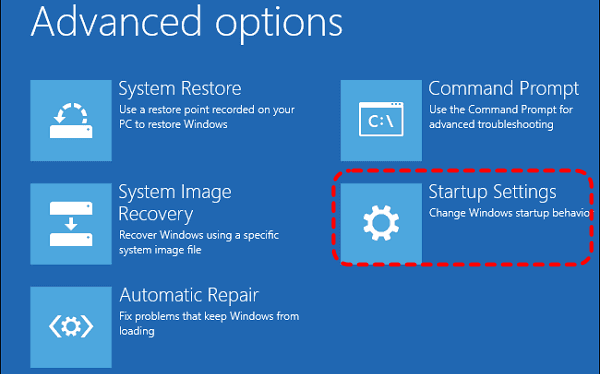
Step 2. Select "Troubleshoot" > "Advanced options" > "Startup Settings".
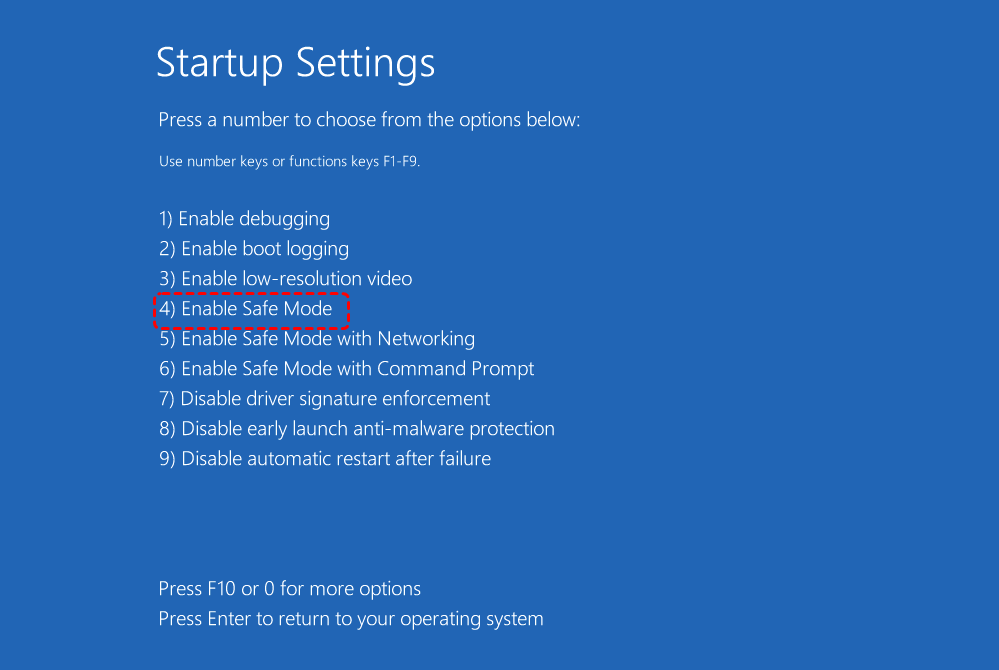
Step 3. Click "Restart", then press F4 to start Windows in Safe Mode.
Step 4. Uninstall the recently installed updates, driver, or applications that may have triggered the issue.
Method 4. Run the Windows Update Troubleshooter
Windows includes a built-in troubleshooter designed to detect and repair problems related to the update service. It checks update services, registry settings, and cached update files. If you entered Safe Mode, running this tool can help resolve errors that lead to the Windows 11 update stuck on restarting problem.
Step 1. Go to "Settings" > Update & Security > "Troubleshoot", then click "Additional Troubleshooters".
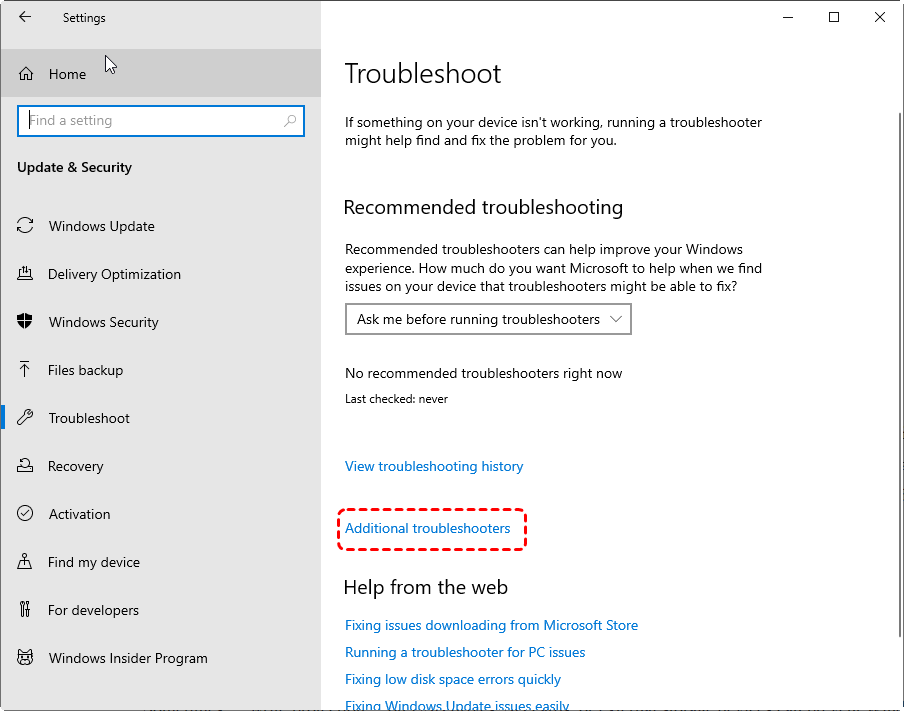
Step 2. Select "Windows Update" and click on "Run the troubleshooter".

Step 3. Follow the on-screen instructions and restart the computer after the scan finishes.
Method 5. Reset Windows Update Components
If Windows Update services or cached files become corrupted, the system may repeatedly fail while applying updates, resulting in the Windows 11 stuck on restarting screen after update issue. Resetting the update components clears damaged cache files and restarts the update services, allowing Windows to download and install updates properly again.
Step 1. If you entered Safe Mode, locate Command Prompt in the Start menu and right click on it, then choose "Run as administrator".
- Notes:✎...
- Alternatively, you can also open Command Prompt from the Windows Recovery Environment. Navigate to "Advanced options" > "Troubleshoot" > "Advanced options" > "Command Prompt".
-

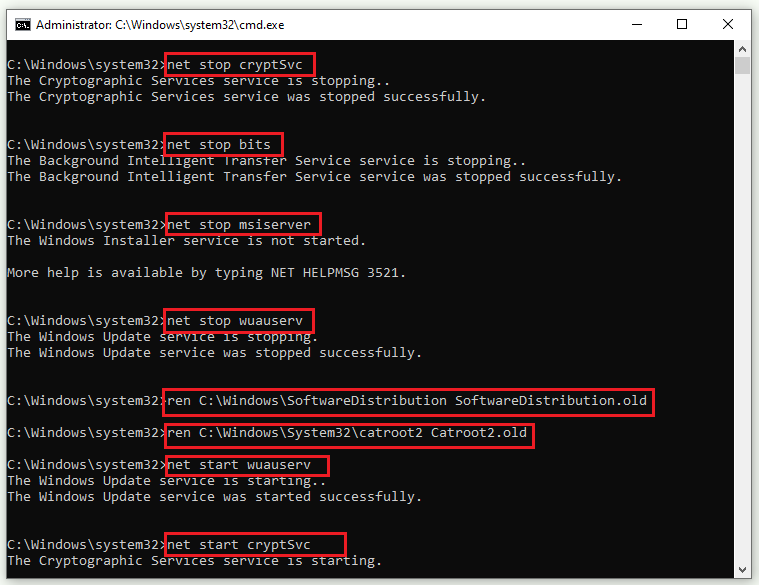
Step 2. Enter the following command and press "Enter" after each one:
- net stop cryptSvc
- net stop bits
- net stop msiserver
- net stop wuauserv
- ren C:\Windows\SoftwareDistribution SoftwareDistribution.old
- ren C:\Windows\System32\catroot2 Catroot2.old
- net start wuauserv
- net start cryptSvc
- net start bits
- net start msiserver
Step 3. Restart the computer and check whether the update process completes normally.
Method 6. Perform Startup Repair
Startup Repair is a recovery tool that scans for boot-related problems and automatically repairs corrupted startup files or configuration errors. If Windows 11 stuck on restarting during update is caused by damaged boot components, this tool can help restore the correct startup structure.
Step 1. Enter Windows Recovery Environment by interrupting the startup process three times.
Step 2. Select "Troubleshoot" > "Advanced options" > "Startup Repair".
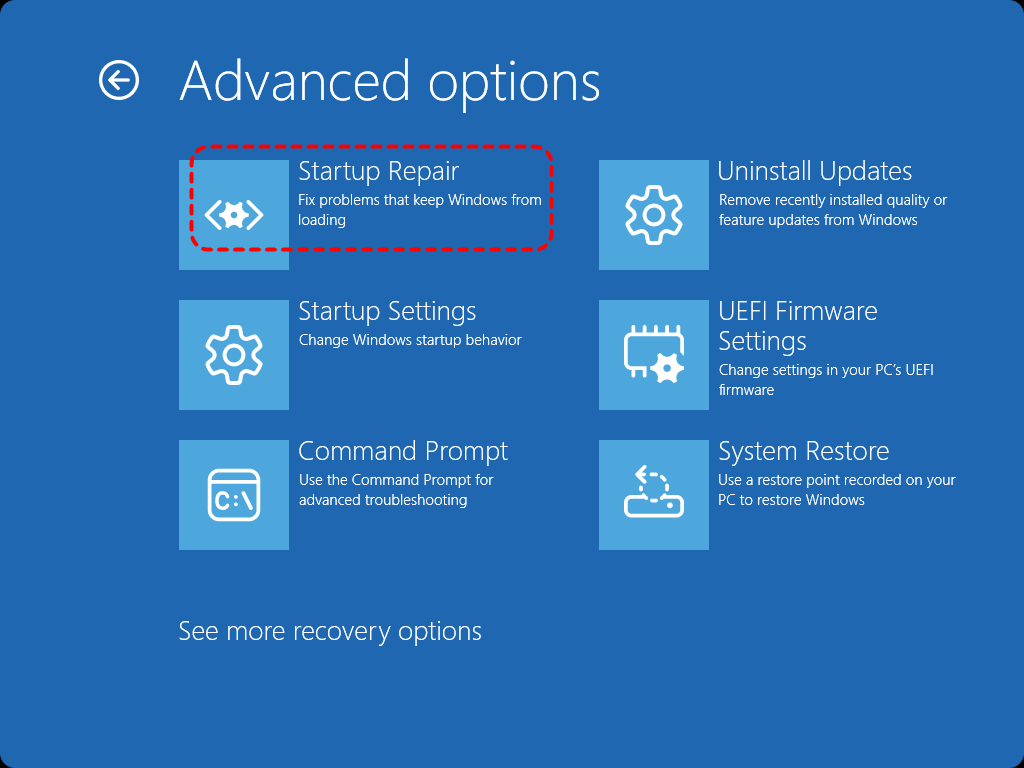
Step 3. Choose your Windows account and enter the password if required.
Step 4. Wait for Windows to diagnose and repair startup problems automatically.
Method 7. Run SFC and DISM Commands
System file corruption can also prevent updates from completing properly. The System File Checker (SFC) and DISM utilities can repair damaged system files and restore the Windows image, which may resolve the Windows stuck on restarting after update issue.
Step 1. Open Command Prompt from "Advanced options" in the recovery environment.
Step 2. Run the following command to repair the Windows image:
DISM /Online /Cleanup-Image /RestoreHealth
Step 3. After the process completes, run the System File Checker:
sfc /scannow

Step 4. Restart the computer after both scans finish.
Method 8. Perform a System Restore
If the problem began after installing a specific update or system change, restoring the system to an earlier restore point can undo those modifications. System Restore returns Windows system files and settings to a previously stable state, which may eliminate the Windows 11 update stuck on restarting problem without effecting your personal files.
Step 1. Enter the Windows Recovery Environment and select "Troubleshoot".
Step 2. Click "Advanced options" > "System Restore".
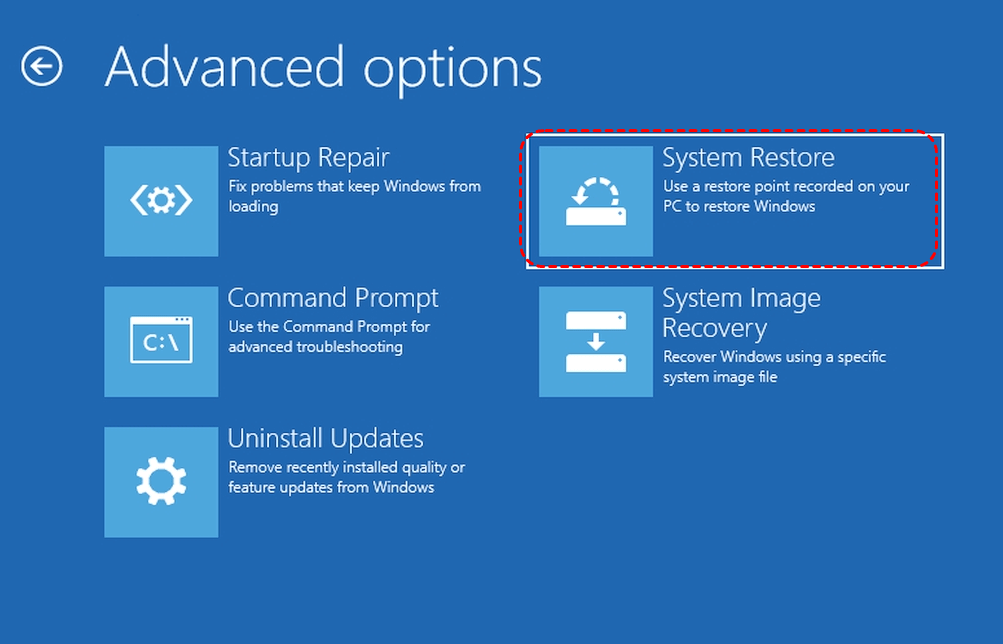
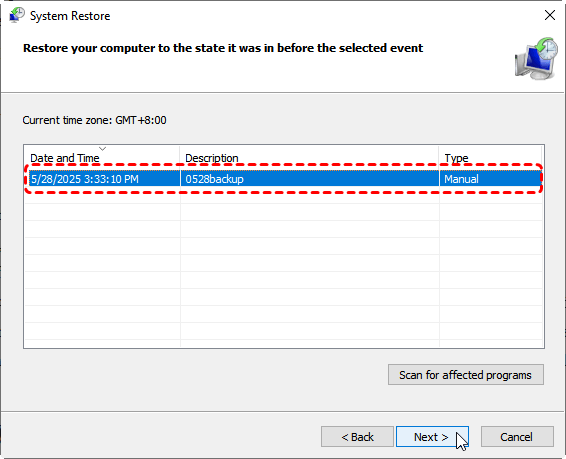
Step 3. Choose a restore point created before the update problem occurred and click "Next".
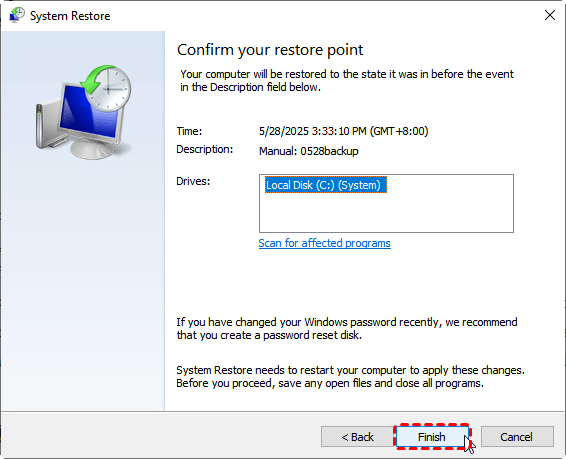
Step 4. Confirm the restore point and click "Finish" to start the process. You can check the affected programs by clicking on the "Scan for affected programs".
How to Recover Lost Files After a Failed Windows Update
When Windows updates get stuck on restarting or fail to install properly, users often focus on restoring system functionality first. However, update failures can sometimes lead to unexpected data loss, especially if the system files become corrupted, the update process is interrupted, or a reset is performed to fix the issue. Important documents, photos, or project files stored on the system drive may become inaccessible or even disappear.
In such situations, using a reliable data recovery tool can significantly improve the chances of retrieving lost files. MyRecover is designed to handle 500+ complex data loss scenarios caused by crashed system, failed Windows updates, and corrupted drives, deleted partitions, etc. It features an advanced scanning algorithm that can quickly locate deleted or inaccessible files, while its deep scan capability helps recover data that standard recovery methods may miss.

 MyRecover
- Recover deleted & lost files from HDD, SSD, USB, SD card, camera as you need.
- Support 1000+ formats of photos, videos, docs, archives, emails, compressed files, etc.
- Reliable rescue for deletion, formatted disk, emptied Recycle Bin, system crashes and more.
 100% Secure
Step 1. Install and launch MyRecover on your computer (not the drive with lost files), then select the drive where the lost files were originally stored, click "Scan" to start searching for recoverable files.

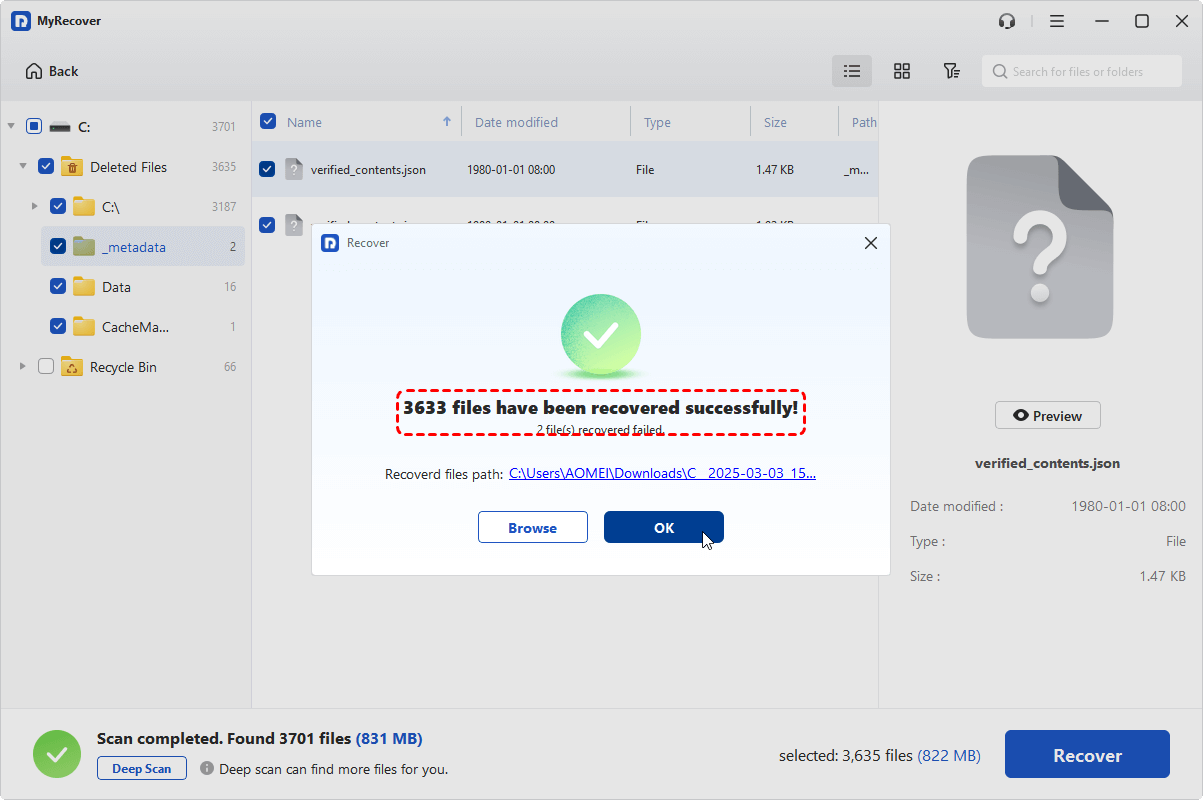
Step 2. Browse or filter the scan results to locate the files you want to recover. Choose the files you wish to recover from the list and click "Recover".

Step 3. Select a different location to save the recovered data.

Once the process is completed, you can check the recovered files in the destination folder by clicking on the "Browse" button.
The Bottom Line
The Windows 11 update stuck on restarting issue usually occurs when the system fails to complete the final stage of an update. Fortunately, this problem can often be resolved through systematic troubleshooting like mentioned above. If the failed update process leads to missing files, a professional recovery tool such as MyRecover can help restore lost data quickly and safely.
For IT admins, professionals, or businesses, MyRecover also offers a Technician Edition, a comprehensive business data recovery solution that supports unlimited devices with just one license. This makes it perfect not just for personal recovery but also for MSPs and enterprises needing a reliable tool.

Stay Updated With Our
Latest Tips
Add us as a preferred source on Google to never miss helpful guides.
 Add as preferred source >>