 MyRecover



Word Cannot Complete the Save Permission Error: Fixes for Windows & Mac
Imagine spending hours working on an important document, only to see "Word cannot complete the save due to a file permission error" when you try to save your progress. In this guide, we'll explain why this Word permission error occurs and provide effective solutions to fix it on both Windows and Mac.

By Aria / Updated on July 27, 2026


Word Cannot Complete the Save Due to a File Permission Error
Word Cannot Save Changes to Normal.dotm
"A few months ago, I had an issue with Word. The only thing this did is that whenever I close Word I have this message appear "Word cannot complete the save due to a file permission error. (Normal.dotm)". Now I do not know where "Normal.dotm" is or where it should be. Can you please write down what I need to do to fix it step by step?"
- Question from Borbala
"Word cannot complete the save due to a file permission error." is a common error message that can appear when you try to save a Word document on Windows or Mac. Instead of saving your latest changes, Microsoft Word stops the process and prevents the file from being updated.
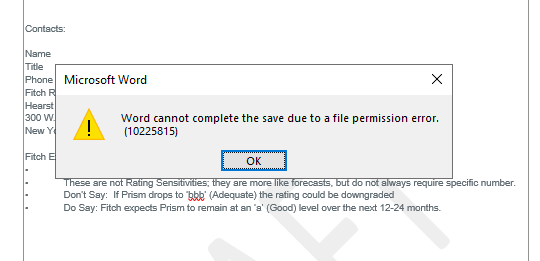
This error does not necessarily mean the document is corrupted. In most cases, it indicates that Word cannot write changes to the file or its storage location because access is restricted or interrupted. The problem may affect both newly created documents and existing files.
Why Does Word Say "Cannot Complete the Save Due to a File Permission Error"?
Fortunately, this error is usually fixable. Once the underlying cause is identified, you can often save the document without losing the original file. Common causes include:
📁 Insufficient file or folder permissions: Your account does not have permission to modify the document or the folder where it is stored.
🔒 The file is marked as read-only or locked: Word cannot overwrite a document that is set to read-only or is currently being used by another application.
⚠️The document is stored in a restricted location: Saving files to system folders, network drives, or cloud-synced directories may trigger permission conflicts.
🛡️ Security software blocks file changes: Antivirus programs or ransomware protection features may prevent Word from writing to protected folders.
📦Temporary Office or file system issues: A corrupted temporary file, interrupted synchronization, or an Office application error can also stop the save process.
How to Fix Word Cannot Complete the Save Permission Error on Windows & Mac
The good news is that most of these issues can be resolved without reinstalling Microsoft Office or recreating the document. In this section, we'll walk through practical solutions to fix the "Word cannot complete the save due to a file permission" error on both Windows and Mac.
Method 1. Save the Document to Another Location or with a Different Name
This is often the quickest fix for the Word permission error. If the original file has permission issues or is locked, creating a new copy in a different location avoids those restrictions. Saving the document elsewhere or with a different name can bypass the permission problem.
Step 1. Open the Word document that's showing the permission error, and click "File" > "Save As".
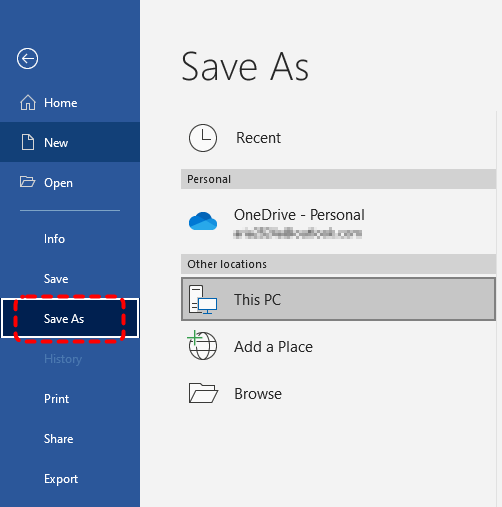
Step 2. Choose a different location preferably your desktop or Documents folder, which typically have proper permissions.
Step 3. Enter a different filename to avoid conflicts with the original file.
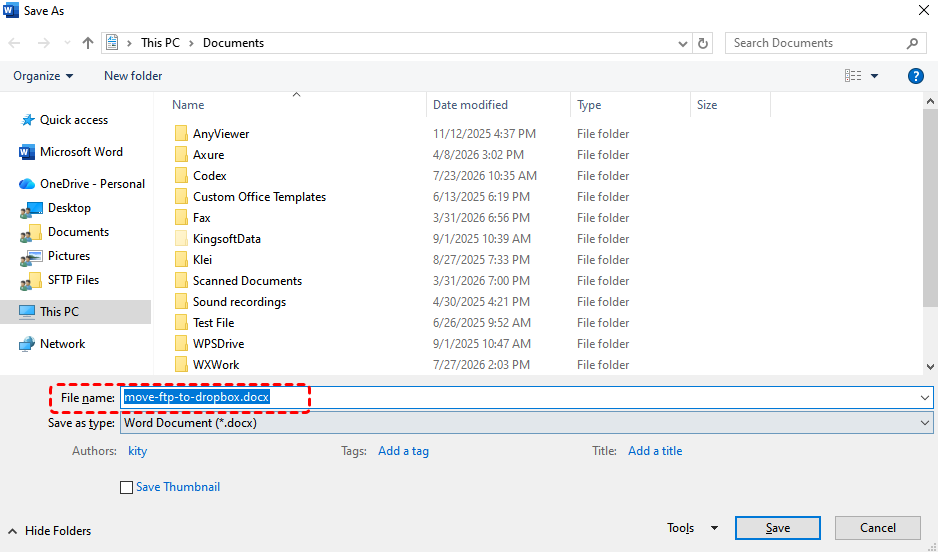
Step 4. Click "Save". If the document saves successfully, copy the new file back to your preferred location after resolving the permission issue.
Method 2. Check File & Folder Permissions
If saving to a different location didn't work, the issue may be with the file or folder permissions themselves. If your user account does not have permission to modify the file or its parent folder, Word cannot overwrite the existing document. Verifying file permissions ensures that your account has read and write access.
For Windows:
Step 1. Right-click the file or folder where you're trying to save and select "Properties".
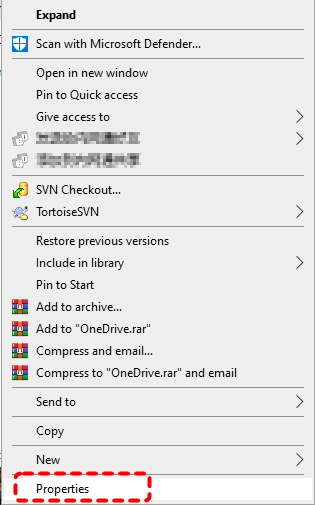
Step 2. Go to the "Security" tab, select your user account from the list.
Step 3. Check if "Write" permission is allowed under "Permissions for [your username]".
Step 4. If not, click "Edit" and check the "Allow" box for "Write".
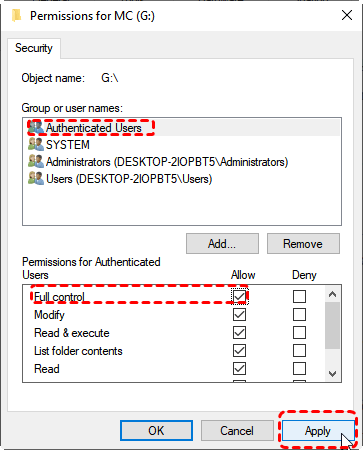
Step 5. Click "Apply" and "OK".
For Mac:
Step 1. Right-click the file or folder and select "Get Info".
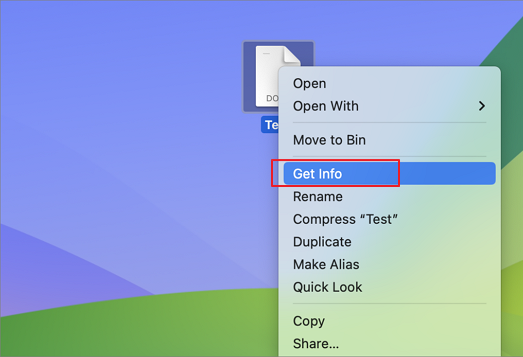
Step 2. Scroll down to the "Sharing & Permissions" section.
Step 3. Click the lock icon to make changes (you may need to enter your password).
Step 4. Select your user account from the list and set the permission to "Read & Write".
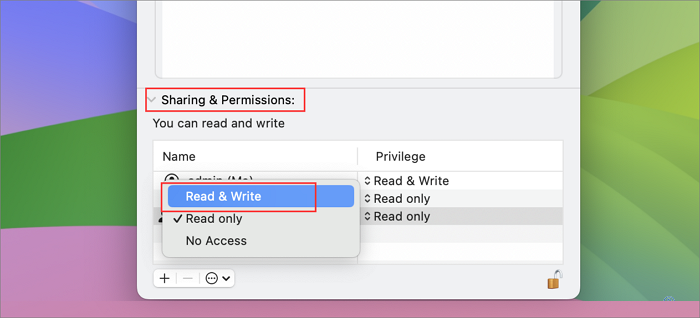
After adjusting permissions, try saving the document again. This should resolve the "Word cannot complete the save due to a permission" error if permissions were the issue.
Method 3. Run Word in Safe Mode and Disable Add-ins
Add-ins can sometimes interfere with Word's normal operations, causing the permission error. Safe Mode starts Word with only the essential components, bypassing any third-party add-ins that might be causing conflicts. Running Word in Safe Mode disables all add-ins, allowing you to determine if they're the cause.
For Windows:
Step 1. Press "Win" + "R", type "winword /safe" in Run dialog, then press "Enter".
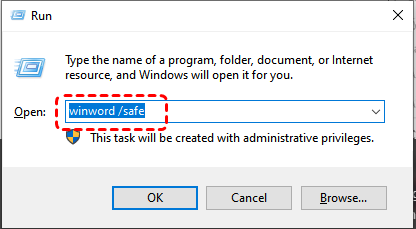
Step 2. Try to save your document again in Safe Mode.
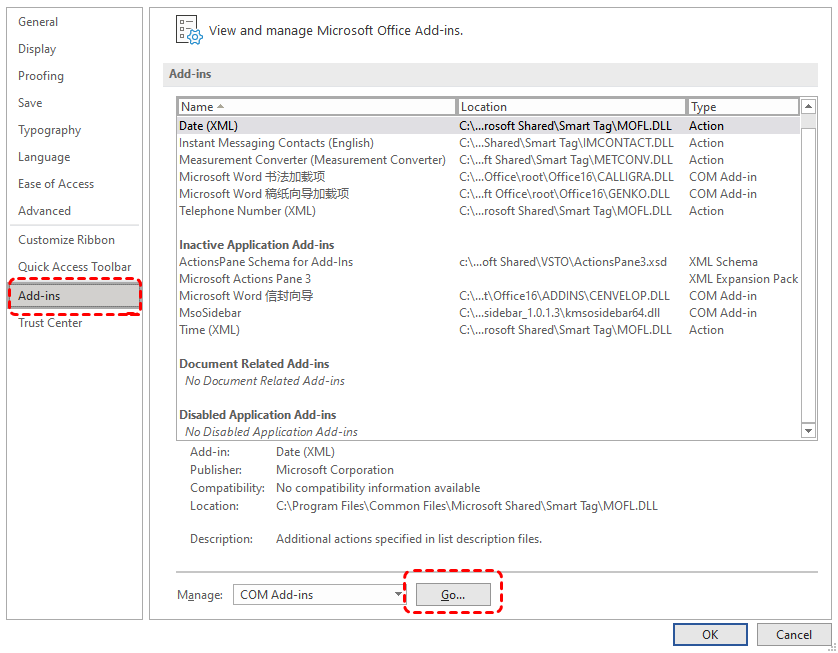
Step 3. If the "Word cannot complete the save due to a permission" error disappears, go to "File" > "Options" > "Add-ins".
Step 4. Click "Go..." next to "Manage: COM Add-ins".
Step 5. Uncheck all add-ins and click "OK".
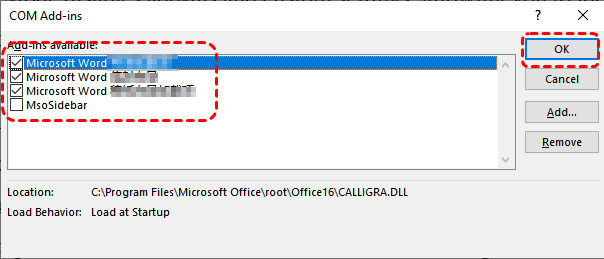
Step 6. Restart Word normally and enable add-ins one by one to identify the problematic one.
For Mac:
Step 1. Hold the "Shift" + "Control" + "Options" while opening Microsoft Word.
Step 2. Try to save your document in Safe Mode.
Step 3. If it fails, go to "Tools" > "Templates and Add-ins".
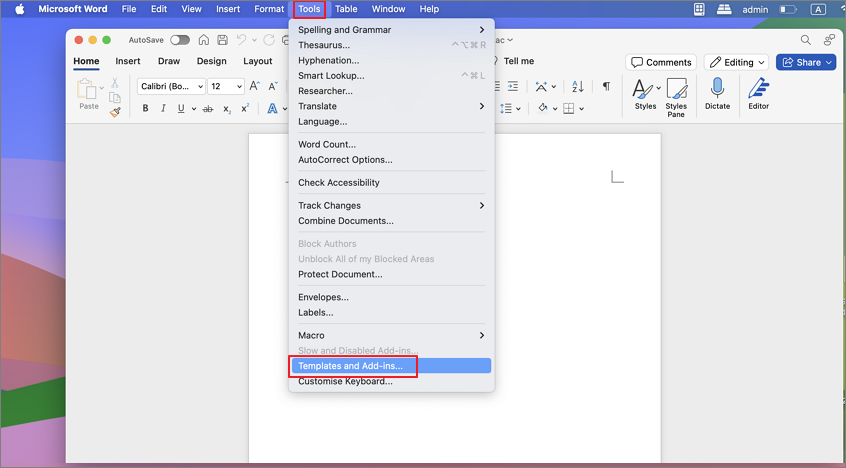
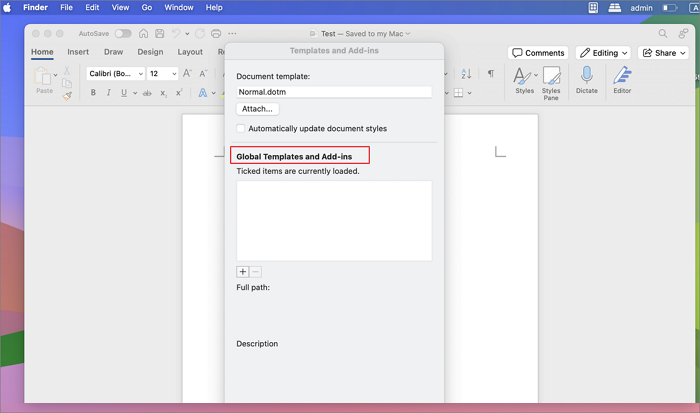
Step 4. Under "Global Templates and Add-ins", remove any unnecessary add-ins to check if Word saves documents successfully.
Method 4. Check Whether the File Is Locked or Used by Another Program
If the file is open in another program or by another user, it becomes locked, preventing you from saving changes. This is a common cause of the Word permission error in shared work environments. Identifying and closing any programs or processes that might be using the file can fix the Word cannot complete the save permission error.
Step 1. Close Microsoft Word completely.
Step 2. Close any applications that might be accessing the document, such as OneDrive, Dropbox, backup software, or PDF preview tools.
Step 3. On Windows, open Task Manager ("Ctrl" + "Shift" + "Esc") and right click on the program to end any accessing the file processes. On Mac, use Activity Monitor ("Finder" > "Applications" > "Utilities") to quit any programs that are using your target file.
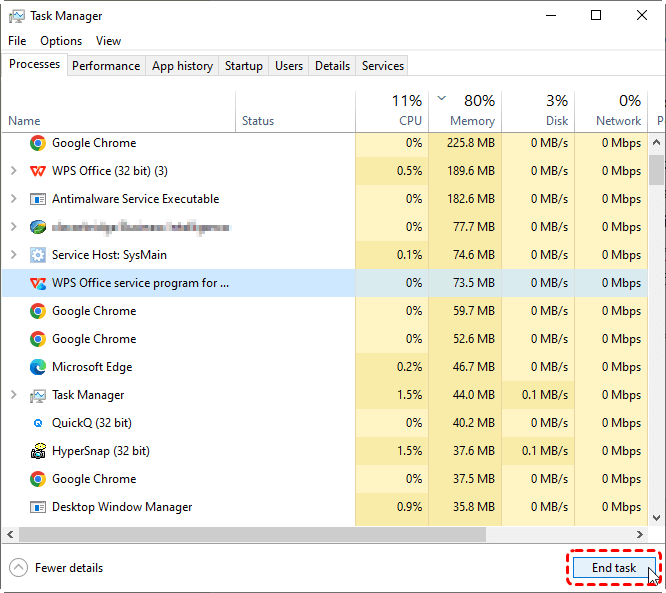
Step 4. Reopen the document and attempt to save it again.
If the file is stored on a network drive, check if another user has it open. Coordinate with them to close the file so you can save your changes.
Method 5. Repair or Update Microsoft Office Installation
If Word itself is damaged or missing important program files, save operations may fail even when the document and folder permissions are correct. Repairing or updating Microsoft Office can replace corrupted components and fix application-level issues without affecting your documents.
For Windows:
Step 1. Open "Control Panel" > "Programs" > "Programs and Features".
Step 2. Find Microsoft Office in the list, right-click it and select "Change".
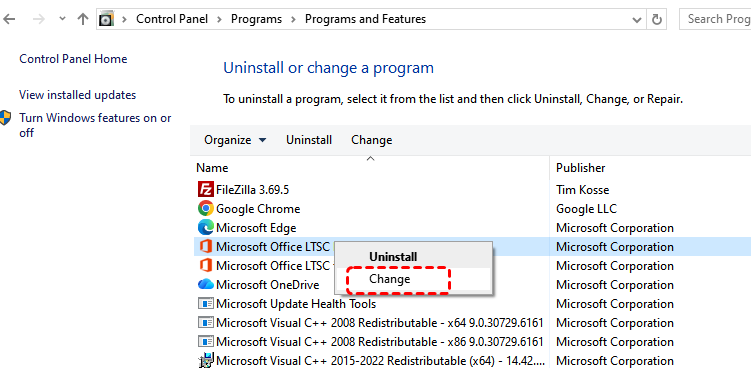
Step 3. Choose "Quick Repair" first. If the problem remains, perform "Online Repair".
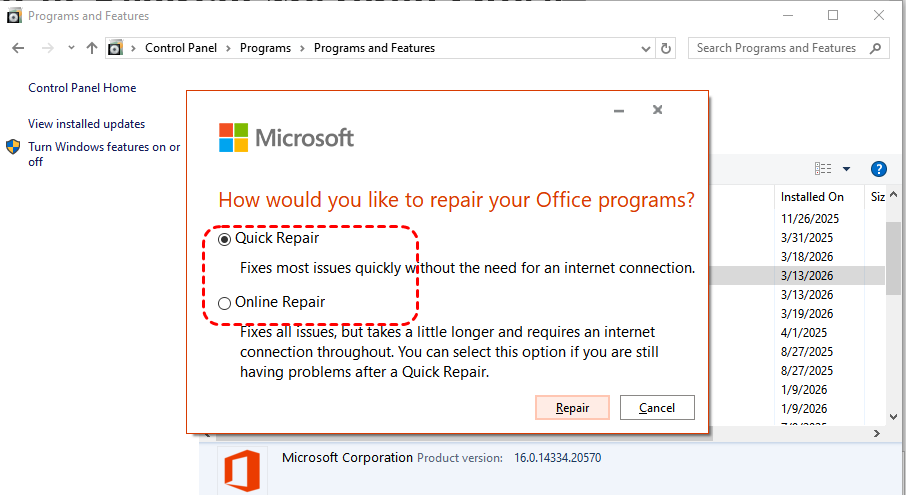
Step 4. Restart your computer after the repair completes.
For Mac:
Step 1. Open the Word application on your Mac. On the top bar, click "Help" > "Check for Updates".
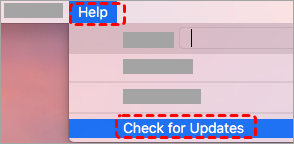
Step 2. Check the box of "Automatically keep Microsoft apps up to date" and click "Update" to download and install the available updates.
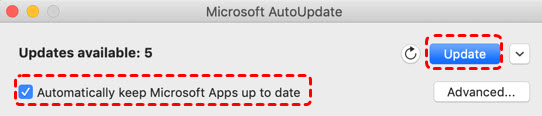
After repairing or updating Office, restart your computer and try saving the document again. This should resolve the Word cannot complete the save permission error if Office files were corrupted.
Method 6. Disable Antivirus or Security Software Temporarily
Modern security software may block Microsoft Word from modifying files stored in protected folders. Features such as ransomware protection or real-time file monitoring can mistakenly identify Word's save operation as suspicious. By disabling the antivirus temporarily, you can determine if it's the source of the Word permission error.
Step 1. Locate your antivirus software icon in the system tray (Windows) or menu bar (Mac). If you're using Windows Security, go to "Windows Security" > "Virus & threat protection".
Step 2. Temporarily turn off the antivirus program and try saving your Word document again.
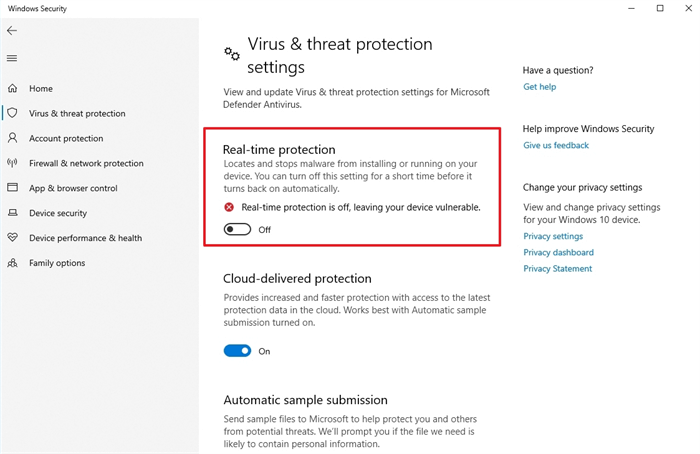
Step 3. If it saves successfully, add Microsoft Word to your antivirus's whitelist or adjust the settings to allow Word's file operations.
- ★Tips:
- Only disable antivirus software temporarily and make sure to re-enable it after testing. Never leave your computer unprotected.
Method 7. Check for Windows or macOS Updates
Outdated Windows versions can cause compatibility issues with Microsoft Word, leading to errors like the permission error. Keeping Windows up to date ensures you have all the latest system fixes and compatibility improvements. Installing any pending Windows or macOS updates often include fixes for known issues with Microsoft Office applications.
For Windows:
Step 1. Go to "Settings" > "Update & Security" > "Windows Update".
Step 2. Click "Check for updates".
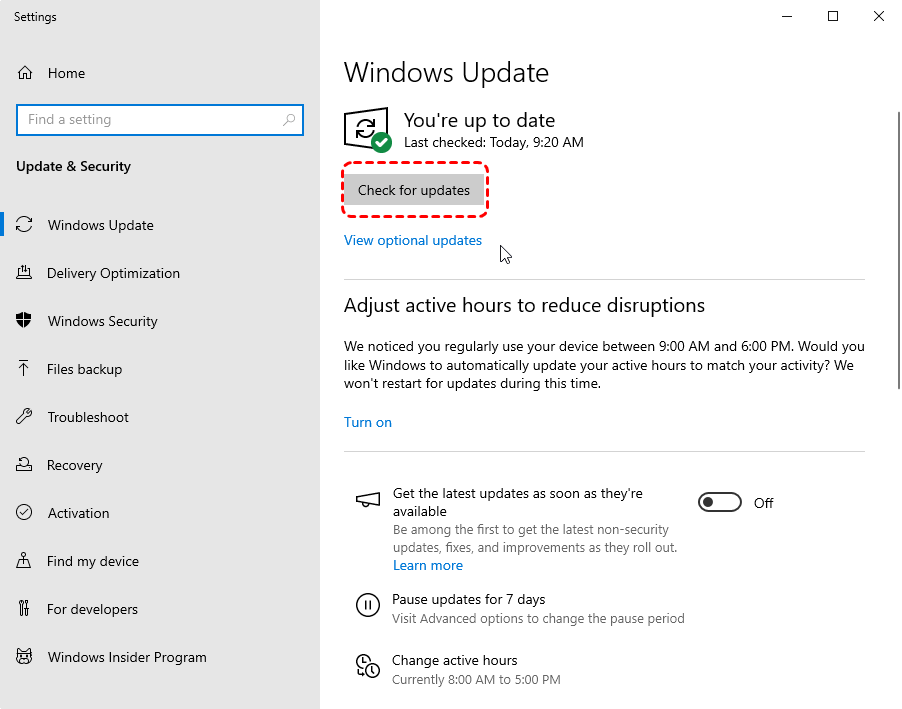
Step 4. Install any available updates and restart your computer to check if the "Word cannot complete the save due to permission" error is resolved.
For Mac:
Step 1. Click the Apple menu > "System Preferences" > "Software Update".
Step 2. Click "General" tab in the left sidebar, then choose "Software Update". Your Mac will automatically check for new software.
Step 3. If an update is available, click "Update Now" or "Upgrade Now" to install it.
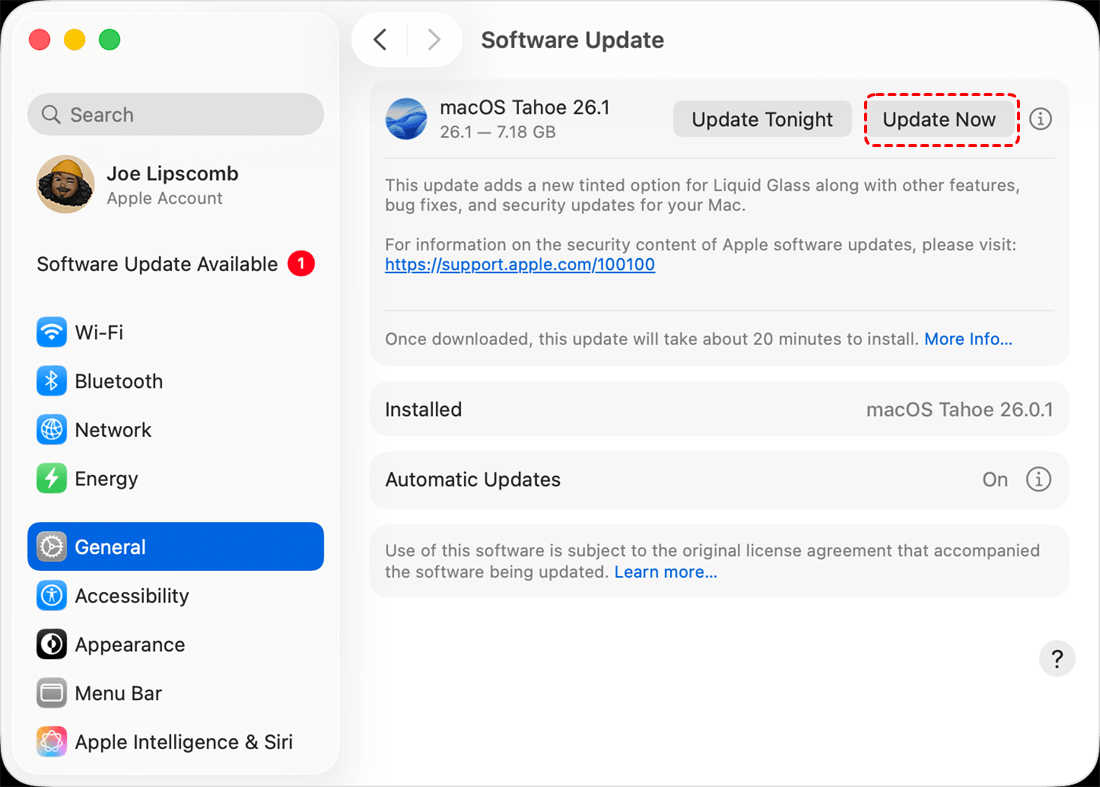
Step 4. Restart your Mac and verify whether Word can save the document normally.
How to Recover a Word Document That Cannot Be Saved?
Does that mean all your files and newly edited changes will be lost when Windows fails to finish saving Word documents? Absolutely not. To prevent you from losing unsaved edits when Word stops responding during saving, Microsoft Word offers multiple built-in recovery tools to restore your unsaved content.
Recover Unsaved Documents with Word AutoRecover
Microsoft Word includes an AutoRecover feature that periodically saves temporary copies of documents while you are working. If Word crashes or a save error prevents your latest changes from being written, the AutoRecover folder may contain a recent version of the document, allowing you to recover your work the next time you open Word.
On Windows:
Step 1. Open Microsoft Word when it works normally.
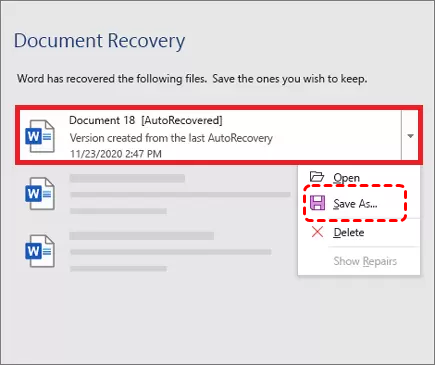
Step 2. When Word is re-opened, it will automatically pop up the Document Recovery panel to list all unsaved files. If your needed file is on the list, click "Open" to check its content or "Save As" to save it to a safe location.
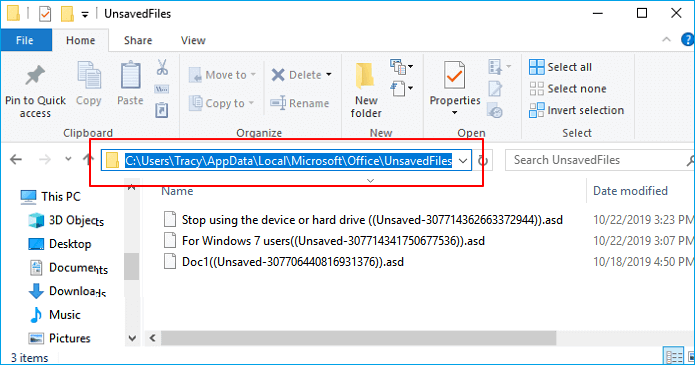
Alternatively, you can also go to the AutoRecover folder path to check the unsaved files: C:\Users\Username\AppData\Local\Microsoft\Office\UnsavedFiles.
On Mac:
If your document didn't automatically pop up after a crash, you can manually locate the files:
Step 1. Open Finder and click "Go" > "Go to folder".
Step 2. Paste the following path (replace Username with your Mac's short username):
/Users/Username/Library/Containers/com.microsoft.Word/Data/Library/Preferences/AutoRecovery
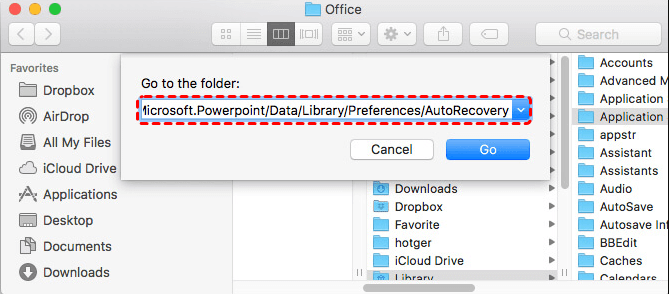
Step 3. Open the AutoRecovery folder, locate the files that start with the words "AutoRecovery save of".
Step 4. Find the one you want to recover and save it to a safe location.
Check the Word AutoSave Location
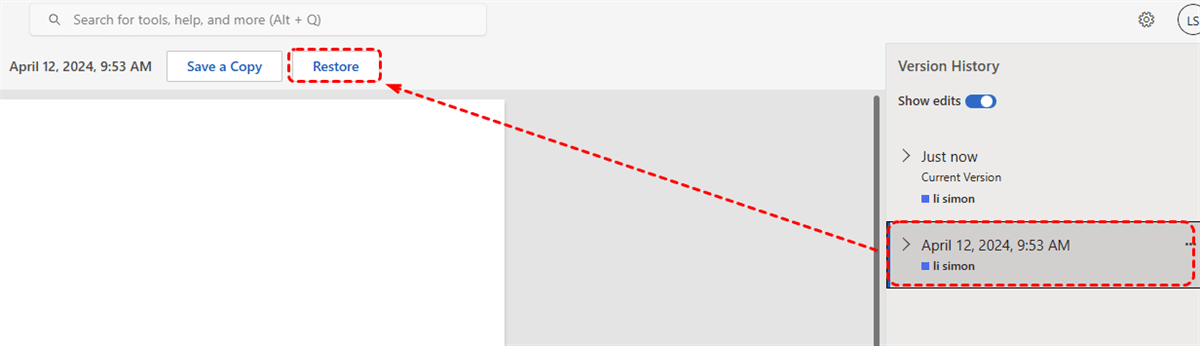
If your Word document is stored in OneDrive or SharePoint with AutoSave turned on, this feature periodically logs all edits made to the file. Simply reopen the document to view its earlier versions via Version History.
Step 1. Run Microsoft Word and click "File" > "Info" > "Version History" to view the list of unsaved versions. On Mac, click "File" > "Browse" Version History".
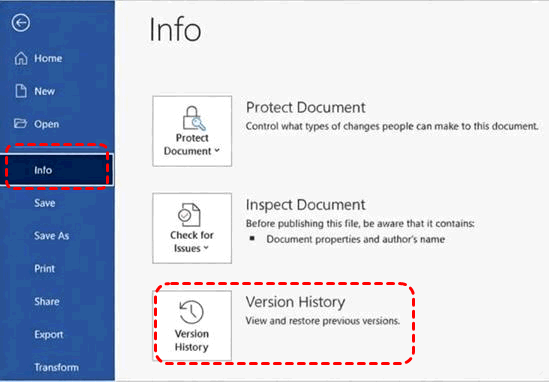
Step 2. Choose a desired one to open it and click "Save a Copy" to create a new copy or "Restore" to replace the current version.
Recover Word Documents from the Temp Folder
When Word creates or modifies a document, it may generate temporary files to store working data. If the save process fails because of a permission issue, the temporary version may still remain on your computer. Searching the Temp folder can help find document fragments that were not successfully saved.
For Windows:
Step 1. Press "Win" + "R", type "%temp%" in Run dialog, and press "Enter".
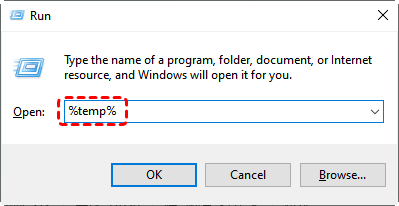
Step 2. Search for files starting with ~, or files with extensions such as .tmp.
Step 3. Sort files by modification date and look for files created around the time the save error occurred.
Step 4. Open possible files with Microsoft Word and check whether they contain your missing changes.
For Mac:
Step 1. Open Finder and press "Command" + "Shift" +"G".
Step 2. Enter: /private/var/folders.
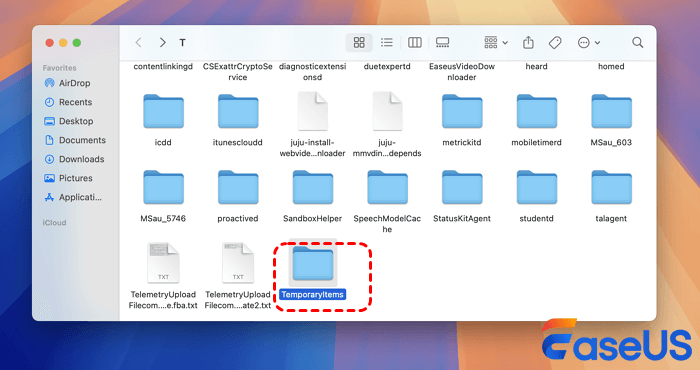
Step 3. Search for recently modified Word temporary files.
Step 4. Open any recoverable files and save them as a new Word document.
The End
Dealing with the "Word cannot complete the save due to a permission error" can be frustrating, especially when you're in the middle of an important project. By following the solutions in this guide, you can resolve the error and get your unsaved Word document to back.
If you're looking for a reliable data recovery solution for other scenarios on Windows, MyRecover is a powerful tool that can recover lost or deleted files from various storage devices. It can recover files from all types of devices like SSD, HDD, USB flash drive, SD card, cameras, game console drives and more.

 MyRecover
- Recover deleted & lost files from HDD, SSD, USB, SD card, camera as you need.
- Support 1000+ formats of photos, videos, docs, archives, emails, compressed files, etc.
- Reliable rescue for deletion, formatted disk, emptied Recycle Bin, system crashes and more.
 100% Secure
FAQs
Q1: Why is Microsoft Word not allowing me to save my document?
Microsoft Word may fail to save because of file permission issues, read-only settings, insufficient storage access, locked files, antivirus interference, or Office errors. Try saving the document to another location, checking permissions, disabling conflicting add-ins, or repairing Microsoft Office.
Q2: What happened to the save as option in Word?
If the "Save As" option is missing, it may be due to changes in the Word interface, account restrictions, or file protection settings. Try pressing F12, using "File" > "Save a Copy", or checking whether the document is opened in Protected View or read-only mode.
Q3: Why is my Word document not automatically saving?
Word AutoSave may not work if the document is stored locally, AutoSave is disabled, OneDrive synchronization fails, or Office encounters an error. Check AutoSave settings, ensure the file is saved to OneDrive or SharePoint, and verify your internet connection.
Q4: Why is my save as not working?
"Save As" may fail because the destination folder has restricted permissions, the filename contains invalid characters, the file is locked, or Word cannot access the storage location. Try saving with a new name in a different folder and check folder permissions.
Q5: How to get rid of access denied error?
To fix an access denied error, check whether you have permission to access the file or folder, remove read-only restrictions, take ownership of the file, or run the application as administrator. Also check if antivirus software is blocking access.
Q6: How to fix you don't have permission to access this file?
If Windows says you do not have permission to access a file, right-click it, open "Properties" > "Security", and grant your account full control. You can also take ownership through "Advanced Security Settings" or ask the file owner to provide access.

Stay Updated With Our
Latest Tips
Add us as a preferred source on Google to never miss helpful guides.
 Add as preferred source >>