 MyRecover



How to Fix Word Document is Blank When Opened: 9 Solutions
Many users face the issue where a Word document is blank when opened, leaving them unsure why their content is missing. This guide offers 9 reliable solutions to troubleshoot and fix blank Word files. These comprehensive approaches ensures that whether the file is locally stored, from OneDrive, or online, you can fix the issue and continue working seamlessly.

By Aria / Updated on March 23, 2026


Introduction
I was working on a Word doc (MS365). It was/is a 6 pages document. I looked down and when I looked up all my text was gone from the screen. I thought I somehow lost everything. But at the bottom/status bar it shows there were still some 3000 words, but the 6 pages doc was just showing one blank page. I had another doc opened so I compared absolutely everything I could, but couldn't see any differences. Additionally, on the navigation side bar if I brought it up, the headings would all appear. I just can't seem to get back to the actual document.
- Question from Anonymous
Opening a Word file only to find a completely blank page can be alarming, especially when you’re sure the document contained important content. Many users immediately assume the worst: their data has been lost or the file is corrupted. In reality, this issue is often not true data loss but rather a display, formatting, or compatibility problem that prevents the content from appearing correctly.

Situations like hidden text, incorrect view settings, disabled add-ins, or file compatibility conflicts can all cause a Word document to appear blank when opened. In some cases, the content is still intact and recoverable with simple adjustments and minor repair steps to restore visibility.
Why is My Word Document Blank When I Open it?
After understanding that a blank Word document does not always mean data loss, the next step is to identify what is actually causing the content to disappear from view. In most cases, the issue is tied to how the document is rendered rather than what it contains. Several common factors can lead to this behavior:
🔔View or display settings issues: Certain modes (such as Draft view or disabled text display options) can hide content even though it still exists in the document.
⚙️Hidden or formatted text: Text may be set to "hidden" or formatted in a way that makes it invisible against the background.
💡Corrupted document elements: Minor corruption in styles, fonts, or structure can prevent Word from displaying content correctly.
🛠️Add-ins or software conflicts: Third-party add-ins can interfere with how Word loads and renders files.
💽Compatibility problems: Opening files created in different Word versions or formats may cause display inconsistencies.
🖥️Zoom or layout anomalies: Incorrect zoom levels or layout glitches can make content appear missing.
How to Fix Word Document is Blank When Opened on Windows
Now it is time to apply targeted fixes based on how Word loads and displays your document. Since this issue is often related to rendering, settings, or minor corruption, it’s best to start with simple checks and gradually move toward more advanced solutions. The methods below can help you efficiently identify and resolve the problem.
Method 1. Test with Another Document
To determine whether the issue is specific to a single file or affects Word globally, start by opening other documents. This helps isolate whether the problem lies in the document itself or the Word application. If other files display normally, the issue is likely file-specific; otherwise, it may indicate a broader configuration or software problem.
Step 1. Open Microsoft Word and open an existing file.
Step 2. Check whether text appears normally in the new or different document. If all documents appear blank when opened, the issue is likely with Word itself.
Method 2. Switch Document View
Word offers multiple viewing modes, and certain modes can hide or fail to render content properly. Switching views can often restore visibility instantly if the issue is related to layout rendering or display settings.
Step 1. Open the affected document in Word, and go to the "View" tab.
Step 3. Switch between "Print Layout", "Draft", and "Web Layout".
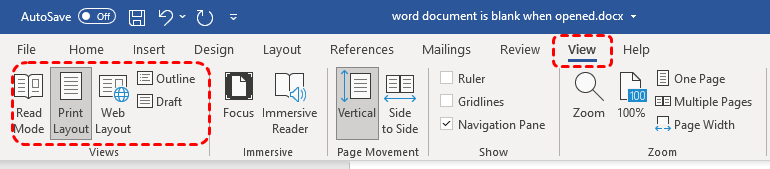
Step 4. Check if the content becomes visible in any mode.
Method 3. Check for White or Hidden Text
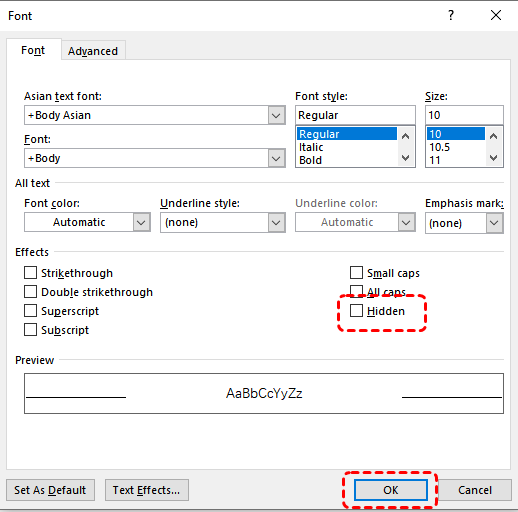
Sometimes text appears missing because it is formatted as white (blending into the background) or set as hidden. This is a common formatting-related issue and can be easily reversed by adjusting the settings.
Step 1. Press "Ctrl" + "A" to select all content in the document.
Step 2. Go to the "Home" tab and change the font color to "Automatic" or "Black".
Step 3. Right click on the blank space and choose "Font" to reveal hidden formatting marks.
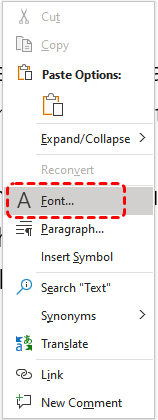
Step 4. Check if hidden text appears.
Method 4. Open Word in Safe Mode
Running Word in Safe Mode disables add-ins and custom settings, allowing you to identify whether external plugins are causing the issue. If the document displays correctly in Safe Mode, the problem is likely due to an add-in conflict.
Step 1. Press "Win" + "R" to open the Run dialog box, then type "winword /safe" and press "Enter".
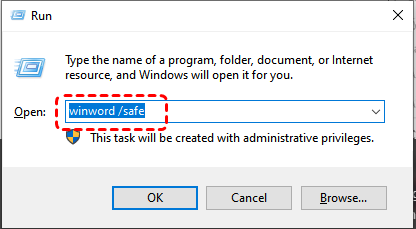
Step 2. Open the problematic document in Safe Mode.
Step 3. If it opens the document normally, click "File" > "Options" > "Add-ins".
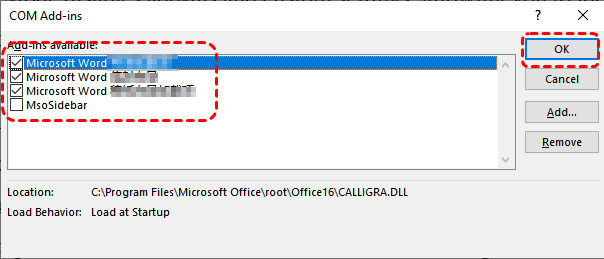
Step 4. Click "Go" next to "Manage: COM Add-ins" to open the "COM Add-ins" window.
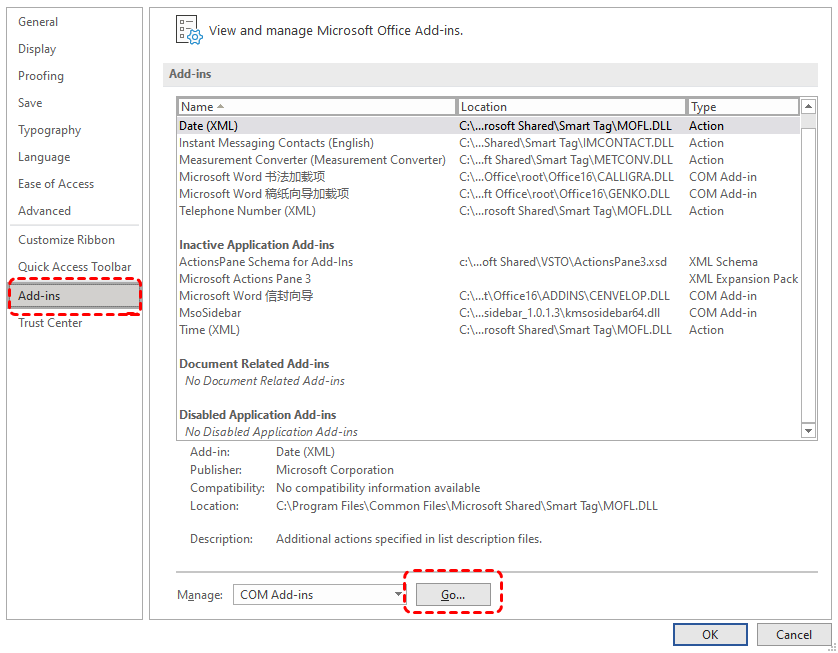
Step 5. Uncheck the suspicious Add-ins and click "OK" to save the changes.
Method 5. Use Open and Repair Tool
If the document has minor corruption, Word’s built-in repair feature can fix structural issues and restore content visibility. This method is particularly useful when formatting or internal file elements are damaged.
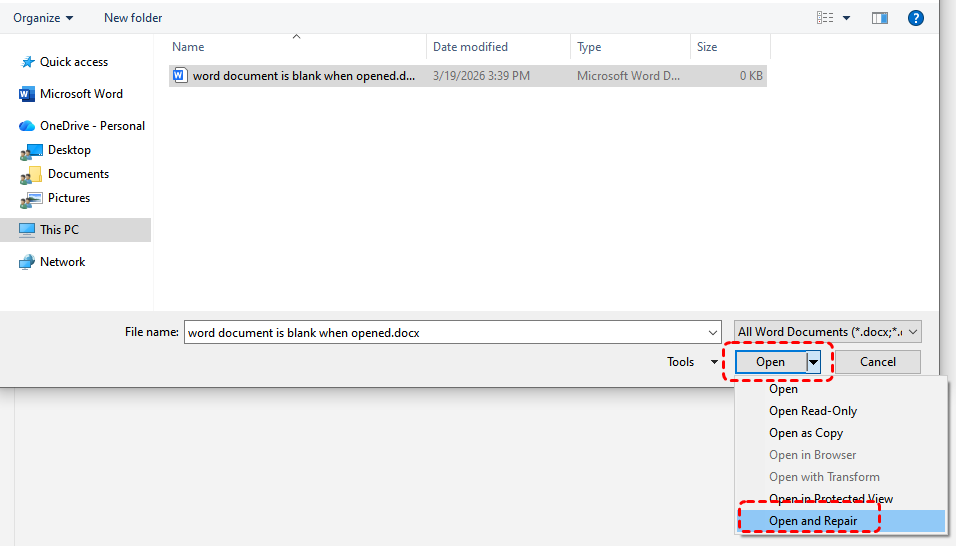
Step 1. Open Word and click "File" > "Open" > "Browse".
Step 2. Locate the problematic document.
Step 3. Click the dropdown arrow next to the "Open" button.
Step 4. Select "Open and Repair" and wait for the process to complete.
Method 6. Delete Word Data Registry Subkey
Corrupted Word configuration settings stored in the Windows Registry can lead to Word document is blank when opened. Resetting these settings can restore normal behavior without affecting your documents. If you’re not a professional, it’s better to create a registry backup before proceeding with this step.
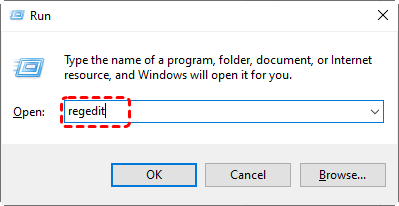
Step 1. Press "Win" + "R" and type "regedit" in the Run dialog, then press "Enter".
Step 2. Navigate to the following path:
HKEY_CURRENT_USER\Software\Microsoft\Office\16.0\Word\Data.
Step 3. Right-click the "Data" key and select "Delete".
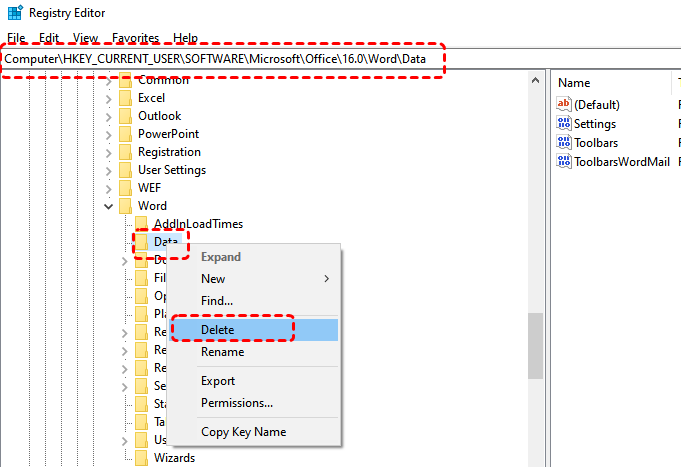
Step 4. Restart Word to regenerate fresh configuration data, then check if the document displays normally.
Method 7. Restore from Previous Versions
If the issue started after recent changes or corruption, restoring a previous version of the document can recover a usable copy. This method relies on Windows File History or Shadow Copies. If the file or its location was previously added to the File History backup, you can try the steps below to restore it to an earlier version.
Step 1. Go to the drive or folder where the Word document was stored and right-click the Word document file or the folder, then choose "Restore previous versions".
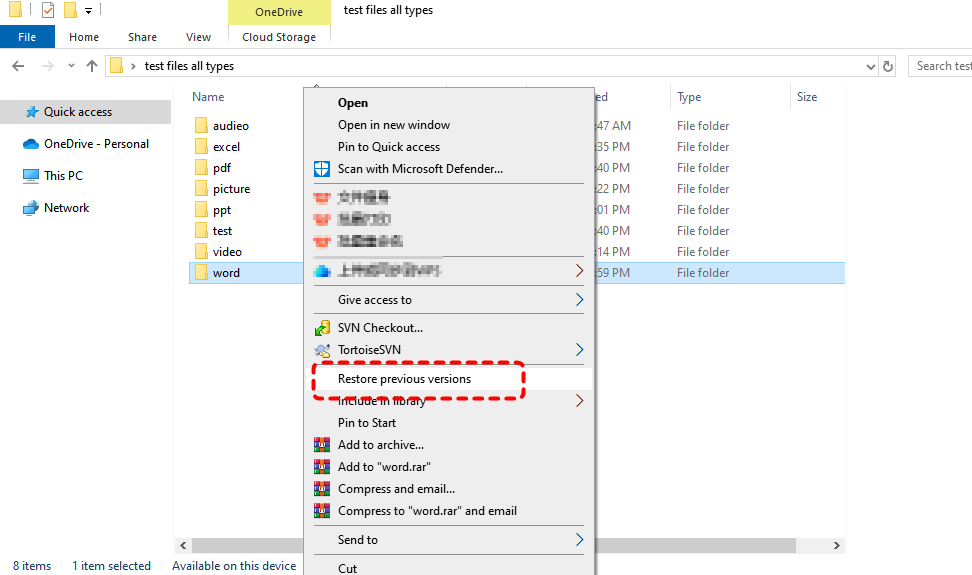
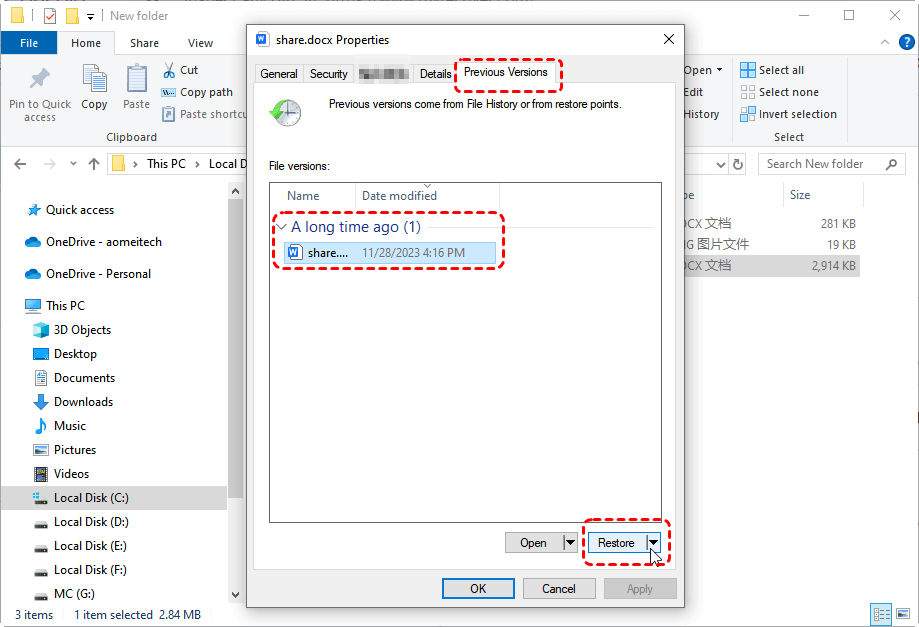
Step 2. Choose a version from before the issue occurred. You can open it to confirm the content.
Step 3. Click "Restore" to recover previous version, then open the file with Word to see if the issue is resolved.
Method 8. Repair or Reinstall Microsoft Office
If the issue persists across multiple documents, the Word installation itself may be damaged. Repairing or reinstalling Microsoft Office can fix underlying software issues affecting document rendering.
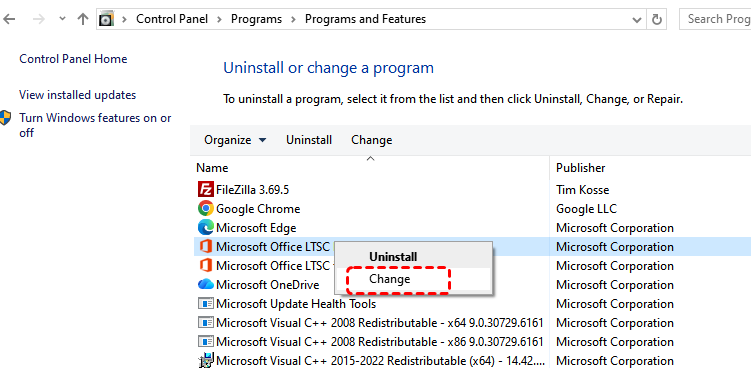
Step 1. Go to "Control Panel" > "Programs" > "Programs and Features".
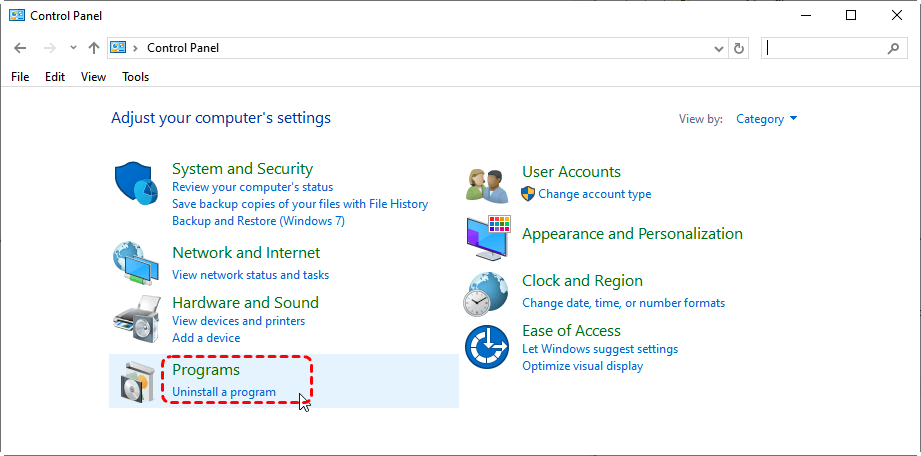
Step 2. Locate "Microsoft Office" and right click on it, then choose "Change".
Step 3. Select "Quick Repair" or "Online Repair".
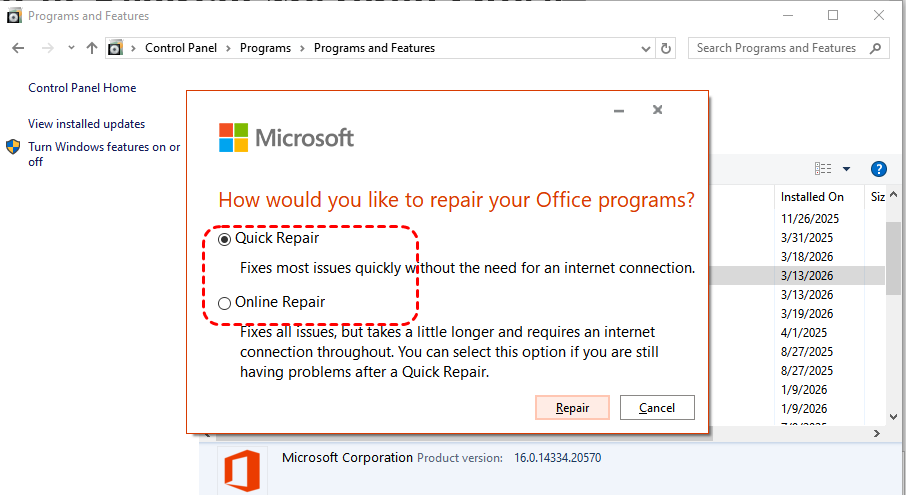
Step 4. Follow the prompts to repair Microsoft Office and restart your computer after completion.
Method 9. Check for Windows Update
Outdated Windows system components can cause compatibility issues with Microsoft Office, leading to Word document display or rendering problems. Keeping Windows updated ensures optimal performance and compatibility.
Step 1. Go to "Settings" > "Update & Security" > "Windows Update".
Step 2. Click "Check for updates" and install any available updates.
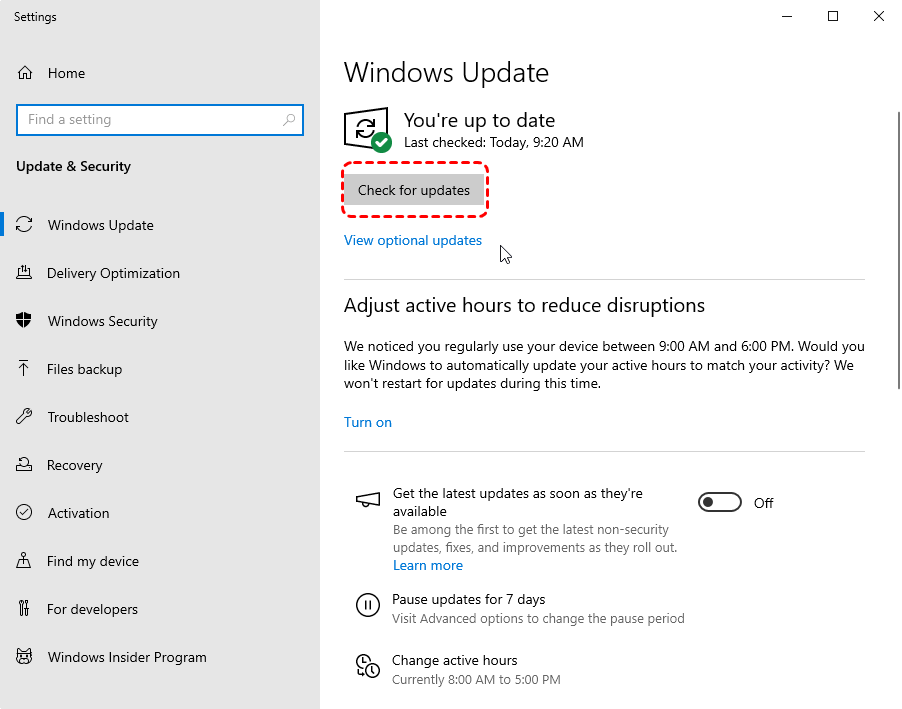
Step 3. Restart your system and reopen the document to check whether the issue still continue.
Conclusion
Encountering a blank Word document when opened can be unsettling, especially when you know the content is still there. However, as outlined above, this issue is rarely caused by true data loss. By following a structured troubleshooting approach, you can effectively identify and resolve the root cause.
If you find any documents or data lost during this process, using a professional data recovery tool such as MyRecover can help you retrieve them easily. MyRecover can scan your hard drive and accurately locate deleted files, allowing you to recover deleted Word documents with just a few clicks. It supports recovery for 1000+ file formats including documents, photos, videos, design files, audios, etc. It also allows you to preview the file content before restoration.

 MyRecover
- Recover deleted & lost files from HDD, SSD, USB, SD card, camera as you need.
- Support 1000+ formats of photos, videos, docs, archives, emails, compressed files, etc.
- Reliable rescue for deletion, formatted disk, emptied Recycle Bin, system crashes and more.
 100% Secure

Stay Updated With Our
Latest Tips
Add us as a preferred source on Google to never miss helpful guides.
 Add as preferred source >>