 MyRecover



Windows 10 Folder Access Denied: Complete Fix Guide
If you’re facing Windows 10 denied access to folder errors, this guide explains why it happens and how to fix it. Learn permission settings, ownership changes, and security tweaks that help restore full folder access without risking data loss.

By Vera / Updated on March 12, 2026


What Does "Folder Access Denied" Mean in Windows 10?
Destination Folder Access Denied: You need permission to perform this action | Never goes away
Hello, I am trying to copy a folder into another folder in C:\Program Files\WindowsApps, I know the risks involved with doing this and I am sure I want to continue. However, no matter what I do, this "Destination Folder Access Denied" error never goes away. I have given myself ownership of the folder in WindowsApps and set "everyone" permissions to full control. I have also turned off read-only. No matter what I do, this error keeps popping up.
How do I allow myself to copy something into a sub-folder of WindowsApps?
- Question from https://learn.microsoft.com/
When Windows 10 says access denied, it’s basically telling you, "You’re not allowed in here". This doesn’t mean the folder is corrupted or deleted. It simply means your user account doesn’t have permission to open, modify, or view the folder.
Think of it like a VIP club. The folder exists, but Windows is checking the guest list—and your name isn’t on it.
Common Reasons for Windows 10 Folder Access Denied
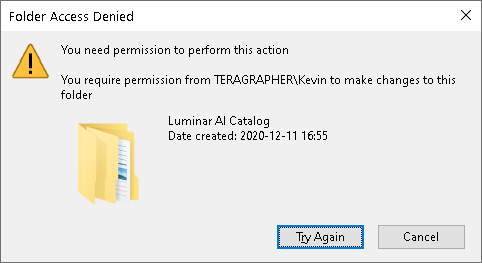
There isn’t just one cause. Several things can trigger this error.
Missing Administrator Permissions
Even if you think you’re an admin, Windows doesn’t always agree. Some folders require explicit administrator rights, especially system or migrated folders.
Ownership Issues
If the folder was created by another user, another PC, or an old Windows installation, you might not own it. And in Windows, ownership equals control.
Corrupted User Profile
A damaged user profile can confuse Windows permissions, locking you out of folders you previously accessed without issues.
Antivirus or Security Software Conflicts
Security tools sometimes act like overprotective guards. They may block access to folders they consider "unsafe", even when they’re perfectly fine.
Windows File System Errors
Bad sectors, improper shutdowns, or disk errors can also trigger windows 10 folder access denied warnings.
How Windows Permissions Actually Work
Before fixing the issue, it helps to understand how permissions function.
Understanding Read, Write, and Full Control
Windows assigns permissions like:
- Read – View files only
- Write – Modify files
- Full Control – Do anything (rename, delete, edit)
If you lack even one required permission, Windows blocks access.
NTFS Permissions Explained Simply
NTFS permissions are like layered locks. Even if one lock says "allow", another can still say "deny". And deny always wins.
How to Fix Windows 10 Folder Access Denied
Let’s try the quick checks below before diving deep:
- Restart your PC.
- Try accessing the folder as admin.
- Make sure the folder isn’t encrypted.
- Check if another app is using it.
Sometimes, the simplest fix works. If it doesn’t work, you can follow the advanced fixes below.
Fix 1: Take Ownership of the Folder
This is one of the most effective solutions.
1. Right-click the folder → Properties.
2. Go to Security → Advanced.
3. Click Change next to Owner.
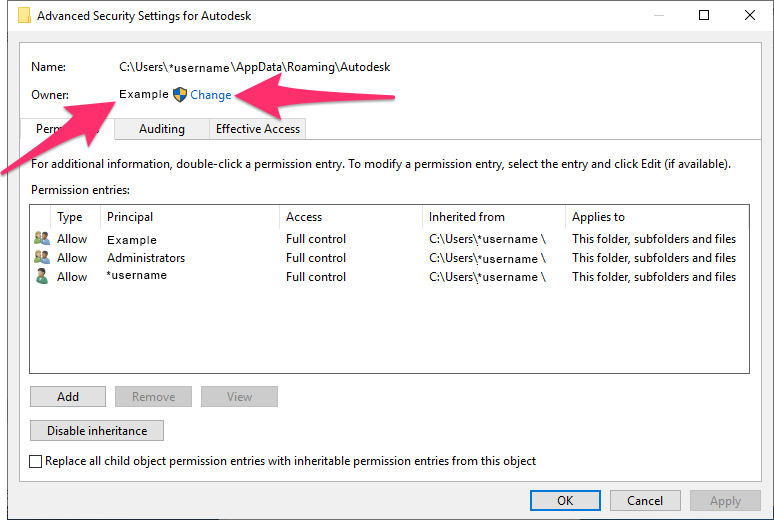
4. Enter your username and click Check Names.
5. Apply and restart.
Boom—you’re now the owner.
Fix 2: Change Folder Permissions Manually
Ownership alone isn’t always enough.
1. Open Folder Properties.
2. Go to Security.
3. Click Edit.
4. Select your user account.
5. Check Full Control.
6. Apply changes.

This removes permission-related roadblocks.
Fix 3: Use Administrator Account Properly
Some actions require elevated access.
1. Right-click File Explorer.
2. Choose Run as administrator.
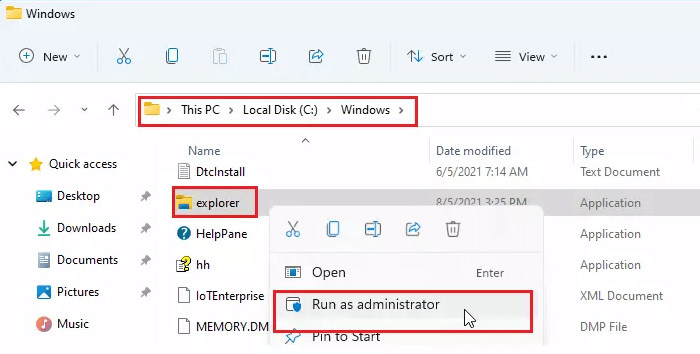
3. Try opening the folder again.
This bypasses many permission restrictions.
Fix 4: Disable Antivirus Temporarily
Third-party antivirus tools can block access.
- Temporarily disable protection.
- Try opening the folder.
- Re-enable antivirus afterward.
If it works, whitelist the folder.
Fix 5: Run Check Disk to Fix File Errors
Disk errors can silently break permissions.
1. Open Command Prompt as admin.
2. Run: chkdsk C: /f.
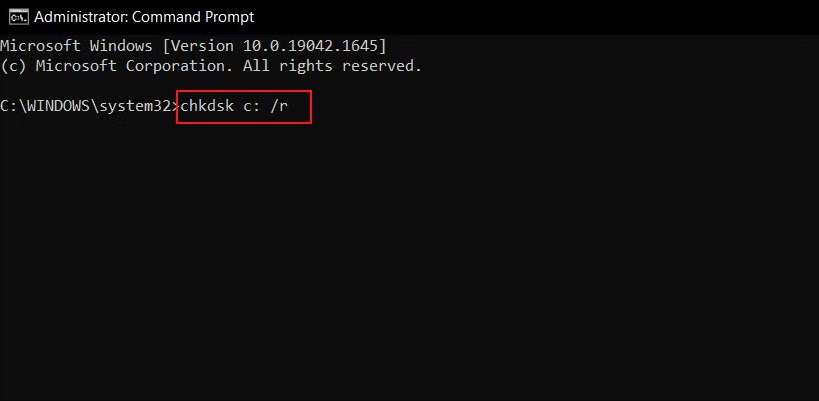
3. Restart if prompted.
This repairs file system issues automatically.
Fix 6: Use Command Prompt to Fix Access Denied
For stubborn folders, CMD is powerful.
CMD Commands That Actually Work
takeown /f foldername /r /d y
icacls foldername /grant administrators:F /t
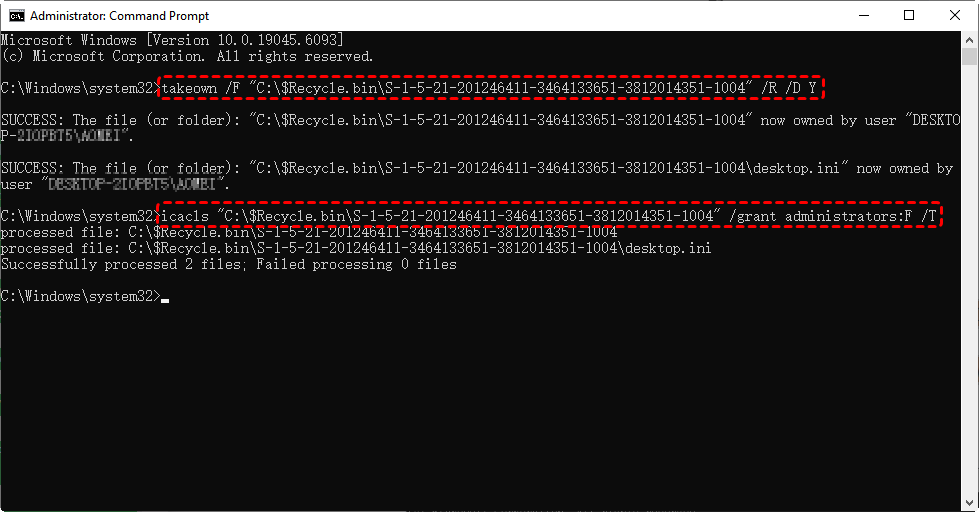
These commands force ownership and permission changes.
Fix 7: Enable Inherited Permissions
Sometimes permissions are blocked from parent folders.
1. Open Folder Properties. Go to Security.
2. Click Advanced. Then click Enable Inheritance.
3. Apply changes.
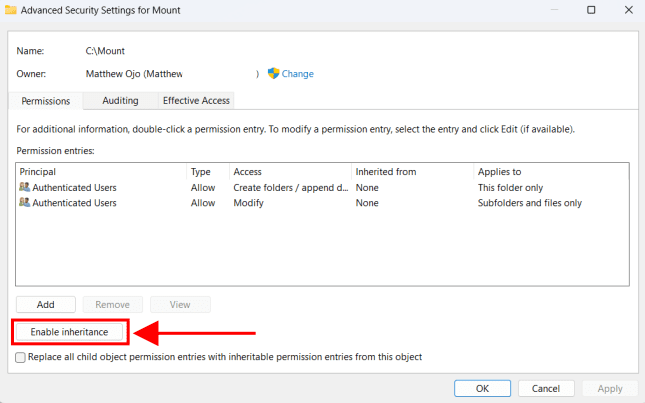
This syncs permissions correctly.
Fix 8: Access Folder in Safe Mode
Safe Mode loads Windows with minimal drivers.
1. Click the Windows button and select Power.
2. Hold the shift key on the keyboard and click Restart.
3. Choose Troubleshoot > Advanced options > Startup Settings > Restart.
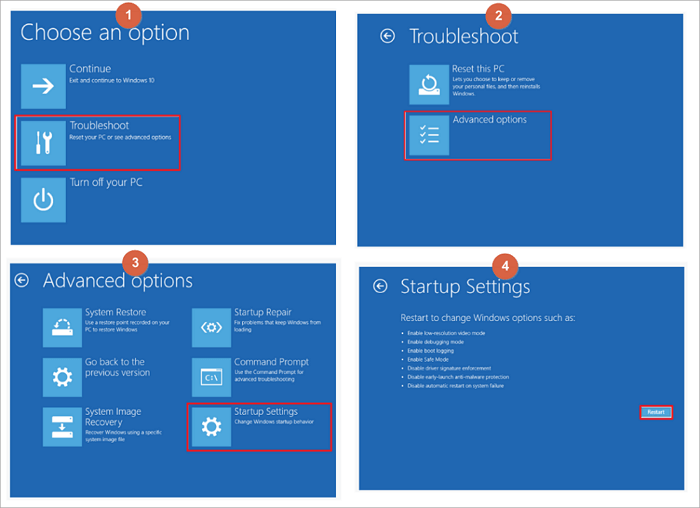
4. Press F4 or F5 to boot Windows in Safe Mode.
5. Try accessing the folder. Fix permissions from there.
This avoids software conflicts.
Fix 9: Create a New User Profile
If nothing works, your profile may be damaged.
1. Create a new user account.
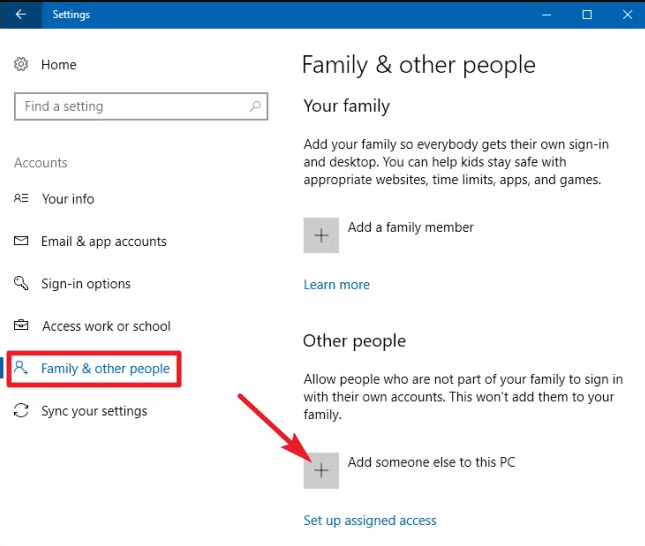
2. Log in.
3. Access the folder.
If it works, migrate your files.
Recover Files When Windows 10 Folder Access Is Denied Using MyRecover
Sometimes, even after trying every permission fix, Windows still refuses to cooperate. If the Windows 10 folder access denied error has made important files completely unreachable—or worse, accidentally deleted during troubleshooting—you may need a dedicated recovery solution.
This is where MyRecover comes in.
MyRecover is a professional data recovery tool designed to help users retrieve files that are inaccessible due to permission errors, system issues, accidental deletion, or disk-related problems. Instead of modifying system permissions further (which can be risky), MyRecover focuses on safely scanning the storage device and recovering files directly.
Why MyRecover Is Useful in Access Denied Scenarios
When Windows blocks access, the files often still exist—they’re just locked behind permission barriers. MyRecover works around this by accessing the disk at a deeper level, allowing you to:
- Recover files from folders showing access denied.
- Restore documents, photos, videos, and more.
- Avoid complex command-line operations.
- Preview files before recovery.
- Minimize the risk of permanent data loss.
 100% Secure
Simple Steps to Recover Files Using MyRecover
1. Install and open MyRecover on your Windows 10 PC.
2. Select the drive where the access denied folder is located.
3. Click Scan and wait for the process to finish.

4. Preview and select the files you need.
5. Click Recover and save them to another location.

Think of it as a safety net—when Windows locks the door and won’t hand you the keys, MyRecover helps you rescue what’s inside without breaking the house.
How to Prevent Folder Access Denied Errors
Prevention is better than cure:
- Avoid force shutdowns.
- Don’t randomly change permissions.
- Use trusted antivirus software.
- Back up regularly. For example, you can enable Windows Backup or File History.
Small habits prevent big headaches.
Conclusion
The Windows 10 folder access denied error may feel like a brick wall, but it’s really just a locked door—and now you have the keys. Whether the issue is permissions, ownership, disk errors, or security software, there’s always a reliable fix. Follow the steps carefully, and you’ll regain control of your folders without risking your data.

Stay Updated With Our
Latest Tips
Add us as a preferred source on Google to never miss helpful guides.
 Add as preferred source >>