 MyRecover



Can't Read from Source File or Disk When Copyingin Windows 11/10- Fixes Here
This article breaks down the root causes behind can’t read from source file or disk error and provides step-by-step solutions. Whether dealing with external drives or internal storage, these methods help you bypass corruption and retrieve your files safely.

By Delores / Updated on March 10, 2026


Can't Read from Source File or Disk!
You're in the middle of an important file transfer when suddenly Windows throws up a message that stops you: "Cannot read from the source file or disk". What does that even mean? Is your drive dying? Are those files gone for good? Calm down, you can find the reasons and solutions to fix it easily, and most importantly, recover files effectively.
The cannot read from source disk error usually appears when you're trying to copy, move, or access files from a storage device—internal hard drive, external USB drive, SD card, you name it. In most cases, it's just your computer being overly cautious, and with the right approach, you can get those files back.
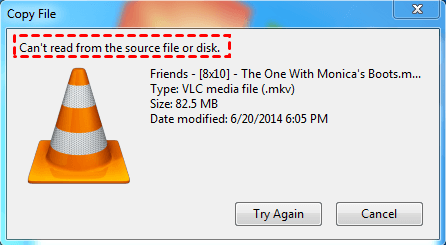
About"Cannot Read from Source Disk" Error
So what's really going on when Windows hits you with this message? At its core, the cannot read from source disk error means your operating system is trying to access data on a storage device but keeps running into roadblocks.
This error typically shows up during file transfers. You might be copying files from your internal drive to an external hard drive, moving photos from an SD card to your desktop, or even just trying to open a document stored on a USB flash drive. When the error appears, the transfer stops, and Windows names a specific file it couldn't read. That filename is a clue.
Sometimes the file that triggers the error still opens and plays just fine on the source drive. Users have reported being able to watch video files without any issues, yet when they try to copy those same files elsewhere, boom—the error appears. That's because the file itself might be intact, but the file system structures pointing to it are damaged, or there are bad sectors in the area where that file lives.
Why Does "Can t Read from Source File or Disk" Occur?
Here are the usual suspects.
- Bad sectors on the source drive.
- File system corruptionand mismatches.
- Connection problems and power issues.
- Unsupported file names.
- Permission problems.
- Corrupted files or partitions.
Now, it’s time to recover files and learn the "can't read from source file or disk" fix.
Recover Files Once You Meet "Can't Read from Source File or Disk" Error
When you're dealing with the cannot read from source disk error, data recovery should always come before repairs. So, how to recover files from this situation? And that's where MyRecover comes in.
MyRecover is professional Windows data recovery software that specializes in one thing: getting your files back, no matter what state the drive is in. MyRecover reads drives at a much deeper level, bypassing corrupted file structures and bad sectors to pull data directly from the source.
- Key Features:
- User-friendly interface: You don't need to be a tech wizard. The software is designed for normal humans.
- Two scanning methods: Quick Scan for recently deleted files, Deep Scan for more thorough recovery when the drive is seriously messed up.
- Over 1,000+file types supported: Documents, photos, videos, audio, emails—MyRecover handles them all.
- Preview before recovery: You can peek inside files to make sure they're intact before committing to recovery.
- Bootable media creation: If your computer won't boot because of the drive errors, MyRecover can create a bootable USB to recover files from a dead system.
- High success rate: Independent tests show recovery rates around 99% for most file types.
Learn how to rescue your data from a drive that's throwing the cannot read from source disk error with MyRecover.
1. Download and install MyRecover. Connect your drive that shows "Can't read from source file or disk" to your computer if the drive is an external drive(HDD/SSD, USB drive, SD card, etc).
 100% Secure
2. Run MyRecover, tap Disk Data Recovery, choose the drive that has read problems, hover your mouse over it, and hit Scan. Wait for it to complete.

3. All found files will be sorted by file type, like documents, images, music, videos, audios, etc. Preview any files you need.
4. Choose the files and hit Recover.

5. Select a destination folder, and hit Select Folder to keep them safe.

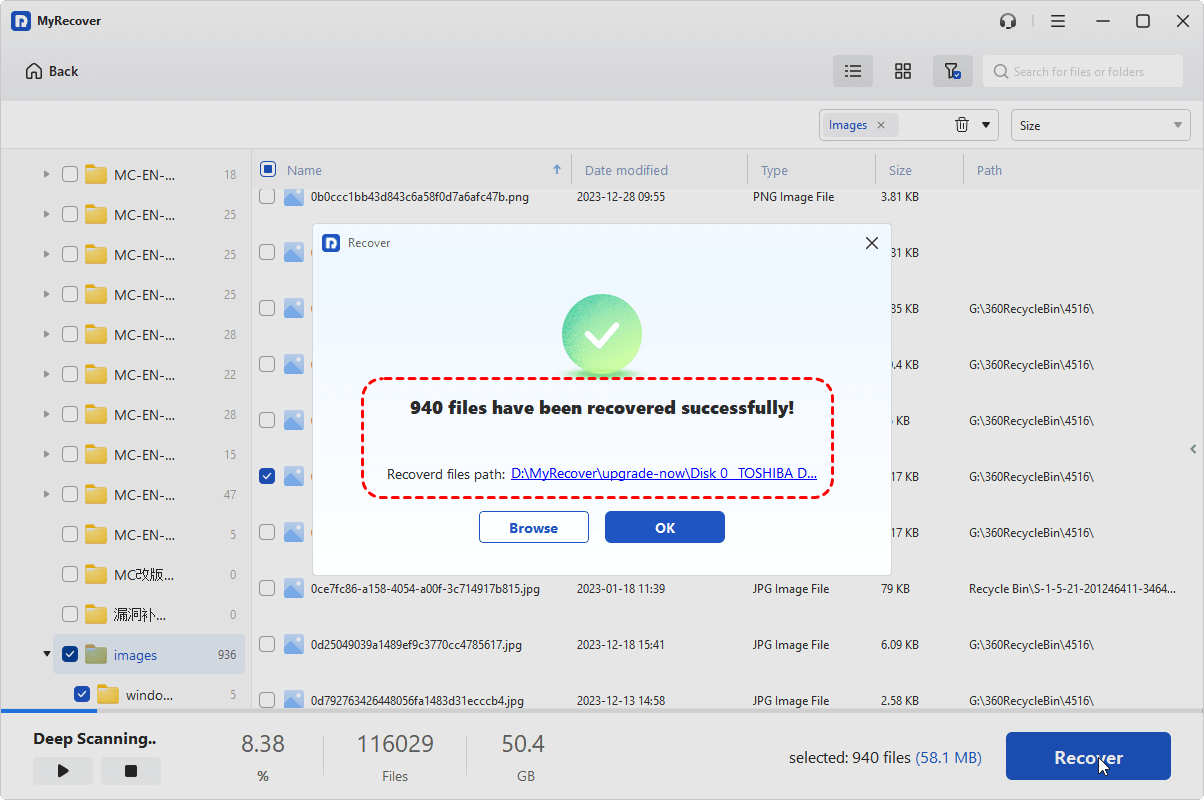
- Notes:✎...
- As the scan runs, you can browse through folders or use the search and filter functions to zero in on specific files. You can filter by file name, by date modified, and by size. This is a huge time-saver.
- You can double-click the file to preview it, or click the Preview button to check its integrity.
- Recovering files from unlimited computers with MyRecover Technician is important if you're an administrator of a company, as it saves time and keeps files safe.

 MyRecover
- Recover Deleted Files Easily with Simple Clicks
- 1000+ File Formats Supported
- Support HDD, SSD, External Hard Drive, USB Drive, SD Card, etc.
- Quickly Find Files Using File Types, Name, Size, etc.
- Preview Files Before Recovering
- Recover Unlimited Data
 100% Secure
What If Your Computer Won't Boot at All?
If the drive with the cannot read from source disk error is your main system drive, and Windows won't start, don't worry. MyRecover has a "PC Crashed Recovery" feature specifically for this situation.
1. On a working computer, download and install MyRecover.
2. Launch the software and select "PC Crashed Recovery".

3. Insert a USB flash drive (at least 1GB). MyRecover will format it and create a bootable WinPE environment on the USB.
4. Plug that bootable USB into your crashed computer and restart.
5. Enter BIOS/UEFI (usually by pressing F2, F12, Del, or Esc during startup) and change the boot order to boot from the USB drive.
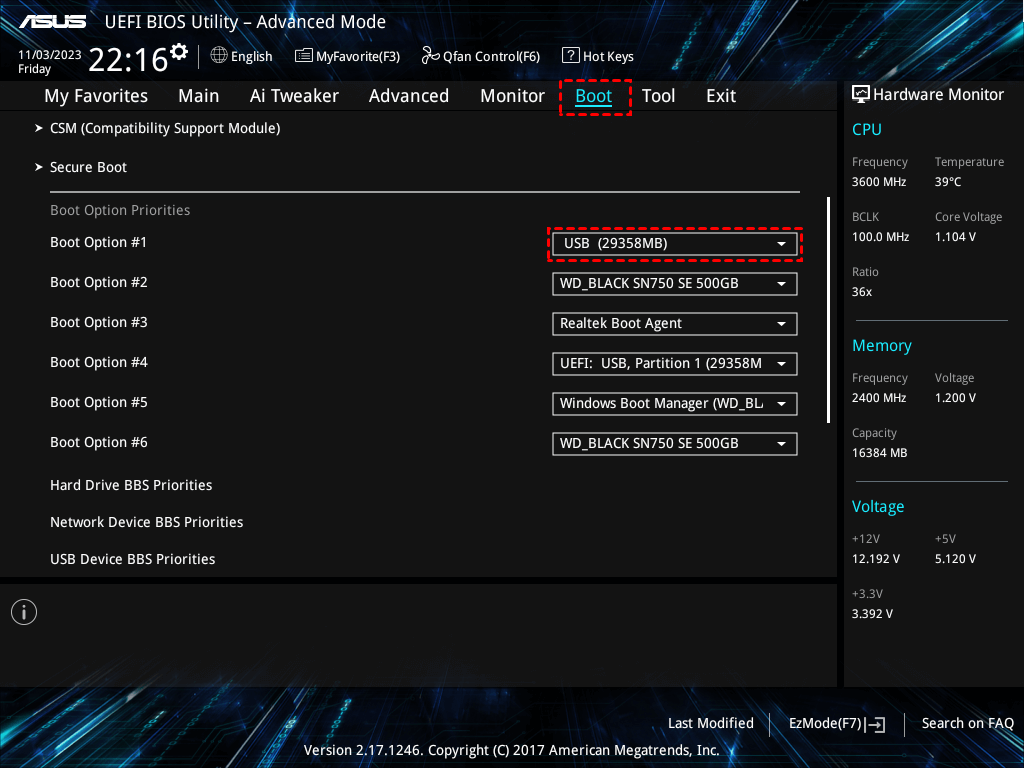
6. Your computer will boot into the MyRecover recovery environment. From there, you can scan your internal drive and recover files just like in the normal steps above.
9 Proven "Can't Read from Source File or Disk" Fixes
Try the following fixes to solve your problem now.
Important: Stop using the affected drive. Every second you keep the drive running, every file you try to access risks overwriting the very data you want to save. If the drive is making weird noises or your computer is struggling to recognize it, shut everything down. Unplug the drive if it's external.
Way 1. Try a Different USB Port or Cable
Connection issues are low-hanging fruit. If you're using an external drive, try a different USB port. Move from a hub to a direct port on your computer. Swap out the cable if you have a spare. Sometimes that's all it takes.
Way 2. Restart Your Computer
Rebooting clears out temporary glitches, resets drivers, and gives Windows a fresh start. After restarting, try the copy operation again and see if the error persists.
Way 3. Check Available Space on the Destination Drive
Make sure the drive you're copying to actually has enough room. If it's full, Windows might get confused and throw a read error instead of a more straightforward "disk full" message. Free up some space and try again.
Way 4. Try Copying Individual Files
If you're trying to copy a whole folder full of files, the error might be getting triggered by just one bad apple. Try copying files one at a time or in smaller batches. When you hit the file that causes the error, you'll know which one is the troublemaker.
Way 5. Run CHKDSK to Fix File System Errors
CHKDSK is Windows' built-in disk checking utility. It scans for file system errors and bad sectors and tries to fix them. Now that your data is safe, you can run it without worry.
1. Press Windows key + R, type "cmd", right-click Command Prompt, and select "Run as administrator".
2. Type chkdsk X: /r (replace X with the actual drive letter of your problematic drive). The /r parameter tells CHKDSK to find bad sectors and recover readable information.
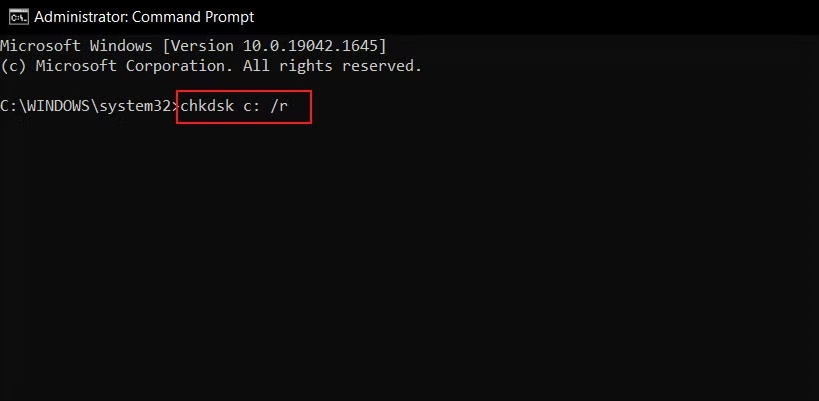
3. If it's your system drive, Windows will ask to schedule the scan for the next reboot. Type Y and restart.
4. Let CHKDSK run. This can take a while, especially on large drives. When it finishes, check if the cannot read from source disk error is resolved.
Way 6. Check and Match File Systems
If the problem might be a file system mismatch, verify that both source and destination drives use compatible systems.
1. In File Explorer, right-click your source drive and select "Properties".
2. Look at the "File system" line on the General tab. Do the same for your destination drive.
3. If you're trying to copy large files (over 4GB) to a FAT32 drive, that's your problem. You'll need to convert the destination drive to NTFS in Disk Management.
4. Then try to copy files again.
Way 7. Rename Problematic Files
If the error points to specific files with weird names, try renaming them.
Step 1: Navigate to the file in File Explorer.
Step 2: Right-click and select "Rename," or select the file and press F2.
Step 3: Remove any special characters like ?, <, >, :, *, /, , |, or ". Stick to letters, numbers, spaces, and basic punctuation like periods and hyphens.
Step 4: Try copying again.
Way 8. Check and Adjust File Permissions
Sometimes the issue is that your user account doesn't have full permission to read the files.
1. Right-click the problematic file or folder and select "Properties".
2. Go to the Security tab.
3. Click "Edit" to change permissions.
4. Select your user account and check the "Allow" box next to "Full control".

5. Click Apply and OK. Try copying again.
Way 9. Use DiskPart to Clean and Reformat (Nuclear Option)
If nothing else works and you're willing to wipe the drive clean to get it working again, DiskPart can help.
Remember: this erases everything, so only do this if you've already recovered your data.
1. Open Command Prompt as Administrator.
2. Type the following commands and followed by Enter after each:
diskpart
list disk
select disk X
clean
create partition primary
format fs=ntfs quick
assign letter=X
exit
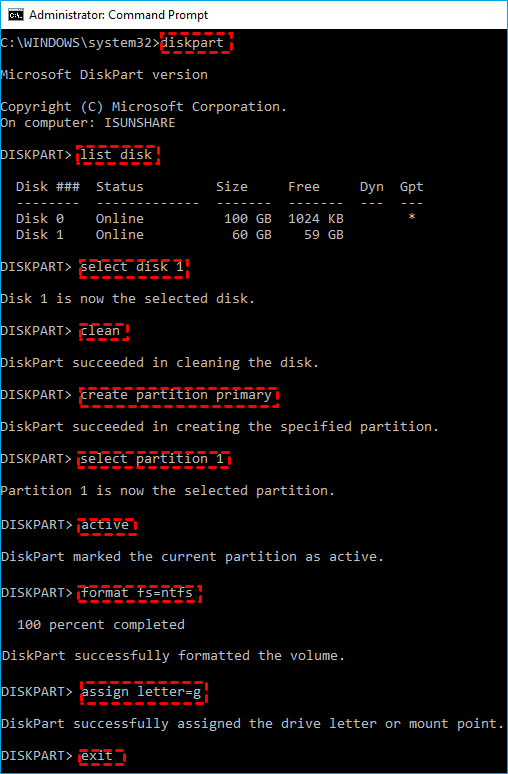
Now, you can use the drive again normally and bypass the error “Can’t read from source file or disk” eventually.
FAQs About Can’t Read from Source File or Disk
How do I fix the "cannot read from source disk" error without losing data?
A: Use data recovery software like MyRecover first. It extracts files without modifying the source drive. After backing up your data elsewhere, run repair tools like CHKDSK or consider reformatting. Never run repairs on a drive containing your only copy of important files.
Why does the error only happen with certain files?
A: This points to bad sectors in specific drive areas. Files triggering the error likely reside in regions with physical damage or corruption. Successfully copied files are in healthy areas. The drive may be partially failing, with only certain sections affected.
Can a virus cause the "cannot read from source file or disk" error?
A: Yes. Malware can corrupt files, damage file system structures, or block drive access. If you suspect malware, run an antivirus scan on a different computer by connecting the affected drive as secondary. Recover data first—some viruses delete files when detected.
Will reformatting fix the "cannot read from source disk" error?
A: Reformatting creates a fresh file system and eliminates logical corruption, often resolving the error. However, it erases all data. Only reformat after successful file recovery. If caused by physical bad sectors, reformatting just marks them unusable—it doesn't fix underlying hardware problems.
Why does my external drive work on one computer but give this error on another?
A: The second computer may have different USB drivers, insufficient port power, or a different OS handling file permissions differently. The drive might also be near failure, and the second computer's USB connection is sensitive enough to trigger read errors.

Stay Updated With Our
Latest Tips
Add us as a preferred source on Google to never miss helpful guides.
 Add as preferred source >>