 MyRecover



Solved: How to Recover From a Black Screen After Windows Updates
Experiencing a black screen after Windows updates? This guide provides the definitive troubleshooting steps for Windows 10 and 11, with or without a cursor. We detail driver fixes, safe mode recovery, and system restore to achieve a black screen after windows update fix.

By Delores / Updated on January 6, 2026


Black Screen After Windows Update!
An update broke my pc, and it only shows a black screen and a "_", nothing else
Hello everyone, Yesterday I restarted my pc (it is an old one btw) it showed this message "updating" or something like that, when I woke up I saw this blue screen asking me to chose a keyboard language and then it showed me the hp backup and recovery manager but I tried every option and didn't get even close to fix it. I asked ChatGPT for help (big mistake, I believe), told me to write some commands, and now it doesn't even show the recovery screen; it is just a black one. If I press "Esc, F10, etc.", it shows in the bottom left corner "Esc…Pause startup, "I already have a USB with the Windows recovery thing, btw. Can anyone please help?
- Question from reddit.com
A black screen after Windows updates is a notorious and frustrating issue that halts work, play, and productivity in its tracks. Why does this happen, and more importantly, how do you get your digital life back? But don't panic—this guide is your comprehensive roadmap from confusion to a full black screen after Windows update fix.

Why Get a Black Screen After Windows Updates?
Fundamentally, the black screen after Windows updates occurs when the operating system fails to load the graphical user interface (GUI) properly after a patch or upgrade. A black screen after a Windows update might be due to several potential culprits.
- Graphics Driver Conflicts. This is, hands down, the most frequent offender. Windows Update often pushes new or updated graphics drivers. If this driver is incompatible with your specific GPU model or has a bug, it can fail to initialize, resulting in a black screen after a Windows 10 update with a cursor or a completely blank display.
- Incomplete or Corrupted System Files. Sometimes, the update download or installation gets interrupted by a power flicker, a sudden restart, or unstable internet. This can leave system files partially written or corrupted. When Windows tries to boot using these broken files, it can stumble and fail to load the desktop environment, leading to a black screen after updating Windows 11.
- Display and Power Settings Issues. Less common, but still possible, are conflicts with advanced display settings, like a resolution or refresh rate that the monitor cannot handle post-update. Similarly, faulty power management settings might put the display to sleep in a way it can't wake up from, mimicking a black screen issue.
Navigating from understanding to action requires first knowing what version of the problem you have. The presence or absence of a cursor is a major clue.
Fixes for a Black Screen With a Cursor in Windows 11/10
If you can see your mouse pointer moving on that ominous black canvas, you're actually in a better position than it seems. This indicates that Windows is partially running—it's just the Explorer shell (your desktop, taskbar, etc.) that's crashed. Here's how to fix a black screen after a Windows 10 update with the cursor.
Way 1. Restart File Explorer
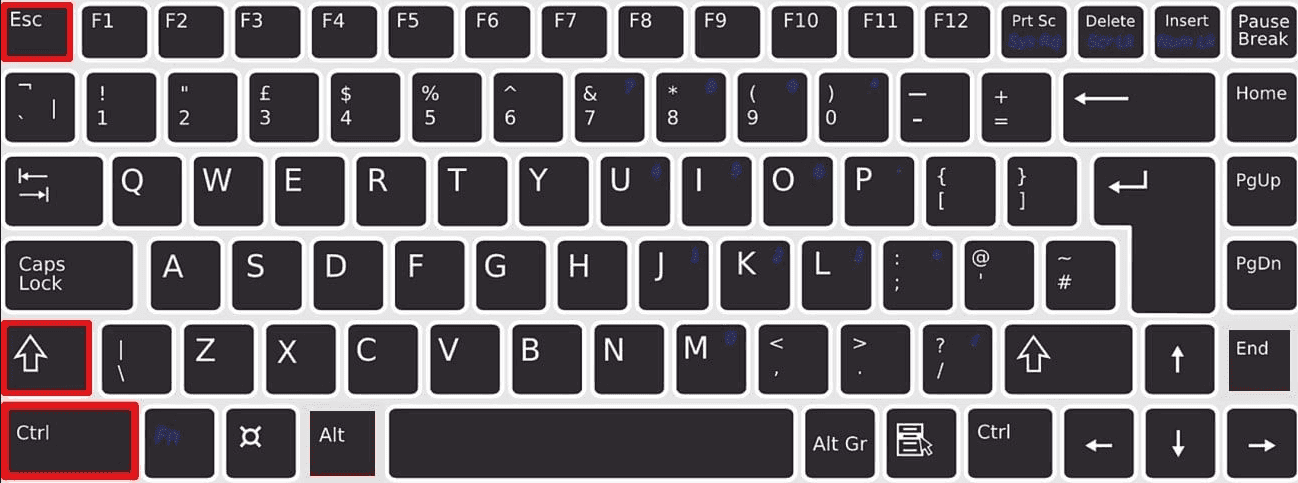
First, try pressing Ctrl + Shift + Esc on your keyboard. Believe it or not, this might just bring up the Task Manager. If it does, click "File" > "Run new task", type explorer.exe, and hit Enter. This often resurrects the desktop instantly.
Way 2. Get into Safe Mode
If you can't restart File Explorer, perform a hard restart by holding your PC's power button until it shuts off, then turn it back on.
As it boots, repeatedly press the F8 key (or Shift + F8 on some systems) to try and access the Advanced Boot Options menu, where you can select Safe Mode, or Safe Mode with Networking.
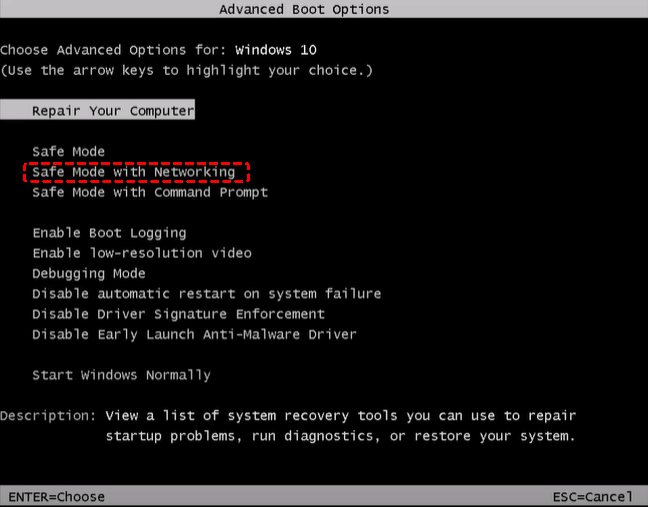
Safe Mode loads Windows with a minimal set of drivers, which can bypass the faulty graphics driver causing the issue.
Way 3. Clean Booting Windows to Isolate Software Conflict
If you can get into Safe Mode, perform a clean boot.
Type msconfig in the Run box (Win + R), go to the Services tab, check "Hide all Microsoft services", then click "Disable all".
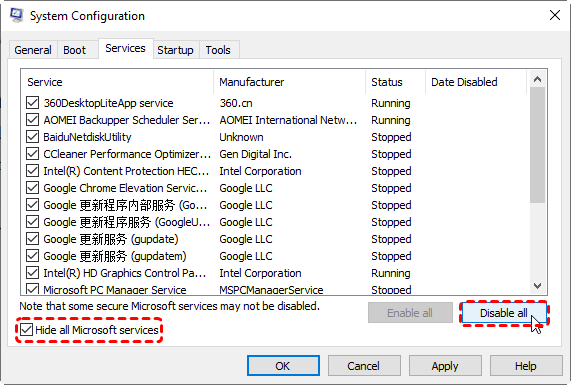
Go to the Startup tab and open Task Manager to disable all startup items.
This boot will eliminate third-party software conflicts. If the black screen disappears, you can re-enable items in groups to find the culprit.
Way 4. Roll Back Drivers
If Safe Mode loads successfully, you're golden. Here, you can roll back the graphics driver.
1. Right-click the Start button, select "Device Manager".
2. Expand "Display adapters", right-click your GPU, and choose "Properties".
3. Go to the "Driver" tab and select "Roll Back Driver".
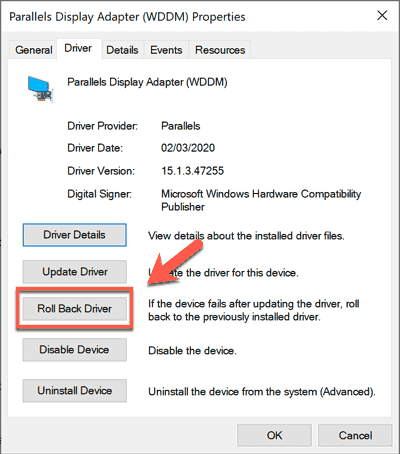
After a restart, Windows will use the previous, working driver. You can also use System Restore from Safe Mode to revert your PC to a state before the problematic update.
Way 5. Uninstall Windows Update
If you can press Ctrl + Shift + Esc to open File Explorer after the Windows Update black screen, immediately head to Settings > Windows Update > Update History and uninstall the latest update.
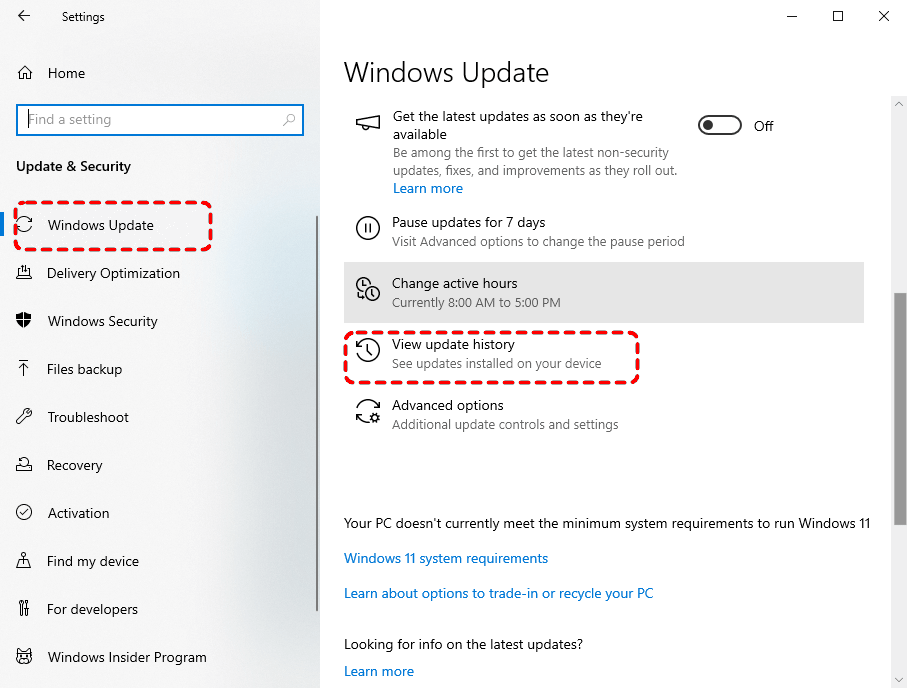
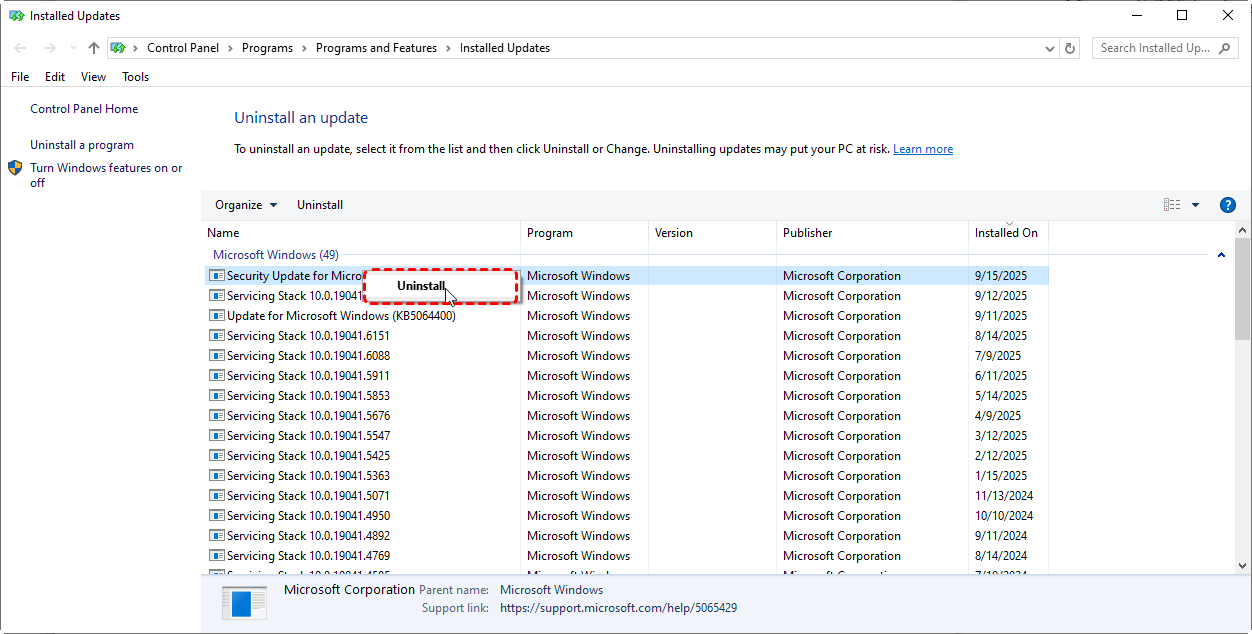
This can provide immediate relief and is a core strategy for a black screen after a Windows update fix. But what if the screen is utterly black, without even a cursor to cling to? The situation is more serious, but not hopeless.
Repair A Black Screen After Windows Update without a Cursor
A black screen after a Windows update, no cursor, suggests a deeper failure, likely at the driver or core system level. Your primary toolset now becomes the Windows Recovery Environment.
Perform a System Restore from a Black Screen
The three-interrupted-boot method described for Windows 11 is your universal key here. Force the PC off during boot three times to trigger WinRE. You can also try inserting a Windows installation USB drive and booting from it, which will give you access to repair tools.
Once in the blue WinRE menu (you may hear sounds or need to wait a specific time after boot to assume it's loaded), use the keyboard.
Press Tab to navigate (you might hear audio cues if Narrator is on) and Enter to select.
Navigate to: Troubleshoot > Advanced options > System Restore.
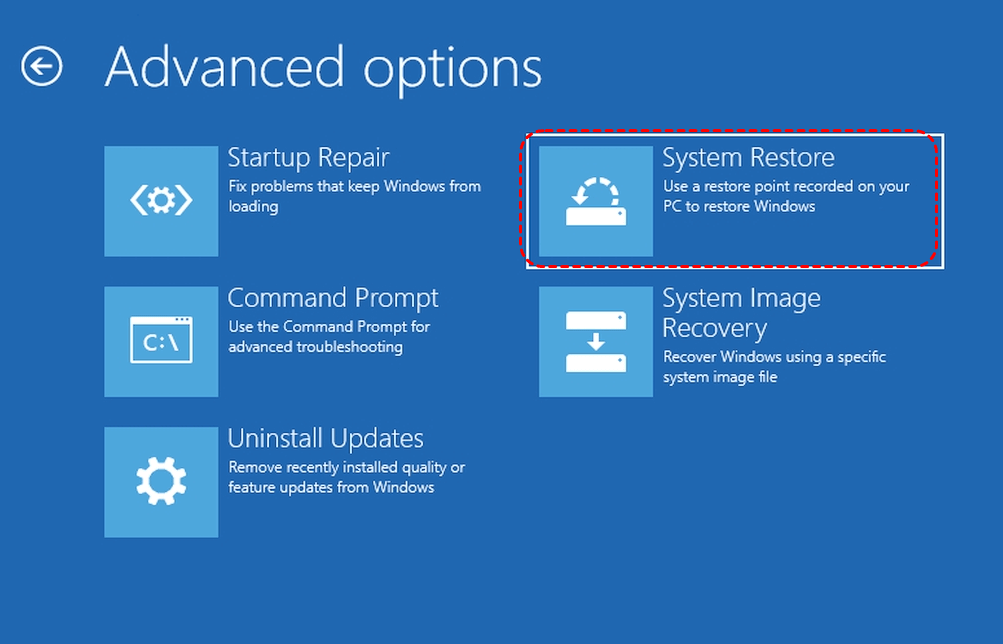
Choose a restore point from before the update was installed.
This is often the silver bullet for a black screen after a Windows update fix, as it reverts system files and settings but leaves your personal files untouched.
Recover Important Files Before System Restore
Before you attempt any major system repair that could potentially overwrite data, securing your files is job one. This is where a reliable data recovery tool like MyRecover becomes indispensable. It's designed to work from within Windows, but crucially, you can also run it from a WinPE emergency bootable media if your system is unbootable.
Since we're dealing with a software/OS issue and not a dead hard drive, your files are almost certainly still on the disk; Windows can't load to let you access them. MyRecover can scan the drive and pull your documents, photos, videos, and emails to safety.
Here is a step-by-step guide to recover your files using MyRecover from a system suffering a black screen after Windows updates:
Step 1: Create a Bootable Media on a Working PC.
On a separate, functioning computer, download and install MyRecover. Connect a USB drive (at least 32GB) to that computer. Launch the tool and tap "PC Crashed Recovery", choose the USB, and hit Create.
 100% Secure
Step 2: Boot Your Affected PC from the USB Drive.
Insert the MyRecover bootable USB into your black-screened computer. Restart the PC and press the key to enter the boot menu (common keys are F12, F10, Esc, or Del, depending on your manufacturer). Select the USB drive as the boot device. Your PC will now boot into the MyRecover recovery environment instead of Windows.
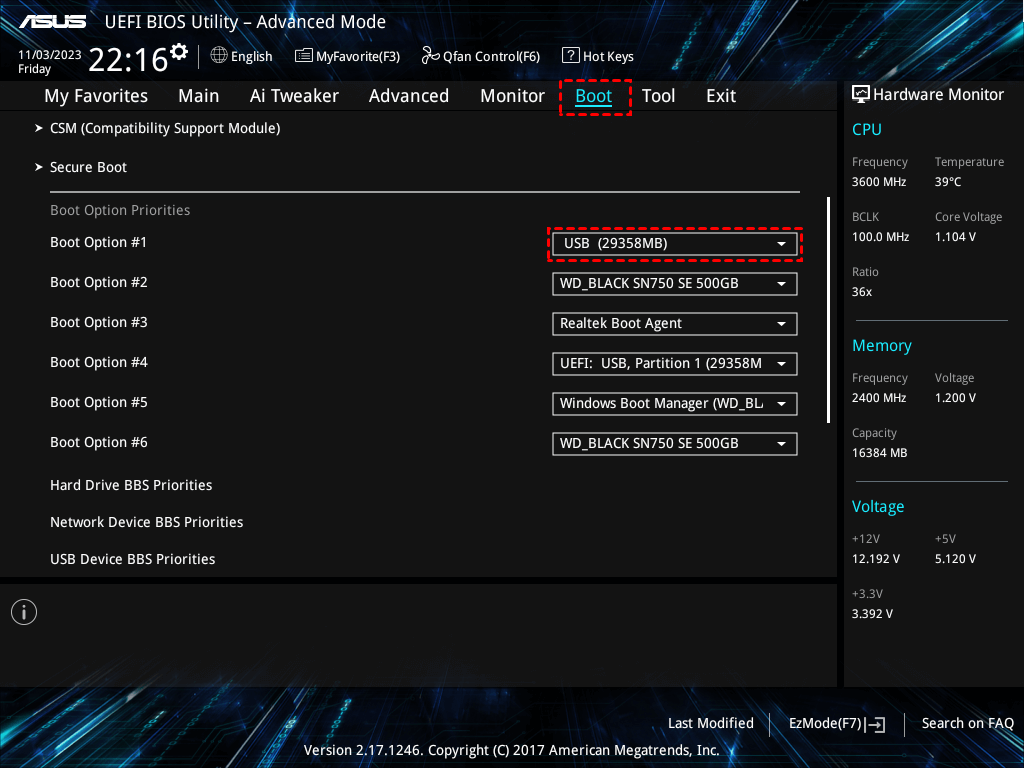
Step 3: Scan Your System Drive for Files.
Once the MyRecover interface loads, tap Disk Data Recovery, select your primary system drive (usually C:), then click the "Scan" button. MyRecover will perform a quick scan.

Step 4: Preview Files for Recovery.
After the scan completes, you can browse the results by file type, path, or date. MyRecover often shows the original folder structure. You can preview many file types (like images, documents, and text files) to ensure they're intact.
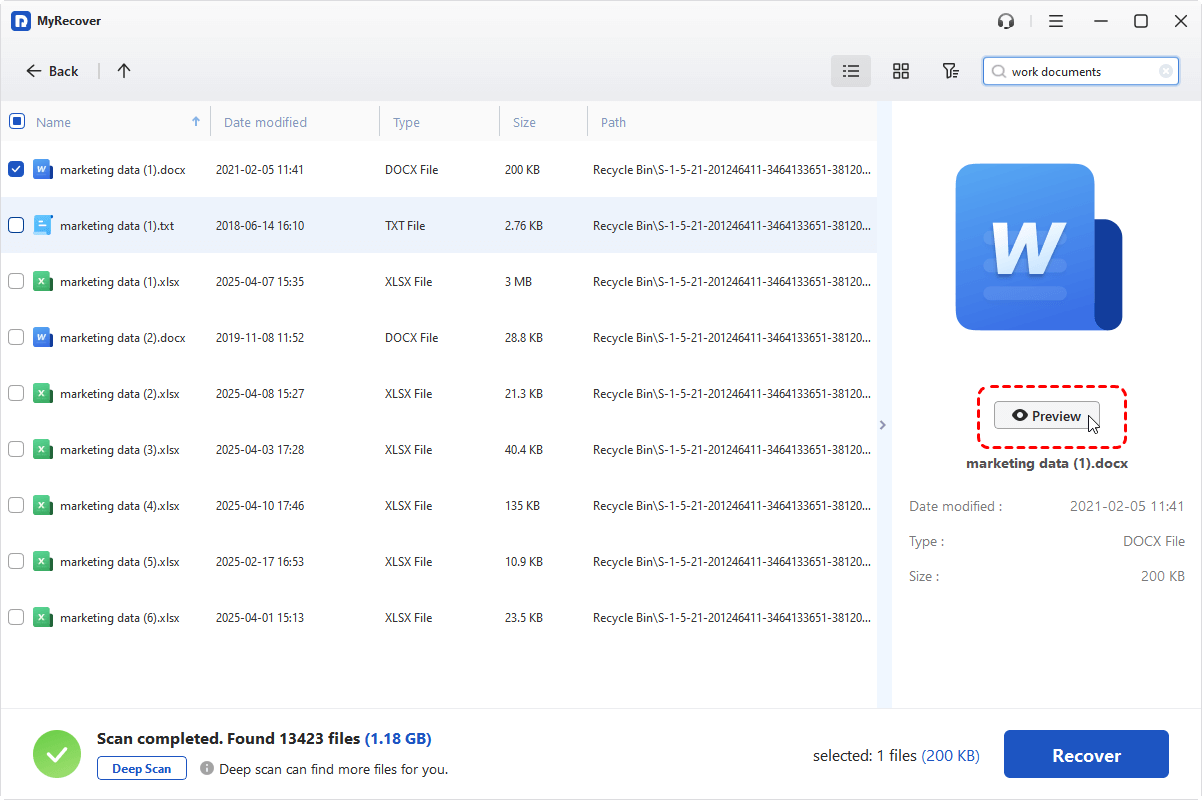
Step 5: Recover Files to a Safe Location.
Select all the files and folders you wish to recover, and hit Recover. Select a different destination, such as an external hard drive, a second internal drive, or a large-capacity USB drive to keep the recovered files.


- Tips:✎...
- You can also recover files from a formatted SSD, a corrupted SD card, a RAW partition, a damaged partition, etc.
- To recover files for unlimited computers, please upgrade to MyRecover Technician to enjoy.
Once your files are safely on an external drive, you can proceed with the more aggressive black screen after Windows update fix options—like System Restore, Reset, or even a clean Windows installation—with peace of mind.

 MyRecover
- Recover Deleted Files Easily with Simple Clicks
- 1000+ File Formats Supported
- Support HDD, SSD, External Hard Drive, USB Drive, SD Card, etc.
- Quickly Find Files Using File Types, Name, Size, etc.
- Preview Files Before Recovering
- Recover Unlimited Data
 100% Secure
Prevent Future Update Display Issues
Once your system is back up and running, let's make sure this nightmare doesn't repeat itself. Adopting these habits can save you countless hours of troubleshooting down the line.
Creating System Restore Points
Manually create a restore point before installing any major update or driver. Type "Create a restore point" in the Windows search bar, select your system drive, click "Create," and give it a descriptive name like "Pre-October_Update." This gives you a one-click rollback option.
Updating Drivers Proactively
Don't rely solely on Windows Update for graphics drivers. Visit your GPU manufacturer's website (NVIDIA, AMD, or Intel) directly and download the latest stable (not necessarily beta) drivers. Cleanly install them using the custom installation option. This often provides better compatibility and performance than the drivers delivered through Windows Update.
FAQs About Windows Update Black Screen
Why does my computer show a black screen after a Windows update?
Usually due to a graphics driver conflict or corrupted system files. The update installs something incompatible, so Windows can't load the display properly.
How can I fix a black screen with only a cursor after updating Windows 10?
Try restarting Windows Explorer via Task Manager (explorer.exe). If that fails, reboot into Safe Mode and roll back your display driver or use System Restore.
Is my data lost if I have a black screen after a Windows 11 update?
No. It’s almost always a software issue—your files are still on the drive. Use a recovery tool or System Restore/Reset (choose “Keep my files”) to regain access.
What should I try first when I see a black screen with no cursor?
Check the monitor and cables first. Then force-shut down three times to boot into Windows Recovery (WinRE), where you can access Safe Mode, System Restore, or Startup Repair.
How do I permanently fix the black screen problem after updates?
Fix it now with driver rollback or System Restore. Then, prevent future issues by manually updating graphics drivers, creating restore points, and pausing Windows updates after major releases.
Can I prevent Windows updates from causing a black screen?
Yes. Take control of graphics driver updates directly from NVIDIA/AMD/Intel, pause Windows updates for a few weeks after release, and always create a restore point before updating.
What's the difference between a black screen with a cursor and without one in terms of severity?
A cursor means Windows is partially running—often just the Explorer shell has failed. No cursor means an earlier, more serious boot failure, likely needing WinRE to fix.
Should I use System Restore or a Windows Reset for a black screen fix?
Always try System Restore first—it saves your files and apps. If that fails, try a Reset with “Keep my files”. Recover your data beforehand if possible.

Stay Updated With Our
Latest Tips
Add us as a preferred source on Google to never miss helpful guides.
 Add as preferred source >>