 MyRecover



Dell Recovery Partition Missing! Restore Recovery Options on Windows 11/10
A missing Dell recovery partition doesn't necessarily mean Windows is damaged. This guide covers identifying the missing component, checking WinRE, using Dell recovery media, creating a replacement WinRE partition when appropriate, and protecting files before repair, plus when partition recovery software is safer than rebuilding the layout.

By Delores / Updated on November 6, 2026


A missing Dell recovery partition usually affects factory restore or Windows Recovery Environment access, not the everyday ability to boot Windows. First, check whether the partition is merely hidden or whether WinRE is disabled or points to a missing image. If important files were stored on a deleted or reformatted partition, protect them before creating a new one.
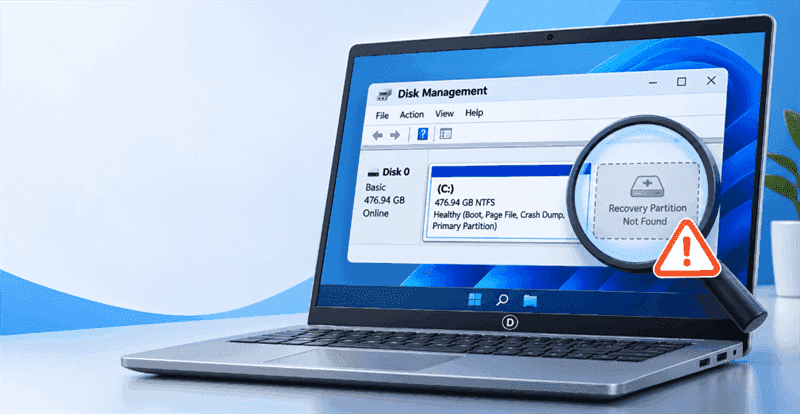
What Does a Missing Dell Recovery Partition Mean?
Dell computers may contain more than one recovery-related component. A small Windows Recovery Environment partition stores tools such as Startup Repair and Reset this PC support, while some Dell systems also include an OEM recovery area used by SupportAssist OS Recovery or a factory image. These components are related but not interchangeable.
The partition is invisible in File Explorer because it is intentionally hidden. Disk Management can show whether a recovery partition exists, whether the disk contains unallocated space, and whether the storage device is detected at all. Do not delete or format a partition simply because it has no drive letter.
Why Is My Dell Recovery Partition Missing?
Many reasons could be responsible for the missing recovery partition in a Dell computer, and we list the main reasons:
- A clean installation or a disk replacement created a new partition layout and removed Dell-specific recovery content.
- A partition was resized, deleted, or formatted during manual disk management, cloning, or dual-boot work.
- The recovery partition still exists, but the Windows Recovery Environment is disabled, or its WinRE image path is incorrect.
- A failed update, damaged file system, or storage problem made the partition unreadable.
- The computer model or Windows installation does not use the same factory recovery design as another Dell model.
The phrase “recovery partition missing” therefore describes several different problems. A factory reset option can disappear even when Windows can still boot, while a missing WinRE partition can affect Reset this PC and advanced startup. Diagnose the state before attempting to recreate anything.
Do I Really Need A Recovery Partition in Dell?
On a Dell, you don't need the recovery partition for Windows to run, but deleting it removes Dell's factory reset image. It's safe to delete only if you first create a Dell recovery USB using your Service Tag or have Windows installation media. Note that the factory image is often outdated and full of bloatware, and it can't be easily recreated once deleted.
Check the Disk Before You Create a Dell Recovery Partition
Back up accessible personal files to a separate drive first. If the disk is making unusual noises, disconnecting, or reporting read errors, repeated scans and partition edits may worsen the situation. Dell also provides hardware diagnostics from the one-time boot menu on supported systems; treat a failing drive as a data-recovery problem before a partition-repair problem.
Step 1. Open Disk Management
Press Win + X and select Disk Management. Locate the internal disk by capacity and inspect the partitions marked Recovery, OEM, EFI System, or Unallocated. Do not assign a drive letter or format a small recovery partition just to make it visible.
Step 2. Check the WinRE status
Open Terminal or Command Prompt as administrator and run the following command. It reports whether Windows Recovery Environment is enabled and where Windows expects the image to be located.
reagentc /info
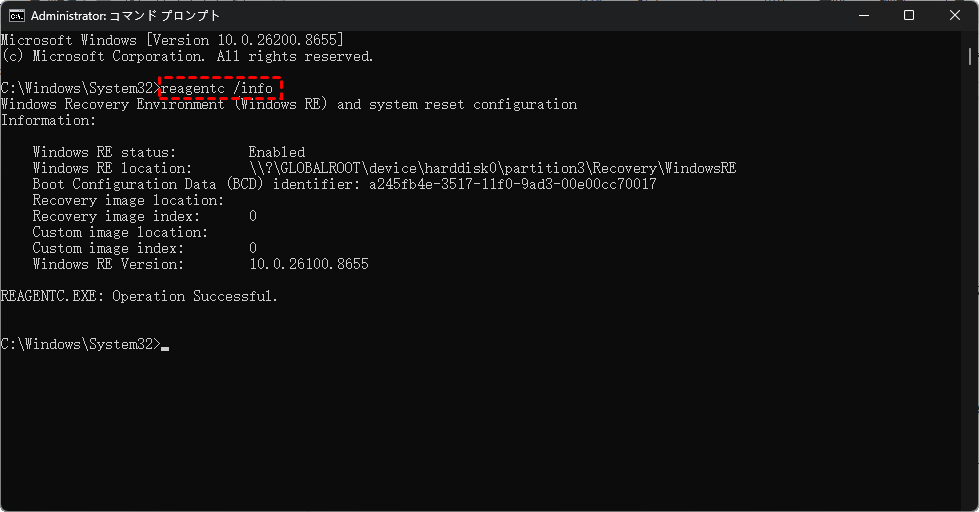
If the status is Disabled but the Windows RE location appears valid, enabling WinRE may restore the recovery options without creating a new partition. If the path points to a location that no longer exists, rebuilding the configuration requires more care.
Method 1: Re-enable Windows Recovery Environment(WinRE)
Use this method when Windows still boots, the WinRE files are present, and reagentc /info shows that the environment is disabled. It does not recreate a deleted Dell factory image, and it does not repair a physically failing drive.
Here is how to enable the Windows Recovery Environment in Windows 11/10:
1. In an elevated Command Prompt, run reagentc /disable to disable the current configuration. Then run reagentc /info again and note the reported path before proceeding.
2. Run reagentc /enable and then reagentc /infoto enable WinRE again. Or you can run reagentc /setreimage /path C:\Recovery\WindowsRE to rebuild WinRE before enabling.
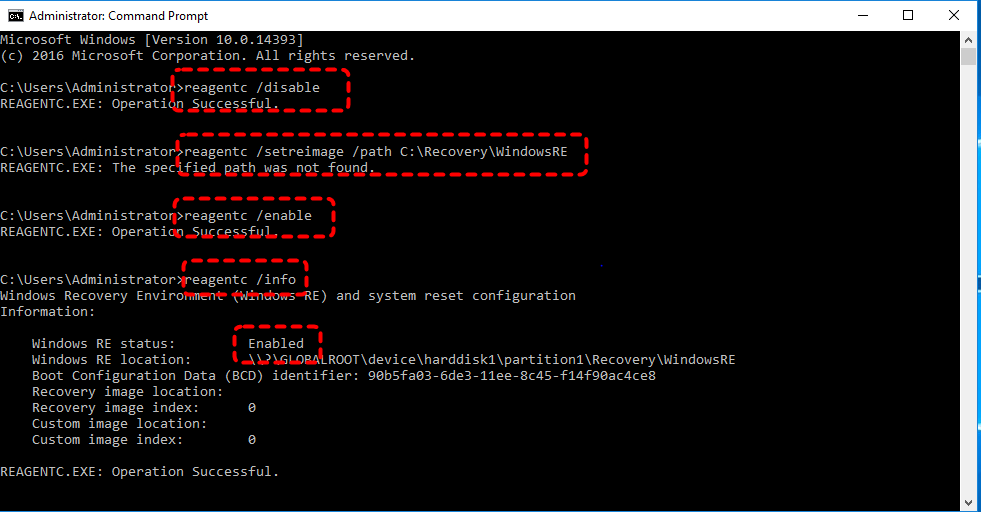
Confirm that Windows RE status is Enabled and that the reported location is valid. If Windows returns “The Windows RE image was not found”, stop and use the installation media or manual rebuild path instead of repeating the same command.
Method 2: Use Dell Recovery Media Instead of the Missing Partition
If the Dell partition was removed but the computer is supported, external recovery media can replace the local recovery path. Use Dell’s official recovery-image instructions for the exact model and service tag. This route may restore factory drivers and applications, but it can also erase the Windows installation or personal data depending on the selected option.
Read the current Dell instructions for downloading and using the Dell OS Recovery Image and verify the model before creating USB media.
Step 1. Prepare a USB drive on a working computer
Use a blank USB drive with enough capacity for the Dell recovery image. Download the recovery tool or image only from Dell, and keep any files already on the USB somewhere else because the creation process may reformat it.
Step 2. Boot the Dell computer from USB
Connect the recovery USB, restart the Dell computer, and press F12 at the Dell logo to open the one-time boot menu. Select the UEFI USB entry. If the internal disk is not detected, check the storage mode and hardware diagnostics before starting installation.
Step 3. Choose repair, restore, or reinstall carefully
Read each screen before confirming. A repair or backup option may preserve more data than a factory restore, while a clean installation removes the existing layout. If files are still needed, copy or recover them before selecting a destructive restore option.
Method 3: Create a New Windows Recovery Partition
Creating a replacement WinRE partition can restore Windows recovery tools, but it does not recreate Dell’s original factory image or SupportAssist content. The exact size and partition type depend on the Windows version and the current disk layout. Microsoft and Dell deployment guidance should take priority over a generic recipe.
For a Windows-focused layout example, review how to create a recovery partition in Windows 10 and 11 and compare it with the current Disk Management state before making changes.
Step 1. Make space only after backing up
Shrink the Windows volume only when Disk Management shows adequate free space and the disk is healthy. Do not use DiskPart clean, delete partition, or format commands on the original disk unless you have confirmed that the data is no longer needed.
Step 2. Place the WinRE files on the new partition
Use the existing Windows recovery files when available. If Winre.wim is missing or corrupted, obtain valid installation media for the same Windows version rather than copying an unknown file from the internet.
Step 3. Register and verify the image path
Use reagentc /setreimage with the correct WindowsRE folder, then run reagentc /enable and reagentc /info. Test Advanced Startup or Reset this PC without selecting a destructive reset until you have confirmed that important files are backed up.
Method 4: Recover Missing Dell Recovery Partition and All Files
In fact, you can directly recover a missing Dell recovery partition with powerful Windows data recovery software, MyRecover. It provides the exclusive Partition Recovery feature to recover missing, deleted partitions and all their files. When the goal is to restore the partition and its contents, use MyRecover Professional to complete your goal.
Here is how to recover a missing Dell recovery partition in Windows 11 with MyRecover:
1. Download MyRecover from the official source and install it on a different computer whenever possible. Connect the Dell disk and confirm that Windows detects it by model and capacity. Do not save recovered files back to the affected disk.
 100% Secure
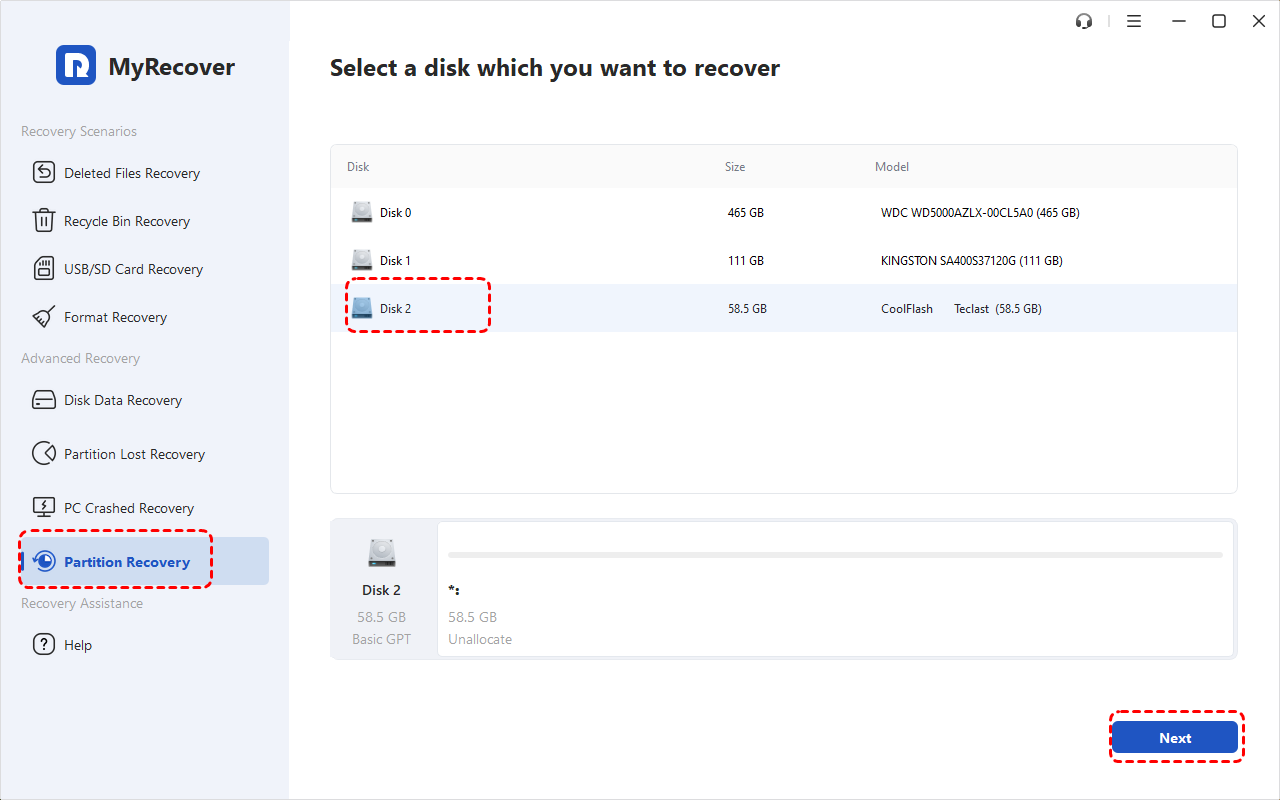
2. Open MyRecover, choose Partition Recovery, select the entire physical disk containing the missing Dell partition, and click Next.
3. Choose a search mode (Fast Search or Full Search) to find your missing Dell recovery partition; press Next.
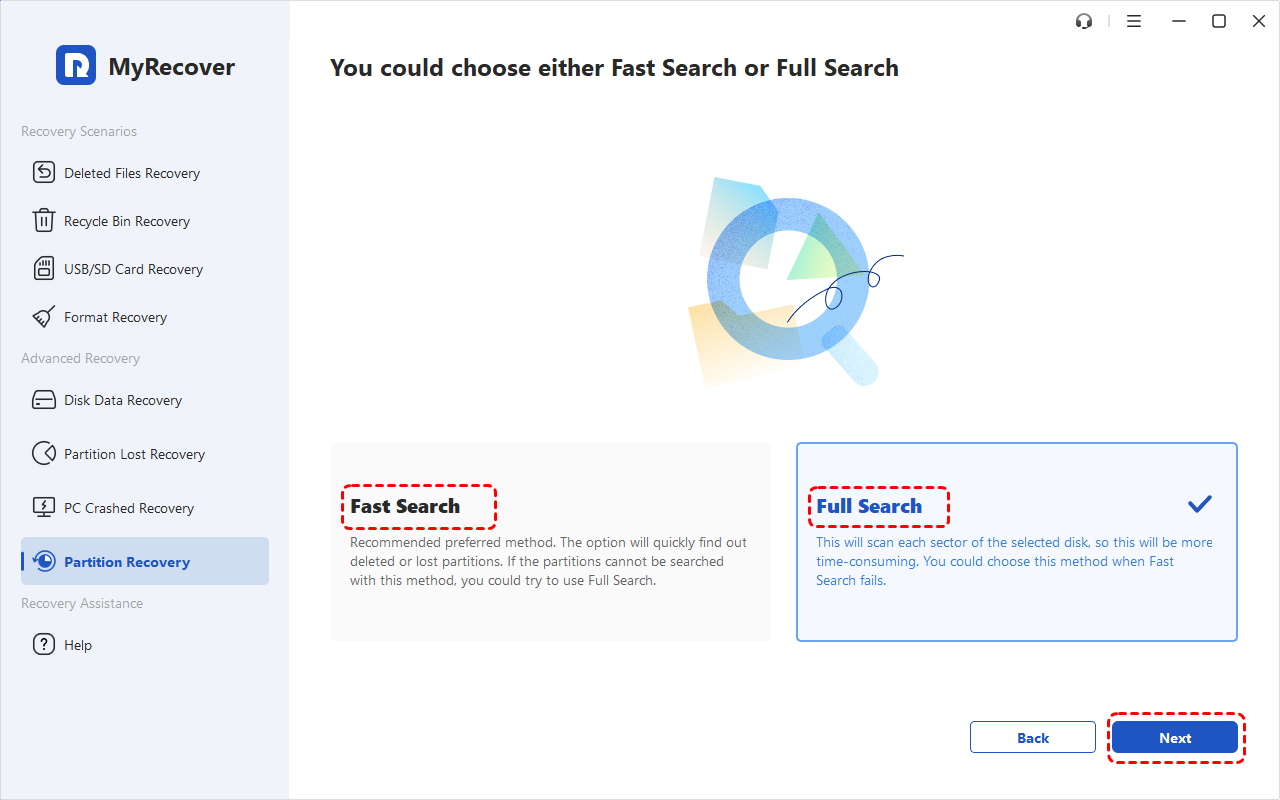
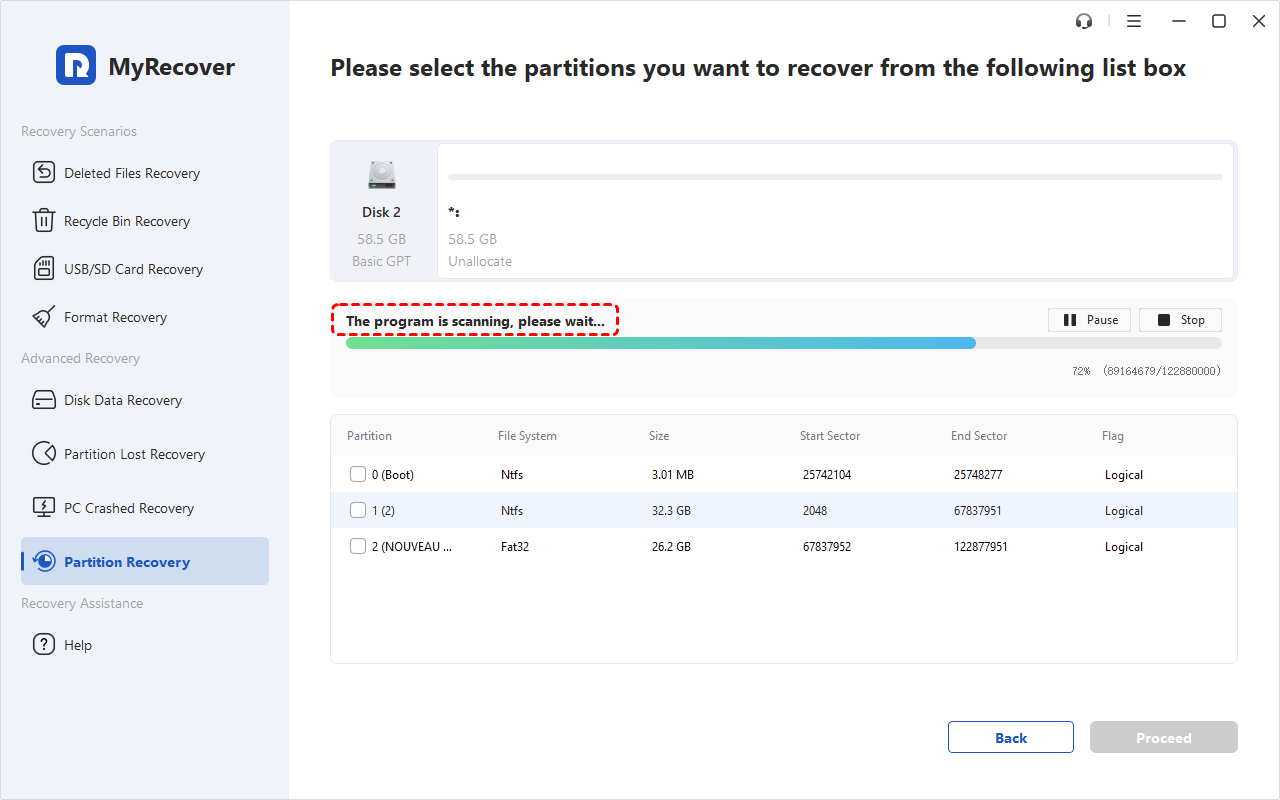
4. Wait a moment; it will show all your missing partitions. Tick the missing Dell recovery partition according to the partition information (file system, size, etc.) and hit Proceed to recover it.
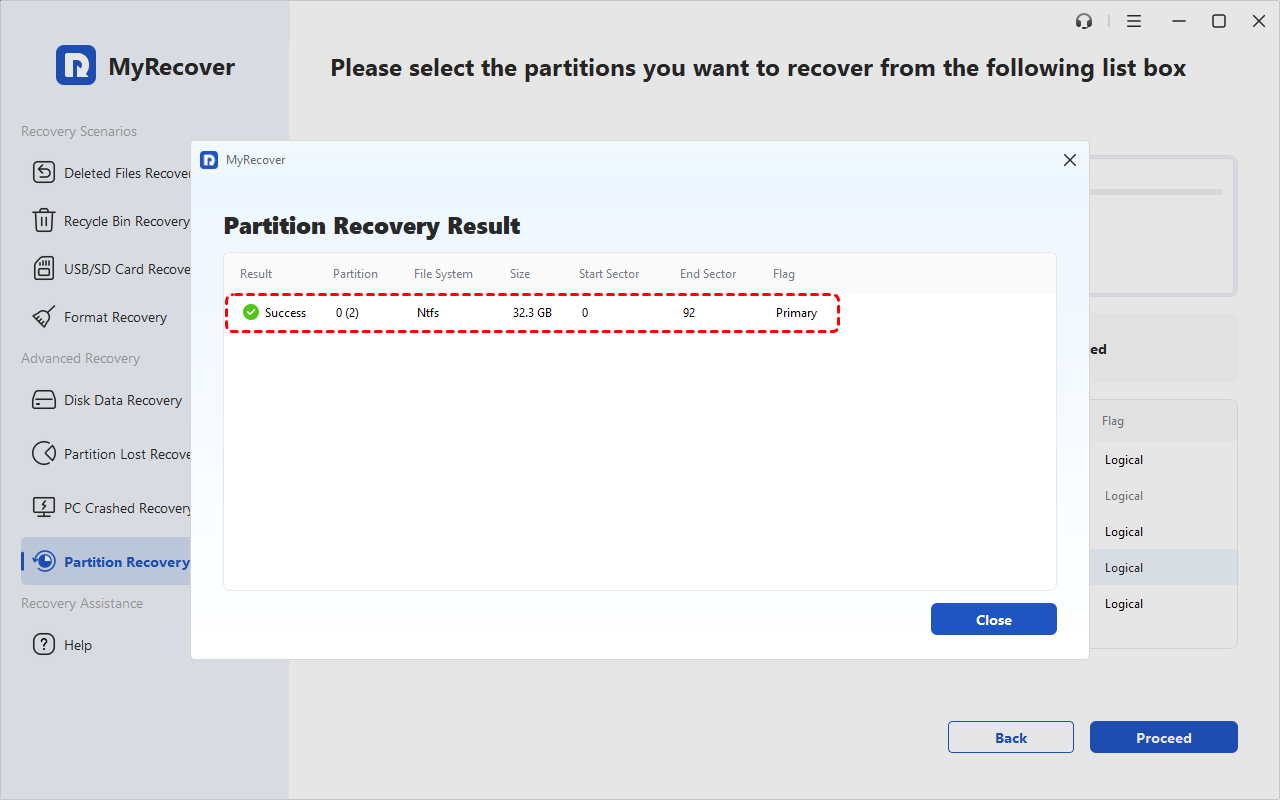
After recovering, your original Dell Recovery partition should be restored. Check the candidate’s file system, capacity, and position against the original Dell layout.
- Tips:✎...
- For unlimited file recovery, you can upgrade to MyRecover Technician to enjoy.
- If the disk is not detected at all, partition software may not be appropriate. A physical failure, unstable connection, or controller problem can prevent any tool from reading the partition structure. Recover the most important accessible files first and consider professional hardware evaluation.
 MyRecover
- Recover Deleted Files Easily with Simple Clicks
- 1000+ File Formats Supported
- Support HDD, SSD, External Hard Drive, USB Drive, SD Card, etc./li>
- Quickly Find Files Using File Types, Name, Size, etc.
- Preview Files Before Recovering
- Recover Unlimited Data
 100% Secure
Summary
When a Dell recovery partition is missing, first determine whether it is hidden, deleted, disconnected from WinRE, or replaced by an unallocated area. Re-enable WinRE when the files and path still exist. Use Dell recovery media when the factory image is needed, and create a replacement Windows recovery partition only after backing up data and confirming the layout. If the partition or its files were deleted, recover important data before rebuilding the disk. For readers who need to recover an entire partition and its contents, MyRecover Professional is the relevant option; readers who need broader recovery work across multiple computers can evaluate MyRecover Technician.
FAQs about Dell Recovery Partition is Missing
Can I restore a Dell recovery partition without losing files?
Sometimes, but not by default. Re-enabling WinRE may leave personal files untouched, while factory restoration or a clean installation can erase the current Windows layout. Back up or recover important files first, then choose the least destructive path that matches your goal: Windows repair tools, Dell factory recovery, or partition restoration.
Is a missing Dell recovery partition always a serious problem?
No. A hidden recovery partition can be normal, and Windows may still boot without Dell’s factory image. The problem becomes urgent when Reset this PC, Advanced startup, or SupportAssist OS Recovery cannot start, or when the missing partition contained unique files. Check Disk Management and reagentc /info before changing anything.
What should I do if the Dell recovery partition is not working?
Check whether WinRE is enabled and whether its image path exists. If the path is invalid, use matching Windows installation media or Dell recovery media rather than repeatedly enabling the same broken configuration. If the drive is unstable or files are missing, protect data before attempting repair or reset operations.
Can I create a Dell recovery partition on Windows 11?
You can create a Windows recovery environment partition when the disk layout and WinRE files support it, but that does not recreate Dell’s original factory image. Use Dell’s model-specific recovery media when factory applications are required. Before resizing partitions, back up data and verify that the disk is healthy.
What does the Dell recovery partition key mean?
It usually refers to the F12 boot-menu key, a Windows activation key, or a Dell service tag, not one universal recovery key. F12 opens boot choices; it does not rebuild a partition. Use the service tag to identify Dell recovery media, and keep license and device identifiers private.
Can MyRecover recover a deleted Dell recovery partition?
MyRecover Professional can attempt Partition Recovery when Windows detects the disk and the goal is to restore the partition and its data. Results depend on the disk state and later writes. If you only need files, Partition Lost Recovery may be more appropriate because it extracts data without restoring the original partition.
What should I do if my Windows Recovery partition is missing?
Run reagentc /info in an admin Command Prompt; if disabled, run reagentc /enable. If that fails, try restoring Winre.wim manually or rebuilding the partition with DiskPart. If too complex, create a Windows installation USB with Microsoft's Media Creation Tool to access recovery tools or do a clean install.
Can I factory reset my Dell laptop without a recovery key?
Yes—"recovery key" usually means BitLocker, which is separate. Reset via Settings > System > Recovery > Reset this PC, press F12 at boot for Dell SupportAssist OS Recovery, or use Advanced Startup if Windows won't boot.

Stay Updated With Our
Latest Tips
Add us as a preferred source on Google to never miss helpful guides.
 Add as preferred source >>