 MyRecover



Could Not Find the Recovery Environment in Windows 11? 4 Easy Fixes
This guide solves the "Could not find the recovery environment. Insert your Windows installation or recovery media, and restart your PC with the media" error in Windows 11/10. Learn to manually install or locate the missing WinRE partition and repair your system.

By Delores / Updated on June 5, 2026


Could Not Find the Recovery Environment in Windows 11!
Could not find the recovery environment
I'm trying to factory reset my laptop; however, I keep getting that error message.
- Question from reddit.com
What to do if you click the Reset this PC, and then find the error message: Could not find the recovery environment. Insert your Windows installation or recovery media, and restart your PC with the media. Now, it’s a nightmare.
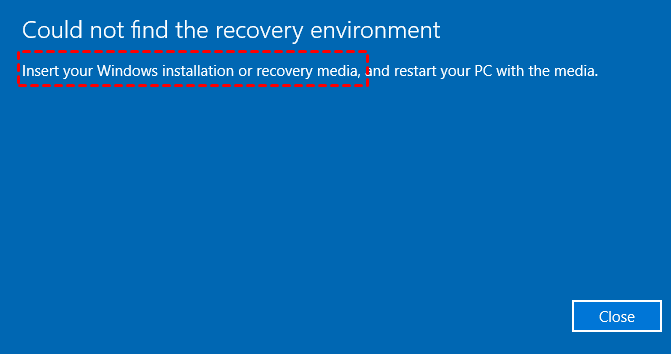
When Windows throws this error, it basically means the built-in toolkit it needs to repair or reset itself has gone missing or gotten corrupted. Without it, features like "Reset this PC" and advanced startup options simply won't work.
Don’t worry, you can absolutely fix this, and I will walk you through every single method.
Why Does "Could Not Find the Recovery Environment Windows 11" Happen?
The Windows Recovery Environment, or WinRE for short, is a hidden partition on your hard drive that contains repair tools. If you meet the following situations, you will get the "Could not find the recovery environment" in Windows 11/10:
- Windows RE is disabled. Sometimes, updates or system changes simply turn WinRE off without telling you.
- The WinRE image file (system files) is missing or corrupted. The actual recovery file might have been deleted or damaged, making it unusable.
- The recovery partition got deleted or damaged. This often happens when you mess with disk partitions or install another operating system alongside Windows.
When you get this error, it is asking you for outside help because it cannot find anything useful on your hard drive.
How to Fix: Could Not Find the Recovery Environment in Windows 11?
Way 1. Enable Windows Recovery Environment (RE) via Command Prompt
Let's start with the simplest methods first. You might not need any USB drives or extra downloads. First of all, check if your Windows RE is enabled; If not, enable it:
1. Press Windows key, type cmd, right-click on Command Prompt, and select "Run as administrator".
2. Type this command and hit Enter to check the Windows RE status:
reagentc /info
4. If Windows RE status shows Disabled. You have found your problem. To turn it back on, type:
reagentc /enable
5. Now, run reagentc /info again to confirm the status changed to Enabled.
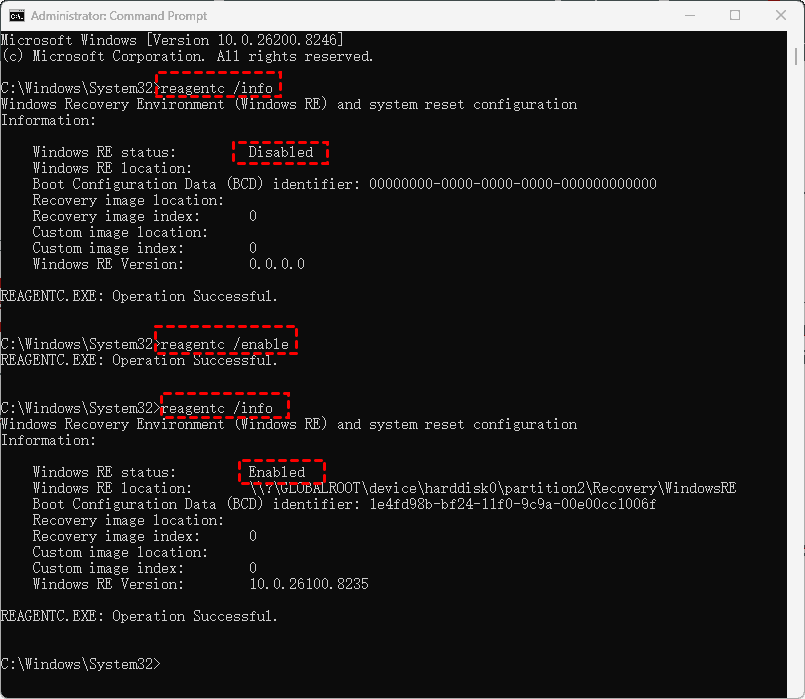
If this worked, your recovery environment should be back in business.
- Notes:✎...
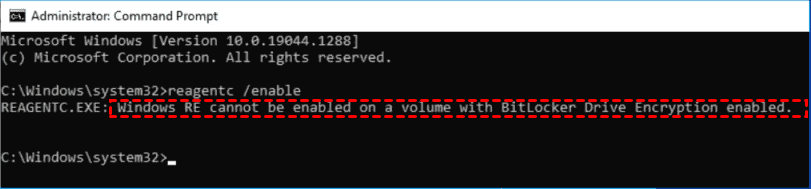
- If you received the error: Windows RE cannot be enabled on a volume with BitLocker drive encryption enabled. Please disable the BitLocker encryption on your hard drive, then enable the Windows Recovery environment, and reset Windows.

- Unable to update Boot Configuration Data, or The Windows RE image was not found error might be shown if you enable the Windows RE in these commands. You can restart your computer and then try again. Or you can try the enable command multiple times to make it work.
Way 2. Repair Corrupted System Files via SFC and DISM
What if enabling WinRE fails? You have to repair the corrupted system files with SFC and DISM.
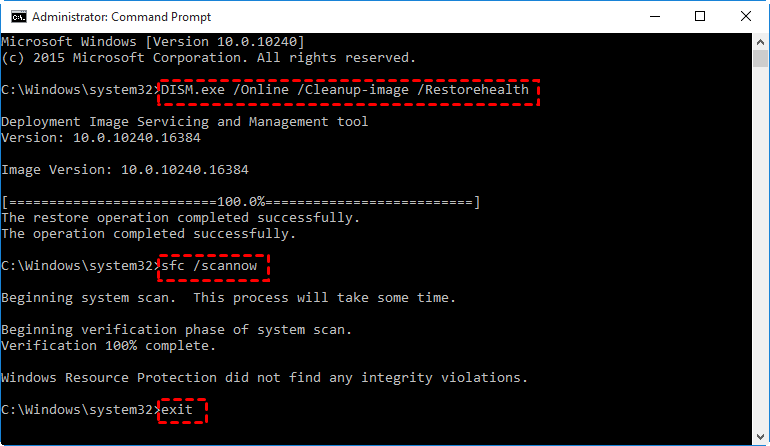
1. First, try the System File Checker. In an administrator Command Prompt, run the command to scan every protected system file and replace corrupted versions with a cached copy:
sfc /scannow
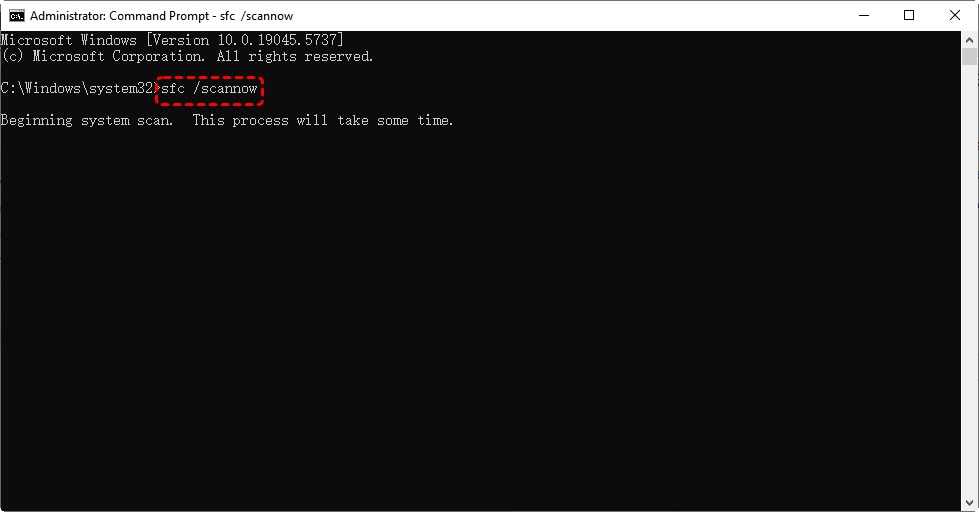
2. Let it finish. If it finds and repairs issues, restart your computer and try enabling WinRE again.
If that does not do the trick, try this:
1. Run this DISM command to download healthy system files and replace any damaged components as administrator:
DISM.exe /Online /Cleanup-Image /RestoreHealth
2. This can take a while depending on your internet speed, so be patient. Then run sfc /scannow again.
Way 3. Insert Your Recovery Drive
If you have your recovery drive, you can directly head to your recovery drive after connecting, then run the setup.exe and follow the steps to factory reset your PC.
Way 4. Run Windows Installation Media
Now, it’s time to try the Windows installation media to troubleshoot your computer if you still cannot fix the "Could Not Find the Recovery Environment Insert Your Windows Installation" error and won’t boot up. Here is how to do:
What you will need:
- A blank USB drive with at least 8GB of space
- A working computer with internet access
- About 20-30 minutes of time
1. Download the Media Creation Tool for Windows 11 on the Microsoft website.
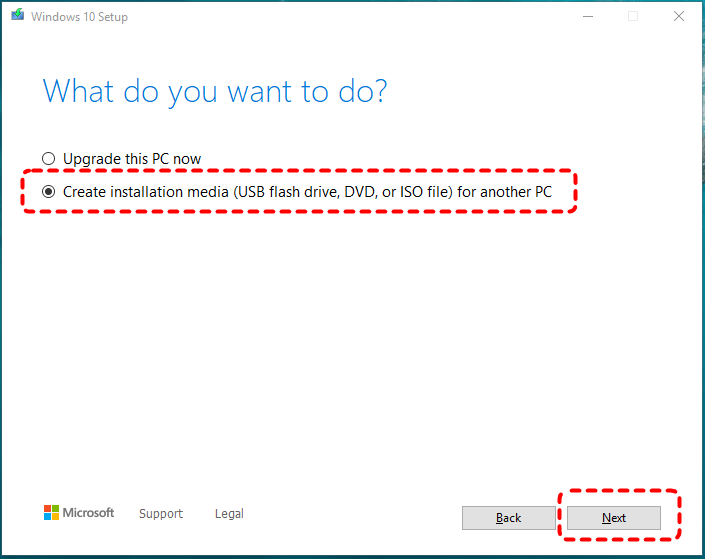
2. Run the tool, accept the license terms, and choose “Create installation media for another PC”.
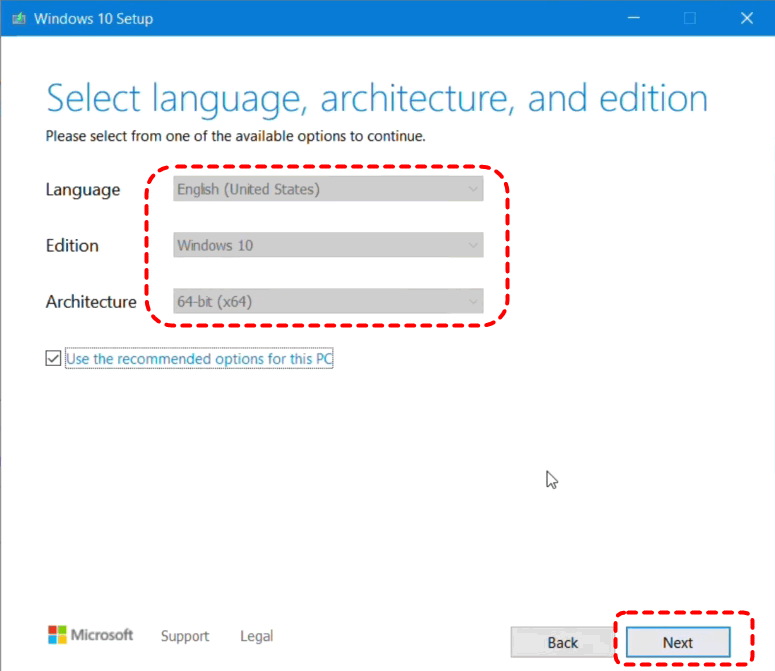
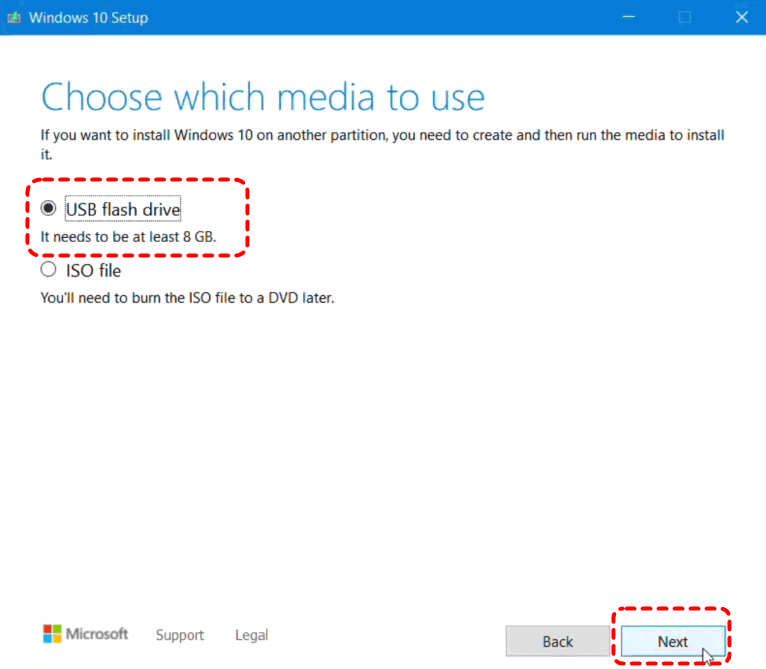
3. Select the right language, edition, and architecture for your problematic computer. When asked, pick a USB flash drive as your media type.
4. Once the tool finishes, take that USB drive to your troubled PC. Plug it in and restart. You might need to press a key such as F12, Esc, or Del during startup to access the boot menu. Choose the USB drive as your boot device.
5. When the Windows Setup screen appears, click “Repair your computer” in the bottom-left corner instead of installing fresh.
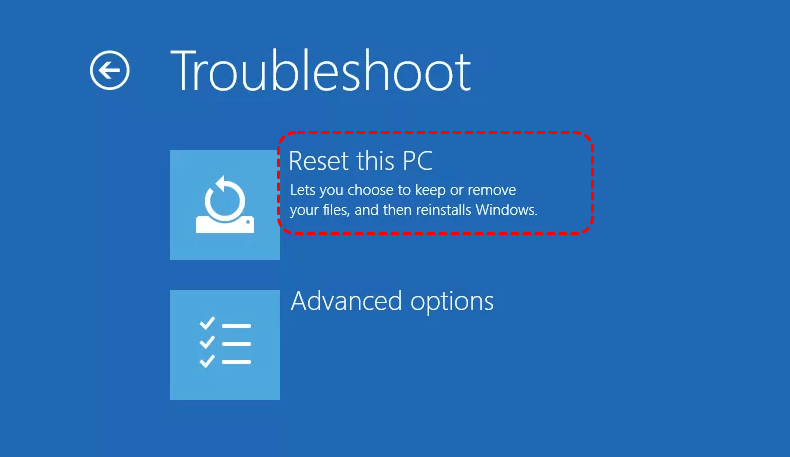
6. From there, go to Troubleshoot > Reset this PC, or you can go to Advanced Options to try Startup Repair, Command Prompt, and System Restore.
Recover Files Before Fixing the Recovery Environment
Sometimes, fixing the “Could not find the recovery environment Windows 11 while resetting or reinstalling requires drastic measures that might put your files at risk. What if you cannot even boot into Windows properly?
This is where having a reliable data recovery tool becomes a lifesaver. Before attempting any major repairs or clean installations, be sure to back up your important files first.
Fortunately, the powerful Windows data recovery software, MyRecover, is designed specifically for situations like this. When Windows refuses to boot, and the recovery environment is missing, this tool helps you pull your precious data off the drive before fixing.
 100% Secure
1. Create bootable media on another computer.
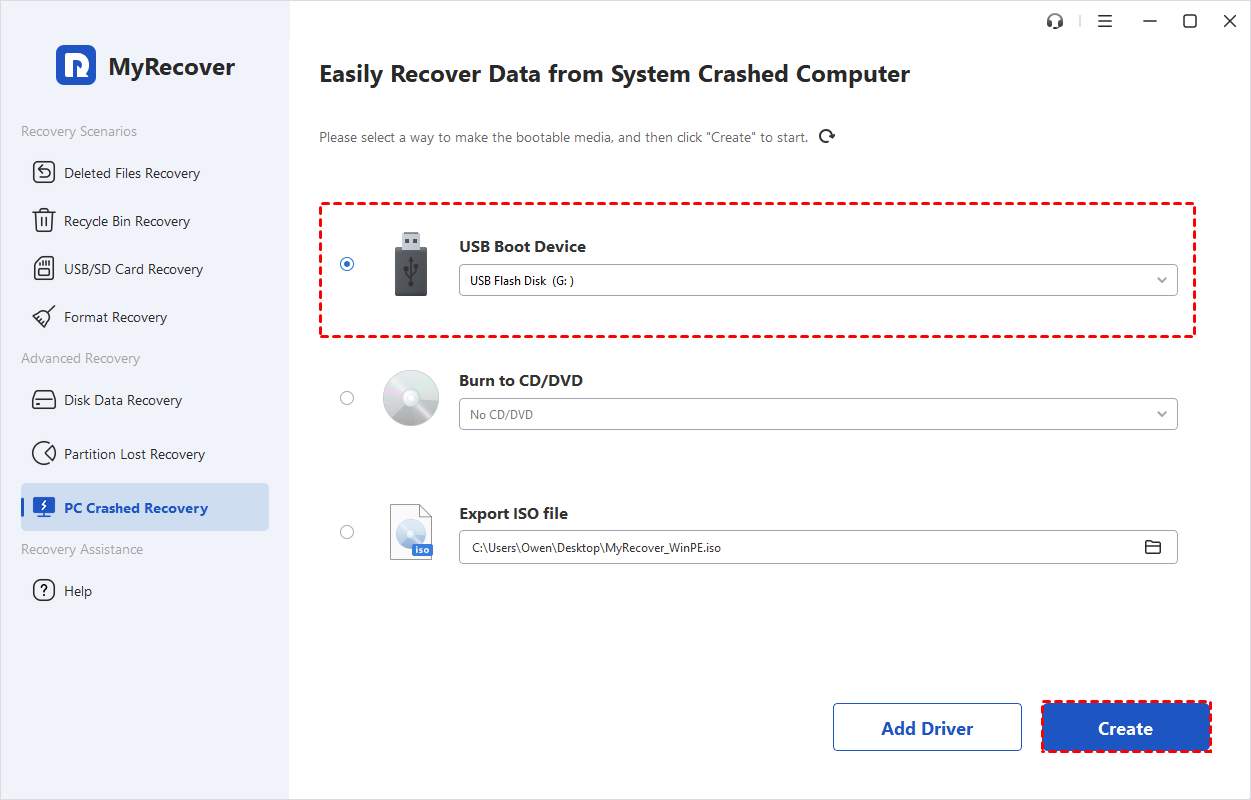
Download MyRecover on a working PC and install it. Tap PC Crashed Recovery to create a bootable USB media. You will need a blank USB drive (at least 32GB) for this process.
2. Boot your troubled computer from the MyRecover media.
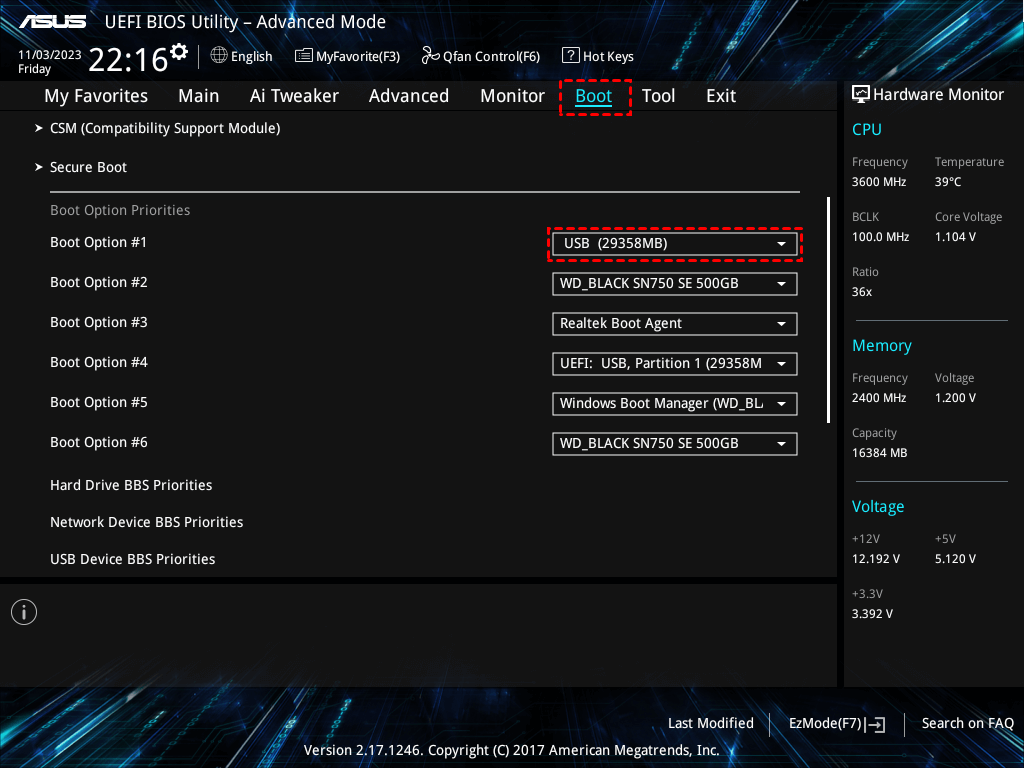
Insert the bootable USB drive into the computer showing the "Could not find recovery environment" error in Windows 11. Restart the system and enter the boot menu. Select the created USB bootable drive as the boot device.
3. Scan for recoverable files.
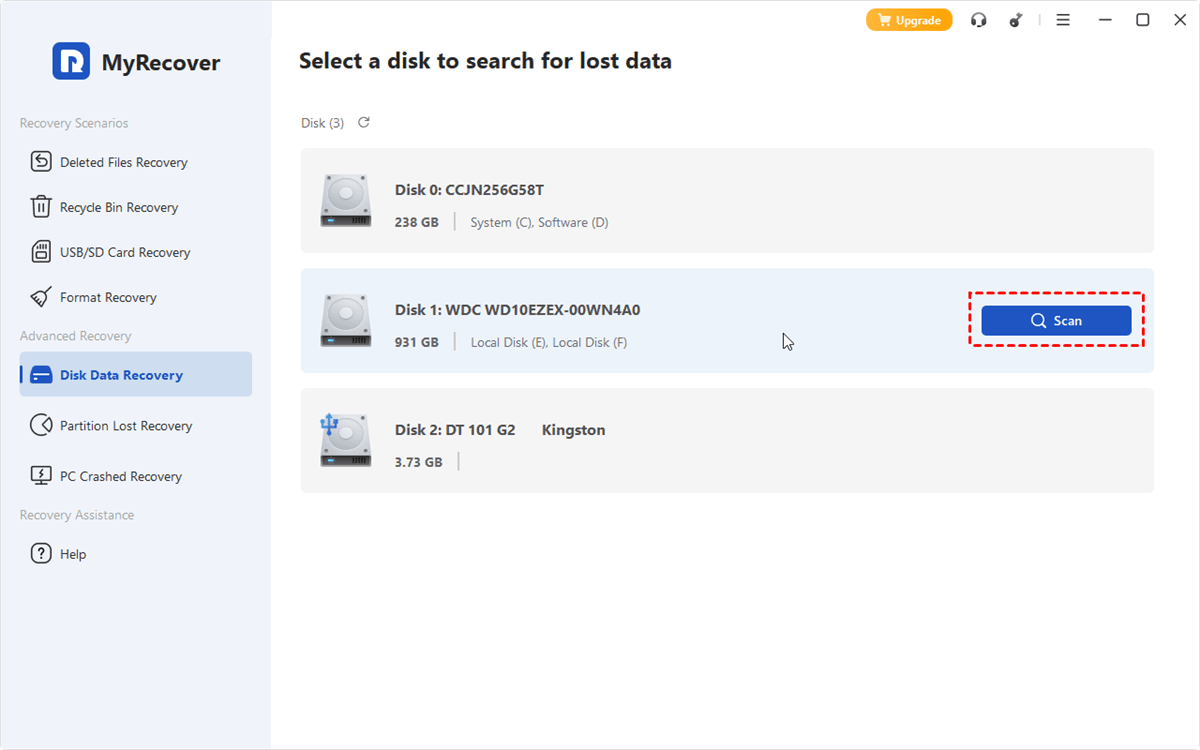
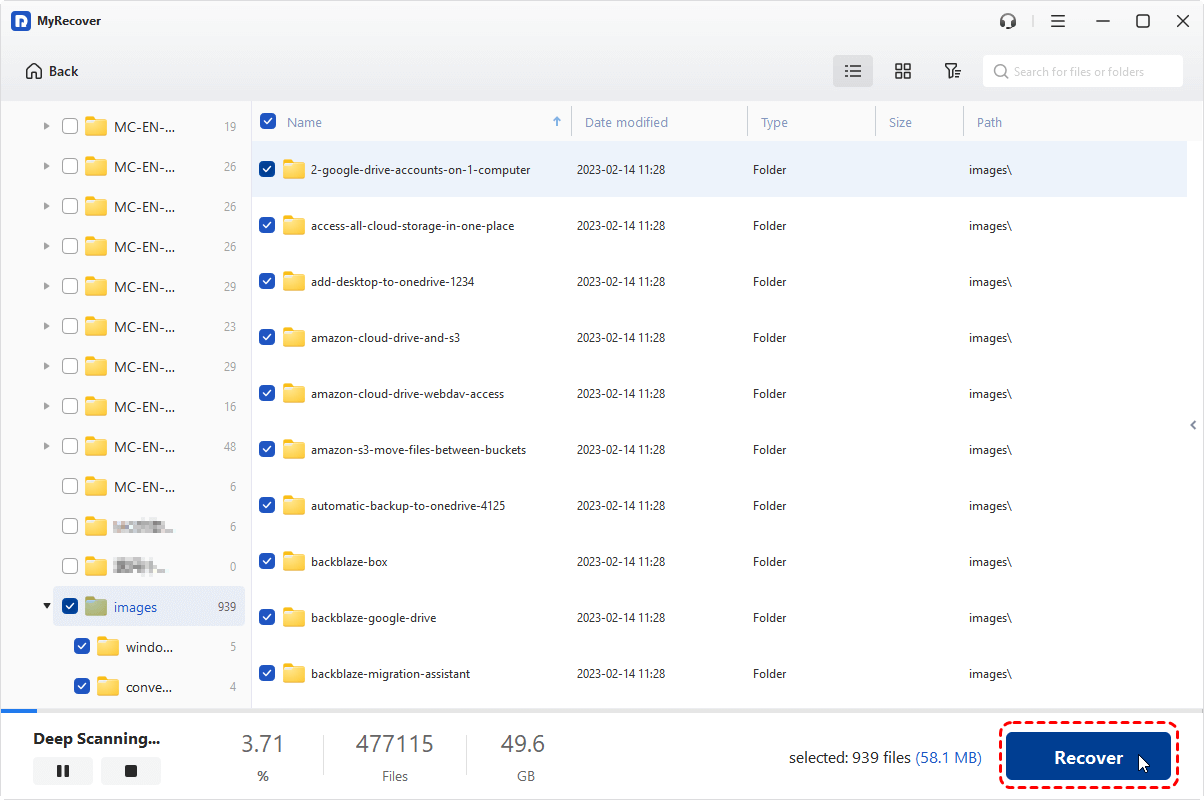
Once MyRecover loads, tap Disk Data Recovery. Select the drive where Windows is installed, and tap Scan. Wait for the process to complete.
4. Preview and recover your data.
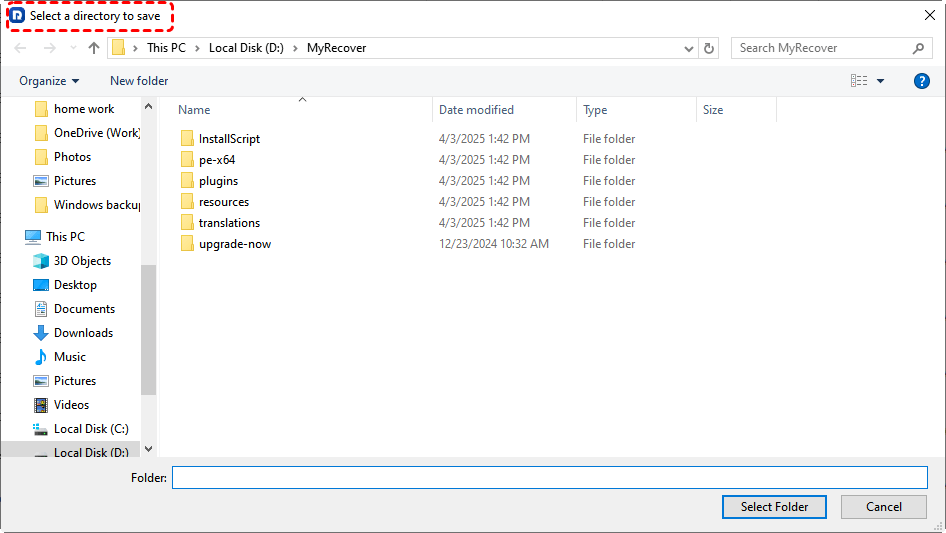
You can double-click to preview photos, documents, and other file types before recovering them. Select the files you need, and hit Recover. Choose a destination drive like an external hard drive to keep them safe.
- Notes:✎...
- MyRecover supports two scan modes, quick scan & deep scan. A quick scan works for recently deleted files, while a deep scan digs for files that have been lost for a while or are on damaged partitions.
- You can search files by file type, file path, file name, size, modified date, etc.
- For unlimited file recovery, upgrading to MyRecover Technician is your best choice.
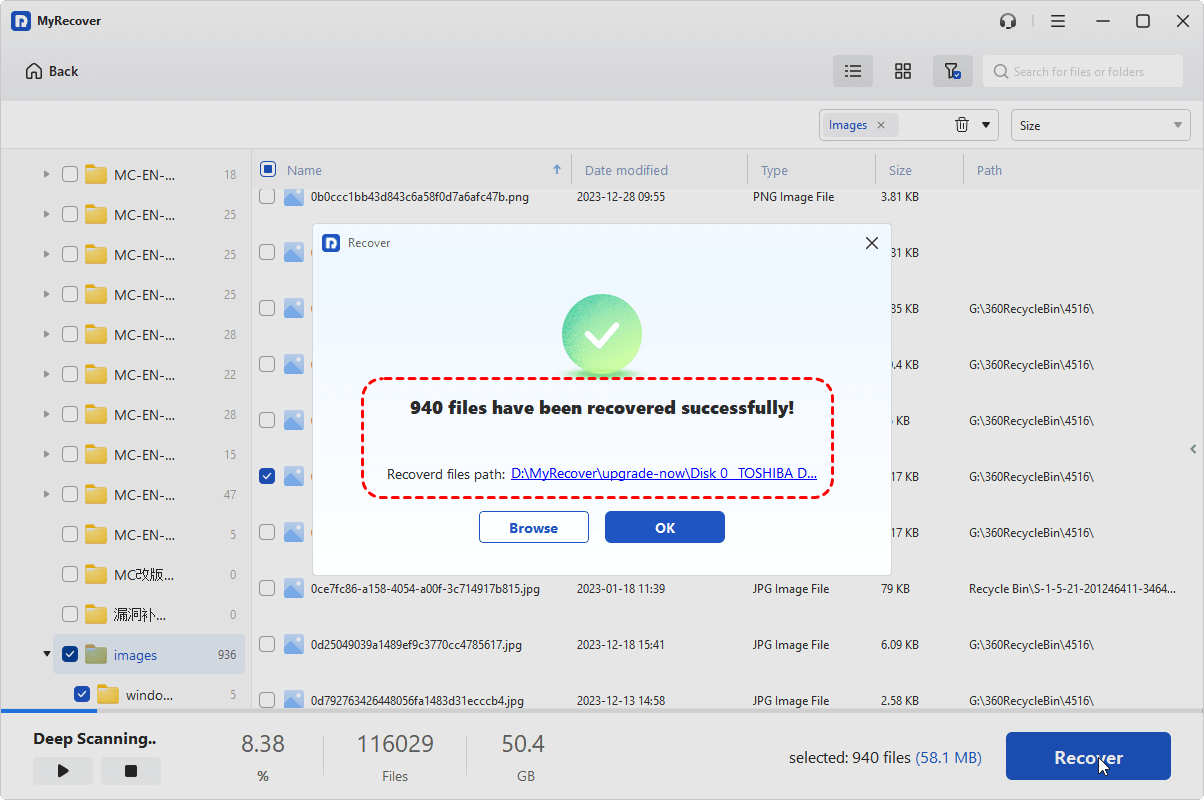
With your files safely backed up, you can now attempt any of the recovery environment fixes without worrying about losing precious photos, documents, or work projects.

 MyRecover
- Recover Deleted Files Easily with Simple Clicks
- 1000+ File Formats Supported
- Support HDD, SSD, External Hard Drive, USB Drive, SD Card, etc./li>
- Quickly Find Files Using File Types, Name, Size, etc.
- Preview Files Before Recovering
- Recover Unlimited Data
 100% Secure
FAQs About Windows Recovery Environment Errors
What does "could not find the recovery environment" mean?
A: Windows cannot locate its built-in recovery tools (WinRE). These tools are needed for Reset this PC, System Restore, and advanced startup options.
Can I reset my PC without the recovery environment?
A: No. The "Reset this PC" feature requires WinRE. But you can reset by booting from external installation media (USB/DVD) instead.
How do I manually create a recovery environment?
A: Two ways. First, use a Windows 11 installation USB and select "Repair your computer." Second, use the reagentc command with a winre.wim file from another Windows 11 PC or Microsoft.
Why does "reagentc /enable" fail with "image not found"?
A: The winre.wim file is missing or corrupted. Fix it by copying a fresh winre.wim from another Windows 11 computer or extracting it from a Windows 11 ISO file.
How do I force Windows 11 into recovery mode?
A: Turn on your PC. As Windows starts loading, hold the power button for 5-10 seconds to force a shutdown. Repeat three times. On the fourth startup, recovery mode appears automatically.
Will fixing the recovery environment delete my files?
A: Generally, no. But a clean install or repartitioning could. Always back up important files first using a tool like MyRecover.
What is the difference between WinRE and a recovery drive?
A: WinRE is a hidden partition on your hard drive. A recovery drive is a separate USB you create manually. WinRE is convenient but can be corrupted. A recovery drive works even if your hard drive fails.
Can a virus cause this error?
A: Yes. Malware can corrupt WinRE or delete the recovery partition. Run a full malware scan with Microsoft Defender before attempting fixes.
How do I back up files if I cannot boot into Windows?
A: Use MyRecover on a bootable USB. Boot from it, then copy files to an external drive. Or remove the hard drive and connect it to a working PC with a USB adapter.
What if none of these fixes work?
A: Your hard drive may be failing. Run CHKDSK or the manufacturer's diagnostic tool. If bad sectors are found, replace the drive. Otherwise, contact Microsoft Support.

Stay Updated With Our
Latest Tips
Add us as a preferred source on Google to never miss helpful guides.
 Add as preferred source >>