 MyRecover



Fixed: Insert Your Windows Installation or Recovery Media in Windows 11/10
This guide explains how to resolve the "insert your windows installation or recovery media" in Windows 11/10. Covers creating bootable USB drives and automating repairs. Also includes BIOS setup and advanced recovery options.

By Delores / Updated on May 14, 2026


Insert Your Windows Installation or Recovery Drive, and Restart Your PC with The Media!
How to reset my PC without recovery media?
I have a prebuilt PC bought directly from Cyberpower, and I'm trying to reset it. However, I'm not able to get past "Could not find the recovery environment. Insert your Windows installation or recovery media, and restart your pc with the media.
- Question from reddit.com
You're just trying to boot up, run a repair, or maybe reinstall the OS, and the system stops dead in its tracks and shows the BSOD error message "Could not find the recovery environment. Insert your Windows installation or recovery media, and restart your PC with the media". However, you don't have the Windows installation or recovery media in hand. What should you do?
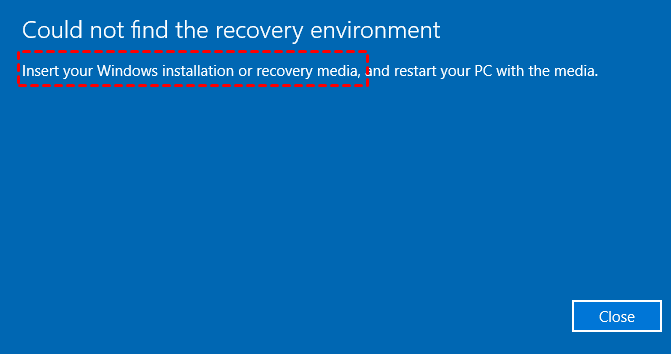
Don't panic, we will show you all the reasons and solutions to troubleshoot the problem and help you to use this computer normally.
Why Does It Say "Insert Your Windows Installation or Recovery Media"?
Your computer displays the "Insert Your Windows Installation or Recovery Media" message because it cannot find the essential boot files it needs to start Windows properly. This typically happens when:
- The Boot Configuration Data (BCD) becomes corrupted.
- The critical system files go missing or become damaged.
- The hard drive's master boot record (MBR) fails.
- The boot sector is compromised by an unexpected shutdown, malware, a failed update, or a failing hard drive.
Essentially, Windows is asking for the original installation USB or recovery disc because it has lost its internal roadmap for loading the operating system on its own.
But here's the thing: you don't always need physical media. Sometimes you can bypass it with built-in recovery options. Still, knowing how to create and use installation media is a superpower every Windows user should have.
How to Create Your Windows Installation or Recovery Media
First of all, you need to actually create that recovery drive or installation USB. If you've got a friend with a working PC, you can make one in about ten minutes. Microsoft offers a free tool called the Media Creation Tool, and it's a lifesaver.
preparations:
- A working Windows 10/11 computer.
- An empty USB drive with at least 8GB (32GB is recommended).
1. Download the Media Creation Tool from Microsoft's website, and run it. Connect your USB drive to the working computer.
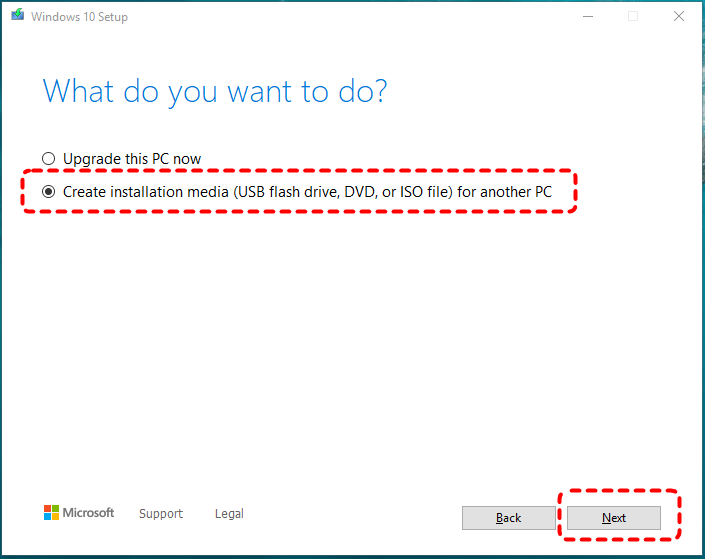
2. Choose "Create installation media (USB flash drive, DVD, or ISO file) for another PC", and hit Next.
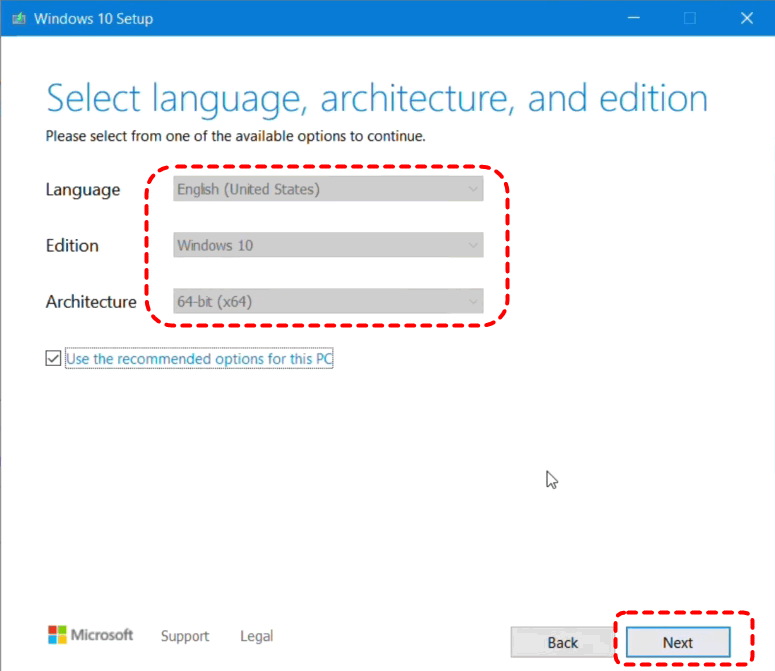
3. Select the language, edition, and architecture that suits you, pick the USB flash drive, and let the tool do its thing.
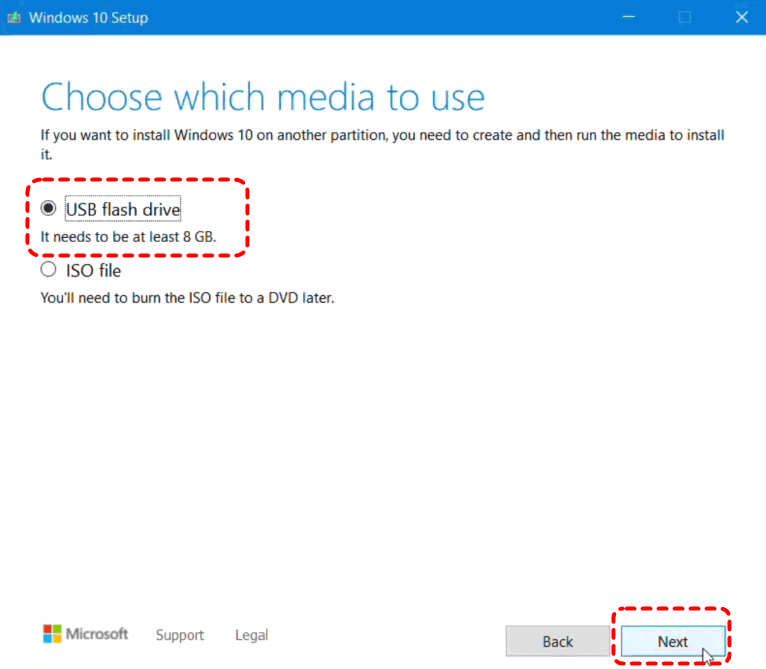
4. Once it's done, just plug it in, restart your PC, and boot from the USB—usually by pressing F12, ESC, or Del during startup to troubleshoot.
How to Fix Insert Your Windows Installation or Recover Media | 3 Fixes
There are 3 proven ways for you to fix.
Way 1. Run Startup Repair
After creating your Windows installation or recovery drive, you can try the following steps to troubleshoot the error message using Startup Repair. Startup Repair scans for common issues and tries to patch them automatically.
1. Insert your Windows USB drive that you created above into your computer that shows the error message.
2. Restart your computer and press F12, ESC, or Del during startup to open the Boot menu, then boot your computer from the USB drive.
3. On the first setup screen, click "Repair your computer" at the bottom left instead of "Install now".
4. You will get into Advanced Startup Options. Then go to Troubleshoot > Advanced Options > Startup Repair.
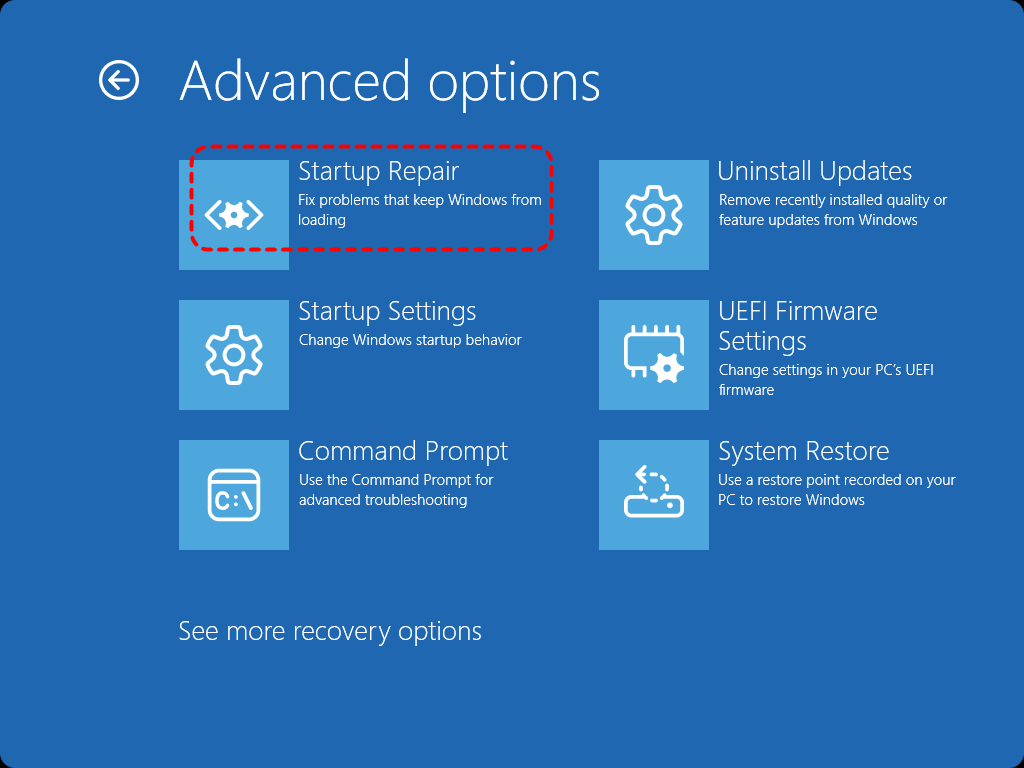
5. Let it run, and with any luck, Windows will sort itself out.
What if Startup Repair comes up empty? Don't panic. The command line is your next best friend, and it's more powerful than most people realize.
Way 2. Rebuild the Boot Configuration Data via Command Line
If automatic repairs fail, it's time to run a few commands to rebuild the Boot Configuration Data (BCD).
1. Boot from your installation USB, go to "Repair your computer", then Troubleshoot > Advanced Options > Command Prompt.
2. Run the following commands to rebuild the boot sector, BCD, and MBR from scratch:
bootrec /fixmbr
bootrec /fixboot
bootrec /scanos
bootrec /rebuildbcd
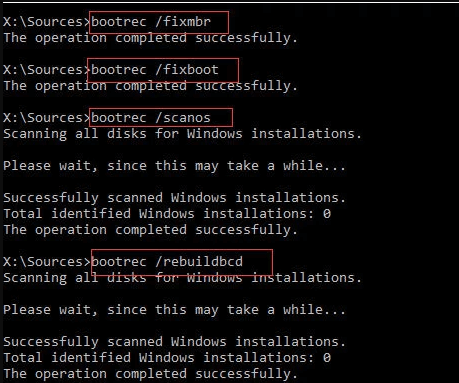
3. After that, type exit.
4. Restart, and see if Windows boots normally.
This typically resolves the insert your Windows installation or recovery media error in Windows 10 and 11.
Way 3. Run System File Checker and DISM Tools
Still stuck? You can try System File Checker and DISM to fix your corrupted system files. Here is how to use them:
1. Boot from your installation USB, go to "Repair your computer", then Troubleshoot > Advanced Options > Command Prompt.
2. Run DISM /Online /Cleanup-Image /RestoreHealth and press Enter.
3. Enter the command sfc /scannow and press Enter.

4. Restart your computer to check if the problem is solved.
- Notes:✎...
- DISM /Online /Cleanup-Image /RestoreHealth repairs a corrupted system image by comparing files against a known-good source (via Windows Update) and replacing damaged components.
- sfc /scannow to repair the corrupted system files.
Try This If You Don't Have A Windows Installation or Recovery Drive
What if you don't have a second PC to create the media? You can access Safe Mode to troubleshoot your problem. This one's a long shot, but it works sometimes.
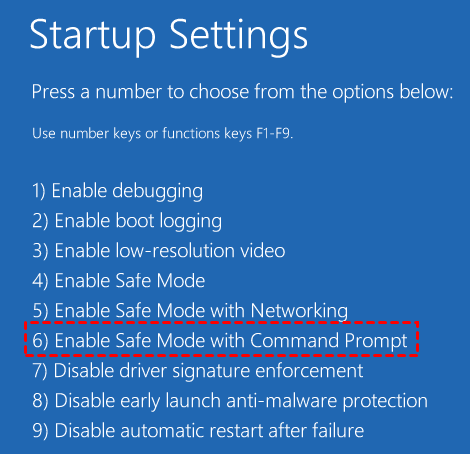
1. Interrupt the boot process three times in a row—by holding the power button during startup—and Windows will automatically load the recovery environment.
2. From there, you can boot into Safe Mode with Command Prompt and run repairs without any external drive.
Recover Missing Files with MyRecover After a Crash
If some files get missing or deleted after the blue screen error: Could not find the recovery environment. Insert your Windows installation or recovery media, and restart your PC with the media. You have to recover the missing files. Fortunately, the powerful Windows data recovery software MyRecover comes to help.
Enjoy the benefits of MyRecover:
- Crashed PC Recovery. MyRecover includes a"PC Crashed Recovery" mode that lets you create a bootable USB drive. This allows you to boot a non-functional computer into MyRecover and recover data even when Windows won't start.
- High Recovery Rate (99%). The software uses advanced AI scanning algorithms and has undergone multiple algorithm refactors to improve scanning efficiency and recovery quality.
- 1000+ File Types Supported. Recovers documents, videos (MP4, MOV, AVI, MKV), photos, audio files, emails, and more while preserving original filenames, directories, and paths.
- Quick and Deep Scan Modes. Quick Scan for recently deleted files and Deep Scan for severely corrupted or formatted drives, maximizing recovery chances.
- File Preview Before Recovery. Preview files—including videos and images—in high resolution before recovering, so you know exactly what you're getting back.
- 500+ Devices. You can recover files from HDDs, SSDs, SD cards, music players, USB flash drives, video players, PS4/5, Xbox One, cameras, etc.
Assuming that you have fixed the error message and your computer can start normally. So, here is how to recover missing files from your computer with MyRecover (Try PC Crashed Recovery if your computer won't boot):
1. Please download and install MyRecover on your computer, and then launch it.
 100% Secure
2. Tap Disk Data Recovery, hit Scan while hovering over the drive. Wait for the process to complete.

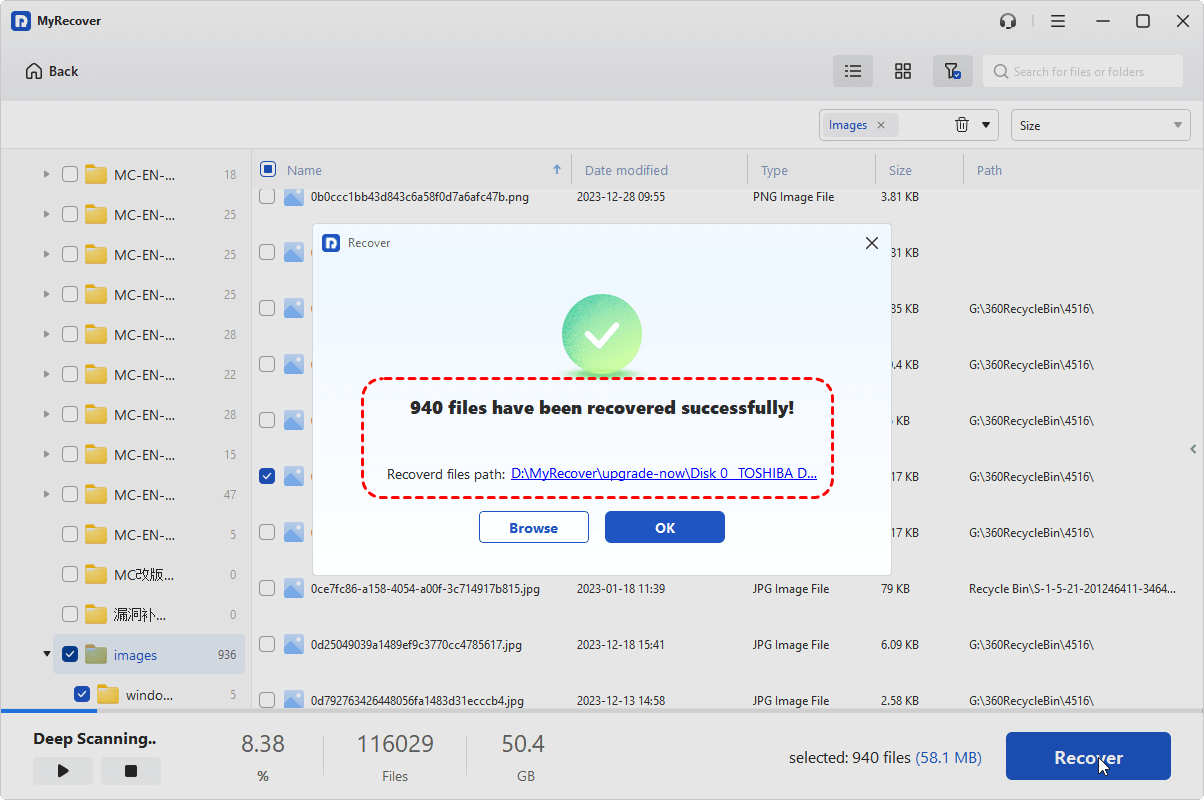
3. Preview and select the files you need, and hit Recover.

4. Opt for a different drive, like an external hard drive, as the destination, and hit Select Folder to save.

- Notes:✎...
- By default, MyRecover sorts out your missing files by file type. Besides, you can tap File path to sort them by folder structure. For a more precise search, input file name, size, modified date, or extension to find them quickly.
- You can try MyRecover Technician to enjoy more powerful features, including recovering unlimited files, recovering files from unlimited computers, etc.

 MyRecover
- Recover Deleted Files Easily with Simple Clicks
- 1000+ File Formats Supported
- Support HDD, SSD, External Hard Drive, USB Drive, SD Card, etc.
- Quickly Find Files Using File Types, Name, Size, etc.
- Preview Files Before Recovering
- Recover Unlimited Data
 100% Secure
FAQs About Insert Your Windows Installation or Recovery Drive
Why does Windows keep asking me to insert my Windows installation or recovery media?
A: The main causes are corrupted system files, a disabled Windows Recovery Environment (WinRE), or a damaged bootloader. Windows can't find the files needed to start or reset your PC.
Can I fix the "insert your Windows installation or recovery media" error without a USB drive?
A: Yes. Run sfc /scannow and DISM /online /Cleanup-Image /RestoreHealth in Command Prompt as admin. Or check WinRE with reagentc /info and enable it with reagentc /enable. Also, try forcing Automatic Repair by interrupting the boot three times.
How do I create a Windows installation or recovery media to fix this error?
A: On a working PC, download Microsoft's Media Creation Tool. Run it, select "Create installation media for another PC," then choose an 8GB+ USB drive. Boot the problematic PC from that USB and select "Repair your computer."
Will resetting my PC delete my personal files when I get this error?
A: No. The error appears before the reset starts, so your files remain safe. Only a clean installation using the media will erase them. To keep files, try repairing system files first.
Does this error mean my hard drive is failing?
A: Not usually. Corrupted files or a disabled recovery environment are far more common. Run chkdsk C: /r to check for bad sectors. Unusual clicking sounds suggest physical failure.
Why do I get "Some files are missing, your Windows installation or recovery media will provide these files" on Windows 8.1?
A: Microsoft no longer provides official Windows 8.1 ISOs, and your recovery partition may be damaged. Your product key is embedded in the BIOS, so download an ISO from a trusted source, create a bootable USB with Rufus, and reinstall—activation happens automatically.
The End
If you find the error message "Could not find the recovery environment. Insert your Windows installation or recovery media, and restart your PC with the media" while troubleshooting, don't worry, try the above solutions to fix it easily.
Besides, you can recover files from a formatted hard drive, a crashed computer, an emptied Recycle Bin, and many more.

Stay Updated With Our
Latest Tips
Add us as a preferred source on Google to never miss helpful guides.
 Add as preferred source >>