 MyRecover



Does Windows Have File Recovery? A Complete Guide
Does Windows have file recovery features for restoring deleted files? Yes—Microsoft provides Windows File Recovery, a command-line tool designed to help recover lost documents, photos, and videos. This guide explains how the tool works and how to use Windows File Recovery step by step.

By Vera / Updated on March 19, 2026


Understanding File Loss in Windows
Before exploring recovery methods, it’s important to understand how file loss happens in Windows systems. Files may disappear for many reasons, and not all of them involve manual deletion.
Common Causes of File Loss
Several common scenarios lead to missing or deleted files:
- Accidental deletion by the user
- Permanent deletion using Shift + Delete
- Disk formatting or partition errors
- System crashes or operating system failures
- Virus or malware infections
- Storage device corruption
Understanding the cause of data loss helps determine which recovery method will be most effective.
What Happens When a File Is Deleted
When a file is deleted in Windows, the operating system typically does not immediately erase the data from the disk.
Instead, Windows marks the storage space occupied by the file as available for reuse. Until new data overwrites that space, the original file remains recoverable.
This is why quick action significantly increases the chances of successful recovery.
Does Windows Have Built-in File Recovery Tools?
Yes, Windows includes several built-in recovery options designed to restore deleted or lost files.
The most common ones include:
- Recycle Bin
- File History
- Previous Versions
- Windows File Recovery tool
Let’s look at each of these.
1. Recycle Bin Recovery
The Recycle Bin is the first place to check when a file goes missing. When you delete a file normally, Windows moves it to the Recycle Bin instead of permanently removing it.
1. Open the Recycle Bin from the desktop.
2. Locate the file you want to recover.
3. Right-click the file.
4. Select Restore.
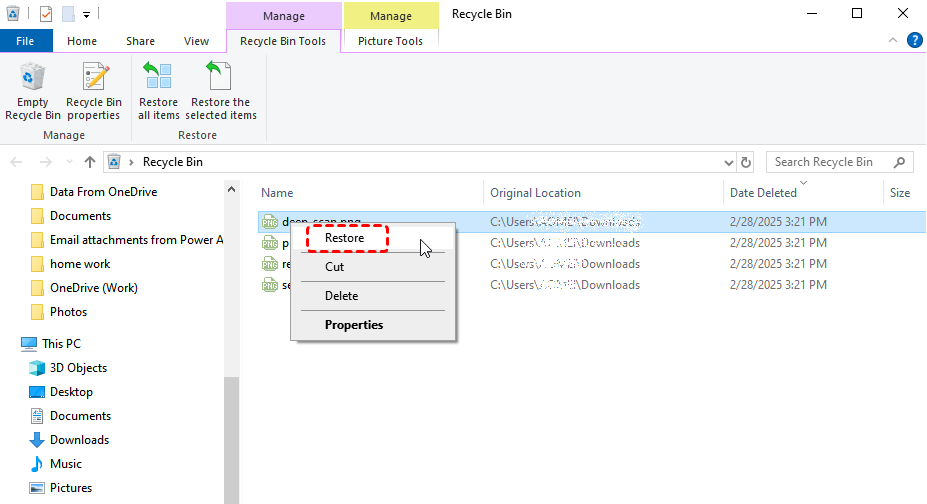
The file will be returned to its original location on the computer.
This method will not work if:
- The file was permanently deleted using Shift + Delete.
- The Recycle Bin has already been emptied. >> Want to undo empty Recycle Bin?
- The file was deleted from removable media.
2. File History Backup
File History is a built-in Windows backup feature that automatically creates versions of files stored in important folders. These folders typically include:
- Documents
- Pictures
- Videos
- Desktop
If File History was enabled prior to file deletion, previous versions can be restored.
1. Open the folder where the lost file was previously stored.
2. Right-click the folder.
3. Select Restore previous versions.
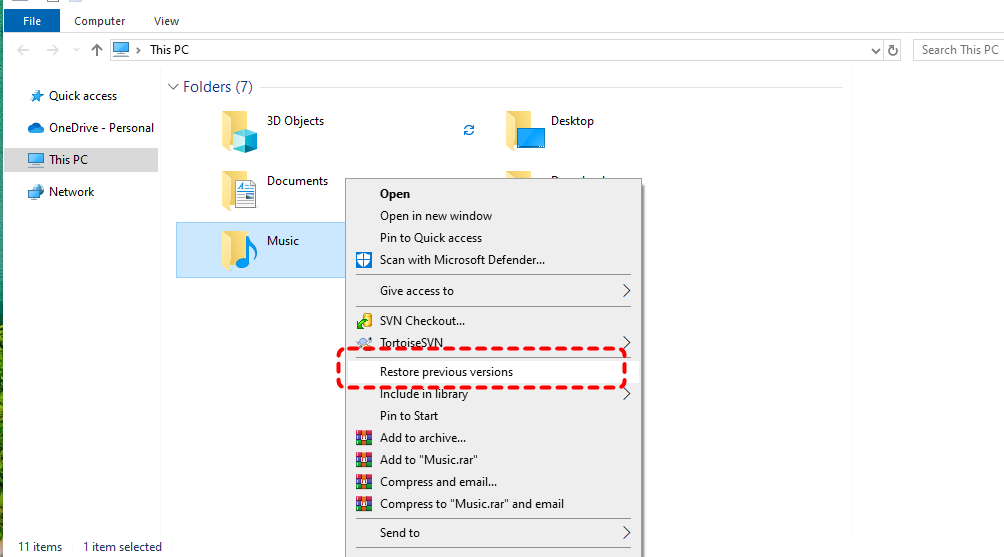
4. Choose a version from the available list.
5. Click Restore.
The selected version will replace the current folder contents.
3. Previous Versions Feature
Windows also maintains restore points that may contain earlier versions of files and folders. These versions can sometimes be restored using the Previous Versions feature.
1. Navigate to the folder where the deleted file existed.
2. Right-click the folder.
3. Select Properties.
4. Open the Previous Versions tab.
5. Select a version from the available restore points.
6. Click Restore.
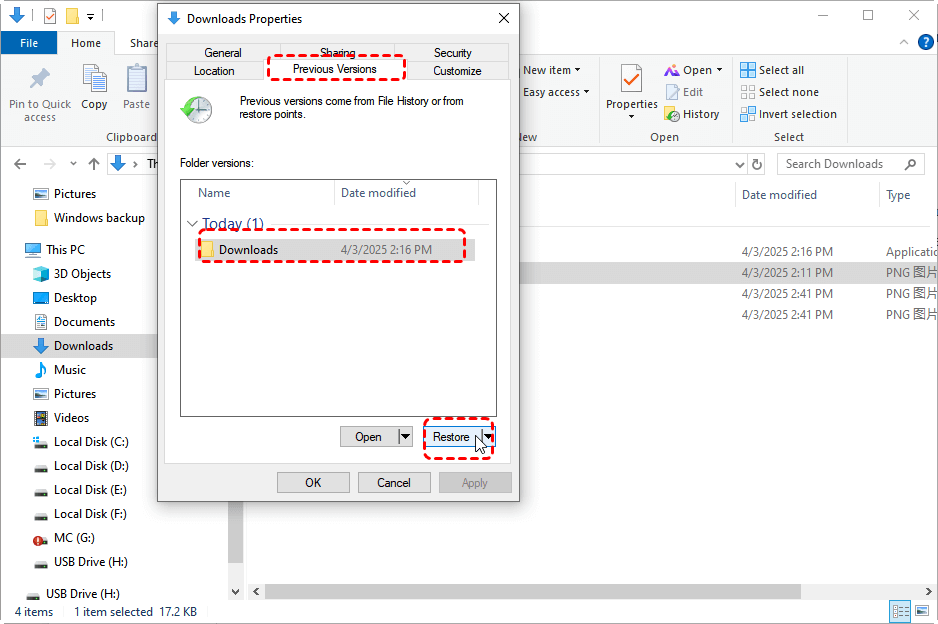
The folder will revert to the selected previous state.
4. Windows File Recovery Tool
Microsoft also provides an advanced recovery utility called Windows File Recovery. This tool is available in the Microsoft Store and operates through the Command Prompt interface. It allows users to recover files from storage devices such as:
- Internal hard drives
- Solid-state drives (SSDs)
- USB flash drives
- Memory cards
Key Features of Windows File Recovery
Key features include:
- Supports NTFS, FAT, exFAT, and ReFS file systems.
- Multiple recovery modes.
- Works with internal and external drives.
- Developed by Microsoft.
However, because it runs through command prompts, many users find it complicated.
How to Use Windows File Recovery
A basic command looks like this:
winfr C: D: /regular /n \Users\Documents
This command attempts to recover files from drive C to drive D. While powerful, this tool requires technical knowledge, which makes it less beginner-friendly.
Although Windows includes several recovery features, these tools are not always capable of restoring lost data. Their success depends largely on the type of data loss and whether backups were previously configured.
Situations Where Built-in Methods May Fail
Windows recovery tools may not work in the following situations:
- Files permanently deleted with Shift + Delete
- Drives that have been formatted
- Damaged or corrupted partitions
- Lost disk partitions
- Storage devices affected by severe corruption
When these situations occur, dedicated data recovery software becomes necessary.
Recovering Files Using Professional Recovery Software - MyRecover
Professional data recovery tools are designed to handle complex recovery scenarios that built-in Windows utilities cannot manage. One effective solution is MyRecover, a specialized Windows data recovery program.
Advantages of MyRecover
MyRecover offers several advantages:
- Simple graphical interface.
- Support for multiple storage devices.
- Quick Scan and Deep Scan technologies.
- Ability to recover formatted or lost partitions.
- Preview capability before recovery.
 100% Secure
These features make it suitable for both beginner and advanced users. Let’s recover deleted files with MyRecover!
Step 1: Install the Software
Download and install MyRecover on your computer. It is recommended to install the software on a different drive from the one containing the lost data.
Step 2: Select the Target Drive
Launch the program and select the drive where the files were originally stored.
Step 3: Perform a Scan
After clicking "Scan", MyRecover will automatically initiate a Quick Scan to locate recently deleted files. If you want to identify files lost due to formatting or corruption, just click "Deep Scan".

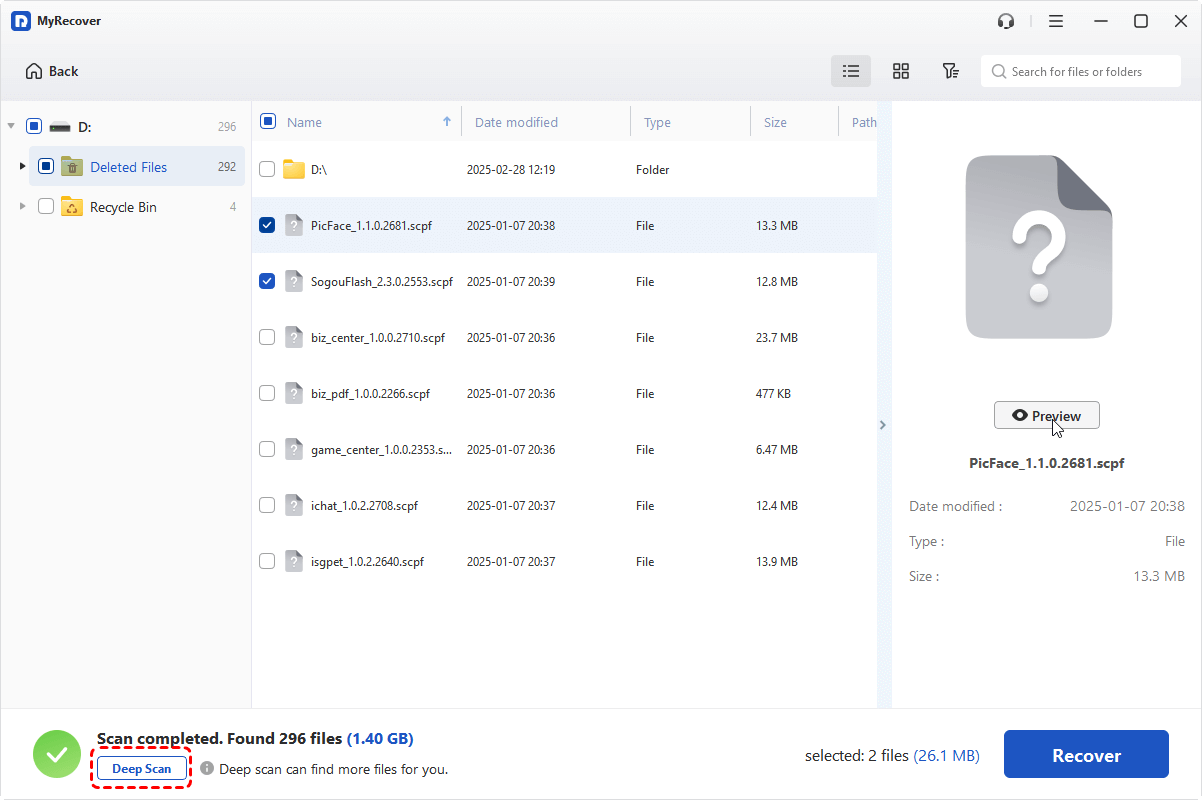
Step 4: Preview Recoverable Files
Once scanning is complete, browse the scan results and preview the files you wish to restore.
Step 5: Recover the Files
Select the desired files and click Recover. Save the recovered data to a different storage location to avoid overwriting existing data.

Best Practices to Improve File Recovery Success
When data loss occurs, taking the correct actions immediately can significantly increase the chances of recovery.
Stop Using the Affected Drive
Continuing to use the drive where the files were lost can cause new data to overwrite recoverable information. Once you notice the data loss, stop writing new files to the disk immediately.
Use Reliable Recovery Software
Using professional recovery tools increases the likelihood of retrieving lost data. Reliable software solutions often include:
- Advanced scanning algorithms
- File preview capabilities
- Higher recovery success rates
Conclusion
So, does Windows have file recovery? Yes, it does.
Windows offers several built-in recovery options, including the Recycle Bin, File History, Previous Versions, and Windows File Recovery utility. These tools can successfully restore files in many common scenarios.
However, they also have limitations—especially when files are permanently deleted, drives are formatted, or partitions become corrupted. In those situations, specialized data recovery software such as MyRecover provides a more powerful and user-friendly solution.
Ultimately, the key to successful file recovery is acting quickly, choosing the appropriate method, and maintaining reliable backups to prevent future data loss.

Stay Updated With Our
Latest Tips
Add us as a preferred source on Google to never miss helpful guides.
 Add as preferred source >>