 MyRecover



File History Can’t Save Copies of All Your Files? Here’s the Ultimate Fix
The error message 'File History can’t save copies of all your files' indicates that Windows File History is unable to back up some or all selected data due to some issues. This article offers a clear, step-by-step breakdown of the root causes and effective solutions to restore File History functionality.

By Aria / Updated on March 13, 2026


File History Not Copying All Files and Directories
"I am running Windows 10. I used to have File History running to back up client data on an external drive. File history works, but it backs up all the non-essential stuff and not the most important data. Is there any way to force it to recognize a drive where the files are? And I have checked for errors, restarted file history, disconnected and reconnected the drive, used a different location, etc. Nothing works."
- Question from J. Stanwood
Windows File History is designed to provide a simple and automatic way to back up personal files. It regularly copies data from user libraries, such as Documents, Pictures, Videos, Desktop, and selected custom folders to an external hard drive, USB drive, or network location. However, many users discover that File History does not always work as expected.
In some cases, it reports errors such as File History can't save copies of all your files, or users notice that certain folders and directories are missing from backups. When File History not copying all files and directories becomes a recurring issue, understanding the causes and applying targeted fixes is essential to protect your data.
Why File History Can’t Save Copies of All Your Files
Before attempting repairs, it helps to understand why File History may fail to back up all your files. Once you identify the likely cause, you can apply the corresponding solution more effectively. Below are the most common causes behind issue:
- The folder is not included in File History settings,
- Destination drive is full or has file system error,
- Files or folders are currently in use by another program,
- Corrupted system files or disk errors,
- Unsupported or overly long file paths and names,
- Encrypted files that File History cannot access,
- Destination drives format incompatibility.
How to Fix the "File History Can't Copying All Files" Issue
This section provides the following methods to get File History back to backing up all your files as it did before. You can choose the appropriate method based on your actual situation, and if one method fails, move on to the next one. Let's explore the detailed steps.
Fix 1. Restart File History and Clear Old Backups
If File History becomes overloaded or corrupted by old backup data, restarting it and clear the old backups can help to fix the "File History can't save copies of all your files" issue. This refresh often resolves the temporary glitch.
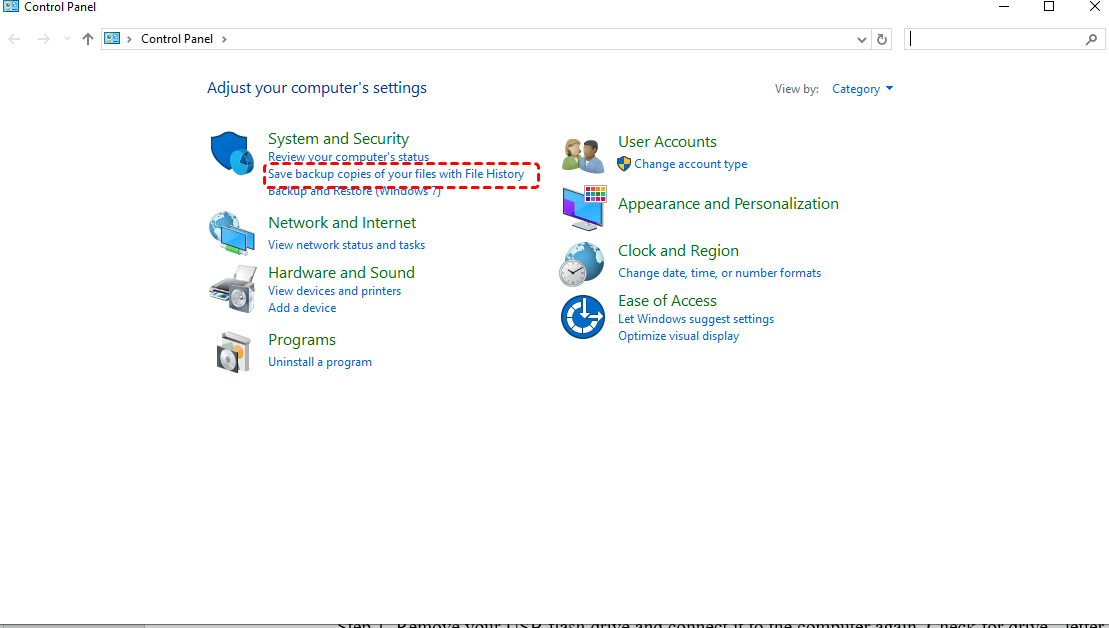
Step 1. Navigate to "Control Panel" > "Save backup copies of your files with File History".
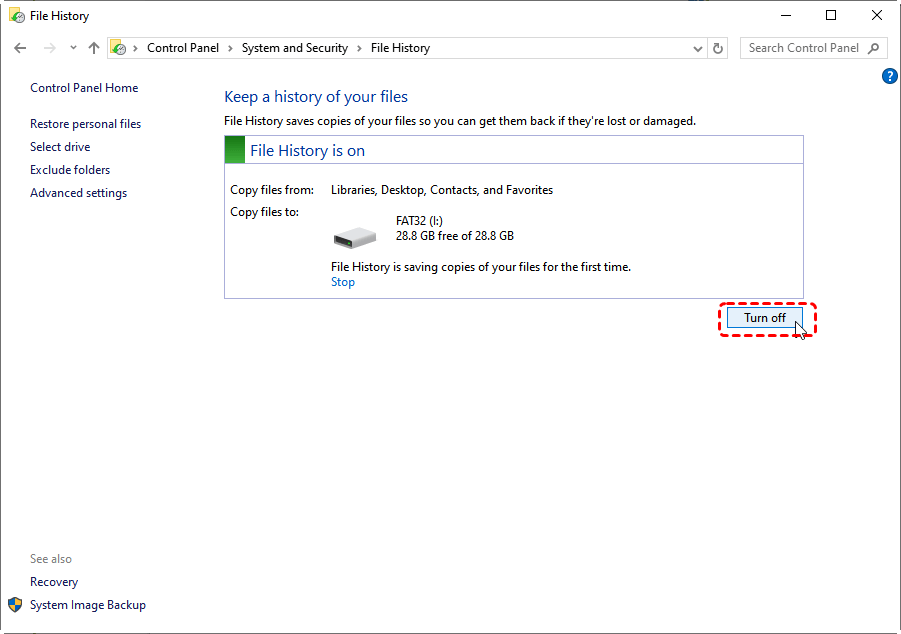
Step 2. Click "Turn off" to disable File History temporarily.
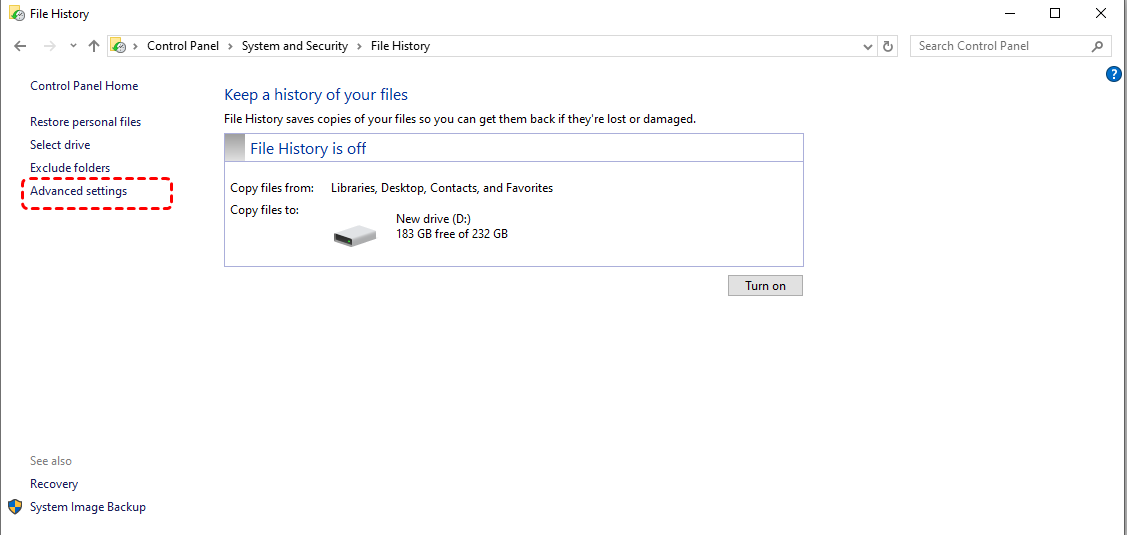
Step 3. Select "Advanced settings" > "Clean up versions".
Step 4. Choose a time period of "Older than 1 year/9 moths/6 months/1 moth" under the "Deleted files" tab.
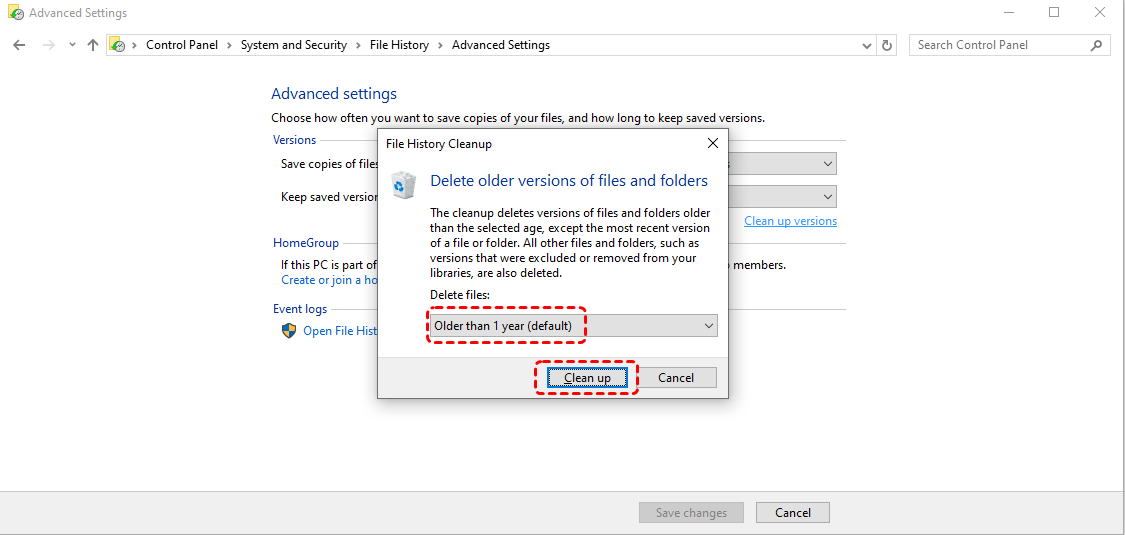
Step 5. Re-enable File History like step 1.
Fix 2. Include the Folder in File History Backups
Sometimes File History skips folders simply because they are not included. File History does not back up all files on your computer; instead, it backs up files in the User folder by default. If you want to back up other files, you need to manually add them to the File History backup.
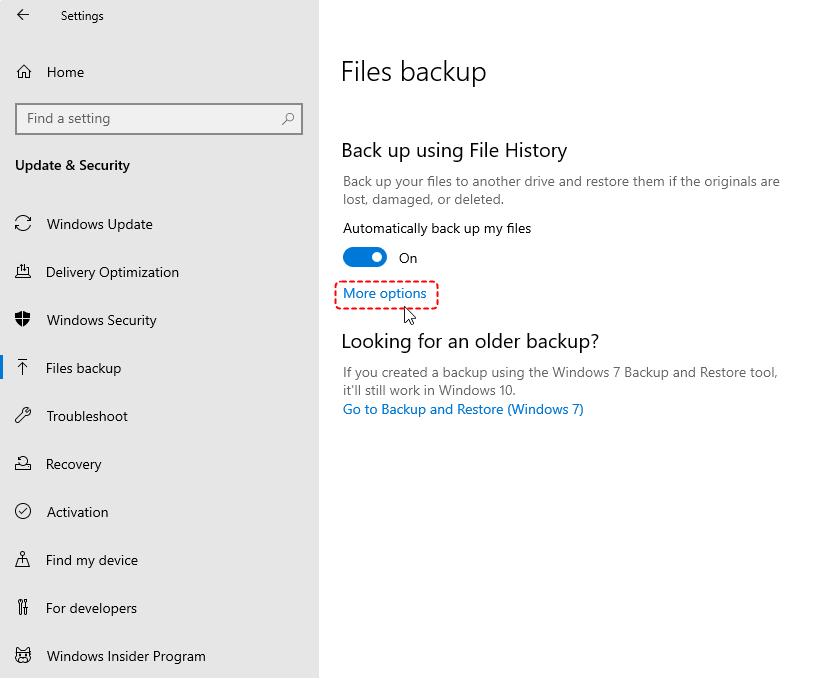
Step 1. Go to "Settings" > "Update & Security" > "Files backup" and click on "More options".
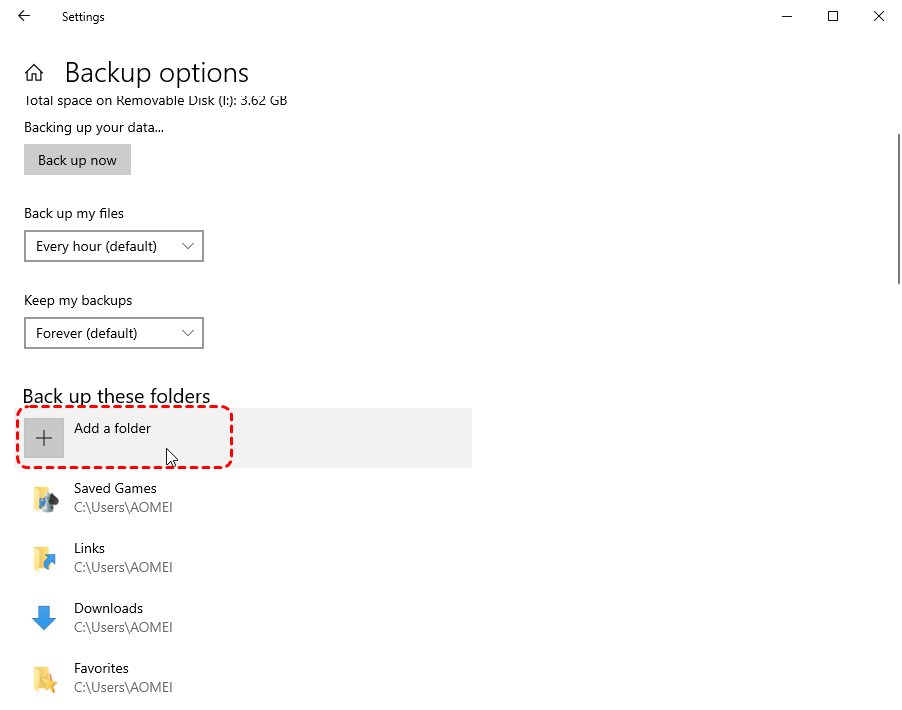
Step 2. Click "Add a folder" under the "Back up these folders" section.
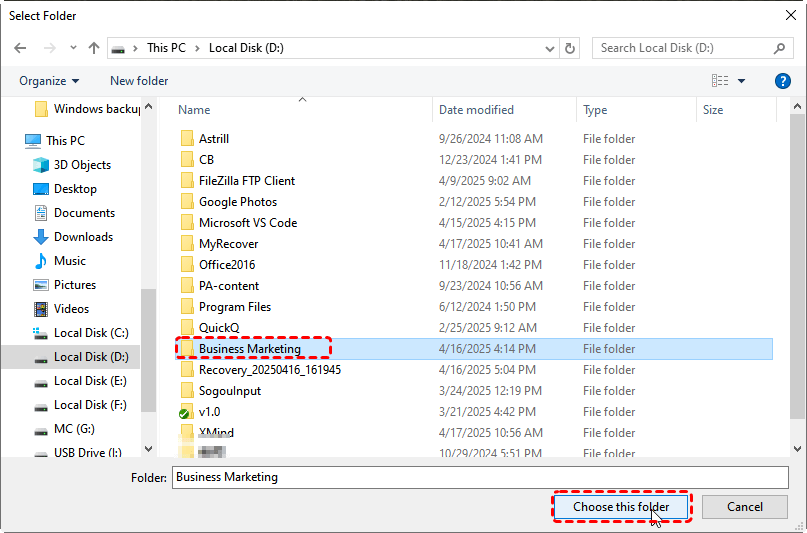
Step 3. Select the files you desired to include and click "Choose this folder". Run File History again to create a backup of this file.
Fix 3. Close the Files or Folder in Use
Files that are open or locked by applications cannot be copied. Close the files or folder in use can solve the "File History can't save copies of all your files" issue.
- Close all files, folders, and programs included in your File History backup plan.
- Run File History again to check if the error still exists.
- ★ You may also want to check: This Device is Currently in Use.
Fix 4. Clean the Destination Hard Drive
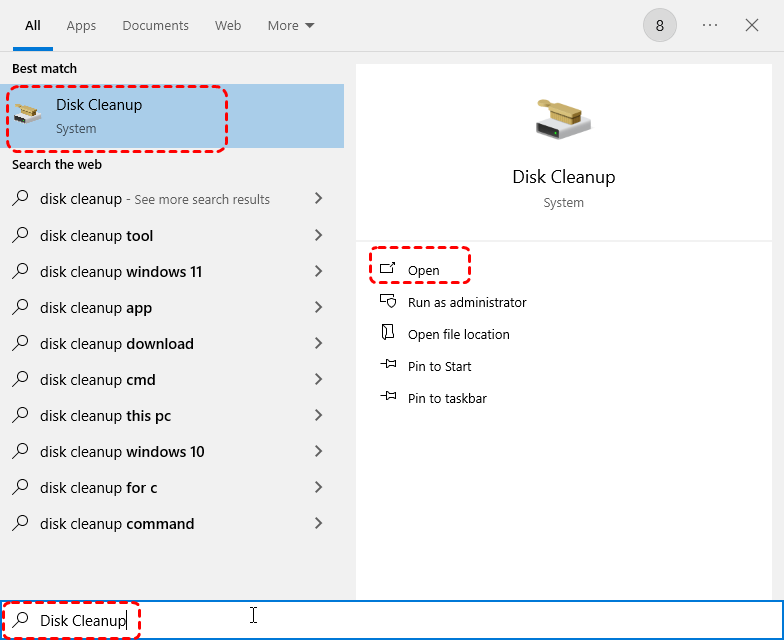
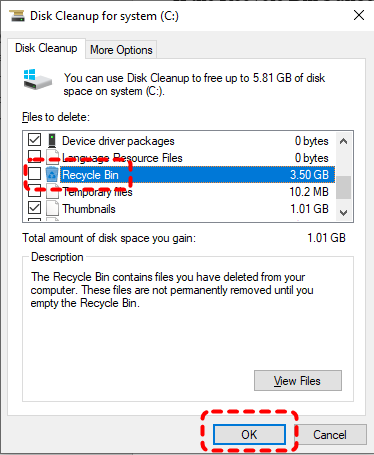
Insufficient disk space on the destination drive can prevent File History from completing backups. Run Disk Cleanup to delete unnecessary files, allowing File History to process large directories without interruption.
Step 1. Type "Disk Cleanup" in the Searching box and open it.
Step 2. Select the destination backup drive to clean.
Step 3. Scroll down and choose the files to delete, then click "OK" to clean the files.
Fix 5. Run CHKDSK Command
File system errors can block File History from reading or writing files. CHKDSK command is designed to scan and repair the file system and logic error on your hard drive. Follow these steps:
Step 1. Locate Command Prompt in the Start menu and run it as administrator.

Step 2. Input the following command "chkdsk G: /f /r" and press the "Enter" key. Replace the drive letter "G" with your actual drive letter. The command will automatically scan and repair the detected errors.

Restart your computer and run File History again to verify whether the "File History can’t save copies of all your files" issue persists.
Fix 6. Run SFC and DISM Command
Sometimes, the corrupted Windows system files may interfere with File History. Run SFC (System File Checker) and DISM command can scan and restore system file integrity and stabilize backup functions. Here's how:
Step 1. Run Command Prompt as administrator.
Step 2. Type the following command "DISM /Online /Cleanup-Image /RestoreHealth" and press "Enter".
Step 3. After the command finishes, enter the command "sfc /scannow" and hit the "Enter" key.

Fix 7. Format the Destination Drive
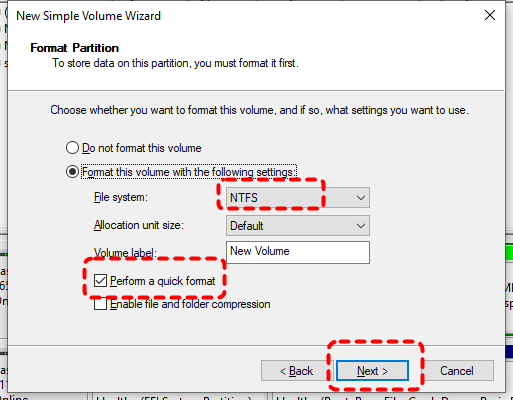
The target drive for File History backups only supports the NTFS file system. If the file system of your drive is incompatible with File History, it may also trigger the "File History can't save copies of all your files" error. Format the drive to NTFS file system can make it be usable again.
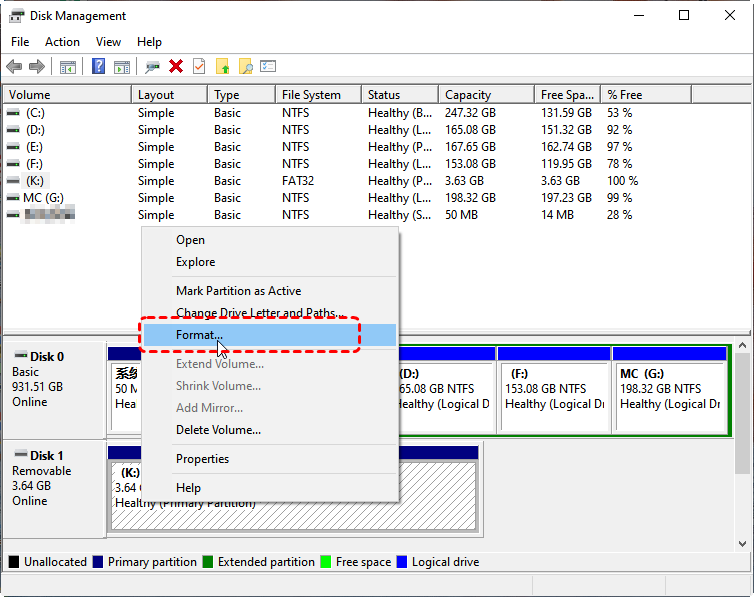
Step 1. Press "Win" + "X" and choose "Disk Management" to open it.

Step 2. Locate the external hard drive and right click on it, then choose "Format".
Step 3. Select "NTFS" under the File System and check the "Perform a quick scan" option, then click "OK" to start the process.
How to Recover Lost Data When the File History not Working
If File History failed to protect your files and data loss has already occurred, recovery becomes the priority. When File History does not work to protect your files, the professional recovery tool like MyRecover provides a more reliable solution. MyRecover is designed to recover lost, deleted, or inaccessible files from hard drives, external drives, and system partitions.

 MyRecover
- Wide Recovery Scenarios– Restores data from accidental deletion, formatting, system crashes, and more.
- Broad File Type Support– Recovers photos, videos, documents, emails, and 1000+ file formats.
- Multi-Device Compatibility– Works on HDDs, SSDs, USB drives, SD cards, and 500+ storage media.
- Dual Scan Modes– Quick Scan for fast retrieval & Deep Scan for thorough recovery.
 100% Secure
Step 1. Download and install MyRecover on your computer from Microsoft Store, avoid installing it on the drive with lost files.
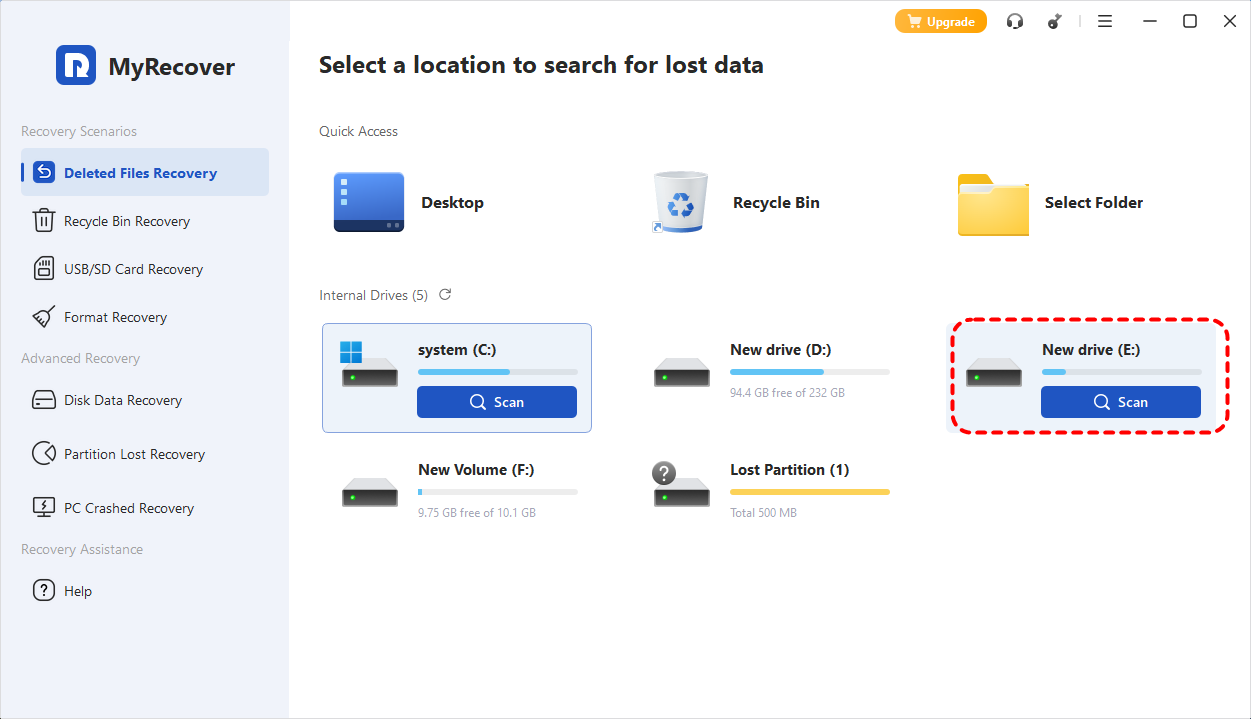
Step 2. Launch the program and select the drive to scan for lost files, then click "Scan".
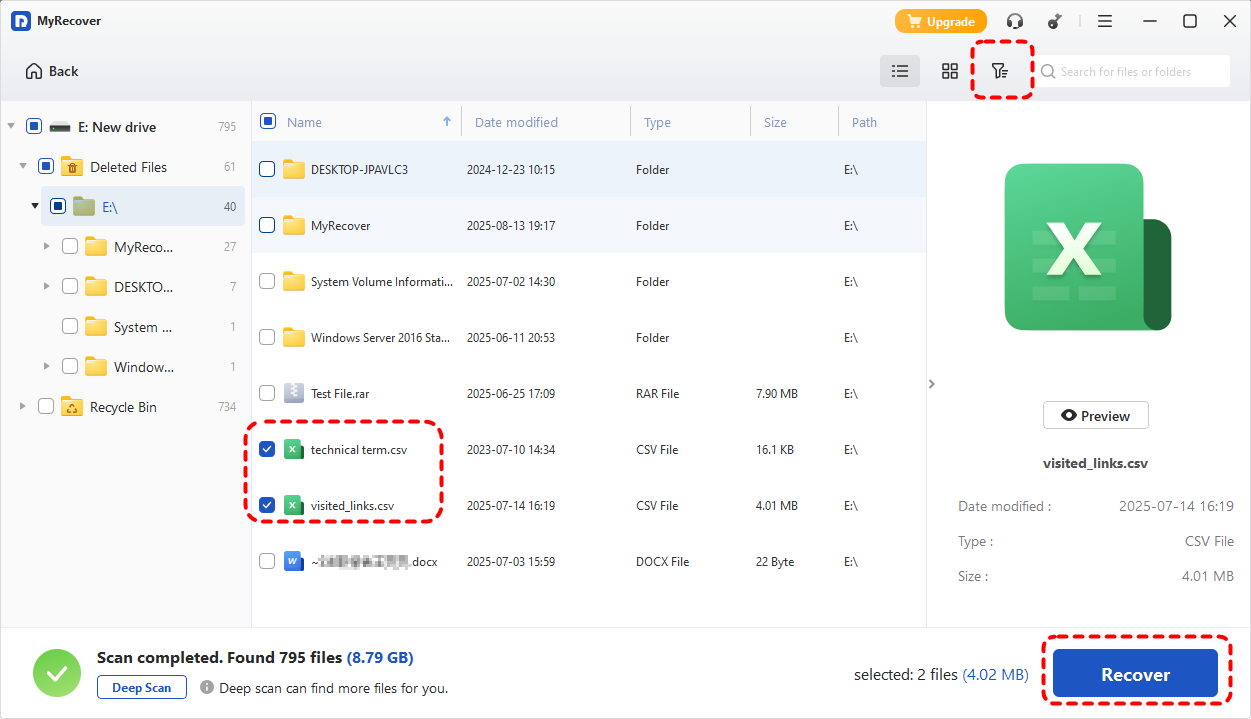
Step 3. After the scan is completed, choose the files you wish to recover from the recoverable lists and click "Recover".
With MyRecover Free, you can recover up to 500MB of data for free, allowing you to test the recovery process. If you require unlimited recovery, file content previews, and the ability to retrieve data from a crashed system, MyRecover Professional offers these advanced features to meet all your data recovery needs.
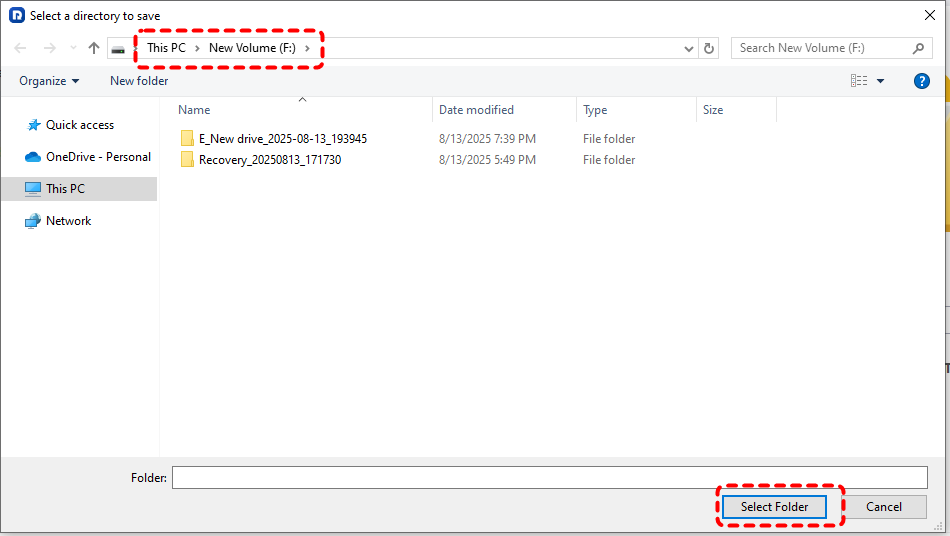
Step 4. Save the recovered files to a safe location.
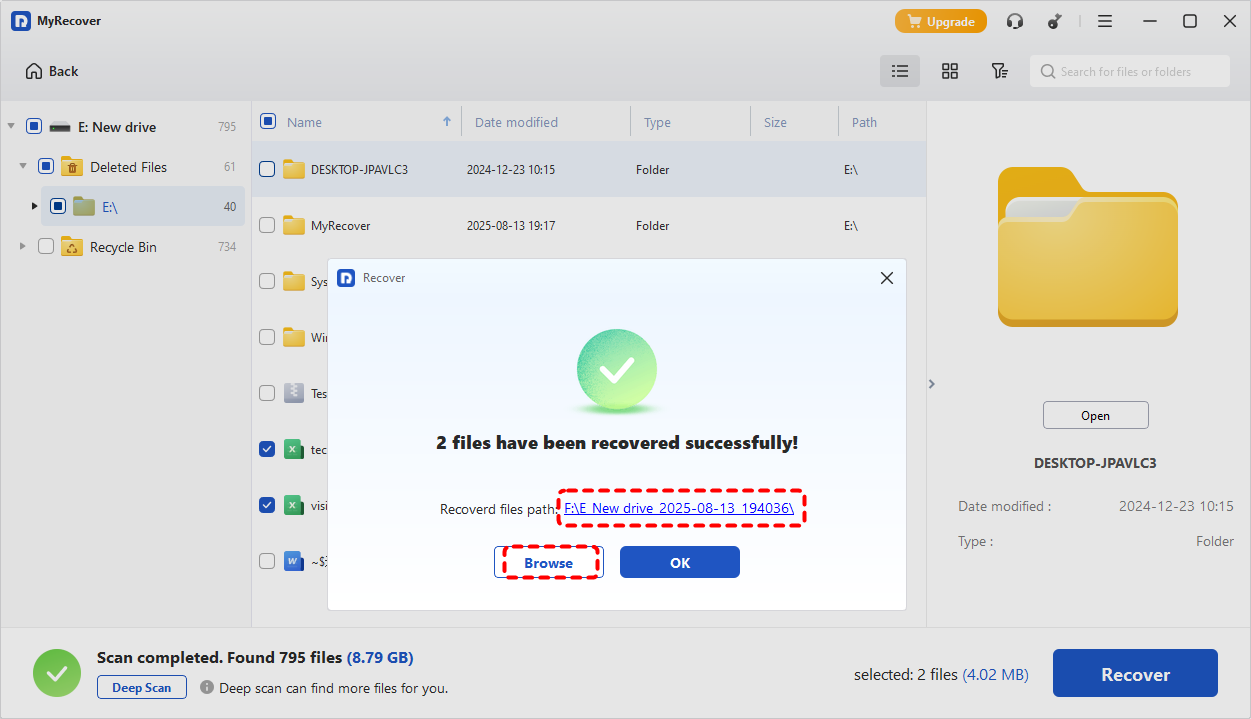
Once the process is done, you'll see the message "Files have been recovered successfully". Then, you can view the recovered files in the destination folder by clicking on "Browse" button.
Final Thoughts
When File History not copying all files and directories becomes a frustrating problem, it is usually a symptom of configuration issues, disk errors, or system limitations rather than a single failure. By methodically applying the fixes above, the issues can be resolved in most cases.
However, no backup solution is flawless. For situations where File History falls short and files are already lost, a dedicated recovery tool like MyRecover ensures you still have a viable path to getting your data back without relying on backups.

Stay Updated With Our
Latest Tips
Add us as a preferred source on Google to never miss helpful guides.
 Add as preferred source >>