 MyRecover



Why Do Files Copied to USB Drive Disappear? [7 Proven Solutions]
Have you noticed that your USB drive files disappeared after transferring? This guide explains why files vanish, how to recover them, and tips to prevent future data loss, ensuring your important files remain safe and accessible.

By Vera / Updated on May 20, 2026


Introduction
Have you ever copied important documents to a flash drive, only to find the files copied to USB drive disappear the next time you plug it in? It’s a frustrating experience that many users face. Whether it’s due to a technical glitch, malware, or a file system error, having your USB drive files disappeared doesn't always mean they are gone forever. In this guide, we’ll explore the technical reasons behind this issue and provide a step-by-step roadmap to recover missing files from USB drive and protect your data.
Why Do Files Copied to USB Drive Disappear?
I moved/copied some files in USB and after replugging, it disappeared, Why?
- Question from Quora
When files copied to USB drive disappear, it is rarely a case of "magic." Usually, it is a failure of the File System Index. Think of your USB drive as a library. The files are the books, and the File Allocation Table (FAT) is the index card. If the index card is smudged or the librarian (the OS) is looking in the wrong place, the books are "missing." Data remains on the physical flash memory until it is overwritten, meaning recovery is highly likely if you act fast.
Common Causes of Files Missing from USB Drive
- ⭕Virus or Malware Infections: One of the most common reasons for disappearing files is malware. Some viruses hide your files and replace them with shortcuts or malicious executables. If your USB drive has been plugged into public or infected computers, this is a strong possibility.
- ⭕File System Errors or Corruption: If the file system on your USB drive gets corrupted—often due to sudden removal during a transfer or power loss—your files can become invisible or unreadable.
- ⭕Hidden Files and Folders: Sometimes the files are still there, just hidden. Malware or accidental settings changes can hide files from view, making you think they’re gone.
- ⭕Improper Ejection of USB Drive: Removing a USB drive without safely ejecting it can interrupt the writing process, leading to incomplete file transfers or corruption.
- ⭕Physical Damage to USB Drive: USB drives are not indestructible. Physical damage to the NAND chip or connector can lead to partial or complete data loss.
7 Methods to Recover Missing Files from USB Drive
We will begin with simple visibility fixes, move into system-level repairs and hardware drivers, and finally utilize professional recovery software to reconstruct lost data.
| Method | Best For... | Difficulty | Success Rate |
|---|---|---|---|
| Method 1 & Method 3 | Malware-hidden files | Easy | High |
| Method 2 & Method 5 | Interrupted transfers/Corruption | Medium | Moderate |
| Method 4 | Connection/Hardware recognition issues | Medium | Low |
| Method 7 (MyRecover) | Formatted, Deleted, or RAW drives | Easy | Highest |
Method 1: Show Hidden Files via File Explorer
If your files missing from USB drive are simply hidden, you don't need recovery software; you just need to tell Windows to ignore the "hidden" attribute. This is the most common fix for files hidden by malware.
👉Detailed Steps for Windows Users
1. Plug your USB drive into your computer.
2. Open File Explorer and go to the drive.
3. Click View > Options > Change folder and search options.

4. In the View tab, select Show hidden files, folders, and drives.
5. Uncheck Hide protected operating system files. Click Apply.
👉Detailed Steps for macOS Users
1. Insert your USB drive into your Mac.
2. Open Finder and navigate to the USB drive.
3. Press Shift + Command + . (period) to show hidden files.
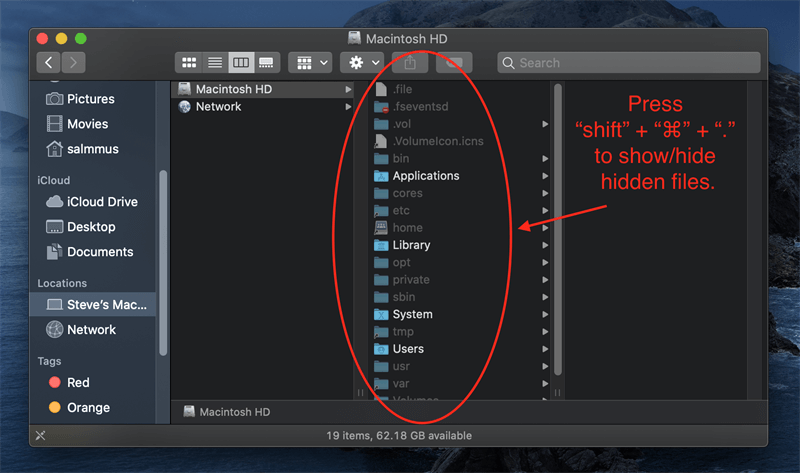
4. If your files show up, copy them somewhere safe.
Method 2: Use Windows Error Checking (GUI)
If the files copied to USB drive disappear due to a "dirty bit" (a file system error), Windows can often repair the directory map automatically.
This method targets "File System Metadata." If you unplugged your drive while it was still "thinking," the metadata becomes inconsistent. This tool scans the directory structure and "re-links" orphaned files that look like they are missing.
Detailed Steps:
1. Right-click your USB drive in File Explorer and choose Properties.
2. Go to the Tools tab. Click Check under "Error checking."
3. Even if Windows says no errors are found, click Scan drive.
4. Once finished, look for a folder named FOUND.000 on your drive; your recovered data might be inside as .CHK files.
Method 3: Use Command Prompt (The "Attrib" Fix)
When USB drive files disappeared due to a virus, the "Hidden" checkbox in Method 1 is often locked (greyed out). The Command Prompt (CMD) allows you to bypass the user interface and communicate directly with the drive's attributes to strip away "System," "Hidden," and "Read-only" flags.
Steps:
1. Plug your USB drive into your PC.
2. Type cmd in the Windows Search bar, right-click, and Run as Administrator.
3. Identify your USB drive letter (e.g., Drive E:).
4. Type the following command: attrib -h -r -s /s /d E:\*.* (Replace E with your actual drive letter).
- -h: Clears the Hidden attribute.
- -r: Clears the Read-only attribute.
- -s: Clears the System attribute.
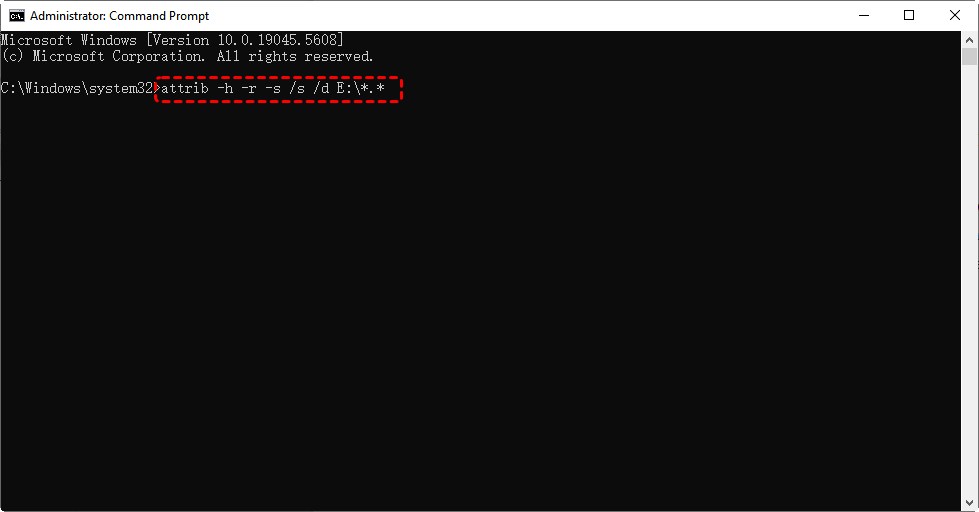
5. Press Enter. Wait for the process to finish (the cursor will blink). Check your USB drive for a newly appeared folder without a name or a "Recycled" folder.
Method 4: Update or Reinstall USB Drivers
Sometimes the files are fine, but the "Translator" (the driver) is broken. If the driver cannot properly communicate the file system to the CPU, the files missing from USB drive will appear as if the drive is empty or unformatted.
Steps:
1. Right-click the Start button and select Device Manager.
2. Expand Universal Serial Bus controllers.
3. Right-click your USB Root Hub or the specific drive and select Update driver.
4. If updating fails, select Uninstall device, unplug the USB, and restart your computer. Windows will automatically reinstall the driver when you plug the USB back in.
Method 5: Use the Check Disk (CHKDSK) Utility
If files copied to USB drive disappear due to logical errors or bad sectors, the CHKDSK tool can repair the "File Allocation Table." It scans the drive for inconsistencies and fixes the "pointers" that lead to your files.
Steps:
1. Open Command Prompt as Administrator.
2. Type chkdsk X: /f (Replace X with your USB drive letter).
3. Press Enter. The /f parameter tells Windows to fix any errors it finds.
4. Once finished, check if your files have reappeared in their original folders.
Method 6: Run a Targeted Antivirus Scan
If a virus is actively hiding your data, you must remove the "source" before you can recover missing files from USB drive. Otherwise, the files will simply disappear again after you unhide them.
Steps:
1. Right-click your USB drive in File Explorer.
2. Select Scan with Windows Defender (or your preferred antivirus).
3. If threats are found, check the "Quarantine" folder. Sometimes, antivirus software "hides" infected files there to protect your PC.
Method 7: Use Data Recovery Software (MyRecover)
When the drive's file structure is too damaged for Windows to repair, or if the files were accidentally deleted during a transfer, professional software is the only way to recover missing files from USB drive.
MyRecover is designed for these high-stakes moments. While standard tools rely on the drive's existing "map," MyRecover performs a Deep Scan to identify the unique "signatures" of your files (like a JPG header or a DOCX structure) directly from the storage chips. This allows it to find USB drive files disappeared even on RAW or formatted drives.
- ★Key Advantages of MyRecover:
- User-Friendly Interface – Designed for both beginners and professionals, MyRecover’s clean layout makes it easy to navigate and recover files in just a few clicks.
- Deep & Quick Scan Modes – Offers two types of scanning to ensure you find every recoverable file, from recently deleted data to files lost long ago.
- Supports Multiple File Types – Recovers photos, videos, documents, audio files, and more from USB drives, SD cards, and external hard drives.
- Preview Before Recovery – Lets you preview files before recovery so you can be sure you’re restoring the correct ones.
- High Recovery Success Rate – MyRecover uses advanced algorithms to maximize the chances of retrieving your lost files intact.
 100% Secure
Steps:
1. Download and install MyRecover on your computer.
2. Connect your USB drive.
3. Launch MyRecover and select your USB drive from the list.
4. Click Scan to begin searching for lost files.
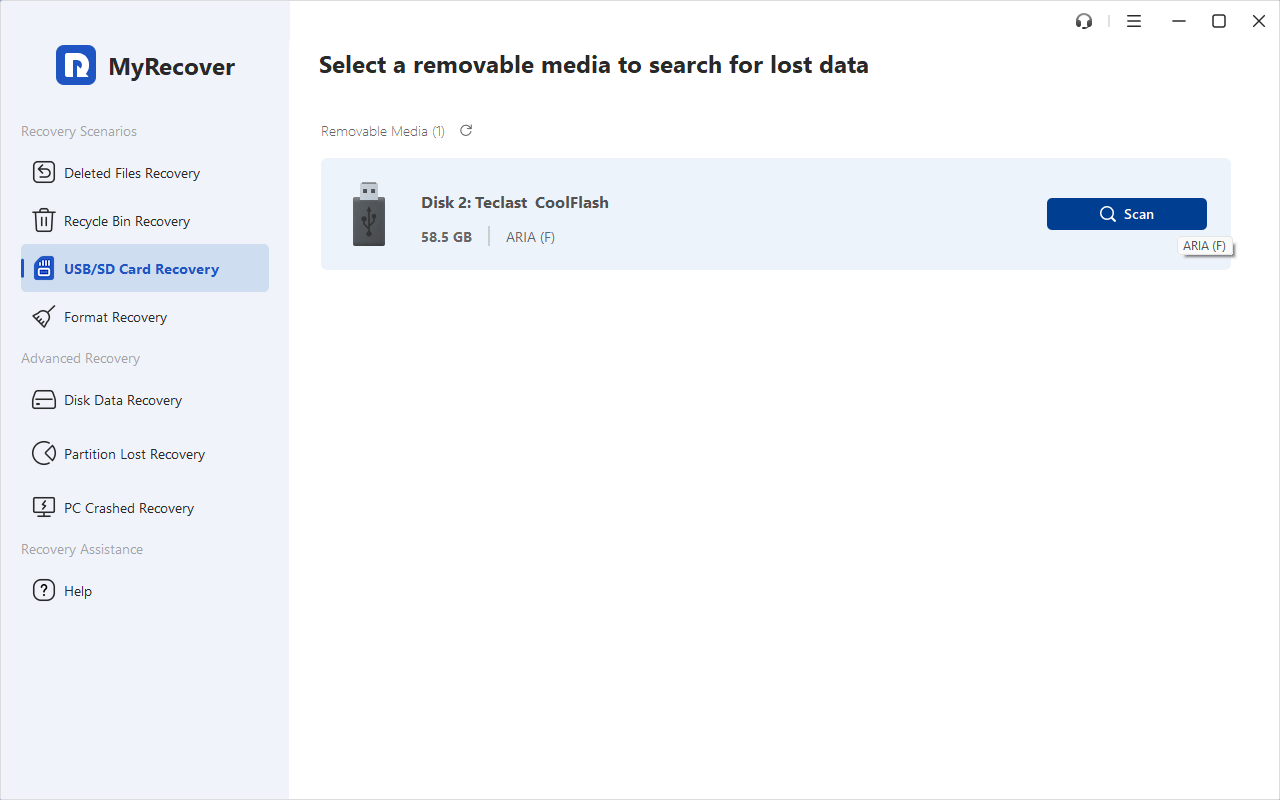
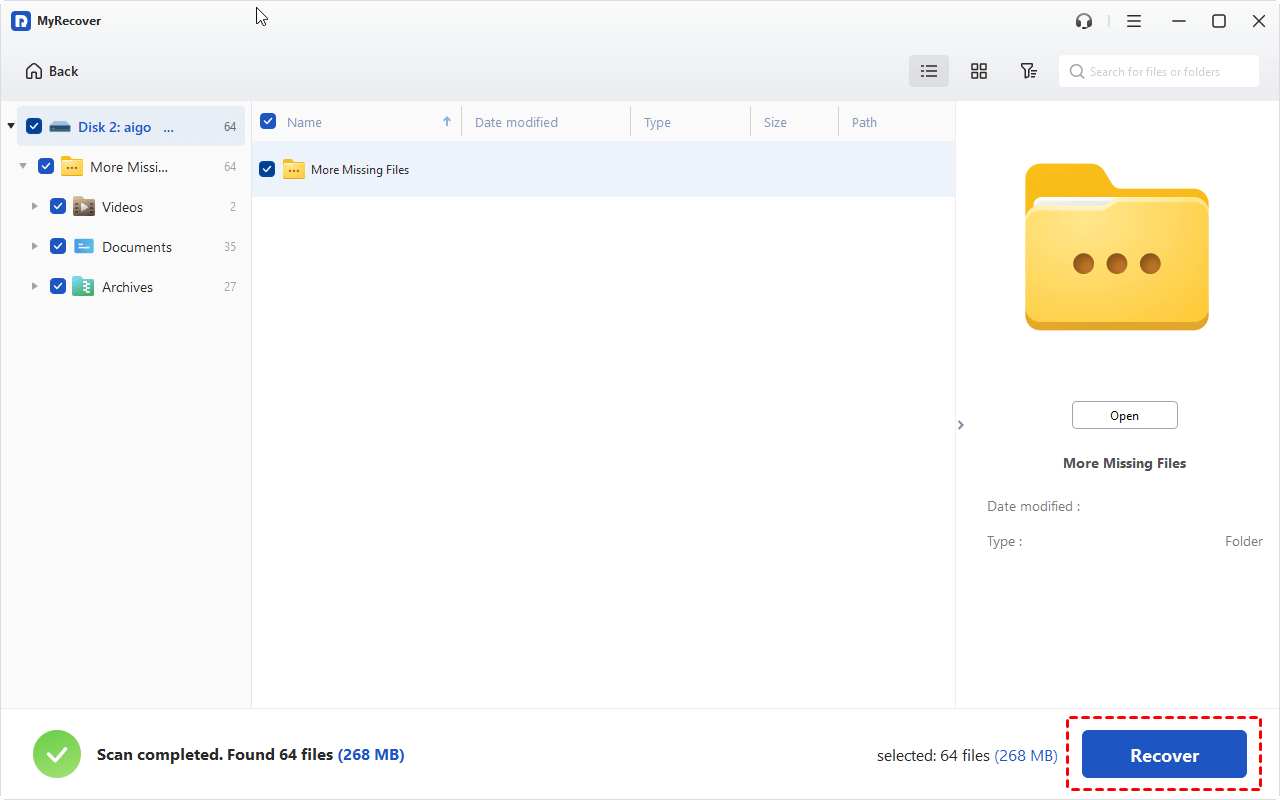
5. Preview recoverable files and select the ones you want back.
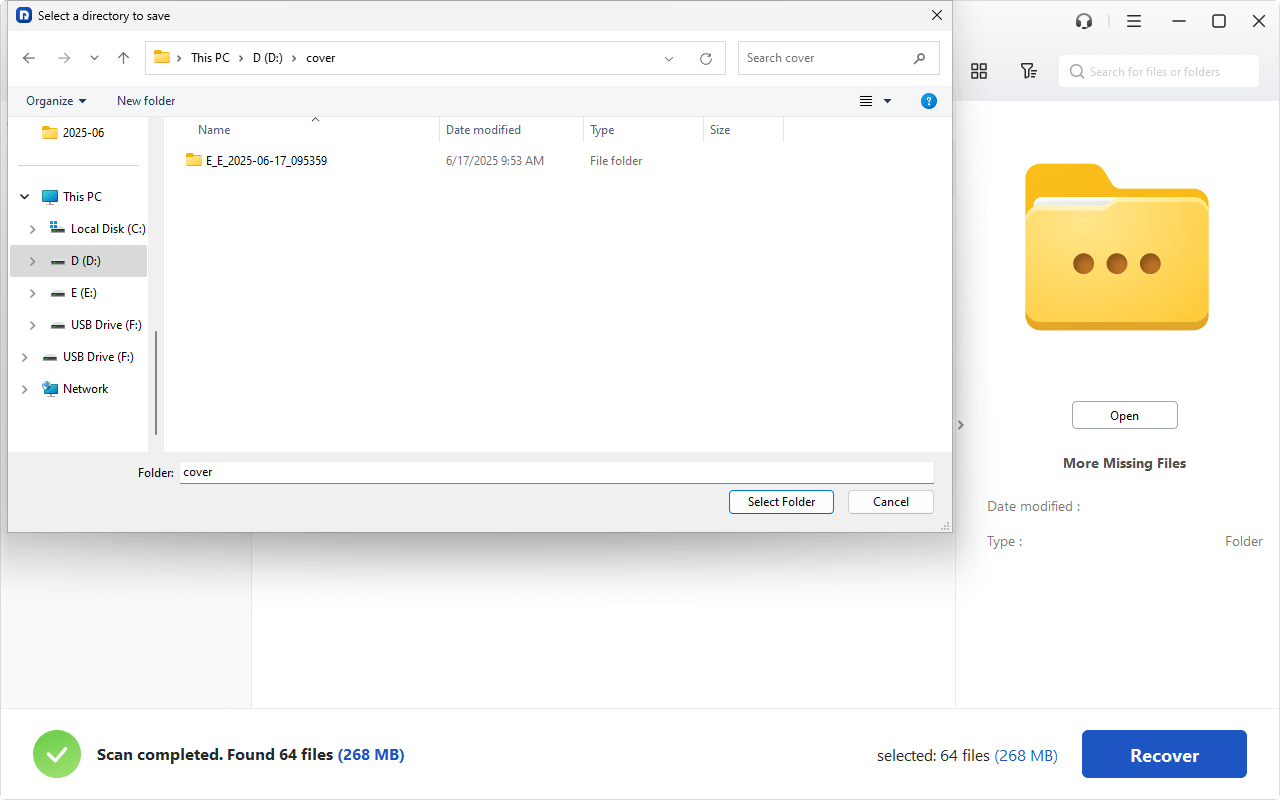
6. Click Recover and save them to a safe location on your computer (not back to the USB drive immediately).
In addition to USB data recovery, MyRecover also supports Windows drive, external hard drive or SD data recovery. For example you can easily and quickly perform:
- Sony SD card recovery
- PNY SD card recovery
- SDHC card data recovery
- Recovering of deleted files from C drive
Conclusion
Finding that your files copied to USB drive disappear is a stressful hurdle, but it is rarely permanent. By understanding that files are often just "hidden" or "misindexed," you can use the built-in Windows tools like CMD or Error Checking to bring them back. If those fail, a dedicated tool like MyRecover provides a professional-grade safety net to recover missing files from USB drive with minimal effort.
FAQs
1. Why do my files copied to USB drive disappear after I unplug it?
This is typically caused by Write Caching. Windows keeps data in its temporary memory (RAM) and writes it to the USB in the background. If you pull the drive out before this "flush" is finished, the files vanish. MyRecover can often retrieve these "partially written" files by scanning the raw sectors.
2. Can MyRecover retrieve files if I accidentally formatted my USB?
Yes. Formatting only deletes the "address book" of the drive. The data is still there. MyRecover scans the "unallocated space" to find and rebuild those files even without a file directory.
3. Why does my USB show as "Empty" even though the properties show it is full?
This is a classic "Hidden Attribute" issue often caused by malware. The files are physically occupying space but are invisible to the user. Method 3 (Attrib command) is usually the best fix for this.
4. What should I do if my USB drive shows as "RAW"?
A RAW drive has a corrupted file system that Windows doesn't recognize. Do not format it yet! Use MyRecover to extract your files missing from USB drive first, as formatting makes recovery much harder and can permanently erase data. If the C drive is raw, you can also use MyRecover to restore data.
5. How can I prevent files missing from USB drive in the future?
Go to Device Manager > Disk Drives > USB Properties > Policies and select "Quick Removal." This disables write caching so data is written instantly. Also, always use "Safely Remove Hardware."
6. Can a "Fake" USB drive cause files to disappear?
Yes. Some drives are sold as "256GB" but only have "8GB" of real memory. When you copy more than 8GB, the files copied to USB drive disappear because they are overwriting themselves. Use a tool like H2testw to verify your drive's true capacity.
7. Why does CHKDSK say "The type of the file system is RAW"?
This means the corruption is so deep that the CHKDSK tool cannot even find the starting point of the file system. In this scenario, skip to Method 7 (MyRecover), as software-level sector scanning is required to bypass the RAW state.

Stay Updated With Our
Latest Tips
Add us as a preferred source on Google to never miss helpful guides.
 Add as preferred source >>