 MyRecover



How to Delete Windows.old Without Disk Cleanup
Learn safe methods to remove Windows.old and reclaim storage. This article teaches how to delete old Windows files without disk cleanup with clear steps, admin fixes, and recovery tips so you clean up confidently after updates without risking important data.

By Vera / Updated on February 5, 2026


What Is the Windows.old Folder?
Windows.old is a system folder created after a Windows upgrade or reinstallation. It stores your previous Windows installation so you can roll back if needed.
Think of it as Windows packing your old system into a box and leaving it in the corner "just in case".
Why Windows.old Is Created
Windows automatically creates the Windows.old folder when:
- Upgrading to a newer Windows version, e.g., updating Windows 10 to Windows 11.
- Reinstalling Windows without formatting the system drive.
- Performing a major feature update.
By default, Windows keeps this folder for about 10 days.
What’s Stored Inside Windows.old?
The folder typically includes:
- Old Windows system files
- User account folders
- Program Files and Program Files (x86)
- Configuration and registry data
Because of this, Windows.old often becomes one of the largest folders on the system drive.
Is It Safe to Delete Windows.old?
Yes—but only after you’re sure you don’t need anything inside it.
When You Should Keep Windows.old
Do not delete the folder if:
- You plan to roll back to the previous Windows version.
- You haven’t checked whether all personal files were migrated.
- You upgraded recently and are still troubleshooting issues.
When It’s Safe to Delete Windows.old
You can safely delete Windows.old if:
- Your system is stable.
- All personal files are confirmed intact.
- You don’t need rollback functionality.
Once deleted, the rollback option is permanently removed.
🔥Important: Back Up or Recover Data Before Deleting
Before removing Windows.old, it’s smart to double-check that no important files are missing. If you realize that some files didn’t transfer correctly—or you’re unsure whether everything was backed up—you can use a data recovery tool like MyRecover to scan the Windows.old folder or your system drive.
MyRecover is designed to:
- Recover deleted or missing files after system upgrades.
- Scan both existing folders and leftover system data.
- Restore documents, photos, videos, and more before permanent deletion.
 100% Secure
Using a recovery tool before deleting Windows.old adds an extra layer of safety, especially if the upgrade didn’t go perfectly.
Why Disk Cleanup Isn’t Always an Option
Disk Cleanup is no longer reliable for everyone due to:
- Being hidden or deprecated in newer Windows versions.
- Freezing during space calculation.
- Missing "Previous Windows installation" options.
That’s why manual deletion methods are often preferred.
How to Delete Windows.old Without Disk Cleanup
Below are 3 standardized and reliable methods. Choose the one that matches your comfort level.
Method 1: Delete Windows.old Using File Explorer
Best for users who prefer a graphical interface.
Step-by-Step Instructions
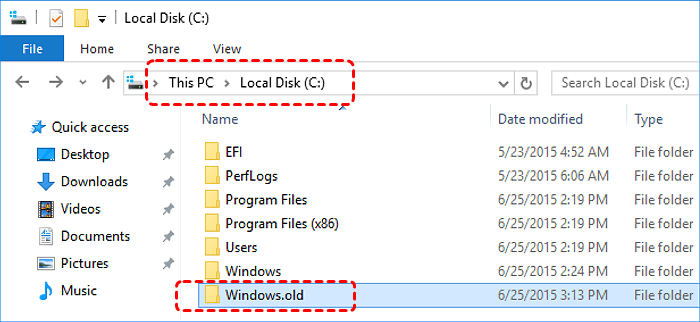
1. Open File Explorer. Go to Local Disk (C:). Locate Windows.old.
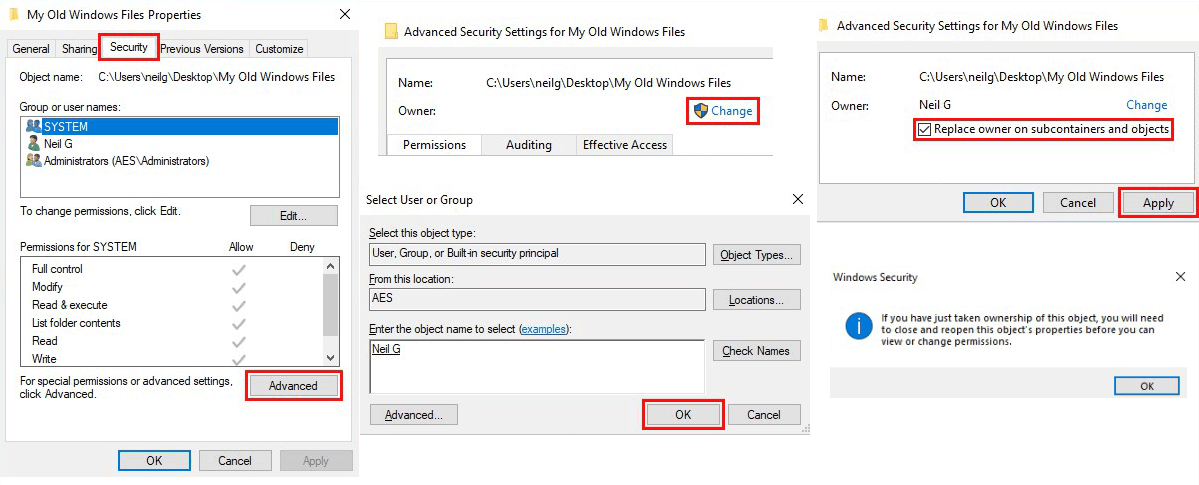
2. Right-click the folder and select Properties. Open the Security tab. Click Advanced.
3. Click Change next to Owner. Enter your Windows username. Click Check Names, then OK.
4. Check Replace owner on subcontainers and objects. Click Apply, then OK.
5. Close all dialog boxes.
6. Right-click Windows.old. Select Delete.
7. Empty the Recycle Bin.
Method 2: Delete Windows.old Using Command Prompt
Fast and effective, especially when permissions cause issues.
Step-by-Step Instructions
1. Press Windows + S.
2. Type cmd.
3. Right-click Command Prompt.
4. Select Run as administrator.

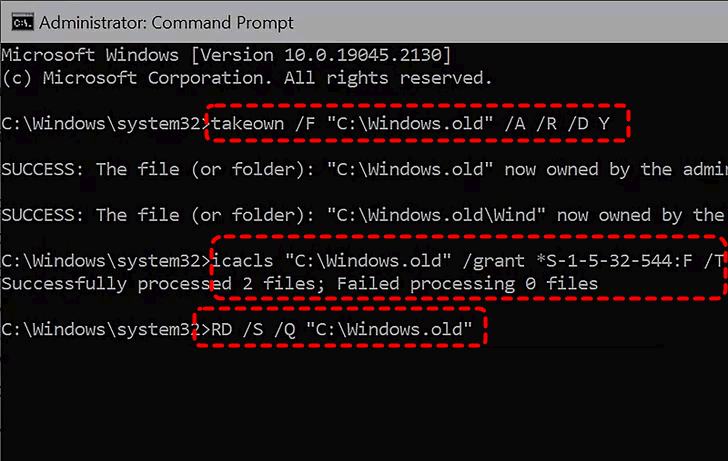
5. Enter the following commands one by one:
takeown /F C:\Windows.old\* /R /A
icacls C:\Windows.old\*.* /T /grant administrators:F
rmdir /S /Q C:\Windows.old
6. Wait for the process to finish.
7. Restart your computer.
Method 3: Delete Windows.old Using PowerShell
Ideal for advanced users or scripted cleanup.
Step-by-Step Instructions
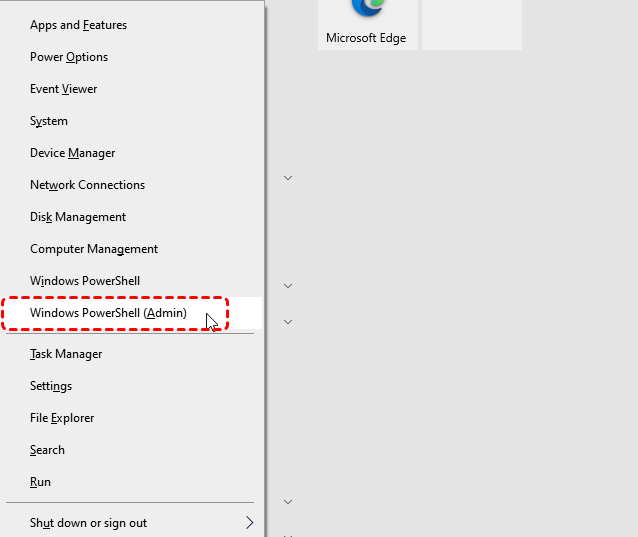
1. Press Windows + X.
2. Select Windows Terminal (Admin) or PowerShell (Admin).
3. Run the following command:
Remove-Item -Path C:\Windows.old -Recurse -Force
4. Press Enter.
5. Restart your system.
What If Windows.old Still Won’t Delete?
If Windows refuses to let go, try these fixes.
Fix Access Denied Errors
- Confirm you’re logged in as an administrator
- Re-run deletion commands as Admin
- Ensure folder ownership was successfully changed
Delete Windows.old in Safe Mode
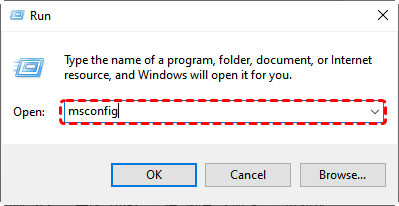
1. Press Windows + R. Type msconfig.
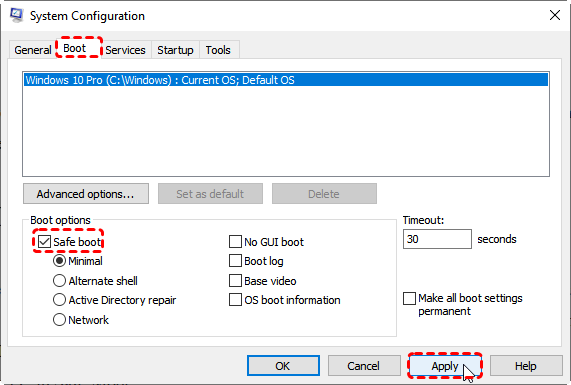
2. Open the Boot tab. Enable Safe boot. Restart the system.
3. Delete Windows.old.
4. Disable Safe boot.
5. Restart normally.
Safe Mode prevents background services from locking files.
Conclusion
Deleting Windows.old without Disk Cleanup is completely safe when done correctly. By confirming your files first—using data recovery tools like MyRecover if needed—and following standardized steps, you can reclaim valuable disk space without risking your data.
Once it’s gone, your system stays cleaner, faster, and free of unnecessary clutter.
FAQs
1. How Much Space Does Windows.old Take?
On average, Windows.old consumes 15–30 GB. That’s enough space for multiple games, thousands of photos, or a whole Netflix download spree. Deleting it can instantly free up valuable disk space.
2. How to Prevent Windows.old from Accumulating Again
While Windows will always create it during upgrades, you can:
- Remove it soon after confirming system stability.
- Enable Storage Sense for automatic cleanup.
- Monitor disk usage after major updates.
3. Common Mistakes to Avoid When Deleting Windows.old
- Deleting Windows.old before checking files.
- Skipping backup or recovery verification.
- Using force-delete tools blindly.
- Assuming Disk Cleanup is the only option.

Stay Updated With Our
Latest Tips
Add us as a preferred source on Google to never miss helpful guides.
 Add as preferred source >>