 MyRecover



How to Recover Permanently Deleted Voice Memos on iOS | 3 Effective Ways
Have you ever been stuck in the frustrating situation of losing your precious voice memos? You are not alone. The loss of voice memos doesn't mean all hope is lost. This guide dives deep into how to recover permanently deleted voice memos, and offer further reading on recovering voice recordings from Windows.

By Aria / Updated on November 11, 2026


Is it Possible to Recover Permanently Deleted Voice Memos on iOS?
Voice memos serve as a practical tool for recording significant information on your iPhone. It turns your iPhone, iPad, or Apple Watch into a portable audio recorder, making it easy to capture and share personal notes, song ideas, family moments, classroom lectures, and more. Precisely because it is so convenient, you understand how much loss can be caused if voice memos are deleted, especially permanently. Even if your files are perfectly safe now, it's still essential to know how to recover permanently deleted files.
So, is it still possible to recover permanently deleted voice memos? The answer is a resounding yes. Here are three methods to restore permanently deleted voice memos. You can choose any one based on your needs.
How to Recover Permanently Deleted Voice Memos on iOS
If you've permanently deleted voice memos from your iPhone, there are still a few places worth checking before giving up. You can look for recordings in Recently Deleted, check whether they are available on other Apple devices, or restore them from an existing backup. The following methods are worth trying depending on your situation.
Recover Voice Memos from Recently Deleted
When you want to recover deleted voice memos, you can first check the “Recently Deleted” folder (where deleted files remain for 30 days) to confirm whether the voice memos have been permanently deleted. If the voice memos are still in the folder, you can restore them directly. If they are no longer there, it means they have been permanently deleted.
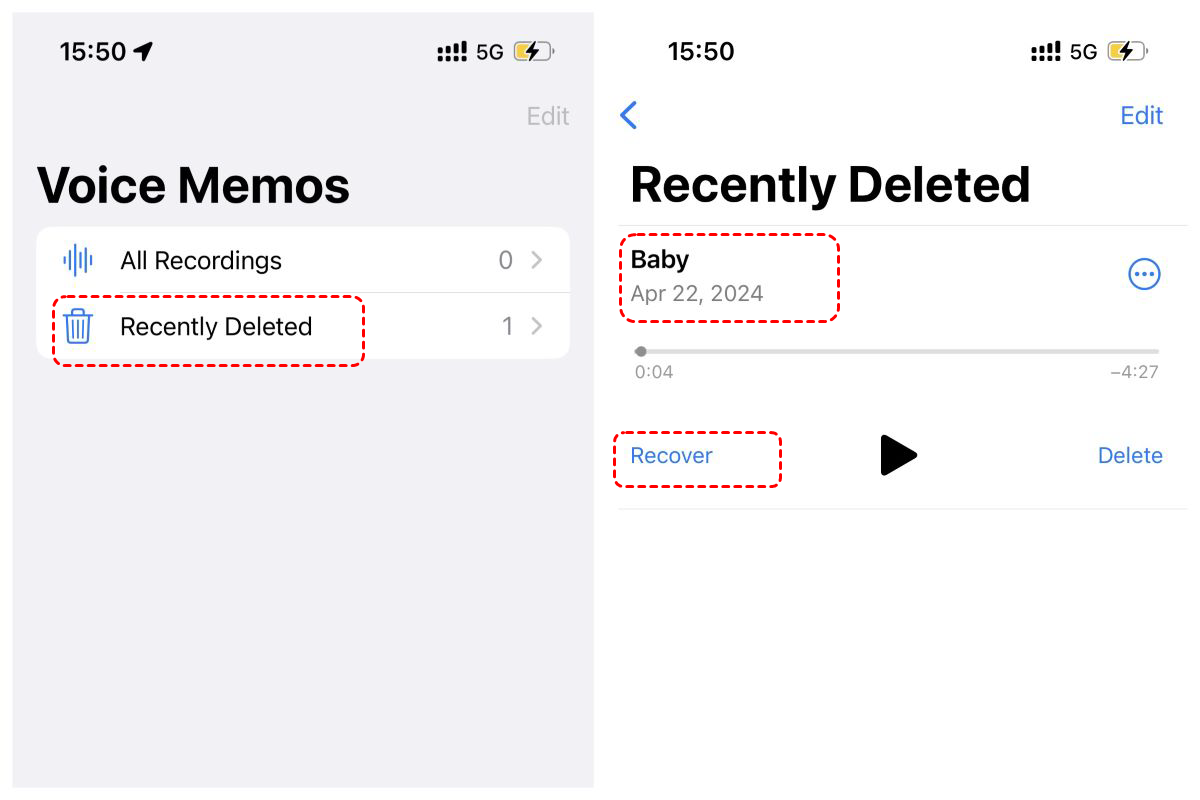
This may be because you deleted it from the Recently Deleted folder or it has been permanently deleted by your iPhone after exceeding the 30-day retention period in the Recently Deleted folder. As new data is written, these deleted files may be gradually overwritten.
Recover Permanently Deleted Voice Memos from iCloud Backup
If you have backed up the relevant voice memos before they were lost, you can restore them from the backup tool. iCloud and iTunes are two effective backup tools provided by Apple, through which you can restore lost voice memos from backups.
Both of the below methods will erase all your current data and restore your phone to the backed-up version.
From iCloud, you can access your photos, files, and more from any web browser. Changes you make will sync to your iPhone and other devices, so you’re always up to date. It is essential for keeping personal information from your devices safe, up to date, and available wherever you are.
Step 1. Erase your iPhone by going to Settings > General > Transfer or Reset iPhone >Erase All Content and Settings.
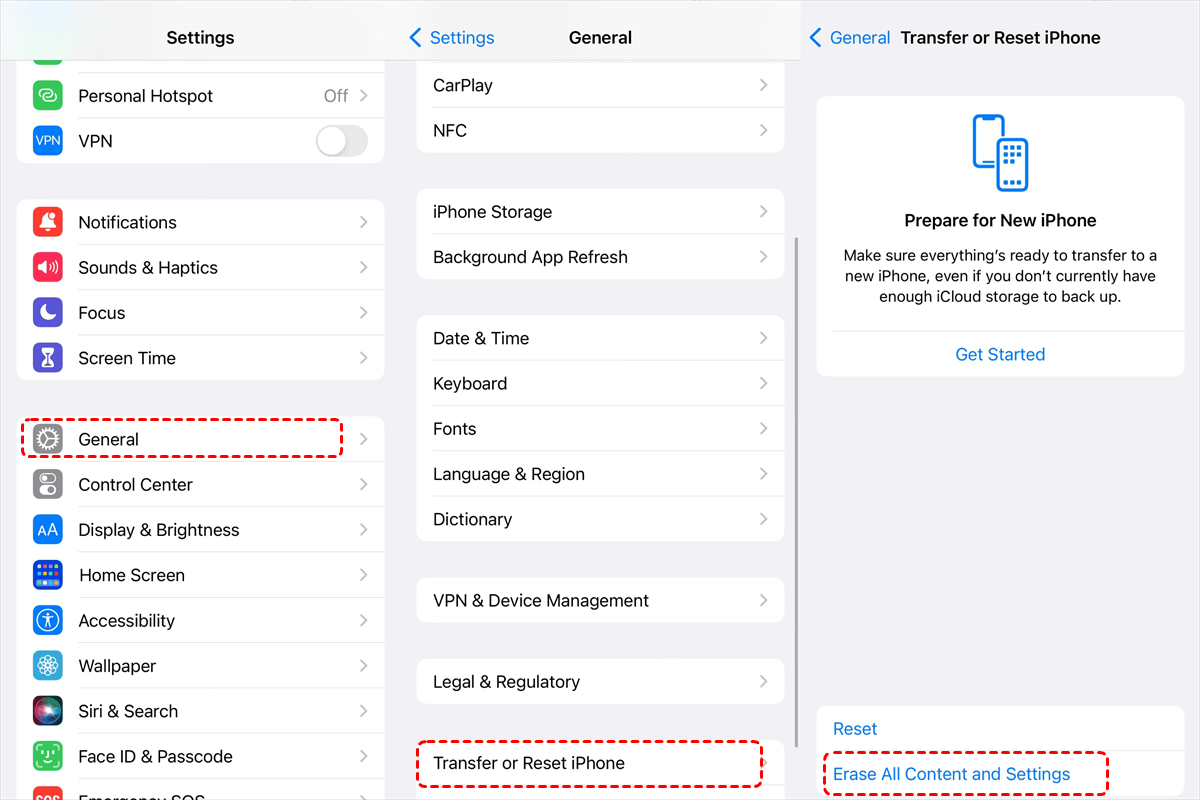
Step 2. Enter your iPhone passcode to confirm and the device will reset.
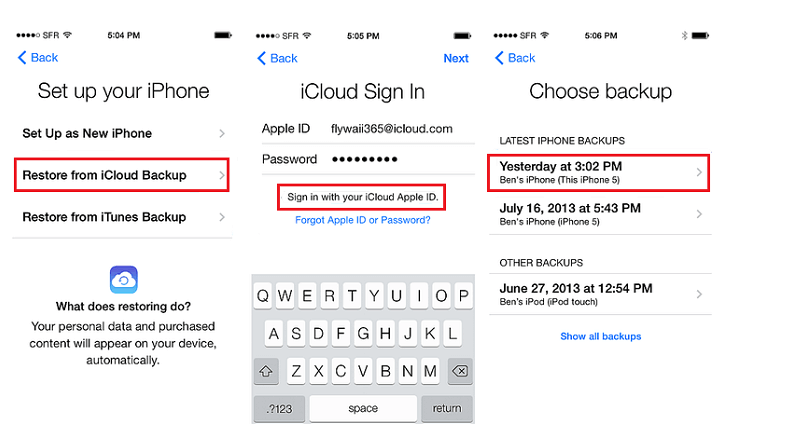
Step 3. Once the process is completed, select "Restore from iCloud Backup.
Step 4. Sign in your iCloud account and select the backup containing the permanently deleted voice memos you want to recover and restore them.
Restore Deleted Voice Memos from iTunes Backup
Similar to iCloud, iTunes allows you to create a full backup of your iPhone, which includes voice memos. It's important to note that restoring an iTunes backup will replace your iPhone's current data with the data from the backup.
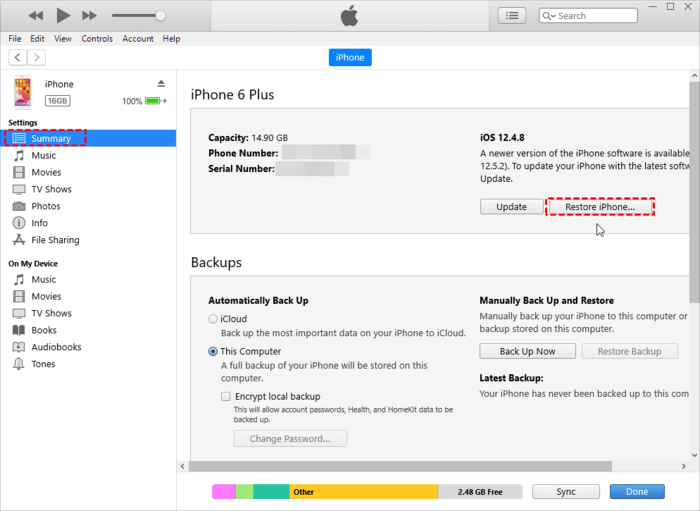
Step 1. Connect your iPhone to your computer and launch the iTunes on the computer.
Step 2. Select your iPhone under the device list and click "Summary".
Step 3. Click "Restore backup" and then choose a created backup you desired, click "Restore" to start the process.
Further Reading: How to Recover Permanently Deleted Voice Recordings on Windows
If you've lost voice recordings stored on your Windows PC, external hard drive, or USB drive, you may still be able to recover them even after permanent deletion. MyRecover, a Windows data recovery tool, supports a wide range of data recovery scenarios.
Whether you are faced with complex situations such as permanent file deletion, hard drive formatting, unreadable hard drive content, or even system crashes, you can easily recover the permanently deleted files on Windows using MyRecover.
 100% Secure
Step 1. Download and install MyRecover on your computer.
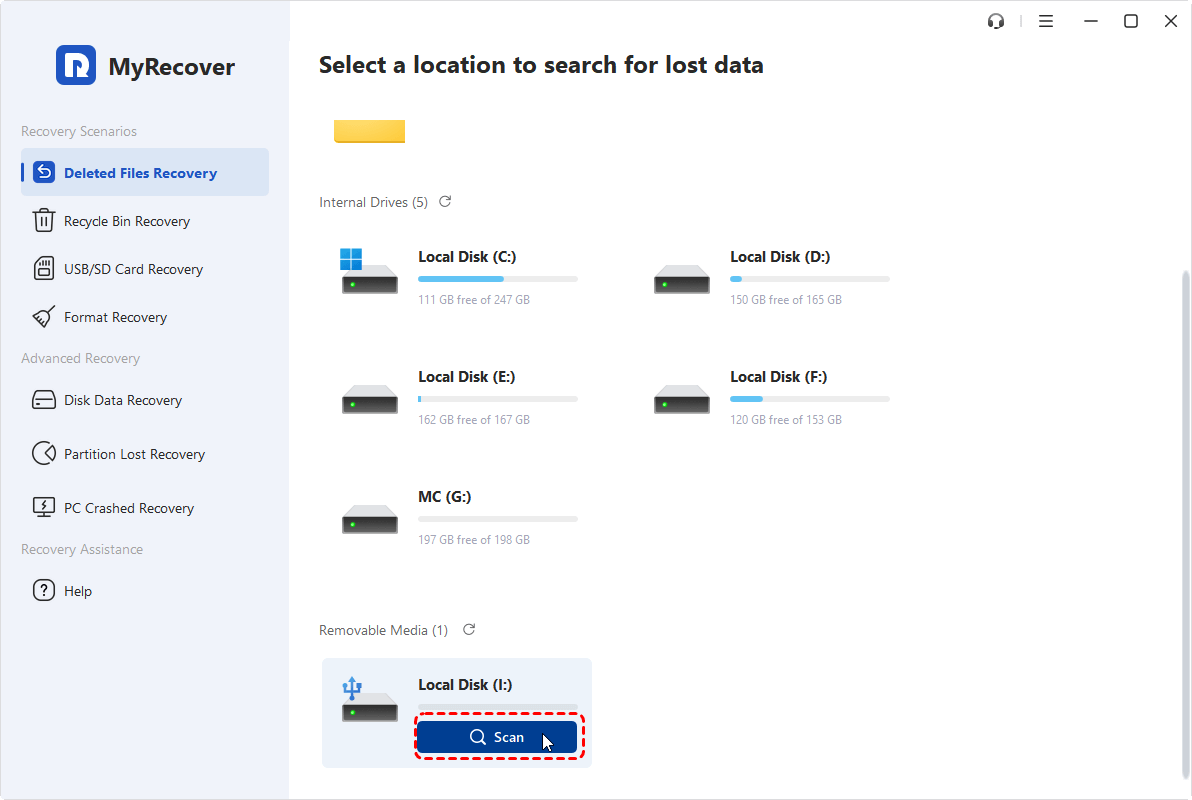
Step 2. Launch it and select a drive to scan for the lost files.
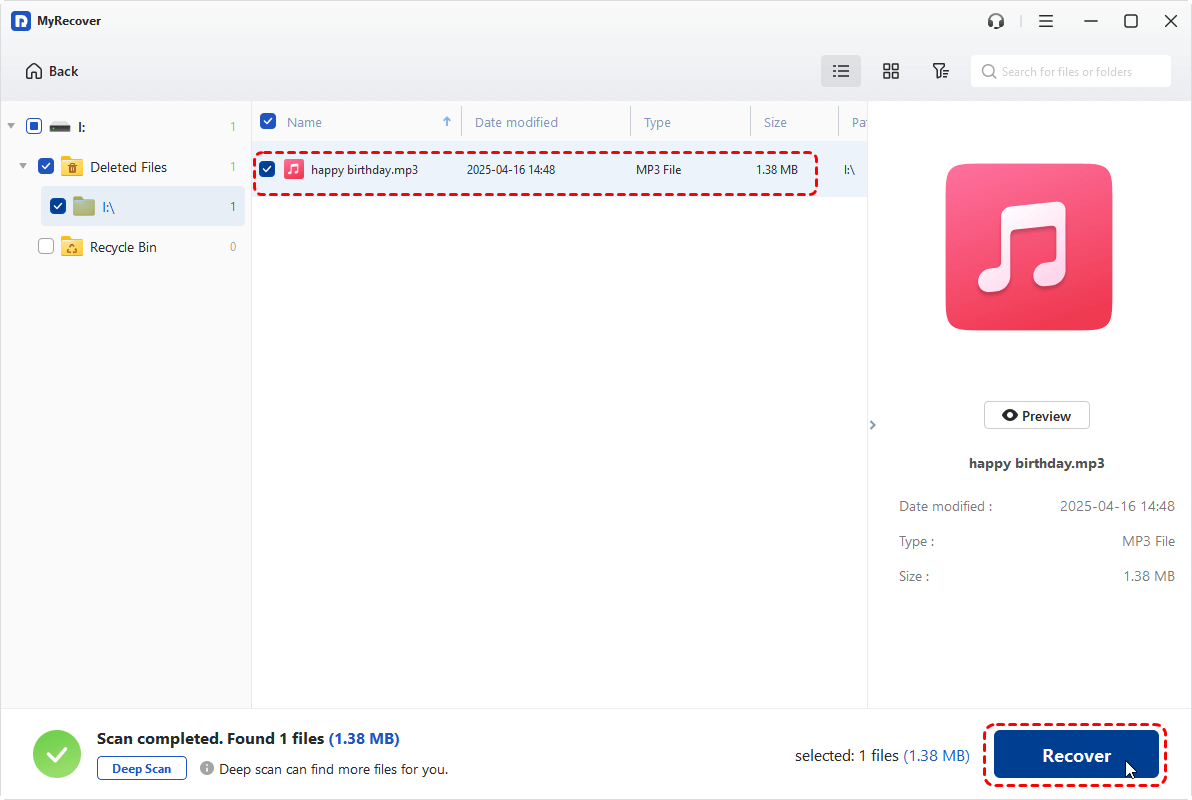
Step 3. Select the files you want to recover and click "Recover".
Step 4. Choose a safe location to save the recovered files (different from the drive where lost files).
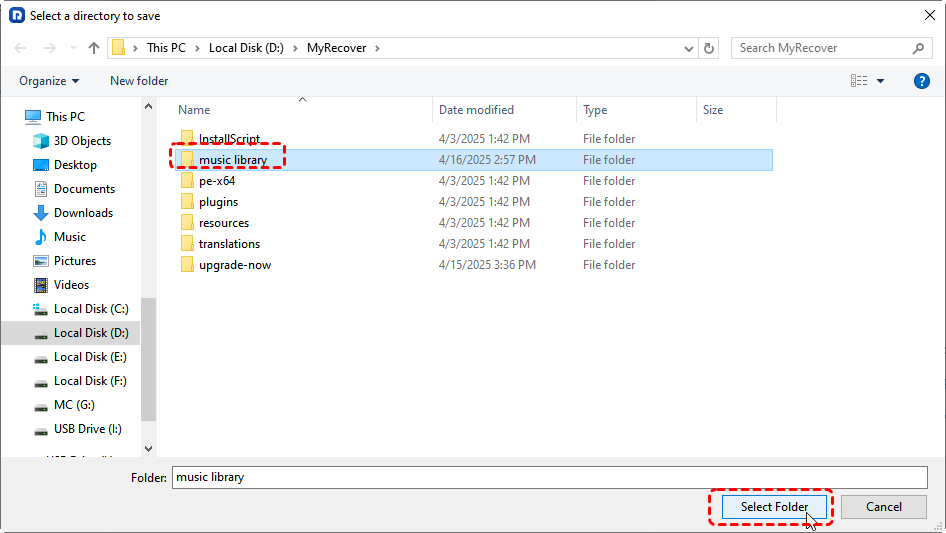
When the process is completed, you can check the recovered files in the destination folder.
Summary
Recovering permanently deleted voice memos depends on where they were stored and whether a recoverable copy or backup exists. iPhone users can check Recently Deleted, other Apple devices, and available backups. For Windows users, MyRecover provides a practical way to scan and recover lost voice recordings from local drives and external storage devices. Regular backups can also help prevent permanent data loss.
Additionally, for users with more advanced recovery needs in Windows, MyRecover offers the Professional and Technician Edition. It is believed that there is always a version capable of meeting your requirements.

Stay Updated With Our
Latest Tips
Add us as a preferred source on Google to never miss helpful guides.
 Add as preferred source >>