 MyRecover



Microsoft Word Recent Documents Disappeared: Top 6 Solutions
If you’re dealing with the issue of Microsoft Word recent documents disappeared, this guide provides clear and effective solutions to restore your missing recent file history. You’ll also learn how to locate files manually and recover them if they are accidentally deleted or lost.

By Aria / Updated on May 6, 2026


Preface
Does anyone have a solution to this problem please?
Recently I had to reformat my HDD. After reinstalling everything my recent docs Word or Excel (2019) are not showing up on the start menu. I am referring to documents that have JUST been opened, saved and closed again as I don't expect recent lists to show up after reinstallation. Also, 2 documents that have not been opened in over a year are the only ones that show up in the Start menu. Not able to pin documents either.
- Question from Deeksha
When the Microsoft Word recent documents disappeared, it can immediately disrupt your workflow. You may open Word expecting to quickly access recently edited files, only to find the list empty or missing. This often creates confusion and concern, especially if you rely on the recent documents list for ongoing work and worry that your files may have been lost or deleted.
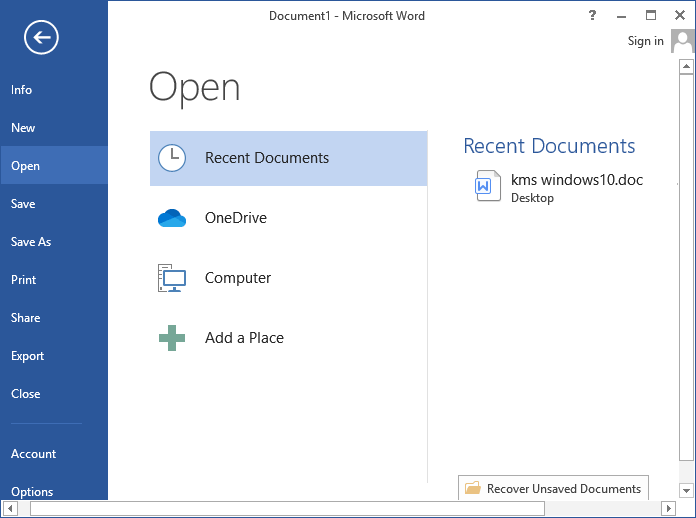
Actually, the files themselves are still intact. What’s missing is simply the record or display of those documents within Word. This issue can be caused by settings changes, system glitches, or temporary configuration errors rather than actual data loss. In this guide, we’ll walk you through practical solutions to restore the recent documents list in Word.
Why Did Word Recent Documents Disappear?
Before applying fixes, understanding what may cause the recent documents list to stop showing in Word will make it easier to restore the missing list. In most cases, the issue is related to configuration or system changes rather than actual file loss.
📌 Remove from the list: Accidental mis-operations may remove Word documents from the recent list without your awareness.
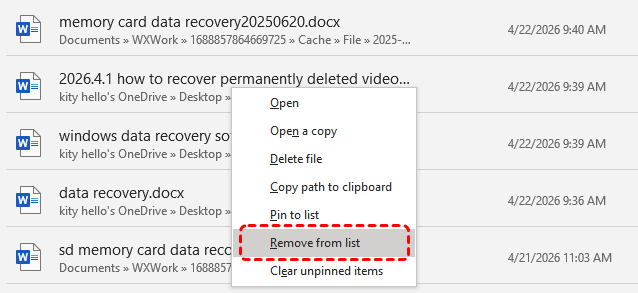
✂️ Recent files list is disabled: Word allows users to control how many recent documents are displayed. If this setting is turned off or set to zero, the list will appear empty.
⚙️ Start menu or taskbar settings reset: After a system update or reinstallation, Windows may stop displaying recently opened items, affecting how Word integrates with the Start menu.
🛠️ Office or system glitches: Temporary bugs or incomplete updates often trigger Microsoft Word recent documents not updating or faulty list display.
📂 Corrupted cache or configuration files: Damaged Office cache data may cause the recent documents history to not load or refresh properly.
📍 File location changes: If Word files were moved, deleted, or stored on disconnected drives, Word may not be able to reference them in the recent list.
🔎 Privacy or cleanup settings: Some system optimization tools or privacy settings automatically clear recent activity, removing entries from Word’s history.
How to Fix Microsoft Word Recent Documents Disappeared
In this section, we'll walk you through to fix the "Microsoft Word recent documents disappeared" and restore the missing recent documents list. Each of the following method is designed to help you quickly recover access to your recent files and ensure the issue doesn’t happen again. Let's explore them one by one.
Solution 1. Sign in with Microsoft Account
If you have recently reinstalled Microsoft Word or the system, Word may fail to automatically link your Microsoft account, causing your recently opened files to stop syncing and displaying properly. Signing in ensures your preferences and document history are restored across sessions and devices.
Step 1. Open Microsoft Word and click "File" > "Account".
Step 2. Check if you are signed in; if not, click "Sign In".
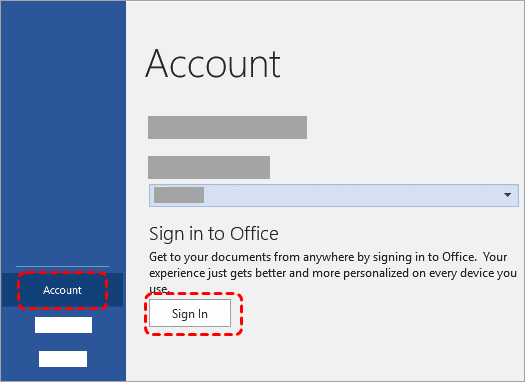
Step 3. Enter your Microsoft account credentials and complete the login.
Step 4. Restart Word and check if recent documents appear.
Solution 2. Disable and Re-enable Recent Documents Feature
Sometimes the recent documents feature may glitch or stop updating. Toggling this setting off and back on can refresh Word’s internal configuration and restore the recent documents list display. Follow these steps:
Step 1. Open Word and go to "File" > "Options".
Step 2. Select "Advanced" and scroll to the "Display" section.
Step 3. Set "Show this number of Recent Documents" to "0" and uncheck the "Quickly access this number of Recent Document", then click "OK".
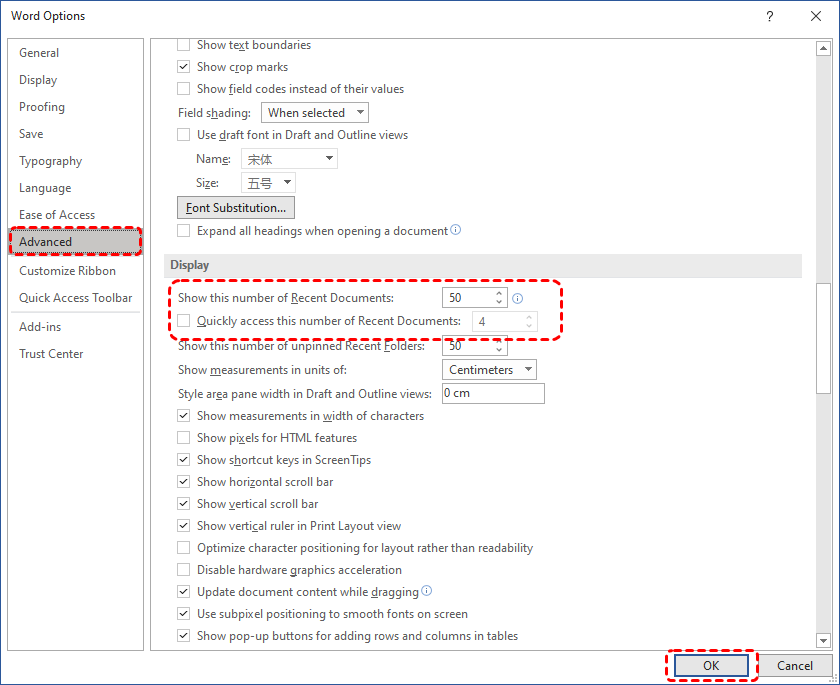
Step 4. Reopen the setting, set the number as you like (e.g., 10–20) next to "Show this number of Recent Documents".
Step 5. Check the "Quickly access this number of Recent Documents" and set a number as you like, then confirm changes.
Method 3. Check the Number of Recent Documents
If the number of recent documents is set too low or zero, word will stop showing all recently opened files, hide older documents, or even display no files at all. Adjust this value and reopen your documents to make the disappeared Word recent documents visible again.
Step 1. Go to the "Display" section as described earlier.
Step 2. If the number is set too low or 0, change it to a reasonable value such as 20 or 50 as you like.
Step 3. Click "OK" and reopen Word to verify the result.
Method 4. Enable the Start Screen
The Start Screen in Microsoft Word displays recently opened documents and Favorites. If it’s disabled, the recent list may not appear when launching the app, giving the impression that it has disappeared. You only need to turn on this feature to view your missing Word documents.
Step 1. Open Word and navigate to "File" > "Options" > "General".
Step 2. Find the "Start up options" section.
Step 3. Check "Show the Start screen when this application starts" and click "OK" to save the changes.
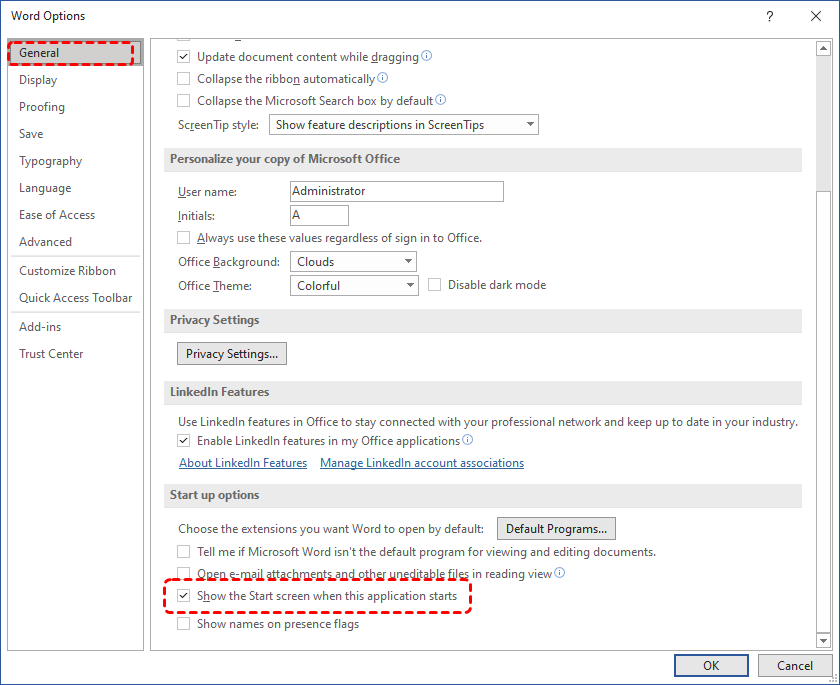
Step 4. Restart Word to see if the recent documents list is restored.
Method 5. Access from File Explorer Quick Access
If none of the methods above help display your recent opened Word documents, don’t worry. Aside from Word itself, Quick Access in Windows File Explorer also keeps track of recently opened documents and folders, and you can try accessing them from there.
Step 1. Open File Explorer and click "Quick access" in the left panel.
Step 2. Check the "Recent files" section for your Word documents.
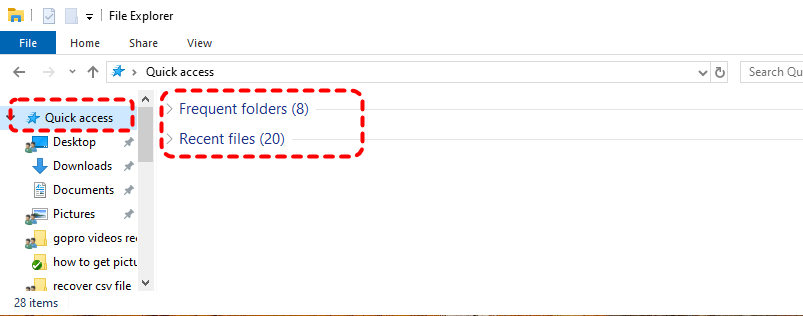
Step 3. Open the needed file and re-pin it in Word if necessary.
Method 6. Search in File Explorer
If you move or rename a Word file, its entry in the Word recent list will become invalid or disappear. When you try to access it from the recent list, Word will prompt that the file has been moved, renamed, or deleted. Searching for the file name or type ensures you can locate documents even when the recent list fails to display.
Step 1. Open File Explorer and select the drive where files are stored.
Step 2. Use the search bar and type keywords or file extensions (e.g., .docx).
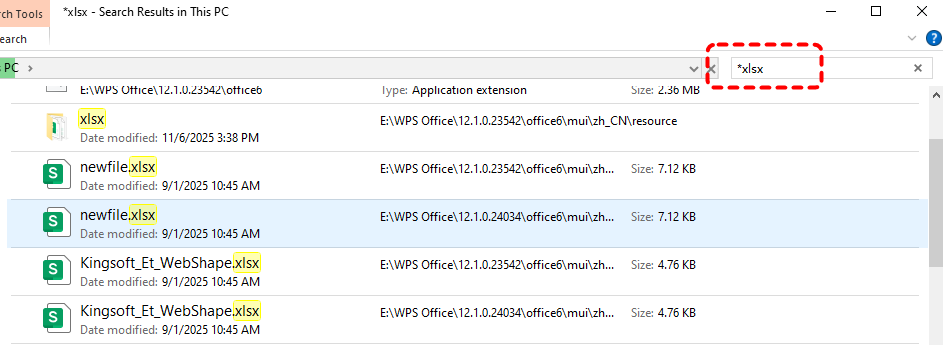
Step 3. Sort results by "Date modified" to find recent files quickly.
Step 4. Open the file and confirm it appears again in Word’s recent list.
Further Reading: How to Recover Disappeared Word Documents on Windows
If the above methods fail to restore your recent documents list, there’s another possibility you shouldn’t overlook: the files may not just be "missing from the list", but actually lost, deleted, or inaccessible. This is where a professional recovery tool like MyRecover becomes a practical solution. It scans your storage device directly to locate recoverable Word files, even if they no longer appear in original folders. Moreover, MyRecover can restore more than 1000 file types, including PowerPoint, Excel, images, videos, design files, compressed files, etc.

 MyRecover
- Recover deleted & lost files from HDD, SSD, USB, SD card, camera as you need.
- Dual scan modes: Quick Scan for speed, Deep Scan for thorough recovery.
- Reliable rescue for deletion, formatted disk, emptied Recycle Bin, system crashes and more.
 100% Secure
Step 1. Download and install MyRecover on your Windows PC from Microsoft Store or its official website.
Step 2. Run the application and select the drive where your Word documents were stored, then click "Scan" to search for lost files.

Step 3. After the scanning process is done, filter or search for .docx files and preview the results in the right panel.
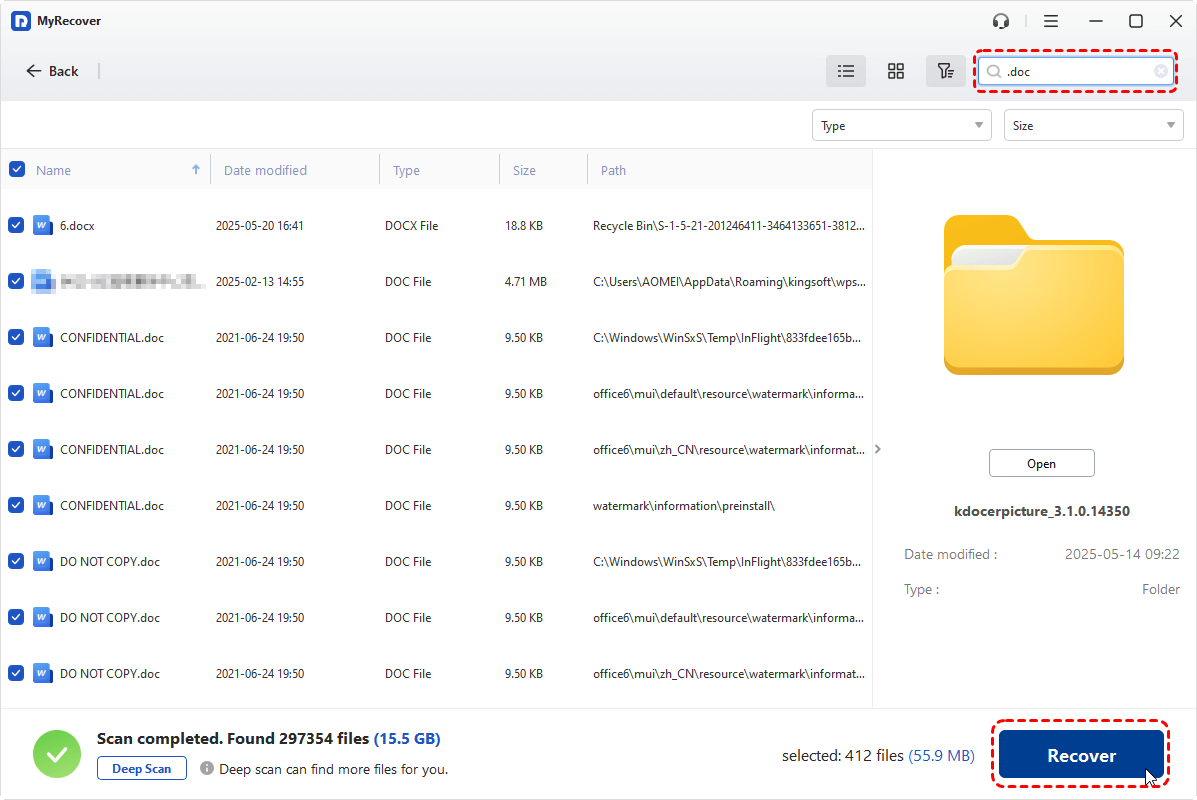
Step 4. Select the needed files and click "Recover" to save them to another different location.
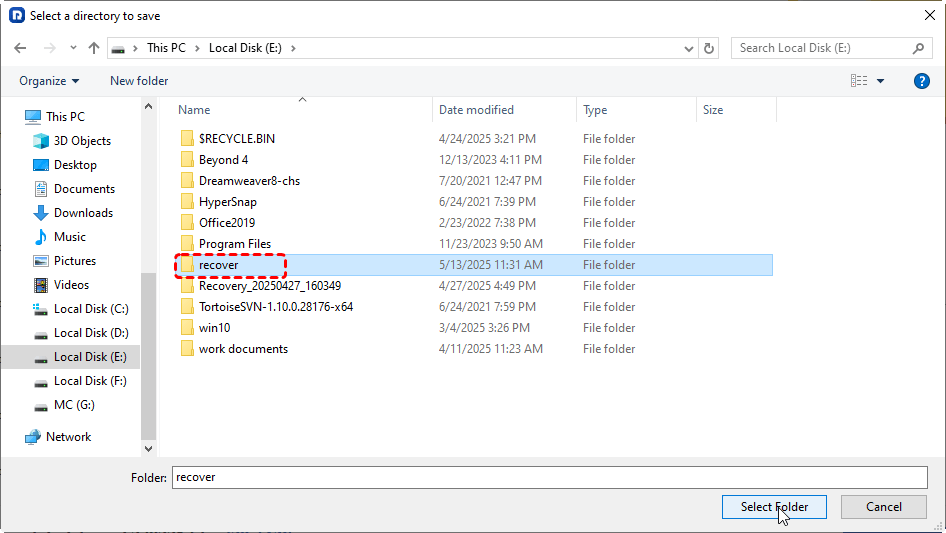
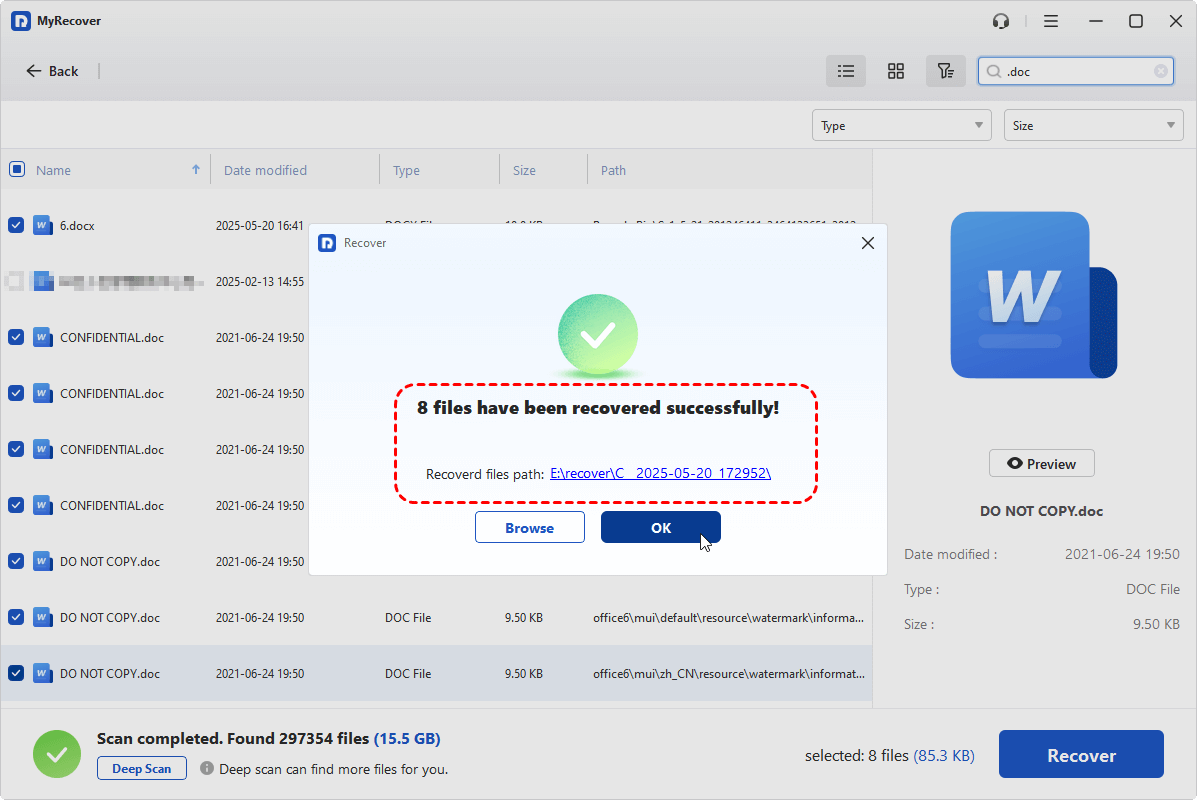
When the process is finished, you can check the recovered files by clicking on the destination folder path or the "Browse" button.
The End
When Microsoft Word recent documents disappeared, it doesn’t necessarily mean your files are gone. By systematically checking account status, Word configurations, and Windows settings, etc. you can quickly restore access to your recent files. If the documents still don’t appear, data loss will become a real possibility. Using a professional recovery tool like MyRecover ensures you don’t miss critical files.
FAQs
Q1: Why did my recent documents disappear in Word?
Recent documents may disappear due to disabled display settings, system updates, or Office glitches. It can also happen after reinstalling Windows or Word, which resets preferences. The issue is with how Word displays or tracks recent activity, not actual data loss. In most cases, the files are still safe on your device.
Q2: How to recover recent documents in Word?
First, check Word settings to ensure recent documents are enabled. Then sign in to your Microsoft account and reopen files to rebuild the list. If they still don’t appear, access them via File Explorer or Quick Access. Opening a document again will automatically restore it to the recent list.
Q3: How do I turn on the recent documents list?
Open Word, go to "File" > "Options" > "Advanced", and find the "Display" section. Set "Show this number of Recent Documents" to a number like 10 or 20. Click "OK" to save changes. Don’t forget to enable the "Show the Start screen when this application starts" under the "General" tab. Restart Word if needed, and the recent documents list should appear again.
Q4: How to retrieve recent unsaved Word documents?
Open Word and go to "File" > "Info" > "Manage Document" > "Recover Unsaved Documents". Browse the list of autosaved files and open the one you need. Save it immediately to avoid losing it again. This works only if AutoRecover was enabled before the file was lost.
Q5: How to retrieve a Word doc that disappeared?
Search for the file in File Explorer using its name or .docx extension. Check the Recycle Bin and recent folders. If not found, use a data recovery tool like MyRecover to scan the drive. This is especially useful if the file was deleted, lost after formatting, or affected by system issues.
Q6: Why did my Word document delete itself?
Word documents rarely delete themselves. Common causes include accidental deletion, system crashes, storage errors, or cleanup tools removing files. In some cases, files stored on external or cloud drives may become inaccessible. Checking backups or using recovery software such as MyRecover can help restore missing documents.

Stay Updated With Our
Latest Tips
Add us as a preferred source on Google to never miss helpful guides.
 Add as preferred source >>