 MyRecover



ntoskrnl.exe Failed: Causes, Fixes, and Prevention Guide
Wondering what failed ntoskrnl.exe means on a Windows blue screen? It often indicates memory problems, driver conflicts, or system corruption. Learn how to troubleshoot the error, repair damaged components, and restore your system's performance quickly.

By Vera / Updated on March 25, 2026


What Is ntoskrnl.exe in Windows?
Before jumping into solutions, it helps to understand what ntoskrnl.exe actually does.
The Role of the Windows Kernel
The file ntoskrnl.exe stands for Windows NT Operating System Kernel. It’s the heart of the Windows operating system, responsible for managing critical tasks like:
- Memory management
- Hardware virtualization
- Process scheduling
- System services
Think of it like the conductor of an orchestra. Every part of your system—from software to hardware—needs coordination, and the kernel keeps everything in sync.
Why ntoskrnl.exe Is Critical for System Stability
Because the kernel sits at the core of Windows, any issue involving it can cause serious system crashes. When something interferes with this process—like bad drivers or faulty RAM—you may see the ntoskrnl.exe failed error.
What Does "ntoskrnl.exe failed" Mean?
The message ntoskrnl.exe failed usually appears during a system crash.
Understanding the Blue Screen of Death (BSOD)
The BSOD is Windows’ way of saying something went seriously wrong. Instead of letting the system continue running in an unstable state, Windows stops everything to prevent further damage.
When the crash report points to ntoskrnl.exe, it usually means the kernel detected a problem with hardware, drivers, or memory.
Common Error Messages Linked to ntoskrnl.exe
You might see variations such as:
- ntoskrnl.exe BSOD
- IRQL_NOT_LESS_OR_EQUAL
- MEMORY_MANAGEMENT
- PAGE_FAULT_IN_NONPAGED_AREA
While the error names differ, the underlying cause often points to system instability.
Common Causes of the ntoskrnl.exe Failed Error
Understanding the root causes helps in applying the correct solution. The main reasons include:
Corrupted System Files – Damaged or missing Windows files can disrupt kernel operations. Causes include improper shutdowns, failed updates (such as updating Windows 10 to 11), or disk errors.
Faulty or Outdated Drivers – Incompatible drivers can trigger kernel conflicts, leading to BSODs.
RAM and Hardware Problems – Faulty RAM or hardware failures often result in random system crashes.
Malware or Virus Infections – Malware can target system processes, interfering with kernel functions.
Recover Your Data with MyRecover Before Fixing the Error
Sometimes, ntoskrnl.exe failed errors can lead to unsaved data loss or make certain files inaccessible. This is where MyRecover comes in handy.
MyRecover is a powerful Windows data recovery tool that can:
- Recover deleted files or folders even after crashes.
- Restore data lost due to system errors like BSOD.
- Support recovery from HDDs, SSDs, USB drives, and more.
 100% Secure
How to use MyRecover:
1. Download and install MyRecover on a working computer or a different drive.
2. Select the drive affected by the ntoskrnl.exe failed crash.
3. Click Scan to search for lost files.

4. Preview and recover the files to a safe location.

By using MyRecover first, you minimize the risk of permanent data loss before proceeding with system repairs.
How to Fix the ntoskrnl.exe Failed Error
Now you can freely use the following methods to solve the problem without worrying about data loss.
Method 1: Restart Your Computer
Sometimes the simplest solutions work best. Restarting your PC clears temporary memory issues and reloads system processes. If the error was caused by a minor glitch, this might solve the problem.

Method 2: Update or Roll Back Drivers
Faulty drivers are a common cause of ntoskrnl.exe failed errors.
👉 Updating Drivers:
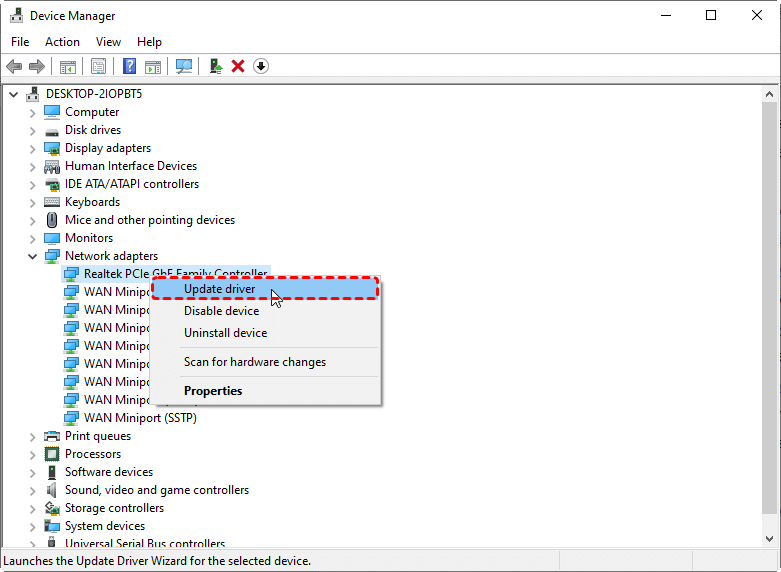
1. Press Windows + X and open Device Manager.

2. Locate hardware components with outdated drivers.
3. Right-click and select Update driver.
👉 Rolling Back Drivers:
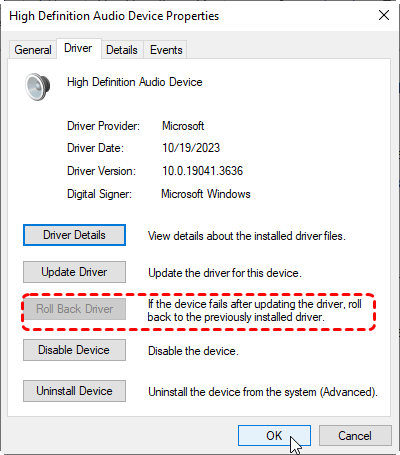
1. In Device Manager, right-click the device causing issues.
2. Select Properties → Driver → Roll Back Driver.
3. Restart your computer.
Method 3: Run System File Checker (SFC)
The System File Checker repairs corrupted Windows files.
1. Open Command Prompt as Administrator.

2. Type sfc /scannow and press Enter.

3. Wait for the process to complete and follow any instructions to repair files.
Method 4: Use DISM to Repair Windows Image
If SFC cannot fully fix the issue, use DISM:
1. Open Command Prompt as Administrator.
2. Type DISM /Online /Cleanup-Image /RestoreHealth and press Enter.
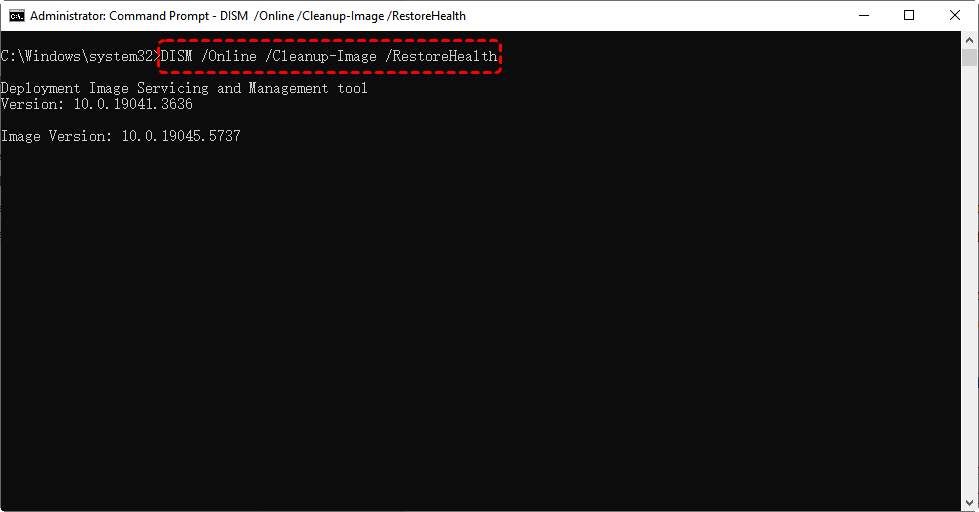
3. Allow DISM to repair any corrupted system images.
Method 5: Check Your RAM
Faulty RAM can directly trigger kernel crashes.
Using Windows Memory Diagnostic:
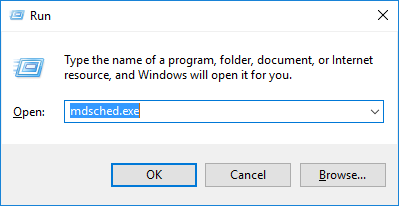
1. Press Windows + R, type mdsched.exe, and press Enter.
2. Choose Restart now and check for problems.
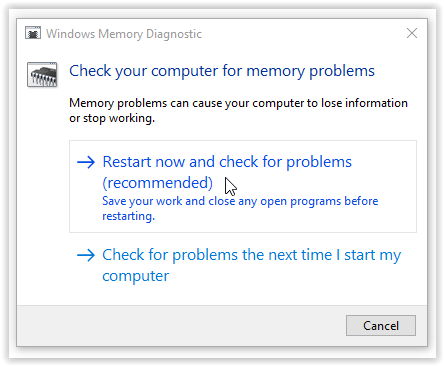
3. Review the results after the system reboots.
If errors are detected, consider replacing the faulty RAM modules.
Method 6: Scan for Malware
Malware can disrupt kernel functions. Run a full system scan using reliable antivirus or Windows Defender to remove any threats.
Using Windows Defender:
1. Click the Start menu and open Settings.
2. Select Privacy & Security.
3. Click Windows Security.
4. Choose Virus & Threat Protection.
5. Under Current threats, click Scan options.
6. Select Full scan to check the entire system.
7. Click Scan now to start the scan.
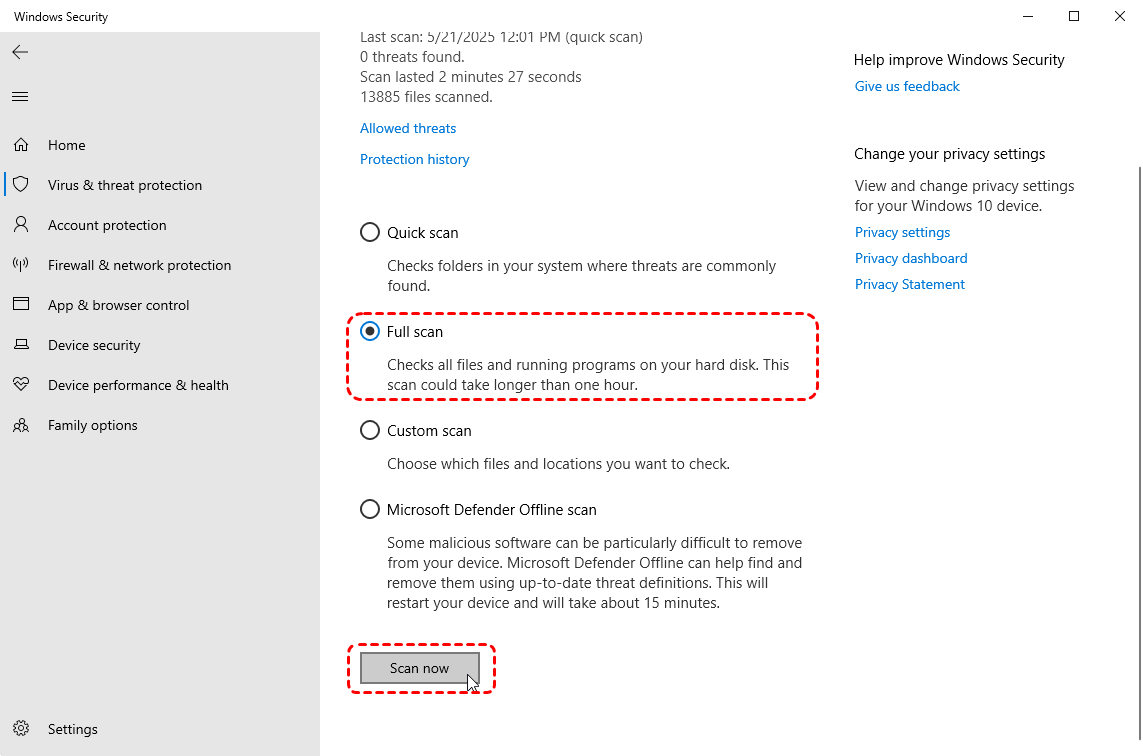
8. Wait for the scan to finish and follow the instructions to remove detected threats.
Method 7: Perform Windows Update
Outdated system files may contain bugs. Keep your system up to date:
1. Open Settings → Windows Update.
2. Click Check for updates.
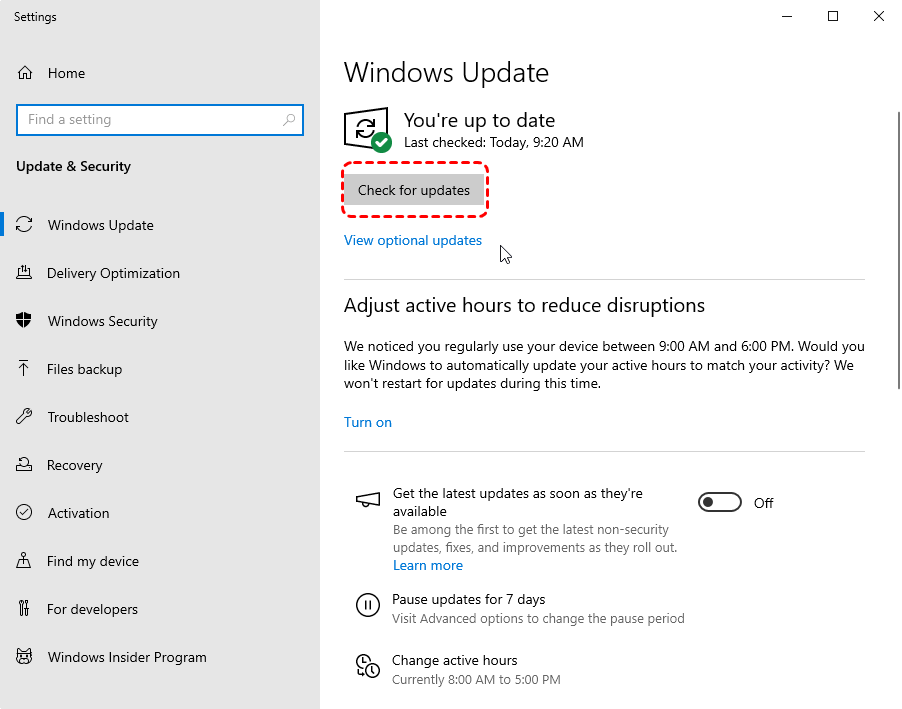
3. Install any pending updates and restart your PC.
Method 8: Reset or Reinstall Windows
If none of the above solutions work, a Windows reset or clean installation may be necessary. This will reinstall system files while optionally keeping your personal data intact. Think of this as giving your PC a fresh start.
Tips to Prevent ntoskrnl.exe Failed Errors
Fixing the issue is great—but preventing it is even better.
- Keep Drivers Updated – Regularly check and update drivers for hardware components.
- Monitor Hardware Health – Use diagnostic tools to check RAM, CPU, and disk health.
- Install Reliable Security Software – Protect your system from malware that can interfere with kernel operations.
- Avoid Forced Shutdowns – Always shut down your computer properly to prevent file corruption.
Conclusion
The ntoskrnl.exe failed error can be alarming, but most cases are resolvable with systematic troubleshooting. By recovering important files with MyRecover before attempting repairs, checking drivers, repairing system files, monitoring hardware, and keeping Windows updated, you can restore stability and prevent future BSODs. Maintaining your PC is like maintaining a car—regular care prevents major breakdowns.

Stay Updated With Our
Latest Tips
Add us as a preferred source on Google to never miss helpful guides.
 Add as preferred source >>