 MyRecover



4 Top Ways for Panasonic SD Card Recovery
Looking for reliable Panasonic SD card recovery software? This guide explains how to recover deleted, formatted, or lost photos and videos from Panasonic camera SD cards using safe, effective tools and step-by-step methods for beginners and professionals.

By Vera / Updated on May 7, 2026


Introduction: The High Stakes of Digital Memories

SD cards are the silent workhorses of the photography world, especially for Panasonic LUMIX users who rely on them to store high-bitrate 4K videos and high-resolution RAW images. While brands like Panasonic produce robust hardware, SD cards remain vulnerable to logical errors and physical wear.
Data loss isn't just a technical glitch; it represents lost time or the disappearance of irreplaceable life moments. Fortunately, Panasonic SD card data recovery is highly successful because of the way NAND flash memory works—a "deleted" file usually remains on the card’s sectors until new data takes its place. This guide provides a comprehensive roadmap to Panasonic SD card recovery, moving from user-friendly software solutions to advanced system repairs.
Common Causes of SD Card Data Loss
Before recovering your files, it’s important to understand why data loss occurs. Knowing the cause can help you choose the right recovery method.
⭕Accidental Deletion: It happens to everyone: you accidentally delete a photo or video, thinking you won’t need it later. Luckily, deleted files aren’t immediately erased—they’re just hidden until overwritten. Quick action can often restore them entirely.
⭕Formatting Mistakes: Formatting wipes the SD card clean, often accidentally. Recovery software can sometimes retrieve all files if no new data has been added after formatting.
⭕Corruption or Damage: Physical damage, sudden camera shutdowns, or improper handling can corrupt an SD card. Corrupted cards may become unreadable, and files may appear lost.
⭕Virus or Malware Attacks: SD cards are not immune to viruses. Malware can hide, delete, or corrupt files, making recovery more challenging but still possible with the right tools.
Signs Your Panasonic SD Card Needs Recovery
Not all issues are obvious. Here are common signs your SD card may require recovery:
❗Files Are Missing: If your files disappear suddenly, it’s a warning sign. Avoid saving new files immediately to prevent overwriting the lost data.
❗SD Card Not Recognized: If your camera or computer refuses to detect the SD card, it could be a sign of corruption or hardware failure.
❗Read/Write Errors: Receiving read/write error messages while accessing the SD card indicates potential data issues. This is a strong signal to start recovery immediately.
❗Prompt to Format: When you plug the card into a PC, it says, "You need to format the disk in drive X: before you can use it." (Do NOT click format).
Preparing for Recovery: What You Should Know
Before attempting any Panasonic SD card recovery tool, you must maximize your success rate by following these two rules:
1. Stop Using the SD Card Immediately: Every new file you save could overwrite your lost data. Stop using the SD card as soon as you notice missing files.
2. Check for Hardware Issues: Test the SD card on a different camera, card reader, or computer. Sometimes the problem is the reader or USB port, not the card itself.
3. Choose the Right Recovery Software: Choose recovery software that specifically supports Panasonic SD cards and a wide range of file types like JPEG, RAW, MP4, and AVI. In this guide, we’ll focus on MyRecover, a highly trusted tool for safely recovering lost files from SD cards.
4 Best Panasonic SD Card Recovery Methods
Here are the most effective ways to recover your lost data from a Panasonic SD card.
Method 1: Using Professional Panasonic SD Card Recovery Software (MyRecover)
When files are deleted, the operating system simply marks the space as "available" without actually erasing the bits. Professional Panasonic SD card recovery software like MyRecover works by bypassing the operating system's file manager and scanning the raw sectors of the SD card. It looks for "file signatures" (headers that identify a file as a .RW2 Panasonic RAW file or an .MP4 video) to reconstruct the lost data.
Why MyRecover is the Preferred Panasonic SD Card Recovery Tool?
MyRecover is specifically optimized for high-resolution media. Unlike generic tools, it excels at identifying Panasonic-specific formats like .RW2 RAW files and AVCHD/MP4 video streams. Its advanced scanning algorithm can piece together fragmented video files—a common issue with high-bitrate 4K footage from Panasonic cameras.

 MyRecover
- ✨Works on different devices – Hard drives, USBs, SD cards, SSDs.
- ✨Fast scan option – Quickly finds recently deleted files.
- ✨High success rate – Good chance of getting files back.
 100% Secure
Step-by-Step Guide Using MyRecover
1. Remove the SD Card: Take the Panasonic SD card out of your camera immediately and stop using it.
2. Connect the SD Card to Your Computer: Insert the SD card into a card reader and plug it into your computer.
3. Install and Open MyRecover: Download MyRecover and install it on your computer (not on the SD card).
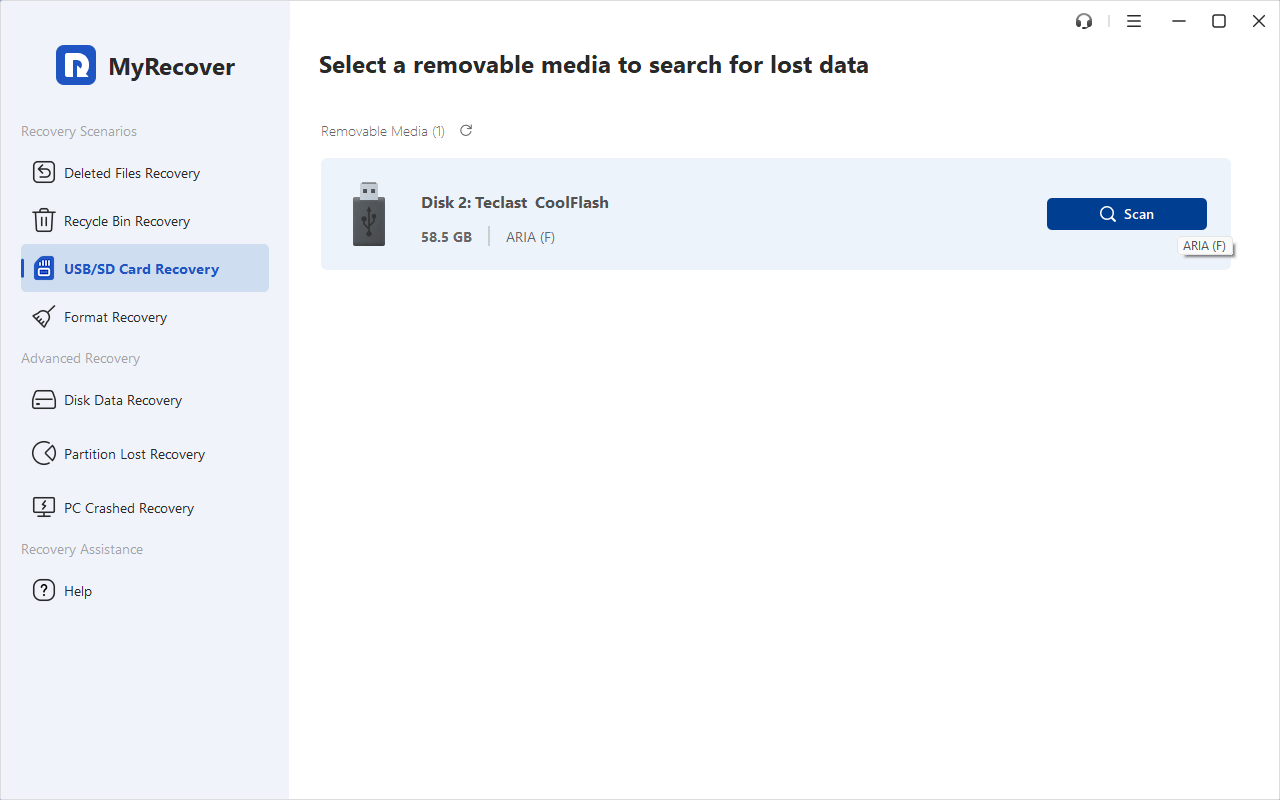
4. Select the SD Card: Launch MyRecover and choose your Panasonic SD card from the drive list.
5. Start Scanning: Click Scan. MyRecover will automatically run a quick scan to find lost files.
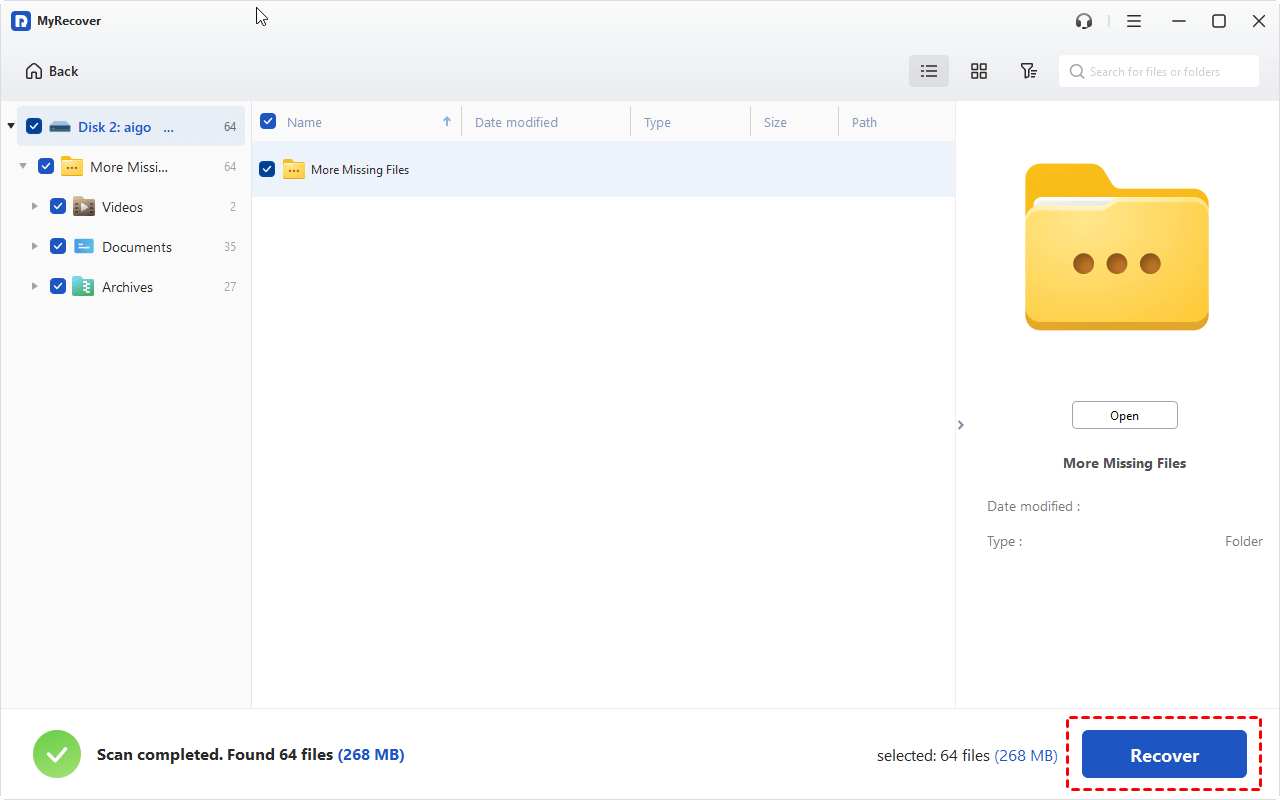
6. Preview Lost Files: Browse and preview the files found to make sure they are what you need.
7. Recover the Files: Select the files you want and click Recover. Save them to your computer or another external drive.
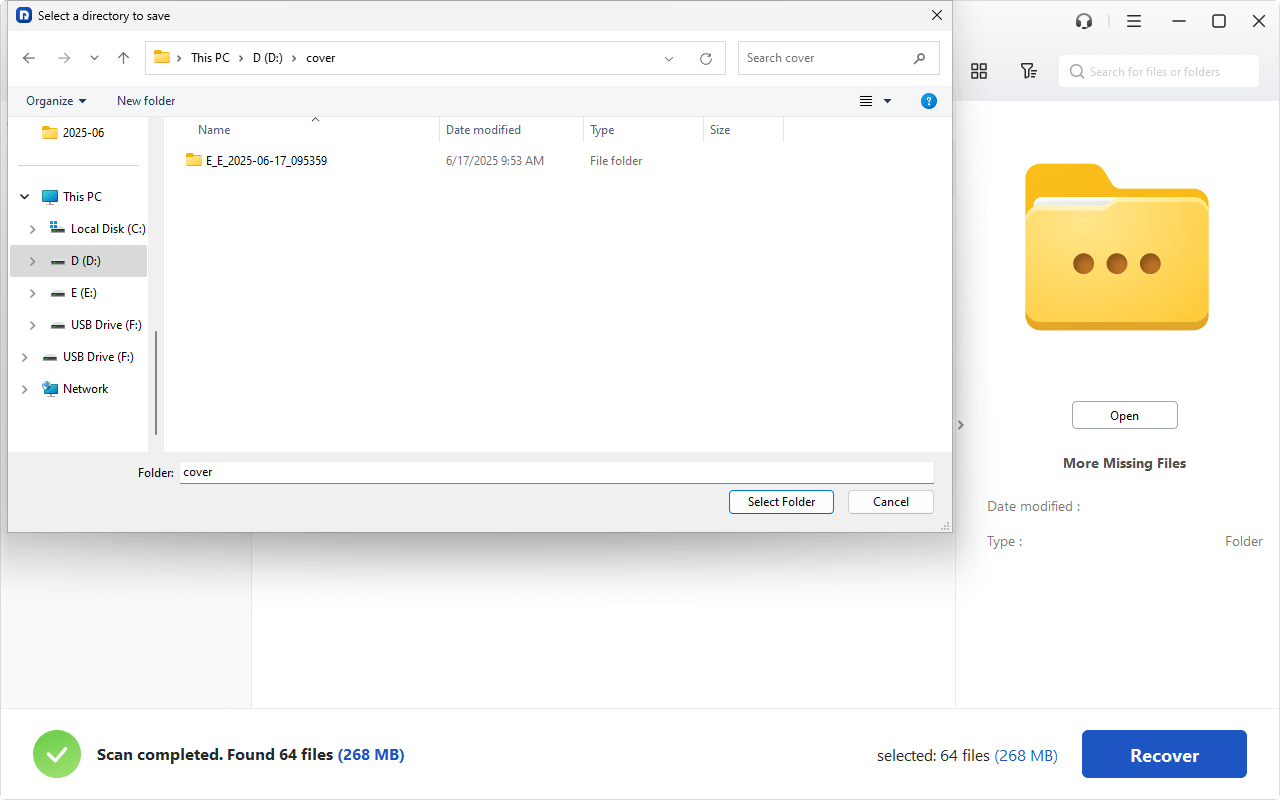
Using MyRecover ensures a safe, high-success recovery experience with minimal risk of data loss.
While dedicated software is the most effective solution for missing files, sometimes the card is "locked" by a logical file system error. In this case, we use system-level repair tools.
Method 2: Repairing Logical Errors via Windows Command Prompt (CMD)
Sometimes files aren't "gone"; rather, the "map" (File Allocation Table) is broken. The chkdsk command is a system utility that scans the file system's integrity and repairs logical "bad sectors" and directory linking errors.
Step-by-Step Guide for CMD Recovery
1. Connect the SD Card: Insert the card and note the drive letter.
2. Open Command Prompt as Administrator: Press Windows + X, then select Command Prompt (Admin) or Windows Terminal.
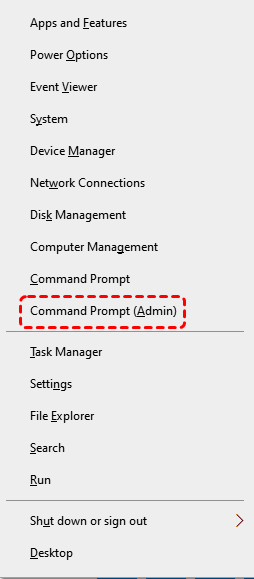
3. Run CHKDSK Command: Type the following and press Enter: chkdsk [drive letter]: /f. Example: chkdsk e: /f.
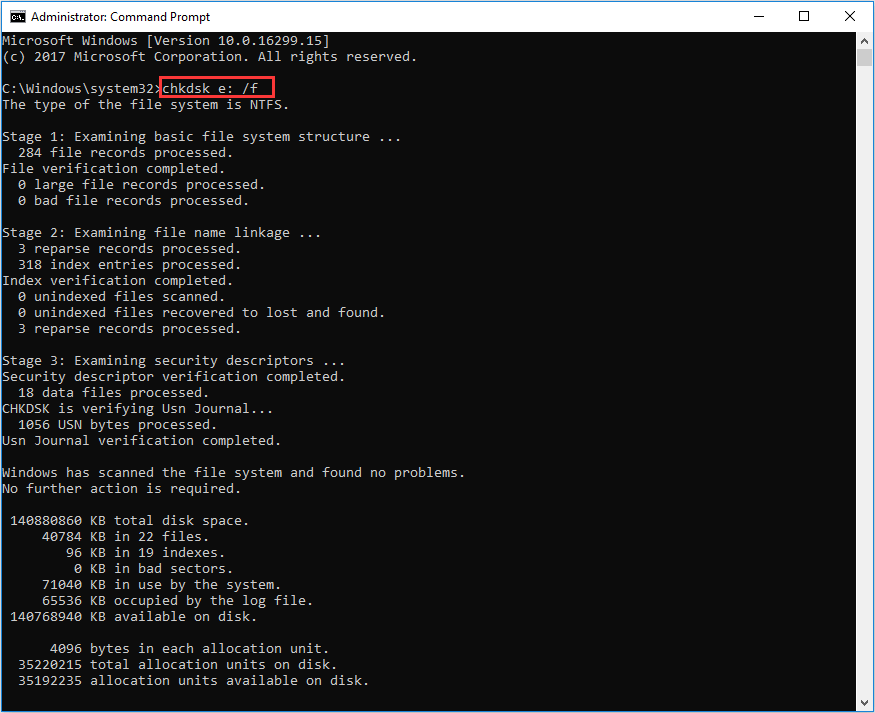
4. Wait for the Scan to Complete: Windows will attempt to fix logical errors and recover files.
5. Check the Card: Open the SD card to see if your files have reappeared.
6. Recover Remaining Files Using Software (if necessary): If some files are still missing, use professional recovery software like MyRecover.
Method 3: Utilizing macOS Disk Utility (First Aid)
macOS handles external drives differently than Windows. The "First Aid" tool verifies the partition map and the underlying directory structure of the SD card. It attempts to "re-index" the drive so the OS can mount it.
Step-by-Step Guide for macOS Recovery
1. Insert the SD Card: Use a reliable card reader or USB adapter.
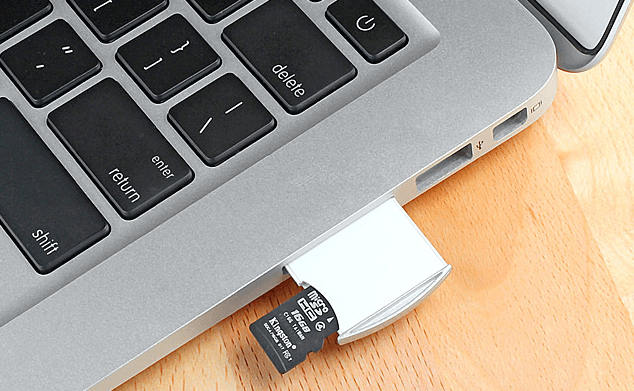
2. Open Disk Utility: Go to Applications > Utilities > Disk Utility.
3. Select the SD Card: Click the SD card in the left panel.
4. Click First Aid: Disk Utility will check for errors and attempt repairs.
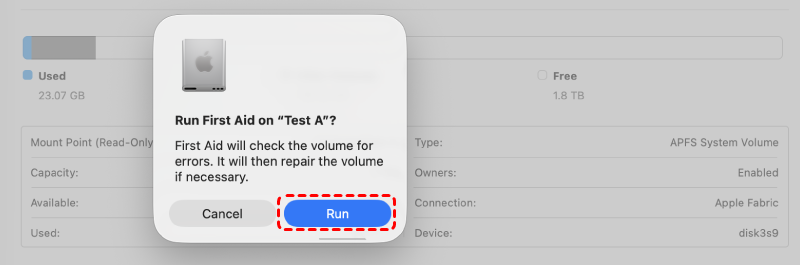
5. Verify Recovered Files: Open your SD card to see if missing files are restored.
If Disk Utility reports the volume is OK but files are still missing, you must rely on Panasonic SD card data recovery software to find the actual deleted files.
Method 4: Professional Data Recovery Services
This is the "nuclear option." Professional services involve taking the SD card apart in a "Cleanroom" environment. Engineers use specialized hardware to read the data directly from the NAND memory chips, bypassing the card's broken controller.
If the SD card is physically damaged or software fails to recover your files, professional recovery services may be the only option. These services handle severe corruption, water damage, or broken SD cards.
How Professional Recovery Works
1. Send the SD Card to the Service: Choose a reputable provider like DriveSavers, Ontrack, or Gillware.
2. Evaluation: They will assess the damage and provide a recovery estimate.
3. Data Extraction: Specialized hardware and techniques recover files that software cannot.
4. Receive Recovered Data: Files are returned on a new storage device, ensuring your original SD card remains intact.
Conclusion
Losing high-stakes footage from a Panasonic SD card is a stressful experience, but it is rarely terminal. By understanding the logic of data storage—where files exist as "ghosts" until overwritten—you can approach Panasonic SD card recovery with confidence.
For the highest success rate, MyRecover provides the most direct path for photographers to reclaim RAW and 4K media. Combine this with regular backups and proper card maintenance to ensure your digital memories remain permanent.
FAQs: Troubleshooting Panasonic SD Card Issues
1. My Panasonic LUMIX says "Memory Card Error." Should I format it?
No. Formatting might clear the error, but it makes Panasonic SD card recovery much more difficult. Use MyRecover to extract your photos first. Only format the card after you have verified your files are safe.
2. Can I recover 4K videos from a Panasonic camera?
Yes. 4K videos are large and often fragmented. MyRecover is a specialized Panasonic SD card recovery software designed to handle these large data blocks and reconstruct video streams accurately.
3. My SD card isn't showing up in the software at all. What now?
First, try a different card reader. If it still doesn't appear in "Disk Management," the card's controller may be dead. In this case, software cannot help, and you should contact a physical recovery service.
4. The SD card is "Write Protected" and I can't recover files.
Check the physical "Lock" switch on the left side of the card. If it's broken, you can sometimes use a piece of tape to cover the notch to allow the card reader to access the data.
5. Is it possible to recover data from a card that was submerged in water?
Yes, but do not plug it in! If you plug a wet SD card into a reader, you might short-circuit the chip. Let it dry completely for 48-72 hours in a silica gel pack before attempting a software recovery.
6. How to prevent future data loss?
Here’s how to protect your data:
- Regular Backups: Make it a habit to back up photos and videos to multiple locations. Cloud storage or external hard drives are reliable options.
- Use Reliable SD Cards: Invest in high-quality SD cards from trusted brands like SanDisk, Samsung, or Lexar. Cheap cards are more likely to fail.
- Safely Eject SD Cards: Always eject your SD card properly from cameras or computers. Sudden removal can corrupt files.

Stay Updated With Our
Latest Tips
Add us as a preferred source on Google to never miss helpful guides.
 Add as preferred source >>