 MyRecover



RAW Drive Recovery Without Losing Data
RAW drive errors can make your files inaccessible and trigger prompts to format the disk, which may lead to permanent data loss. Whether you’re dealing with an internal disk or need external hard drive RAW recovery, this article walks you through proven solutions for raw drive recovery without losing data or formatting.

By Emma / Updated on December 24, 2025


Why Drive Becomes RAW Status?
A drive shows RAW status when Windows can’t recognize or read its file system (like NTFS, FAT32, or exFAT). This usually means the file system metadata is missing, damaged, or inaccessibleand RAW drive recovery becomes essential.
Common reasons of RAW status include:
⭕File System Corruption: Power outages or system crashes can damage file system metadata, making the drive unreadable.
⭕Unsafe Removal: Removing a drive without "Safely Eject" may interrupt writing and corrupt the file system.
⭕Bad Sectors: Malware may damage the partition table or boot sector, causing RAW status.
⭕Virus or Malware Attacks: Malicious software can damage partition tables or file system structures
⭕Interrupted Formatting or Conversion: An incomplete format or conversion leaves the file system structure unfinished.
⭕Corrupted Partition Table or Boot Sector: Damage to MBR/GPT or the boot sector stops Windows from identifying the partition.
⭕Unsupported or Unknown File System: Drive formatted on another OS (Linux, macOS) with a file system Windows can’t read
What You’ll Typically SeeWhen Drives Is "RAW"
When a drive becomes RAW, Windows can no longer access its file system, so you’ll usually encounter these signs:
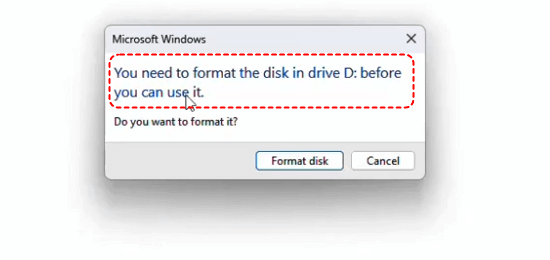
"You need to format the disk before you can use it"
This prompt appears because Windows detects the drive hardware but cannot read any valid file system on it.
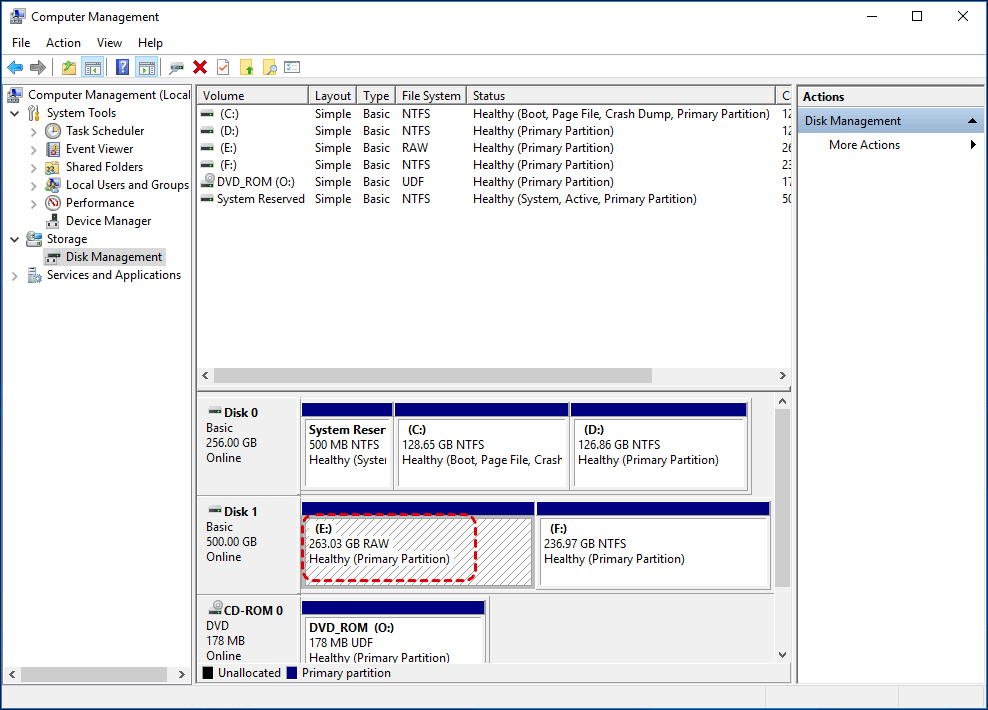
File system shown as RAW in Disk Management
The partition is visible, but its format can’t be identified, indicating file system or partition metadata damage.
CHKDSK is not available for RAW drives
Since CHKDSK only works on recognized file systems, Windows cannot run repair checks on a RAW drive.
How to Perform RAW Drive Recovery without Losing Data?
As we all know, in some cases, Windows will ask you to format the drive directly when it is of RAW status. However, formatting the drive means wipe all data on the partition. So, many users look for methods to recover from RAW drive without formatting or losing data. Luckily, there are several methods to help you recover a RAW drive safely.
Method 1. Run CHKNTFS.EXE (only works on NTFS disk)
If your RAW drive usedthe NTFS file systembefore, you can try running "Chknfts.exe", to repair it without formatting.
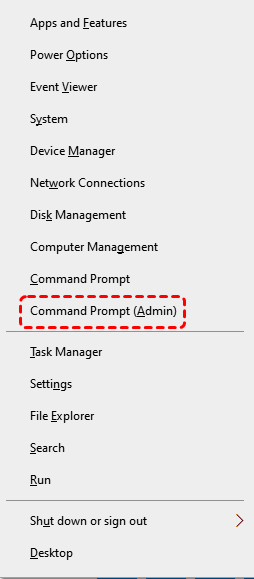
Step 1. Press "Win+X", select "Command Prompt (Admin)".
Step 2. Enter the command: chkntfs /c H: (Replace `X:` with the drive letter of your RAW disk)
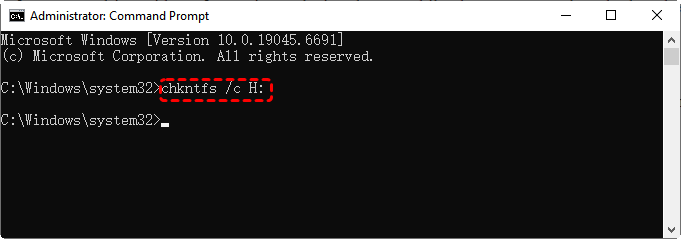
Step 3. Press "Enter" and it willschedule autochk to run on that drive at the next reboot.
This method only works for NTFS drives; it won’t repair FAT32, exFAT, or other file systems.
Method 2. Scan and Remove Possible Virus
A RAW drive can sometimes be caused by viruses or malware that damage the file system. Using Windows Defender to scan and clean the drive can help restore access without formatting.
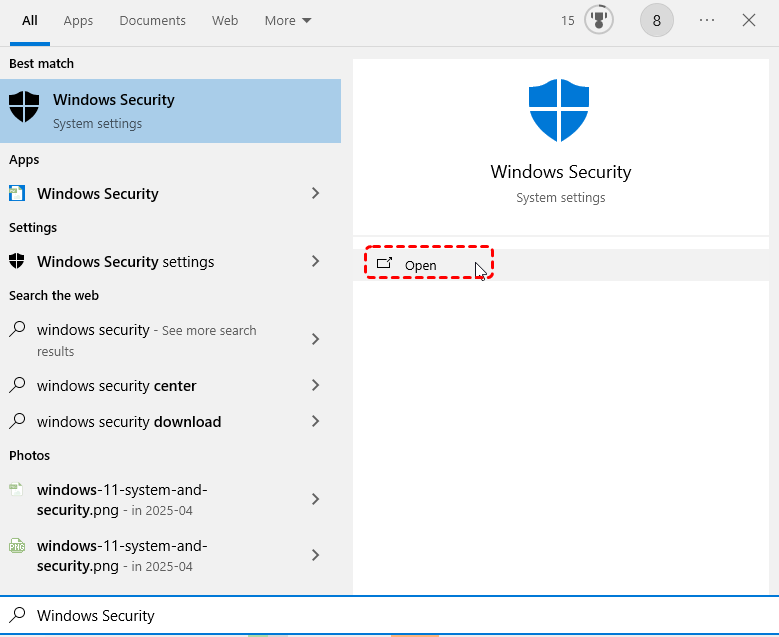
Step 1. Open "Windows Security" → "Virus & threat protection".
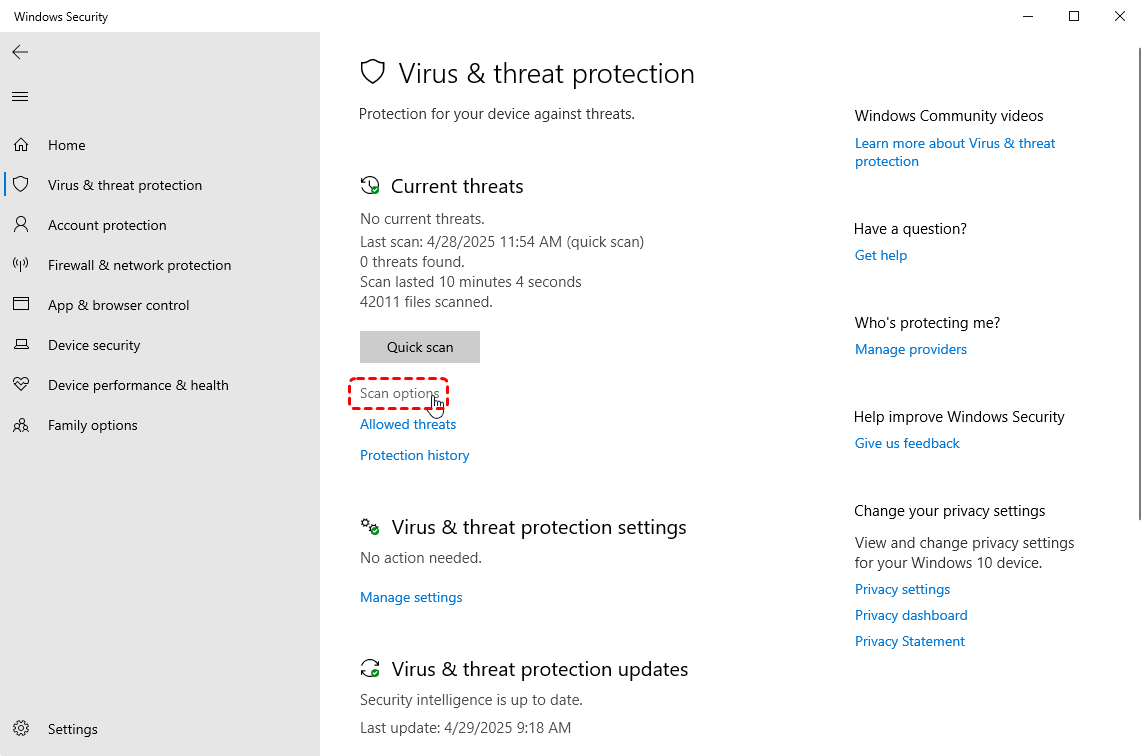
Step 2. Click "Virus and threat protection", and choose "Scan options".
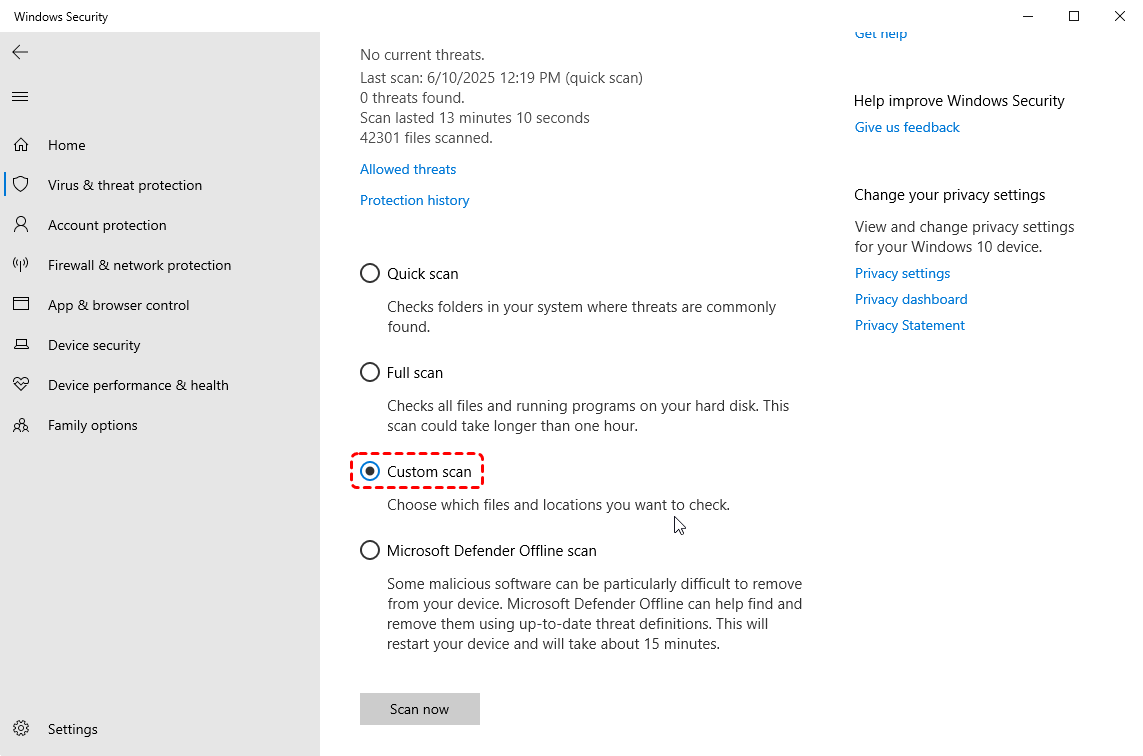
Step 3. Select "Custom scan", then choose the RAW drive.
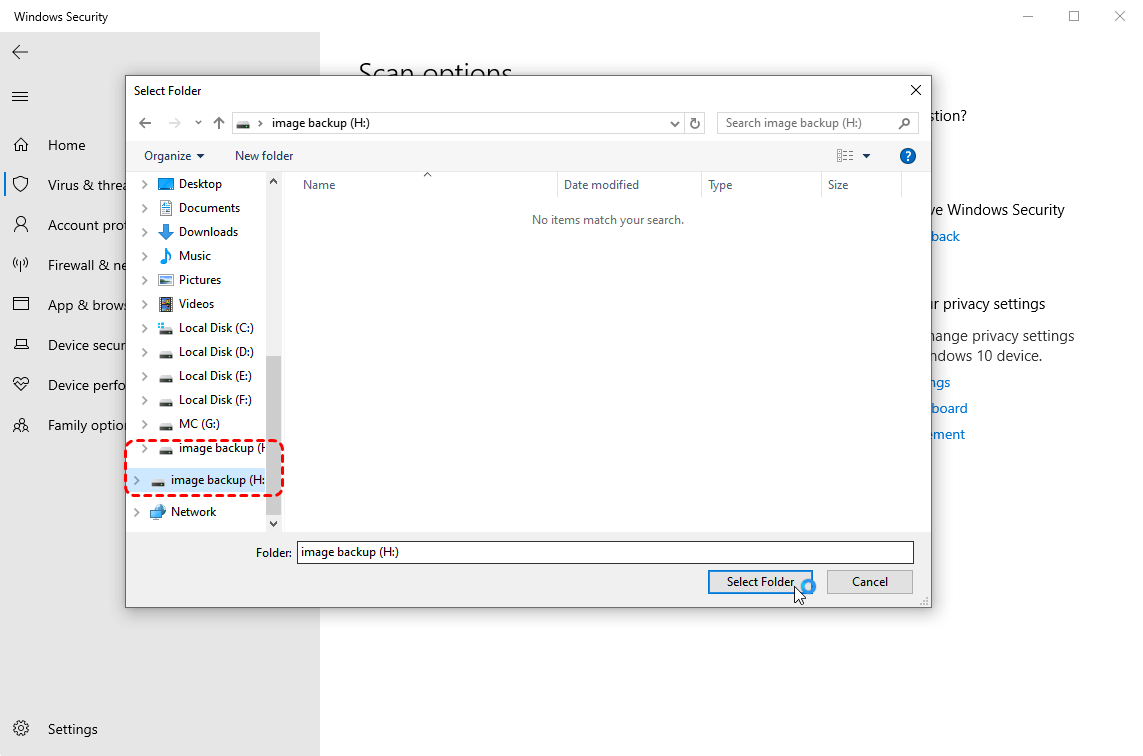
Step 4. Click "Scan now". Windows Defender will check the drive for malware and remove or quarantine any threats.
After the scan, safely eject and reconnect the drive, then check if it is readable.
Method 3. Recover Corrupted Partition Table
Acorrupted partition table can also result in RAW drives and prevent Windows from recognizing the file system. If that’s the case, restoring or repairing the partition table can often recover the drive without formatting. TestDisk is a free and powerful tool for repairing corrupted partition tables and recovering RAW drives without formatting it.
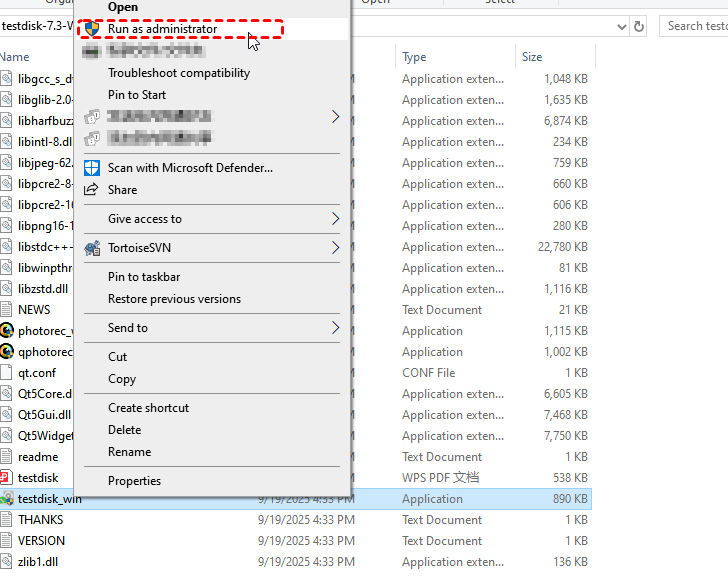
Step 1. Get TestDisk from https://www.cgsecurity.org. Extract and run "testdisk_win.exe" as Administrator.
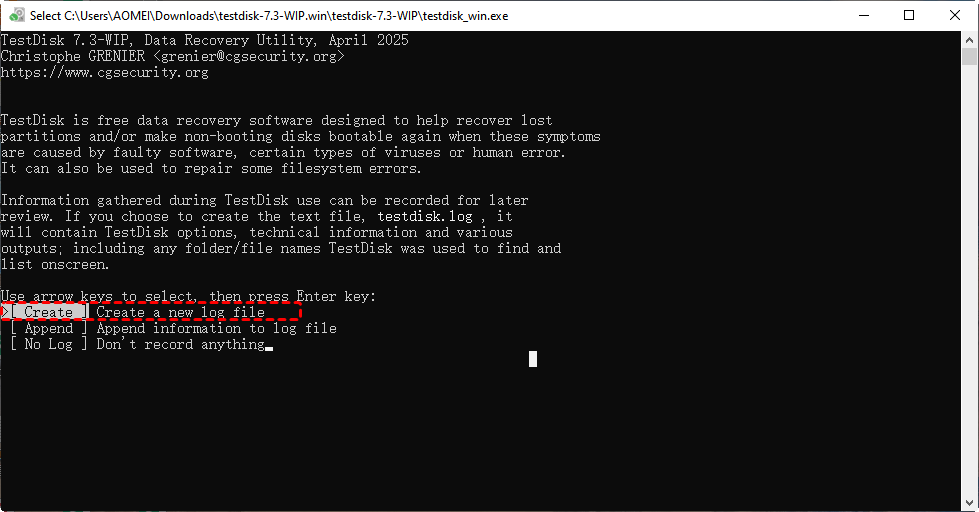
Step 2. Choose "Create" to log a new session.
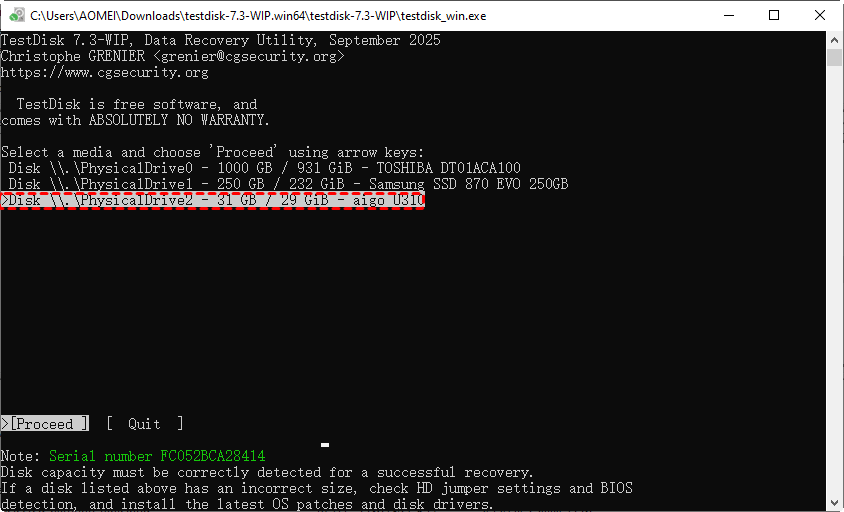
Step 3. Select the RAW drive from the list of drives and select "Proceed".
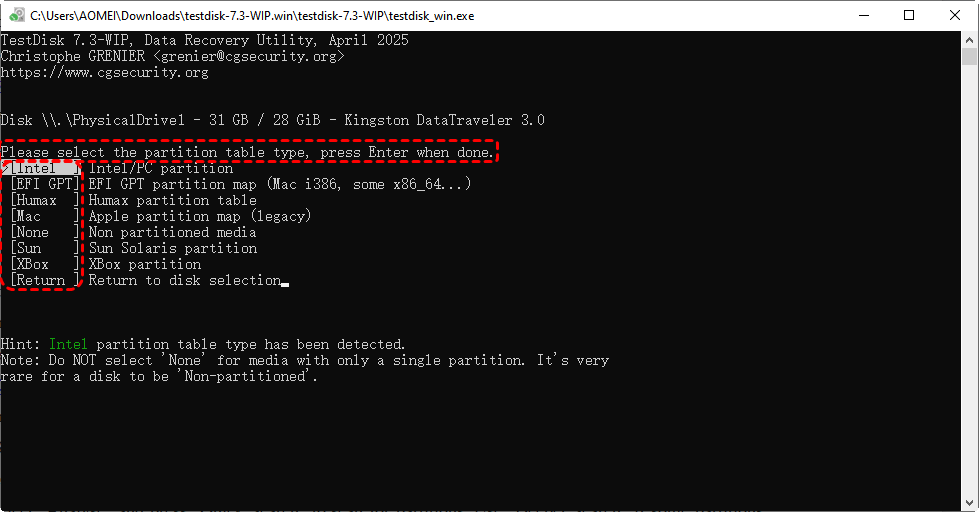
Step 4. Select the partition table. Usually, TestDisk auto-detects the correct type (Intel/PC for MBR or EFI GPT). Confirm the suggested type and hit on Enter.
Step 5. Select "Analyse" → press Enter.
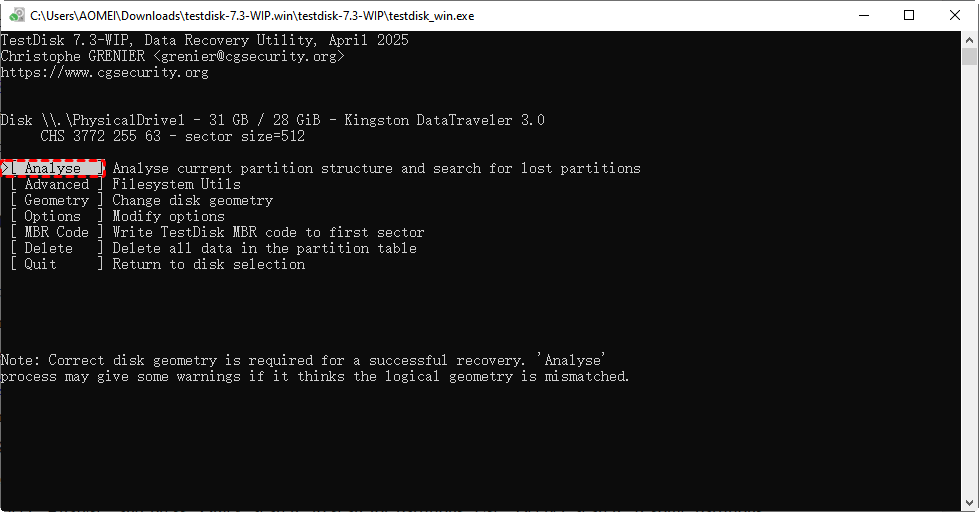
Step 6. TestDisk scans for existing and deleted partitions.Highlight the correct partitionusing arrow keys. Then select "Write" to restore the partition table.
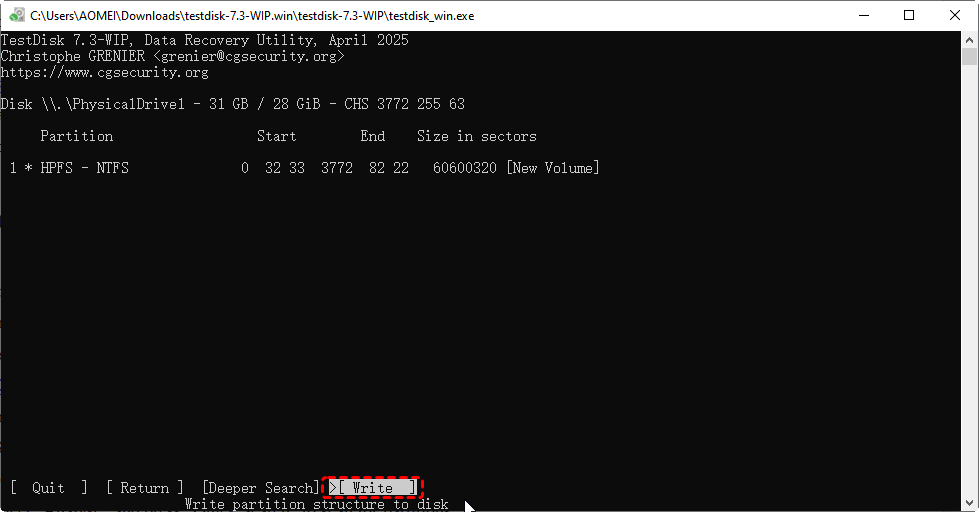
When the process is done, safely exit TestDisk. Disconnect and reconnect the drive. Open Windows Explorer or Disk Management to see if the drive is accessible.
Last Resort: Format the RAW Drive to A Readable File System
The above methods are for RAW drive recovery without formatting or losing data. However, there are chances that they won’t work for your situation. Thus,formatting the drive may be the only way to restore it to a usable file system like "NTFS" , FAT32 or "exFAT".
Step 1: Recover Important Data First
Before formatting, it’s crucial to safeguard your files. Use a reliable data recovery tool named MyRecover to scan the RAW drive and recover important documents, photos, videos, and other files. Save the recovered data to another drive or partition to ensure it is not lost during formatting.

 MyRecover
- ✨Easy-to-use interface: No command-line navigation or keyboard-based selection required.
- ✨AI-Powered Recovery: Uses AI recognition and deep scanning technology.
- ✨Wide file support (1000+): Photos, videos, documents, audio files, archives, and more.
- ✨Supports all common devices (500+): HDDs, SSDs, USB flash drives, SD cards, external drives, etc.
- ✨Cover 500+ Scenarios: deletion, formatted disk, emptied Recycle Bin, system crashes and more.
 100% Secure
Steps: Run the software, scan the target drive, check the files you need and click on "Recover".

Step 2: Format the RAW Drive
Once your data is safely restored and backed upto another safe partition, now you can reformat it directly:
1. Open "Disk Management" (Win + X → Disk Management).
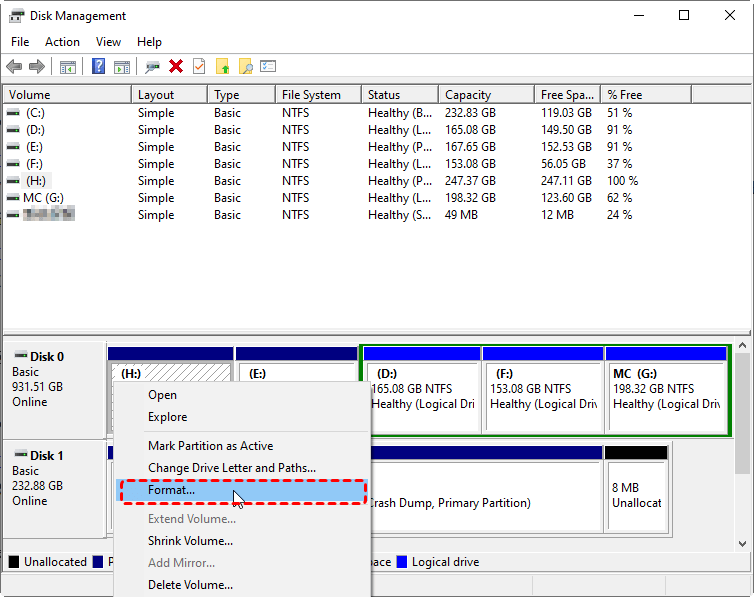
2. Right-click the RAW drive and select "Format".
3. Choose a compatible file system ("NTFS" for Windows, "exFAT" if you need cross-platform support).
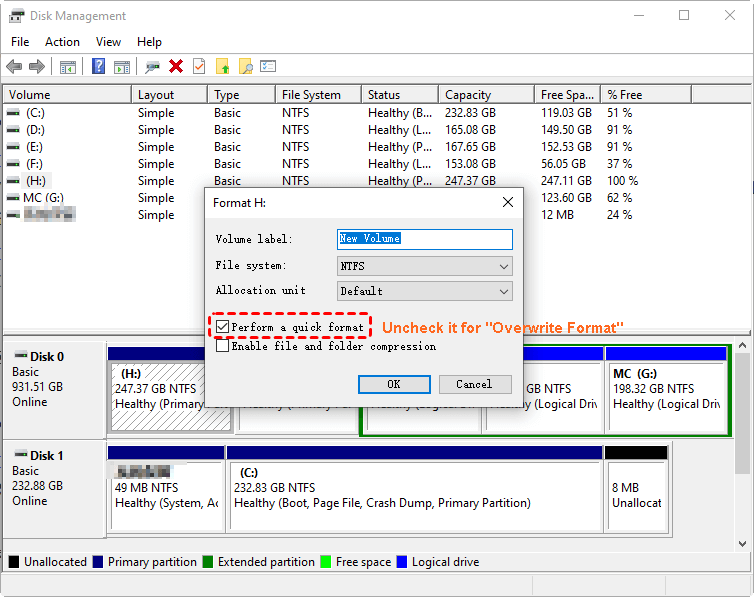
4. Click "OK" to start formatting.
After formatting, the drive becomes readable and ready for use. You can then copy your recovered filesbackto the newly formatted drive.
Key Takeaway
There can be various reasons behind a drive turning RAW, and identifying the exact cause is key to choosing the right recovery method. If you’re unsure where the problem lies, following the RAW drive recovery methods outlined above provides a safe and practical starting point to restore access and protect your data.
However, not all RAW issues are recoverable through software. If formatting may become necessary in your situation, please always recover files from the RAW drive and then execute the formatting process.

Stay Updated With Our
Latest Tips
Add us as a preferred source on Google to never miss helpful guides.
 Add as preferred source >>