 MyRecover



How to Recover Data from a Corrupted SD Card [No Data Loss]
A corrupted SD card doesn’t always mean data is gone forever. In this article, we cover how to recover data from a corrupted SD card on Windows by starting with simple troubleshooting methods. With proper steps, you can often restore your data without having to format the card or lose content.

By Aria / Updated on December 24, 2025


Preface
I have a 64gB SanDisk ultra-Micro SD card. On it I have lots of pictures and videos that I would like to recover if possible. I am wondering is there a way since when I insert it into my phone it says its corrupted and should be formatted, but I would like to get the data back first what should I do? Is there a way to bypass phone requirement to format and just copy everything and try to salvage whatever can be saved from corruption? Or is there a program I could use?
- Question from AmountSuper
SD cards are commonly used for storing valuable data, from photos and videos to documents and music. However, like any storage device, SD cards are susceptible to corruption. When an SD card becomes corrupted, it can result in inaccessibility of your files, error messages like "SDC error, please format", or even the complete disappearance of data.
If you find yourself in a situation where your SD card is corrupted, don't panic. There are several ways to recover lost data, depending on the severity of the issue. In this article, we’ll explore how to recover data from a corrupted SD card on Windows, using both built-in tools and professional recovery software.
Common Causes and Warning Signs of SD Card Corruption
Before diving into the recovery process, it’s important to understand what causes SD card corruption and how to recognize the early warning signs.
👉Common Causes of SD Card Corruption:
- Improper Ejection: Removing an SD card from a device without safely ejecting it can cause file system damage and corruption.
- Physical Damage: Any physical damage to the SD card, like bent connectors or exposure to water or extreme temperatures, can lead to corruption.
- Virus or Malware Infection: If the SD card has been used on an infected device, it may carry virus or malware that can corrupt data.
- File System Errors: Issues with the file system, such as errors during data transfer or interruptions while writing data, can lead to corruption.
- Overuse: Extensive use over time can wear out the SD card and cause files to become inaccessible.
👉Warning Signs of SD Card Corruption:
- Unreadable Files: Files may not open or display correctly, and error messages may appear when attempting to access them.
- File Loss: You may notice that some files are missing, or the card may appear empty even though you know it has data.
- Device Not Recognized: The SD card may not be recognized by your computer or other devices, showing up as "unreadable" or "unknown."
- Unexpected Errors: Frequent pop-ups asking to format the SD card or file errors may indicate impending corruption.
How to Recover Data from a Corrupted SD Card on Windows
Now you know why SD cards get corrupted and what signs to look out for. If your SD card is showing the same issues as listed above, don’t delay, and use the solutions in this section to get your data back from the corrupted card. The faster you act, the better your chances of recovering your data successfully.
- Notes:✎...
- Before starting the specific recovery steps, connect the corrupted SD card to your computer correctly using a suitable card reader.
Run CHKDSK Command
The CHKDSK command is a built-in tool in Windows that scans and fixes file system errors. It can be used to repair the corrupted SD card and retrieve files that are otherwise inaccessible. Once these errors are repaired successfully, you’ll be able to access the files that couldn’t be read before again.
Step 1. Locate Command Prompt in the Start menu and run it as administrator.

Step 2. Type the following command "chkdsk G: /f /r" and press "Enter". Key. Replace the drive letter "G" with your SD card drive letter. The command will attempt to repair any file system issues and recover data from the SD card.

Step 3. Once the scan completes, check your SD card to see if the files are now accessible.
Use ATTRIB Command to Recover Hidden Files
If you are unable to access the files on the SD card because they are marked as "hidden", "read-only" or "system", you can use the Attrib command to change the file attributes and restore the visibility of the affected files.
Step 1. Open Command Prompt like mentioned above.
Step 2. Input the following command "attrib -h -r -s /s /d E:\*.*" and hit the "Enter" key. Replace the drive letter "E" with your actual SD card's drive letter.
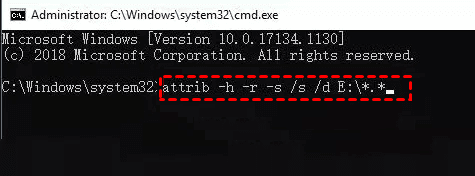
This command will remove the hidden or read-only attributes, making the files accessible again. After the process finishes, try opening your SD card again to see if you can access the files.
Recover Data with Windows File Recovery
Windows offers a tool called Windows File Recovery, which can help recover permanently deleted or lost files from a corrupted SD card. It can scan your hard drives including SD cards and retrieve files from corrupted storage devices. But note that it's only works on Windows 10 and later versions.
Step 1. Download and install Windows File Recovery from the Microsoft official website.
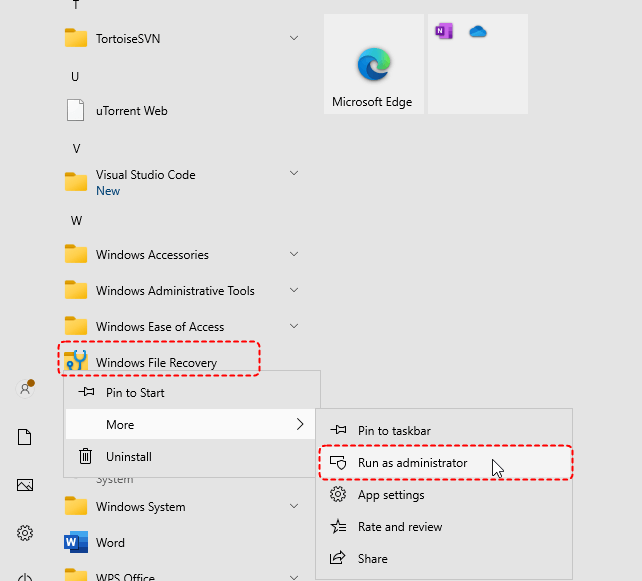
Step 2. Locate it in the Start menu and run it as administrator.
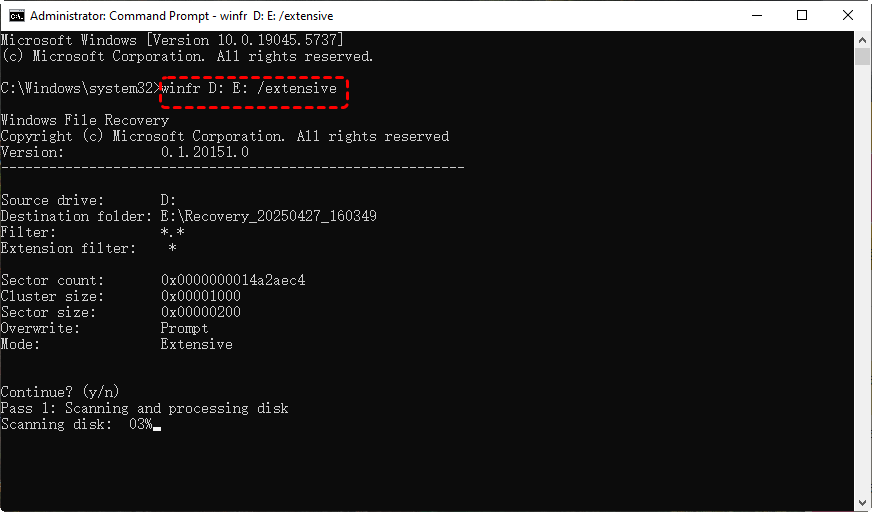
Step 3. Enter the command "winfr D: E: /extensive" and hit the "Enter" key. Replace the drive letters "D" and "E" with your actual drive letters.
- ★Tips:
- D: the source drive letter (Your SD card).
- E: the destination drive letter.
- Extensive: the deep scan mode. If the files were lost recently, you can switch to "Regular" mode to save more time.
After the process is complete, press "y" to access the recovered files in the destination folder.
Recover Data from Corrupted SD Card Using MyRecover
If the above methods fail to retrieve your data, or if you're uncomfortable with command-line tools, a more user-friendly data recovery tool like MyRecover would be a better option. It is an excellent data recovery tool to recover files from a corrupted SD card. Additionally, it supports recovering lost files from various complex data loss scenarios, such as emptied Recycle Bins, deleted partitions, formatted USB drives, and inaccessible drives.

 MyRecover
- No Tech Skills Needed: User-friendly interface designed for beginners and non-tech-savvy users.
- Safe & Read-Only Process: Your original data remains untouched during the scan and recovery process.
- Supports Over 1000 File Types: Recover photos, videos, documents, emails, ZIP files, and more.
- Supports Multiple Storage Devices: Works seamlessly with internal and external HDD, SSD drives, USB flash drives, SD/memory cards, digital cameras, and more.
 100% Secure
Step 1. Download and install MyRecover on your computer from Microsoft Store.
Step 2. Run the app and select the corrupted SD card to scan for lost files, then click "Scan".

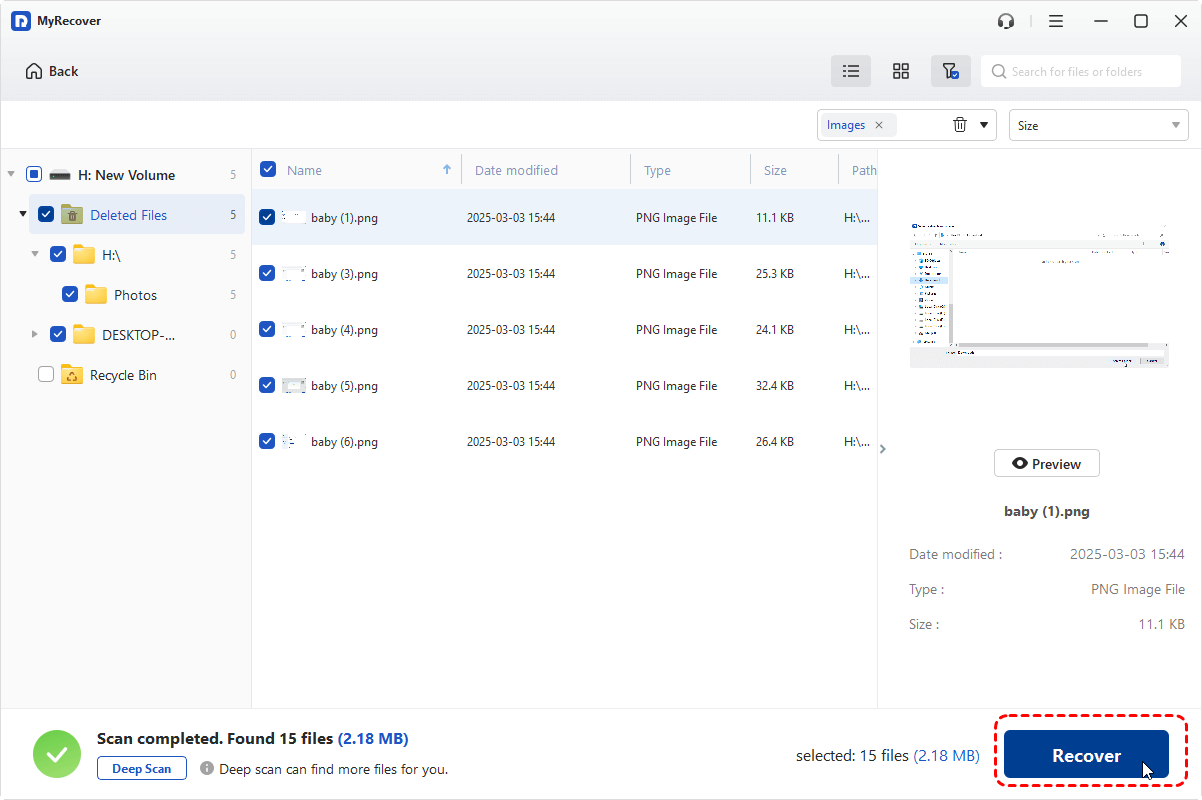
Step 3. Choose the files you attempt to recover from the recoverable lists and click "Recover".
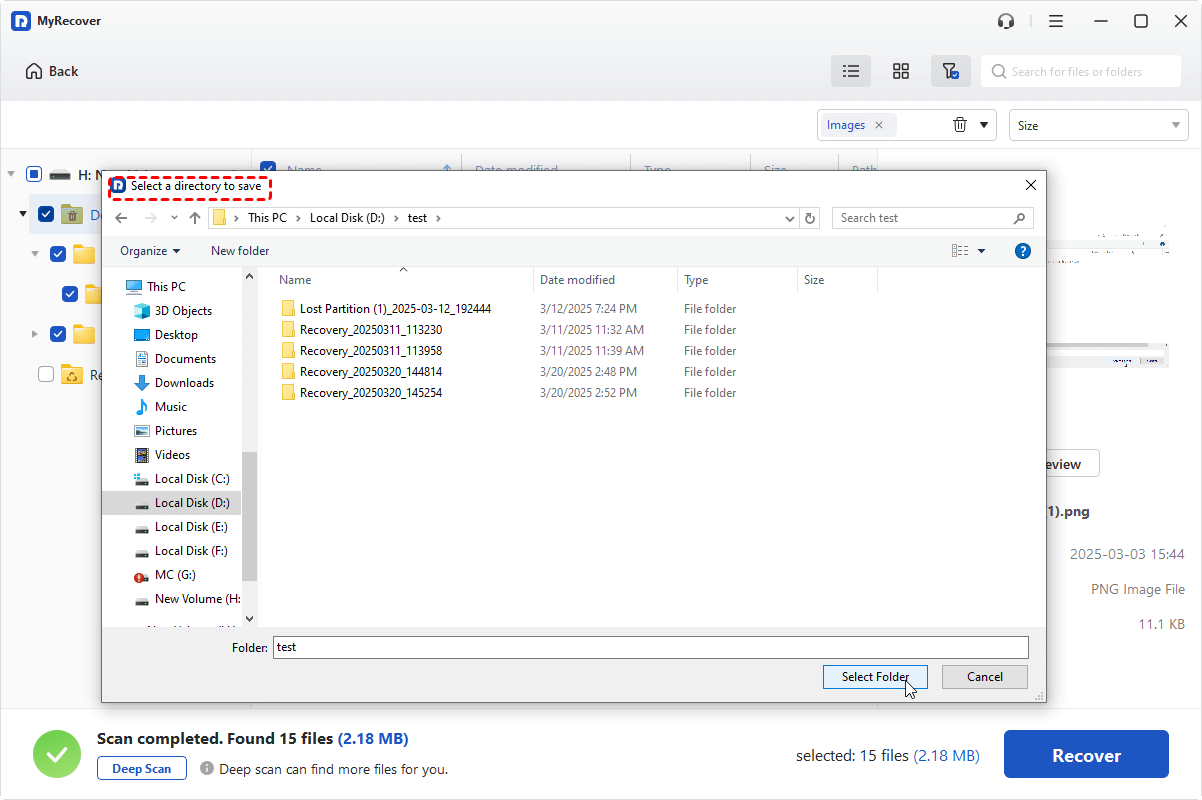
Step 4. Select a safe location (not the corrupted SD card) to save the recovered files.
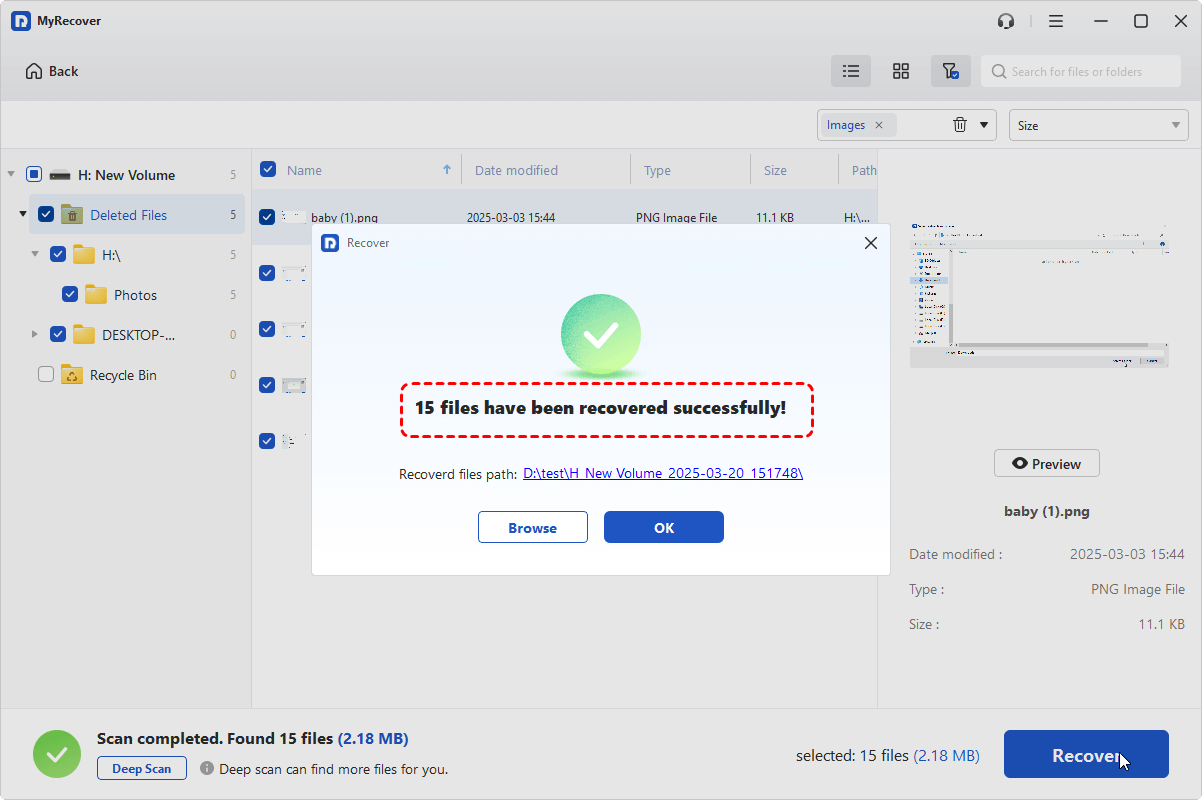
Once the process is done, you'll see the message "Files have been recovered successfully". Then, you can verify the recovered files by clicking on the destination folder path or the "Browse" button.
Format the Corrupted SD Card (Last Resort)
If your SD card is still not working properly, you may need to format the SD card to restore its functionality. Formatting will erase all data on the card, but it can help fix the corruption issue. Make sure you back up all data on the SD card before formatting it, or that you have a reliable method like MyRecover to recover data from the formatted SD card.
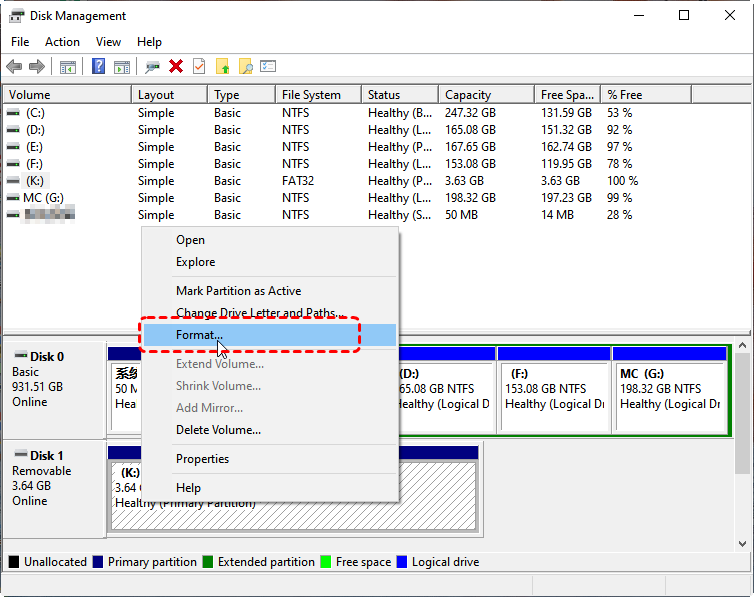
Step 1. Press "Win" + "X" and choose "Disk Management" to open it.

Step 2. Find your SD card and right click on it, then choose "Format".
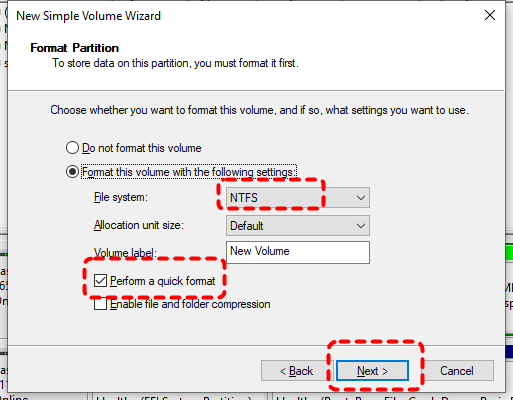
Step 3. Select a file system based on your needs and check the "Perform a quick format" option, then click "Start" to begin the process.
Summary
If your SD card corrupted in the future, with the methods described in this guide, you have multiple options to try and recover data from a corrupted SD card. Whether you use built-in tools like CHKDSK and Windows File Recovery, or professional software like MyRecover, there’s a good chance you can retrieve your important files.
If you're looking for unlimited recovery and real-time file previews, MyRecover Professional edition gives you everything you need to ensure your data is safe. It even supports to recover data from a system that won’t boot. Always ensure to back up your data regularly to avoid loss due to corruption or other unforeseen issues.

Stay Updated With Our
Latest Tips
Add us as a preferred source on Google to never miss helpful guides.
 Add as preferred source >>