 MyRecover



Solved: CHKDSK File Record Segment is Unreadable on Windows 10/11
Encountering the "CHKDSK File Record Segment is Unreadable" error? We show you how to recover your data first safely, then walk through solutions from basic checks to fixing incorrect information in the file record segment, helping you repair your corrupted drive.

By Delores / Updated on December 1, 2025


CHKDSK File Segment Unreadable
When you run the chkdsk command to fix your hard drive, it shows you an error message, "File Record segment ** is unreadable". What should you do to fix and run the chkdsk command correctly?
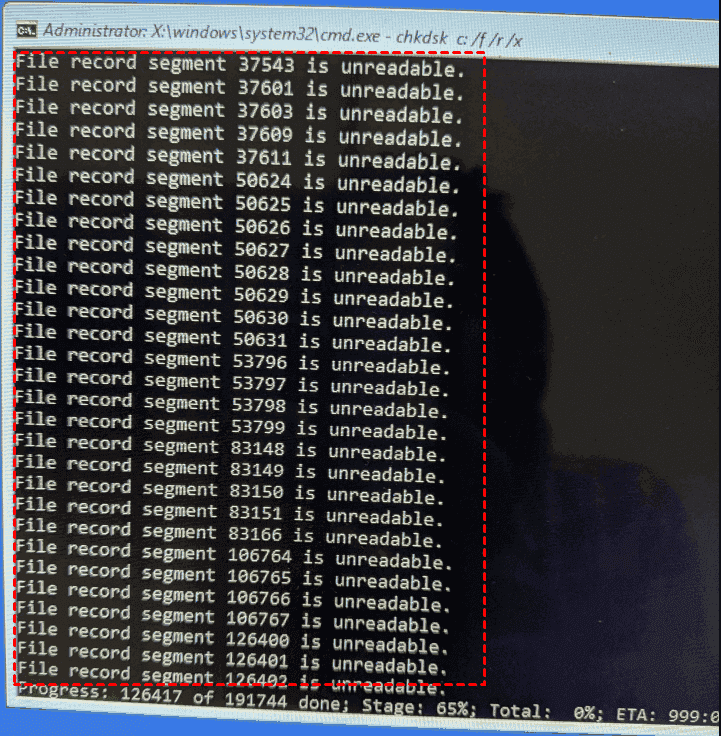
It sounds technical, serious, and worst of all, it hints that your precious data might be hanging by a thread. To rescue your files from the hard drive, calm down, this guide will show you the reasons why the chkdsk command shows the error message, and find the step by step guides to fix it, and recover files if possible.
What is A File Record Segment?
A File Record Segment (FRS) is a data structure in a file system that stores metadata about a specific file, such as its name, type, creation and modification dates, and its physical location on the storage drive. These segments are crucial for a file system to organize and manage files on a drive.
When an FRS is corrupted or unreadable, it can lead to data access issues, often indicating a problem with the hard drive itself, such as bad sectors or physical damage.
What Does File Record Segment Is Unreadable Mean?
At its heart, this error signifies corruption within the Master File Table (MFT) of an NTFS-formatted drive. The MFT is the heart of the NTFS file system, and each entry in it is a file record segment. When CHKDSK, Windows' built-in disk checker, scans the drive and finds one of these entries to be a file record segment that is corrupt, it means it cannot process the information stored there.
This corruption can prevent you from accessing the file, or in more severe cases, cause system instability, boot failures, or even make an entire partition disappear. The file itself might be perfectly intact on the disk platters, but the pathway to it is broken.
Why is The File Record Segment Unreadable?
There are some reasons should are responsible for the CHKDSK showing a file record segment is unreadable error:
⭕ Bad sectors—physical or logical damage on the disk platter itself, where the MFT data is stored.
⭕ Failing hardware, like a hard drive on its last legs, is another prime suspect.
⭕ Malware or virus infections can also deliberately corrupt system structures,
⭕ Software bugs or driver conflicts can occasionally cause this level of damage.
Backup or Recover Files In Advance If Possible
The very first thing you should do is back up any accessible data from the affected drive to a separate, healthy storage device. If the system is still booting, grab your most critical files now. If the drive is secondary, consider disconnecting it for now to prevent further writes. Your priority is data first, repair second.
If you can’t back up files on that hard drive that shows "file record segment is unreadable", you can try a professional data recovery software MyRecover to recover files easily. MyRecover performs a "RAW" scan of the drive, looking for file signatures and data patterns directly, effectively bypassing the broken MFT catalog altogether. With MyRecover, you can enjoy the following advantages:
- Supports all Windows operating systems. You can run MyRecover on Windows 11, 10, 8.1, 8, 7, Vista, XP, and Server 2025, 2022, 2019, 2016, 2012, 2008.
- Recover files from any complex situation. You can recover files from a crashed computer, recover files from a corrupted SD card, recover files from an emptied recycle bin, recover files from a RAW partition, etc.
- Preview before recovery. You can preview photos, videos, documents, and other files before recovery to ensure they are the files you’re looking for.
- Intuitive interface. You can recover files easily within the user-friendly interface, even for a newbie.
- Deep and quick scan. To meet different requirements, you can run a deep scan and a quick scan to find all possible files.
To recover files from the hard drive that CHKDSK shows file record segment is unreadable with MyRecover, here are the simple steps:
1. Connect your hard drive if it’s an external hard drive, and make sure Windows can detect it. Download and install MyRecover, then execute it.
 100% Secure
2. Tap Disk Data Recovery, choose the drive you’re going to fix, and click Scan.

3. It will start a quick scan, wait for the process to complete, and hit OK.
4. Preview and select the files you need, and hit Recover.

5. Choose a safe location to keep them. Once done, you can check these files in the destination.


- Tips:✎...
- MyRecover lists all found files by file type, you can find the files quickly. Besides, you can use the file path to find your files quickly.
- You can recover files all at once without any limitations.
- After upgrading to MyRecover Technician, you can recover files from unlimited computers if required.

 MyRecover
- Recover Deleted Files Easily with Simple Clicks
- 1000+ File Formats Supported
- Support HDD, SSD, External Hard Drive, USB Drive, SD Card, etc.
- Quickly Find Files Using File Types, Name, Size, etc.
- Preview Files Before Recovering
- Recover Unlimited Data
 100% Secure
File Record Segment Is Unreadable CHKDSKErrorFix
Way 1. Run CHKDSK Again
Once your data is safe, you can attempt to repair the drive's structure. This is where you cautiously return to CHKDSK, but with the right commands.
To fix "file record segment is unreadable" in chkdsk, you often need the more powerful /r parameter.
You'll need to open Command Prompt as an administrator.
If the drive is your C: drive, you might be prompted to schedule the scan for the next reboot. The command would be chkdsk C: /f /r.

The /r parameter locates bad sectors and recovers readable information, and it includes the functionality of /f.
This process can take many hours, but it's Windows' most powerful built-in tool for fixing incorrect information in file record segments and other file system errors.
What is CHKDSK actually doing during this repair? When it finds an unreadable file record segment, it has a few options.
- If it can find the file's data elsewhere on the disk, it might be able to reconstruct a new, healthy file record pointing to that data.
- If the file record is too badly damaged, CHKDSK might place the recovered data into a hidden, system-managed folder called FOUND.000 at the root of the drive, with a .chk extension. You can sometimes use specialized tools to open these files and identify their contents.
- In the worst case, if the data is irretrievably lost, CHKDSK will simply mark the segment as bad and move on, effectively deleting the file from the file system's perspective. This is why data recovery first is non-negotiable.s
Way 2. Run Windows SFC and DISM Tools
If CHKDSK fails to resolve the issue, you can try the Windows SFC and DISM Tools.
If the corrupted drive is your system drive (C:), the problem might be linked to broader system file corruption. In this case, you can run the System File Checker (SFC) by typing sfc /scannow in an admin command prompt. This tool scans and restores core Windows system files.

For more stubborn corruption, the Deployment Image Servicing and Management (DISM) tool can be used first to repair the Windows image that SFC relies on.
Running DISM /Online /Cleanup-Image /RestoreHealth before SFC can often resolve deeper issues that CHKDSK can't touch.

Way 3. Run Disk Diagnostics
The "File record segment is unreadable" error is an indication of a failing hard drive. You should run some diagnostic testing on the failing hard drive.
Most HDD manufacturers have the diagnostic software available from their website. Software from Seagate will work with most brands.
Way 4. Run CHKDSK in Safe Mode
Also, you may want to start the PC in safe mode and then run CHKDSK.
To start in safe mode:
1. When you hit the power button, hold down the Shift key when clicking the Restart button.
2. Click Troubleshoot.
3. Hit Advanced options > Startup Settings > Restart.
4. Your PC will now be rebooted to enable the advanced parameters, then choose Safe Mode.
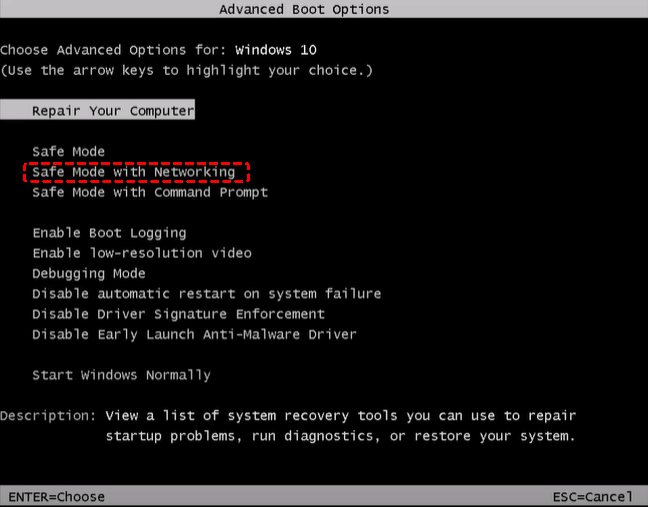
5. After that, run Command Prompt as administrator, then input the following commands:
chkdsk G: /f /r

FAQs About CHKDSK File Record Segment Unreadable Error
Q: Can I still run chkdsk if I get this error?
A: You can, but don't run chkdsk /f or /r immediately. First, recover your data using a tool like MyRecover. Running chkdsk first can permanently delete corrupted file records, making data recovery impossible.
Q: Is this error a sign that my hard drive is physically failing?
A: It can be, but not always. The error might indicate physical bad sectors or logical corruption from power outages. Check your drive's S.M.A.R.T. data using CrystalDiskInfo - if it shows reallocated sectors, physical failure is likely.
Q: What is the difference between this error and bad sectors?
A: Bad sectors are physically damaged areas on the disk platter. The "file record unreadable" error is the consequence when important system data gets stored in these damaged areas. Bad sectors are the cause; the unreadable file record is the effect.
Q: How can I prevent this error from happening in the future?
A: Always use "Safely Remove Hardware" for external drives, use a UPS for power protection, keep your system updated, and maintain regular backups. For HDDs (not SSDs), regular defragmentation can help prevent file system corruption.
Q: I've recovered my files with MyRecover. Should I still run chkdsk?
A: Yes. After securing your data, run chkdsk /r to repair the underlying drive issues. It will attempt to fix corrupted file system structures and mark bad sectors as unusable, potentially restoring your drive to a stable state.

Stay Updated With Our
Latest Tips
Add us as a preferred source on Google to never miss helpful guides.
 Add as preferred source >>