 MyRecover



How to Recover Excel File After Crash Fast | Recover Unsaved Excel
This guide provides a complete action plan to recover Excel file after crash. We cover using Microsoft's AutoRecover, manual .tmp file discovery, and Open and Repair. A dedicated section explains how to recover unsaved excel file after crash using Document Recovery and backup locations.

By Delores / Updated on December 29, 2025


Lost My Excel After a Crash!
If you have experienced this: losing your Excel files after a computer crash. It's a nightmare for all of us. Therefore, knowing how to recover an Excel file after a crash isn't just a technical skill; it's a protection measure.
This guide will walk you through every built-in tool, clever trick, and step-by-step process to get your spreadsheet back from the brink. Let's get started to rescue your data.

Recover Excel Files After an Excel Crash
There are multiple ways to recover Excel files after a crash. Check them one by one now.
Way 1. Check the Document Recovery Panel
First things first, and don’t restart anything just yet. That initial rush to reboot can sometimes interrupt automatic recovery processes that are already running in the background. Your immediate goal is to let the system try to self-heal and then know where to look for the pieces.
The very first place to check is Excel’s recovery panel, which often springs into action the moment you reopen the program. This is your highest-probability shot at a quick fix.
Generally speaking, Microsoft’s Document Recovery task pane, located at the left-hand side of the screen, will automatically appear when you relaunch Excel after a crash. It will show you a list of files that were open during the crash. You’ll usually see two versions: the last saved version (the one you intentionally saved) and an “AutoRecovered” version (a more recent autosave).
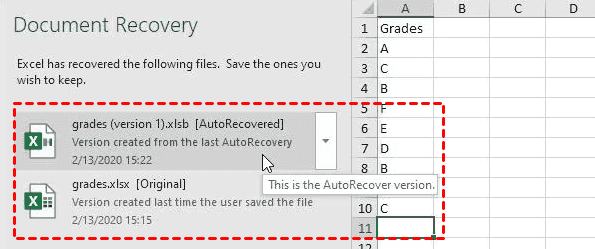
The trick is to hover your mouse over each file name to see the timestamp. Always open the most recent AutoRecovered version first. Once you’ve confirmed it has your latest work, save it immediately with a clear filename. Clicking “Save As” locks in that recovered data. Only after you’ve safely stored the good file should you close the Document Recovery pane and discard the older versions.
Way 2. Locate and Open AutoRecover Files Manually
Sometimes, the Recovery Pane becomes invisible and doesn’t appear. No worries—you can go treasure hunting yourself. The AutoRecover feature constantly and quietly saves backup copies of your work in a specific folder on your computer.
1. To find it, open any Excel file, go to File > Options > Save.
2. There, you’ll see the “AutoRecover file location” path (usually something like C:\Users\[YourName]\AppData\Roaming\Microsoft\Excel\).
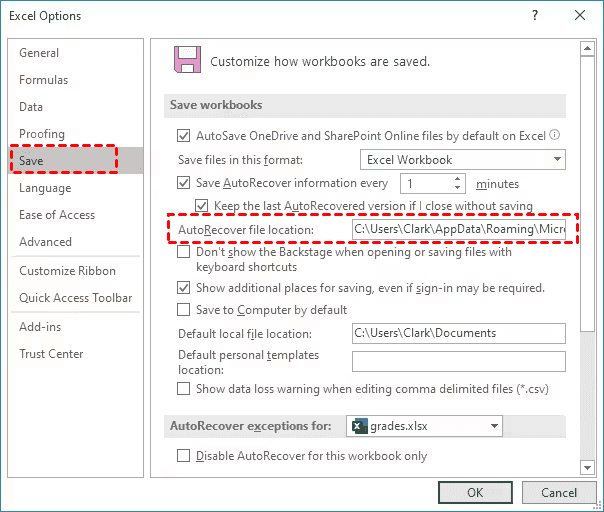
3. Copy that path, open File Explorer, paste it into the address bar, and hit Enter.
4. You’ll be taken to a folder potentially full of .xlsb, .tmp, or .xls files with odd names.
5. Sort by “Date modified” to find the most recent ones. Double-clicking might not work directly; a better method is to open Excel first, then go to File > Open > Browse, navigate to that folder, and in the file type dropdown at the bottom, select “All Files (.)”.
6. You can then try opening the promising files to find Excel files after a crash that the system didn’t automatically flag for you.
Way 3. Open and Repair Corrupted Excel Files
Excel has a built-in mechanic’s toolkit for broken files, cleverly hidden in the Open dialog. If your Excel files get corrupted after a computer crash, you can open and repair the corrupted Excel files with these steps:
Important: Don’t double-click a corrupted file.
1. Open Excel to a blank workbook.
2. Go to File > Open > Browse. Navigate to the folder containing your problematic file. Click on the file name once to select it. Now, look at the bottom-right of the Open dialog box. Instead of clicking the “Open” button, click the tiny downward arrow on the Open button. A small menu will appear. Select “Open and Repair”.
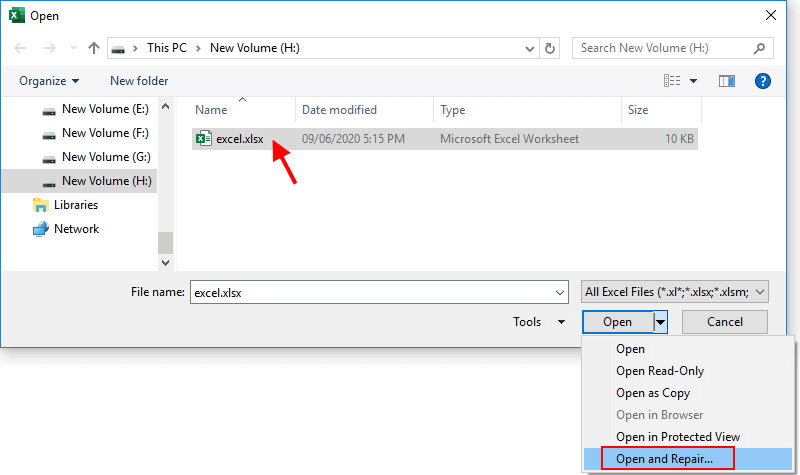
3. A dialog box will pop up giving you two choices. First, try “Repair” to recover as much data as possible. If that doesn’t work or the file remains unstable, go back and try “Extract Data” to pull out just the formulas and values, sacrificing formatting and charts. This method is a cornerstone of the mission to recover an Excel file after a crash when the file is saved but damaged.
Way 4. Recover Unsaved Excel File After Crash in Temporary Folder
Excel has a few sneaky places where it might have stashed a copy, even if you never named the file.
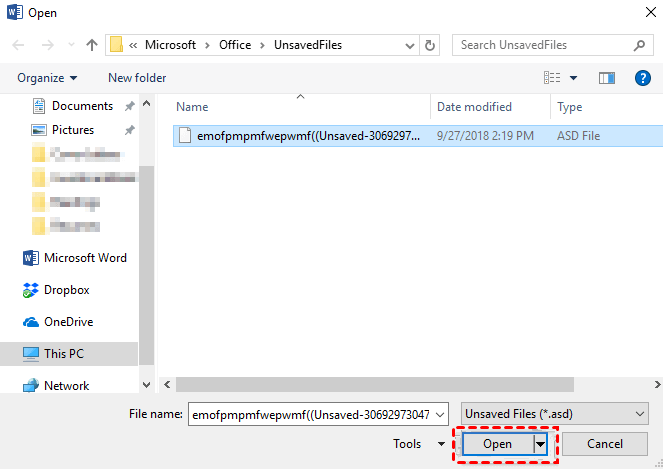
When you work on an unsaved workbook, Excel creates temporary autosave files at regular intervals. To find these, you need to look in a specific system folder. The path is often C:\Users\[YourName]\AppData\Local\Microsoft\Office\UnsavedFiles.
1. Press Windows Key + R, type %appdata%, and hit Enter.
2. Navigate up one folder level to Local, then follow the Microsoft > Office > UnsavedFiles path.
3. In this folder, look for files with a .tmp extension or names that start with “~ar” or “WRL…”. Their modified dates are your best clue. You can’t just double-click them.
4. The procedure is to open Excel, go to File > Open > Browse, navigate to this folder, and in the file type filter, select “All Files (.)”. Select a likely .tmp file and click Open. You might just find your missing work.
Way 5. Restore Excel Files from File History
If you have enabled File History or Previous Versions for your Excel files before the crash, you can restore Excel files from the previous version instead of losing all of them.
Here is how:
1. Right-click on the folder that contains the Excel file you were working on in File Explorer and select “Restore previous versions” or “Properties” and then the “Previous Versions” tab.
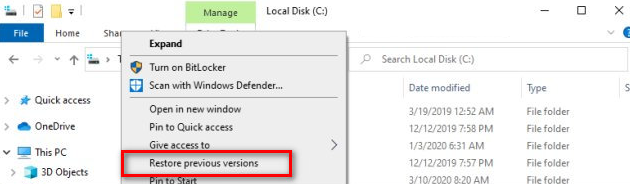
2. What you’ll see is a list of automatically saved snapshots Windows has taken over time, provided the feature was enabled.
3. You can preview these versions and restore one from yesterday, last week, or even just a few hours ago.
Way 6. Recover Excel Files after Crash with MyRecover
When built-in tools aren't enough, a dedicated data recovery program like MyRecover can step in. It’s designed to scan your storage drive deeply for any traces of lost files, including Excel workbooks that Windows can no longer see. Here’s how to use it.
1. Download and install MyRecover on your computer. Please do not install it on the drive from which you lost the file.
 100% Secure
2. Open MyRecover, choose Disk Data Recovery, choose the disk that contains the Excel files, and hit Scan.

3. Wait for the scanning to complete, and hit OK.
4. Double-click to preview these Excel files, then select them and hit Recover.

5. Opt for a location to keep them safe.

- Tips:✎...
- Once scanned, you can type Path to find your Excel files quickly if you remember the Excel file location. Besides, you can filter Excel files by inputting the file extensions in the search box, like .xlsx, .xls, to find all your Excel files. You can also use the search bar at the top to type part of your lost file’s name.
- You can preview the Excel files before recovery, which ensures they are the right files and intact, saving time and effort.
MyRecover can also recover files from a crashed computer, a formatted SSD, a corrupted SD card, a lost partition, a RAW drive, etc. Moreover, to recover files from unlimited computers, MyRecover Technician is your best choice. So, why not give it a try now?

 MyRecover
- Recover Deleted Files Easily with Simple Clicks
- 1000+ File Formats Supported
- Support HDD, SSD, External Hard Drive, USB Drive, SD Card, etc.
- Quickly Find Files Using File Types, Name, Size, etc.
- Preview Files Before Recovering
- Recover Unlimited Data
 100% Secure
Best Practices to Prevent Future Excel Data Loss
Making a few simple changes to how you work can turn catastrophic data loss into a minor, easily fixed hiccup.
Adjust AutoSave and AutoRecover Settings
1. In File > Options > Save.
Set “Save AutoRecover information every:” to 5 minutes. This increases the frequency of automatic backups.
Check “Keep the last AutoRecovered version if I close without saving”. This is the magic switch that specifically saves a copy of unsaved workbooks when you (or a crash) close Excel.
2. (For Microsoft 365 users) Ensure AutoSave (the cloud-based, real-time save feature) is turned on for files stored in OneDrive or SharePoint. This is the single most effective feature for preventing loss.
These settings create a robust safety net that works silently in the background.
Implement a Robust Manual Backup Routine
Technology can fail, so your final layer of defense is a good old-fashioned manual habit. Get into the routine of using “Save As” to create versioned copies of your critical workbooks.
Use dates in filenames: Financial_Report_v1_2023-10-27.xlsx.
For mega-important projects, periodically email a copy to yourself or copy the file to a different physical drive or cloud service (like Google Drive or Dropbox) separate from your primary location.
FAQs About Excel Recovery
Q: Excel crashed and didn't recover my file. Is it gone forever?
A: Not necessarily. The recovery pane is just the first option. Your file may exist as an .xlsb or .tmp AutoRecover file. Manually check the AutoRecover folder (File > Options > Save). Also, check Windows File History or the Unsaved Files folder. Persistent manual searching often finds what the automated system missed.
Q: Can I recover an Excel file from before AutoRecover was enabled?
A: Without AutoRecover, Excel-specific backups won't exist. Your only hope is system-wide backups like Windows File History/Previous Versions or cloud storage version history (e.g., OneDrive). For unsaved work with no backup, deep-scan third-party recovery software is your last resort.
Q: Why does my recovered Excel file look corrupted or have missing data?
A: This indicates severe file damage, allowing only partial recovery. When using "Open and Repair," try "Repair" first, then "Extract Data" if needed. With AutoRecover files, data is only saved up to the last autosave interval; work done just before the crash may be lost.
Q: How do I find the AutoRecover folder if Excel won't open at all?
A: Access it directly via File Explorer. Paste C:\Users\[YourUsername]\AppData\Roaming\Microsoft\Excel\ into the address bar. You may need to enable "Show hidden files". Alternatively, search your C: drive for *.xlsb files sorted by date modified.
Q: Does the "Recover Unsaved Workbooks" feature work after a system reboot?
A: Yes, it's designed to survive a reboot. The unsaved files are stored on your hard drive. However, they can be deleted by disk cleanup or automatically by Windows after a few days, so attempt recovery immediately after restarting.
Q: Can I recover a specific worksheet from a crashed Excel file, not the whole workbook?
A: Direct single-sheet recovery isn't standard. The best method is to recover the entire workbook first (via "Open and Repair" or an AutoRecover file), then copy the needed sheet. For corrupted files, use Windows Previous Versions or copy cells from healthy sheets into a new workbook.

Stay Updated With Our
Latest Tips
Add us as a preferred source on Google to never miss helpful guides.
 Add as preferred source >>