 MyRecover



How to Check SanDisk SD Card Health: Complete Step-by-Step Guide
This comprehensive guide explains how to check SanDisk SD card health using practical, easy-to-follow methods. Whether you're experiencing slow performance, file corruption, or simply want to ensure your storage device is functioning properly, performing a regular SanDisk SD card health check is essential.

By Aria / Updated on May 8, 2026


Introduction
When inserting your SanDisk SD card into a camera or computer, you may keep getting errors or being asked to format it. If other devices work properly, it's reasonable to suspect a failed SD card. A failing SD card can lead to file corruption, data loss, or sudden inaccessibility, especially when you rely on it for storing important photos, videos, or documents.
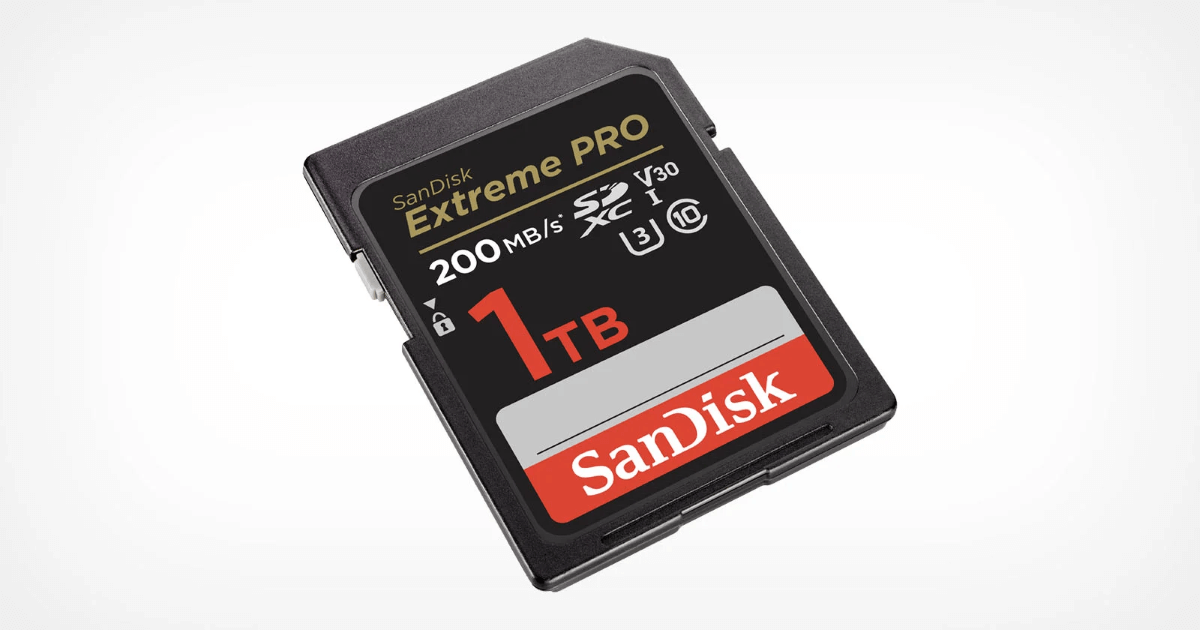
If you happen to be unsure how to check SanDisk SD card health status, you’re not alone. In this guide, you’ll learn exactly how to perform a SanDisk SD card health check using clear, step-by-step methods. We’ll cover practical ways to detect errors, evaluate performance, and identify early warning signs of damage. Whether you're beginners or advanced users, each method is designed to help you quickly assess the condition of your SD card and take appropriate action if issues are found.
Early Signs of SanDisk SD Card Corruption
No SD card breaks down out of the blue. If you notice one or more of the following warning signs, it’s a strong indication that your SanDisk SD card health may be deteriorating. You'd better take timely action to reduce the risk of permanent data loss. The command signs include:
❌ Frequent read/write errors: Files fail to open, copy, or save properly, or error messages appear during file transfers.
📂 Missing or inaccessible files: Stored photos or videos suddenly disappear, or folders show as empty despite previously containing data.
💡 Unexpected formatting prompts: The system repeatedly asks you to format the SD card, even though it was working normally before.
🖥️ Slow performance or lag: Noticeable delays when accessing, transferring, or saving files may indicate underlying issues.
✂️ File corruption: Images appear distorted, videos won’t play, or documents become unreadable.
💾 Device detection issues: The SD card is not recognized, disconnects randomly, or shows incorrect capacity.
How to Check SanDisk SD Card Health on Windows 10/11
Once you’ve identified potential warning signs, the next step is to run a proper SanDisk SD card health check. The following methods are arranged from simple to more comprehensive, helping you gradually confirm the condition of your SD card and pinpoint possible issues.
Method 1. Use Error Checking Tool (Basic Scan & Fix)
The Error Checking tool is a built-in Windows feature designed to quickly scan your SD card for file system errors and fix minor issues automatically. It’s the most straightforward way to perform an initial SanDisk SD card health check without using command lines or installing additional software.
Step 1. Insert your SanDisk SD card into the computer and open File Explorer.
Step 2. Right-click the SD card drive and select "Properties" from the context menu.
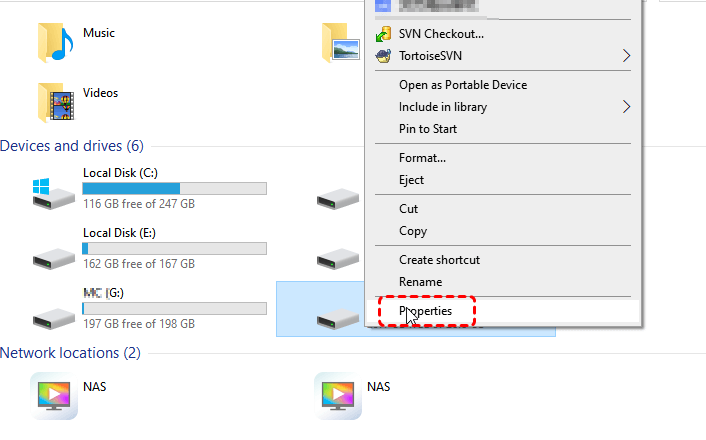
Step 3. Go to the "Tools" tab and click "Check" under "Error checking".
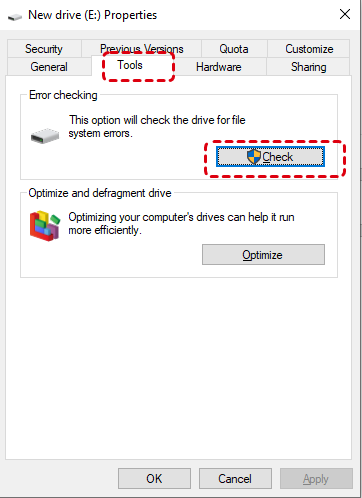
Step 4. Follow the prompts to scan and repair detected errors.
Method 2. Run CHKDSK Command (Advanced Repair)
CHKDSK is a more powerful Windows utility that performs a deeper scan of your SD card, identifying bad sectors and repairing file system inconsistencies. Compared to the graphical Error Checking tool, it provides more control and can fix more complex issues. When the SD card shows persistent errors, becomes inaccessible, or fails basic checks, it's a key step in a thorough SanDisk SD card health check process.
Step 1. Connect your SD card to computer and note its drive letter (e.g., E:).
Step 2. Type "Command Prompt" in the search box, right click on it, and choose "Run as administrator".

Step 3. Enter the command "chkdsk G: /f /r" and press "Enter".

Step 4. Wait for the scan to complete and review the results for errors or bad sectors.
Method 3. Use SanDisk Dashboard (Manufacturer-Level Check)
If the above two methods don't meet your needs, you can try SanDisk Dashboard, which is an official utility designed to monitor and manage SanDisk storage devices. Compared to Windows built-in tools, it offers a more device-specific perspective such as health insights, firmware status, etc. making it a valuable option for users who want a more detailed SanDisk SD card health check.
- Notes:✎...
- SanDisk Dashboard is primarily designed for solid-state drives (SSDs) from SanDisk and Western Digital. This means it only supports specific types of SD cards like SanDisk SD Express, MicroSD Express, not all standard UHS-I/UHS-II SD cards.
- It is only compatible with Windows 10 and Windows 11.
Step 1. Download and install the SanDisk Dashboard from the official SanDisk website.
Step 2. Connect your SanDisk SD Express card to the computer and launch the tool. It will automatically detect your connected drives.
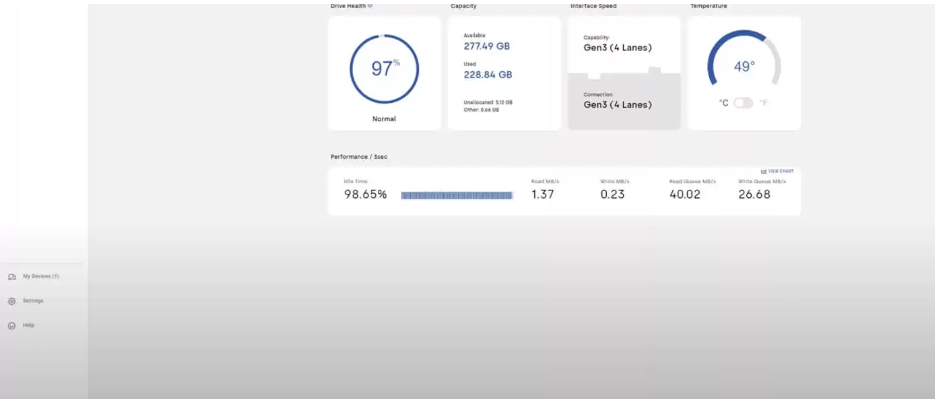
Step 3. Select your device from the dashboard interface.
Step 4. Navigate to the "Status" tab to view the health and the status of your drive. Address any warnings or alerts promptly to maintain optimal drive performance.
How to Fix Corrupted SD Card on Windows 10/11
If the above methods detect issues with your SanDisk SD card but fail to repair them, formatting may be the final solution to repair a corrupted SD card. However, as you know, formatting will erase all data on the card. Therefore, it would be better if you can recover important files first, then proceed with repair actions like formatting to restore normal functionality.
Step 1. Recover Data from Corrupted SD Card (Recommended First Step)
In that case, you can try using a professional data recovery tool like MyRecover to retrieve lost photos, videos, and documents with a high success rate (99%). MyRecover supports more than 500 data loss scenarios, including lost partitions, formatted SD cards, and inaccessible drives. In addition, it features an intuitive graphical user interface, enabling users of all skill levels to complete data recovery with just a few simple clicks.

 MyRecover
- Recover deleted & lost files from HDD, SSD, USB, SD card, camera as you need.
- Support 1000+ formats of photos, videos, docs, archives, emails, compressed files, etc.
- Reliable rescue for deletion, formatted disk, emptied Recycle Bin, system crashes and more.
- Deep scan technology ensures higher recovery success rates.
 100% Secure
Step 1. Download and install MyRecover on your Windows supported computer from Microsoft Store or its official website.
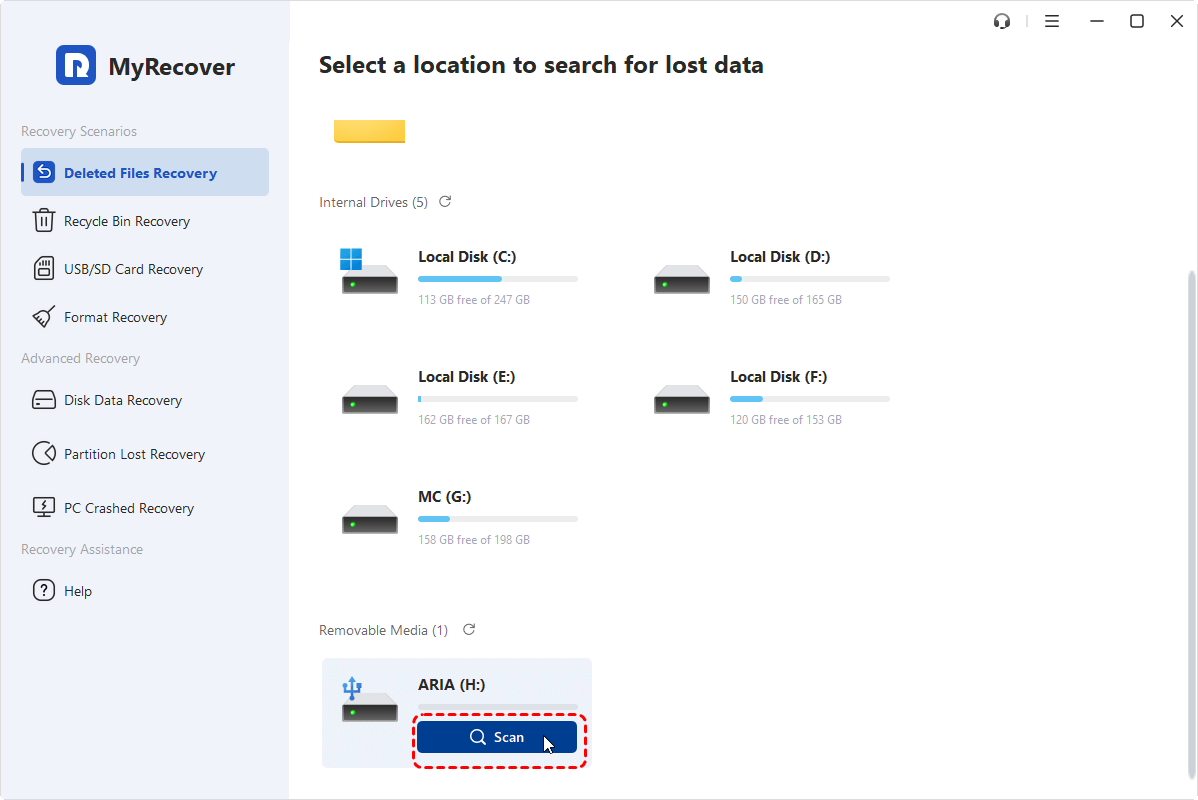
Step 2. Insert your SD card into the computer and launch the application. Select the SD card and click "Scan" to start the searching process.
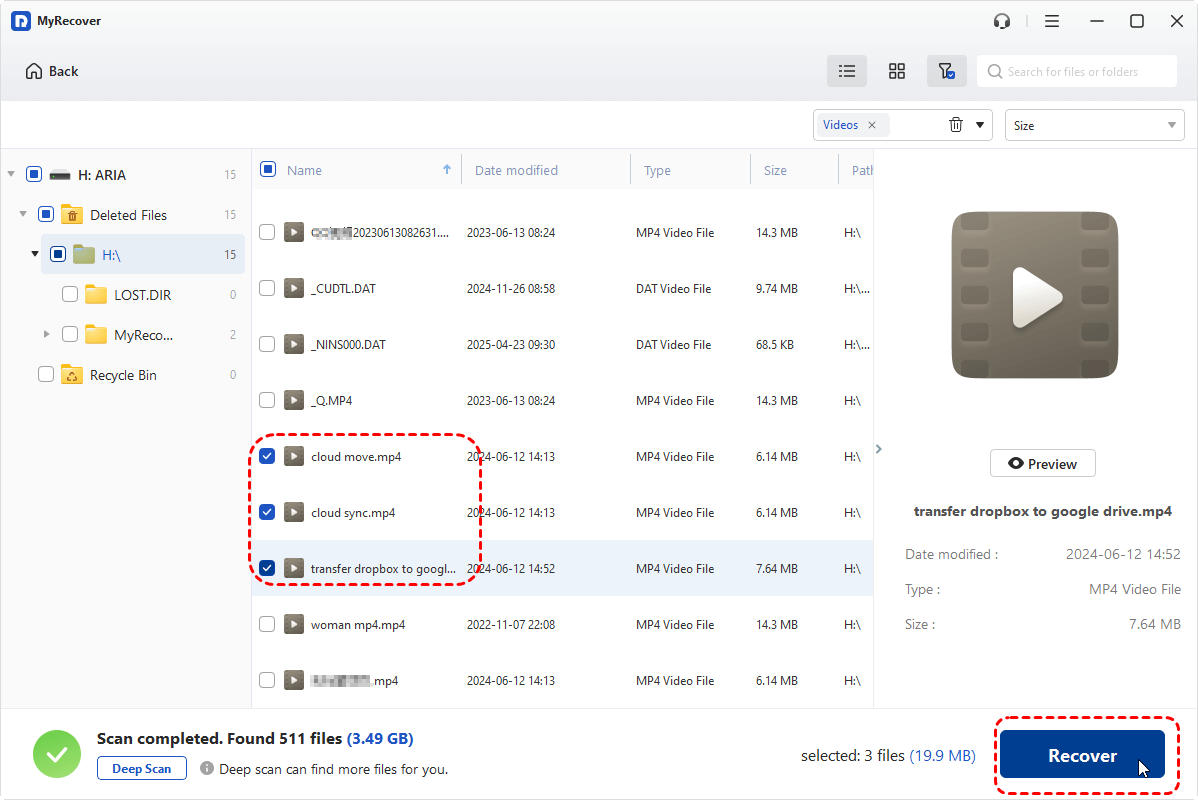
Step 3. Browse the scan results and preview file content in the right panel. Choose the files you wish to recover from the recoverable lists and click "Recover".
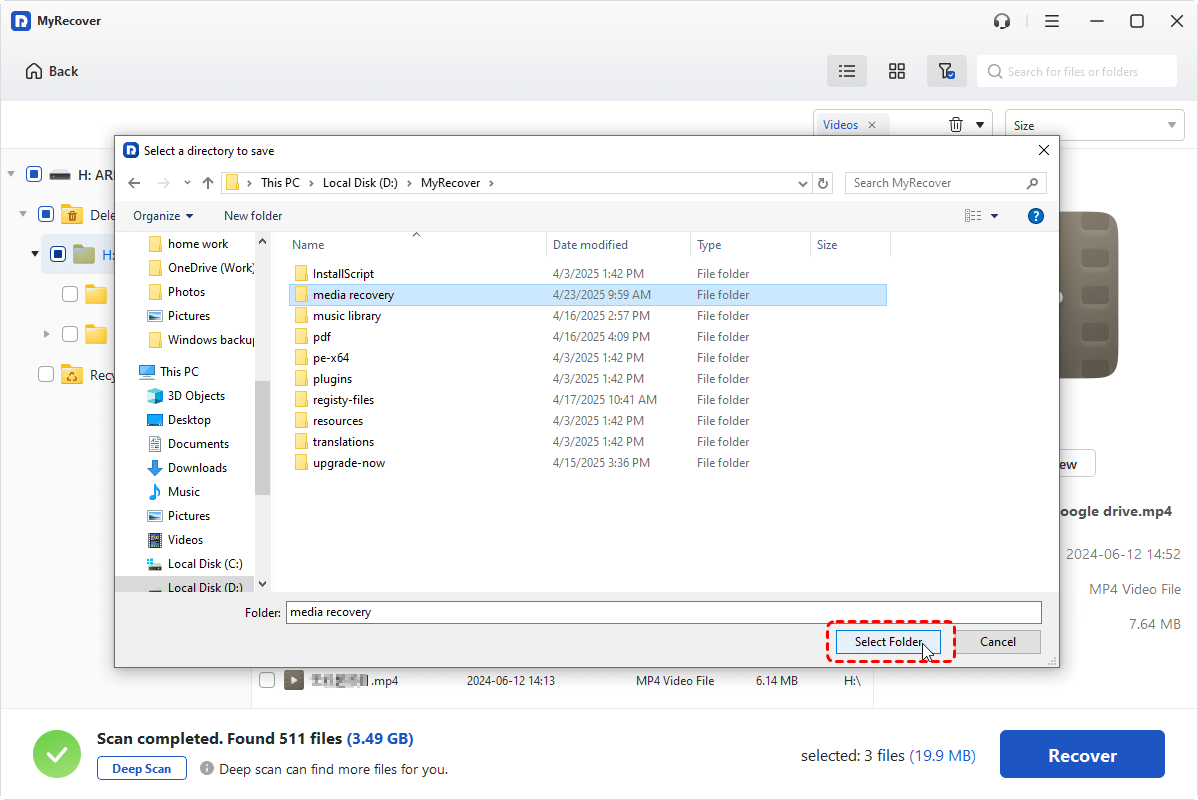
Step 4. Select a safe location (different from the original one) to save the recovered files.
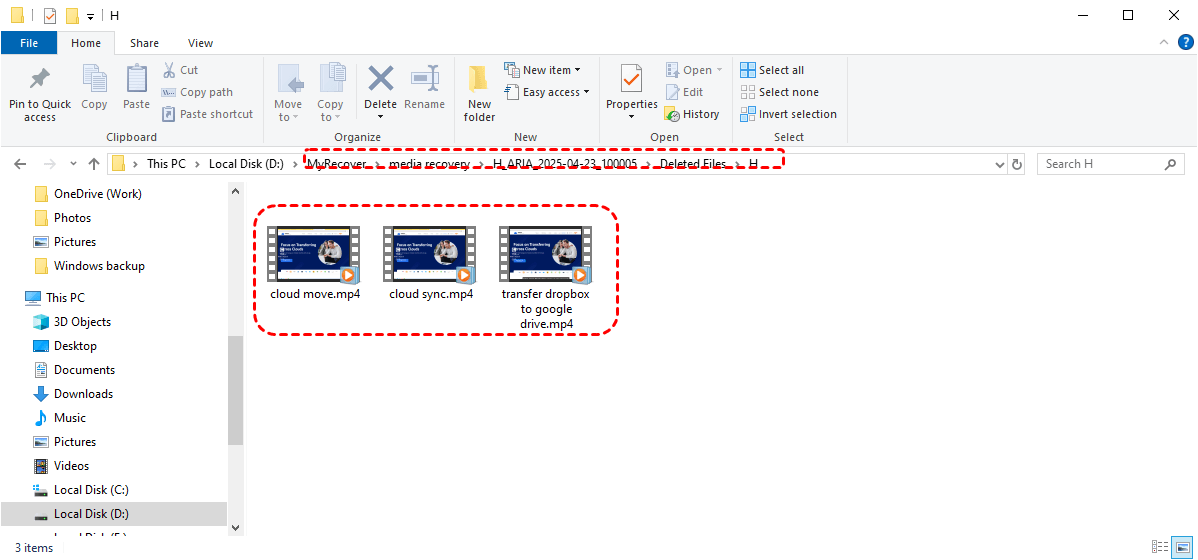
When the process is finished, you will see a message saying "Files have been recovered successfully". Then, you can access and check the recovered files in the destination folder.
Method 2. Format the SD Card (Restore Usability)
Once your data is secured, formatting becomes the most effective way to fix logical corruption and restore the SD card to a usable state. Formatting rebuilds the file system, removes errors, and clears problematic sectors. It often resolves persistent issues such as repeated error messages, unrecognized file systems, or access failures, making it a necessary step after data recovery.
Step 1. Insert the SD card into your computer and open File Explorer.
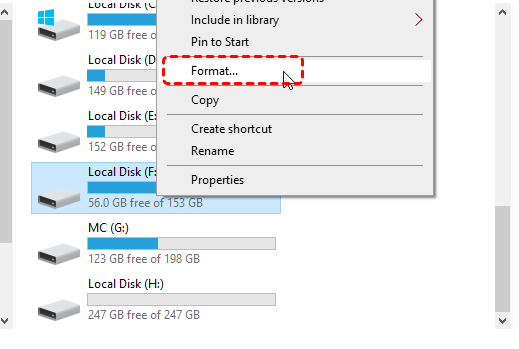
Step 2. Right-click the SD card drive and select "Format".
Step 3. Choose a file system (e.g., FAT32 or exFAT) and check "Quick Format".
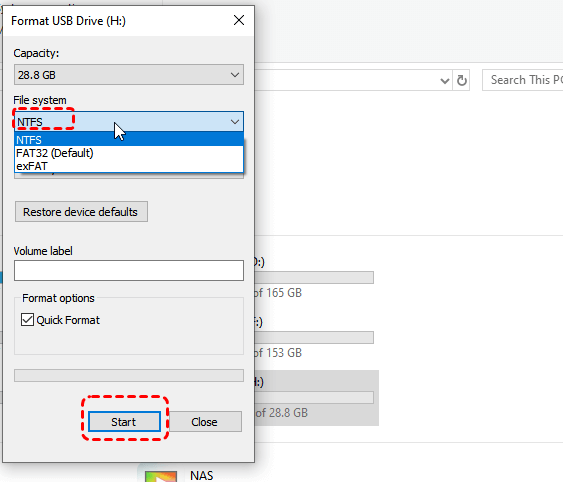
Step 4. Click "Start" and wait for the process to complete, then safely eject the card.
Final Thoughts
Checking SanDisk SD card health is not just about diagnosing issues, it’s a critical step in preventing data loss and maintaining long-term storage reliability. By recognizing and fixing early warning signs, you can accurately assess the condition of your SD card and identify potential problems before they worsen.
If corruption is detected, acting in the right order is key. Recovering your data first using MyRecover ensures that important files are not lost during repair, while formatting provides an effective way to restore the card’s usability. For both home and business users, upgrading to the Technician edition of MyRecover allows you to share the tool with your family and friends to protect your data with a single license.
FAQs
Q1: Is there a way to check the health of an SD card?
Yes. You can check SD card health using built-in tools like Windows Error Checking or CHKDSK to detect file system errors and bad sectors. For deeper analysis, use professional utilities that scan performance and stability. These methods help identify corruption, read/write issues, and overall reliability without requiring advanced technical skills.
Q2: How to recover data from SanDisk SD card?
Using a reliable data recovery tool like MyRecover can recover data from SanDisk SD card. Connect the card, run a scan, preview recoverable data, and save it to another location. This method works well for deleted, corrupted, or inaccessible files and should be done before attempting any repair operations.
Q3: How do I uncorrupt a SD card without losing data?
First, recover your data using professional recovery software such as MyRecover to avoid permanent loss. Then, use tools like CHKDSK to fix file system errors without formatting. Avoid writing new data to the card during this process. If repair fails, formatting with SanDisk repair tool may be required, but only after data recovery is complete.
Q4: How to tell if an SD card is going bad?
Common signs include frequent read/write errors, missing or corrupted files, slow performance, and repeated format prompts. The card may also disconnect randomly or show incorrect capacity. If these issues occur consistently, it indicates the SD card is deteriorating and requires immediate health checking and possible data backup.
Q5: How to extend SanDisk SD card lifespan safely?
Safely eject the card before removal, avoid frequent overwriting, and keep it away from heat, moisture, and physical damage. Use reliable devices for access and avoid interrupting file transfers. Regularly checking SanDisk SD card health and backing up data can also help extend its lifespan and prevent unexpected failures.
Q6: How to test SanDisk SD card health without formatting?
You can test SD card health without formatting by using Windows Error Checking or CHKDSK, which scan for errors without deleting data. Third-party tools can also evaluate performance and detect bad sectors. These methods allow you to diagnose issues while preserving existing files on the card.
Q7: How to verify new SanDisk SD card is healthy?
After purchasing, test the card by copying large files and checking transfer speed and stability. Use tools like CHKDSK or third-party utilities to scan for errors. Ensure the reported capacity matches the specification. This helps confirm the SD card is genuine, functional, and free from defects before regular use.

Stay Updated With Our
Latest Tips
Add us as a preferred source on Google to never miss helpful guides.
 Add as preferred source >>