 MyRecover



SanDisk File Recovery Software Download: Recover Data from Formatted / Corrupted SanDisk
Lost crucial files from your SanDisk drive?Looking for a reliable SanDisk file recovery tool for Windows? Check out our top picks to recover lost files from formatted, corrupted or unrecognized SanDisk drive.

By Emma / Updated on May 11, 2026


Overview of SanDisk
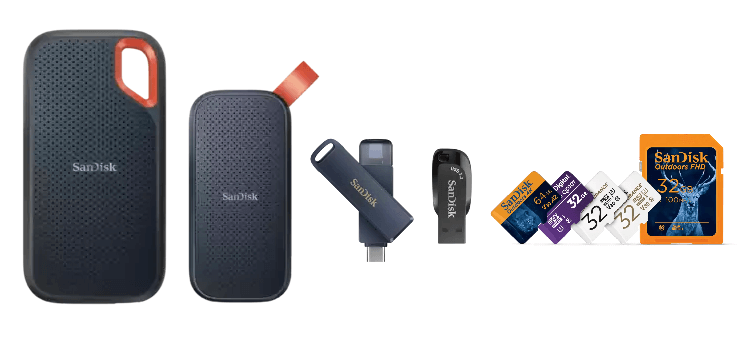
SanDisk, a subsidiary of "Western Digital" (owned by WD from 2016 to 2025), is a globally recognized brand specializing in flash memory storage device. Founded in 1988, SanDisk has been a pioneer in developing innovative storage technologies, offering a wide range of products like memory cards (e.g., SanDisk Ultra) and readers, USB flash drives (e.g., SanDisk Extreme PRO), solid-state drives (e.g., SanDisk SSD PLUS), and digital audio players.SanDisk’s products are known for their reliability, performance, and durability, making them a popular choice for individuals and businesses alike.
When Need SanDisk File Recovery Software?
SanDisk data recovery utility becomes essential in various scenarios where data stored on SanDisk devices (e.g., SD cards, USB drives, SSDs) is lost, deleted, or inaccessible. Here are the most common situations where you might need such software:
1. Accidental Deletion: You accidentally deleted important files (e.g., photos, videos, documents) from your SanDisk device.
2. Formatted SD Card or USB Drive: You formatted your SanDisk SD card or USB drive, erasing all data.
3. Corrupted or Unreadable Device: Your SanDisk device is corrupted, showing errors like "Drive not recognized" or "File system is RAW."
4. Virus or Malware Attack: A virus or malware has infected your SanDisk device, hiding or deleting files.

5. Physical Damage (Logical Recovery Only): Your SanDisk device has minor physical damage but is still detectable by your computer.
6. Lost Partitions: A partition on your SanDisk SSD or USB drive has been lost or deleted.
7. Power Failure During Transfer: A power failure occurred while transferring files to or from your SanDisk device, causing data loss.
8. Inaccessible Files: Files on your SanDisk device are present but cannot be opened or accessed.
If your SanDisk device is physically damaged (e.g., broken, water-damaged) or has severe corruption, you can use a SanDisk SD card repair tool to quickly fix minor logical errors. For a physically damaged card, SanDisk file recovery software may not help. Seek professional recovery services instead.
3 Top-Rated File Recovery Utilities for SanDisk
To recover lost files from SanDisk USB, SanDisk SD card, SanDisk HDD or SSD drives, you can use tools such as Microsoft’s Windows File Recovery command-line utility, as well as various open-source or third-party SanDisk data recovery software solutions. Next, we would like to introduce them to you one by one. Just read further and choose what you prefer.
1. Windows File Recovery
Windows File Recovery is a free command app to recover data that are deleted from internal or external drive, or cannot be restored from Recycle Bin. Developed by Microsoft, it is safe to use. Download from Microsoft store and install it on your computer.
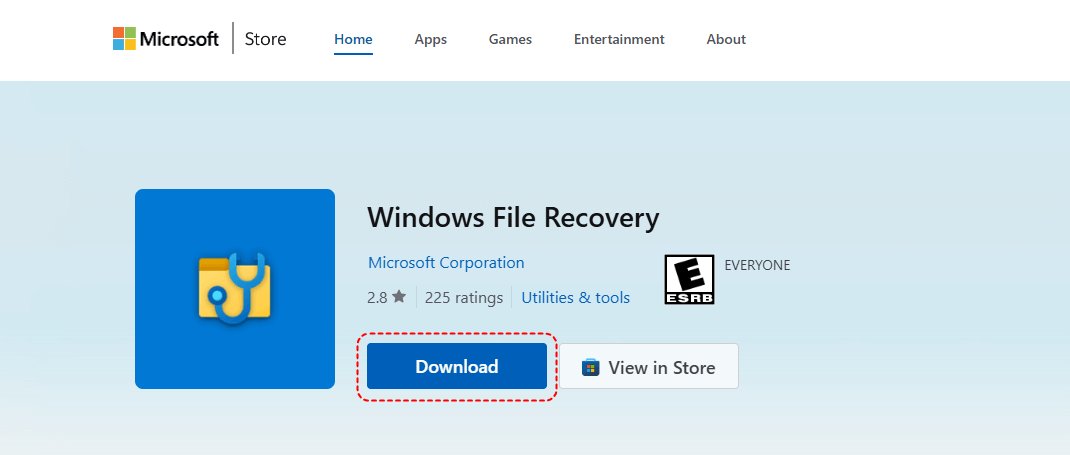
Then, open Command Prompt window: search this tool in Start menu, right-click it and select "Run as Administrator".

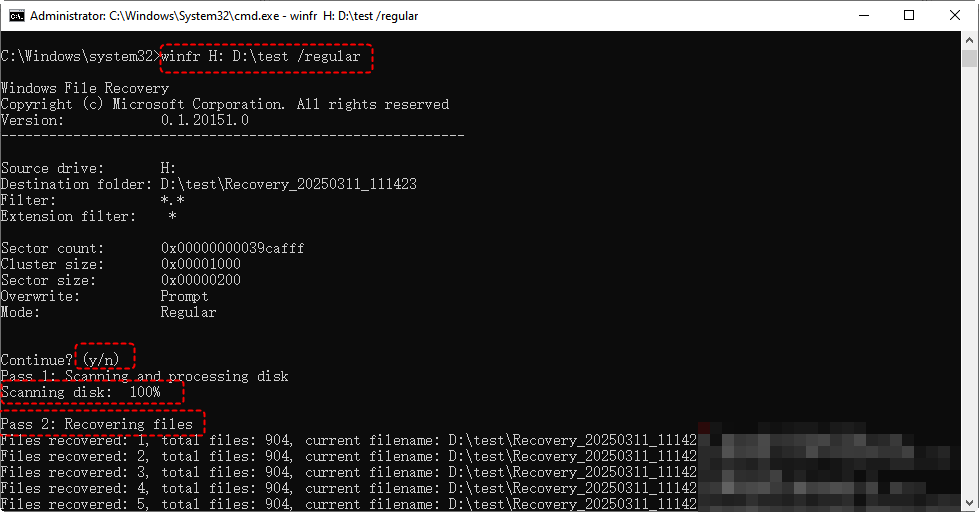
In the command prompt, type the following command and hit on Enter.
winfr H: D:\test /regular (it will restore recently deleted files from H: drive to D:\test folder.)
- ★Tips:
- H: (Source drive where your lost files are located)
- D:\test (Destination folder and recovered files will be saved to this location. It must be different from the source drive.)
- /regular (Recovery mode — Uses “Regular mode” for scanning and recovering files. Suitable for recently deleted files, NTFS file systems, and situations where the file structure is still intact.) If this mode fails, turn to extensive mode.
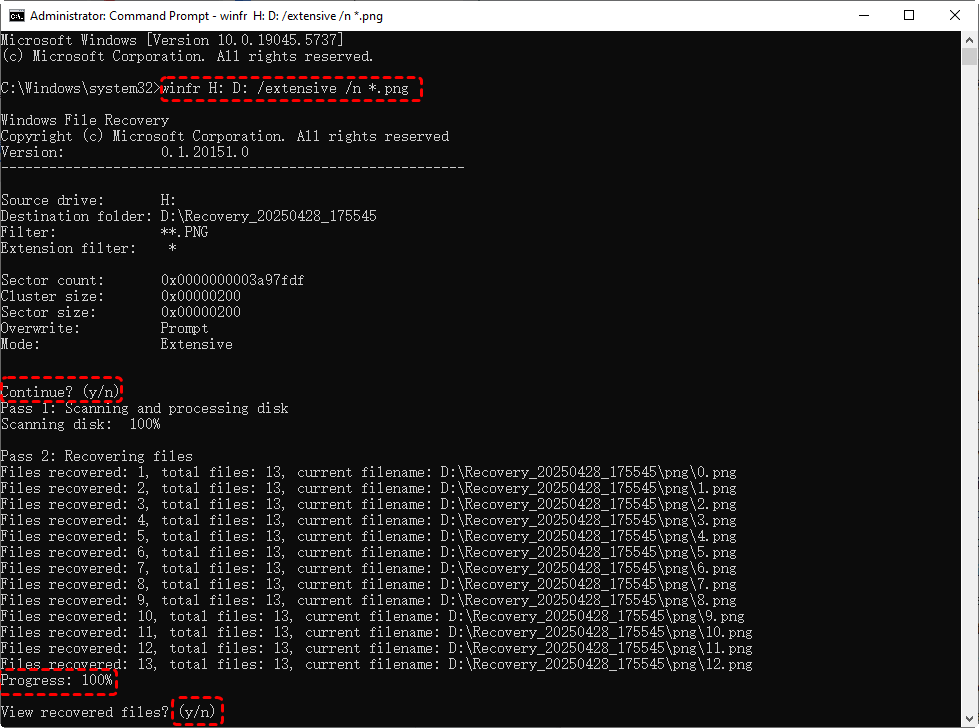
In addition to recovering an entire folder, you can also restore a specific file by its name or recover files of a certain type using the n* parameter. For example, to recover PNG images, use the command: winfr H: D: /extensive /n *.png
2. Open Source: TestDisk
TestDisk is a powerful open-source data recovery tool designed to recover lost partitions and repair corrupted file systems. It can also help retrieve deleted files from a wide range of storage devices, including hard drives, USB drives, and memory cards. Since it is open-source, it is completely free to use and widely trusted by professionals.
Step 1. Download TestDisk from its official website and extract the archive to your computer. Unlike typical software, it does not require installation.
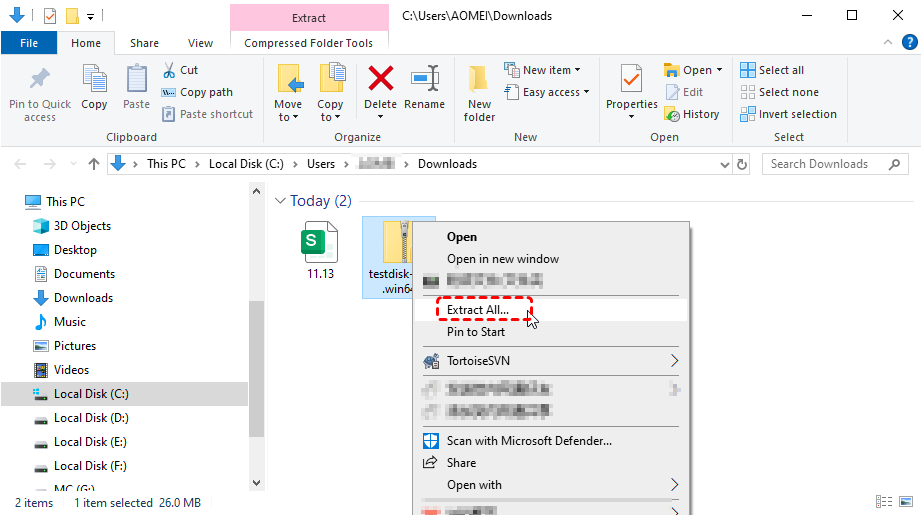
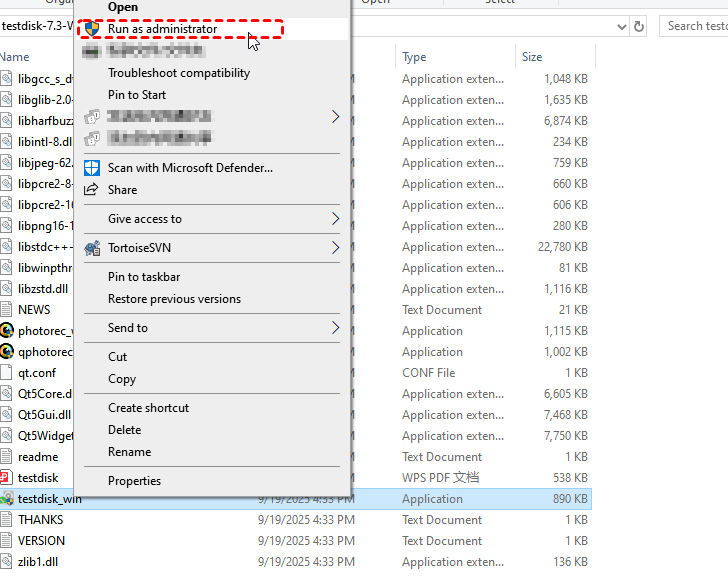
Step 2. Then, run the executable file (testdisk_win.exe) to launch the program. It will open in a command-line interface.
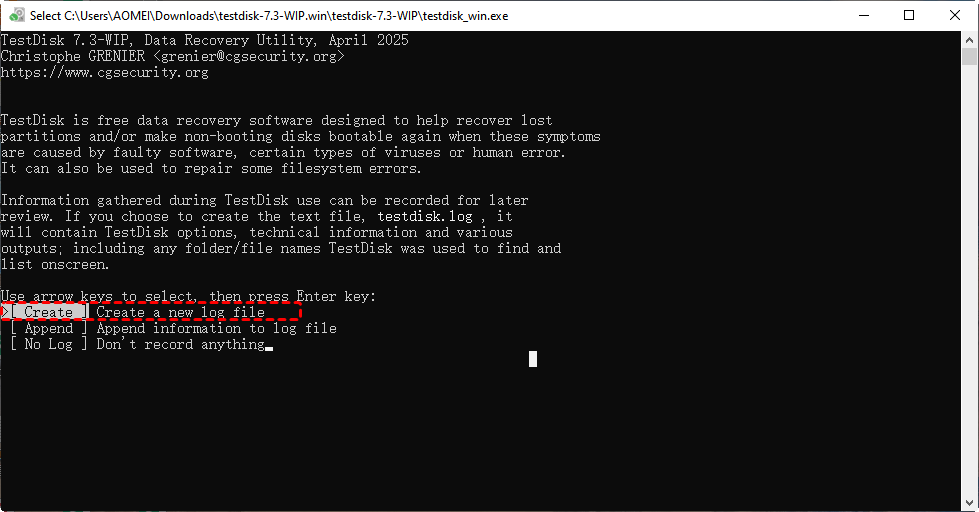
Step 3. Follow the on-screen instructions:
- Select “Create” to generate a new log file
- Choose the disk where your lost files are located
- Select the partition type (usually detected automatically)
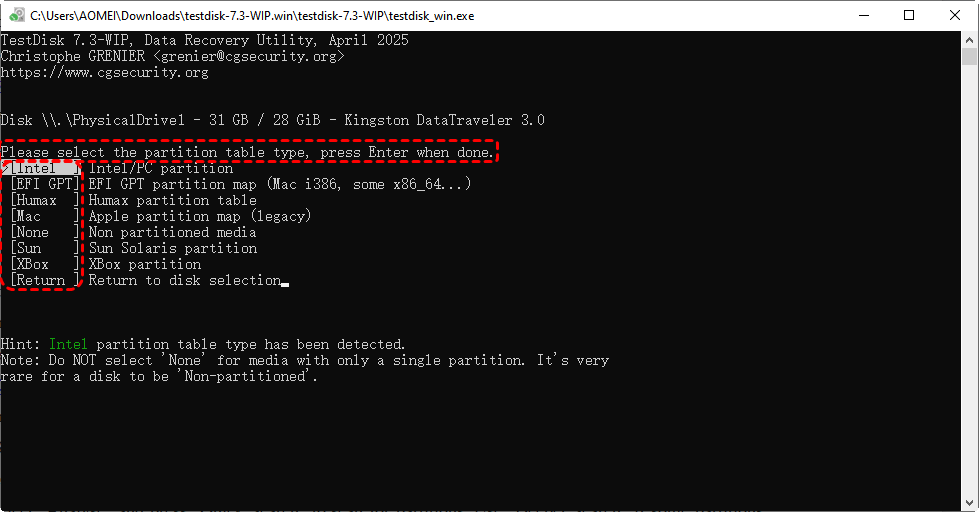
- Choose “Analyze” to scan for lost partitions or files
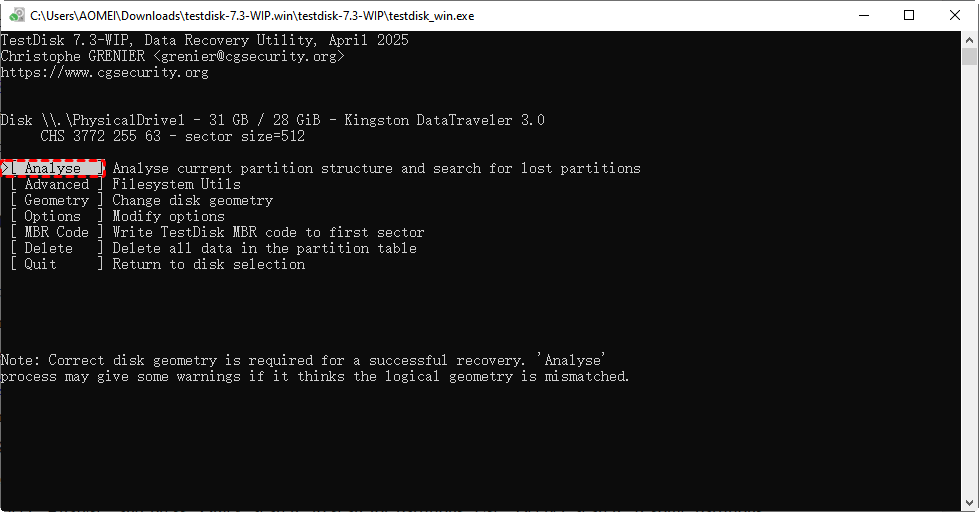
Step 4. After the scan is complete, you can browse the found files and press “C” to copy selected files to a safe location.
Apart from Testdisk, you can also use PhotoRec to recover data from SanDisk storage device. It is another open-source utility included in the TestDisk package.
3. MyRecover [Highly Recommended SanDisk Recovery Software]
The above two methods require some knowledge of commands. It might be kinda of complicated for some computer newbies. So, next we share a GUI SanDisk file recovery tool with you: MyRecover.
It is a professional data recovery tool for beginners and professionals. Whether you’ve accidentally deleted files, formatted your SanDisk SD card, or encountered a corrupted drive, it can satisfy you well with a comprehensive set of features, including:
- Wide Compatibility with SanDisk Devices: Supports all SanDisk storage devices, including: SanDisk SD cards (Ultra, Extreme, Extreme PRO, etc.), SanDisk USB flash drives(Ultra Fit, Ultra Flair, Extreme PRO, etc.), SanDisk SSDs (SSD PLUS, Ultra 3D SSD, Extreme Portable SSD, etc.)
- Works seamlessly with Windows operating systems: Compatible with a wide range of Windows operating systems (11, 10, 8, 7 and all Windows Server, even the newest Server 2025).
- Support 1000+ File Types: Recover a wide range of file types, including: photos (JPEG, PNG, RAW, etc.), videos (MP4, MOV, AVI, etc.), documents (PDF, DOCX, XLSX, etc.), audio files (MP3, WAV, etc.), archives (ZIP, RAR, etc.) and others (MSG, EML, XHTML, MHT, HTML/XHTML, ASPX, LAB, etc.).

- Support for 500+ Data Loss Scenarios: Work well in various situations: accidental deletion of files, formatting of SD cards or USB drives, corrupted or unreadable drives, virus or malware attacks, lost or deleted partitions, power failures during data transfe, and so on.
- High Recovery Success Rate: MyRecover uses advanced scanning algorithms to locate and recover lost files, even from corrupted, formatted, or unreadable SanDisk devices.
- Fast and Deep Scanning Modes: “Quick Scan”recovers recently deleted files in minutes, whereas “Deep Scan”performs a thorough scan of the SanDisk device to recover files lost due to formatting, corruption, or partition loss.
- Preview Before Recovery: MyRecover allows you to preview recoverable files before restoring them, ensuring you only recover the files you need, saving time and storage space.
- Safe and Non-Destructive Recovery: MyRecover performs read-only operations, ensuring your SanDisk device is not further damaged during the recovery process.
👉4 Steps to Complete SanDisk File Recovery
When you lost important files from SanDisk storage device, simply follow these steps to recover them quickly and effectively:
Step 1. Download and Install MyRecover
Visit the official MyRecover website and download the Sandisk file recovery software. Install it on your Windows computer.
Step 2. Scan Your SanDisk Storage Media
Open the MyRecover application and select your SanDisk device from the list. Click on “Scan”button.

Step 3. Choose a Scan Mode
By default, it will start a "Quick Scan" if you choose "Deleted File Recovery" or "Recycle Bin Recovery" entry. However, you can manually choose "Deep Scan" for more complex recovery.
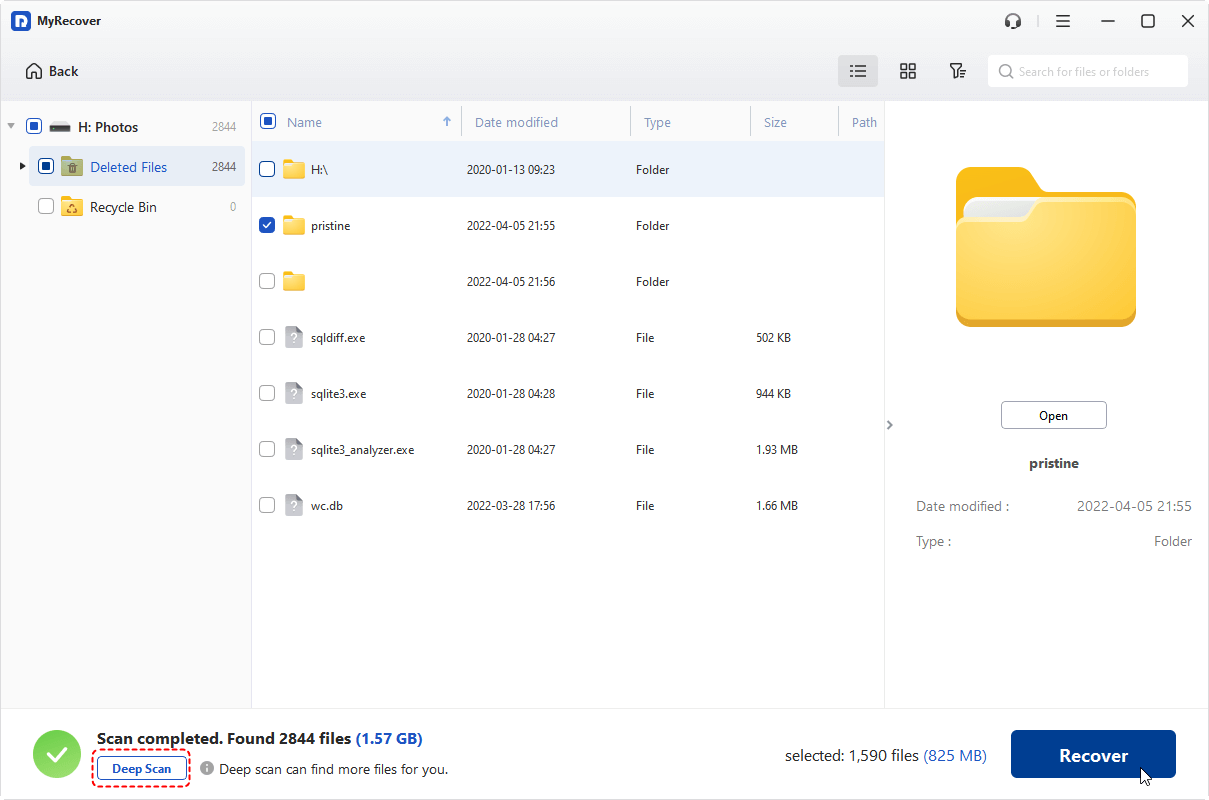
Step 4. Preview and Recover Files
Preview the recoverable files and select the ones you want to restore. Click "Recover" and choose a safe location to save the files.
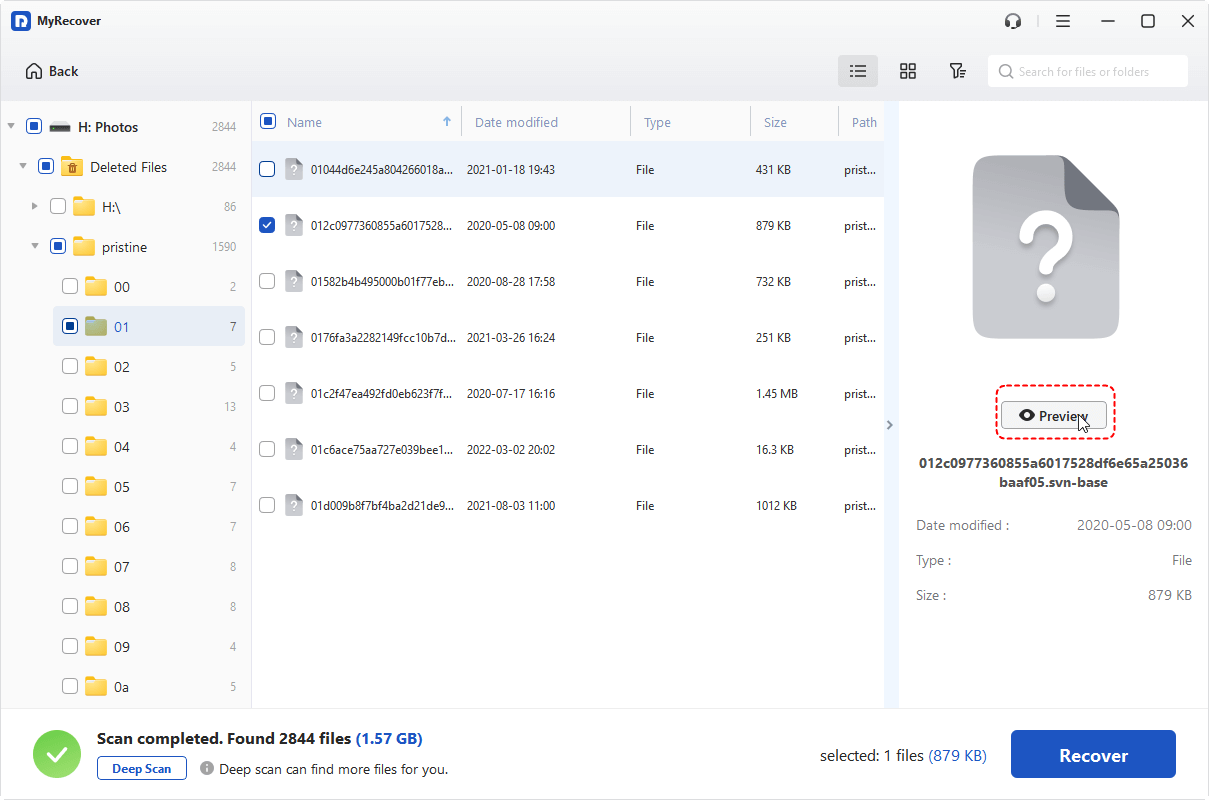

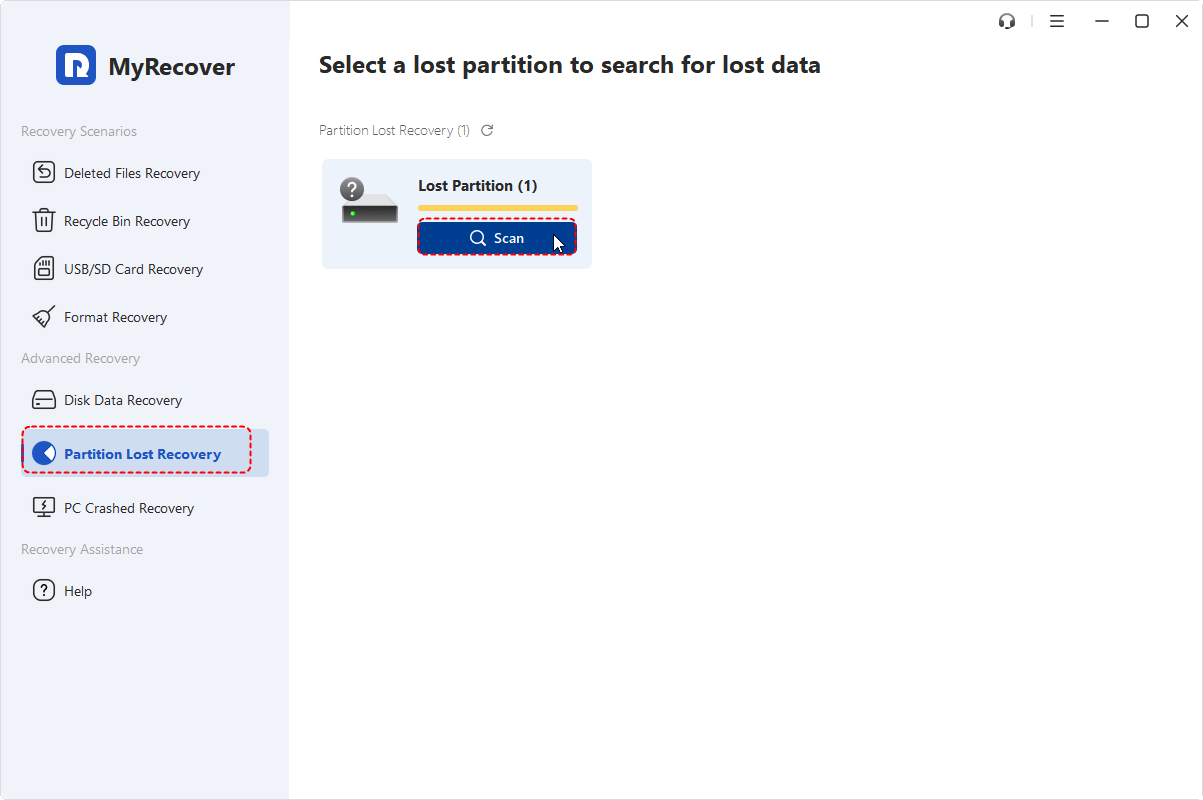
See? Only 4 steps, you can get back your SanDisk files. If your SanDisk drive is lost and you cannot see it in your computer for some reasons, switch to the "Partition Lost Recovery" of MyRecover, which can scan your computer, find all lost partitions and recover data from deleted or missing partition.
Additional Methods to Recover Files from SanDisk
Furthermore, you can take advantage of built-in Windows utilities to restore access to your data. While these native tools may not directly recover deleted files, they can effectively repair file system errors, reveal hidden files, and resolve common drive issues.
Method 1. Windows CHKDSK Tool
The Windows CHKDSK tool (Check Disk) is primarily designed to repair file system errors and fix bad sectors on storage devices. It does not directly recover deleted or lost files. If your SanDisk device is showing errors like "Drive not recognized", "File system is RAW", or "Corrupted drive", CHKDSK can attempt to repair the file system and make the data accessible again.
Step 1. Press "Win + S", type "cmd", and select "Run as administrator".
Step 2. Type the following command and press Enter (given that your SanDisk drive is assigned with G drive letter):
chkdsk g: /f /r

“/f” is to fix errors on the disk, while “/r:” Locates bad sectors and recovers readable information.
Method 2. Windows Attrib Command
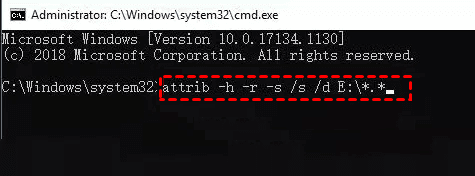
This is also a command tool. Different from the above one, this attrib command is used to change file attributes (e.g., hidden, read-only, system files) on storage devices.If files on your SanDisk device are missing but not deleted since they have been marked as hidden or system files (e.g., due to a virus or improper ejection), you can use it to remove the hidden, read-only or system files attributes by the command below:
attrib -h -r -s /s /d E:\*.*
Conclude
This guide provides both Windows built-in and third-party tools for SanDisk file recovery, take your situation into consideration and then choose a proper one. If you frequently need to recover data or the amount of data to be recovered is large, MyRecover is an excellent choice. It supports a wide range of file types, offers fast and deep scanning modes, and ensures a high recovery success rate for SanDisk USB recovery, SD card recovery, HDD or SSD recovery and other brands of devices.

Stay Updated With Our
Latest Tips
Add us as a preferred source on Google to never miss helpful guides.
 Add as preferred source >>