 MyRecover



Fixed: There is No Media in The (Specified) Device
Struggling with your storage drive? Our complete guide shows you how to fix "there is no media in the device " error quickly. Understand the causes, apply tested methods, and recover your files or restore your device without losing important data.

By Vera / Updated on May 13, 2026


Introduce
The "Virtual Disk Error: There is no media in the device" is a common yet perplexing issue that typically occurs when using the Diskpart command-line utility or attempting to format a removable drive. It indicates that while the computer recognizes the presence of a storage controller, it cannot communicate with the actual flash memory or disk platter inside.
An error in diskpart command encountered as "Virtual Disk Error: There is no media in the device " when I tried to fix a flash drive which is unreadable. How can I fix it?
- Question from Quora
Have you ever plugged in your USB, SD card, or external hard drive and been greeted with the frustrating message: "there is no media in the device"? If yes, you’re not alone. This error can strike out of nowhere, leaving you staring at your device wondering where your files went. Don’t worry—we’ve got you covered. By the end of this guide, you’ll know why it happens, how to fix it, and how to prevent it from happening again.
What Does "There Is No Media in the Device" Mean?
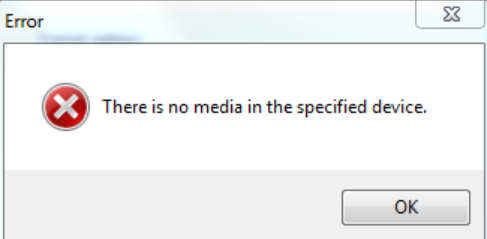
When your device shows "there is no media in the device", it usually means your computer or device can detect the hardware (the "container"), but it can’t access the data (the "contents"). Imagine seeing a locked treasure chest—you know it’s there, but you don’t have the key, or perhaps the chest is actually empty.
In technical terms, the Master Boot Record (MBR) or the Partition Table may be so severely corrupted that the operating system no longer recognizes the drive as a valid storage volume, leading it to report a capacity of 0 bytes.
Common Devices Showing This Error
This error can appear on a variety of storage devices, including:
- USB flash drives
- SD cards/MicroSD cards
- External hard drives (HDDs and SSDs)
- Memory cards in cameras or drones
Basically, any removable storage device is vulnerable.
How This Error Can Affect Your Files
When this error appears, your files may not be gone—yet. Sometimes the data is still on the device but inaccessible because the "index" of the drive is broken. However, the danger lies in "brute-force" fixes; incorrect troubleshooting or forced formatting can lead to permanent data loss. That’s why knowing the right steps is crucial.
Causes of "There Is No Media in the Device"
Several factors can trigger this error. Let’s break down the most common ones.
- ⭕Corrupted File System: Improper ejection, sudden power failures, or software glitches can damage the file system. Without a readable file system, your device appears empty to your computer.
- ⭕Physical Damage to the Storage Device: Worn-out NAND flash chips, bent connectors, or damaged controller chips can prevent your computer from accessing the media. Physical issues often need professional repair.
- ⭕Virus or Malware Infection: Malware can corrupt the file system or hide data, making the device seem empty (e.g., Glyph drive not showing up). A quick antivirus scan can sometimes solve the problem.
- ⭕Driver or Software Conflicts: Outdated or missing drivers may prevent your device from being recognized. Conflicts with other software can also trigger this error.
- ⭕Insufficient Power Supply: Sometimes, front-panel USB ports on a PC case do not provide enough voltage to initialize the drive's media, leading to this error.
How to Fix "There Is No Media in the Device"
Before attempting deep system repairs, we must start with the hardware layer to ensure the device is communicating properly with the operating system.
1. Basic Troubleshooting Steps
The logic here is to eliminate "environmental" variables like faulty ports or temporary OS glitches that might be blocking the data path.
- 1️⃣Restart Your Computer: This resets the USB controllers and clears temporary cache errors that might be causing the "No Media" glitch.
- 2️⃣Try a Different USB Port or Card Reader: Always prefer the rear USB ports on a desktop computer as they are soldered directly to the motherboard, providing more stable power and data transfer than front-panel ports.
- 3️⃣Check the Device in Another PC: If the error persists on a second computer, the issue is definitely with the drive itself and not your PC’s configuration.
If basic hardware checks don't resolve the issue, the problem likely lies in how Windows manages the device's drivers or logical assignment.
2. Using Disk Management or Device Manager
This method addresses "Logical Disconnects." Sometimes the hardware is fine, but Windows has lost the pathing to the drive or is using a corrupted driver.
👉Reassign a Drive Letter:
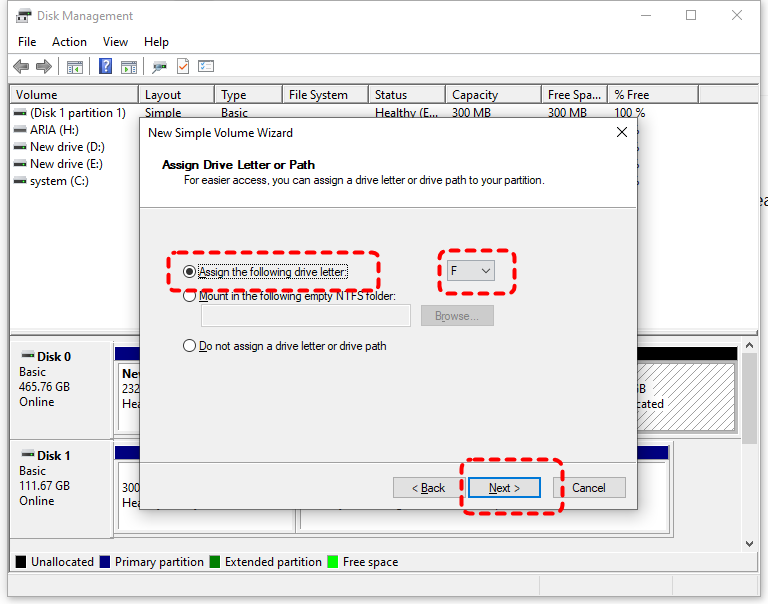
1. Open Disk Management (Right-click Start > Disk Management).

2. Find your removable drive. Even if it says "No Media," right-click the drive area and select Change Drive Letter and Paths.
3. Assign a new letter (e.g., from E: to M:). This forces the OS to refresh its mounting point.
👉Update/Uninstall Drivers:
1. Right-click Start > Device Manager.
2. Expand Disk drives, right-click your USB/SD card, and select Uninstall device.

3. Unplug the drive, restart your PC, and plug it back in. Windows will automatically reinstall the fresh drivers.
In many cases, the "No Media" error prevents the OS from "seeing" the file structure. Before moving to aggressive repairs like formatting—which will wipe your data—it is highly recommended to use a data recovery tool to extract your files while the drive is still partially recognized.
3. Recovering Data with MyRecover
MyRecover is specifically engineered to handle "Virtual Disk" and "RAW" errors where Windows Explorer fails. While Windows might see "No Media," MyRecover can often bypass the corrupted file system layer to communicate directly with the storage sectors, allowing you to rescue your photos and documents before the hardware fails completely.
Why choose MyRecover for this specific error?

 MyRecover
- 💙Works on Different Devices: It can recover data from hard drives, USBs, SD cards, and SSDs.
- 💙Deep Scan Capability: It can locate partitions that Diskpart claims are missing.
- 💙High Success Rate: It supports over 1000+ data types, ensuring that even if the drive's file system is "No Media," your specific files are identified by their unique signatures.
 100% Secure
Here’s a detailed guide on how to use it:
1. Download and Install MyRecover
Visit the official MyRecover website and install it on your computer. It works on Windows and is user-friendly even for beginners.
2. Connect Your Device
Plug in the USB, SD card, or external drive showing "there is no media in the device". Make sure the device is detected, even if the data isn’t accessible.
3. Launch MyRecover and Select the Device
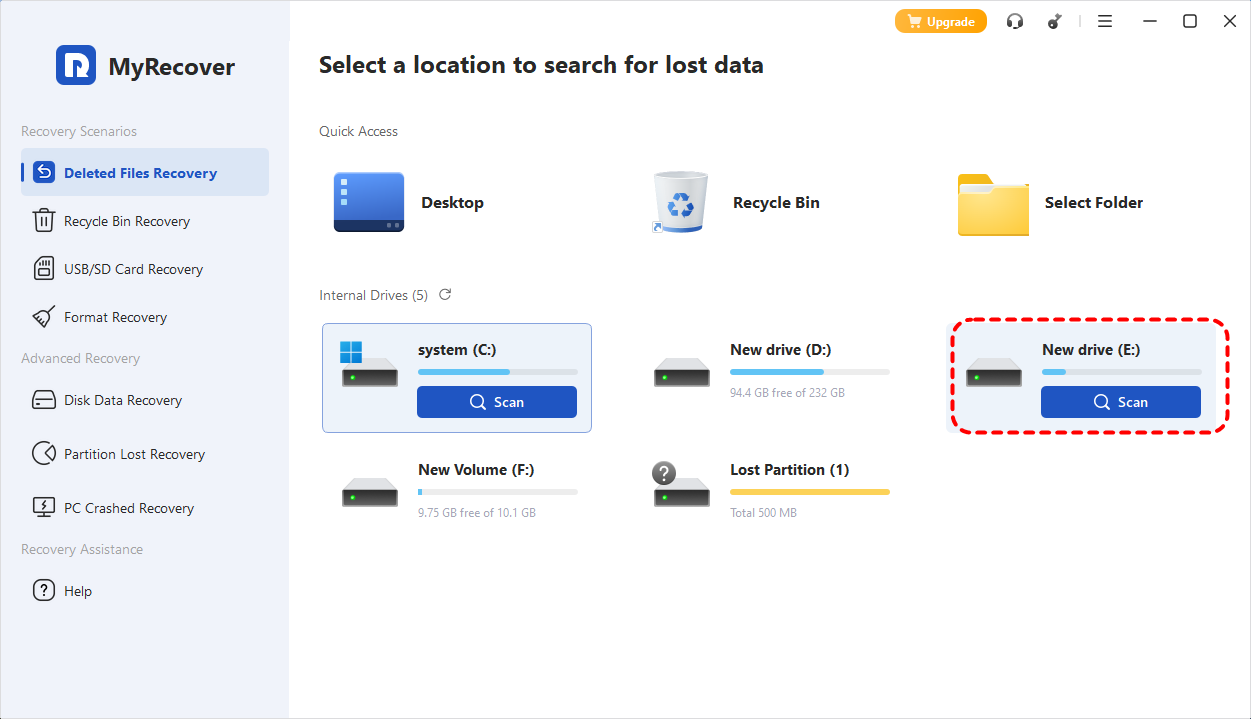
Open MyRecover and select the recovery mode according to the situation. Find the problematic drive.
4. Start a Deep Scan
Click "Scan". MyRecover will perform a scan quickly to look for all recoverable files, including photos, documents, videos, and more.
5. Preview Files
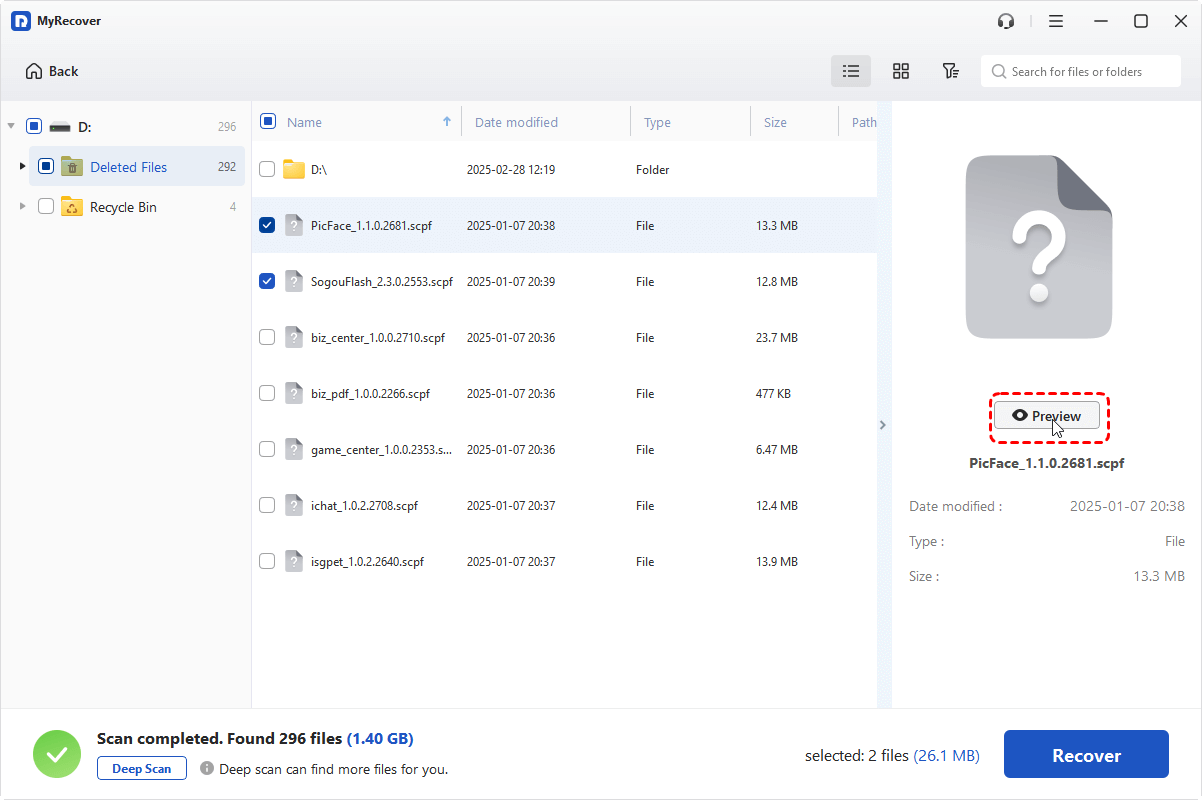
Once the scan is complete, you can preview the files. This step ensures you only recover the files you need.
6. Recover and Save
Select the files you want to restore and click "Recover". Save them to a different drive to avoid overwriting existing data.


This process is safe, easy, and often retrieves files even when Windows crashed or Disk Management cannot access the device.
Once your data is safely recovered, you can proceed with more "destructive" repairs to fix the drive's file system integrity.
4. Repairing with Command Prompt (CHKDSK & Diskpart)
This method attempts to fix the internal logic of the drive. CHKDSK scans for bad sectors and directory errors, while Diskpart can be used to "clean" the drive's configuration entirely.
👉Using CHKDSK:
1. Type cmd in the search bar and Run as Administrator.
2. Type chkdsx X: /f /r (Replace X with your drive letter).
3. Logic: The /f flag fixes errors, and /r locates bad sectors and recovers readable information.
👉Using Diskpart Clean:
1. In the CMD window, type diskpart.
2. Type list disk and identify your drive number (e.g., Disk 2).
3. Type select disk 2 (be extremely careful to select the right one).
4. Type clean. This removes all partition and volume information, which often clears the "No Media" state.
If the "clean" command worked, your drive will now be "Unallocated." The final step is to create a new, healthy partition.
5. Formatting the Device via Disk Management
Formatting is the final logical fix. It creates a brand-new file system (FAT32 or NTFS), essentially giving the device a fresh start.
1. Go back to Disk Management.
2. Right-click the "Unallocated" space of your removable drive.
3. Select New Simple Volume and follow the wizard.
4. Choose FAT32 for small USBs/SD cards (under 32GB) or NTFS/exFAT for larger external drives to ensure maximum compatibility.
Preventing This Error in the Future
Prevention is always better than cure. Here are some tips:
- ✔️Always "Safely Remove Hardware": Never pull a drive out while it's writing data. This is the #1 cause of "No Media" errors.
- ✔️Avoid Physical Stress: Use protective cases for SD cards and avoid dropping external hard drives.
- ✔️Monitor Drive Health: Use tools like CrystalDiskInfo to check the S.M.A.R.T. status of your drives periodically.
- ✔️Regular Backups: Keep a secondary copy of important files on a cloud service or a dedicated backup drive.
Conclusion
The "there is no media in the device" error can be alarming, but it’s not always catastrophic. By understanding the causes and following step-by-step fixes—from basic troubleshooting to using MyRecover—you can often restore access to your files and prevent future issues. Always handle your devices with care, back up your data regularly, and stay proactive.
Frequently Asked Questions (FAQ)
1. Why does Diskpart say "No media" but the drive shows up in Device Manager?
Device Manager sees the physical "bridge" or controller of the USB device, confirming the hardware connection is alive. However, Diskpart reports "No media" because it cannot find a valid partition table or readable flash memory on that hardware. This often points to a corrupted MBR.
2. Can MyRecover find files if the drive shows 0 bytes capacity?
Yes. In many "No Media" or "0 byte" scenarios, the file system is corrupted, but the data sectors remain intact. MyRecover can perform a raw scan that ignores the faulty partition table to find files based on their headers (e.g., identifying a JPEG by its unique code), even when Windows thinks the drive is empty.
3. Is "No Media" a sign that my USB flash drive is physically dead?
It can be. If you have tried different ports, updated drivers, and MyRecover still cannot see the drive as a physical device, the NAND flash chip inside may have failed. At that point, professional hardware recovery is the only option.
4. How do I fix "There is no media in the specified device" when using Rufus or etching software?
This usually happens because the drive is "Locked" or has a write-protection error. Try the "Diskpart Clean" method mentioned above to wipe the drive's attributes before using imaging software.
5. Does MyRecover work on Mac for this specific error?
Currently, MyRecover is optimized for Windows 11/10/8/7. If you have a Mac-formatted drive showing this error, you should connect it to a Windows PC and use MyRecover's advanced scan modes to attempt recovery of the files.
6. Can a virus really cause a "No Media" error?
Yes, certain "Partition Table" viruses overwrite the boot sector of a drive. This makes the OS believe there is no storage media present. Running a boot-time antivirus scan or using the "Diskpart Clean" command can usually resolve the virus-related logical damage.
7. What is the difference between "No Media" and "Unallocated Space"?
"Unallocated Space" means Windows sees the drive's capacity but doesn't know what to do with it (no file system). "No Media" is more severe—it means Windows sees the "reader" but doesn't see any "storage" at all.

Stay Updated With Our
Latest Tips
Add us as a preferred source on Google to never miss helpful guides.
 Add as preferred source >>