 MyRecover



This Card Is Not Formatted Format the Card: Complete Fix Guide
'This card is not formatted format the card' is a common error that occurs when a memory card cannot be recognized properly by a camera or computer. In this complete fix guide, we break down the main causes behind the error and provide practical solutions to resolve it without unnecessary data loss. You'll learn how to safely format or repair your memory card using both camera and computer-based methods.

By Aria / Updated on May 13, 2026


What Does This Card is not Formatted Mean on Nikon Camera?
HELP! I put card back in camera to hook up the entire camera to computer and the camera said "card not formatted - format card?" I DID NOT format the card. The pictures are or were there. I was able to view the pictures with my camera just a few days ago. I don't know what happened. I hooked it to my pc via a card reader and it says E:\ is not accessible.
I am a photographer. I've never had this problem. I absolutely cannot loose these pictures. I am desperate and need the pics today.
- Question from Awander
On a Nikon camera, the message "This card is not formatted. Format the card" means the camera cannot read or recognize the memory card’s file system. In other words, the card is either uninitialized, incompatible, or contains a file structure that the camera cannot process, so it prompts you to format it before use.
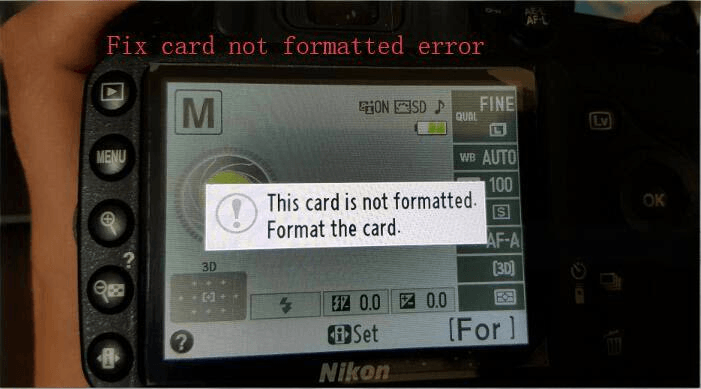
When this error appears, the camera blocks access to the card to prevent further issues. Formatting the card will usually resolve the problem, but it will erase all existing data. If important photos or videos are stored on the card, you'd better ensure your data safe before proceeding with formatting.
Why Does "This Card Is Not Formatted" Error Occur?
Actually, the error is usually not random. It indicates that the camera suddenly loses the ability to interpret the card’s structure, even if the data was accessible just days before. This typically points to underlying issues affecting how the card is read rather than the data being instantly erased. Common causes include:
📂 File system corruption
This is the most frequent reason. Unexpected removal, interrupted transfers, or power loss can damage the file allocation structure, making the card appear unreadable to both the camera and computer (e.g., "drive is not accessible").
💾 Bad sectors or physical wear
Memory cards degrade over time. If critical sectors storing file system information become unreadable, the device will treat the card as unformatted.
🔌 Connection or reader issues
A faulty card reader, loose connection, or incompatible USB port can prevent proper detection, triggering misleading format errors.
🛡️ Virus or malware interference
When connected to a computer, malicious software can alter or hide file structures, causing the card to appear blank or unformatted.
🖥️ Cross-device compatibility conflicts
Switching frequently between different cameras, computers, or operating systems can lead to inconsistencies in how the card is structured and recognized.
Important: Recover Data First Before Formatting the Card with MyRecover
In such a situation, many users click "Format" to make the SD card usable again, as it seems to be the quickest solution. However, this will permanently erase all your data. Therefore, do not format the SD card and stop using it immediately. There is still a high chance to recover your photos and videos before formatting.
This is where a professional recovery tool like MyRecover becomes essential. Instead of taking risks with manual fixes, using a dedicated solution MyRecover allows you to safely scan the memory card and retrieve lost or hidden files before any formatting takes place. It is designed to recover data from 500+ data loss scenarios like unformatted memory card, deleted partition, uninitialized disk, emptied Recycle Bin, etc.

 MyRecover
- Recover deleted & lost files from HDD, SSD, USB, SD card, camera as you need.
- Support 1000+ formats of photos, videos, docs, archives, emails, compressed files, etc.
- Reliable rescue for deletion, formatted disk, emptied Recycle Bin, system crashes and more.
 100% Secure
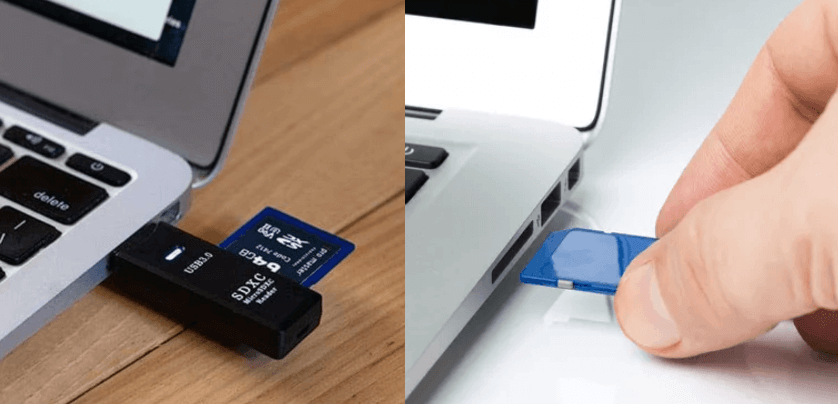
Step 1. Download and install MyRecover on your computer from Microsoft Store or its official website. Connect the camera or SD card to your computer.
Step 2. Run the program and select the drive to scan for lost files, then click "Scan" to start the process.

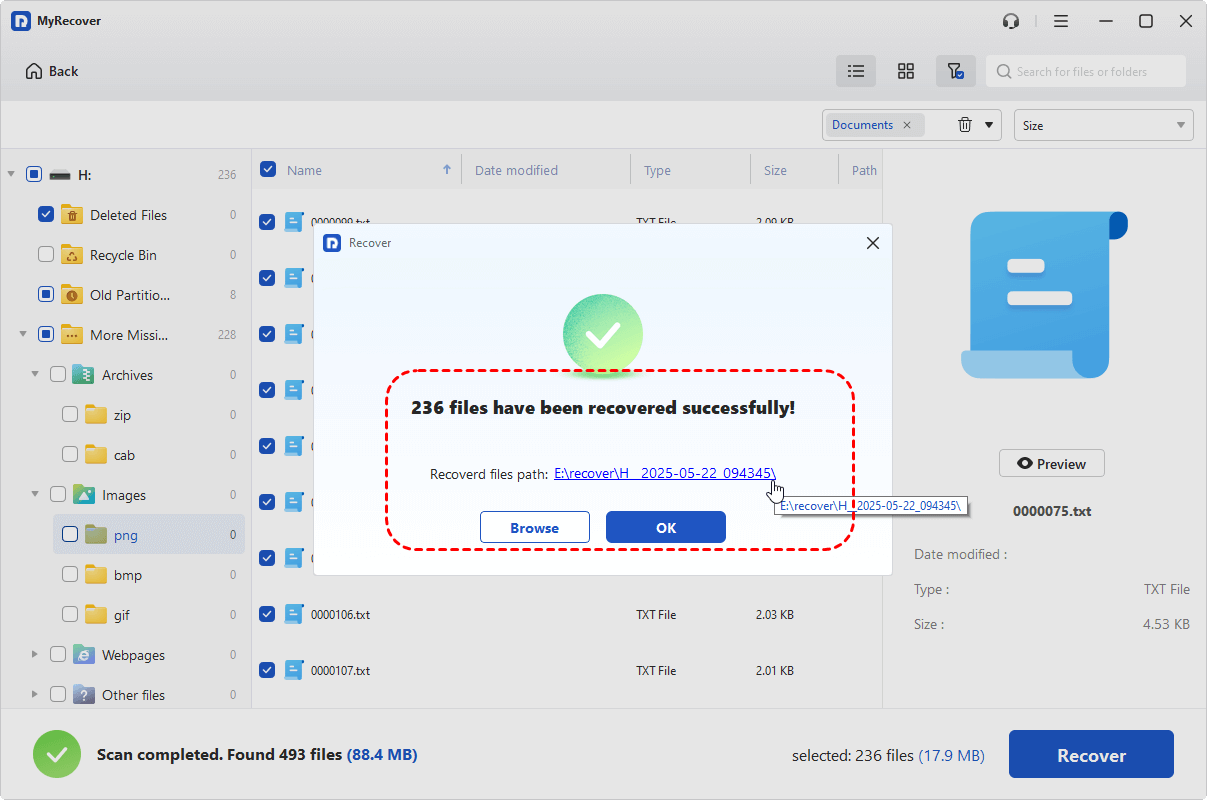
Step 3. After the scanning process is completed, browse through the results and filter the files you want to recover using "Type" or "Path" tab, choose the target files and click "Recover".

Select the "Existing Files" folder under "Path" tab to extract all of the files from the SD card. You can also preview the file content in the right panel before restoration.
Step 4. Choose a safe location to save the recovered files to avoid overwriting original files.

When the process is done, you can access the recovered files in the destination folder by clicking on the "Browse" button.
How to Fix "This Card is Not Formatted Format the Card" Error (Step-by-Step)
After recovering your important files, you can proceed to fix the "This card is not formatted. Format the Card" error safely without worrying about data loss. The following methods progress from basic checks to more advanced repairs, helping you isolate the issue and fix it efficiently without unnecessary risks.
1. Check the Connection
Before applying complex fixes, start by verifying whether the issue is caused by unstable or faulty connections. A loose card reader, damaged USB port, or poor contact between the card and device can prevent proper detection, triggering the format errors. Ensuring a stable and clean connection helps rule out hardware-level miscommunication.
Step 1. Remove the SD card and reinsert it securely into the camera or card reader.
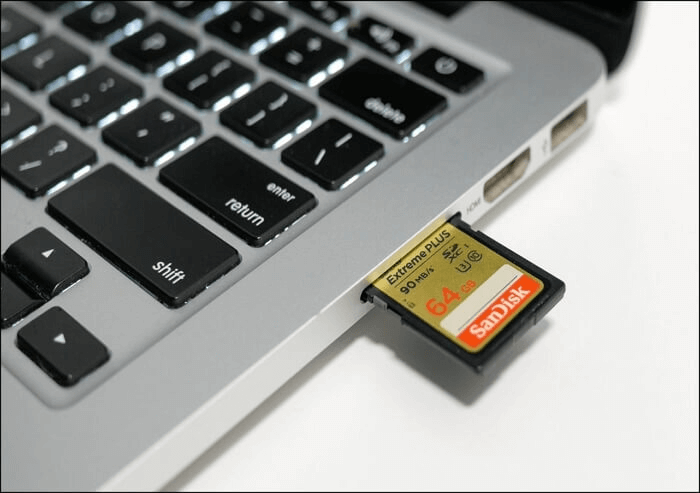
Step 2. Try a different USB port, card reader, or computer to confirm if the issue persists. If the error persists, proceed with the following methods to resolve it.
2. Change the Drive Letter
Sometimes, the system fails to assign or recognize a proper drive letter, making the card inaccessible. Reassigning a new drive letter forces Windows to remap the device, which can resolve access conflicts and restore visibility without modifying the data.
Step 1. Remove the SD card from Nikon camera and connect it to your computer.
Step 2. Press "Win" + "X" and select "Disk Management" to open it.

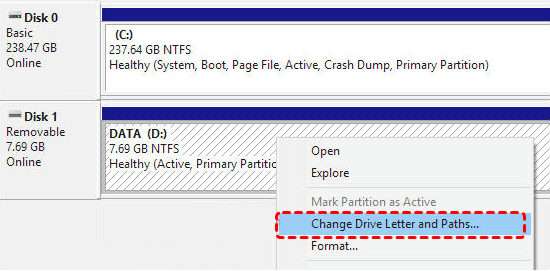
Step 2. Select your SD card and right-click it, then choose "Change Drive Letter and Paths".
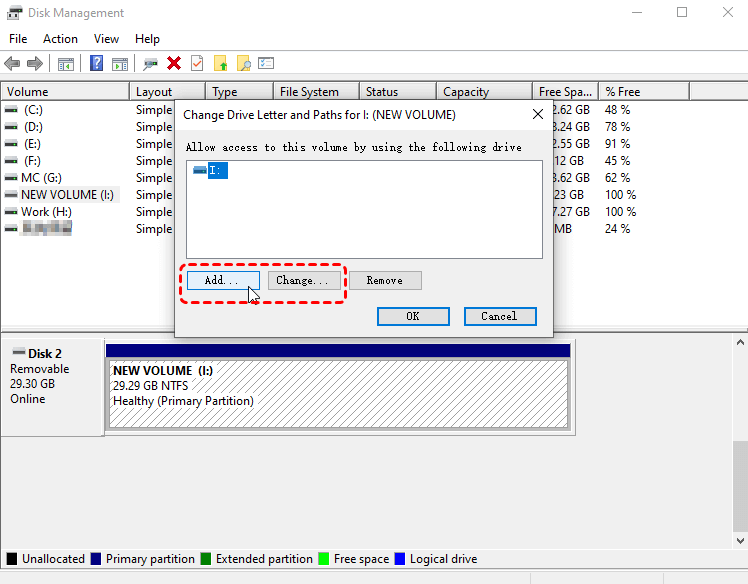
Step 3. Click "Add" or "Change" to assign a new letter, then click "OK" to save the changes.
3. Run CHKDSK Command
CHKDSK is a built-in Windows utility designed to detect and repair logical file system errors. It can fix issues like corrupted file tables or directory errors, which are common causes of the "This card is nor formatted" message, while preserving existing data when possible.
Step 1. Locate "Command Prompt" in the Start menu and run it as administrator.

Step 2. Type "chkdsk X: /f /r" (replace "X" with your actual drive letter) and press "Enter".

Step 3. Wait for the process to complete and allow this tool to repair and fix disk errors. If CHKDSK fails or reports errors like CHKDSK cannot open volume for direct access, your files may still be recoverable using a data recovery tool like MyRecover.
4. Update or Reinstall Driver
Outdated or corrupted drivers may prevent the system from correctly recognizing the SD card. Updating or reinstalling the disk driver ensures proper communication between the hardware and operating system, eliminating the "This card is not formatted. Format the card" errors on Nikon camera.
Step 1. Press "Win" + "X" and choose "Device Manager" to open it.

Step 2. Expand "Disk drivers" and select your SD card, then right click on it and choose "Update driver".

Step 3. Click "Search automatically for updated driver software" to continue the process.
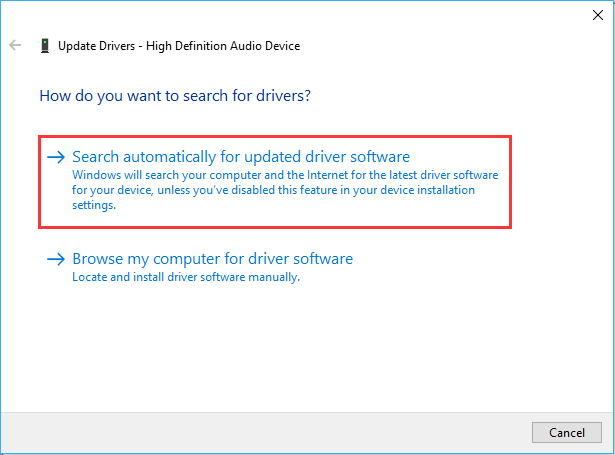
Step 4. If the "This card is not formatted. Formatted the card" error is still here, you can choose "Uninstall device" to uninstall it. Restart your computer to reinstall the drive.

5. Scan for Malware or Virus
Malware infections can alter file systems or hide data, making the card appear unformatted. Running a full system scan helps detect and remove threats that may interfere with normal storage device behavior and cause the not formatted errors. Here we take Windows Defender as an example:
Step 1. Connect SD card to your computer and locate it in File Explorer.
Step 2. Right click on it and choose "Scan with Microsoft Defender" to perform a quick scan for the driver.
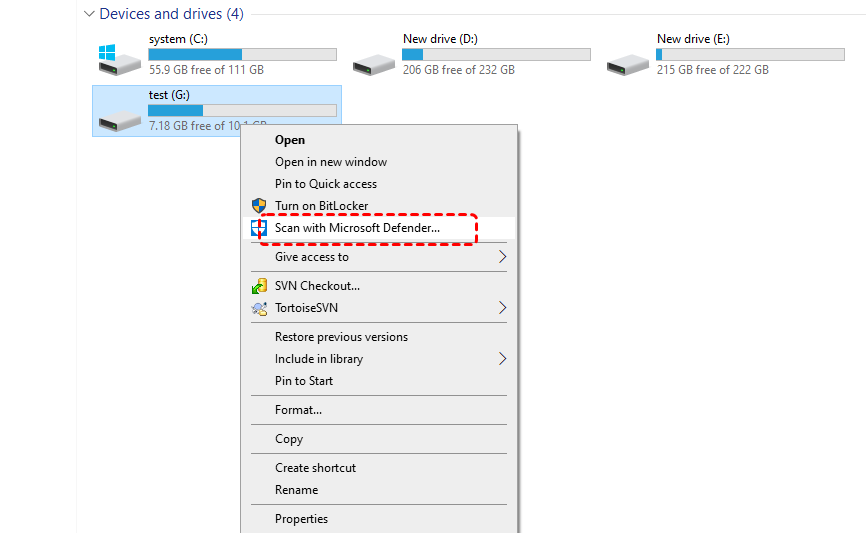
Step 3. After the quick scan, you can click "Scan options" > "Full scan" to perform a comprehensive scan on your system for all the running programs and drivers.
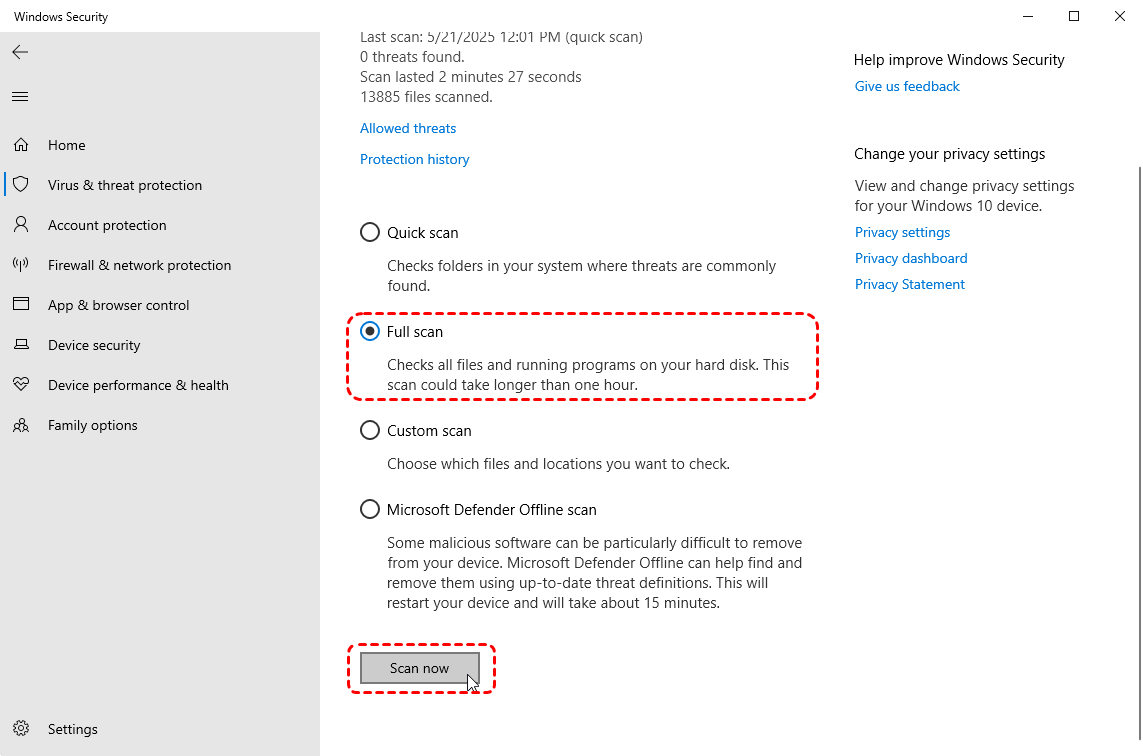
Step 4. If any threats are detected, remove or quarantine it to restore the SD card normal functionality.
6. Format the Card (Last Resort)
If the file system of the SD card is incompatible with your device, for example, using Ext4 on a Windows PC or camera, the "This card is will appear. Format the Card" error will appear. Formatting becomes the final step to restore usability. This process rebuilds the file system, removing corruption and making the card functional again for your camera or device.
Before performing this operation, please recover your files from the memory card at first.
Step 1. Insert the SD card into your camera or computer.
Step 2. Open File Explorer and locate the SD card, then right click on it and choose "Format".
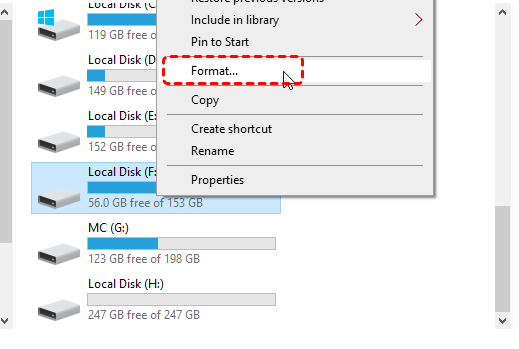
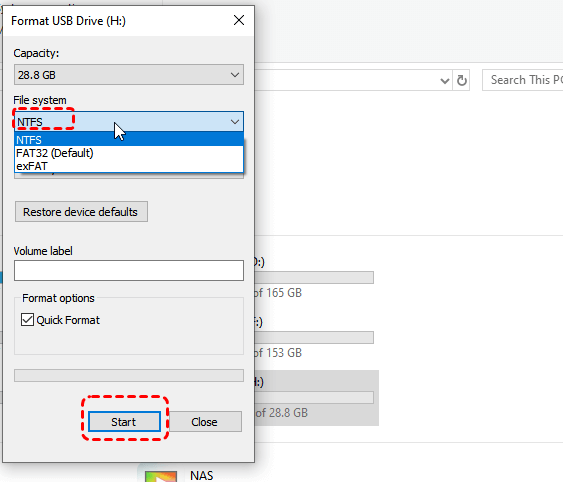
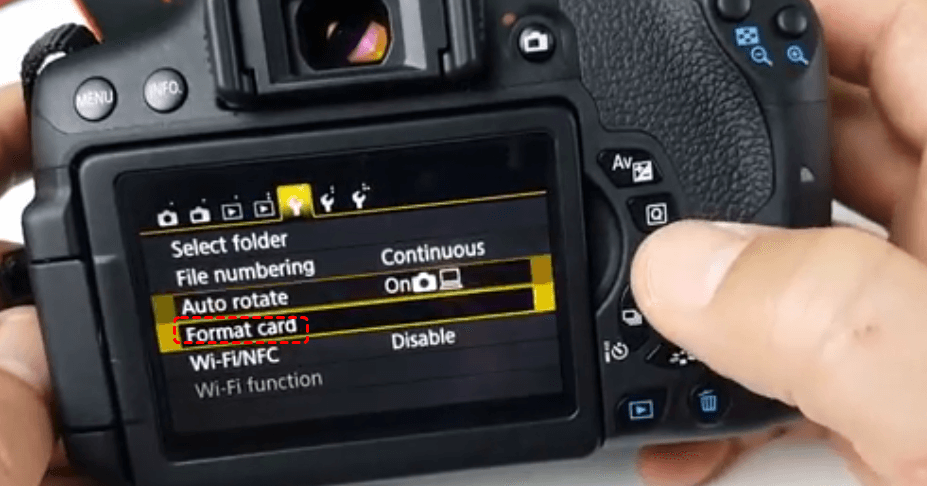
Step 3. Choose "Format" and choose a correct file system, then click "OK" to confirm the operation. You can also format it in camera settings.
How to Prevent SD Card Not Formatted Error
After fixing the issue and restoring access to your SD card, preventing the error from happening again is equally important, especially for photographers or users handling critical data. Most "not formatted" errors stem from avoidable habits or improper handling, so adopting a few best practices can significantly reduce the risk.
👉 Always eject the card safely
Whether using a camera or computer, avoid removing the card while data is being written or transferred. Use the "Safely Remove Hardware" option on Windows to prevent file system corruption. (You may want to check: no eject option to eject hard drive.)
👉 Format the card in the camera before use
Even if the card works on a computer, formatting it directly in your camera ensures compatibility with the device’s file system and reduces read/write conflicts.
👉 Avoid frequent switching between devices
Using the same card across multiple cameras or operating systems can lead to format inconsistencies. If switching is necessary, reformat the card before using it on a new device.
👉 Keep the card and ports clean
Dust or debris on the card’s contacts or inside the card slot can cause connection issues. Periodically check and clean them carefully.
👉 Replace aging or unreliable cards
SD cards have a limited lifespan. If you notice repeated errors, slow performance, or bad sectors, consider replacing the card to avoid sudden failures.
Conclusion
The "This card is not formatted. Format the card" error on a Nikon or other cameras usually indicates a file system issue rather than immediate data loss. While the message may seem alarming, especially when important photos are involved, the data is often still recoverable if handled correctly.
The key is to avoid formatting the card right away. Instead, prioritize data recovery using a reliable method like MyRecover, then proceed with step-by-step fixes to restore the card’s functionality. From checking connections to repairing file system errors and finally formatting if necessary, each step helps isolate and resolve the root cause safely.
FAQs
Q1: What does it mean if my card is not formatted?
It means your device cannot recognize the card’s file system. This usually happens when the card is new, corrupted, or incompatible with the device. The data may still exist, but the system cannot access it until the card is properly initialized or repaired.
Q2: How do I fix my SD card not formatting?
Try formatting the card on a different device, such as a computer or another camera. If that fails, use Disk Management or Command Prompt tools like CHKDSK. You may also need to remove write protection or update drivers to resolve formatting issues.
Q3: Why does my Nikon camera say my card is nor formatted?
This message appears when the camera cannot read the card’s file structure. It may be due to corruption, incompatibility, or improper formatting on another device. The camera requires a compatible file system, so it prompts you to format the card before use.
Q4: Why I can't format my card on my camera?
You may be unable to format the card due to physical damage, write protection, or severe file system corruption. In some cases, compatibility issues or firmware limitations can also prevent formatting. Using a computer to format the card may help resolve the problem.
Q5: How to fix a memory card that needs formatting?
First, recover any important data using a reliable recovery tool like MyRecover. Then, attempt to repair the card using CHKDSK or similar utilities. If the issue persists, format the card on your camera or computer to rebuild the file system and restore usability.
Q6: How to format corrupted SD card without losing data?
You cannot format a card without data loss directly. Instead, recover your files first using recovery software such as MyRecover, then format the card. This ensures your data is safe before the file system is rebuilt, allowing safe reuse of the SD card afterward.

Stay Updated With Our
Latest Tips
Add us as a preferred source on Google to never miss helpful guides.
 Add as preferred source >>