 MyRecover



We Can’t Sign into Your Account Windows 10: Full Solutions
The 'we can't sign into your account' error usually appears when the system fails to load your user profile correctly. Fortunately, this issue is often repairable with several proven troubleshooting methods. By following the step-by-step instructions in this article, you can quickly identify the root cause of the error and restore normal access to your Windows account without losing important data.

By Aria / Updated on March 11, 2026


Introduction
I get the above error message every time I try to sign in. It says that I'll be logged in under a temporary profile. I've signed out and back in about 6 times and it always comes back up. I have been able to log into safe mode with my account but as soon as I restart my computer it goes right back to this error message again. How can I fix this problem and log back into my regular profile??
- Question from Gene
When you start your computer and see the message "We can’t sign into your account" on Windows 10, it usually means the system failed to load your user profile correctly. Instead of signing you into your normal account, Windows may log you in with a temporary profile or prevent you from accessing your personal environment altogether. As a result, your desktop settings may reset, files may appear missing, and changes made during the session may not be saved after you sign out.
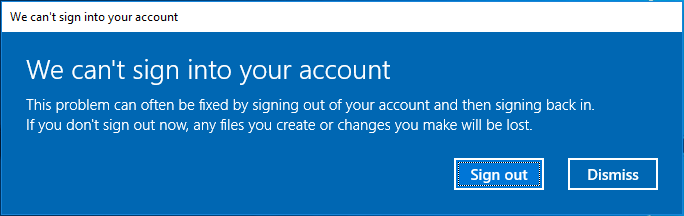
In most cases, the error indicates that Windows cannot properly load the user profile associated with your account, which prevents the system from initializing your usual settings and data. Although the message can be alarming, especially when it seems like your files or account data have disappeared, there is usually no need to panic. In many situations, the issue is temporary and can be resolved with several practical fixes.
Common Causes of "We Can’t Sign into Your Account" Error
To resolve this issue effectively, it is important to understand what may prevent Windows from loading a user profile correctly. Several common factors can trigger this behavior.
📂Corrupted User Profile
If the user profile files become damaged or improperly configured, Windows may fail to load the profile during sign-in. When this happens, the system may automatically log you into a temporary profile instead of the original one.
✂️Interrupted Windows Updates or System Shutdowns
Unexpected shutdowns, power failures, or interrupted updates can damage profile-related system files or registry entries. This may cause Windows to lose the correct path to the user profile during the next login.
🖥️Incorrect Registry Entries
Windows stores user profile information in the system registry. If these entries become duplicated, corrupted, or incorrectly modified, the system may not be able to locate the correct profile folder.
💾Disk or File System Errors
Problems with the system drive, such as file system corruption or bad sectors, can interfere with the loading of profile data and cause sign-in failures.
🛠️Third-Party Software Conflicts
Certain antivirus programs, system optimization tools, or recently installed software may interfere with the user profile service, leading Windows to load a temporary profile.
How to Fix "We Can't Sign into Your Account" Windows 10
After identifying the possible causes, it's time to apply targeted solutions to restore access to your original profile. The following fixes are arranged in a logical order so you can resolve the "We can’t sign into your account" Windows 10 error step by step.
Fix 1. Restart Your Computer and Sign in Again
Sometimes the error occurs due to a temporary glitch in the User Profile Service during startup. A simple system restart allows Windows to reload services and attempt to reconnect to the correct user profile. If the issue was caused by a minor startup conflict or incomplete login process, restarting the system may restore normal access without additional changes.
Step 1. Click the "Start" menu and select "Power" > "Restart".

Step 2. After the system restarts, enter your account credentials and try signing in again.
Fix 2. Sign Out and Sign Back in
If Windows logs you into a temporary profile, signing out of the session and logging in again may force the system to reload the correct profile. This method is especially useful when the issue occurs during a single login session and the original profile files are still intact.
Step 1. Click "Sign out" on the error message screen.
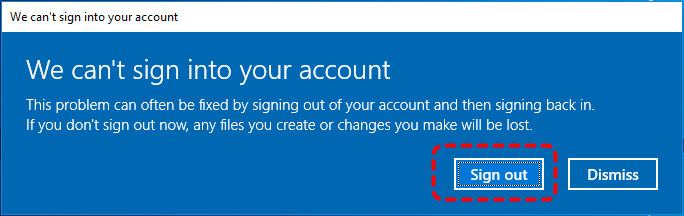
Step 2. Wait for the login screen to appear, then sign in again using your correct account.
Fix 3. Enter Safe Mode
Booting into Safe Mode allows Windows to start with only essential drivers and services. This environment can help determine whether the "we can't sign into your account" error is caused by third-party software or background services interfering with the user profile loading process.
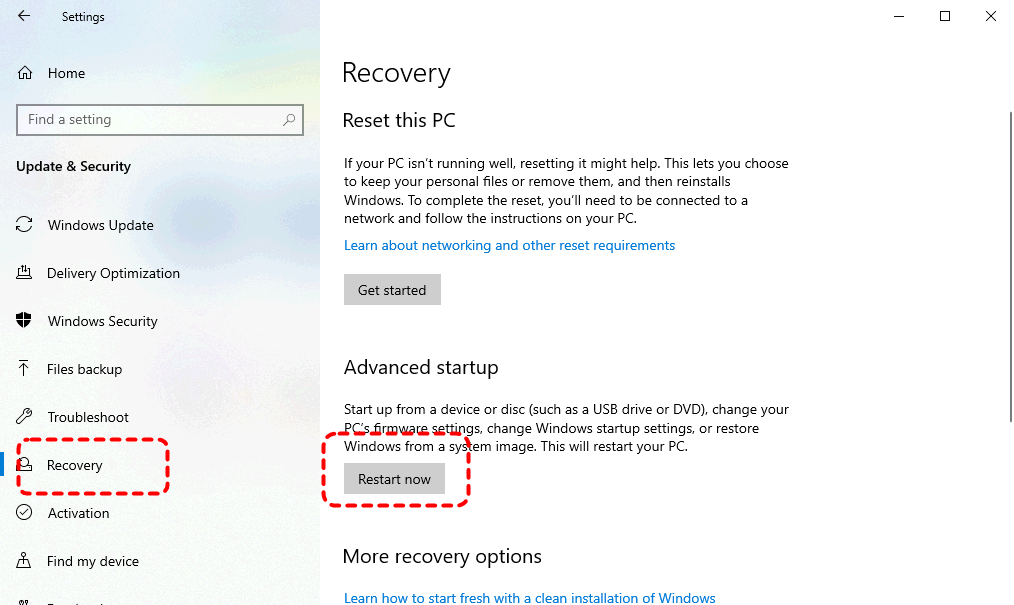
Step 1. Go to "Settings" > "Update & Security" > "Recovery", and click "Restart now" under "Advanced startup" section.
Step 2. Navigate to "Troubleshoot" > "Advanced options" > "Startup Settings", then click "Restart".
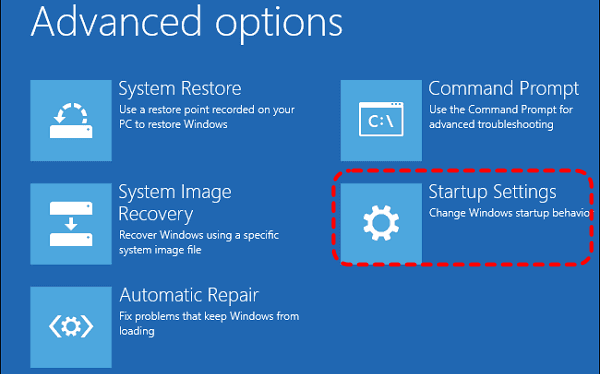
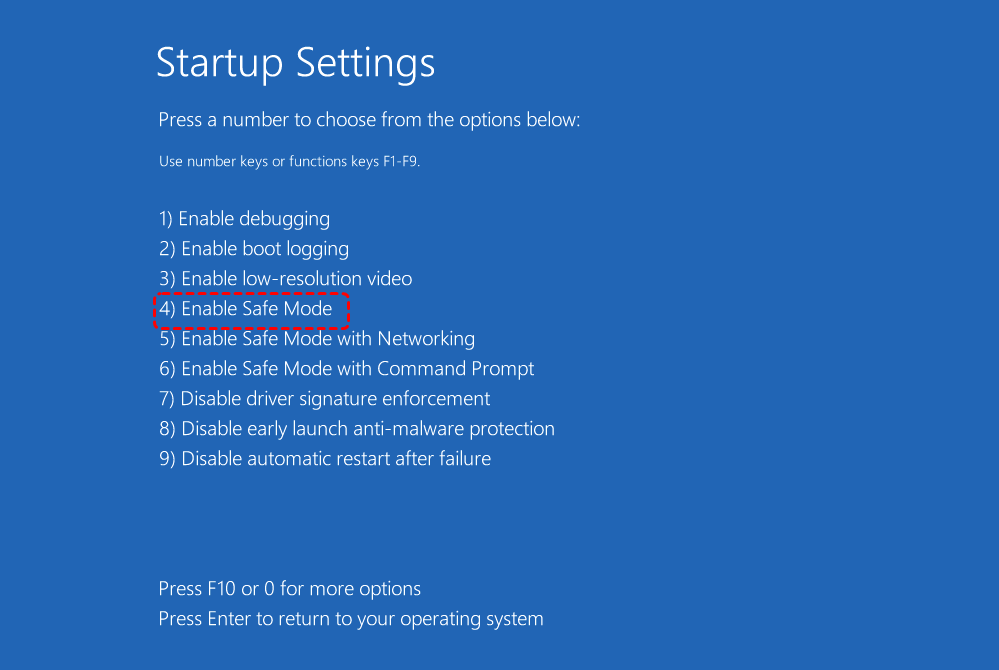
Step 3. Press F4 to boot into Safe Mode and try signing in with your account again to check if the error persists.
Fix 4. Run SFC and DISM Commands
Corrupted system files can prevent Windows from loading important components related to user profiles. The built-in System File Checker (SFC) and DISM tools scan the system for damaged files and automatically repair them, which may restore normal login functionality.
Step 1. Locate Command Prompt in the Start menu and right-click it, then choose "Run as administrator".

Step 2. Type the following command and press "Enter" to repair system image:
DISM /Online /Cleanup-Image /RestoreHealth
Step 3. After it finishes, run the next command to scan and repair system files:
sfc /scannow

Step 4. Restart the computer once the scan is completed to check if the "we can't sign into your account" error is still here.
Fix 5. Run the CHKDSK Command
Disk errors or file system corruption on the system drive may interfere with user profile data. Running the CHKDSK command scans the drive for errors and attempts to repair problematic sectors that could prevent Windows from accessing profile files correctly.
Step 1. Open Command Prompt and run it as administrator.
Step 2. Enter the following command "chkdsk G: /f /r" and press "Enter".

Fix 6. Check Windows Updates
Outdated or incomplete system updates can sometimes cause compatibility issues with user profile services. Installing the latest updates ensures your system has the latest patches and fixes that may resolve sign-in problems.
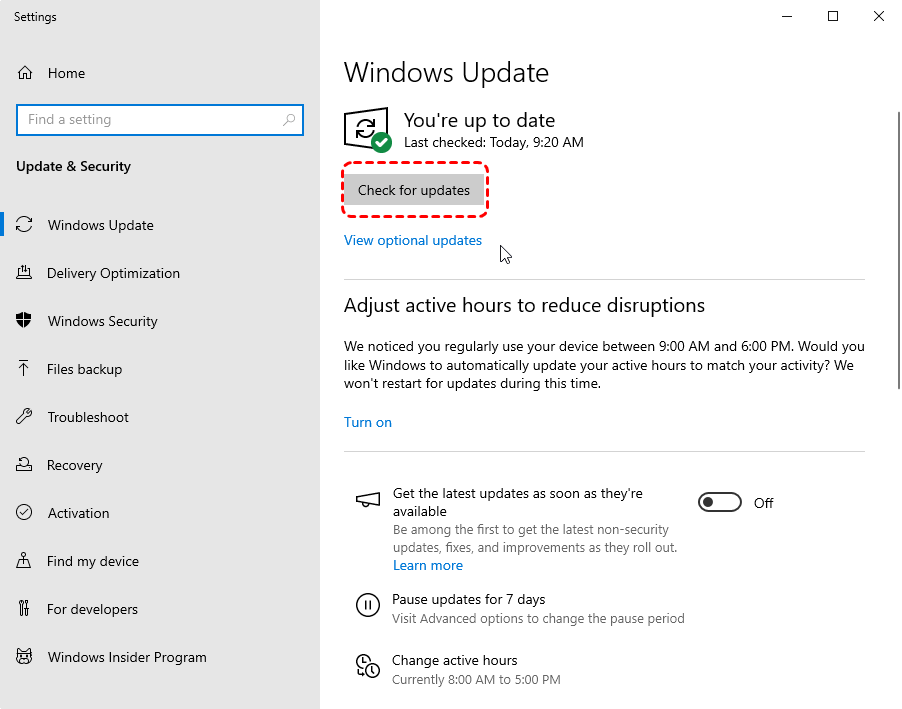
Step 1. Go to "Settings" > "Update & Security" > "Windows Update".
Step 2. Click "Check for updates" and install any available updates, then restart your computer.
Fix 7. Fix Corrupted Profile Data from the Registry
Windows stores user profile configuration in the Registry Editor. If the registry entries become duplicated or corrupted, the system may fail to locate the correct profile path. Editing the related registry entries can help restore the correct configuration.
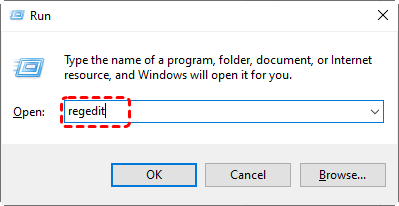
Step 1. Press "Win" + "R" and type "regedit" in the Run dialog, then press "Enter" to open Registry Editor.
Step 2. Navigate to the following path:
HKEY_LOCAL_MACHINE\SOFTWARE\Microsoft\Windows NT\CurrentVersion\ProfileList
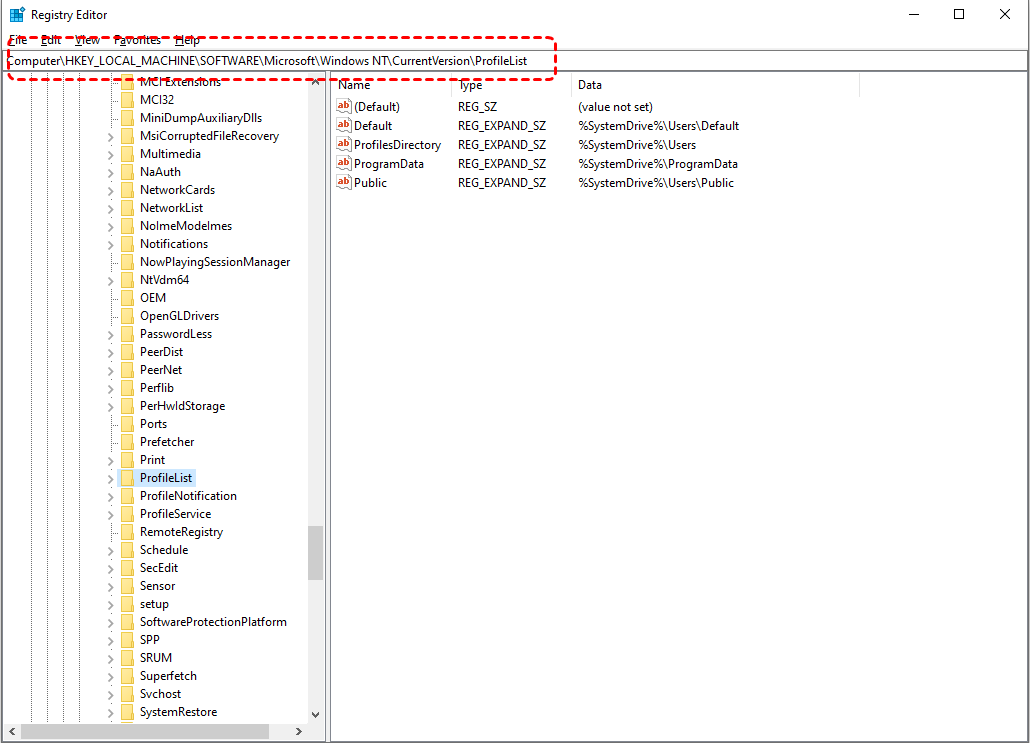
Step 3. Locate your profile entries with the same SID, especially those ending with ".bak".
- Notes:✎...
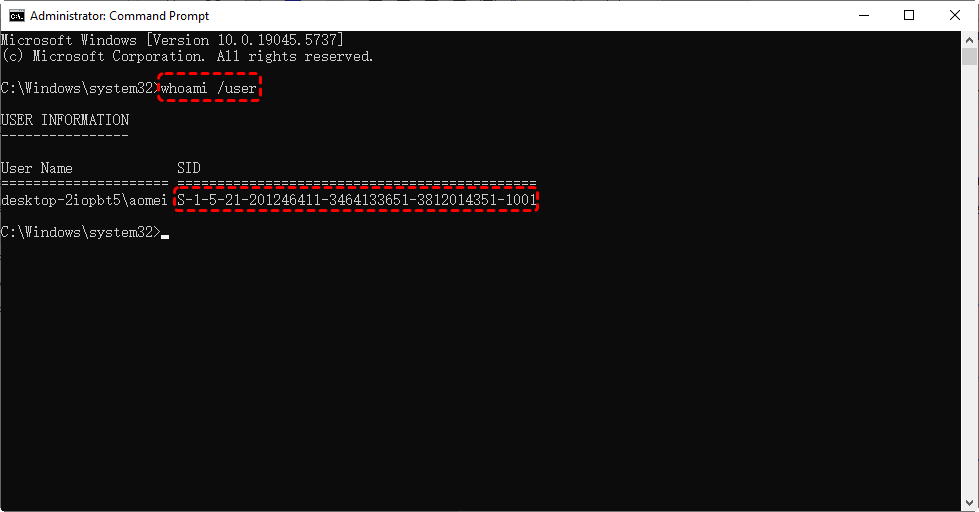
- How to check the SID of your profile:
- Run Command Prompt as administrator and enter the following command "whoami /user". The number displayed in the command result is your account SID, such as S-1-5-XXX.
-

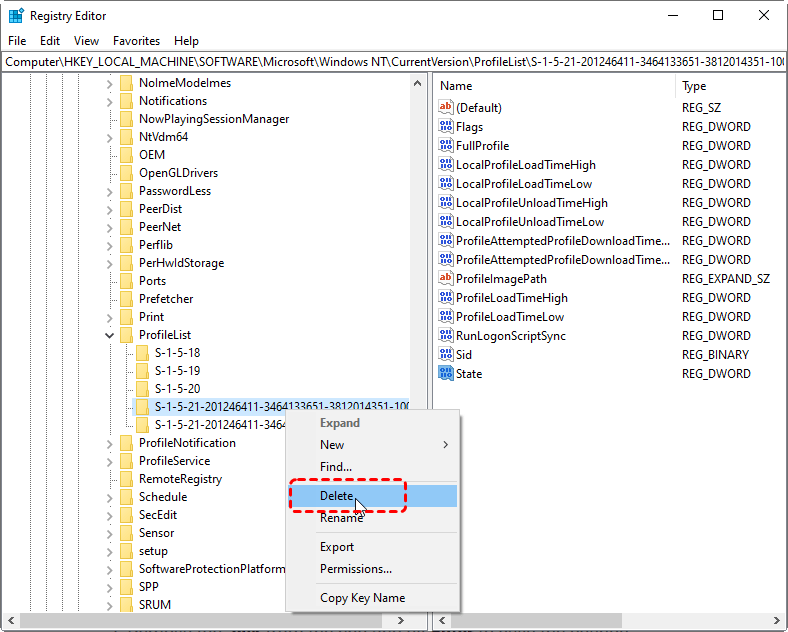
✔️If the account's SID is listed twice, one ending with ".bak" extension and the other does not:
Select the folder without ".bak" extension and right click on it, then choose "Delete".
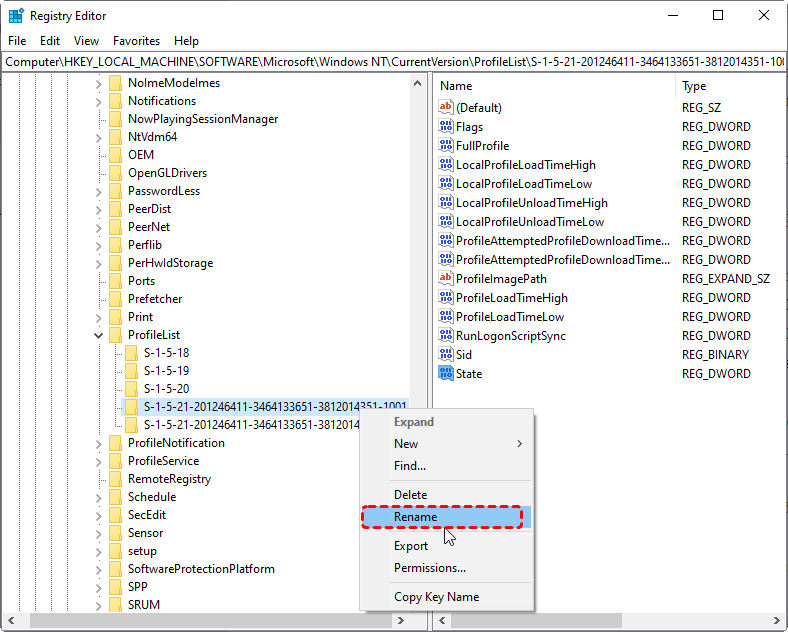
✔️If the SID is list only once with a ".bak" extension:
Right click on the folder with ".bak" extension and select "Rename". Delete ".bak" extension from the end and press "Enter" to save the change.
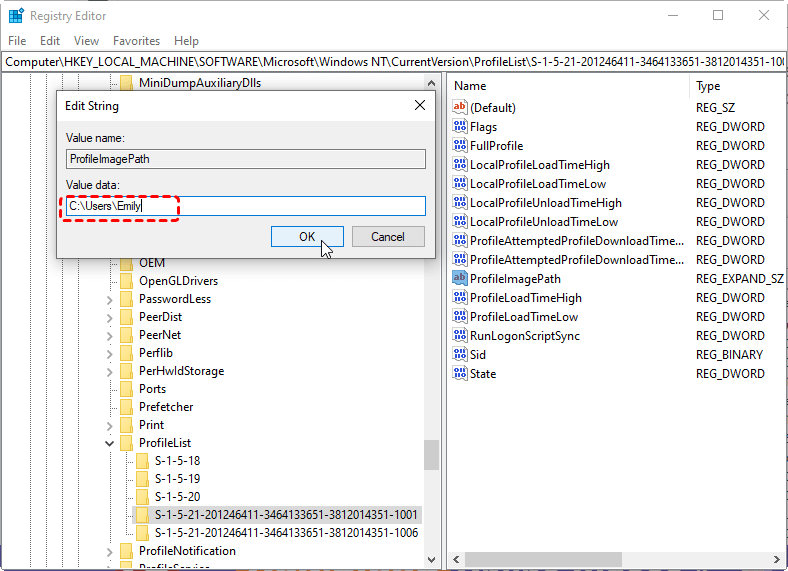
✔️If the SID is listed only once without ".bak" extension:
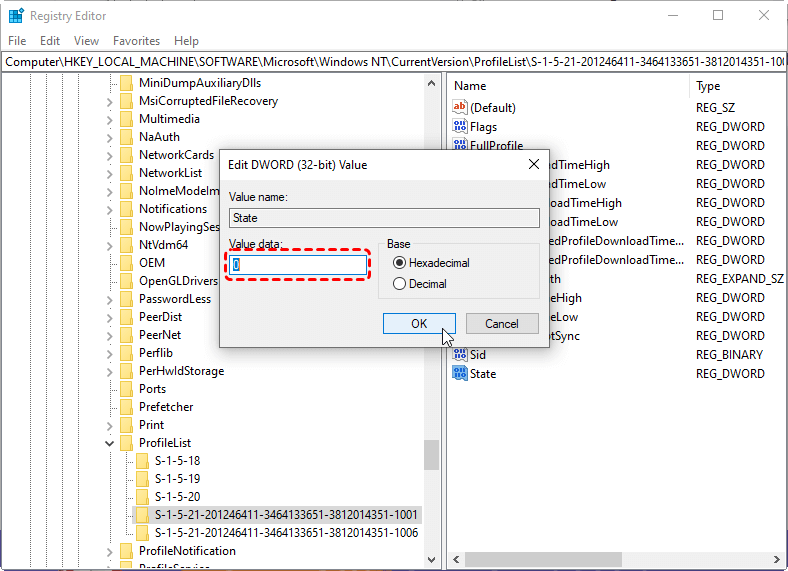
Expand the folder with correct SID and double click on the "ProfileImagePath" string in the right panel, then enter the correct user path like (C:Users\UserName) under the "Value Data" and click "OK".
Double click the "State" string and change its value data to "0", then click "OK".
Fix 8. Disable Third-Party Antivirus Software and Windows Defender
Security software can occasionally block profile-related services or files, which may prevent Windows from loading your account properly. Temporarily disabling antivirus tools helps determine whether they are causing the conflict.
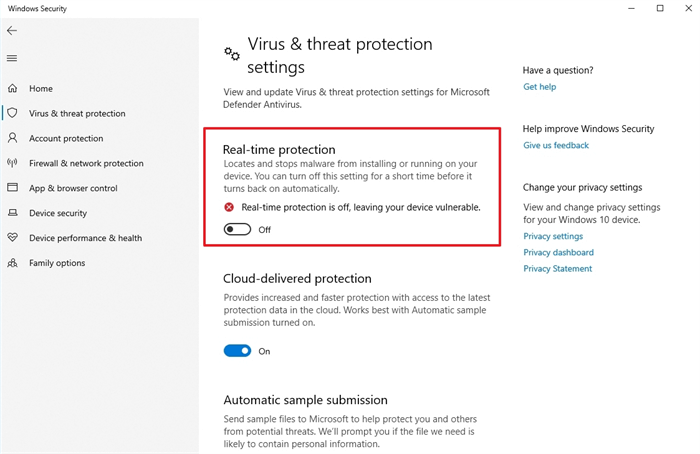
Step 1. Open your third-party antivirus program and disable real-time protection temporarily.
Step 2. Go to "Settings" > "Update & Security" > "Windows Security" > "Virus & threat protection" and turn off real-time protection if necessary.
Step 3. Restart the computer and check whether the sign-in problem is resolved.
Fix 9. Create a New User Account
If none of the previous solutions work, creating a completely new account and transferring your personal files from the old one may be the most reliable option. A new account generates a fresh user profile, which eliminates corruption or configuration issues associated with the old one.
Step 1. Open "Settings" > "Accounts" > "Family & other users" > "Add someone else to this PC" to create a new account.
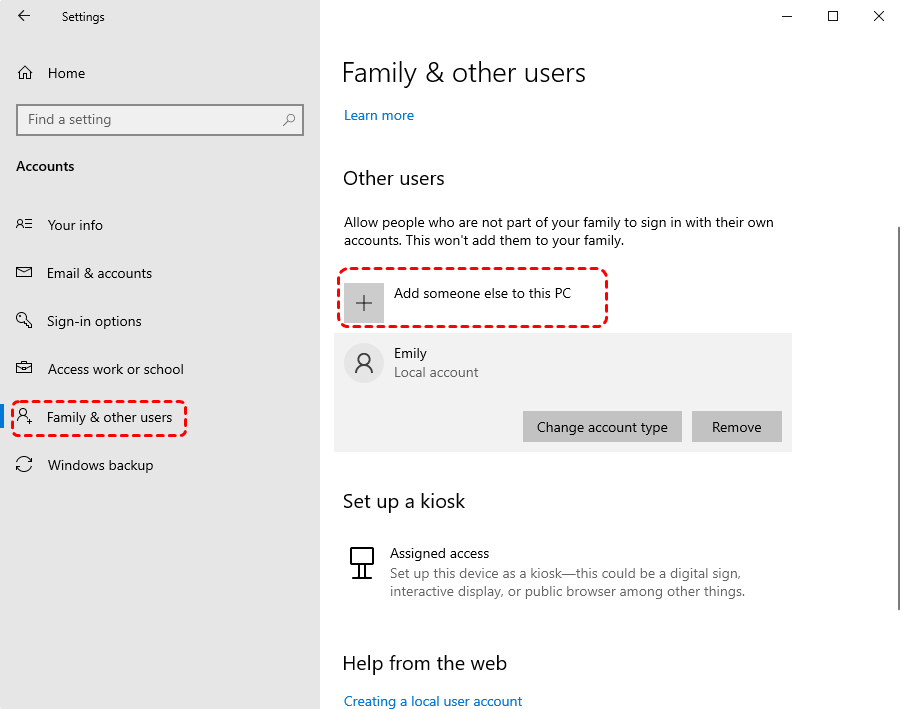
Step 2. Sign in with the new account and move your files from the old profile folder in C:\Users.
How to Recover Missing User Profile After the Login Error
Even after fixing the "We can’t sign into your account" Windows 10 error, you may notice that certain files appear to be missing from the desktop, Documents folder, or other personal directories, especially when you need to move files from the original user profile. In these situations, using a professional recovery tool like MyRecover can help scan the system drive and retrieve lost profile data before it gets overwritten.
As a dedicated Windows data recovery solution, MyRecover is designed to recover deleted or missing files from internal drives, external disks, USB drives, and other 500+ storage devices. It can quickly scan the system for lost data and restore important user files that may have been affected by profile corruption or login errors. Follow these steps to get your files back:

 MyRecover
- Recover deleted & lost files from HDD, SSD, USB, SD card, camera as you need.
- Support 1000+ formats of photos, videos, docs, archives, emails, compressed files, etc.
- Reliable rescue for deletion, formatted disk, emptied Recycle Bin, system crashes and more.
 100% Secure
Step 1. Download and install MyRecover on your computer from the Microsoft Store or the official website.
Step 2. Launch the program and select the drive where your user profile was stored (usually the C: drive), then click "Scan" to start searching for deleted or missing files.

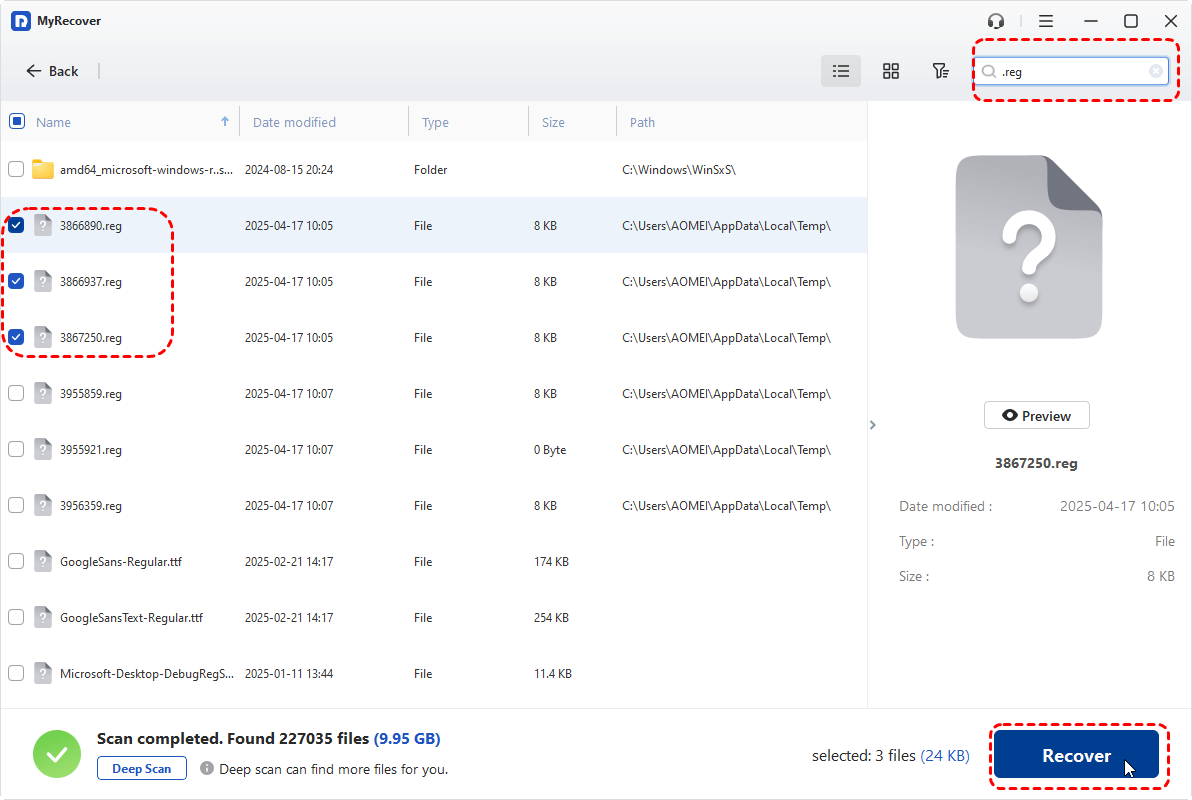
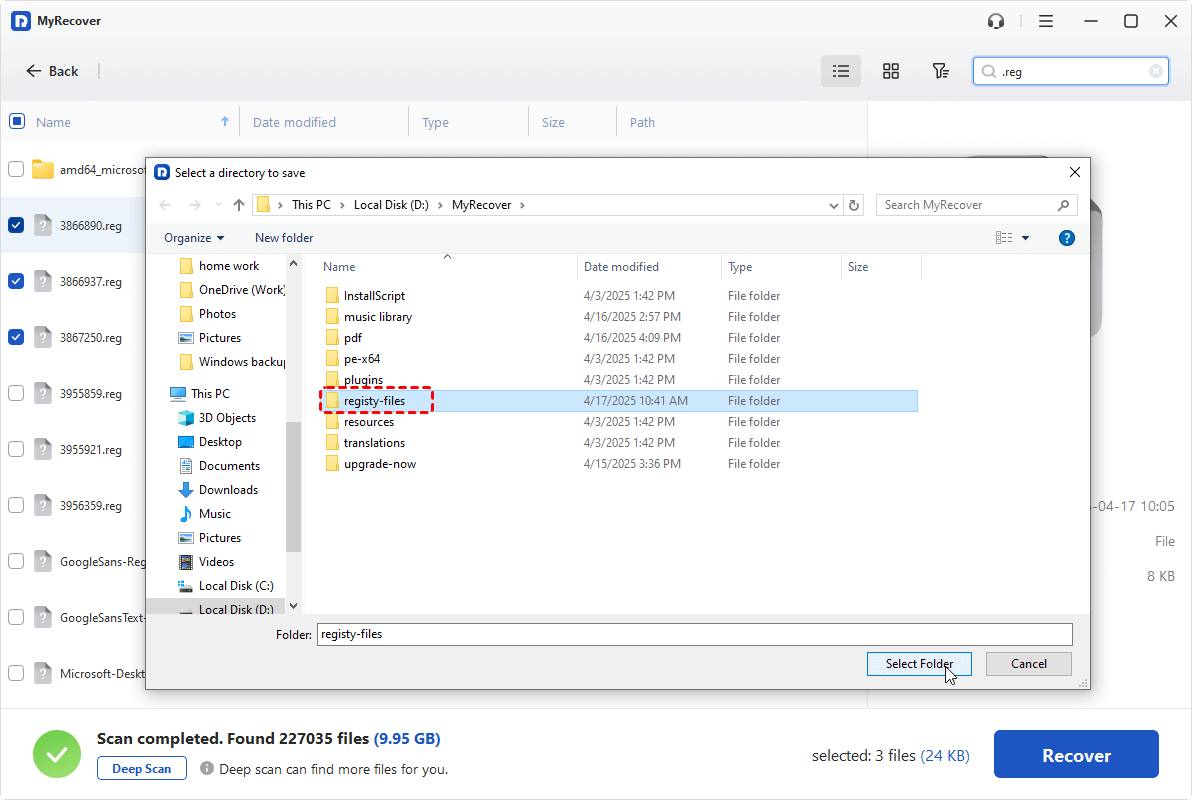
Step 3. After the scanning completed, browse the scan results and locate your missing files by using the "Filter" function, then select the files you want to restore and click "Recover".
When the files you need to restore are larger than 500 MB, consider upgrading to the Professional edition of MyRecover. This version offers unlimited data recovery and file content review, even allows to retrieve files from a computer that fails to boot normally.
Step 4. Save them to a different location to avoid overwriting existing data.
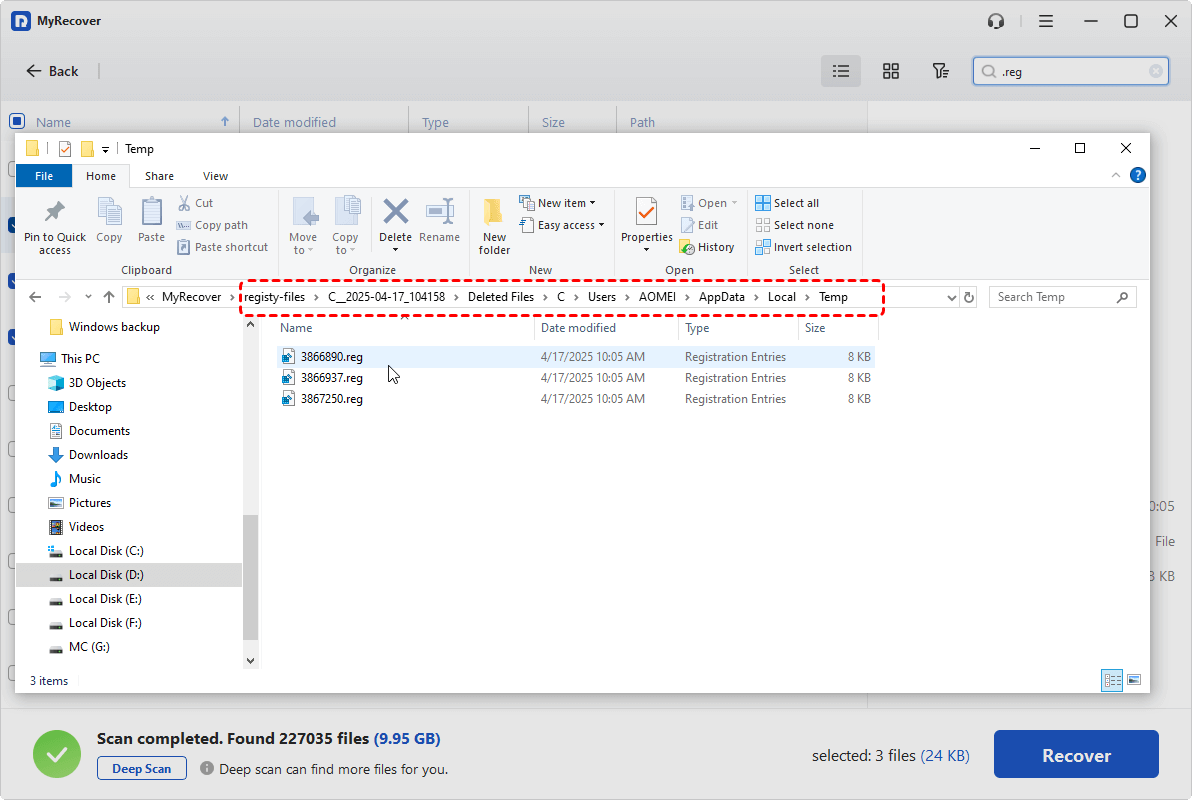
Once the process is done, you can access the recovered files in the destination folder by clicking on the "Browse" button.
The Bottom Line
The "We can’t sign into your account" error in Windows 10 can typically be resolved through a series of structured troubleshooting solutions in this guide. In cases where important files seem to disappear after the error, a professional recovery tool like MyRecover can help scan the system drive and recover lost user data. By following these practical solutions in order, most users can successfully regain access to their original profile and recover any missing files.

Stay Updated With Our
Latest Tips
Add us as a preferred source on Google to never miss helpful guides.
 Add as preferred source >>