 MyRecover



What Files Should I Delete in Disk Cleanup?
Unsure what is safe to delete in disk cleanup on your PC? Learn which Windows cleanup files are harmless, which to avoid, and how smart cleanup choices help free disk space, reduce clutter, and improve system speed with confidence and avoid accidental data loss.

By Vera / Updated on January 29, 2026


Understanding Disk Cleanup in Windows
Disk Cleanup is a built-in Windows utility designed to free up space by removing unnecessary files. These files accumulate quietly in the background—from updates, apps, browsers, and even Windows processes themselves.
Think of it like dust accumulating in your home. A little doesn’t matter, but over time it can cause clutter and slow everything down.
Why Disk Cleanup Matters for Performance
While Disk Cleanup won’t transform your PC into a supercomputer overnight, it does:
- Free valuable disk space.
- Reduce background clutter.
- Help Windows updates run smoothly.
- Prevent low-storage warnings.
On systems with limited storage, especially SSDs under 256GB, these small optimizations can make a noticeable difference.
Why Your Disk Space Keeps Filling Up
Temporary Files Explained
Temporary files are created whenever apps install, update, or run processes. Browsers also cache website data, and Windows generates logs to track system activity.
Many apps forget to remove their temporary files, leading to gigabytes of unnecessary data over time.
System Cache and Log Files
Windows constantly creates:
- Error logs
- Update histories
- System events
These files are helpful short-term, but most of them aren’t needed long-term. Disk Cleanup helps remove them safely.
What Files Should I Delete in Disk Cleanup (Safe List)
If you’re unsure where to start, these categories are safe to delete for most users.
1. Temporary Files
Temporary files include leftover installation files and app cache. Deleting them:
- Frees up gigabytes of space.
- Doesn’t affect Windows functionality.
- Allows Windows to recreate necessary files automatically.
2. Recycle Bin Files
After confirming nothing important is inside, emptying the Recycle Bin is safe.
3. Thumbnails
Windows stores thumbnails to make image folders display faster. Deleting them:
- Is completely safe.
- Doesn’t affect the original images.
- Only slows folder preview until Windows rebuilds thumbnails.
4. Delivery Optimization Files
These are leftover Windows Update files shared between devices. They’re only needed during the update process. Once updates are complete, these files are safe to delete.
5. DirectX Shader Cache
Gamers will recognize this. DirectX shader cache files are temporary graphics files that help games run faster. Deleting them is safe—they will be rebuilt as needed.
Recovering Accidental Deletes with MyRecover
Even when you follow the safe list, mistakes happen. MyRecover ensures you can quickly restore deleted files—perfect if you accidentally remove something important during Disk Cleanup.
 100% Secure
Here’s how to do it in a few simple steps:
Step 1: Install MyRecover
Download MyRecover from the official website. Install it following the on-screen instructions
Step 2: Scan the Drive
Open MyRecover. Select the drive where the files were deleted (usually C:). Click Scan.

Step 3: Preview and Recover
Browse the scan results and preview files. Select the files you want to restore. Click Recover and save them to a different drive.

Using MyRecover gives you peace of mind when performing Disk Cleanup. You can remove unnecessary files without fearing permanent loss.
Files You Should Be Careful Deleting
Some files need caution. Deleting them can affect system recovery or updates.
1. Windows Update Cleanup
This removes old update files no longer needed.
Delete if:
- Your system is running smoothly.
- You don’t plan to uninstall recent updates.
Keep if:
- You might roll back updates.
- You’re troubleshooting system errors.
2. Previous Windows Installations (Windows.old)
This folder appears after a major Windows upgrade.
Delete only if:
- Your PC is stable.
- You don’t need to revert to an older version of Windows.
Once deleted, the ability to roll back is gone. Be careful!
What Not to Delete in Disk Cleanup
Some files may look safe but are critical for your system.
1. Downloads Folder
This may contain documents, installers, or work files. Always check manually before deleting.
2. System Restore Points
These are emergency backups of your system. Deleting them removes the ability to restore Windows to a previous state. Only remove if you have other backups or are desperate for space.
If you accidentally delete something important, MyRecover can restore it easily.
How to Use Disk Cleanup Safely (Step-by-Step)
Follow these steps to ensure you don’t delete anything crucial.
👉 Standard Disk Cleanup Steps
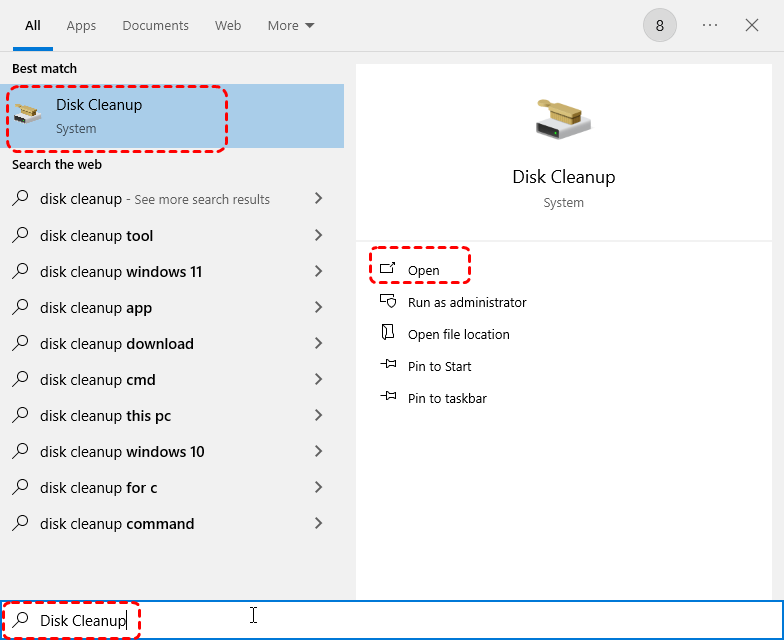
1. Press Windows + S. Type Disk Cleanup. Open the app.
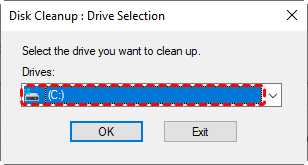
2. Select your main drive (usually C:). Click OK.
3. Wait for the initial scan.
👉 System-Level Cleanup Steps (Recommended)
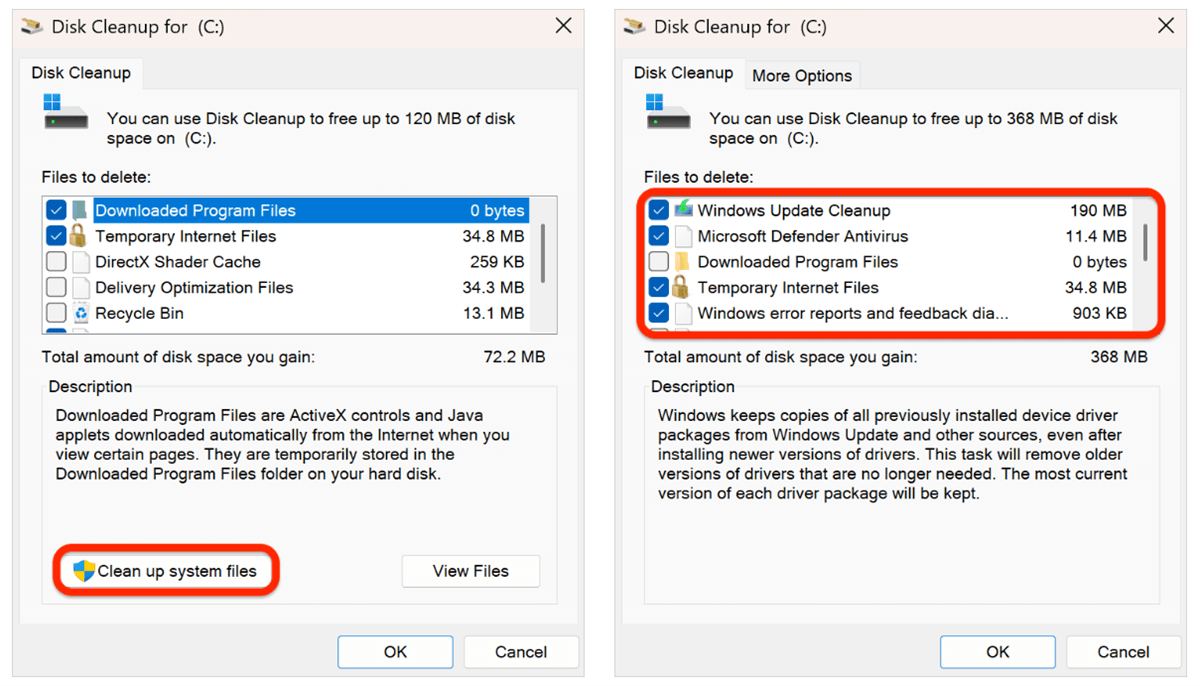
For deeper cleaning, click "Clean up system files"—this reveals additional options.
1. Click Clean up system files. Re-select your drive. Wait for the deeper scan.
2. Review each category carefully. Check only files you understand. Click OK.
3. Confirm deletion.
Reading carefully is key. Don’t rush.
Disk Cleanup vs Storage Sense
- Disk Cleanup: Manual, full control
- Storage Sense: Automatic maintenance
Use both for best results—Storage Sense handles background cleaning, and Disk Cleanup handles deep cleaning.
Final Thoughts
So, what files should I delete in Disk Cleanup?
Safe to delete:
- Temporary files
- Caches
- Old update leftovers
Avoid deleting:
- Downloads
- Restore points
- Unknown or critical system files
With MyRecover as a safety net, even accidental deletions aren’t permanent. Disk Cleanup is your friend when used carefully.
FAQs
1. How to Avoid Common Disk Cleanup Mistakes
- Selecting all boxes without reading.
- Deleting Windows.old too soon.
- Assuming Disk Cleanup deletes personal files.
- Running cleanup during updates.
Patience prevents mistakes.
2. Does Disk Cleanup Really Improve Performance?
Yes—but indirectly. Free space allows Windows to:
- Operate smoothly.
- Handle updates better.
- Avoid slowdowns caused by clutter.
It’s not a magic fix, but it’s maintenance that pays off.
3. How Often Should You Run Disk Cleanup?
- Light users: monthly.
- Heavy users: every 2–3 weeks.
- After major Windows updates: immediately.

Stay Updated With Our
Latest Tips
Add us as a preferred source on Google to never miss helpful guides.
 Add as preferred source >>